

Windows Security is the built-in Windows 11 app that brings several protection areas into one place. It can show antivirus, account, firewall, app and browser, device, health, family, and protection-history information. Opening the app is safe as a standard user, but many controls inside it can scan files or change protection, so this guide stops at navigation and inspection.
The simplest route is to open Start, search for Windows Security, and select the app. A second route is Settings > Privacy & security > Windows Security. I reproduced both routes without running a scan, dismissing a recommendation, opening a provider, changing antivirus or firewall protection, or accepting an elevation prompt.
Before you open Windows Security
Do not assume every warning, check mark, or provider name on another computer should match yours. Security status is device-specific. A third-party antivirus product can also change which provider is active. This tutorial shows where the app is and how its main navigation is organized; it does not diagnose a particular warning.
The anonymous evidence frame below records the two opening routes and the safety boundary used during reproduction.
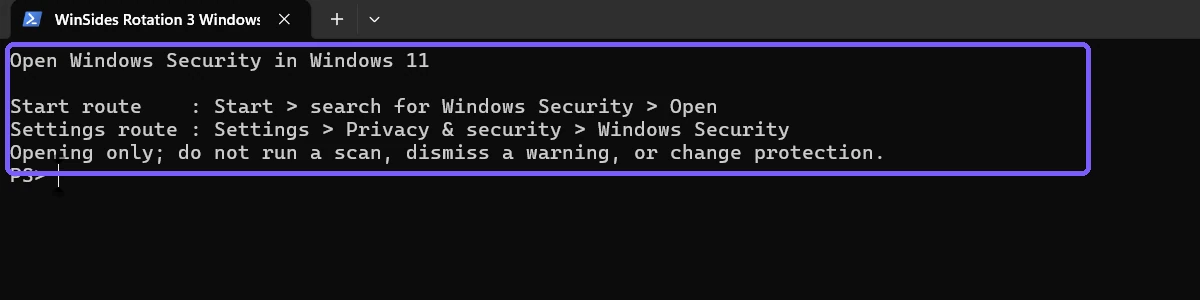
Table of contents
How do you open Windows Security from Start?
Select Start or press the Windows key.
Type Windows Security.
Select the Windows Security app result.
Wait for the Security at a glance home page to appear.
Microsoft's Windows Security guidance documents searching for the app in the Start menu. Opening the app does not itself run a manual scan or change a protection control.
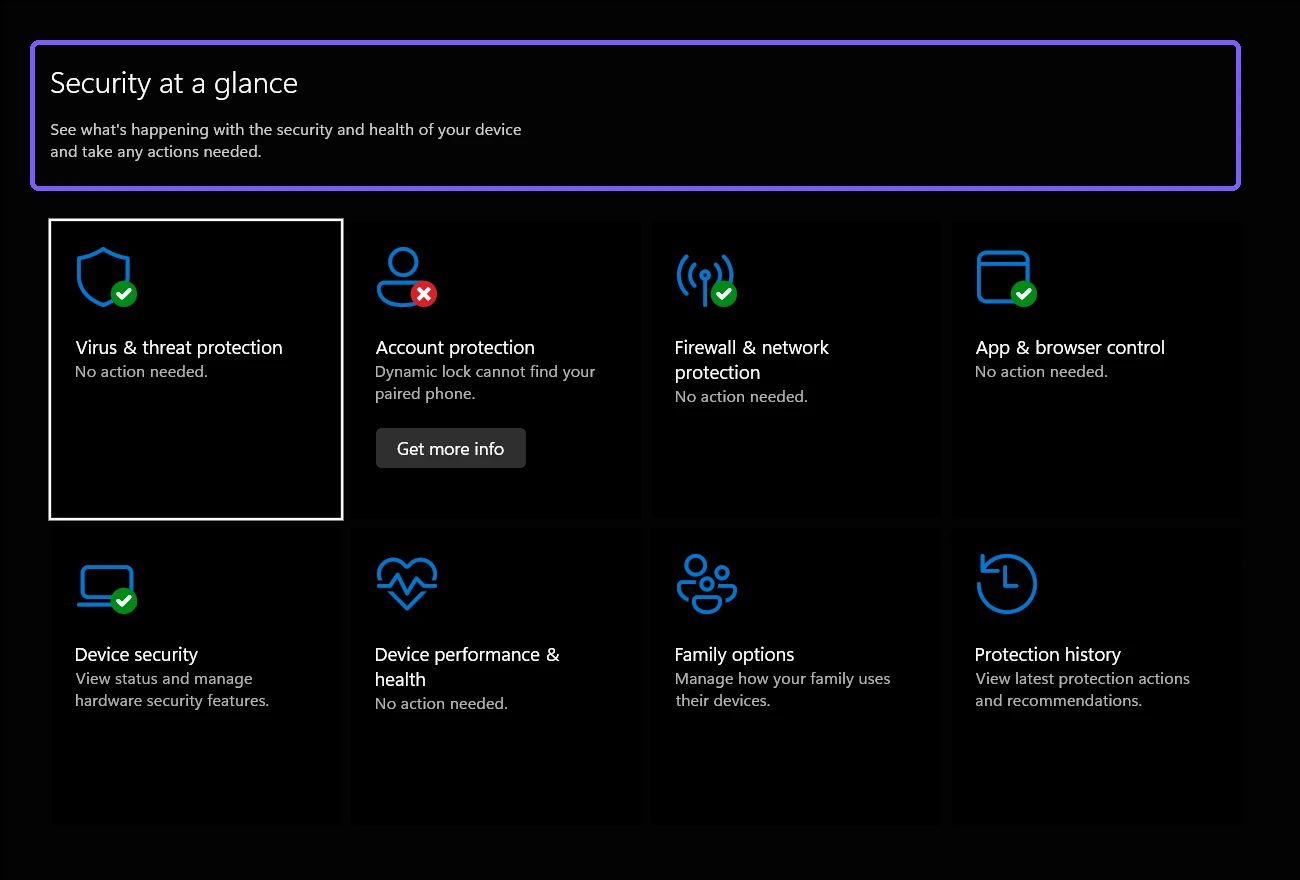
The reproduced device showed the standard protection-area navigation. One account-protection card had a device-specific recommendation. No recommendation button was selected, and the article does not imply that another computer should show the same status.
How do you open Windows Security from Settings?
Press Windows + I to open Settings.
Select Privacy & security.
Select Windows Security.
Select Open Windows Security to hand off to the same app.
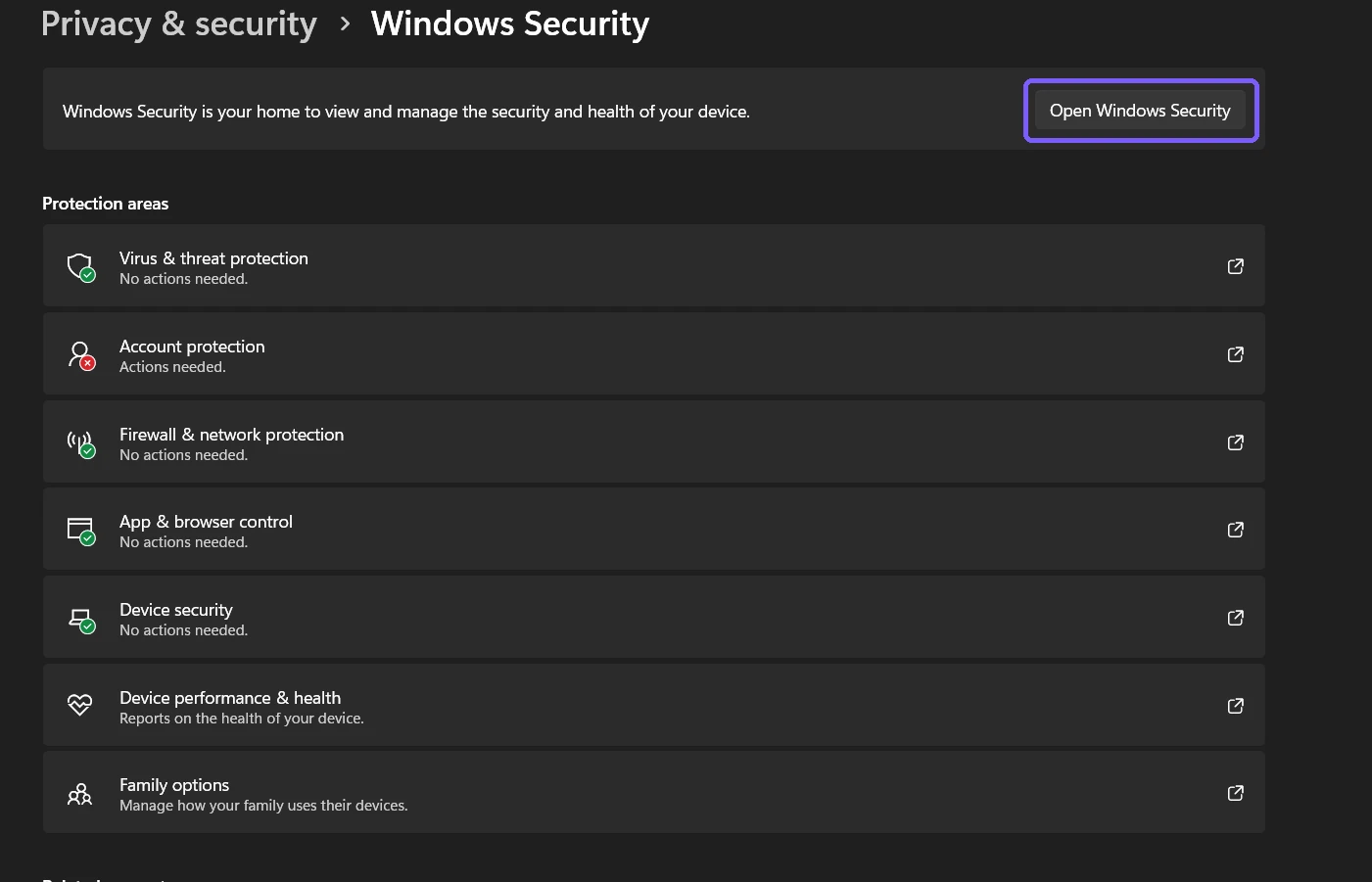
The Settings page can summarize protection areas before the app opens. The cards and status text still reflect the current device, its providers, policies, and configuration. Select only Open Windows Security when the goal is to reach the app; do not choose a protection-area link just to test the route.
What does the Windows Security home page show?
Microsoft's Windows Security app overview describes the home page as a central hub and lists its main protection areas. The exact cards can vary by Windows edition, hardware capability, installed security software, organization policy, and feature availability.
Virus & threat protection
This area shows antivirus status and scanning controls. Opening its page is not the same as starting a scan. A manual quick, full, custom, or offline scan is a separate action with its own duration and possible remediation results.
Account protection
This area can lead to sign-in, Windows Hello, and Dynamic Lock information. If that feature is your actual goal, follow the separate guide to enable Dynamic Lock in Windows 11 instead of changing an account card during an opening test.
Firewall & network protection
This area reports firewall status and provides controls for network profiles and advanced rules. Turning a firewall off can materially reduce protection. Do not toggle it merely because a screenshot uses a different status.
App & browser control
This area contains reputation-based and exploit-protection features. Available controls depend on the Windows build and security configuration. Changing SmartScreen or exploit settings is outside this opening guide.
Device security
This area can show hardware-backed protections such as Security processor, Core isolation, or Secure boot. Hardware support affects what appears. Use a focused guide before changing Kernel-mode Hardware-enforced Stack Protection or another Device security control.
Device performance, family, and history
These pages can show health information, family-related links, and previous protection actions. They can contain device-specific history or account context, so inspect them only when that information is relevant and avoid publishing screenshots that expose personal details.
Is Windows Security the same as Microsoft Defender?
Not exactly. Windows Security is the Windows app that presents multiple security areas. Microsoft Defender Antivirus is one antivirus component that can appear inside it. Microsoft also uses the Defender name for other consumer and enterprise products. A third-party antivirus can become the active provider while Windows Security remains the interface used to view status.
That distinction prevents a common mistake: seeing the Windows Security app does not prove that Microsoft Defender Antivirus is the active antivirus provider. Check the provider information deliberately when that is the question, and do not infer it from the app icon alone.
Do you need administrator rights to open Windows Security?
No. The app and its Settings handoff opened under a standard user account in the reproduced session. Some actions inside Windows Security can require administrator approval or be locked by organization policy. Opening a page and changing its controls are different operations.
If a work or school PC hides a page, disables a control, or reports that a setting is managed, contact the administrator. Do not edit policy, disable security software, or use an unknown utility to bypass the restriction.
Why will Windows Security not open?
Confirm the app result
Search for the exact name Windows Security. Microsoft Defender, Microsoft 365 Defender, browser search results, and third-party security products are not the same Start result.
Try the Settings handoff
Open Settings > Privacy & security > Windows Security. If that page loads, use its Open Windows Security button. This confirms that you are using the built-in route rather than an unrelated shortcut.
Restart only the app before changing security
Close Windows Security and open it again. Avoid resetting the app, uninstalling a provider, turning off antivirus, or altering services as a first troubleshooting step. Those actions can change protection and require a separate diagnosis.
Check management and updates
A managed configuration can restrict pages, while a pending Windows update can affect app components. Record any exact error message and ask the device owner or administrator for help rather than applying a generic Registry fix.
How was the read-only result verified?
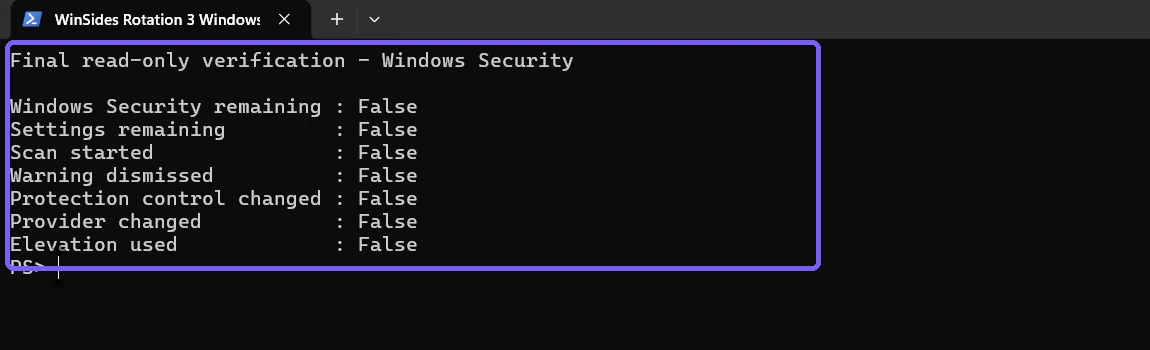
After the home page and Settings handoff were inspected, both disposable windows were closed. A fresh anonymous frame confirmed that Windows Security and Settings were absent, no scan had started, no warning had been dismissed, no protection control or provider had changed, and no elevation had been used.
Frequently Asked Questions
Where is Windows Security in Windows 11?
Search for Windows Security in Start, or open Settings > Privacy & security > Windows Security.
Does opening Windows Security run a scan?
No. A scan starts only when you deliberately select a scanning action.
Is Windows Security the same as Microsoft Defender Antivirus?
No. Windows Security is the app interface; Microsoft Defender Antivirus is one possible antivirus provider inside it.
Why does my Windows Security status look different?
Status varies with hardware, Windows features, installed security providers, policy, and the device's current protection state.
Conclusion
Search for Windows Security in Start for the fastest opening route, or use Settings > Privacy & security > Windows Security for a visual handoff. Treat every status as device-specific, stop before scanning or changing protection when your goal is only to open the app, and close both windows when inspection is complete.
For more interesting articles, stay tuned to WinSides.com!

Community
Comments (0)