Skip to content
Winsides.com

Windows Insides

Winsides.com

Windows Insides

  • Windows 11
  • Windows Features
  • Windows Security
  • Microsoft
    • Microsoft Copilot
    • Microsoft Powertoys
  • Shortcuts
    • Windows Shortcuts
    • Desktop Shortcuts
  • Video Tutorials
  • About
    • What’s New?!
    • About us
    • Contact us
    • Privacy Policy
    • Terms of Use
  • Follow us
    • Reddit
    • Dev.to
    • YouTube
    • Linked In
    • X
    • Tumblr
    • Facebook
    • Instagram
    • Buy Me A Coffee
  • Windows 11
  • Windows Features
  • Windows Security
  • Microsoft
    • Microsoft Copilot
    • Microsoft Powertoys
  • Shortcuts
    • Windows Shortcuts
    • Desktop Shortcuts
  • Video Tutorials
  • About
    • What’s New?!
    • About us
    • Contact us
    • Privacy Policy
    • Terms of Use
  • Follow us
    • Reddit
    • Dev.to
    • YouTube
    • Linked In
    • X
    • Tumblr
    • Facebook
    • Instagram
    • Buy Me A Coffee
Close

Search

Winsides.com

Windows Insides

Winsides.com

Windows Insides

  • Windows 11
  • Windows Features
  • Windows Security
  • Microsoft
    • Microsoft Copilot
    • Microsoft Powertoys
  • Shortcuts
    • Windows Shortcuts
    • Desktop Shortcuts
  • Video Tutorials
  • About
    • What’s New?!
    • About us
    • Contact us
    • Privacy Policy
    • Terms of Use
  • Follow us
    • Reddit
    • Dev.to
    • YouTube
    • Linked In
    • X
    • Tumblr
    • Facebook
    • Instagram
    • Buy Me A Coffee
  • Windows 11
  • Windows Features
  • Windows Security
  • Microsoft
    • Microsoft Copilot
    • Microsoft Powertoys
  • Shortcuts
    • Windows Shortcuts
    • Desktop Shortcuts
  • Video Tutorials
  • About
    • What’s New?!
    • About us
    • Contact us
    • Privacy Policy
    • Terms of Use
  • Follow us
    • Reddit
    • Dev.to
    • YouTube
    • Linked In
    • X
    • Tumblr
    • Facebook
    • Instagram
    • Buy Me A Coffee
Close

Search

Home/Windows Security/Malicious Software Removal Tool (MRT) in Windows 11?

Malicious Software Removal Tool (MRT) in Windows 11?

Vigneshwaran Vijayakumar
By Vigneshwaran Vijayakumar
June 30, 2024 3 Min Read
0

MSRT Windows 11: The Microsoft Malicious Software Removal Tool (MSRT) is a free security utility provided by Microsoft to help users detect and remove specific prevalent malicious software from their Windows systems. It is updated regularly and released as part of Windows Update on the second Tuesday of each month, commonly known as “Patch Tuesday.” The MSRT is designed to complement your existing antivirus software by targeting specific widespread malicious software that may affect Windows operating systems, including Windows 11. It helps maintain a secure and stable system environment by providing additional protection. This article will navigate how to use the Malicious Software Removal Tool Windows 11.

How to use this tool in Windows 11?

MSRT is not a replacement for a full antivirus program. It only targets specific, prevalent malware and does not provide comprehensive protection. It is included in the automatic updates provided by Windows Update. It runs in the background and does not require user intervention. However, users can also use it manually using the following steps.

  • Open Run Command using Win Key + R. Run the following command. mrt
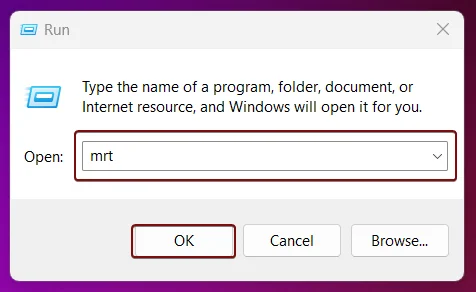
Run MRT in Run Command
  • Malicious Software Removal Tool will open now.
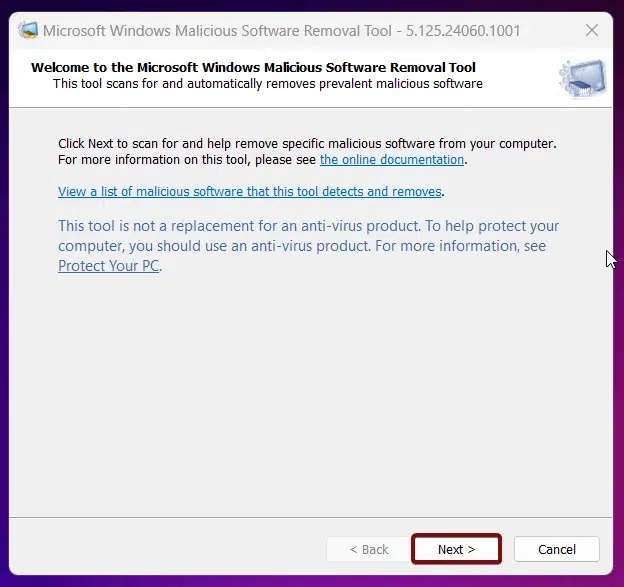
Welcome to MRT Tool
Welcome to MRT Tool
  • Click Next to continue with the process.
  • There will be three options, Quick Scan, Full Scan, and Custom Scan. Choose your option accordingly. For explanation, I am proceeding with Quick Scan.
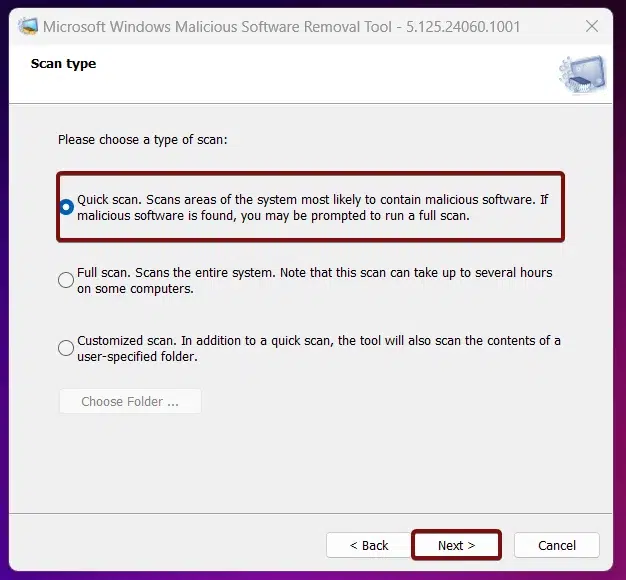
Quick Scan with MRT
Quick Scan with MRT
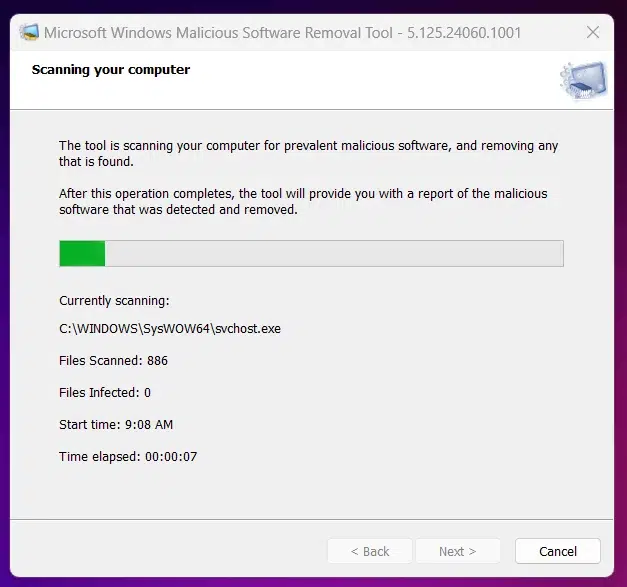
  • The Tool will start the scan.
MRT Scanning the Computer
  • The scanning process will take some time. Once it is completed, the scan will provide the results.
  • Click View Detailed Results of the Scan to check the results.
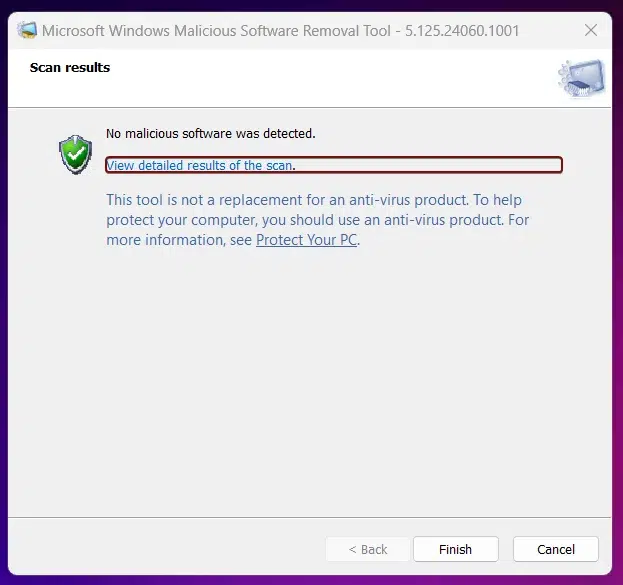
View Detailed Results of the Scan
  • Detailed results will be displayed. If everything is clean, then you will find “Not Infected”. Click OK to close the window.
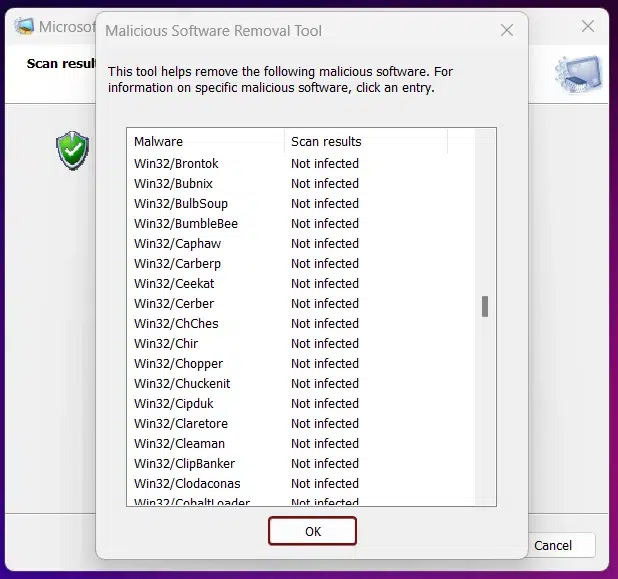
Detailed Results
Detailed Results
  • Finally, click Finish to close the Malicious Software Removal Tool in Windows 11. That is it!
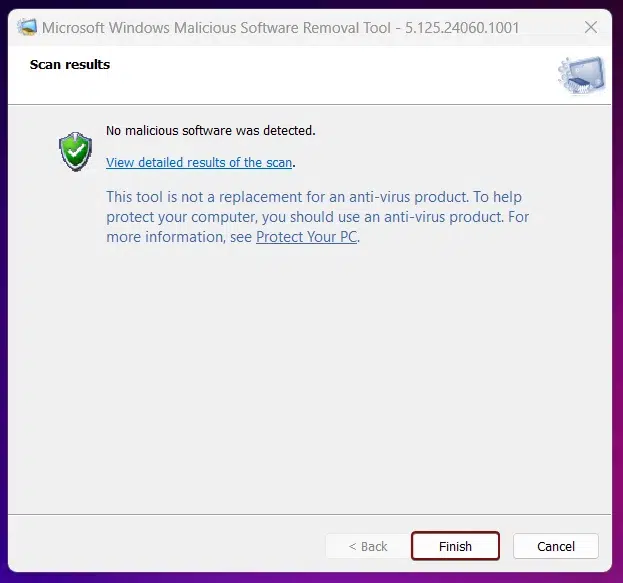
Finish
Finish

Microsoft quotes “This tool is not a replacement for an anti-virus product. To help protect your computer, you should use an anti-virus product”.

Take away:

The Microsoft Malicious Software Removal Tool in Windows 11 is a valuable utility for adding an extra layer of security to your Windows 11. By running regular scans and keeping your system updated, you can help protect your computer from specific prevalent malicious software. Safe Computing! Peace out!

Tags:

MRT ToolMSRT Toolwindows 11Windows Security
Vigneshwaran Vijayakumar
Author

Vigneshwaran Vijayakumar

Hello, I'm Vigneshwaran, the founder, owner, and author of WinSides.Com. With nearly a decade of experience in blogging across various domains and specializing in Windows-related tutorials for over five years, I bring a wealth of knowledge and expertise to WinSides.Com

Follow Me
Other Articles
Enable Auto Shutdown in Windows 11
Previous

How to Auto Shutdown in Windows 11?

WebDAV Publishing Windows 11
Next

Enable WebDAV Publishing IIS in Windows 11

No Comment! Be the first one.

Leave a Reply Cancel reply

Your email address will not be published. Required fields are marked *

  • How to check System Information in Windows 11?
  • How to Install and Run X Server in Windows 11?
  • How to Enable Client for NFS in Windows 11?
  • 5+ Easy Methods to Find/Search Video Files Only in Windows 11!
  • How to Enable TFTP Client in Windows 11?
  1. Vigneshwaran Vijayakumar
    Vigneshwaran Vijayakumar on How to Enable Windows PowerShell 2.0 in Windows 11?October 5, 2025

    Hello Mr. Mohamad El-Kheir, Thank you for contacting us. Microsoft has removed PowerShell version 2.0 completely from Windows 11 24H2…

  2. Avatar of Mohamad El-Kheir
    Mohamad El-Kheir on How to Enable Windows PowerShell 2.0 in Windows 11?October 5, 2025

    i have a MSI laptop with windows 11 Home Installed on it. how to install powershell v2.0 on it

  3. Vigneshwaran Vijayakumar
    Vigneshwaran Vijayakumar on DxDiag Windows 11 – What is it & How to use it for Troubleshooting?August 14, 2025

    Hey Myla Shannon Thank you for your valuable feedback. We are delighted to hear your compliment and excited to know…

  4. Avatar of Myla Shannon
    Myla Shannon on DxDiag Windows 11 – What is it & How to use it for Troubleshooting?August 14, 2025

    This content is incredibly informative.

  5. Avatar of seven
    seven on How to Enable IIS [Internet Information Services] in Windows 11?July 29, 2025

    I found this post very helpful.

  • About us
  • What’s New?!
  • Guest Posts on Winsides.com – Terms and Conditions
  • Publication Sitemap
  • Careers
  • Authors
  • Why Trust Winsides.com?
  • Content Removal Request
  • Terms of Use
  • Disclaimer
  • Contact us
Copyright 2024-2026 - Winsides.com. All rights reserved.