

Windows Defender Scan via Command Prompt: It is an Integrated Advanced Security Feature from Microsoft that protects Windows 11 from various potential threats. There are different ways to access Windows Defender on Windows 11, such as via the Control Panel, via the Windows Settings, etc. However, it is possible to run Windows Defender Scan via Command Line using Command Prompt. In this article, we will check out how to use Command Prompt and Windows PowerShell and run various Windows Defender Scans on Windows 11.
Run Full Scan, Quick Scan, & Custom Windows Defender Scan via Command Prompt
Just like we run Full Scans, Quick Scans, and Custom Scans in the Windows Defender GUI Interface, we can also do the same via the Command Prompt. The following are the steps.
Run Windows Defender Full Scan using Command Prompt
- Go to the Start menu and open Command Prompt. You can also use the Run Command (WinKey + R) to open Command Prompt(
cmd).
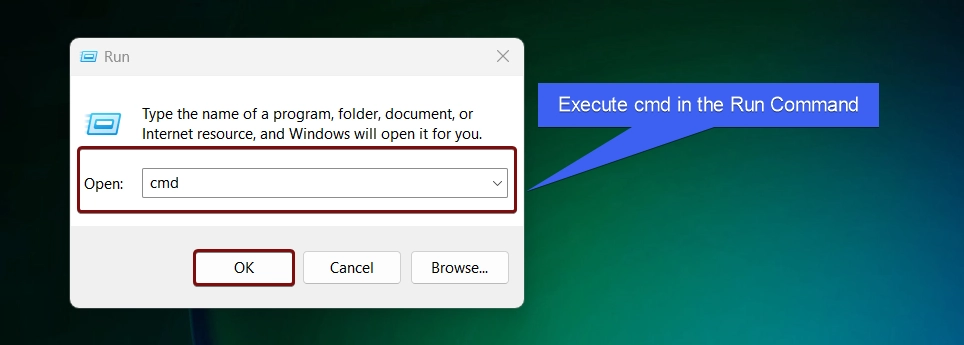
- In the Command Prompt, let’s navigate to the Windows Defender Directory using the following command.
cd "%ProgramFiles%\Windows Defender"
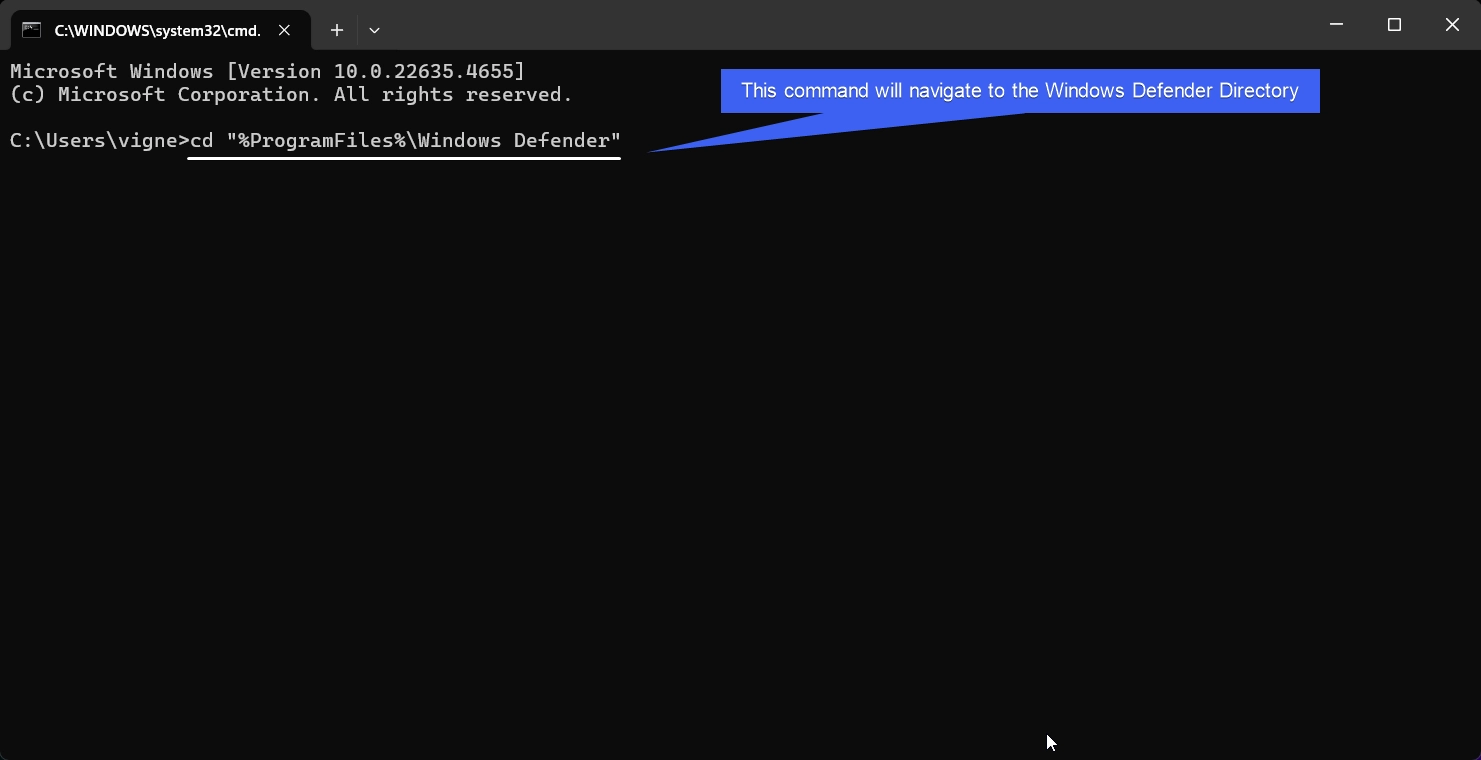
- This command will navigate to the Windows Defender Directory. Now, let’s perform the Scan using the following command. This will scan all files and drives on the system for potential threats.
MpCmdRun.exe -Scan -ScanType 2
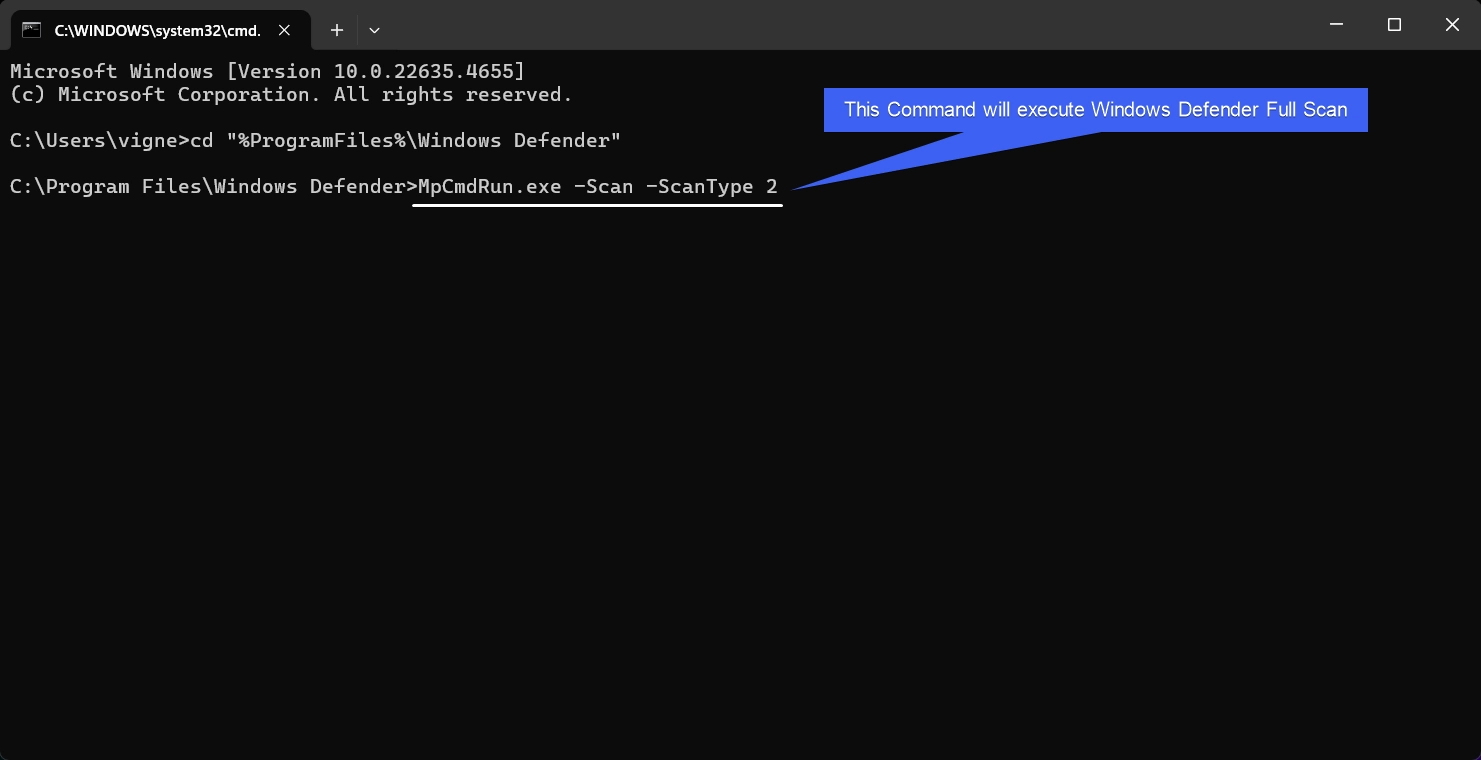
- Once we execute the above command, the system will start its scan.
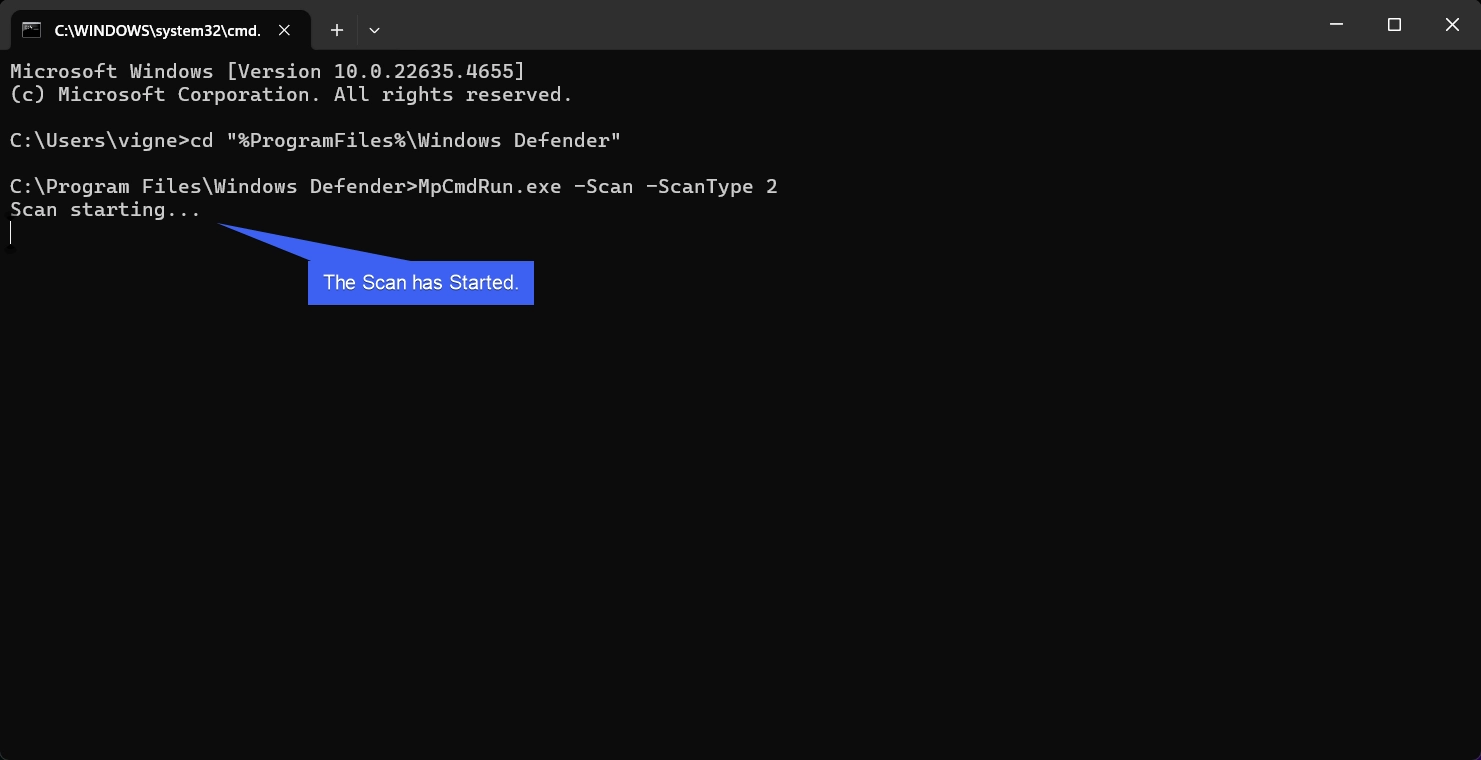
- Since, it is a Full Scan, the process will take a long time. As we are using MpCMDRun, we may not get a real-time update.
- Once the Full Scan is completed, Windows Defender will show the status of the scan via a Notification.
Run Windows Defender Quick Scan using the Command Prompt
In this section, we will check out how to run Windows Defender Quick Scan using the Command Line.
- Go to the Command Prompt.
- In the Command Prompt, let’s navigate to the Windows Defender Directory using the following command.
cd "%ProgramFiles%\Windows Defender"
- Now, Enter the Quick Scan CMD Command. This will scan critical system files, memory, and locations where threats are most likely to reside. The command is as follows.
MpCmdRun.exe -Scan -ScanType 1
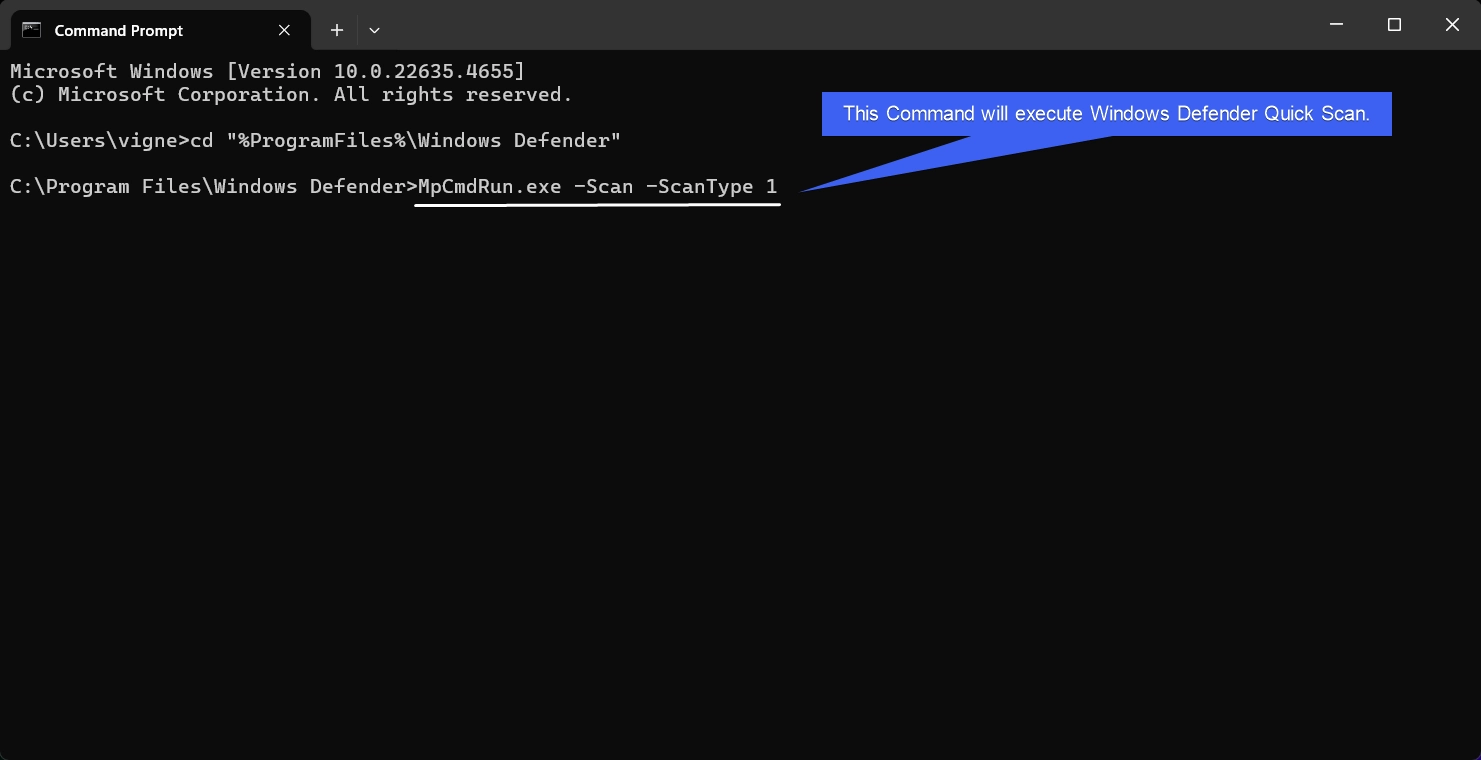
- The command will run Windows Defender Quick Scan. We won’t get a real-time update. At the end of the scan, the system will update the status to Scan Finished.
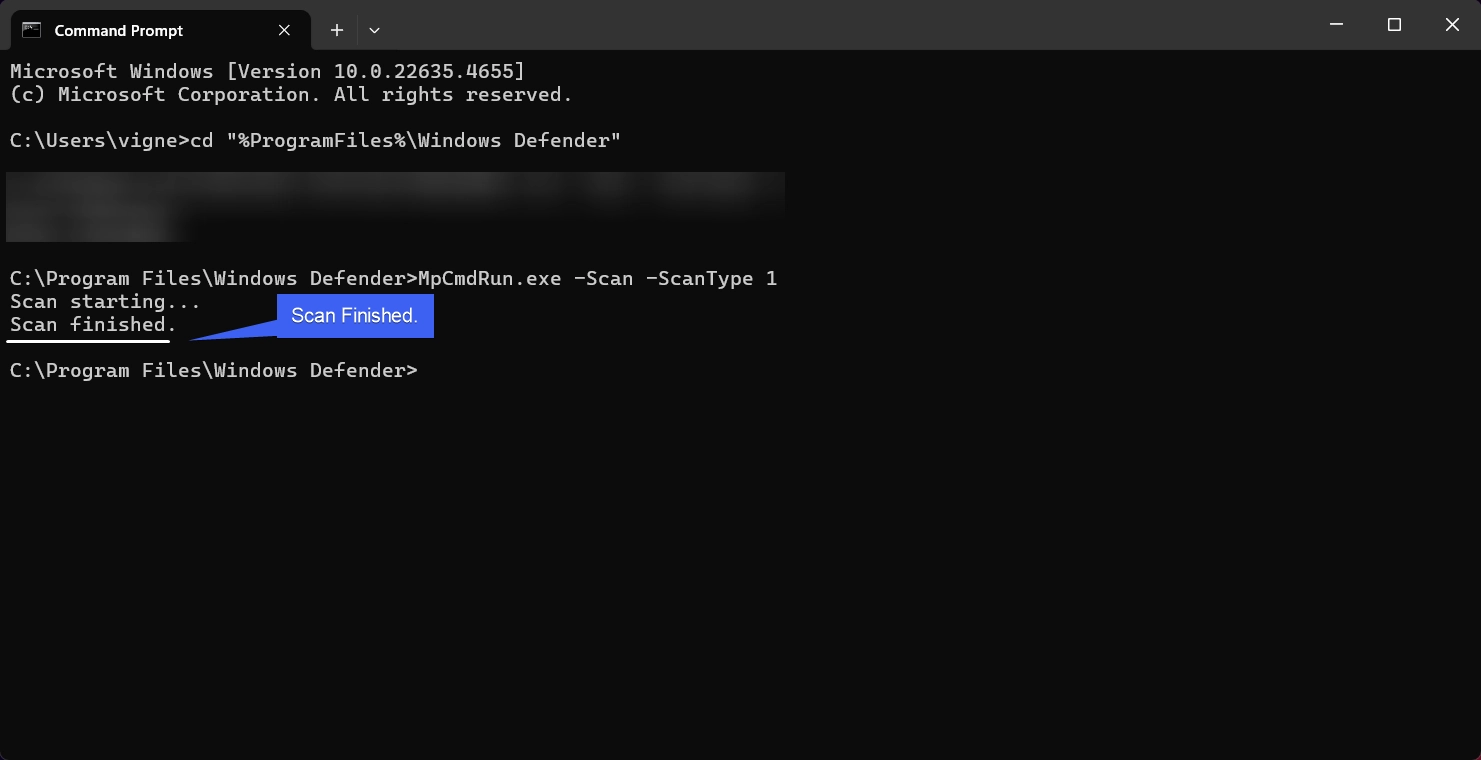
- Additionally, Windows Defender will notify us.
Note: If you want to log the scan results, then you can add -Log Flag to the above Commands. For Example, for running Quick Scan with Log File, execute the following command.
MpCmdRun.exe -Scan -ScanType 1 -Log ScanLog.txt
Run Windows Defender Custom Scan using the Command Prompt
- In the first step, let’s navigate to the Windows Defender Directory.
cd "%ProgramFiles%\Windows Defender"
- To run a Custom Scan, the following is the syntax.
MpCmdRun.exe -Scan -ScanType 3 -File (path). Here, replace the path with the Directory. For example, if we want to scan the Pictures Folder, then the command isMpCmdRun.exe -Scan -ScanType 3 -File C:\Users\vigne\Pictures
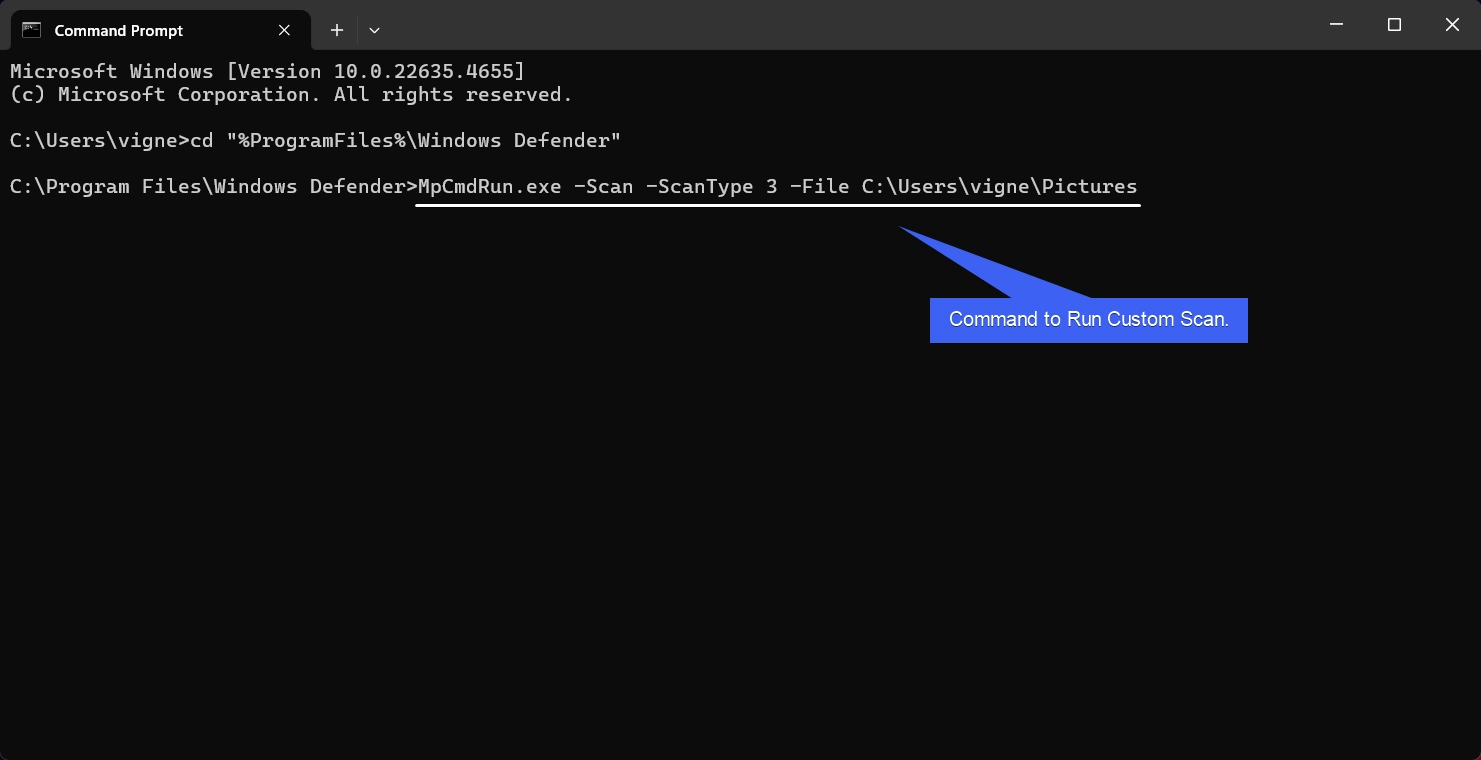
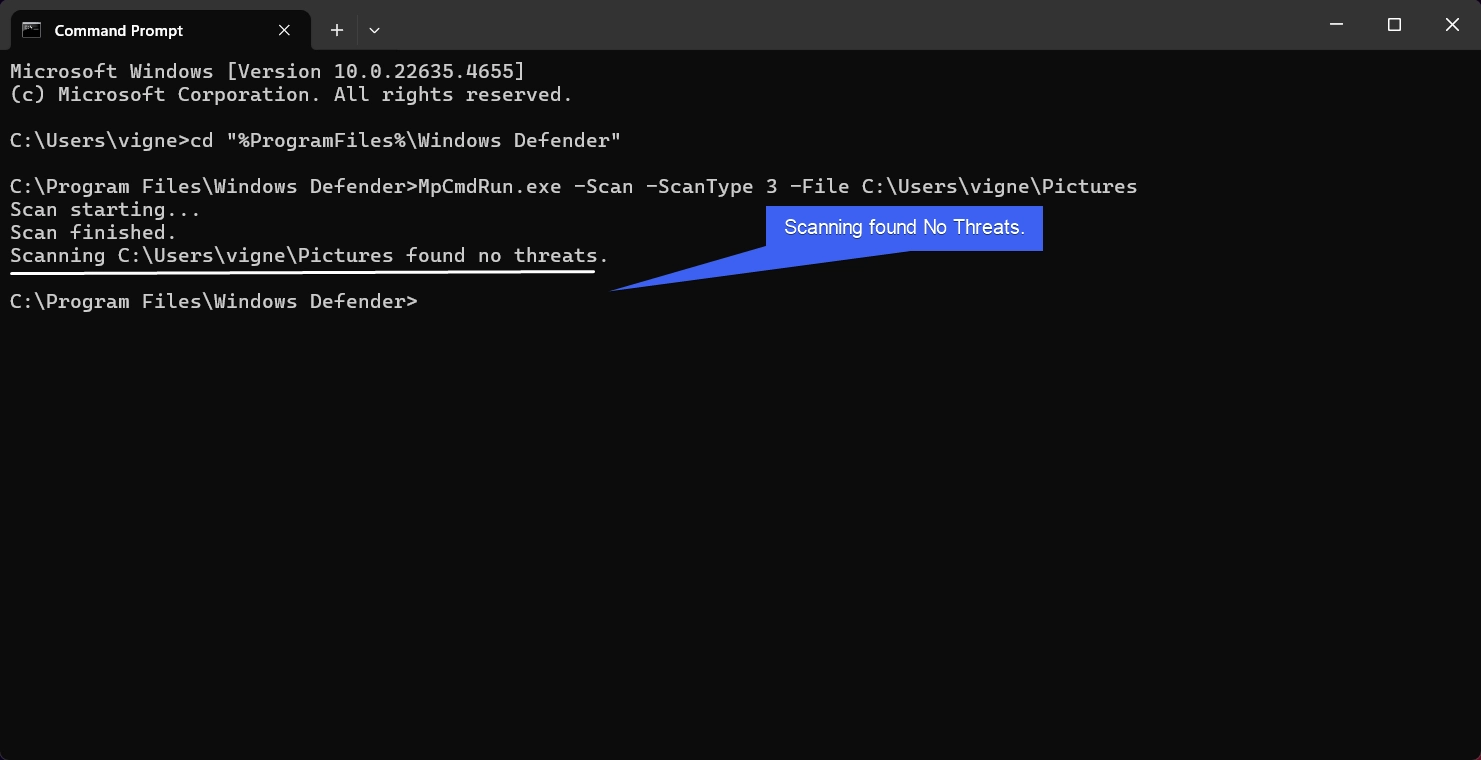
- The system will scan the selected folder and will provide the status of the scan. Depending on the number of files, the Scan may take a longer time to complete.
Run an Offline Scan using the Command Prompt on Windows 11
An Offline Scan in Windows Defender refers to a specialized type of scan that runs outside the regular Windows environment. It is designed to detect and remove deeply embedded or advanced threats, such as rootkits or boot sector viruses, which might evade detection during regular scans because they load into memory along with the operating system. The following are the steps.
- Open Command Prompt and navigate to the Windows Defender Directory using the following command.
cd "%ProgramFiles%\Windows Defender" - Now, execute the Custom Scan Command.
MpCmdRun.exe -Scan -ScanType 4
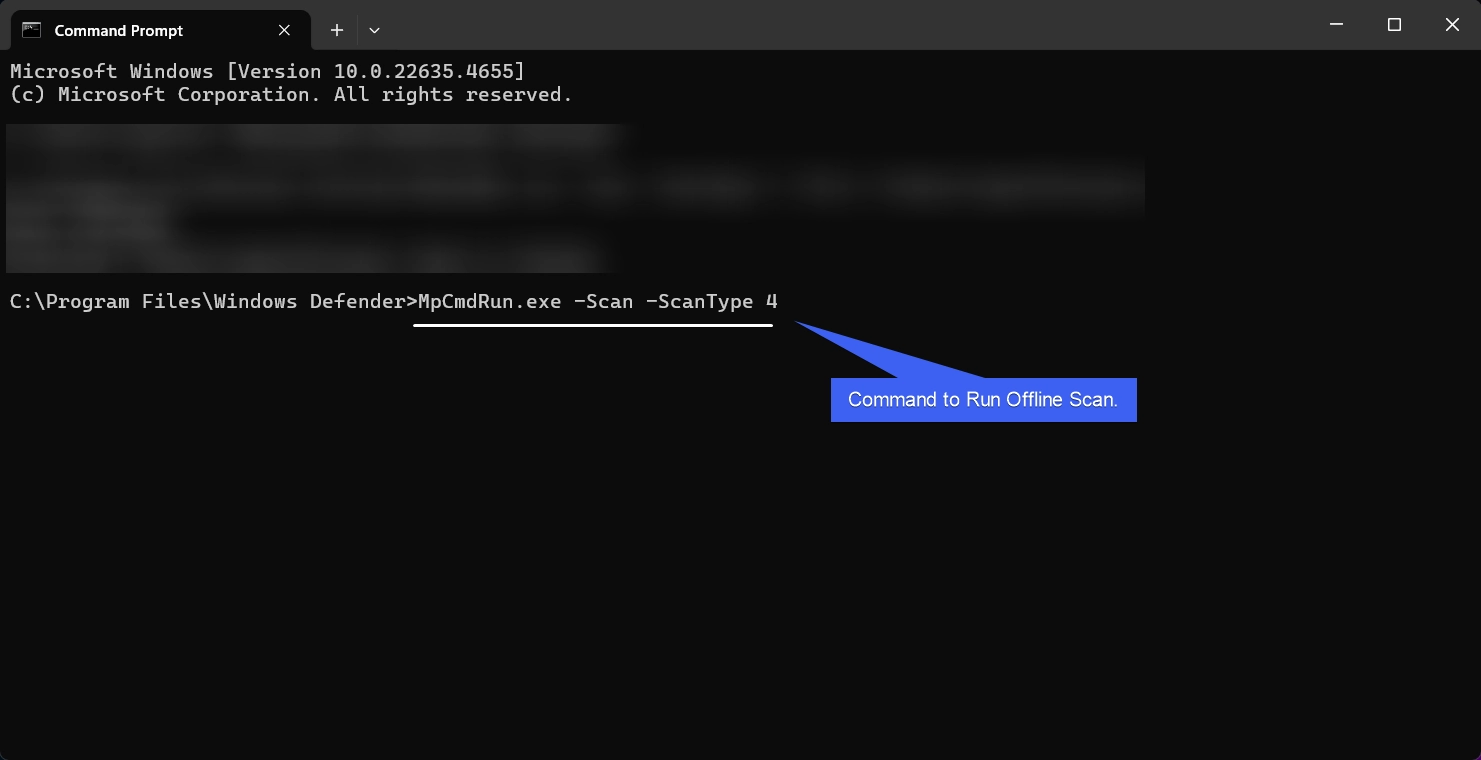
IMPORTANT: When you initiate an offline scan, the computer reboots into a secure, minimal environment created by Windows Defender.
Run Windows Defender Scheduled Scan using the Command Prompt
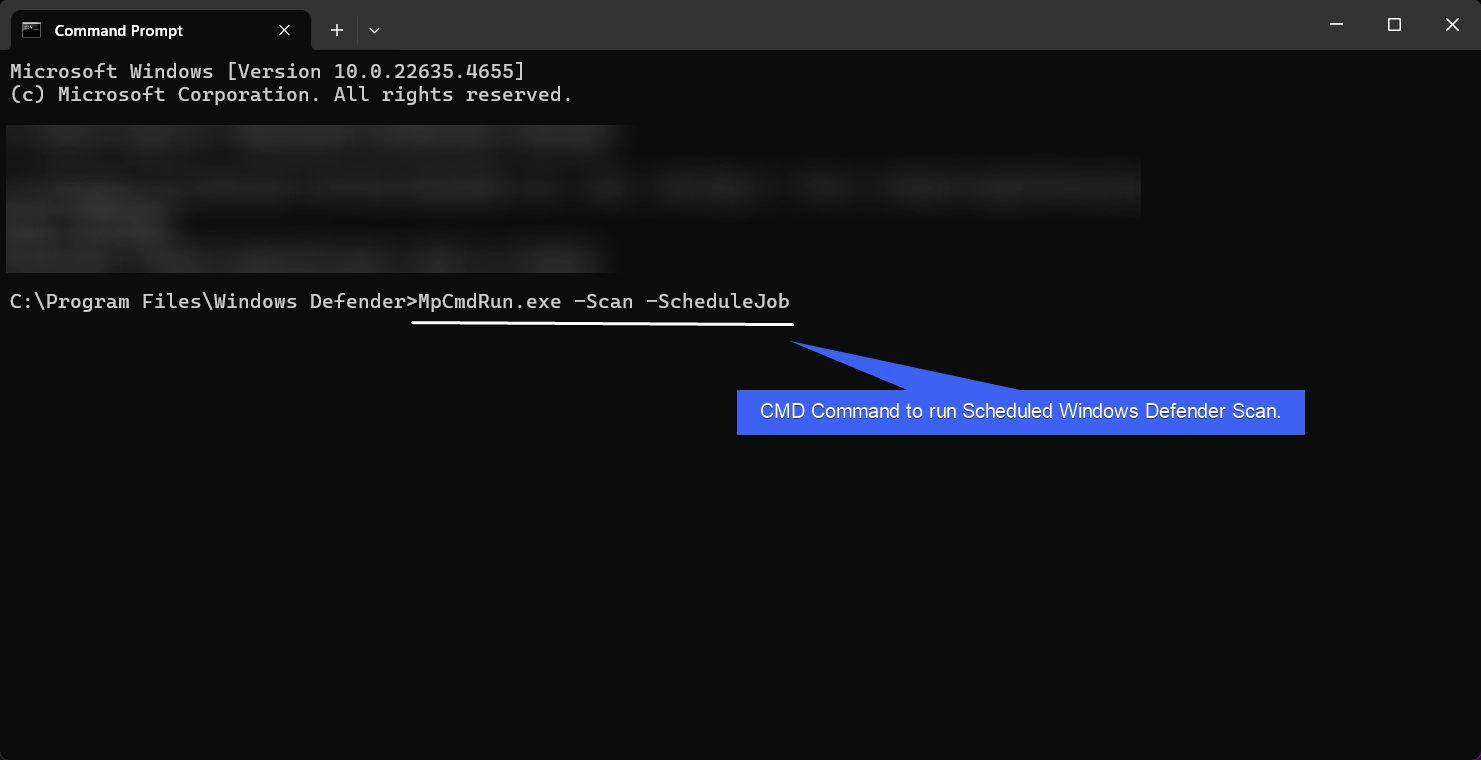
The command to run a scheduled Windows Defender Scan using the Command Line as follows.
- Open Command Prompt and navigate to the Windows Defender Directory. Enter the following command and execute it. This command will run the Scheduled Scan configured in the Windows Defender Settings.
MpCmdRun.exe -Scan -ScheduleJob
Update Virus Definitions using the Command Prompt
- To ensure that the Virus Definitions are up to date, kindly execute the following command.
MpCmdRun.exe -SignatureUpdate
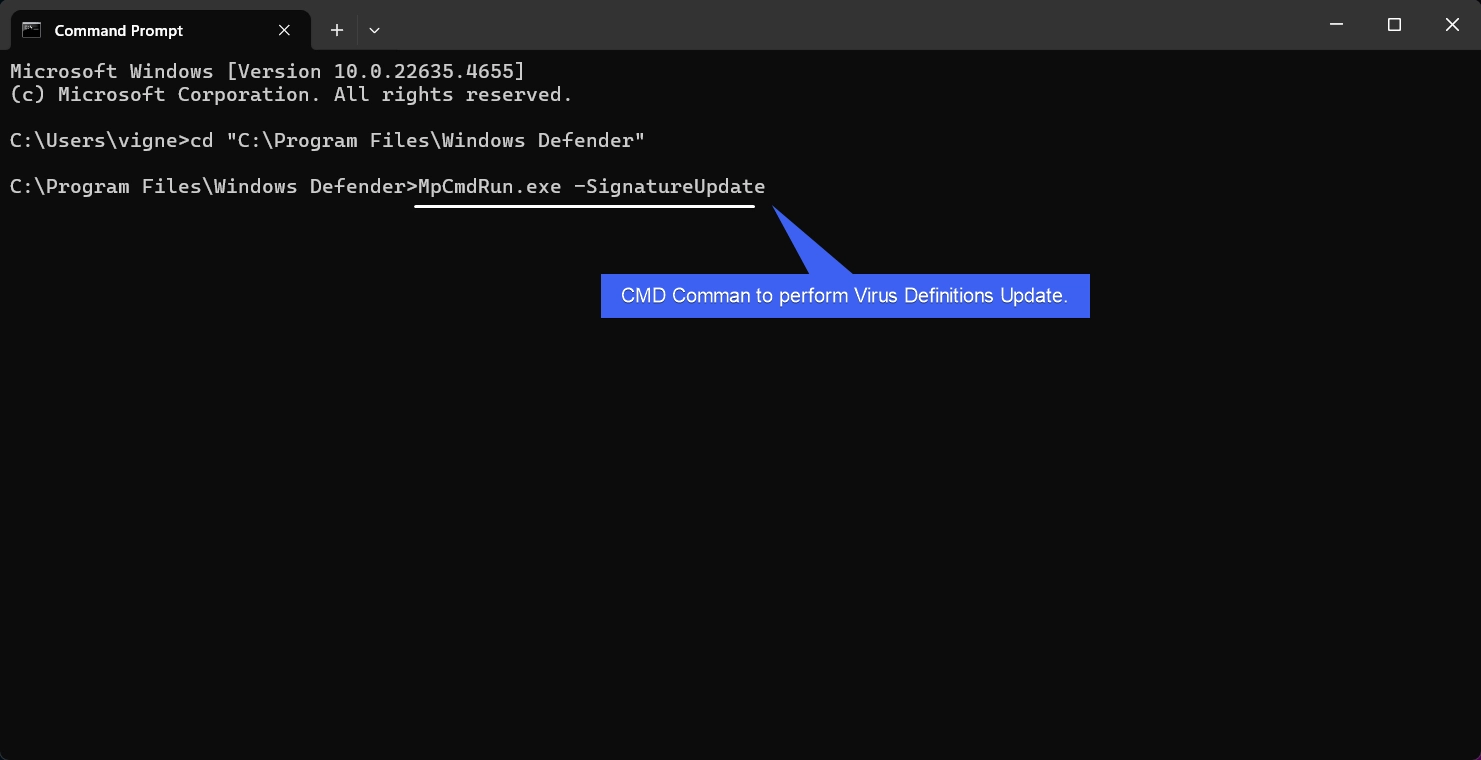
- The system will check for the latest updates and update its Virus Database.
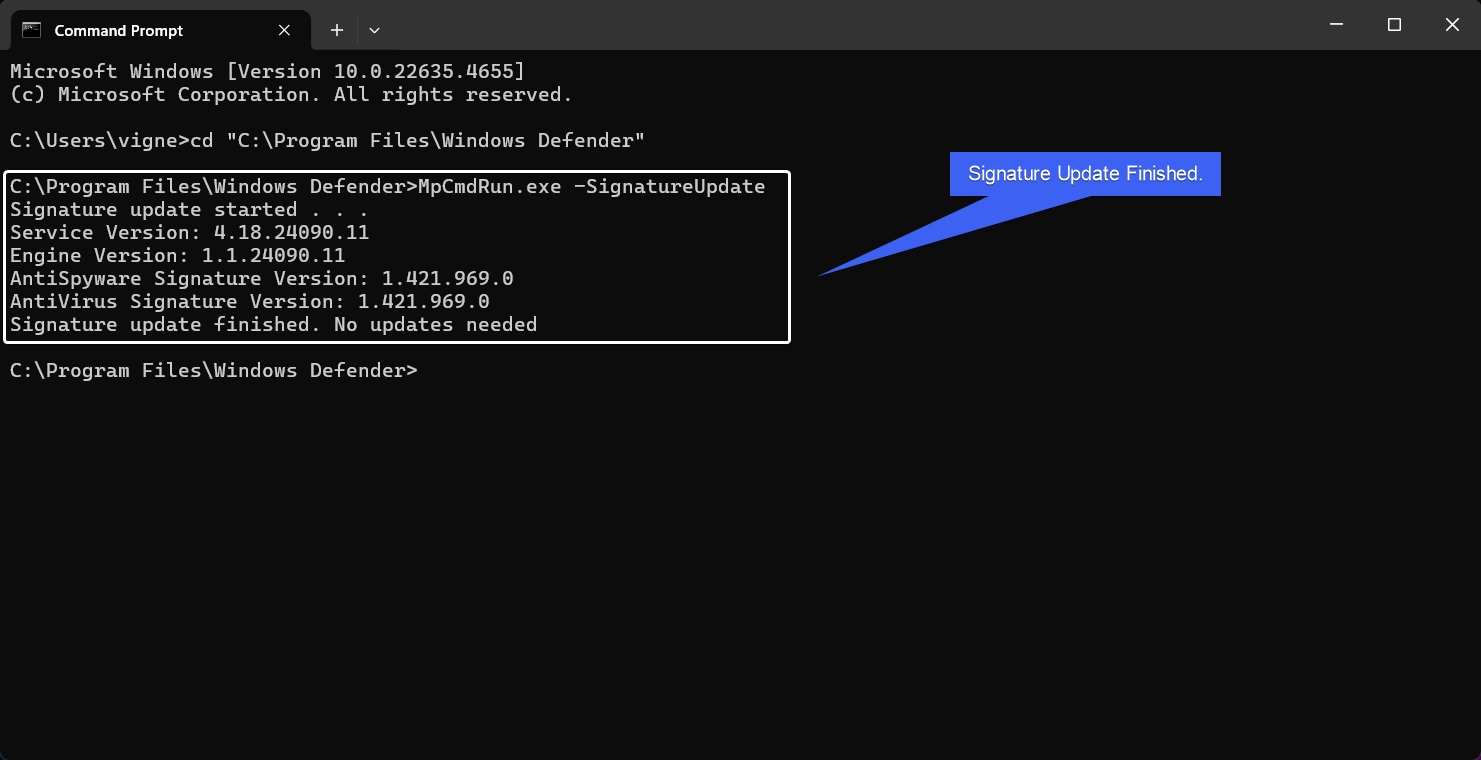
Table of contents
Different Types of Windows Defender Scans & their related Flags on Windows 11
| Scan Type | Flag | Description |
| Quick Scan | -Scan -ScanType 1 | Checks common threat locations. |
| Full Scan | -Scan -ScanType 2 | Comprehensive scan of all files and drives. |
| Custom Scan | -Scan -ScanType 3 -File <path> | Scans a specific file or folder. |
| Offline Scan | -Scan -ScanType 4 | Reboots to scan in a secure environment. |
| Scheduled Scan | -Scan -ScheduleJob | Runs at the next scheduled time. |
| Signature updation | -SignatureUpdate | Updates Virus definitions |
Frequently Asked Questions
Can I scan a specific folder or a USB drive?
Yes, and this is where CMD shines. Use the Custom Scan type and point it to your path: MpCmdRun.exe -Scan -ScanType 3 -File "D:\WorkFiles" This is much faster than opening the full Security Center just to check one folder.
What if I want to scan the “Boot Sector”?
Malware that hides in the boot sector is notoriously annoying. You can target it specifically using: MpCmdRun.exe -Scan -ScanType -BootSectorScan
Can I use CMD to clear the “Quarantine” list?
If you’ve cleaned up your files and want to empty the digital “jail,” use: MpCmdRun.exe -Restore -All (to bring them back) or MpCmdRun.exe -RemoveDefinitions (to clear specific cached items). Be cautious while deleting items permanently.
Why does it say “MpCmdRun.exe is not recognized”?
This happens because the folder isn’t in your Windows “Path.” You either have to cd into the Windows Defender folder mentioned above or type the full, long file path in quotes before your command.
Is there a way to see a progress bar for Windows Defender Scan in the Command Prompt?
The MpCmdRun.exe utility is designed to be “headless,” meaning it provides minimal output so it doesn’t clutter scripts. If you want to see what’s happening in real-time, you are better off using the PowerShell equivalent: Start-MpScan -ScanType FullScan (PowerShell will show a progress percentage at the top of the window.)
Take away
For everyday users, Running Windows Defender Scan via Command Prompt may seem like a complex task, these methods can be invaluable for power users and administrators to take full control of their System Security. It can also be beneficial for users where a Graphical User Interface is not available. If you have any queries, kindly let us know in the comments.
Have Queries?
For more awesome articles, stay tuned to Winsides.com. Safe Computing! Peace out!






Community
Comments (0)