

Windows 11 can answer two different storage questions without installing a utility. System > Storage shows the combined space assigned to the Installed apps category, while Apps > Installed apps shows the size Windows reports for many individual apps.
I reproduced both read-only checks on Windows 11 Home Single Language version 25H2, build 26220.7872. I did not change the sort order or drive filter, open an app menu, run cleanup, repair or reset an app, or uninstall anything.
What do the app storage figures mean?
The Storage page groups used disk space into broad categories such as Installed apps, Documents, Temporary files, and System & reserved. The Installed apps figure is therefore a category total for the selected Windows drive, not the size of one program.
The Installed apps inventory answers the narrower question. Many app cards show a reported size below the app name, often beside an install date. Some cards omit a size entirely. Read the value as the figure Windows currently has for that entry, not as a promise that every shared component, cache, save file, or document created by the app is included.
The category total and the visible app-card figures can differ because they are produced for different views and not every component maps neatly to one card. If you need only a quick comparison, use the built-in figures. A forensic disk audit is a different task.
Table of contents
How can you view the total space used by installed apps?
- Press Windows + I to open Settings.
- Select System in the left sidebar.
- Select Storage.
- Wait for Windows to finish calculating the category bars.
- Read the value on the Installed apps row. Do not select the row if you only need the total.
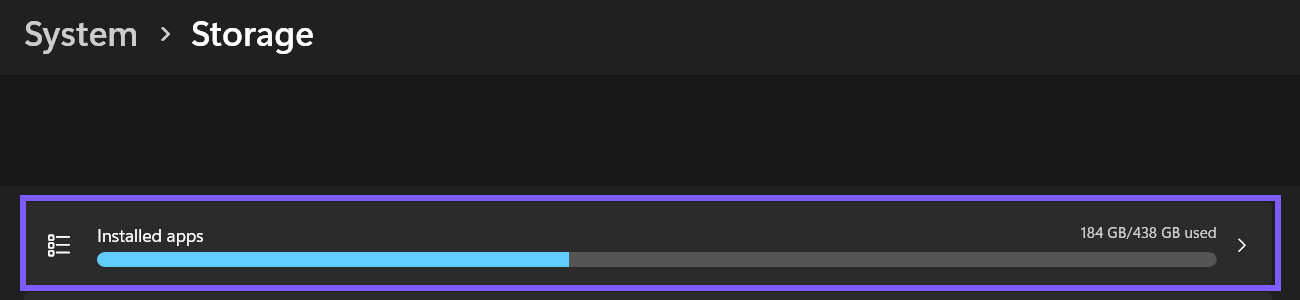
The calculation can take a moment after the page opens. A spinner or an empty value means the total is still loading; wait for the number before recording it. The result can change after an app update, a game download, a cache change, or an uninstall.
Microsoft describes this Storage page as a category breakdown of the selected drive. It is the better view when your question is, “How much space do installed apps use altogether?”
How can you check the reported size of an individual app?
- Open Settings.
- Select Apps.
- Select Installed apps.
- Locate the app in the current list or grid.
- Read the size shown under its name. If no size appears, Windows has not supplied a figure for that entry in this view.
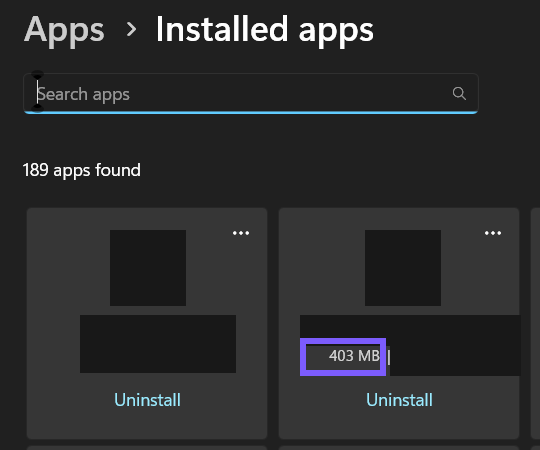
You do not need the three-dot menu to read the size. That menu can expose Advanced options, Modify, or Uninstall depending on the app, so leave it closed during a read-only check.
The Installed apps page also has view, sort, filter, and search controls. This reproduced method did not change them because the visible card already provided the required figure. On another PC, the layout can be a list instead of a grid, but the purpose is the same.
Why can an app size be missing or look different?
A missing number does not prove that an app uses no space. Windows can list an entry without a reported size, and a classic desktop program can report installation metadata differently from a packaged Microsoft Store app.
The number can also exclude data stored outside the app package or installation folder. Documents, downloads, game saves, project files, browser profiles, cloud placeholders, and shared runtimes can be counted elsewhere or shared by several programs. For that reason, do not add every visible card and expect the result to reproduce the Storage category exactly.
If a figure looks stale, close and reopen Settings and give the Storage page time to calculate. Avoid resetting or reinstalling an app merely to refresh a number; those actions can remove settings or user data and do not belong in a read-only storage check.
What should you avoid while checking app storage?
- Do not select Uninstall just to inspect an entry. That begins a removal workflow.
- Do not use Repair or Reset as measurement tools. Reset can delete an app's local data.
- Do not run Cleanup recommendations unless you have separately reviewed every selected item and its recovery consequences.
- Do not publish a full Installed apps screenshot without reviewing it. The inventory can reveal software, dates, account identity, and device-specific information.
If your actual goal is ongoing automatic cleanup rather than measurement, the WinSides guide to turning on Storage Sense in Windows 11 explains that separate feature and its deletion behavior. Keep that decision separate from this observational check.
Frequently Asked Questions
Does the Installed apps category include every personal file created by an app?
No. Personal documents, downloads, projects, saves, caches, cloud placeholders, and shared components can be stored or categorized separately. Treat the category as Windows' storage grouping, not a complete map of every related file.
Why does an app card show no size?
Windows can list an app without a reported size. The missing number does not mean the app occupies zero bytes; it means this Settings view has no figure to display for that entry.
Do you need administrator rights to view app storage usage?
No. Both reproduced Settings pages opened for a standard read-only view without an administrator prompt. Actions such as modifying or uninstalling some apps can have different permission requirements.
Can checking an app size uninstall or reset the app?
No. Opening Storage or Installed apps and reading the visible figures is observational. Risk begins when you select management controls such as Advanced options, Repair, Reset, Modify, Move, or Uninstall.
Read the figure that answers your question
Use System > Storage when you want the combined Installed apps category for a drive. Use Apps > Installed apps when you want the size Windows reports for one entry. Wait for calculations to finish, accept that some cards omit a size, and keep cleanup or app-management actions outside a read-only check.
Community
Comments (0)