

Windows Automatic Maintenance combines background work that can run opportunistically while a PC is idle and, commonly, connected to AC power. The important detail is that not every item in Task Scheduler belongs to Automatic Maintenance. A maintenance task has a MaintenanceSettings element in its registered definition.
I reproduced a definition-only inventory on Windows 11 Home Single Language version 25H2, build 26220.7872, from a regular non-administrator Windows PowerShell window. The query found 50 Microsoft task definitions with MaintenanceSettings on this PC. It did not start, stop, enable, disable, register, unregister, or change a task, and it did not write an exported XML file.
What makes a scheduled task an Automatic Maintenance task?
Microsoft's Task Scheduler schema places MaintenanceSettings inside a task's Settings section. A task with that element can specify a recurring Period, an optional Deadline, and whether it should run exclusively from other maintenance tasks.
That definition is more precise than looking for the word “maintenance” in a task name. A task can participate in Automatic Maintenance without using that word, while an ordinary task can include the word in its friendly name without containing MaintenanceSettings.
Table of contents
How can you find Automatic Maintenance tasks with PowerShell?
Open regular Windows PowerShell, not an administrator window. Run this read-only script:
$maintenanceTasks = Get-ScheduledTask | ForEach-Object {
    try {
        [xml]$definition = Export-ScheduledTask -TaskName $_.TaskName `
            -TaskPath $_.TaskPath -ErrorAction Stop
        $settings = $definition.Task.Settings.MaintenanceSettings
        if ($settings) {
            [pscustomobject]@{
                TaskPath = $_.TaskPath
                TaskName = $_.TaskName
                Period   = [string]$settings.Period
                Deadline = [string]$settings.Deadline
                Exclusive = [string]$settings.Exclusive
            }
        }
    } catch {
        # Leave unreadable definitions out of the result.
    }
}

$maintenanceTasks | Sort-Object TaskPath, TaskName | Format-Table -AutoSize
Get-ScheduledTask retrieves the registered definitions. Despite its name, Export-ScheduledTask returns a task's XML as text in this pipeline; it does not create a file unless you deliberately redirect that text elsewhere. The script then keeps only definitions whose Settings section contains MaintenanceSettings.
How can you limit the output to Microsoft Windows tasks?
A complete task inventory can reveal third-party software, organization tools, script names, or maintenance products. Filter before displaying or capturing the result when you only need Windows-owned examples:
$maintenanceTasks = Get-ScheduledTask |
    Where-Object TaskPath -like '\Microsoft\Windows\*' |
    ForEach-Object {
        try {
            [xml]$definition = Export-ScheduledTask `
                -TaskName $_.TaskName -TaskPath $_.TaskPath -ErrorAction Stop
            $settings = $definition.Task.Settings.MaintenanceSettings
            if ($settings) {
                [pscustomobject]@{
                    TaskPath = $_.TaskPath
                    TaskName = $_.TaskName
                    Period   = [string]$settings.Period
                    Deadline = [string]$settings.Deadline
                }
            }
        } catch {}
    }

$maintenanceTasks | Format-Table -AutoSize
"Microsoft maintenance tasks found: $($maintenanceTasks.Count)"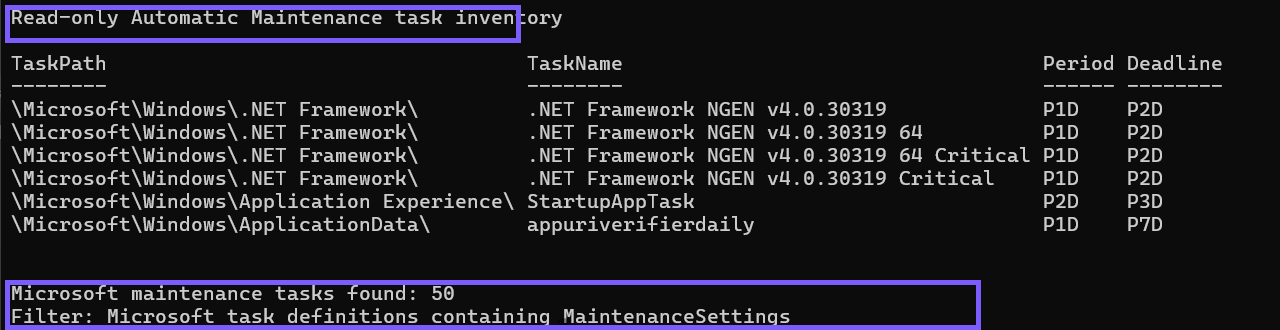
The screenshot shows only generic Microsoft paths and names. The count is evidence from the tested PC, not a required Windows total. Installed features and updates can add, remove, or revise definitions.
What do Period, Deadline, and Exclusive mean?
- Period is how often the task should complete during regular Automatic Maintenance.
- Deadline is the longer window after which Windows can attempt emergency maintenance if regular attempts did not complete the task.
- Exclusive asks Task Scheduler to run the task separately from other maintenance tasks.
Values such as P1D, P7D, and P1M use ISO 8601 duration notation. In this context, P1D means a period of one day and P7D means seven days. These values do not specify a wall-clock start time.
Why might the query return no rows or skip definitions?
A zero-row result can mean no readable registered task definition contains MaintenanceSettings. It can also mean the ScheduledTasks module is unavailable or the current account cannot read relevant definitions. The script intentionally catches unreadable tasks instead of changing permissions or elevating automatically.
For troubleshooting, remove the empty catch only in a private session and record the task path plus error without publishing private task names. Do not take ownership of Task Scheduler files or change task ACLs merely to complete an inventory.
What should you avoid during a maintenance-task inventory?
- Do not use
Start-ScheduledTaskto “test” an entry; maintenance work can consume power, storage, CPU, or network resources. - Do not disable a task because its name is unfamiliar. Windows servicing and security features can depend on registered tasks.
- Do not publish actions, arguments, authors, organization paths, or third-party task names without a privacy review.
- Do not confuse a task's definition with its run history. This query does not prove that the task succeeded recently.
Close PowerShell when you finish. No rollback is required because the reproduced command only read local task definitions.
Frequently Asked Questions
Is every scheduled task part of Automatic Maintenance?
No. A maintenance task has MaintenanceSettings in its registered task definition. Ordinary triggers, idle settings, or a friendly name containing “maintenance” are not sufficient proof.
Does Export-ScheduledTask change or save the task?
No. In this pipeline it returns the task definition as XML text in memory. The reproduced script did not redirect that text to a file or call a registration cmdlet.
Do you need administrator rights to run the query?
No administrator prompt was required for the tested Microsoft-task inventory. A standard account can still encounter definitions it cannot read; skip those rather than changing permissions solely for the list.
Why is the task count different on another Windows 11 PC?
Task definitions vary with the Windows build, edition, optional features, installed applications, and updates. Treat the local result as the current inventory, not a universal expected count.
Identify maintenance tasks by their definitions
Query registered tasks, read each definition in memory, and keep only entries with MaintenanceSettings. Filter to Microsoft Windows paths before making a screenshot, interpret Period and Deadline as duration values, and leave task state, permissions, triggers, and actions unchanged during an inventory.






Community
Comments (0)