

Windows 11 exposes focused processor details through the Win32_Processor CIM class. A read-only PowerShell query can show the installed CPU name and manufacturer, its physical-core and logical-processor counts, the maximum clock speed reported by the provider, and whether the active processor operates with a 32-bit or 64-bit address width.
I reproduced the check in a regular non-administrator PowerShell window on Windows 11 Home Single Language version 25H2, build 26220.7872. The query returned one AMD Ryzen 7 4800H processor with 8 physical cores, 16 logical processors, a reported maximum clock speed of 2901 MHz, and a 64-bit address width. It did not change firmware, performance settings, power management, affinity, drivers, services, files, or Registry values.
What CPU specifications does this check show?
The selected properties answer a small set of practical questions without dumping a larger hardware inventory:
- Name is the processor description reported by Windows.
- Manufacturer is the provider's manufacturer identifier.
- NumberOfCores is the number of physical cores in the processor instance.
- NumberOfLogicalProcessors is the number of logical processors Windows sees for that instance.
- MaxClockSpeed is the maximum speed, in megahertz, reported for the processor.
- AddressWidth describes the width of the processor address used by the operating system.
Microsoft's Win32_Processor reference documents these as read-only properties. This focused view is narrower than the general WinSides guide to checking System Information in Windows 11, which covers broad system-summary tools rather than interpreting this property set.
Table of contents
How can you check CPU specifications with PowerShell?
- Open Windows Terminal or Windows PowerShell. The reproduced command did not require administrator rights.
- Run the following command.
- Read each returned processor block. A normal single-socket laptop usually returns one block.
Get-CimInstance -ClassName Win32_Processor |
  Select-Object Name, Manufacturer, NumberOfCores,
    NumberOfLogicalProcessors, MaxClockSpeed, AddressWidth |
  Format-List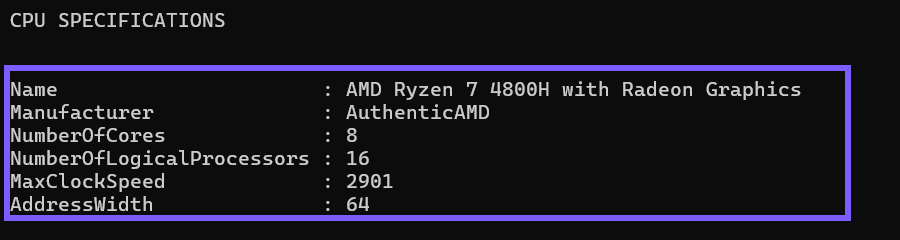
Close the terminal when you finish. Get-CimInstance retrieves instances of a CIM class; the reproduced pipeline only selects and formats returned properties, so no rollback is needed.
What is the difference between cores and logical processors?
A physical core is a hardware execution core. A logical processor is a scheduling target that Windows can use. Simultaneous multithreading can let one physical core expose more than one logical processor, which is why the tested 8-core CPU reported 16 logical processors.
Do not assume every CPU has exactly twice as many logical processors as cores. Architectures, firmware settings, virtual machines, processor groups, and model-specific designs can produce different relationships. Use the returned values as Windows' current provider view for that processor instance.
What does MaxClockSpeed mean?
MaxClockSpeed is a read-only provider property measured in megahertz. It is not a live per-core frequency graph, a benchmark score, a guaranteed sustained speed, or proof that boost behavior is working. On the tested laptop it reported 2901 MHz even though modern processors can change operating frequency with workload, temperature, firmware, and power policy.
Use a current hardware-monitoring method from Microsoft or the device manufacturer when you need live frequency or thermal behavior. Do not change a power plan, firmware option, voltage, or clock solely to make this static property match an advertised boost number.
What does AddressWidth tell you?
AddressWidth reports the address width the operating system uses for the processor. A value of 64 means the processor instance is operating with a 64-bit address width. It does not tell you how much RAM is installed, how wide a memory channel is, or whether a particular application is 32-bit or 64-bit.
For Windows architecture and edition details, use the broader System Information or Settings views. Keep CPU address width separate from application architecture and physical-memory capacity.
Why might the command return more than one processor?
Win32_Processor represents processor instances. A multi-socket computer can return more than one block, and a virtual machine may expose processor information according to its virtual hardware configuration. The published command intentionally does not select only the first result.
Read each block and compare its Name and counts. Do not add logical-processor counts blindly when a virtualization or management layer may present hardware differently from the physical host.
What are the limits of this CPU check?
The result depends on the Windows CIM provider and the hardware or virtualization layer. It is a current inventory snapshot, not a performance test, stability test, temperature reading, warranty lookup, vulnerability assessment, or compatibility guarantee.
The command also omits identifiers that are unnecessary for this intent. It does not request a system serial number, computer name, motherboard ID, BIOS version, socket designation, device ID, or private user path. When asking for help, share only the fields needed to evaluate a requirement.
Frequently Asked Questions
Do you need administrator rights to check these CPU specifications?
No administrator prompt was required on the tested laptop. A managed environment can impose different access rules for CIM queries.
Why are there more logical processors than physical cores?
Simultaneous multithreading can expose multiple logical scheduling targets from a physical core. The exact relationship depends on the processor and current hardware presentation.
Is MaxClockSpeed the processor's current speed?
No. It is the maximum-clock property reported by the provider, not a real-time per-core measurement or benchmark.
Does a 64-bit AddressWidth mean 64 GB of RAM?
No. AddressWidth describes processor addressing used by the operating system. Installed memory capacity is a separate property and measurement.
Use a focused read-only inventory
Query Win32_Processor when you need the CPU identity, physical cores, logical processors, reported maximum clock, and active address width in one focused result. Interpret each field according to its documented meaning, and use separate live-monitoring or compatibility tools when a static inventory cannot answer the question.
For more interesting articles, stay tuned to WinSides.com!








Community
Comments (0)