

You can find a Windows 11 computer's model in Settings > System > About. If you need the manufacturer, model, family, and SKU together, a read-only PowerShell query can display the fields supplied through the PC's system firmware. Neither reproduced method changes Windows, and the PowerShell method does not require administrator rights on the tested laptop.
I tested both methods on Windows 11 Home Single Language, version 25H2, build 26220.7872. The Settings model matched the Win32_ComputerSystem.Model value. Keep in mind that manufacturers do not populate every firmware field consistently: the SKU can be blank, while a custom-built desktop can show a generic motherboard or system-product label instead of a retail PC model.
What should you know before finding the computer model?
The model name identifies a product line or system configuration. It can help you choose the right support page, documentation, replacement part, or driver package. It is not the same as the Windows device name, which is a network-facing name you can rename. It is also different from a serial number, a UUID, a Windows product ID, and a product key.
This guide deliberately avoids collecting unique device identifiers. The PowerShell command selects only Manufacturer, Model, SystemFamily, and SystemSKUNumber. It does not request Name, UserName, a UUID, or a serial-style identifying number. If you share a result or screenshot, review the text first because an OEM can decide what it places in the model and SKU fields.
Table of contents
How can you find the computer model in Windows Settings?
- Press Windows + I to open Settings.
- Select System, then select About.
- Look at the top of the About page. Windows displays the device name and, when the manufacturer provides it, the model directly below.
- Write down only the model you need, then close Settings. No rollback is required because this is a read-only page.
Microsoft's device-information guidance identifies Settings > System > About as the route for the device name and model. On the tested laptop, the displayed model exactly matched the CIM model used in the PowerShell method below.
The About page is the simplest route when you need only the user-facing model. Avoid publishing a full-page screenshot without checking it carefully: the same area can expose the Windows device name, and the Windows specifications section can contain a product ID. Neither value is necessary for answering the model question.
How can you find the model name and number with PowerShell?
- Open a standard Windows PowerShell or PowerShell tab in Windows Terminal.
- Run this command:
$system = Get-CimInstance -ClassName Win32_ComputerSystem
[pscustomobject]@{
    Manufacturer = $system.Manufacturer
    Model        = $system.Model
    Family       = $system.SystemFamily
    SKU          = $system.SystemSKUNumber
} | Format-List- Read the four formatted result fields. The Model value is normally the most useful support identifier; the SKU label displays
SystemSKUNumberwhen the OEM supplies it.
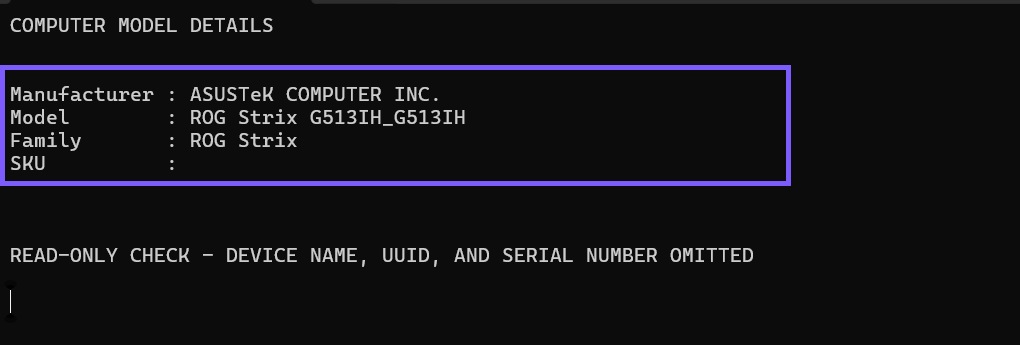
Close PowerShell when you finish. The query is read-only, so it creates no setting to undo.
Microsoft documents Win32_ComputerSystem as the CIM class representing a computer system. Its manufacturer, model, family, and SKU properties are read-only. Microsoft also explains that the family and SKU values come from SMBIOS system information supplied by the manufacturer.
What do the model result fields mean?
- Manufacturer identifies the system maker recorded by the firmware.
- Model is the system's model designation. Start with this value when searching the manufacturer's support site.
- SystemFamily groups similar computers in one product family. Several models can share the same family.
- SystemSKUNumber identifies a particular sale or configuration SKU when the OEM provides one. It can be empty.
A field that is blank or generic is not a PowerShell error by itself. Windows can only report what the manufacturer placed in the relevant firmware structures. A custom-built PC can therefore identify the motherboard maker or show wording such as “System Product Name” rather than the retail name printed on a case or invoice.
How should you use the model information?
Copy the model exactly, including spaces, hyphens, and suffix letters, before searching for a BIOS update, driver, manual, docking-station specification, or replacement component. A short base family name can cover multiple configurations with different processors, displays, wireless adapters, or regional parts. When an OEM support page asks for a serial number, retrieve it privately through that manufacturer's trusted support workflow instead of posting it publicly.
Compare the Settings and PowerShell model values when a support site cannot find the name you entered. Settings presents the user-facing model, while the CIM query also exposes the manufacturer, family, and optional SKU. If both show a generic label, check the original purchase documentation or the manufacturer's preinstalled support app; do not invent a more specific model based only on similar-looking hardware.
What can you do if the model is missing or generic?
First, run the exact PowerShell command again in PowerShell rather than Command Prompt. If Get-CimInstance is not recognized, open the built-in Windows PowerShell session and retry. Do not edit firmware data, Registry values, or WMI repositories to make the output look friendlier.
If Model is present but SystemSKUNumber is empty, use the model alone. The SKU is optional firmware data. If both Settings and CIM show a generic value, check the label or documentation supplied by the PC maker. On a custom-built system, the motherboard model may be a more useful support target, but that is a separate hardware-inventory task and should not be substituted silently for the computer-model result.
If Settings and PowerShell disagree, record both labels and the Windows build, then use the manufacturer's documentation to resolve the product identity. Avoid updating the BIOS or reinstalling drivers merely to change a displayed model label. Those are state-changing maintenance operations and are not troubleshooting steps for this read-only lookup.
Which identifiers should you keep private?
A model name is generally shared across many computers, but a serial number, asset tag, device name, UUID, and product key can identify one device or account context. Share only the minimum fields necessary for support. Crop or redact unrelated Settings content and terminal prompts, and never post a product key or recovery key.
The command in this guide intentionally omits the local computer name and unique identifiers. If a support representative needs a serial number, confirm the recipient and use the vendor's private support channel rather than adding the identifier to a public forum screenshot.
Frequently Asked Questions
Is the computer model the same as the device name?
No. The model comes from manufacturer-supplied system information, while the Windows device name identifies the computer on Windows and networks and can be renamed.
Why is the SKU field blank?
The manufacturer did not provide a usable SystemSKUNumber in the firmware data Windows reads. The model can still be valid and sufficient for support.
Does the PowerShell command require administrator rights?
No administrator prompt was required on the tested Windows 11 laptop. Managed devices can enforce different permissions for CIM queries.
Can a custom-built PC show a generic model?
Yes. A custom build can expose a generic system-product label or motherboard-related identity instead of a complete retail computer model.
Use the model, family, and SKU with the right scope
Start with Settings > System > About for the user-facing model. Use the read-only Win32_ComputerSystem query when you also need the manufacturer, family, or optional SKU. Preserve the exact wording, expect some OEM fields to be blank or generic, and keep unique identifiers out of public screenshots.
For more interesting articles, stay tuned to WinSides.com!









Community
Comments (0)