

You can view the current display path in Settings > System > Display > Advanced display. Windows shows the selected screen's desktop mode, active signal mode, refresh-rate information, bit depth, color format, and color space. This is a read-only check as long as you do not use the refresh-rate, HDR, color-management, or adapter-mode controls on the page.
I reproduced the procedure on Windows 11 Home Single Language, version 25H2, build 26220.7872. The tested internal display reported 1920 × 1080 at 144 Hz for both desktop and active signal modes, variable refresh support from the driver, 8-bit depth, RGB format, and standard dynamic range. Your values can differ because Windows reports the active display path, not a universal specification for every screen.
What should you know before checking display information?
Advanced display is useful when you need to document what Windows is currently sending to one screen. It does not necessarily show every mode a monitor advertises or the panel's full marketing specification. A dock, cable, adapter, graphics driver, projection mode, HDR state, power mode, or different port can change what appears.
On a multi-monitor PC, select the intended display before reading the values. Windows can report a different resolution, refresh rate, bit depth, color format, color space, variable-refresh status, or HDR certification for each screen. Do not assume the first item in the selector is the external monitor you want.
Table of contents
How do you view display information in Windows 11?
- Press Windows + I to open Settings.
- Select System, select Display, then select Advanced display.
- If more than one display is connected, use Select a display to view or change its settings to choose the correct screen. Do not change the topology or display mode.
- Expand Display information when necessary, then read the available rows. Do not select Choose a refresh rate or any other setting merely to inspect the page.
- Close Settings after recording the values. The procedure changes no setting, so there is nothing to roll back.
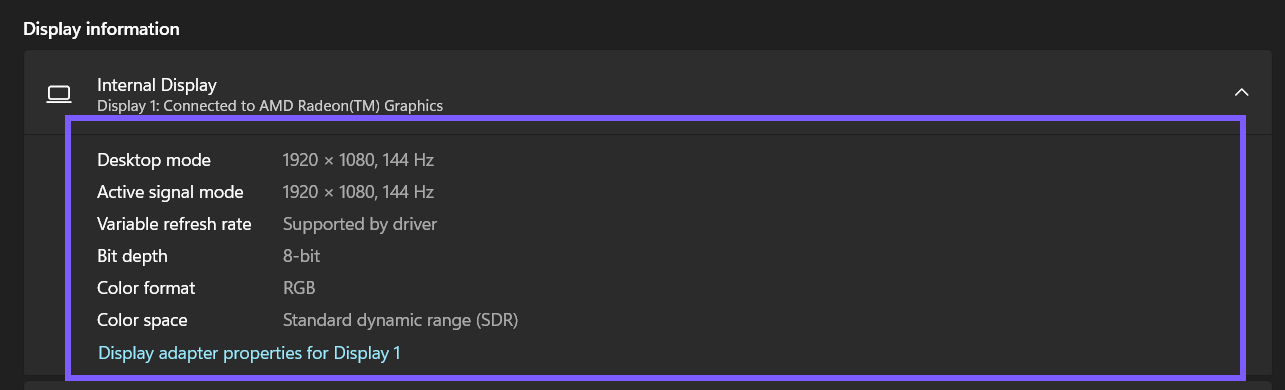
Microsoft's refresh-rate guidance confirms this Advanced display path and explains that Display information shows the current resolution, refresh rate, and variable-refresh support for the selected screen. The other rows shown by Windows are still hardware- and driver-dependent.
What do Desktop mode and Active signal mode mean?
Desktop mode describes the Windows desktop image being rendered for that display path. Active signal mode describes the active target signal sent through the output path. This interpretation follows Microsoft's documented source-and-target display architecture. It is safer than calling either row the monitor's native specification.
The two modes can match, as they did on the tested laptop, but a difference is not automatically a fault. Scaling or signal processing can cause Windows to render one desktop size while the graphics path sends another signal. Use the numbers as a configuration clue; do not change modes simply to make the rows look identical.
How should you interpret refresh rate and variable refresh rate?
A refresh rate is how many times the screen updates each second. Microsoft notes that available rates depend on the display, and Windows can mark a rate that would also change the current resolution. This guide does not select a rate because doing so would turn a read-only inspection into a display change.
Variable refresh rate: Supported by driver reports support for the current path. It does not prove that a game or app is actively varying the rate at that moment. Likewise, the number beside a mode is a configuration value, not a real-time measurement of every instantaneous update under VRR or Dynamic Refresh Rate.
What does bit depth tell you?
Bit depth is numerical color precision. Microsoft explains that higher precision can distinguish closer color values and reduce visible banding. The row commonly reports 8-bit or 10-bit for the current display path, but the value alone does not prove HDR quality, the panel's native depth, whether frame-rate control is used, or the precision inside an individual application.
Do not confuse this row with CurrentBitsPerPixel from the Win32_VideoController class. That adapter-level property can report total bits per pixel, such as 32, and it is not the same measurement as the 8-bit or 10-bit color-channel presentation in Advanced display.
What do Color format and Color space mean?
Color format identifies the current output encoding family, such as RGB or a YCbCr format. RGB does not, by itself, tell you whether the signal uses full or limited range, and YCbCr does not by itself prove HDR. The row also does not certify color accuracy.
Color space describes the current Windows display state, commonly Standard dynamic range (SDR) or High dynamic range (HDR). Do not translate SDR into an exact sRGB coverage percentage or HDR into guaranteed BT.2020 coverage. Accurate gamut, luminance, and calibration claims require more specific display data and measurement.
Why might HDR certification, nits, or peak brightness be missing?
Advanced display shows only fields that Windows, the graphics stack, and the display expose for the selected path. An SDR screen can omit HDR certification, luminance, nits, and peak-brightness rows completely. That is what happened on the tested internal display, so this guide does not invent values or show an HDR example from another machine.
Microsoft says that HDR certification: Not found can mean that the display is not certified or that the manufacturer has not published certification information. It is not the same as an HDR-capability result. For capability, use the separate Settings > System > Display > HDR page and select the same screen. Do not toggle HDR just to view its capability labels.
What changes when you use multiple displays?
Windows numbers detected displays, and the selected screen matters. If you are unsure which physical monitor is Display 1 or Display 2, return to the main Display page and use Identify. This briefly shows a number on each screen without changing the display arrangement.
Duplicate mode can constrain what Windows reports because both screens must operate together. Microsoft specifically documents cases where a duplicated laptop and external display can report HDR as unsupported. Recheck the exact selected screen and current projection mode before concluding that a monitor lacks a feature.
What can you do if display information is incomplete?
First, confirm that the intended display is selected and active. A disconnected or inactive path cannot supply complete current-mode information. Next, reconnect the approved cable or dock only if normal troubleshooting already requires it; this article does not ask you to change connections simply to produce different numbers.
If values appear stale after a normal driver or Windows update, close and reopen Settings and restart Windows at a convenient time. Avoid Registry edits, custom-resolution tools, driver removal, or GPU-control-panel changes as information-gathering steps. Those actions change state and do not belong in a read-only lookup.
An optional PowerShell adapter query can report current resolution and refresh-rate properties, but it does not replace Advanced display. Hybrid graphics systems can list more than one adapter, properties can be blank, and the command cannot reproduce color format, color space, HDR certification, or per-monitor source-versus-target rows. The Settings route remains the clearest method for this intent.
What should you remove before sharing a screenshot?
A full Settings frame can expose the signed-in profile, email address, monitor or GPU model, display numbering, notifications, and taskbar content. Crop the image to the information block and share only the fields needed to diagnose the question. Never include unrelated account details or a raw DirectX diagnostic export.
Display and GPU model names are hardware inventory. They can be relevant to support, but disclose them only when the reader or technician needs them. The public image in this guide excludes the account area and unrelated controls while keeping the locally reproduced fields legible.
Frequently Asked Questions
Does 10-bit color mean HDR is enabled?
No. Bit depth is one part of the display path. Use the separate HDR page for the selected screen to check capability and current HDR state.
Why do Desktop mode and Active signal mode differ?
Windows can render one desktop size while scaling or sending a different target signal. A mismatch is a clue about the path, not automatic proof of a problem.
Does Supported by driver mean VRR is active?
No. It reports support for the current path. Whether an app is actively using variable refresh depends on the hardware, driver, application, and related settings.
Why is HDR certification not shown?
The selected display path may not expose certification metadata. Even “Not found” is inconclusive; check Display capabilities on the separate HDR page.
Read the current path without changing it
Use Advanced display to document the selected screen's current desktop and signal modes, refresh information, bit depth, color format, and color space. Interpret each row narrowly, expect hardware-dependent fields to be absent, and use the separate HDR page for capability rather than guessing from certification or bit depth.
For more interesting articles, stay tuned to WinSides.com!






Community
Comments (0)