

You can check Windows 11's built-in device health report in Windows Security > Device performance & health. The page summarizes common conditions involving storage capacity, battery life on portable devices, apps and software, and the Windows Time service. It is an overview, not a malware scan, hardware benchmark, battery-capacity test, or replacement for a manufacturer's diagnostic tool.
I reproduced this guide on Windows 11 Home Single Language, version 25H2, build 26220.7872. Opening the page generated a fresh report at the current time. The tested laptop showed green checks and No issues for all four displayed categories. Your report can contain fewer categories, warnings, or recommendations depending on the device and its current condition.
What should you know before opening the health report?
Microsoft documents one important side effect: Windows Security runs a health scan when you open this page, so the displayed Last scan time normally becomes the current time. That refresh is expected and does not change a Windows setting, install software, delete user data, or require rollback. It does mean the page is not a historical log of every earlier health check.
On an organization-managed device, policy can hide Device performance & health. A missing page therefore does not prove Windows Security is damaged. Ask the administrator before changing policy, services, security products, or Registry values.
Table of contents
How can you check the Device Health Report in Windows 11?
- Select Start.
- Type Windows Security.
- Open the matching Windows Security app.
- Select Device performance & health in the navigation pane.
- Wait until Health report and a recent Last scan time appear.
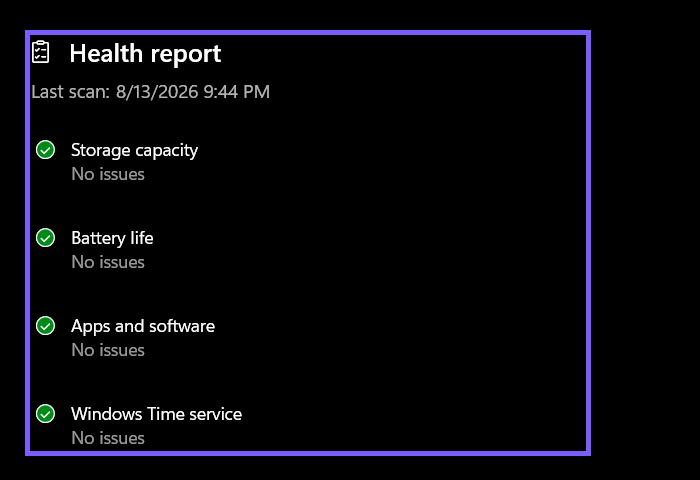
- Read each displayed category and its status.
- If a category has a warning, select only that category to read Windows' recommendation.
- Close Windows Security after recording the results.
A green check means Windows found no action for that category; a yellow mark means it needs attention. Do not use Fresh start, reset Windows, remove apps, or clear storage merely to reproduce this guide. No setting was changed in this procedure, so no rollback is required.
Microsoft's Device performance and health guidance confirms the current route, the automatic scan-time refresh, the four report areas, and the meaning of green and yellow indicators.
What does Storage capacity mean in the health report?
Storage capacity checks whether the system is running low on disk space. A green result means the health report has no storage recommendation at that moment; it does not mean every drive is empty, healthy, fast, or protected from hardware failure. The card is a capacity warning, not a S.M.A.R.T. diagnostic.
If Windows reports low space, review the recommendation and then inspect actual usage before deleting anything. Storage Sense can help manage temporary files, but deletion is a separate, state-changing task. For a read-only breakdown, use Settings > System > Storage or check free and used space without removing files.
What does Battery life mean?
On a device with a battery, Windows checks for conditions that may place extra strain on battery life and can suggest improvements. No issues is not a battery-health percentage and does not reveal design capacity, full-charge capacity, charge cycles, or remaining lifespan.
A desktop may omit the Battery life category because it has no supported battery. Some laptops can also expose limited battery data. Treat absence as a device-dependent result; do not invent a battery problem from a missing card.
What does Apps and software mean?
This category looks for software failures or updates that Windows believes need attention. A green check means the report found no current recommendation. It does not certify that every installed program is secure, compatible, licensed, or free of crashes.
If a warning appears, open the category and read the exact recommendation. Update or repair only the named component through its supported route. Avoid bulk uninstallers, reset actions, or unrelated cleanup tools while diagnosing a health-report message.
Why does Windows Time service appear in a health report?
Correct system time matters to sign-in, certificates, secure connections, updates, synchronization, and scheduled tasks. Windows checks whether the Windows Time service is working well enough to keep the clock synchronized. A warning can include steps to correct the service or clock.
First confirm the displayed date, time, time zone, and automatic-time settings. Do not immediately disable services or force Registry changes. On a managed computer, time can be controlled by organizational policy or a domain.
How should you interpret green and yellow indicators?
A green check is narrow: Windows has no health-report action for that category. It is not a promise that the whole PC is perfect. A yellow indicator means the category needs attention and should be opened to view the specific recommendation.
Use the recommendation as a starting point and preserve evidence before making any destructive change. If Windows suggests freeing space, for example, identify what will be deleted first. If it points to an app or update, confirm the exact product and recovery path before repair or removal.
What does the Device Health Report not test?
The report does not replace Virus & threat protection, Windows Update history, drive-health diagnostics, Memory Diagnostic, Reliability Monitor, Event Viewer, or hardware-vendor tests. It also does not measure CPU, GPU, SSD, network, or game performance.
A green report can coexist with a specific problem outside its four categories. Use the relevant diagnostic for the symptom instead of treating the health page as an all-clear certificate.
What can you do if the page is missing or the report will not refresh?
Restart Windows Security and reopen Device performance & health. If the page is absent on a work or school PC, check with the administrator because policy may hide it. Confirm that Windows is fully started and that the system clock is correct before assuming the timestamp is stale.
Do not enable disabled services, remove a third-party security suite, edit policy, or reset Windows Security solely to make this article's screen appear. Those actions expand risk and require separate evidence. If the app itself is failing, use Microsoft-supported Windows Security repair guidance and preserve the current configuration first.
What should you remove before sharing a health-report screenshot?
The health card is usually low-risk, but a full Windows Security frame can show navigation state, device edition, privacy links, notification badges, time, and other security areas. Crop to the report categories and avoid sharing unrelated alerts or account information.
The public screenshot in this guide keeps the locally reproduced scan time and four status rows while excluding Fresh start and the rest of the app. The original ShareX PNG remains private.
Frequently Asked Questions
Does opening Device performance & health change Windows settings?
No setting is changed. Windows Security does run a fresh health scan and updates the displayed scan time when the page opens.
Does a green report mean the computer has no hardware problems?
No. Green means the displayed categories have no current recommendation. It is not a comprehensive hardware diagnostic or malware scan.
Why is Battery life missing from my report?
Windows shows battery-related checks only on supported devices. Desktops and some hardware configurations may omit the category.
Why is Device performance & health unavailable on a work PC?
An organization can hide the page through policy. Ask the administrator rather than changing policy or security settings yourself.
Use the report as an early warning, not a complete diagnosis
Open Device performance & health for a quick, current summary of storage, battery, apps, and Windows Time. Read each result narrowly, follow only the recommendation attached to a warning, and choose a more specific diagnostic when the symptom falls outside those categories.
For more interesting articles, stay tuned to WinSides.com!



Community
Comments (0)