

The Windows 11 On-Screen Keyboard, usually shortened to OSK, is a built-in Accessibility tool that places a full desktop keyboard on the screen. You can operate it with a mouse, touchscreen, pen, joystick, or another pointing device. It is separate from the smaller touch keyboard that can appear automatically when you select a text box on a touch-capable PC.
The quickest way to turn OSK on or off is Windows + Ctrl + O. You can also open Settings > Accessibility > Keyboard and use the On-screen keyboard switch. I reproduced both routes as a standard user, selected no virtual key, entered no text, changed no retained layout or input option, and returned the On-screen keyboard switch to Off.
Before you turn on the On-Screen Keyboard
OSK can send the same kinds of keystrokes as a physical keyboard. Do not click a key while a password, payment field, administrator prompt, chat box, or command line is active unless you intend to type there. For a safe test, first click an empty area of the desktop or use a disposable window with no editable content.
The screenshot below records the exact shortcut and the Settings route in an anonymous evidence window. It also establishes the starting state used for the test: OSK was closed before the shortcut was pressed.
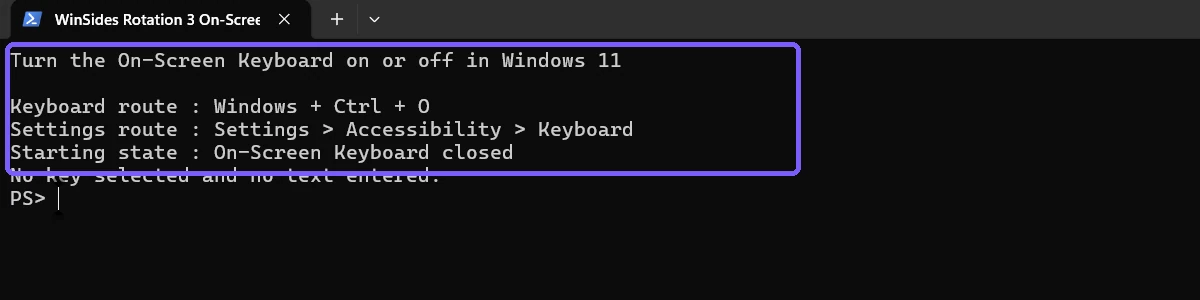
Table of contents
How do you turn on the On-Screen Keyboard with a shortcut?
Move focus away from any sensitive text field.
Hold the Windows and Ctrl keys.
Press O, then release the keys.
Wait a moment for the desktop On-Screen Keyboard window to appear.
Microsoft's accessibility shortcut reference documents Windows + Ctrl + O for the On-Screen Keyboard. The shortcut does not require an administrator prompt, installation, download, or third-party utility.
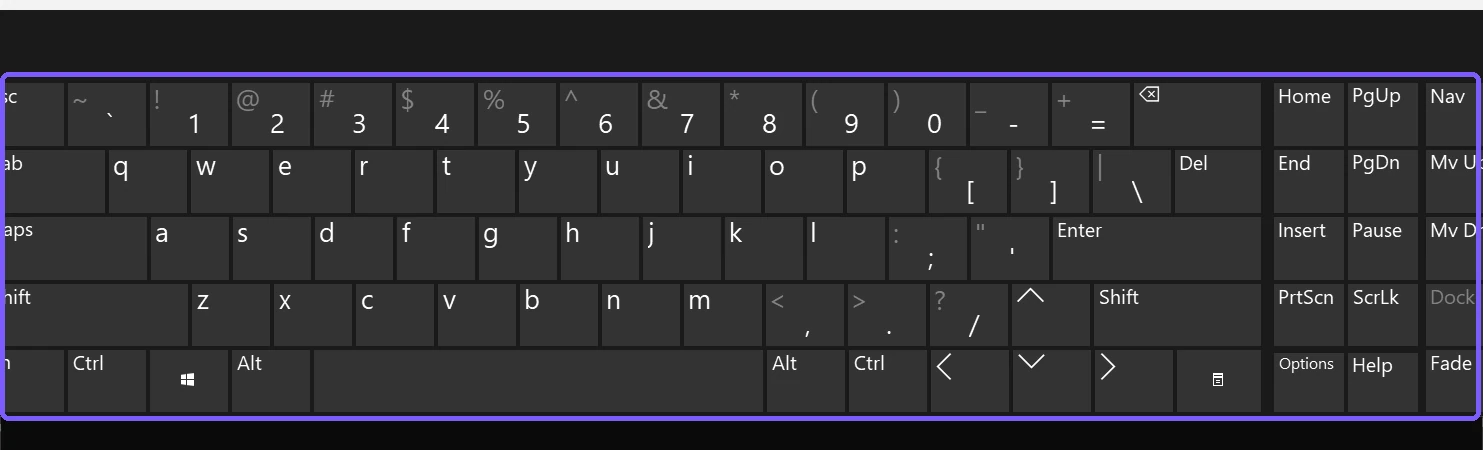
The test frame shows the General layout that happened to be retained on this device. Microsoft notes that OSK can retain its last General or Nav layout. Do not treat another person's screenshot as the default you must copy, and do not select Nav, General, or Options if your only goal is to open and close the keyboard.
How do you turn off the On-Screen Keyboard?
Use the same Windows + Ctrl + O shortcut again, or select the close button in the OSK title bar. If you opened it from Settings, returning the On-screen keyboard switch to Off is the clearest rollback. Wait until the keyboard window disappears before returning focus to a sensitive field.
Closing the process forcefully is not a reliable substitute for turning the Accessibility control off. During testing, terminating the process alone left the switch enabled and allowed OSK to reappear. The successful rollback closed the OSK window through its normal window control and then verified that both the process and window were absent.
How do you use Settings to turn OSK on or off?
Press Windows + I to open Settings.
Select Accessibility in the navigation pane.
Select Keyboard.
Find On-screen keyboard under On-screen keyboard and access keys.
Set the switch to On to open OSK, or Off to close it.
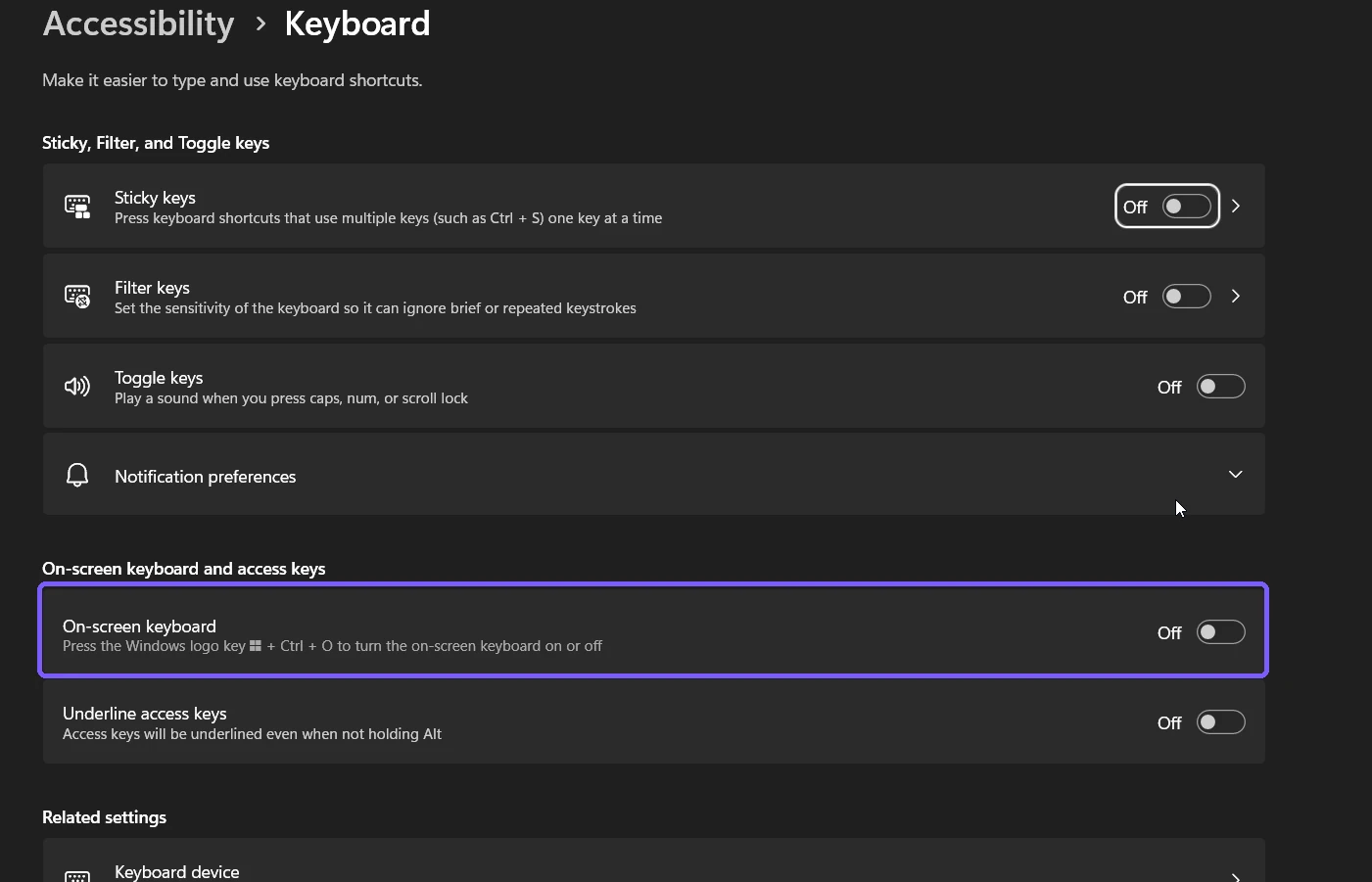
Microsoft's On-Screen Keyboard guide documents this Settings path and explains that you do not need a touchscreen to use OSK. The same page distinguishes OSK from the touch keyboard that appears in touch-oriented input situations.
Is OSK the same as the touch keyboard or emoji picker?
No. OSK is the desktop Accessibility keyboard shown in this guide. The touch keyboard is a separate Windows input surface that can appear when a touch device is used with a text box. The emoji picker is another separate panel opened with Windows + period or Windows + semicolon. If you only need symbols or emoji, use the focused guide to use the Windows 11 emoji picker instead of opening a full desktop keyboard.
This distinction matters during troubleshooting. An OSK shortcut problem does not necessarily mean the touch keyboard is broken, and changing touch-keyboard behavior will not repair a retained OSK layout. Identify which surface you see before changing a setting.
What can you do after OSK opens?
You can select ordinary keys, modifiers, navigation keys, and supported command keys with a pointing device. The visible Options key opens additional input choices, while Nav can switch to a smaller navigation-focused layout. Those are persistent preferences and are outside this opening-and-closing guide.
If you need another keyboard visibility aid, Windows also has an access-key setting that can underline menu accelerators even when Alt is not held. Follow the separate procedure to always underline access keys in Windows 11; it changes a different Accessibility control and is not required for OSK.
Why does the On-Screen Keyboard not appear?
Confirm the exact shortcut
Use Windows + Ctrl + the letter O, not zero. Press the three keys together and release them. If a keyboard-remapping utility intercepts shortcuts, close or review that utility rather than repeatedly pressing random combinations.
Check the Accessibility switch
Open Settings > Accessibility > Keyboard and inspect the On-screen keyboard switch. If the shortcut opened OSK behind another always-on-top window, the switch can still show that OSK is On.
Look for a minimized window
OSK is a normal desktop window and can be moved, covered, or minimized. Check the taskbar before toggling it repeatedly. Repeated shortcut presses can alternate between opening and closing it, which makes the result look inconsistent.
Respect managed-device restrictions
A work or school device can apply accessibility and app policies. If the documented routes are unavailable, ask the device administrator instead of downloading an unknown on-screen keyboard or bypassing policy.
How was the restored state verified?
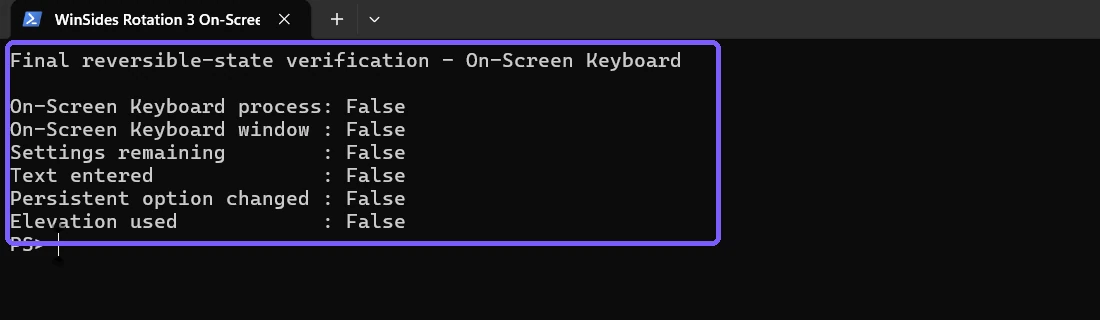
After the shortcut and Settings routes were reproduced, OSK was closed normally and Settings was closed. A fresh anonymous verification frame confirmed that no OSK process or On-Screen Keyboard window remained, the Settings window was absent, no text had been entered, no persistent OSK option had changed, and no elevation had been used.
Frequently Asked Questions
What shortcut turns on the On-Screen Keyboard in Windows 11?
Press Windows + Ctrl + O. Use the same shortcut again or close the OSK window to turn it off.
Do you need a touchscreen to use OSK?
No. You can select its keys with a mouse or another pointing device.
Is the On-Screen Keyboard the same as the touch keyboard?
No. OSK is the desktop Accessibility keyboard; the touch keyboard is a separate input surface.
Does opening OSK require administrator rights?
No. Both the shortcut and Accessibility Settings route worked as a standard user on the tested Windows 11 device.
Conclusion
Press Windows + Ctrl + O for the fastest way to turn the Windows 11 On-Screen Keyboard on or off. For a visual control, open Settings > Accessibility > Keyboard and use the On-screen keyboard switch. Keep focus away from sensitive fields during a test, avoid changing retained OSK options unless that is your goal, and verify that the switch and window return to the starting state.
For more interesting articles, stay tuned to WinSides.com!







Community
Comments (0)