

Folder Options is the classic Windows 11 dialog for File Explorer behavior. Open File Explorer, select the three-dot More options button on the command bar, and choose Options. Depending on the Windows build and the path used, the title can appear as Folder Options or File Explorer Options; both names refer to the same three-tab dialog.
I reproduced this route as a standard user and inspected the General, View, and Search tabs. No checkbox, radio button, drop-down, file, folder, or search setting was changed. The dialog was closed without selecting Apply or OK, and the disposable File Explorer window was also closed.
What is Folder Options in Windows 11?
Folder Options controls several long-standing File Explorer preferences. The General tab contains choices for the initial File Explorer location, folder-opening behavior, single-click or double-click selection, and privacy-related recommendations. The View tab contains advanced display settings. The Search tab contains choices for searches in system files and non-indexed locations.
Microsoft's File Explorer guide documents the Windows 11 command bar and the See more > Options route used for related preferences. Some current builds expose the button to accessibility tools as More options, while articles and tooltips may still call it See more.
Table of contents
How do you open Folder Options from File Explorer?
Press Windows + E to open File Explorer.
Look at the command bar near the top of the window and select the three-dot More options button.
Select Options at the bottom of the flyout.
Confirm that the dialog contains the General, View, and Search tabs.
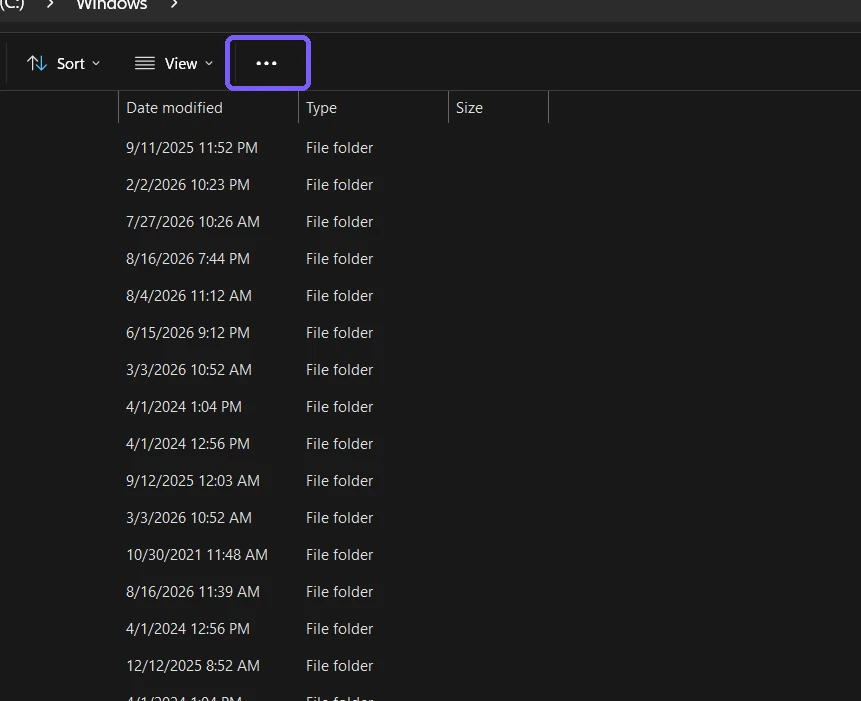
The screenshot uses the Windows system folder so no personal file names appear. Your File Explorer can open to Home, Gallery, This PC, or another location; the current folder does not change where the More options button appears. If the window is narrow, Windows may collapse additional commands, but the three-dot button remains the entry point.
What appears on the General tab?
The General tab is the starting page in the reproduced dialog. It shows where File Explorer opens, whether folders open in the same window or a separate window, and whether items use single-click or double-click activation. Its Privacy area can include recently used files, frequently used folders, recommendations, account-based insights, and a button to clear File Explorer history.
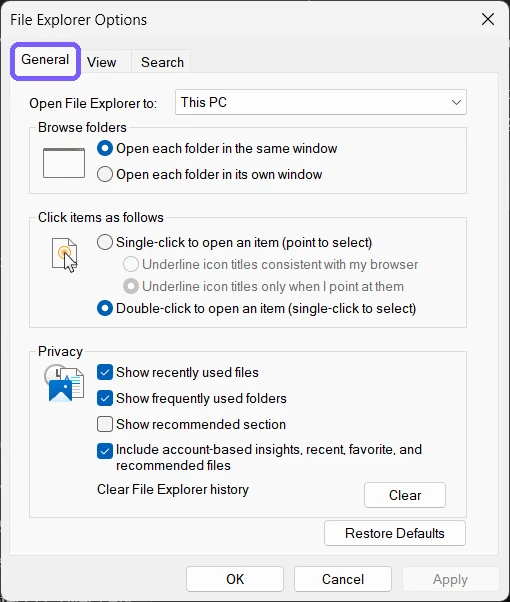
The selected values in the screenshot are observations from one test device, not recommendations. Changing the opening location or privacy choices can persist for the current user. Clearing File Explorer history is also an action, not a viewing step, so do not select Clear merely to test whether the dialog works.
What appears on the View tab?
The View tab contains folder-view controls and a scrollable Advanced settings list. Examples include thumbnail behavior, full-path display, hidden items, file-name extensions, folder merge conflicts, and protected operating-system files. The exact list can vary with Windows updates and organization policy.
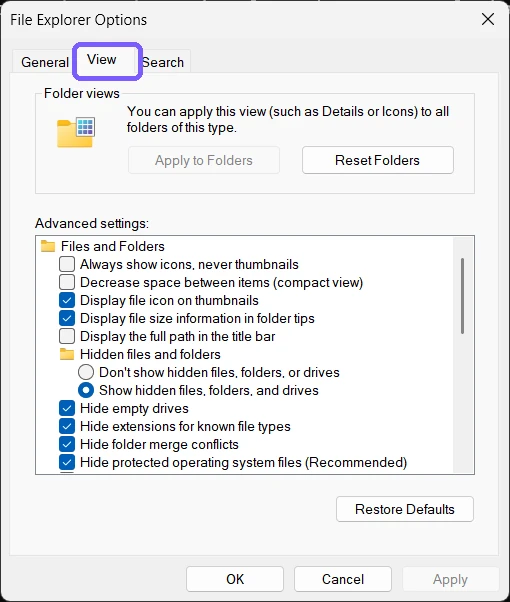
Some choices have important consequences. Showing protected operating-system files can expose items that are easy to move or delete accidentally. Hiding file-name extensions can make different file types look alike. Use a separate, tested procedure for a specific goal instead of copying every setting from someone else's screenshot.
If your actual goal is to show hidden files in Windows 11, follow that focused guide so the change and its reversal are explicit. Opening Folder Options by itself does not reveal or hide anything.
What appears on the Search tab?
The Search tab controls some classic search behavior. On the reproduced device, it included whether to avoid the index when searching system-file folders and whether non-indexed searches include system directories, compressed files, or file names and contents.
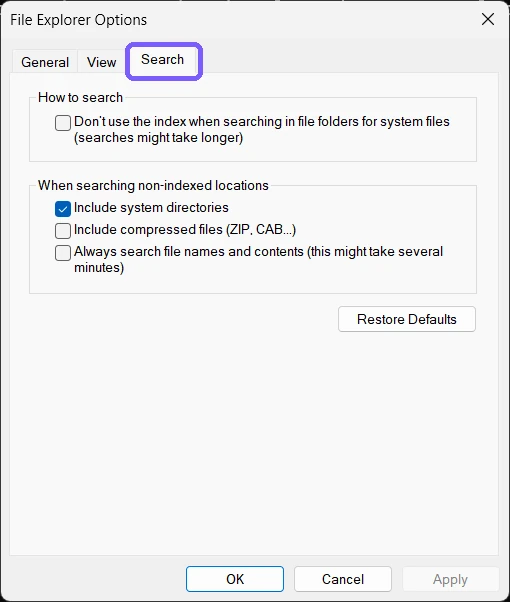
These preferences do not rebuild the Windows search index, and the dialog is not a complete search-management tool. Searching inside compressed archives or file contents can make a search take longer. Change a Search option only when it matches a specific troubleshooting goal and you understand the performance tradeoff.
How do you close Folder Options without changing anything?
Select Cancel or use the window's close button. Do not select Apply or OK after changing a control. In the reproduced session, only tabs were selected; no preference control was changed, so closing the dialog left File Explorer settings as they were.
If you accidentally changed a control but have not selected Apply or OK, Cancel is the clearest exit. If a change was already applied, reverse the individual choice deliberately rather than using Restore Defaults. Restoring all defaults can affect unrelated preferences.
What should you use Folder Options for?
Use it for a specific File Explorer preference that is actually present in the dialog. Common examples include opening folders in the same window, showing file-name extensions, choosing thumbnail behavior, and adjusting classic search behavior. Treat each preference as a separate change with its own expected result and rollback.
Several visible File Explorer panes are now controlled directly from the View command on the File Explorer command bar rather than from Folder Options. The Navigation, Preview, and Details panes therefore belong to separate procedures. This distinction prevents an opening guide from becoming a collection of unrelated persistent changes.
Do you need administrator rights?
No. Opening and inspecting Folder Options did not require elevation on the test device. Most choices in the dialog are per-user File Explorer preferences. A managed PC can hide or block the dialog, and an administrator can enforce related policy.
Microsoft's Windows Explorer policy documentation describes a policy that can prevent access to Folder Options. If Options is missing on a work or school PC, ask the administrator instead of trying to bypass the restriction. The separate task to run File Explorer as administrator is an elevated intent and is unnecessary for opening this dialog.
Why is the Options command missing?
The window is using an older command layout
Look for a three-dot button, See more, or More options. Button wording can differ across Windows builds and accessibility surfaces. Maximize File Explorer if the command bar is heavily compressed.
The PC is managed
Organization policy can remove or block Folder Options. Do not edit policy or the Registry to evade an administrator's configuration. Confirm the restriction with the device owner.
A different dialog opens
Make sure you selected Options from File Explorer's command-bar flyout. Folder properties, drive properties, and the Settings app are different surfaces. The expected dialog contains General, View, and Search tabs.
Changes do not persist
A policy or profile-management tool may reapply a value. First test one reversible preference, select Apply, and reopen the dialog. If the value resets on a managed device, contact the administrator rather than repeatedly changing it.
How was the read-only result verified?
After inspecting all three tabs, the dialog and the exact disposable File Explorer window were closed. A fresh verification frame confirmed that neither remained, no preference had changed, Apply and OK had not been selected, no file or folder had changed, no elevation had occurred, and the unrelated pre-existing Notepad session was preserved.
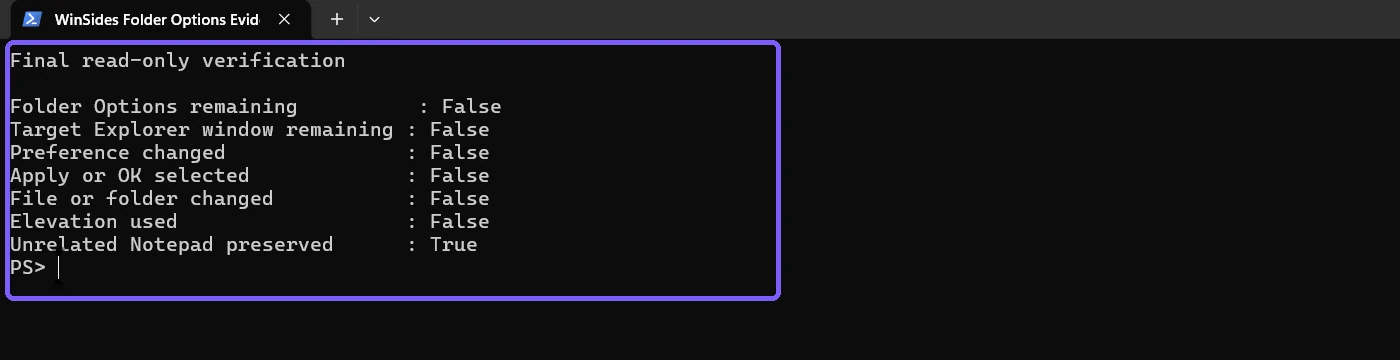
This evidence covers the bounded opening and inspection procedure. It does not claim that every preference is harmless. If you continue beyond inspection, document the old value, change only the intended control, verify the result, and keep a clear reversal step.
Frequently Asked Questions
Where is Folder Options in Windows 11?
Open File Explorer, select the three-dot More options button, and choose Options.
Is File Explorer Options the same as Folder Options?
Yes. Windows can show either caption for the classic dialog that contains General, View, and Search tabs.
Does opening Folder Options change a setting?
No. A setting changes only when you alter a control and apply or confirm the change.
Why can't I open Folder Options on a work PC?
An organization can block the dialog with policy. Ask the administrator rather than bypassing the restriction.
Conclusion
Use File Explorer's three-dot More options button and select Options to open Folder Options in Windows 11. Confirm the General, View, and Search tabs, treat the displayed values as device-specific preferences, and close with Cancel when you only need to inspect the dialog.
For more interesting articles, stay tuned to WinSides.com!




Community
Comments (0)