

Control Panel remains available in Windows 11 as the classic collection of system applets. The quickest supported routes are to search for Control Panel from Start or press Windows + R, enter control, and press Enter. You can also launch the same main window from a normal PowerShell session with Start-Process control.exe.
I reproduced the standard-user launch without opening an applet, changing the current icon view, accepting an administrator prompt, or modifying a Windows setting. The main window opened in its existing Large icons view. That view is not universal: another PC can open in Category, Small icons, or a policy-selected view.
What is Control Panel in Windows 11?
Microsoft's system configuration tools guide describes Control Panel as a long-standing central place for system settings and controls. Its applets cover areas such as date and time, devices, networking, power, programs, recovery, user accounts, and accessibility. Microsoft is moving many settings to the newer Settings app, but Control Panel still exists for compatibility and for options that have not fully migrated.
Opening the main window is only navigation. A change occurs only after you choose an applet and alter or apply a value. Some applets remain entirely within Control Panel, while others now redirect to a Settings page. Installed desktop software can also add entries, which is why the exact list differs between computers.
Table of contents
What should the main Control Panel window look like?
The reproduced window displayed Control Panel > All Control Panel Items in the address bar and Large icons beside View by. Familiar entries included Programs and Features, Power Options, Network and Sharing Center, Recovery, Region, and Windows Tools. No item was selected or opened.
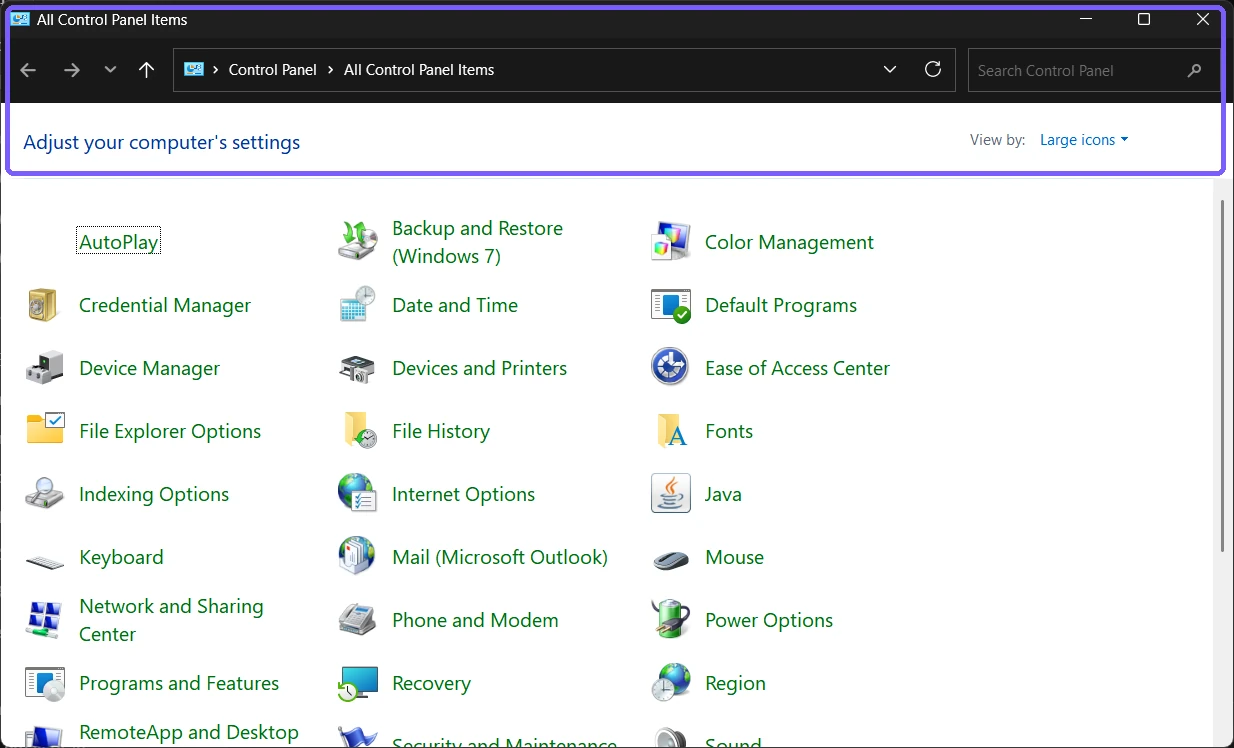
Do not treat this screenshot as a required inventory. Optional Windows components and installed programs can add entries, editions can omit entries, and Windows updates can redirect or retire individual applets. The useful verification is the window title and Control Panel breadcrumb, not a perfect icon-for-icon match.
How do you open Control Panel with PowerShell?
Open Windows Terminal or Windows PowerShell normally. Do not choose Run as administrator for this navigation task.
Enter the following command:
Start-Process control.exePress Enter. The main Control Panel should open in the current default or last-used view.
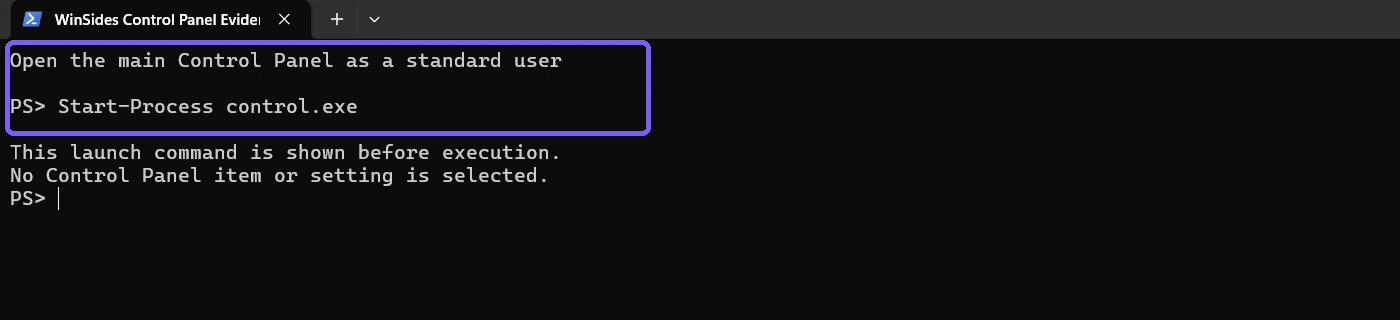
The command invokes the Windows Control Panel executable without naming a particular applet. Microsoft's Control Panel command documentation distinguishes this main launch from commands that target a specific canonical Control Panel item. Use a specific item only when you understand its purpose and expected behavior.
How do you open Control Panel from Run?
Press Windows + R to open Run.
Enter
control.Press Enter or select OK.
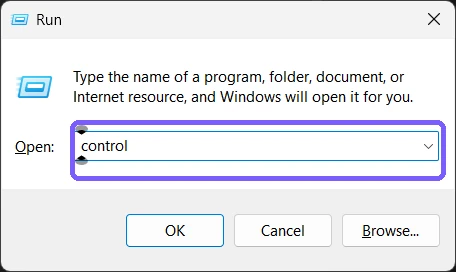
control as the Run command for the main Control Panel.The reproduced evidence stopped before submitting the Run command because the PowerShell method had already verified the same result. The text was cleared and the disposable Run dialog was closed, so it left no command history entry from this capture.
How do you open Control Panel from Start?
Open Start, type Control Panel, and select the matching app result. Confirm that the result is the Windows Control Panel rather than a vendor utility with a similar name. A standard click is sufficient; opening the main window does not need an administrator token.
Start search can be the easiest route when you do not remember a command. The Run and PowerShell routes are easier to reproduce exactly in documentation and troubleshooting. All three routes should reach the same main Control Panel surface, subject to organization policy.
Why does Control Panel open in a different view?
Control Panel can display Category, Large icons, or Small icons. Windows can remember a previously used view, and administrators can configure a policy that forces the classic icon view. Therefore, opening directly to All Control Panel Items is not proof that another PC is misconfigured.
This guide deliberately preserved the existing view. Changing View by is usually harmless, but it is still a persistent user-interface preference and is unnecessary for proving that Control Panel opens. If instructions require an icon that is hidden by Category view, you can change the view deliberately and record that separate choice.
Is Control Panel the same as Settings?
No. Settings is the modern Windows configuration app and receives new Windows experiences first. Control Panel is the classic shell of applets retained for compatibility and for settings that still depend on it. Some links in Control Panel now hand off to Settings, so the boundary between the two is not fixed.
Prefer Settings when Microsoft provides the current option there. Use Control Panel when a documented workflow calls for a classic applet. Avoid assuming that an old applet path will remain unchanged after a Windows update.
What can you open from Control Panel?
The main window is a directory of applets, not a single settings page. For example, Programs and Features manages traditional desktop-program entries, Power Options exposes classic power-plan controls, and Network and Sharing Center provides legacy network links. Windows Tools opens a collection of management consoles.
One common follow-up is to open Windows Features through Programs and Features. That is a separate procedure because enabling or disabling a feature can install components, require administrator approval, or request a restart. Do not click through applets merely to make a screenshot look complete.
Do you need administrator rights?
No administrator rights were required to open the main Control Panel in the reproduced session. Individual applets enforce their own permissions. A protected change can show User Account Control, request administrator credentials, or deny the action.
Use the normal standard-user launch first. The separate guide to run Control Panel as administrator addresses an elevated intent and should not be used for routine browsing. Elevation expands what a process can change; it does not make the main window more complete.
How was the read-only result verified?
After the main window was closed, a fresh verification frame confirmed that no Control Panel window or Run dialog remained, no Control Panel item had opened, no view or system setting had changed, no file had been created, and no elevation had occurred. The unrelated pre-existing Notepad session was preserved.
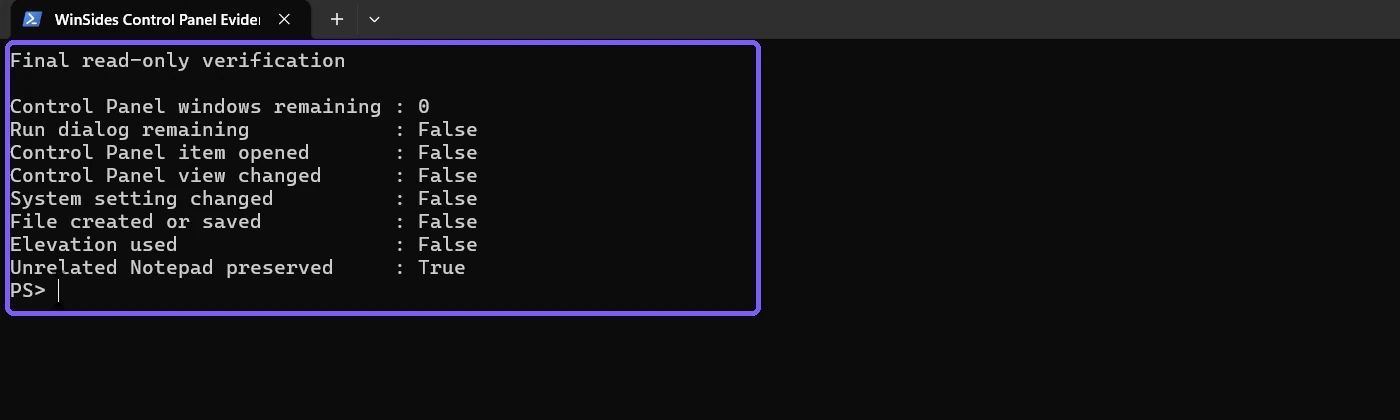
This verification is intentionally narrower than a system audit. It proves the bounded navigation steps used for this guide. It does not claim that every applet is safe to open or that another program could not change Windows independently.
Troubleshoot Control Panel opening problems
The Start result is missing
Try Windows + R and enter control. On managed PCs, policy can prohibit Control Panel and Settings or hide selected items. Contact the administrator rather than bypassing the restriction.
The window opens in Category view
That is a supported view. Use the categories as shown, or change View by only when the task requires a specific icon layout. The opening method is still working.
An item opens Settings instead
Windows has migrated many settings. Follow the supported Settings page if it contains the option you need. Do not use an undocumented Registry edit to force a retired applet back.
The command opens but a particular applet is absent
Check the Windows edition, installed software, and current Microsoft documentation for that applet. Do not download a replacement CPL file from an unknown site. A missing entry can be intentional, policy-controlled, or replaced by Settings.
Frequently Asked Questions
What is the Run command for Control Panel?
Press Windows + R, enter control, and press Enter to open the main Control Panel.
Can you open Control Panel from PowerShell?
Yes. Run Start-Process control.exe in a normal PowerShell session.
Why do I see different Control Panel icons?
Entries vary with Windows edition, optional components, installed desktop software, policy, and ongoing migration to Settings.
Does opening Control Panel change a setting?
No. The main window is a navigation surface; a change occurs only after you use an applet and alter or apply a value.
Conclusion
Search for Control Panel from Start, run control, or use Start-Process control.exe to open the classic main window. Expect the view and applet list to vary, use standard-user access for browsing, and treat every applet as a separate task with its own permissions and change risk.
For more interesting articles, stay tuned to WinSides.com!



Community
Comments (0)