

Modern Notepad in Windows 11 shows a character count in its status bar. With no selection, it reports the total number of characters in the current document. When you select text, it reports the selected count in relation to the total, which is useful for length limits and precise editing.
The reproduced test used a separate disposable Notepad window so an unrelated existing user session remained untouched. A blank window showed 0 characters. The controlled sentence Windows Tools are useful. showed 25 characters, and selecting Windows Tools showed 13 of 25 characters.
What does Notepad count?
Microsoft introduced the modern status-bar behavior in a Windows Insider Notepad update. Microsoft explained that an unselected document shows its total character count, while a selection shows both the selected and total counts.
The counter measures characters, not words. Spaces and punctuation are characters, and a line break can also contribute to document length. If a website or form defines a special counting rule, verify that rule separately instead of assuming Notepad uses it.
Table of contents
Open a disposable Notepad window safely
If Notepad already contains work you care about, do not overwrite it for a tutorial. Press Ctrl + Shift + N to open a separate blank Notepad window, or start a new blank document through Notepad's File menu. Keep the original window and tabs open.
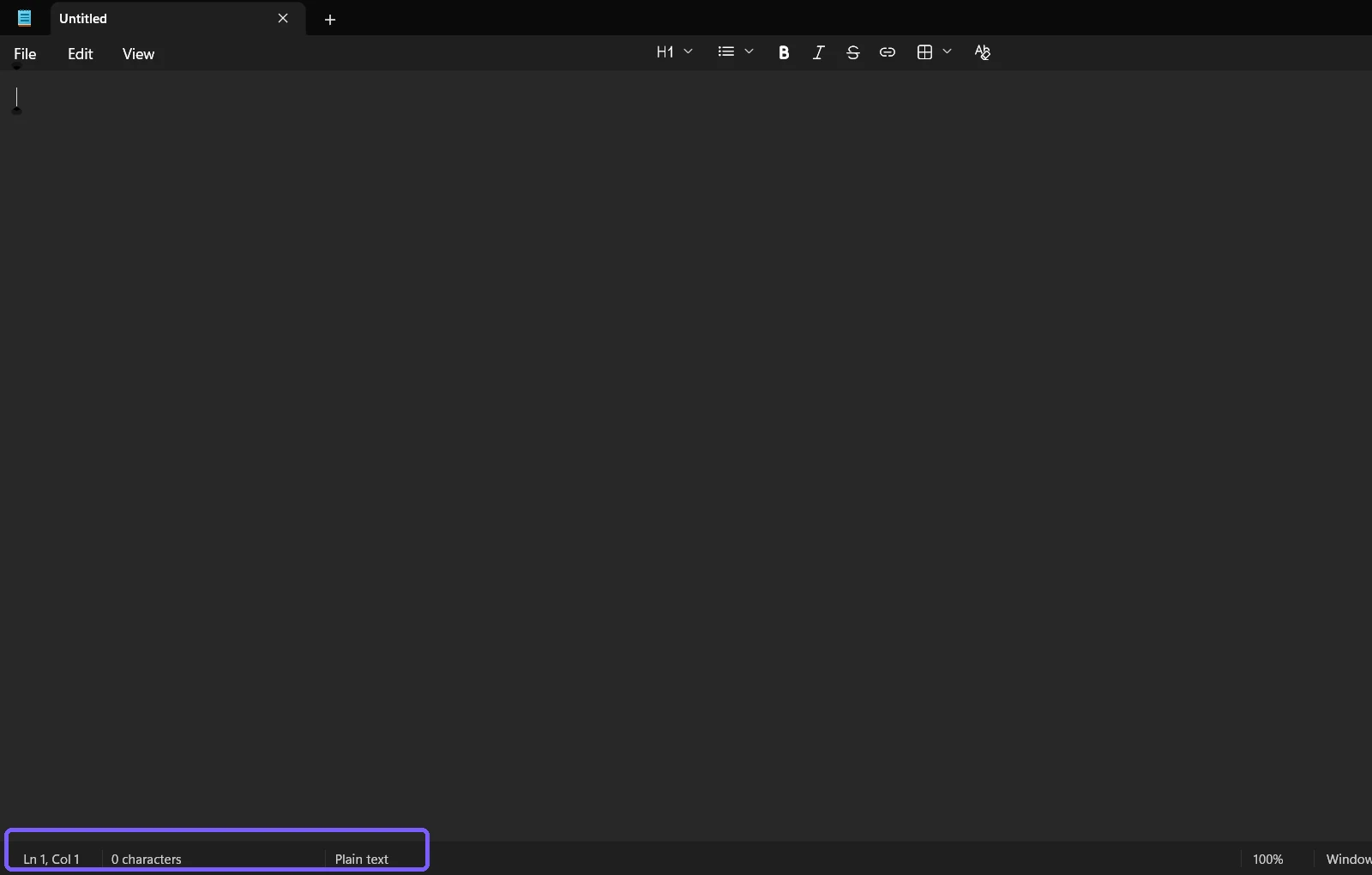
The reproduced workflow identified the new window by its own top-level handle. All typing and cleanup were directed to that disposable window only. No personal file was opened, created, or saved.
Check the blank document count
Focus the new blank Notepad window.
Look at the lower-left area of the status bar.
Confirm that the fresh document reports 0 characters.
If the status bar is absent or the count is missing, update Notepad through the supported Microsoft Store route and reopen it. Do not install a third-party replacement solely to reproduce this interface.
Read the total character count
Type or paste the text you want to measure, then click once in the document so no text remains selected. The lower-left status area shows the total. The controlled sentence used here contains 25 characters:
Windows Tools are useful.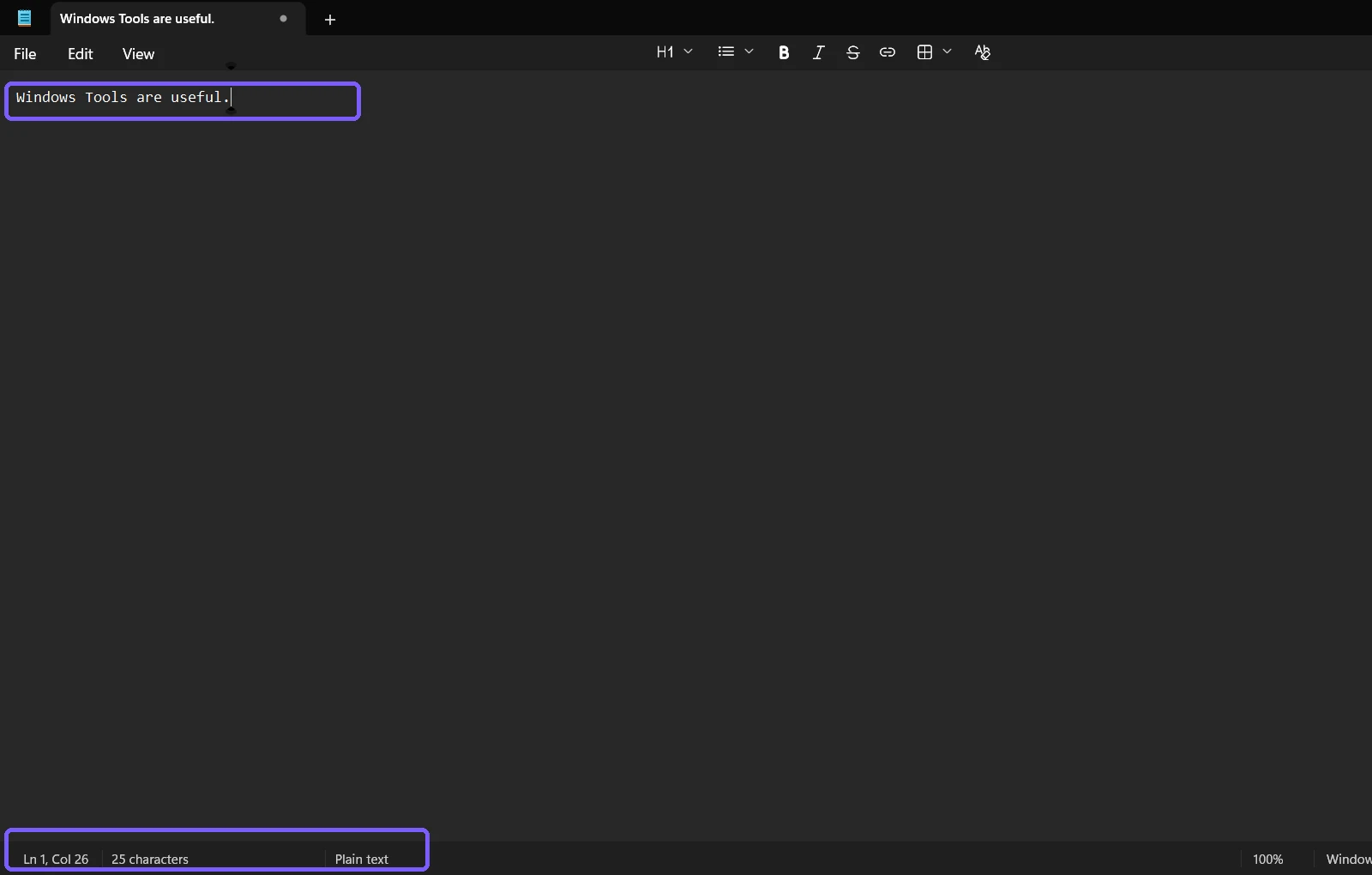
The count includes the space between each word and the final period. Moving the caret from one column to another does not change the total because the text itself has not changed.
Read the selected and total character counts
Select only the text whose length you need. Notepad changes the status bar from a single total to a selected-versus-total format. In the reproduced example, selecting Windows Tools produced 13 of 25 characters.
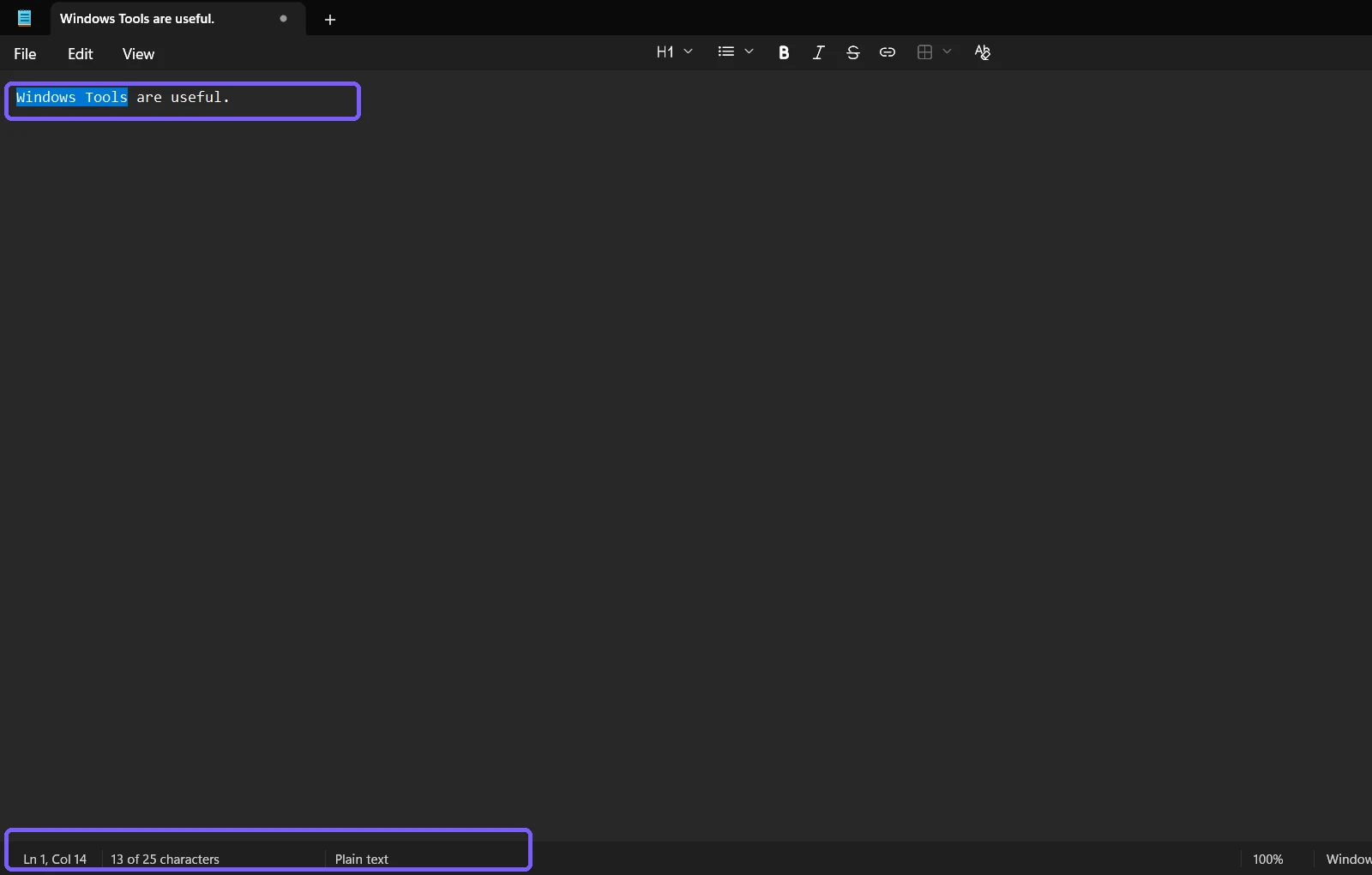
This is handy when only one paragraph, title, or field value has a limit. Click elsewhere to remove the selection and return to the document total.
Why may your total differ?
- Spaces count: every ordinary space contributes one character.
- Punctuation counts: periods, commas, quotation marks, and symbols add to the total.
- Line endings matter: multi-line text includes line-break characters even though a service may apply a different rule.
- Hidden selection boundaries matter: a trailing space can be selected even when it is visually subtle.
- App version matters: older Notepad builds may not expose the same status-bar counter.
Does Notepad show a word count?
The reproduced status bar exposes characters, not a word-total field. Do not label the character number as a word count. If a task requires words, use a tool that explicitly defines and reports word boundaries.
Do you need administrator rights?
No. Reading the counter in a normal document is a standard-user action. The separate guide to run Notepad as administrator is relevant only for a protected-file scenario that genuinely requires elevation, not for character counting.
Protect existing Notepad work
Before testing, note whether Notepad restored earlier tabs or unsaved session content. Keep those windows out of screenshots and never force-close their process. For disposable evidence, clear the controlled text before closing its exact window. The reproduced workflow left the pre-existing session open and created no file.
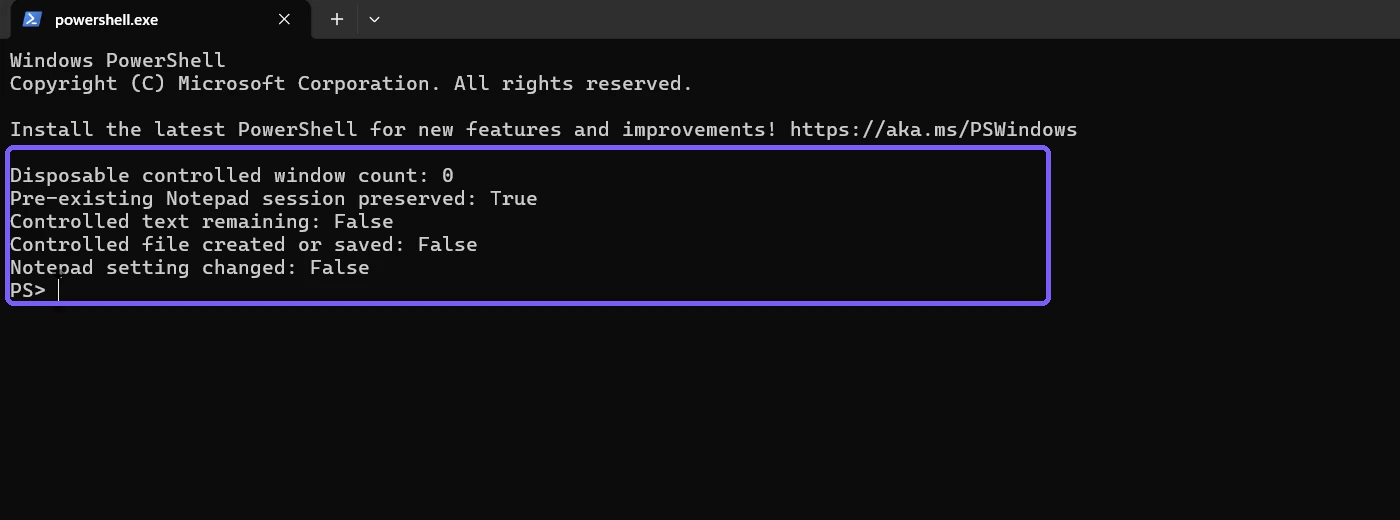
If multiple Notepad windows share one app process, close the disposable top-level window through its own title bar instead of ending the process. Ending the process can affect unrelated restored tabs. After clearing the controlled text, confirm that the original window is still present and that no Save dialog, new file, or extra blank window remains.
Troubleshoot the character counter
The count is not visible
Maximize or widen the Notepad window and confirm you are looking at the bottom status bar. Reopen the app after applying supported Notepad updates.
The status says selected characters
Click once in the document or press an arrow key to remove the selection. The display should return to the total-only form.
The selected number is one too high
Check whether you included a leading or trailing space, punctuation mark, or line break. Repeat the selection slowly from the first visible character to the last.
The count differs from a website
The website may normalize line breaks, ignore some Unicode sequences, or apply its own limit. Treat Notepad as a transparent local character reference and the destination service as authoritative for submission rules.
Frequently Asked Questions
Where is the Notepad character count?
It appears in the lower-left status bar of current Notepad builds.
Does Notepad count spaces?
Yes. Spaces are characters and contribute to the displayed total.
Can Notepad count only selected text?
Yes. Select the text and the status bar shows the selected character count alongside the document total.
Does Notepad's character count require a saved file?
No. The counter works in a new unsaved document, so you can use controlled text without creating a file.
Conclusion
Use Notepad's status bar for a quick, local character total, then select a passage when you need the selected-versus-total count. Work in a disposable window when personal tabs are open, distinguish characters from words, and clear controlled evidence before closing without saving.
For more interesting articles, stay tuned to WinSides.com!



Community
Comments (0)