

Windows Tools is the Windows 11 folder that gathers many built-in management consoles and utilities in one place. You can open the real virtual folder directly, browse it as a standard user, and choose a tool only when you understand what that tool will do.
The reproduced check opened the virtual Windows Tools folder without launching any shortcut. A separate bounded inventory confirmed six familiar built-in entries on this PC: Computer Management, Event Viewer, Performance Monitor, Resource Monitor, System Information, and Task Scheduler. Microsoft notes that the available tools can vary by Windows edition.
What is Windows Tools?
Microsoft's Windows Tools documentation describes it as a Windows 11 Control Panel folder for administrators and advanced users. Windows 10 used the older Administrative Tools name. The folder is a launch surface: merely opening it does not run every utility, elevate a process, or change a setting.
Many entries can make significant changes after you open and use them. Registry Editor, Services, Task Scheduler, Computer Management, firewall consoles, and disk tools deserve particular care. This guide stops at folder navigation and a read-only name check.
Table of contents
Open the Windows Tools virtual folder directly
Open Windows Terminal or PowerShell normally, without choosing Run as administrator.
Enter the following command:
Start-Process explorer.exe 'shell:::{D20EA4E1-3957-11d2-A40B-0C5020524153}'Press Enter. File Explorer should display the Windows Tools virtual folder.
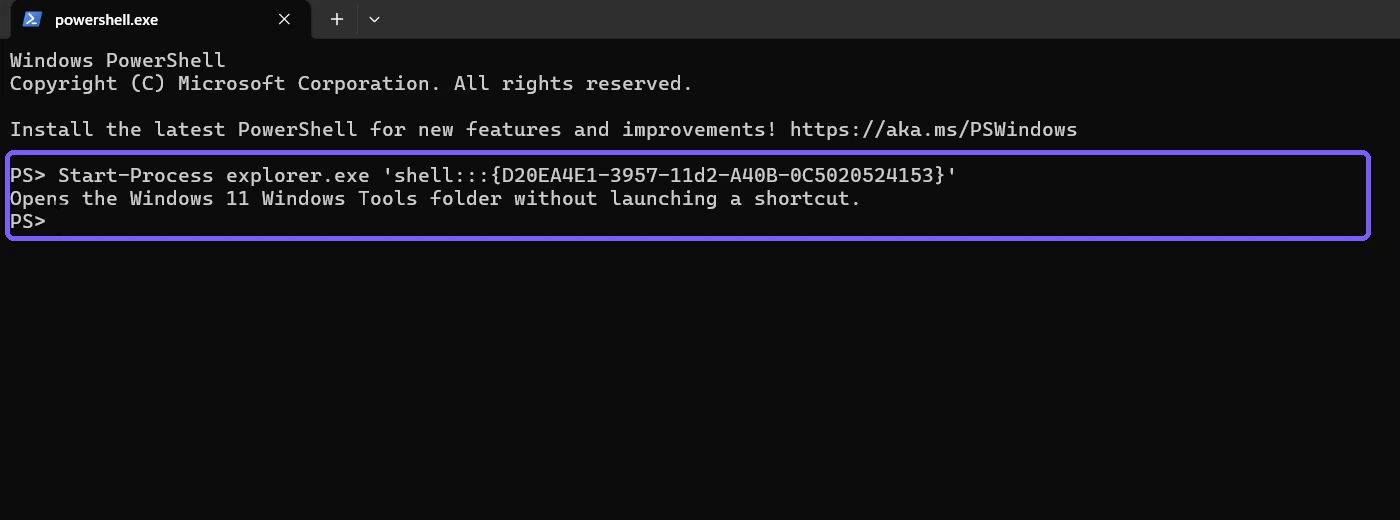
The long identifier selects Windows' virtual management-tools namespace. It avoids depending on a per-user shortcut folder, which can be empty even though the Windows Tools virtual folder is fully populated.
Confirm that the Windows Tools folder opened
The resulting window should be labeled Windows Tools and show built-in icons. On the reproduced PC, the visible choices included Control Panel, Event Viewer, Performance Monitor, Resource Monitor, System Information, Task Scheduler, Services, Windows PowerShell, and several edition- or feature-dependent entries.
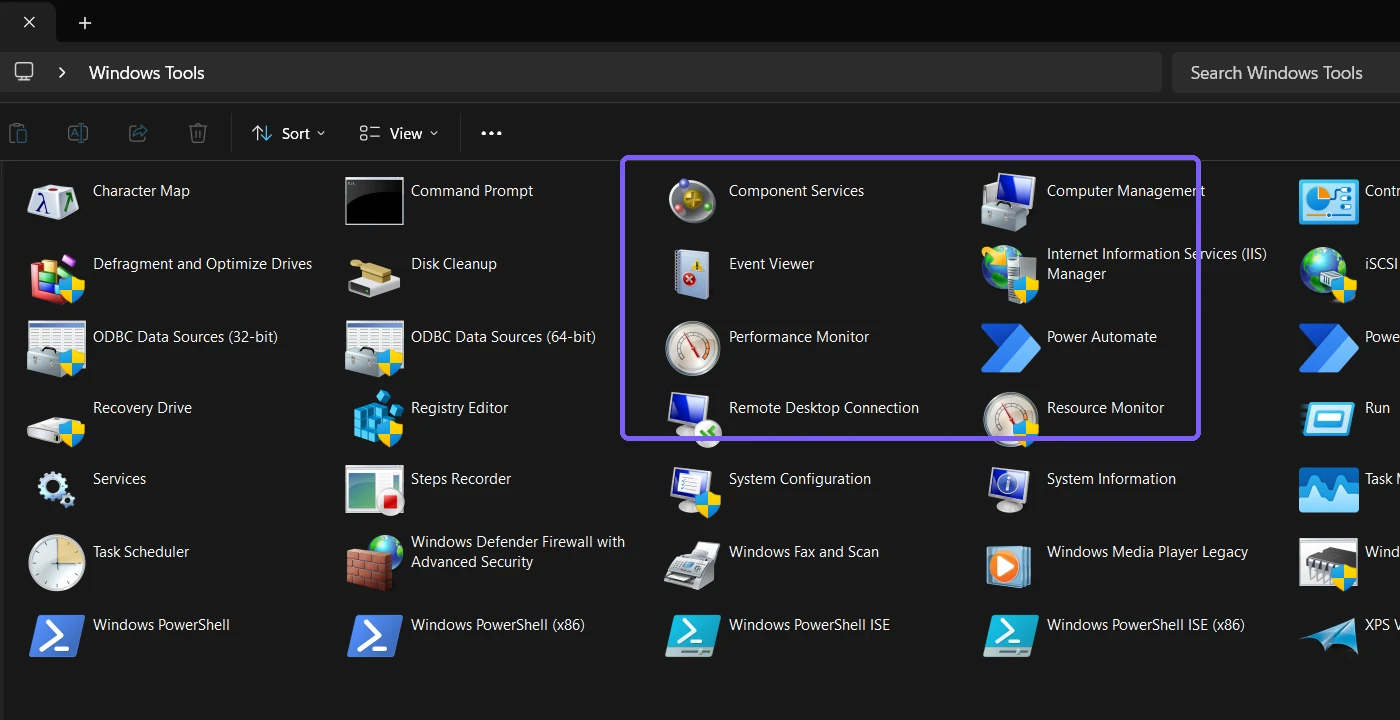
Your list may differ. Optional Windows features and installed Microsoft components can add shortcuts, and some Windows editions omit consoles. A different list is not automatically an error.
Open Windows Tools from Start or Control Panel
You can also open Start, search for Windows Tools, and select the matching result. From Control Panel, switch to an icon view if necessary and open Windows Tools. These routes reach the same general collection but can be slower than the direct namespace command.
A normal folder launch is sufficient for browsing. Do not run Control Panel as administrator merely to see the folder. Elevate a specific tool only when a clearly understood task requires administrator rights.
Verify selected shortcut names without launching them
If you are documenting a PC or checking whether a familiar shortcut is present, enumerate only the public shortcut display names you need. The reproduced PowerShell check used the common administrative-tools folder and filtered to a six-name allowlist:
Get-ChildItem ([Environment]::GetFolderPath('CommonAdminTools'))
# Keep only the selected built-in .lnk BaseName values.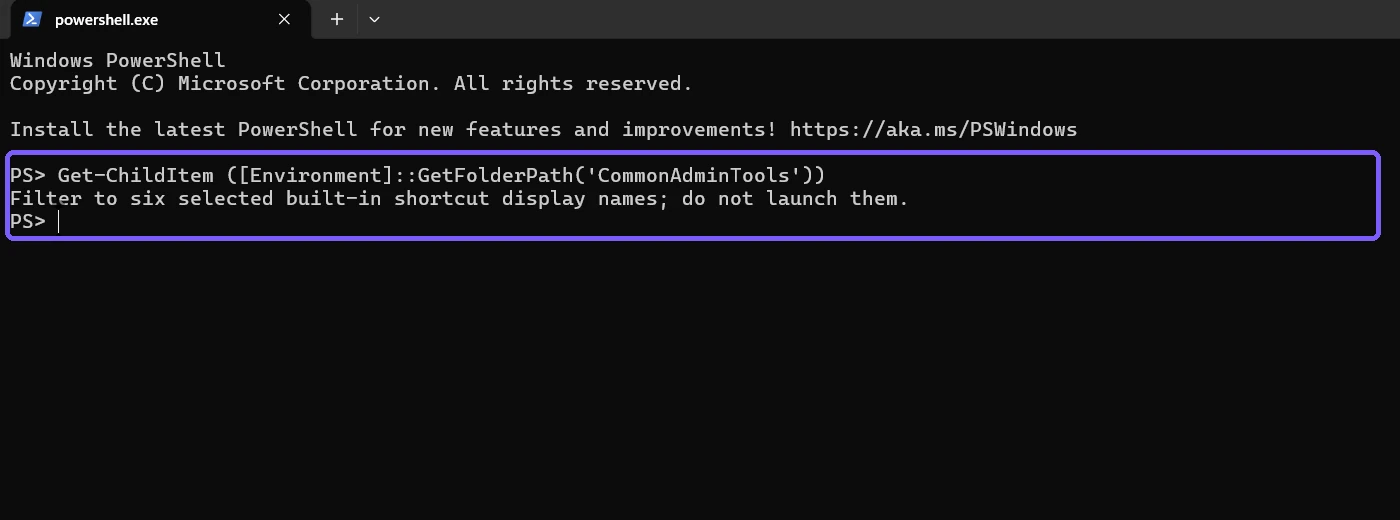
This filesystem-backed shortcut folder is useful for a bounded name check, but it is not a perfect visual substitute for the virtual folder. Some items can appear through shell namespace integration instead of the exact common shortcut directory.
Interpret the six reproduced results
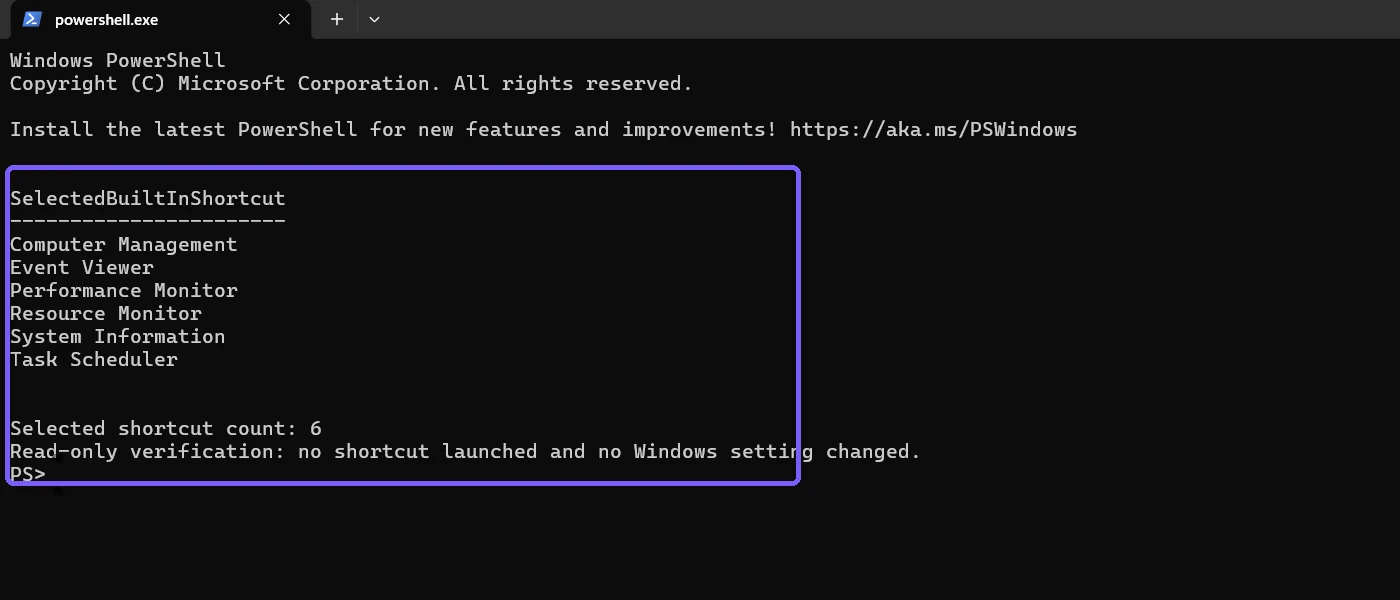
- Computer Management groups several administrative snap-ins.
- Event Viewer displays Windows event logs.
- Performance Monitor works with counters, collector sets, and reports.
- Resource Monitor shows live CPU, memory, disk, and network activity.
- System Information summarizes hardware and Windows resources.
- Task Scheduler displays and manages scheduled tasks.
Those descriptions explain purpose, not permission to change state. Browse deliberately, avoid opening tools you do not need, and never publish a screenshot containing private device, network, account, task, or event-log details.
Do you need administrator rights?
No administrator token is required to open the Windows Tools folder itself. Individual consoles enforce their own access rules. Some views work for a standard user, while protected actions can prompt for elevation or deny access. Treat that boundary as a safety feature rather than a problem to bypass.
Troubleshoot Windows Tools
The folder appears empty
Use the virtual-folder command shown above instead of opening only a per-user Administrative Tools directory. The per-user directory can legitimately contain zero shortcuts.
A specific shortcut is missing
Check the Windows edition and relevant optional feature. Do not download a replacement shortcut from an unknown site. Search for the built-in tool by its executable or supported Windows feature name only after verifying Microsoft's documentation.
A tool asks for elevation
Cancel if the requested task was meant to be read-only or you do not understand the change. Reopen the specific console with elevation only for a documented protected operation.
The command opens another location
Copy the complete namespace identifier, including all braces and colons. A text alias such as shell:Administrative Tools can resolve to a different shortcut folder.
For repeat use, keep the command in a trusted note instead of creating a shortcut with an uncertain target. Recheck the target text before pressing Enter, and close the folder when finished. This keeps navigation reproducible without adding startup entries, desktop clutter, scheduled tasks, or another persistent system change.
Frequently Asked Questions
Is Windows Tools the same as Administrative Tools?
Windows Tools is the Windows 11 name and folder; Administrative Tools is the older Windows 10 Control Panel name.
Does opening Windows Tools change Windows?
No. Opening the folder only displays shortcuts, although using an individual tool can change the system.
Why does my Windows Tools list look different?
The entries can vary with Windows edition, optional features, and installed Microsoft components.
Can a standard user open Windows Tools?
Yes. The folder opens normally, but individual tools decide which views or actions require elevation.
Conclusion
Open the Windows Tools virtual folder with its shell namespace command, then select only the utility you actually need. The folder itself is safe to browse as a standard user, its contents can vary by edition, and every management console should be treated according to its own permissions and change risk.
For more interesting articles, stay tuned to WinSides.com!









Community
Comments (0)