

Mouse Keys is a built-in Windows 11 accessibility feature that lets the numeric keypad move and operate the mouse pointer. It can be useful when a physical mouse is unavailable or difficult to control. It is different from changing the pointer's appearance: Mouse Keys changes how you control the pointer, not its color, shape, or size.
The most dependable way to turn it on or off is Settings > Accessibility > Mouse > Mouse keys. Microsoft also documents Left Alt + Left Shift + Num Lock as an accessibility shortcut. This guide shows the Settings route that I reproduced, explains the documented shortcut, and restores the exact starting state when the test is complete.
Before you turn on Mouse Keys
Check whether your keyboard has a separate numeric keypad. The number row above the letters is not the same thing. Compact laptops may need an embedded keypad or an external keyboard before the documented movement keys are practical.
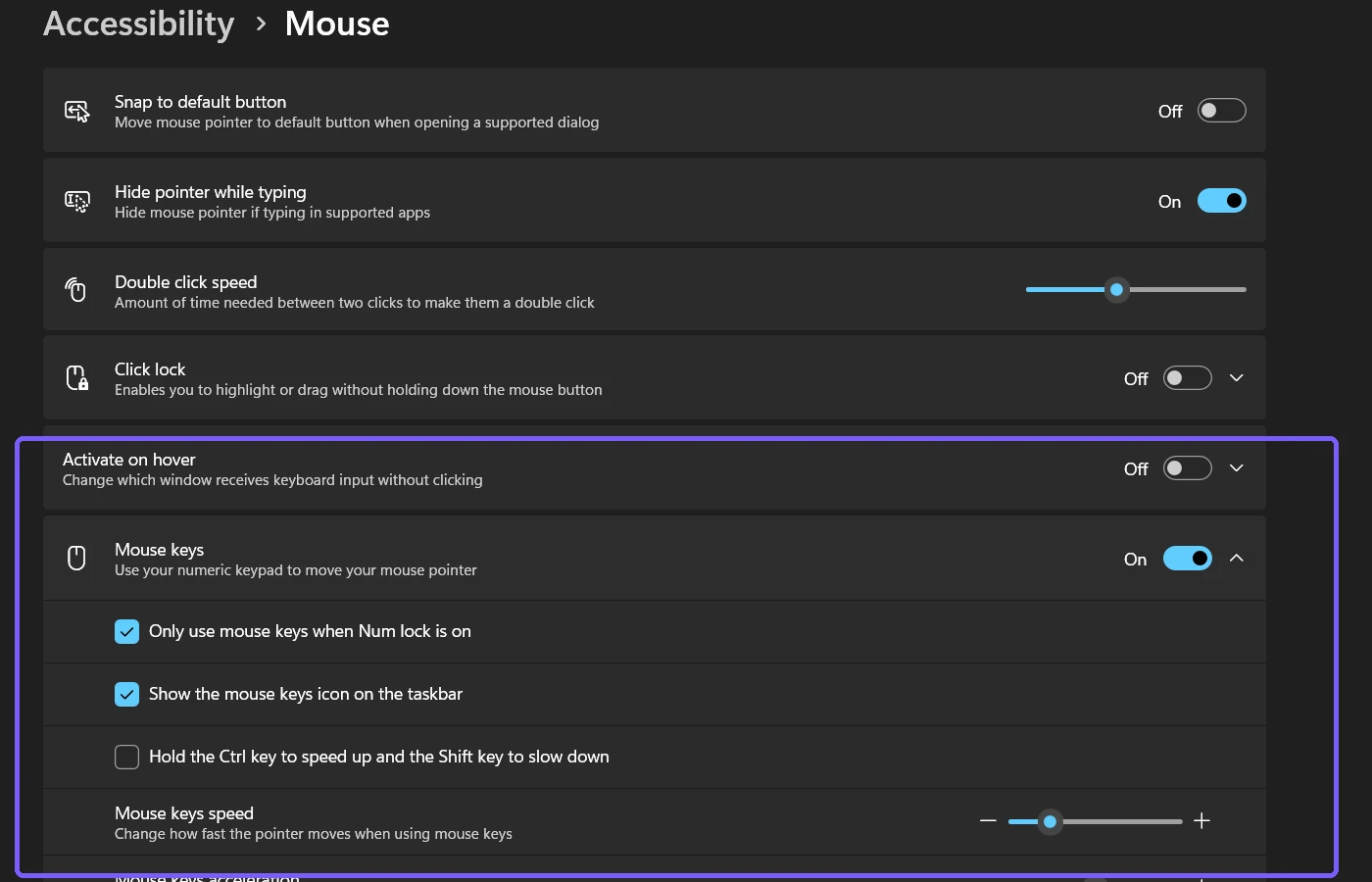
Also record the starting state and leave the related options alone unless you intend to change them. When Mouse Keys is enabled, Windows can expose options for Num Lock behavior, a taskbar indicator, Ctrl and Shift speed control, pointer speed, and acceleration. Those settings are not required for a simple on/off procedure.
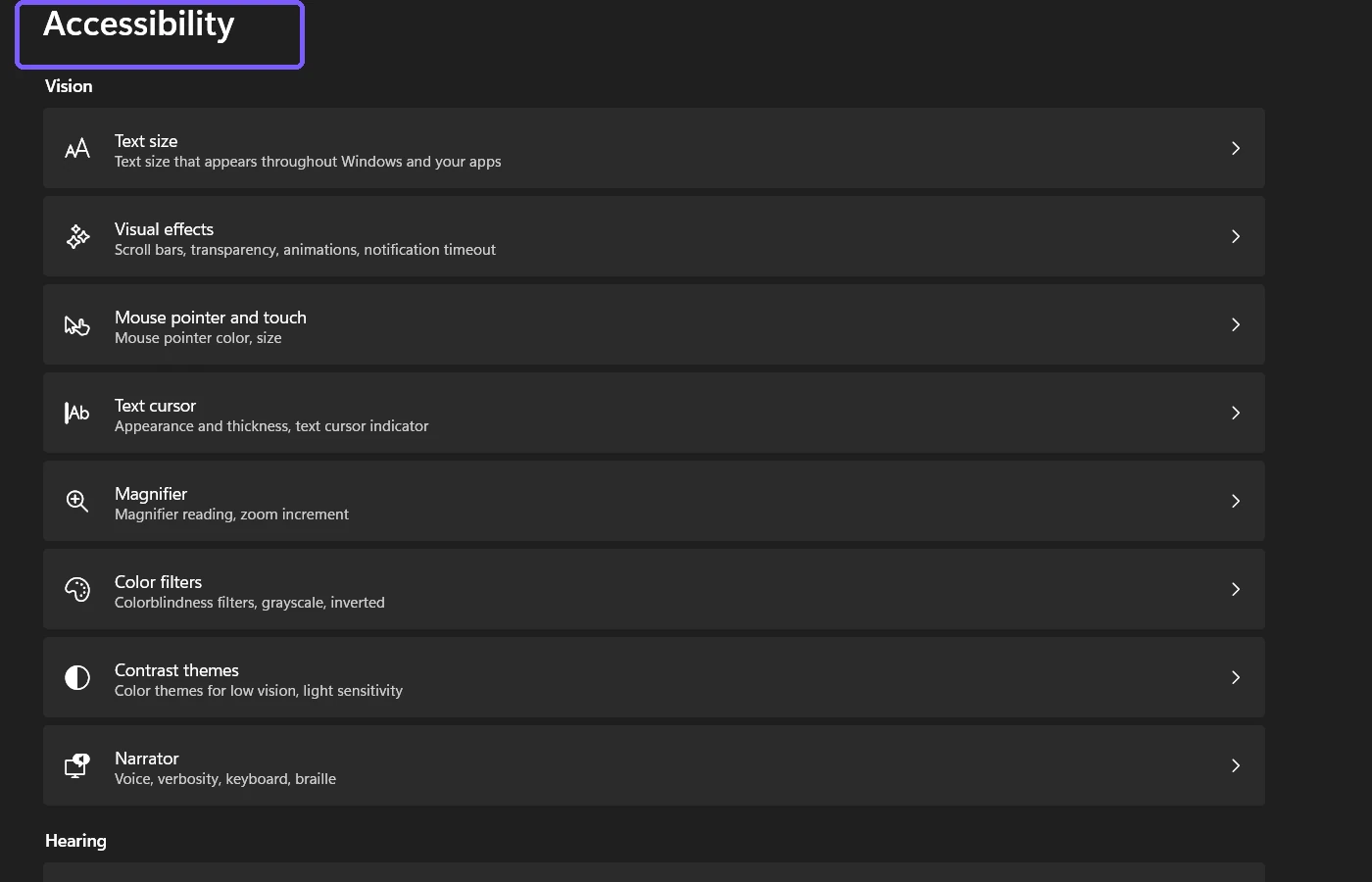
Table of contents
How do you turn on Mouse Keys in Settings?
Press Windows + U to open Accessibility settings. You can instead open Settings and select Accessibility.
Scroll to the Interaction section and select Mouse.
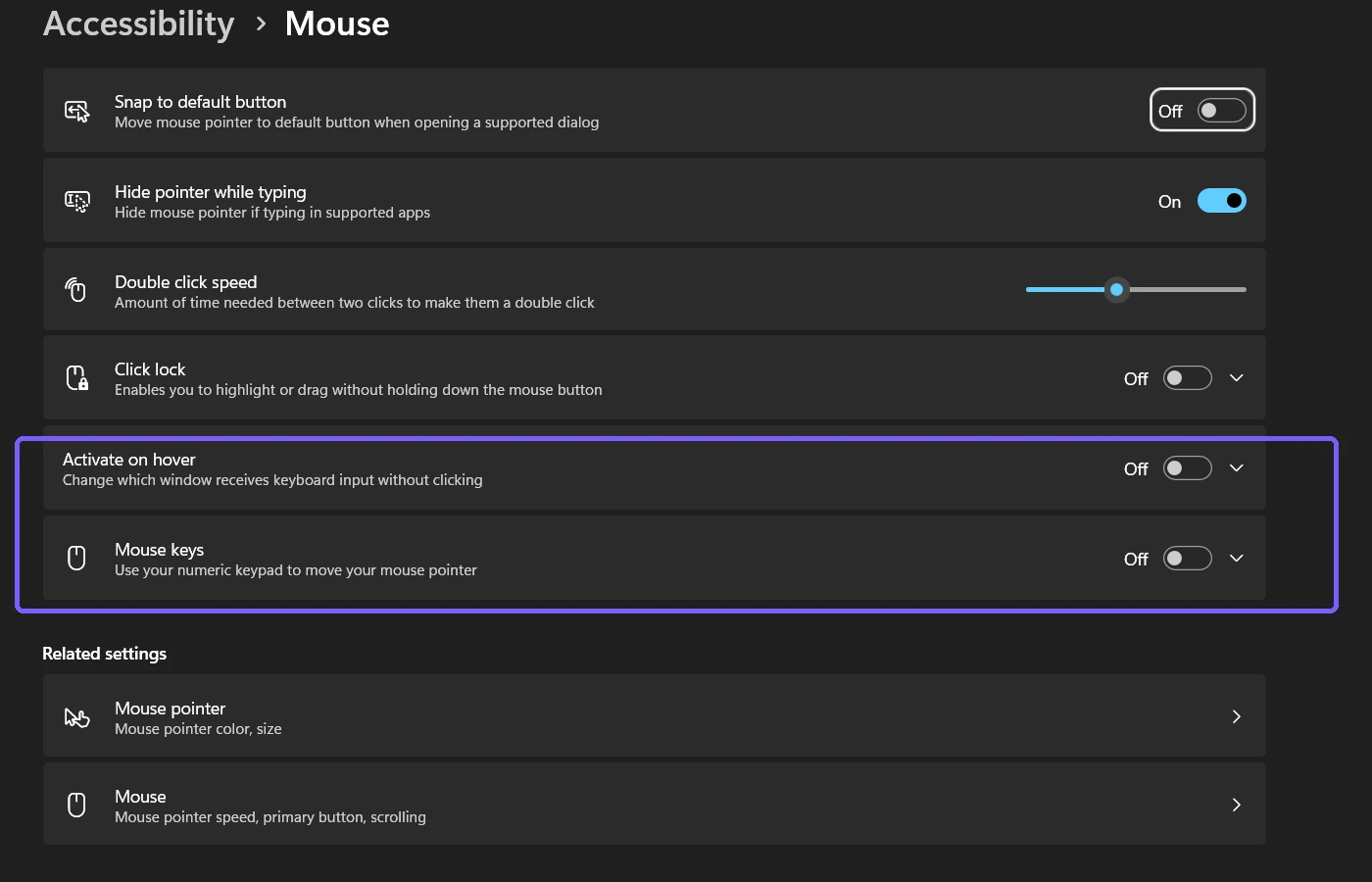
Find Mouse keys. Read its description to confirm that you are changing the numeric-keypad pointer feature.
Turn the Mouse keys switch on.
The switch changes immediately; there is no Apply button and no administrator prompt. In the reproduced session, turning it on expanded the card to reveal its related controls. I did not press any numeric-keypad pointer command, and I left every subordinate option at its original value.
What do the numeric-keypad controls do?
According to Microsoft's Mouse Keys guide, the directional keypad numbers move the pointer: 8 moves up, 2 moves down, 4 moves left, and 6 moves right. The diagonal keys are 7, 9, 1, and 3. These commands apply after Mouse Keys is enabled and the keypad is available for pointer control.
Microsoft also documents keypad commands for selecting a mouse button, clicking, double-clicking, dragging, and dropping. Practice only in a disposable blank window until you understand the current button selection. A stray click or drag can act on the item underneath the pointer even though enabling Mouse Keys itself does not edit a file.
How do you turn Mouse Keys off again?
Return to Settings > Accessibility > Mouse and turn Mouse keys off. The expanded options collapse, and the numeric keypad returns to its normal input behavior. This is also the safest rollback if you enabled the feature only to test it.
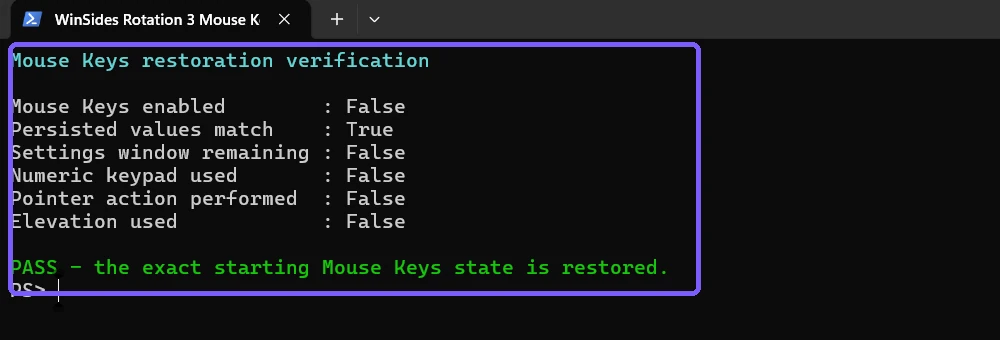
The evidence pass began with Mouse Keys off. After the on-state screenshot, I returned the switch to off and compared the complete Mouse Keys state with the pre-test baseline. The enabled flag, speed, acceleration, and persisted values matched, and Settings was closed.
What is the Mouse Keys keyboard shortcut?
Microsoft's accessibility shortcut reference lists Left Alt + Left Shift + Num Lock for turning Mouse Keys on or off. Use the left Alt and left Shift keys specifically, then press Num Lock. If Windows presents a confirmation, read it before accepting the change.
The Settings route was the method reproduced for this article. Shortcut behavior can depend on the current accessibility configuration, keyboard hardware, or managed policy. If the combination does nothing, use the visible Settings switch instead of changing unrelated Registry values or installing a keyboard utility.
What do the Mouse Keys options mean?
Only use Mouse Keys when Num Lock is on
This option decides when the numeric keypad controls the pointer. Read the wording shown on your device before changing it, because the expected Num Lock state affects whether keypad digits type numbers or move the pointer.
Show the Mouse Keys icon on the taskbar
The indicator helps you notice that the feature is active. Its presence does not prove that every keypad command is available on a compact keyboard, and its absence should not be treated as a hardware failure.
Hold Ctrl to speed up and Shift to slow down
This changes how modifier keys affect pointer movement. It is separate from the main on/off switch. Leave it unchanged when your goal is only to enable or disable Mouse Keys.
Speed and acceleration
Speed controls how quickly the pointer moves; acceleration controls how quickly it reaches that movement rate. Adjust them gradually only after confirming that the basic directional keys work. Large changes can make the pointer difficult to stop precisely.
Mouse Keys changes control, not appearance
Mouse Keys does not enlarge the pointer or change its color. For those visual changes, use the separate guide to change the mouse pointer style and size. Windows places related accessibility tools near each other, but they solve different problems.
It also does not filter accidental repeated keystrokes. If repeated or brief presses are the issue, read how to use Filter Keys for repeated keystrokes. Avoid enabling several keyboard accessibility features at once during troubleshooting, because that makes it harder to identify which behavior changed.
Why is Mouse Keys not working?
Check the main switch
Open the Accessibility Mouse page and confirm that the switch still says On. Another person, a cleanup tool, or a restored preference may have returned it to Off.
Check the keypad and Num Lock state
Confirm that the keyboard has the required numeric keypad and compare Num Lock with the option shown under Mouse Keys. A laptop's shared number overlay may require an additional Fn combination supplied by the manufacturer.
Test over an empty surface
Move the pointer over a blank disposable window before testing click or drag commands. This avoids selecting a personal file, moving a desktop icon, submitting a form, or activating an application control by mistake.
Why should you avoid rewriting accessibility settings first?
A missing shortcut response is not a reason to edit the Registry, import an unknown configuration file, or run an elevated script. The Settings switch provides a visible, reversible path and shows the related options that affect the keypad.
Frequently Asked Questions
What is Mouse Keys in Windows 11?
Mouse Keys is an accessibility feature that uses the numeric keypad to move the pointer and perform mouse-button actions.
Where is the Mouse Keys switch?
Open Settings, select Accessibility, select Mouse under Interaction, and use the Mouse keys switch.
Does Mouse Keys require administrator rights?
No. The reproduced Settings method worked as a standard user and displayed no elevation prompt.
Can I use the number row instead of a numeric keypad?
No. Microsoft's documented movement commands use the numeric keypad. Compact keyboards may need an embedded keypad mode or external keypad.
Conclusion
Use Settings > Accessibility > Mouse > Mouse keys when you want a visible and reversible on/off control. Check the Num Lock rule before testing the keypad, practice on a blank surface, and keep the related speed and indicator options unchanged unless they are part of your goal. Turn the main switch off to restore ordinary keypad behavior.
For more interesting articles, stay tuned to WinSides.com!









Community
Comments (0)