

To turn Spell check and Autocorrect on or off in Notepad on Windows 11, open Notepad > Settings, scroll to Spelling, and change the two switches separately. Spell check marks possible mistakes; Autocorrect can fix recognized typos while Spell check is enabled.
The method below was reproduced in Notepad 11.2606.15.0 with an isolated blank window. Both controls started On, were changed to Off, and were restored to On. Fixed disposable text proved the Off result and the restored spellcheck underline. No private file was opened or saved, no word was added to the dictionary, and no content was submitted to a connected service.
What is the difference between Spell check and Autocorrect?
Spell check looks for words that may be misspelled and marks them with a red wavy underline. You can review a marked word and choose a suggestion instead of letting Notepad change it automatically. Microsoft also documents the keyboard route Shift + F10 for opening suggestions on a marked word.
Autocorrect handles a smaller set of recognized typing mistakes as you type. It is not a promise that every typo will be changed. The current Settings page explicitly says that typos are automatically corrected when Spell check is turned on, so Autocorrect depends on Spell check being enabled.
Microsoft's official Notepad spellcheck announcement explains underlines, suggestions, autocorrect, language support, and the supported Settings controls. It also notes that behavior can vary by file type: spelling can be on by default for ordinary text and off for logs or code-oriented formats.
Table of contents
What should you record before changing the spelling settings?
Record both original switch values. Spell check and Autocorrect are separate preferences, and an exact rollback requires two read-backs. The reproduced computer started with both set to On, but your baseline may differ.
Use a blank unsaved window and fixed disposable words for the test. Do not open a work note merely to make an underline appear. A safe sample also prevents a filename or document sentence from leaking into screenshots.
Avoid Add to dictionary during testing. That command changes learned spelling data and is not undone by moving these two switches. Choose no suggestions, save no file, and clear the disposable text when the check is finished.
How do you find Spell check and Autocorrect in Notepad?
Open Notepad. If it restores a private session, create a separate blank window and leave the restored content untouched.
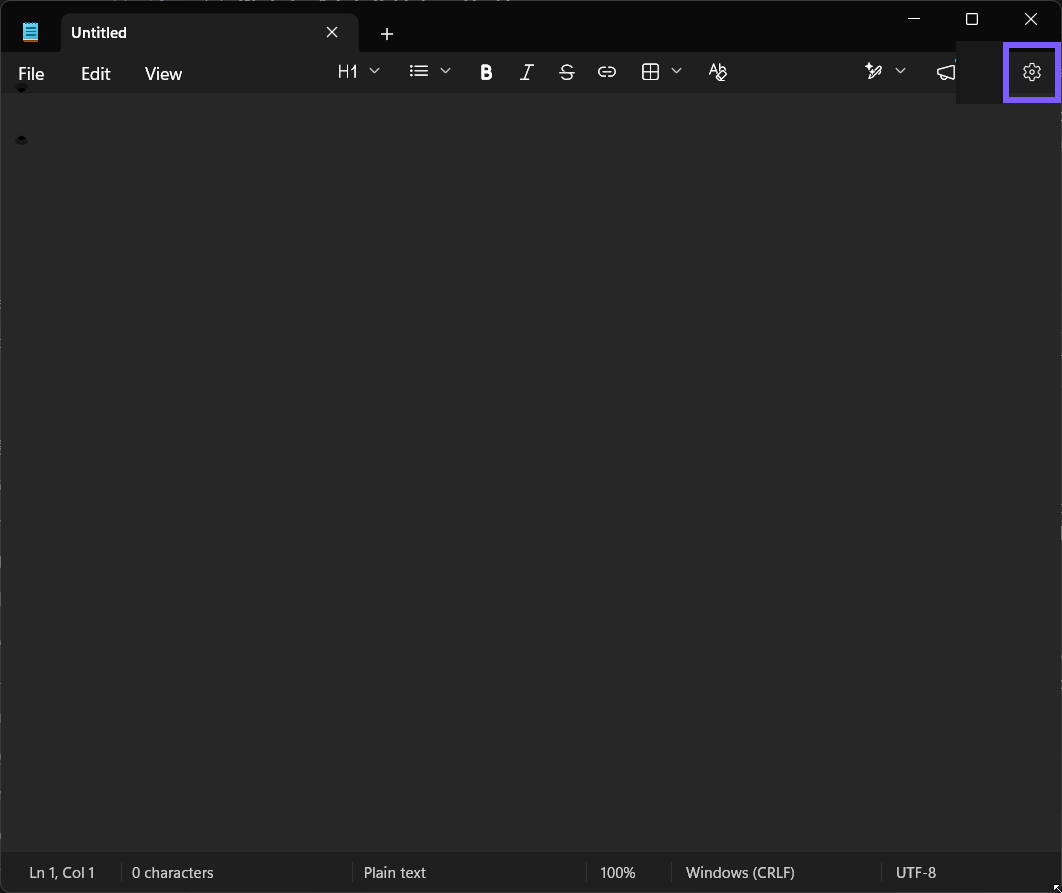
Select the Settings gear in the upper-right corner. You should see Notepad's Settings page rather than the Windows Settings app.
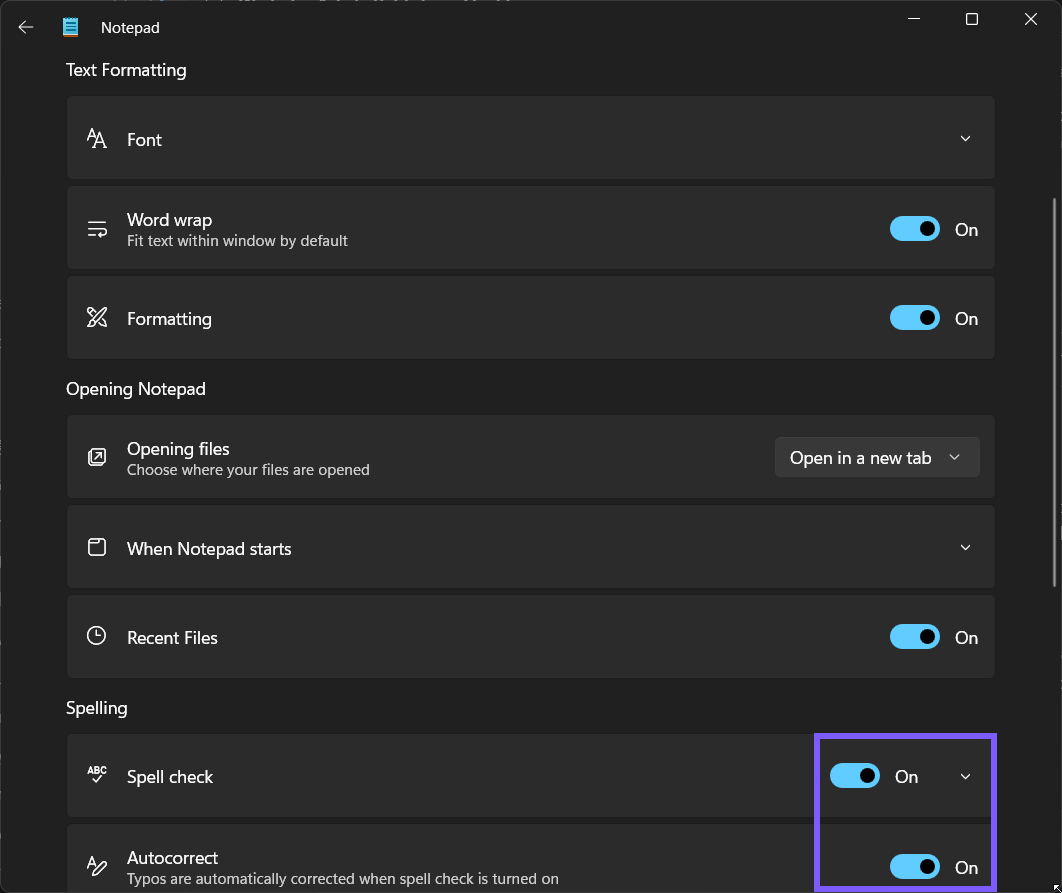
Scroll down to the Spelling section. The rows are below Opening Notepad on the tested build.
Read the word beside Spell check, then read the word beside Autocorrect. Write down each value independently.
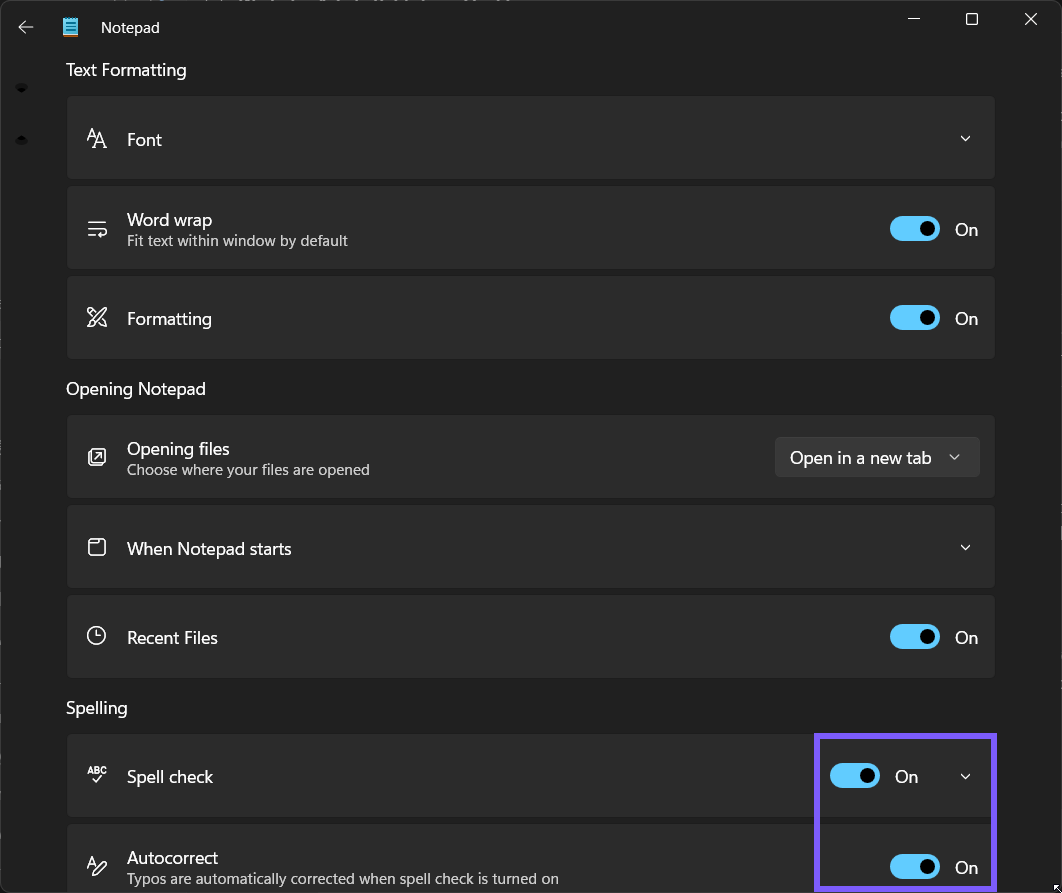
The baseline screenshot shows both controls On. The arrow on the Spell check row expands file-type options, but you do not need to change those options for the global on/off method in this guide.
How do you turn Spell check and Autocorrect off?
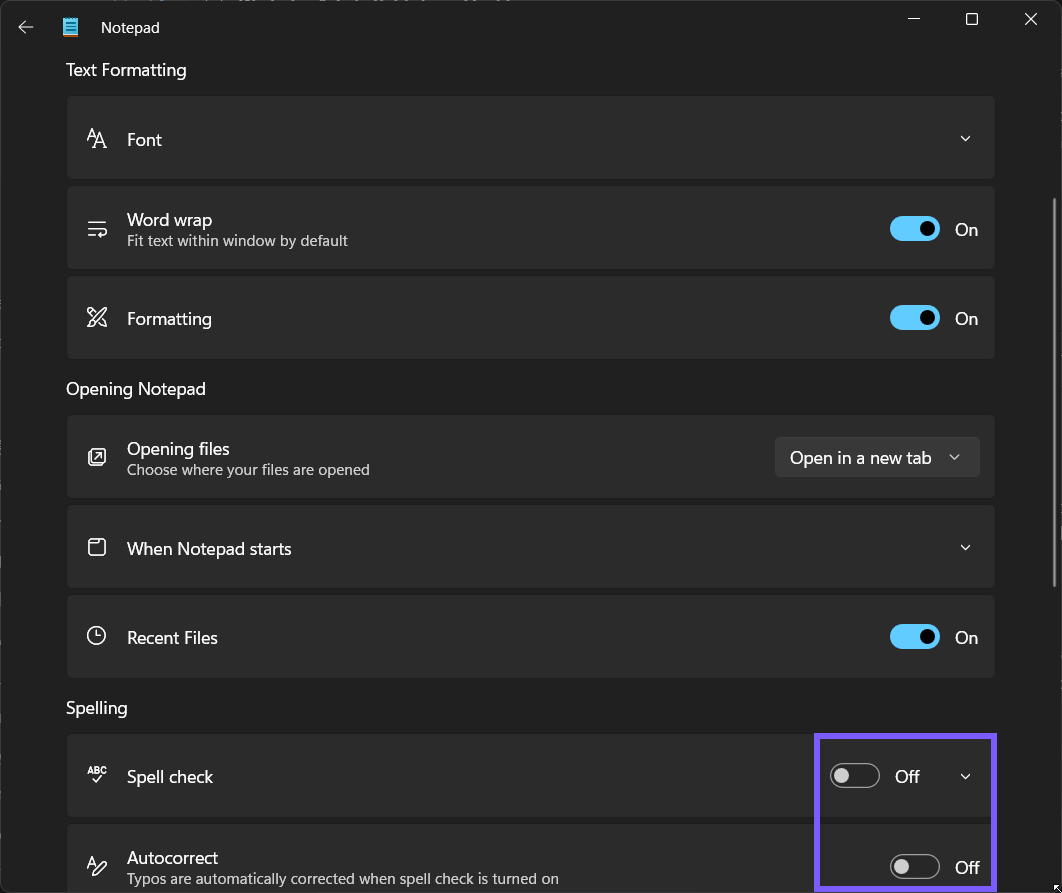
Select the Autocorrect switch so it reads Off. Turning this one off first keeps its intended state explicit before Spell check changes.
Select the Spell check switch so it also reads Off.
Read both rows again. There is no Apply button; the two Off labels are the direct success signal.
Return to the blank editor and type a fixed disposable phrase containing known mistakes. In the reproduced Off state, “teh winodw remains exactly as typed.” stayed byte-for-byte the same and showed no red spelling underline.
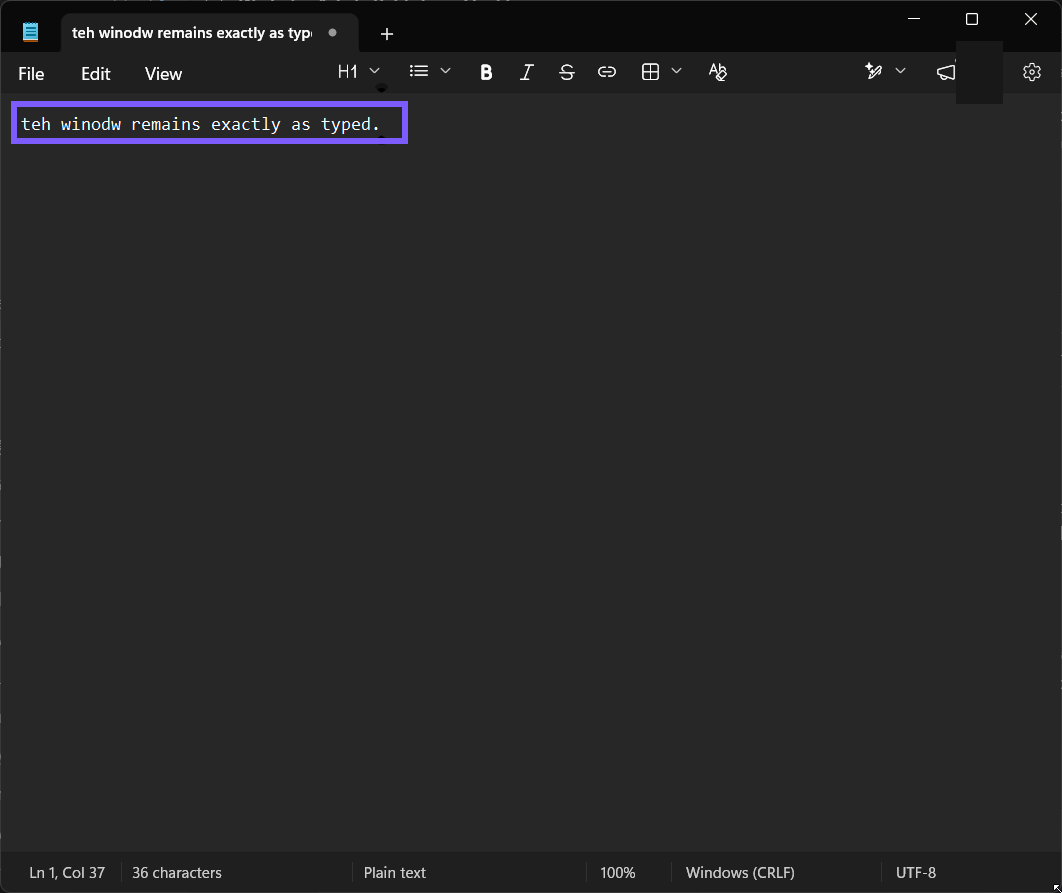
This check proves the requested Off behavior without touching a saved file. It does not mean the words are correct, and it does not disable spelling features in other editors or Windows-wide typing settings.
How do you turn both spelling features on?
Open Notepad > Settings > Spelling.
Turn Spell check On first. This restores the feature that Autocorrect depends on.
Turn Autocorrect On.
Read both labels again. Each must show On.
Once enabled, Spell check can underline possible mistakes and offer suggestions. Autocorrect changes only mistakes it recognizes; language, the actual word, and the file type can affect the result. Do not judge the switch as broken merely because one synthetic typo stays unchanged.
How do you restore and verify the original values?
For rollback, return each switch to the value you recorded before the test. The reproduced session restored Spell check to On and Autocorrect to On, then read both controls from a fresh Settings state.
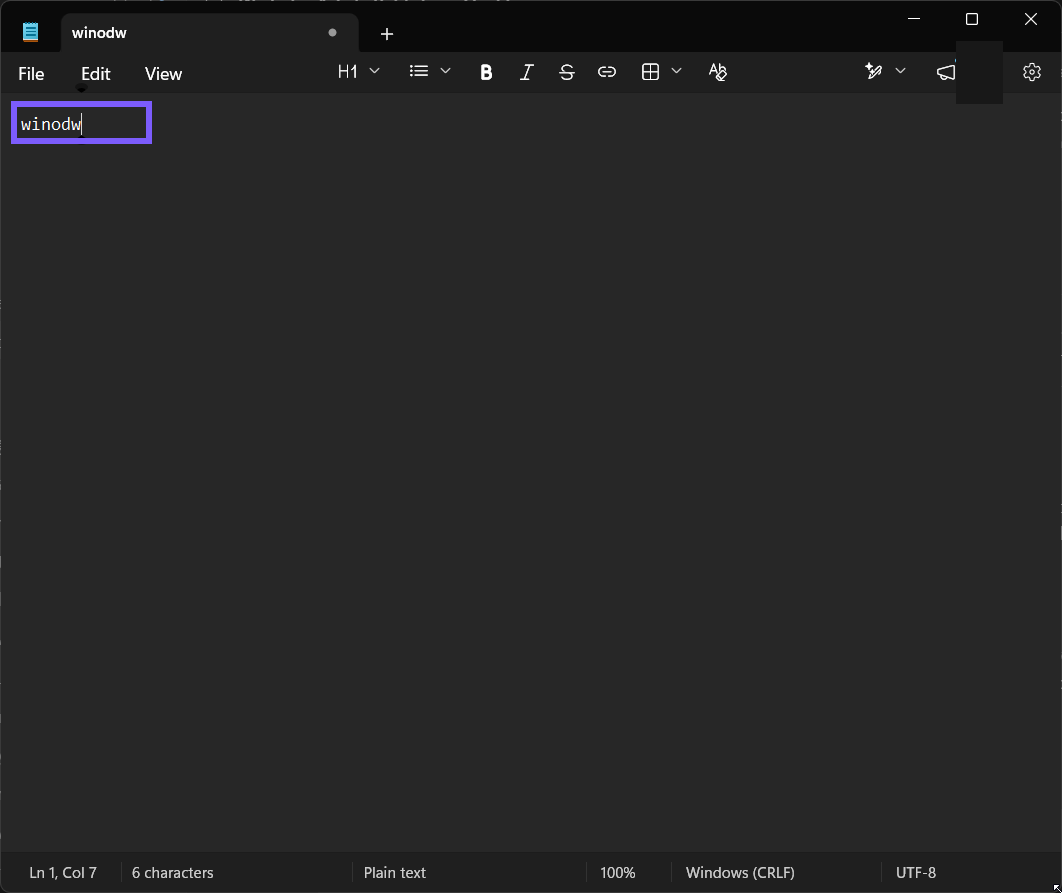
For an optional behavior check, return to the blank editor and type a known disposable misspelling. The reproduced word “winodw” received a red wavy underline after Spell check was restored. You can place the caret in the word and press Shift + F10 to review suggestions, but do not add the test word to the dictionary.
Clear the sample text and close the blank window without saving. This completes the preference rollback, learned-data protection, and privacy cleanup.
Do file type and language affect Notepad spellcheck?
Yes. Microsoft documents that spellcheck supports multiple languages and may be disabled by default for log files or formats commonly used for code. A global On value therefore does not guarantee that every file type will display underlines.
The language used for suggestions also matters. If Notepad marks correct words or offers unexpected suggestions, confirm the Windows input language and the language of the text before changing dictionaries. Do not add unfamiliar words to the dictionary simply to make an underline disappear.
For a one-file exception, current Notepad can expose temporary spelling controls in the context menu. That is different from the global Settings method here. Keep the scopes separate so you do not change every ordinary text file when only one code-like document needs an exception.
Why might the two switches seem not to work?
Autocorrect is On but a typo remains. Autocorrect handles recognized mistakes, not every invalid word. Check that Spell check is also On, then test with ordinary text in the correct language.
No underline appears. Confirm Spell check is On, verify the file type is eligible, and try an obvious disposable misspelling. Some code or log formats are excluded by default.
The wrong word was corrected. Undo the edit immediately and review the language. Autocorrect is a convenience feature, so turn it Off while leaving Spell check On if you prefer suggestions without automatic changes.
A protected file cannot be saved. Spelling settings do not change file permissions. You should run Notepad as administrator only when a protected file itself requires elevated access; do not elevate merely to move these switches.
The controls are missing. Update Notepad through Microsoft Store and reopen the current app. Avoid Registry workarounds for a feature that the supported Settings page should expose.
Frequently Asked Questions
Can Spell check stay on while Autocorrect is off?
Yes. That combination keeps red underlines and suggestions available while preventing Notepad from automatically changing recognized typos.
Does Autocorrect fix every misspelled word?
No. It corrects only recognized mistakes, and its behavior can depend on language, context, and file type. Spell check may underline a word that Autocorrect leaves unchanged.
Does turning Spell check off clear my dictionary?
No. Moving the switch disables checking; it is not a dictionary reset. Avoid Add to dictionary during a temporary test because that creates a separate learned-data change.
How do I undo the spelling-setting test?
Return to Notepad Settings and restore the separately recorded Spell check and Autocorrect values. Then clear the disposable text and close the blank window without saving.
Conclusion
Use the two Notepad Spelling switches separately: Spell check provides underlines and suggestions, while Autocorrect can change recognized mistakes when Spell check is enabled. Record both starting values, test only with disposable text, avoid dictionary changes, and restore both controls when the change was temporary.
For more interesting articles, stay tuned to WinSides.com!




Community
Comments (0)