
To check what is new in Notepad on Windows 11, open Notepad and select the What's new megaphone button near the upper-right corner. The New in Notepad window lists the current feature cards on the left; select a card to read its illustrated explanation on the right.
This guide was reproduced in Notepad 11.2606.15.0 on Windows 11 build 26220.7872. The current window showed three cards: Your essential text editor, elevated, Smarter writing tools, and Lightweight formatting. Each card was opened in an isolated blank tab, the dialog was closed, and the tab was verified at 0 characters. No private document was opened, no feature action was started, and no text was sent to an online service.
What does New in Notepad show?
New in Notepad is an in-app introduction to features Microsoft wants to highlight in the version available on your PC. It is a small catalog rather than a complete technical changelog. The left side holds short feature cards, while the larger right side shows an illustration, a heading, a practical description, and sometimes an action button.
The panel is useful when Notepad changes after an app update and you want a quick explanation without leaving the editor. It can identify the general purpose of a feature and where to find it. For exact version numbers, fixes, and rollout dates, use Microsoft's official Notepad release notes as the more detailed reference.
The blue dot above the megaphone can draw attention to new material, but the button remains useful after that first notice. Microsoft introduced this revisitable welcome experience with a megaphone button in the upper-right area of Notepad, as described in the official Notepad and Paint update announcement.
Table of contents
What should you know before opening the panel?
Opening the panel and moving between its cards is read-only. It does not edit the current document, change a Notepad preference, or require administrator rights. Run Notepad normally; elevation is unnecessary for this task. If you actually need to edit a protected file later, review when it is appropriate to run Notepad as administrator instead of elevating it by habit.
If Notepad restores earlier tabs, create a new blank tab before taking screenshots or experimenting. Leave restored documents alone and confirm that the disposable tab says Untitled and its status bar reads 0 characters. This keeps filenames, account details, and personal text out of the procedure.
Several feature cards include buttons such as Start exploring or Try it out. Those buttons are not required merely to read what is new. A feature action can move you into another surface and, for connected writing tools, may require selected text or a prompt. Stop at the card description if your goal is only to inspect the catalog.
How do you open New in Notepad?
Open Notepad normally. If the app restores existing work, select Add New Tab and use the empty Untitled tab without closing or reading the other tabs.
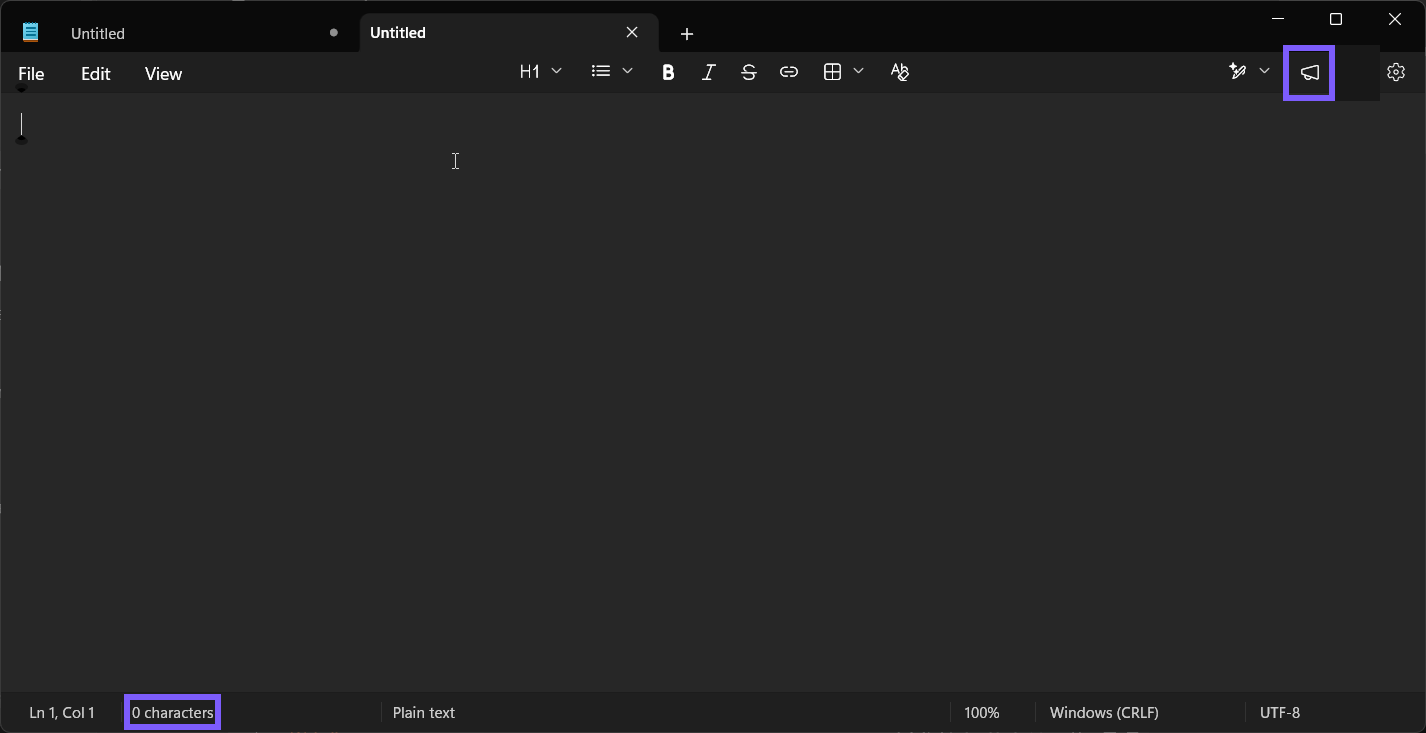
Look near the upper-right corner of the toolbar. Find the megaphone icon between the Writing tools area and the account avatar. Its accessible name is What's new.
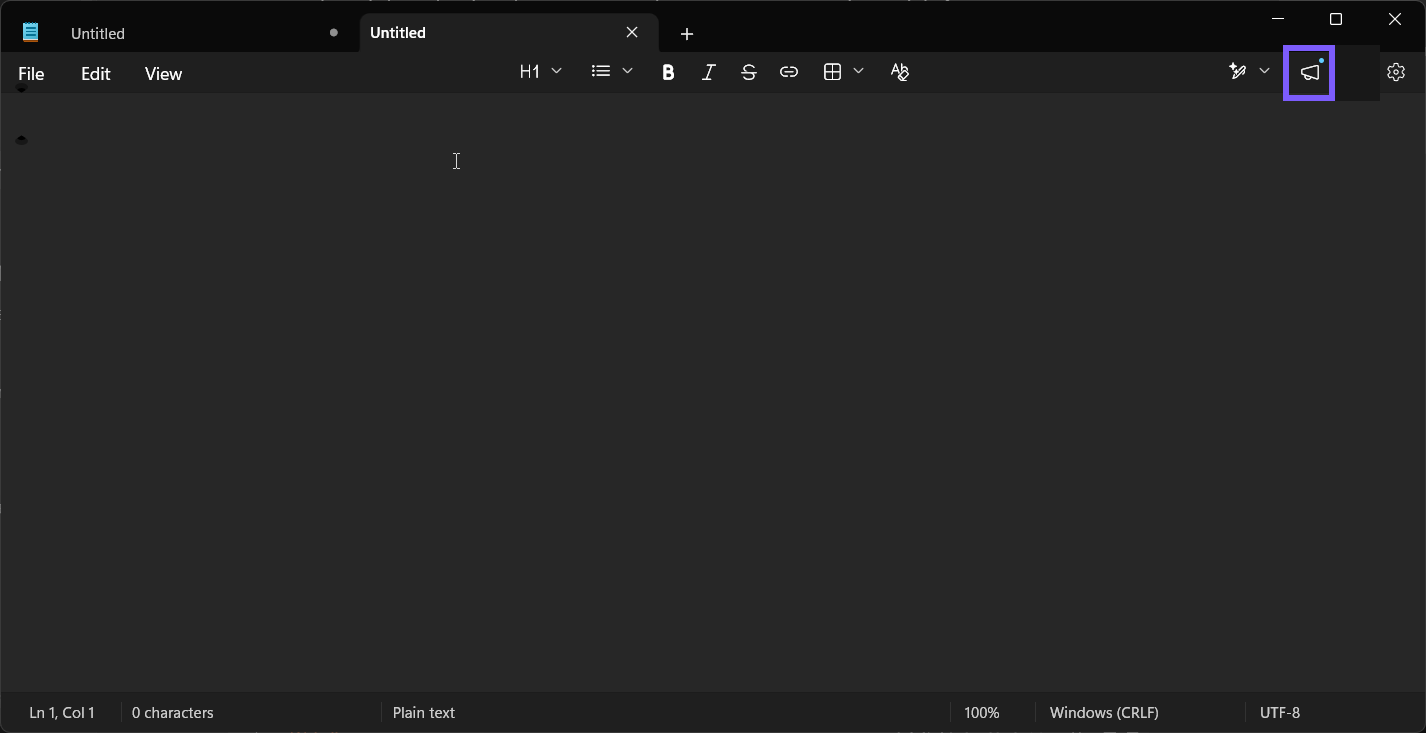
Select What's new. A window titled New in Notepad should open over the editor.
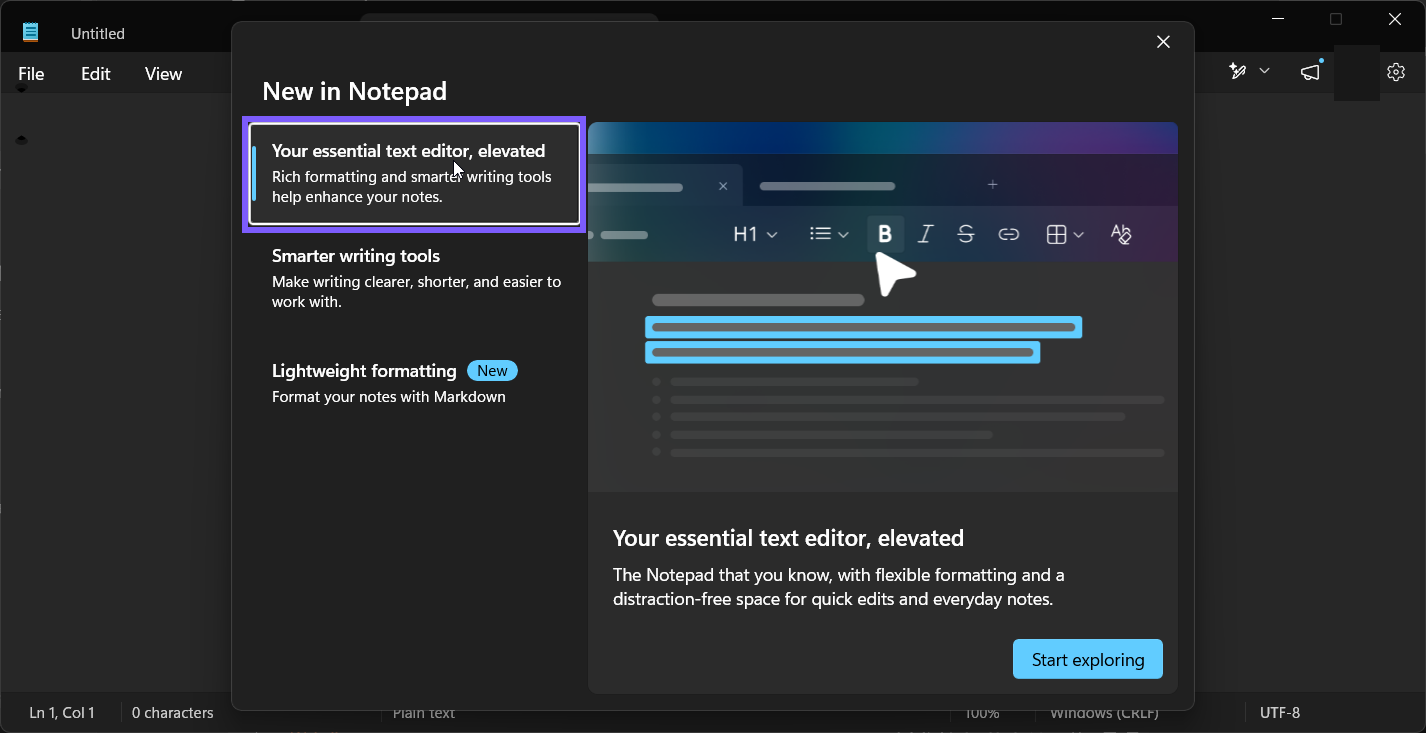
Check that a feature list appears on the left and a detailed preview appears on the right. The first card is selected when the panel opens.
How do you review every current feature card?
Select a card in the left column. A bright outline and a narrow accent bar identify the active card.
Read the matching heading and description in the right pane. The illustration is supportive; the written description explains the feature's intended use.
Select the next card and confirm that both the active outline and the right-side content change. This proves that you are viewing a different entry rather than rereading the same page.
Do not select Start exploring or Try it out unless you want to leave the catalog and test that feature separately.
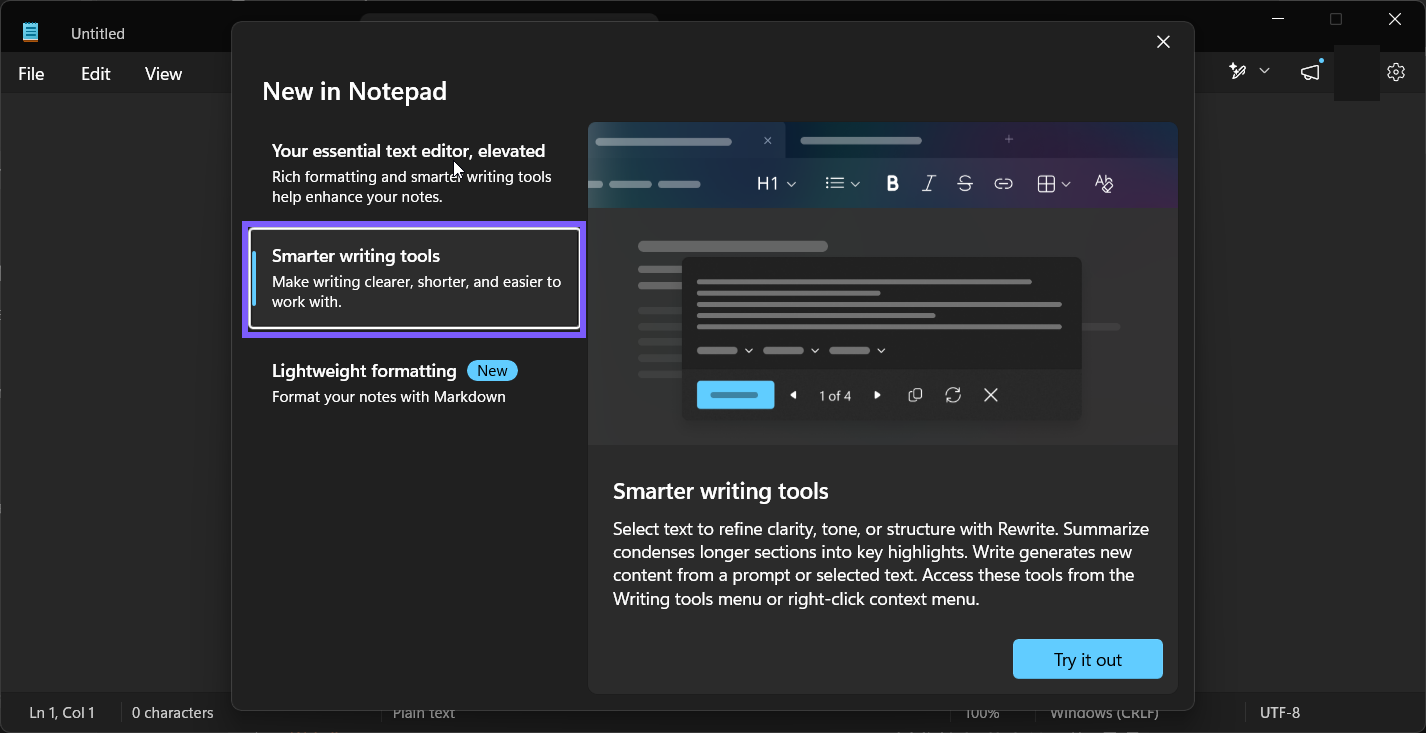
The Smarter writing tools description says that Rewrite can refine clarity, tone, or structure; Summarize can condense longer sections; and Write can generate content from a prompt or selected text. Reading this explanation is not the same as using those connected features. Availability and the sign-in experience can differ by device or rollout, so treat the panel as an introduction rather than proof that every action is ready for your account.
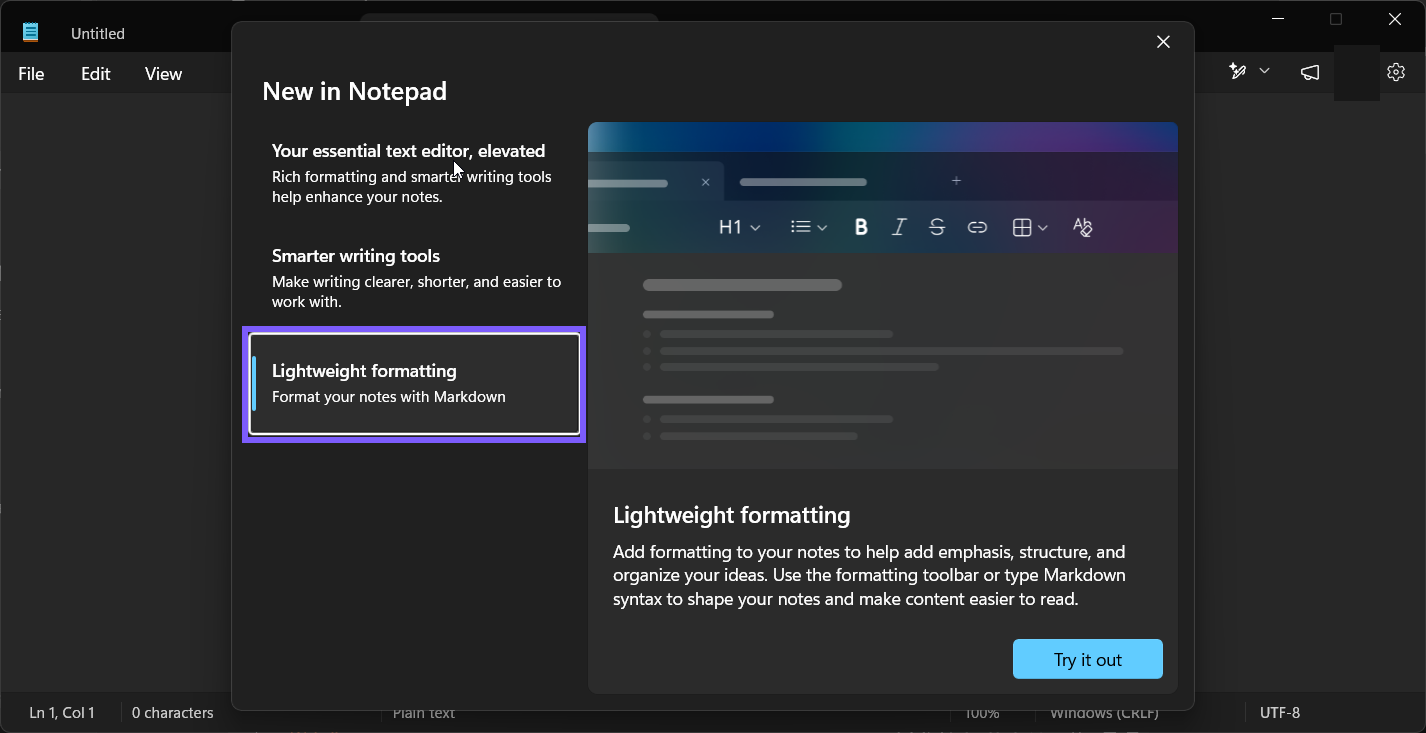
The Lightweight formatting card describes adding emphasis and structure with the formatting toolbar or Markdown syntax. The first card, Your essential text editor, elevated, presents the broader current Notepad experience: flexible formatting in a distraction-free editor. Together, the three entries explain a theme, a connected tool group, and a document-formatting capability rather than three steps in one workflow.
How do you close the panel and verify nothing changed?
Select the Close X in the upper-right corner of the New in Notepad window. Use the dialog's X, not the X on the Notepad title bar.
Confirm that the same Untitled tab returns and that the status bar still reads 0 characters.
Close the disposable tab when you are finished. There is no setting to restore because browsing the catalog did not mutate Notepad or the document.
Why might your New in Notepad cards look different?
The panel reflects the app build and features available on the device. Microsoft can change the cards as Notepad evolves, and staged rollouts can make two PCs show different material even when both run Windows 11. The screenshots in this guide document Notepad 11.2606.15.0; a later version can add, remove, rename, or reorder cards.
A card can also describe a feature whose action has additional requirements. For example, a connected writing tool may depend on availability for the device or account. The catalog is evidence that Notepad is introducing the feature, not a guarantee that every related button will complete on every PC.
Use the panel for the concise overview and the official release notes for build-specific details. The two sources complement one another: one explains features inside the app, while the other records versions, improvements, and fixes.
What can you do if the What's new button is missing?
Make the window wider. On a narrow Notepad window, toolbar controls have less room. Maximize the window and check the upper-right area again.
Update Notepad. Open Microsoft Store, go to Library, and check for updates. Microsoft's guidance for automatic app updates also explains how Store apps can stay current.
Close and reopen Notepad after an update. The app must restart to load the newly installed package. Recheck the toolbar in a blank tab after it opens.
Do not force the button through the Registry. The panel belongs to the installed Notepad interface. If the supported control is absent, wait for the appropriate app update rather than applying an unrelated tweak.
Expect rollout differences. A managed work PC or a different Windows servicing channel may receive a Notepad build at another time. Confirm the installed app is current for that device before assuming the interface is broken.
How can you browse the catalog without exposing private text?
Use a blank tab and keep the New in Notepad panel over that empty surface. Do not select personal text before opening a writing-tools card, and do not press an action button when you only want the description. The catalog itself needs no sample document.
For screenshots, inspect the whole frame before saving it. Account avatars, restored tab names, notifications, and personal filenames are unrelated to the tutorial and should be excluded or irreversibly redacted. The published images above redact the same non-text account avatar while leaving every documented control and card visible.
Frequently Asked Questions
Does opening New in Notepad change my document?
No. Opening the panel and selecting its cards only changes the information shown in the dialog. The reproduced blank tab remained at 0 characters after the panel was closed.
Can I reopen New in Notepad after dismissing it?
Yes. Select the What's new megaphone in the upper-right area of Notepad whenever you want to revisit the current cards.
Why do I see different cards from the screenshots?
The cards can change with the Notepad version and feature rollout. Use the panel for your installed experience and Microsoft's release notes for exact build history.
Do I need to try a feature to read its What's new card?
No. Select the card in the left column and read the right pane. Start exploring and Try it out are optional actions, not required navigation.
Conclusion
Use the What's new megaphone to open New in Notepad, select each card in the left column, and read its matching explanation on the right. Stop before optional action buttons when you only want the overview, close the panel with its own X, and verify that your original tab is unchanged.
For more interesting articles, stay tuned to WinSides.com!
Community
Comments (0)