

Introduction to 0x803F7001
0x803F7001 is a Windows activation error that means Windows could not find a valid license to activate the installed copy of Windows 11 on the device. Microsofts activation error guidance describes this code as indicating that a valid Windows 11 license could not be found. The recommended path is straightforward: open Activation settings, enter a valid 25-character product key if you have one, or use Microsoft Store to buy a digital license if you do not have a valid key.
That sounds simple, but the real-world cause can vary. The device may have the wrong Windows edition installed. A clean reinstall may have used Pro when the digital license is for Home. A motherboard replacement may have broken the hardware match behind a digital license. A second-hand PC may have been sold without a valid license. A product key may be missing, mistyped, invalid, or for a different edition. A work or school device may require organization activation instead of a personal key. The error is one code, but the fix depends on the license path that should apply to the device.
Use official Microsoft sources while troubleshooting. Microsofts Windows activation error guidance includes the 0x803F7001 explanation and the basic activation steps. The Activate Windows page explains activation methods and settings. Microsofts hardware-change reactivation guidance is relevant when a motherboard or major component changed. For administrators and advanced users, Microsofts slmgr.vbs options document how to view license details and attempt activation.
This guide focuses on safe, legitimate repair. It does not recommend leaked keys, activation cracks, public KMS servers, patched licensing files, or unknown command bundles. If Windows cannot find a valid license, the durable fix is a valid license that matches the installed edition, a digital license tied to the device, a proper hardware-change reactivation path, OEM or reseller support, or an organization-managed activation route. Anything else risks malware, licensing trouble, and repeat activation failure.
Table of contents
Key Takeaways
- 0x803F7001 means Windows could not find a valid license. Microsoft lists it as a Windows 11 activation error where no valid license was found for the device.
- Start in Activation settings. Go to Settings > System > Activation, then use Change product key, Troubleshoot, or Microsoft Store based on what appears.
- Edition mismatch is common. Windows Home, Pro, Enterprise, and Education licenses are not interchangeable.
- A valid key must match the installed edition. Microsoft says to enter a 25-character product key if you have one.
- If you do not have a valid key, use a valid digital license path. Microsoft points users to Microsoft Store to buy a digital license.
- Hardware changes can break license matching. Motherboard replacement can require Activation Troubleshooter, Microsoft account reactivation, OEM help, or a new license.
- Avoid unofficial activation methods. They do not create a legitimate license and can damage system trust or security.
What 0x803F7001 Means
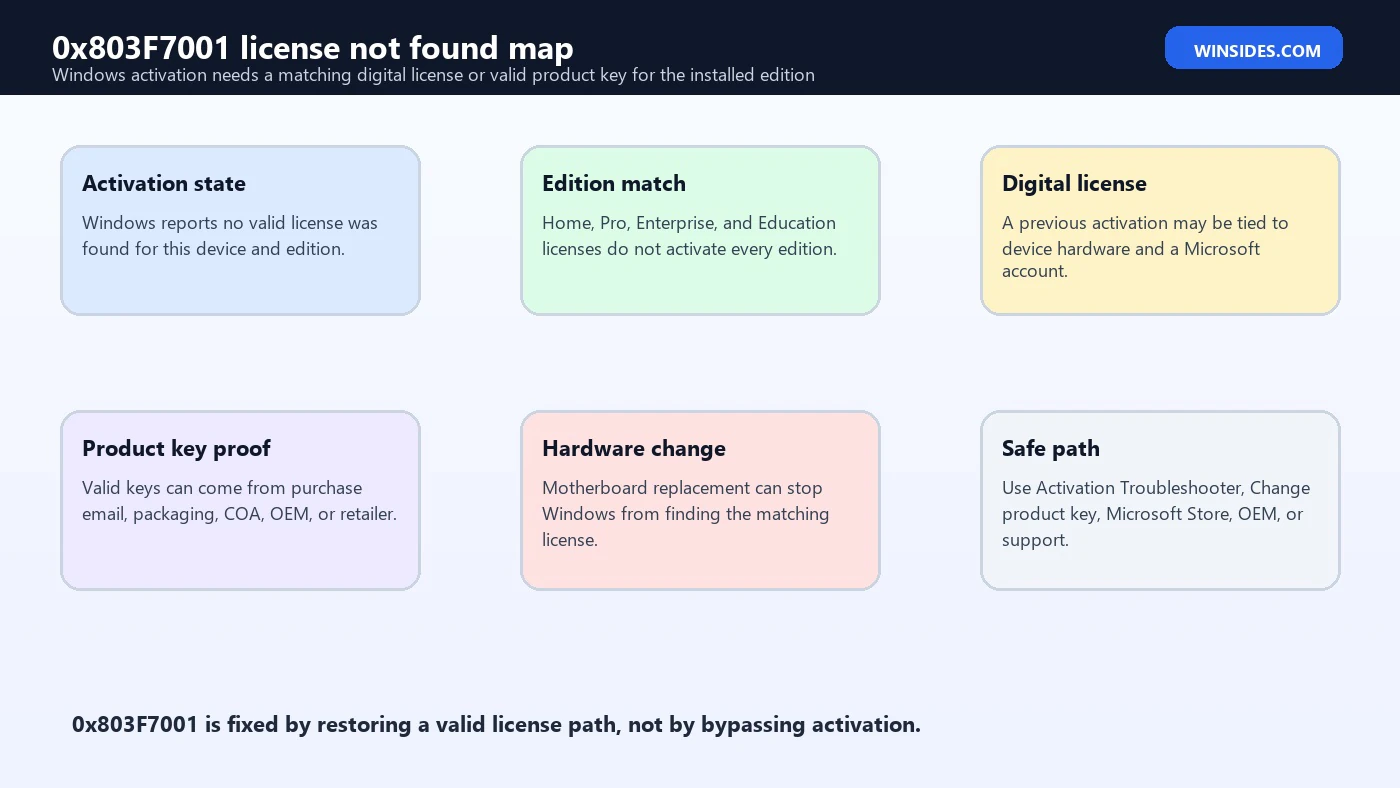
The plain-English meaning is that Windows looked for a license that can activate the installed edition and did not find one. That license might be a digital license tied to the device, a product key entered by the user, an OEM license embedded in firmware, a Microsoft Store purchase, or an organization activation entitlement. When none of those matches the current installation, Windows reports that activation cannot complete.
This error is not always caused by a bad internet connection. Some activation errors are about blocked firewall or unavailable activation servers, but 0x803F7001 points more directly at the license being missing or unmatched. If Windows has no valid license for the installed edition, it can stay unactivated even when the device is online, updates normally, and signs into a Microsoft account.
The important question is: what license should this device have? A laptop that came with Windows Home preinstalled should normally reactivate as Windows Home. A PC upgraded to Pro needs a valid Pro entitlement. A motherboard replacement may need reactivation. A company device may rely on volume activation. A custom-built PC needs a purchased license. Once you answer that question, the repair path becomes much clearer.
Common Causes of 0x803F7001
| Cause | What it means | Best first check |
|---|---|---|
| No product key entered | Windows has no key or digital license to use. | Open Activation settings and check available options. |
| Wrong edition installed | The installed edition does not match the license. | Compare installed edition with receipt, OEM spec, or digital license. |
| Digital license not found | Windows cannot match the device to a prior activation entitlement. | Sign in with the correct Microsoft account and run Troubleshooter. |
| Hardware changed | Motherboard replacement changed the device identity. | Use hardware-change reactivation guidance. |
| Second-hand or refurbished PC | The device may not include a valid transferable license. | Check seller documentation and proof of purchase. |
| Invalid or missing key proof | The user cannot prove a valid key for this installation. | Find email, packaging, COA, Microsoft Store order, or OEM proof. |
| Organization-managed device | Activation may depend on work or school licensing. | Contact IT before changing keys. |
| Unofficial activation tool removed | A previous bypass created a non-genuine state. | Return to a valid license path. |
The table also shows why a single fix is not enough. Buying a new key is unnecessary if the issue is a wrong edition and you already own the correct digital license. Reinstalling Windows is unnecessary if a valid product key just needs to be entered. Running random activation commands is useless if the device never had a license. Start with the expected license path, then repair only that path.
Start with Activation Settings
Open Settings, choose System, and select Activation. Record the Windows edition, activation status, error code, and visible actions. You may see Change product key, Troubleshoot, Go to Microsoft Store, or a message that the organization manages activation. Those buttons are clues. Change product key means Windows can accept a valid 25-character key. Go to Microsoft Store means buying a digital license may be the expected path. Troubleshoot may help with digital license, edition, or hardware-change cases.
Microsofts activation error guidance for 0x803F7001 directs users to Settings > System > Activation. If you have a valid key, select Change product key and enter the 25-character key. If you do not have a valid key, select Go to Microsoft Store and follow the instructions to buy a digital license. That is the official fork in the road: either provide a matching valid key or obtain a valid digital license.
Before entering a key, confirm the edition. If Activation settings says Windows 11 Pro but your device was originally Windows 11 Home, a Home digital license will not activate the Pro installation. If it says Enterprise on a personal device, you may have installed organization media by mistake. The error will not go away until the edition and license match.
Check the Windows Edition Carefully
Edition mismatch is one of the most common causes of activation confusion. Windows 11 Home, Pro, Pro for Workstations, Education, and Enterprise each have different licensing expectations. Microsofts activation error page repeatedly emphasizes matching keys and editions for several activation errors because the principle is universal. A valid license for one edition is not a universal license for every edition.
If you recently reinstalled Windows, think back to the setup screen where you chose an edition. If the device has an OEM Home license but you selected Pro, Windows may install successfully but fail activation. If you used a work ISO or image, it may have installed Enterprise. If you upgraded editions using an old key, Windows may now be waiting for a Pro entitlement that your account does not have.
The repair is either to enter a valid key for the installed edition or install the edition that matches the license you already own. If the Activation Troubleshooter detects a digital license for a different edition in supported scenarios, it may guide you toward the correct edition. Do not buy a new license until you know whether you simply installed the wrong edition.
Find Proof of the Product Key or Digital License
Microsofts activation error guidance notes that a product key is typically found in the confirmation email received after buying Windows, within the packaging that came with the device, or on a Certificate of Authenticity sticker on the back or bottom of a device. Modern devices may instead use an OEM digital entitlement embedded in firmware or a Microsoft account-linked digital license. The key point is that you need a valid entitlement, not just a string copied from somewhere online.
Collect the evidence before changing anything. Look for the Microsoft Store order, retail receipt, reseller invoice, device invoice, OEM documentation, packaging, email confirmation, or account purchase history. If the license came from a workplace, do not treat it as a personal key. If the license came with a used PC, verify what the seller promised. If the PC came preinstalled with Windows, the manufacturer may be responsible for resolving missing OEM activation.
If you cannot find any proof of a key or digital license, Microsofts suggested path is to buy a digital license from Microsoft Store. That may be frustrating, but it is the clean path when no valid license exists. A cheap key from an unknown marketplace can simply turn this activation error into a future invalid-key error.
Use slmgr for License Details
For deeper diagnostics, use Microsofts slmgr.vbs tool. The /dlv option displays detailed license information, while /xpr shows activation expiration information. These commands are useful for understanding whether the installation is retail, OEM-like, volume/KMS, MAK, or otherwise configured. They do not create a license; they help identify the current licensing state.
slmgr /dlv
slmgr /xpr
If slmgr /dlv shows a volume channel on a personal PC, the device may have been imaged with the wrong license path or modified by an unofficial activation tool. If it shows retail but Windows cannot find the digital license, check Microsoft account, edition, and hardware changes. If it shows that Windows is unlicensed, you need to install a valid key or purchase a digital license.
Do not post full product keys online. The partial key and channel details are normally enough for troubleshooting. Share evidence only with trusted Microsoft, OEM, reseller, or organization support channels.
Digital License and Microsoft Account Checks
A digital license can activate Windows without typing a product key, but it still has to match the device and edition. If you activated Windows before, reinstalled the same edition, and did not change major hardware, Windows should usually reactivate after connecting to the internet. If it does not, sign in with the Microsoft account that was associated with the license and run the Activation Troubleshooter from Activation settings.
Multiple Microsoft accounts can confuse the story. A user may sign in with a new account after reinstalling Windows, while the license was linked to an old account. A family PC may have been purchased through another persons account. A business device may have been activated by organization entitlement rather than a personal Microsoft account. If Windows cannot find a license, make sure you are using the right account path before buying another license.
If the digital license belongs to a different edition, the Activation Troubleshooter may be able to identify that and provide guidance. For example, a Home license cannot activate Pro, but installing Home may restore automatic activation. This is why edition verification belongs early in the workflow.
Hardware Change and Motherboard Replacement
Major hardware changes can trigger 0x803F7001 because Windows can no longer match the device to the existing license. Microsofts hardware-change guidance focuses on reactivating Windows after significant hardware changes such as motherboard replacement. It explains the importance of using the same Microsoft account and following the reactivation path through Activation settings and Troubleshoot when eligible.
If you replaced a motherboard yourself, used an independent repair facility, or received a refurbished replacement board, activation may see the device as different hardware. If Windows came preinstalled on the original motherboard, the OEM license may not automatically transfer. If the license was retail, it may be transferable depending on license terms and the Microsoft account path. If the device belongs to an organization, IT may need to reassign activation or repair management enrollment.
Do not assume the key is lost just because hardware changed. First, run the Activation Troubleshooter, sign in with the account linked to the license, and follow Microsofts reactivation flow. If that path fails, contact Microsoft support, the OEM, or the repair provider with evidence of the hardware change and original license.
Reseller, Refurbished, and Second-Hand Device Scenarios
0x803F7001 is common on used or refurbished devices because the buyer may not know the license history. The seller may advertise Windows 11 as included, but the device may have no transferable digital license, the wrong edition installed, or a key that was valid only for an organization. In that situation, troubleshooting the PC alone is not enough. You need the purchase record and seller promise.
Ask the reseller for proof of the Windows license. Was Windows preinstalled by the manufacturer? Was a refurbished license included? Was a retail key provided? Is the installed edition the one they advertised? If they cannot answer, the device may have been sold without a valid Windows license. The proper fix is a valid license or seller resolution, not an unofficial activator.
For refurbished business PCs, check whether Windows Enterprise or Education was left installed from a previous organization. A personal buyer usually needs Home or Pro with a valid retail/OEM license. A leftover volume-licensed image may run for a while and then fail activation because the new owner does not have the organizations activation entitlement.
OEM and New Device Scenarios
If a device was bought new with Windows included and shows 0x803F7001 on first setup, the manufacturer or seller should be involved. A new OEM device should normally have the correct Windows edition and license path provisioned. First connect to the internet, install updates, restart, and check Activation settings. If activation still fails, contact OEM support with serial number, proof of purchase, edition, and the exact error code.
Do not immediately buy another license for a new PC that was sold with Windows. The problem may be manufacturing provisioning, wrong image, motherboard replacement, or retailer setup. The OEM can verify whether the device model shipped with Windows Home, Pro, or another edition. If the installed edition is wrong, they may provide recovery media or guidance to restore the correct factory image.
If you reinstalled Windows before first activation, make sure you used the same edition that shipped with the device. Many installation images allow multiple editions, and choosing the wrong one can produce 0x803F7001 even when the embedded license is valid for a different edition.
Organization-Managed Devices
If the PC belongs to a company, school, or other organization, do not enter a personal key without permission. Organization-managed Windows activation may use volume activation, subscription activation, Azure/Entra assignment, KMS, MAK, or device management policy. If Windows cannot find a license, the device may not be enrolled correctly, may be off the corporate network, may have the wrong edition, or may have lost its activation assignment.
Collect evidence for IT: Windows edition, activation error, device name, user account, network state, VPN status, whether the device was reimaged, and slmgr /dlv output if they request it. IT can decide whether the device needs a different edition, group assignment, MAK activation, KMS reachability, subscription activation repair, or a rebuild from the correct image.
Mixing personal keys with organization devices creates asset and licensing confusion. Keep the activation path aligned with ownership. If the organization owns the device, organization support should repair activation. If you purchased a former company device, make sure the seller provided a valid consumer or refurbisher license for your ownership.
Safe Repair Workflow
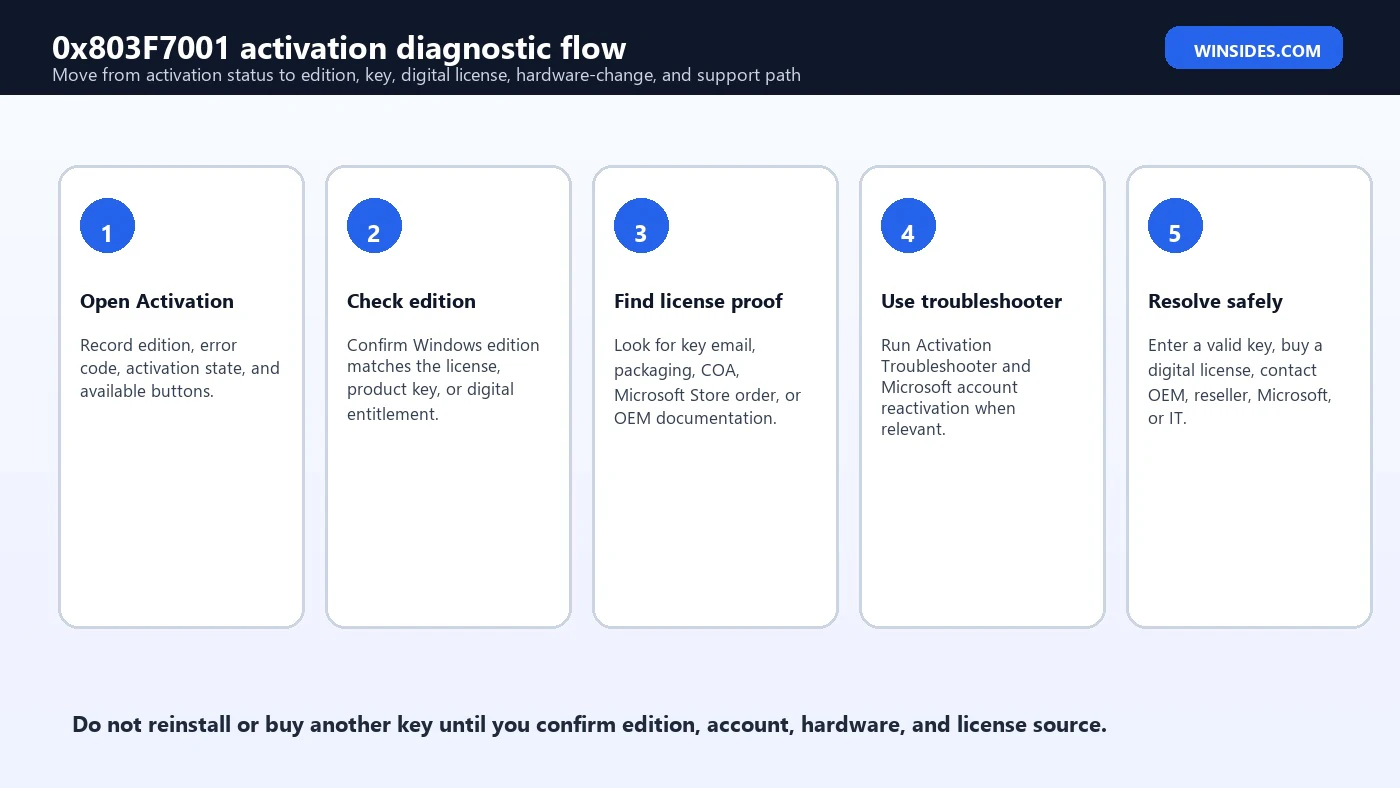
- Check Activation settings. Record Windows edition, activation status, error code, and available action buttons.
- Run Activation Troubleshooter. Use it before buying a new license or reinstalling Windows.
- Verify edition. Compare installed edition with OEM documentation, purchase receipt, product key, or digital license.
- Find proof. Look for product key email, packaging, COA, Microsoft Store order, OEM invoice, or reseller documentation.
- Sign into the right account. Use the Microsoft account tied to the prior digital license if applicable.
- Review hardware changes. Motherboard replacement may require reactivation or support.
- Enter a valid key if you have one. Use Settings > System > Activation > Change product key.
- Buy a digital license only when needed. Use Microsoft Store or another trusted source if no valid license exists.
Entering a Valid Product Key
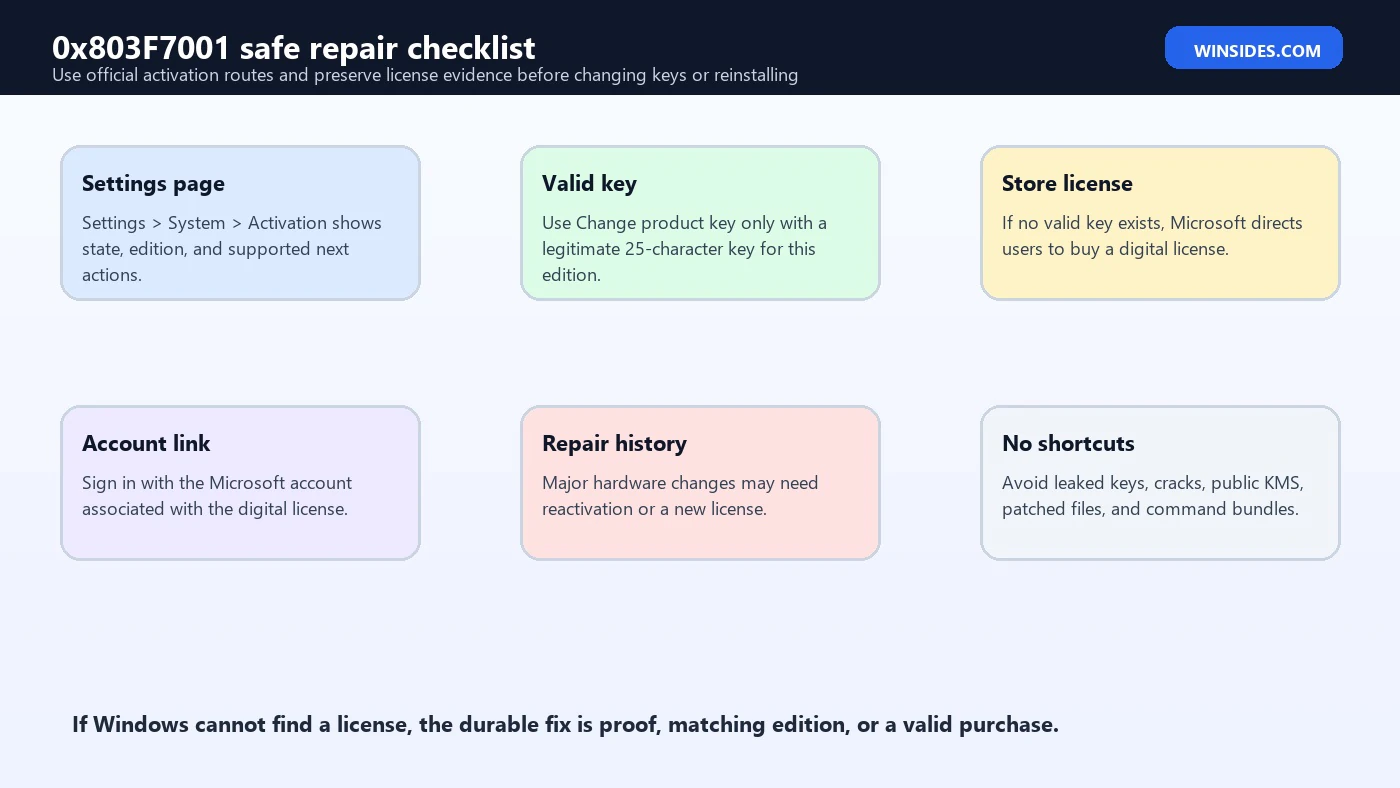
If you have a valid key that matches the installed edition, use Change product key in Activation settings. Enter the 25-character key exactly. Check for common mistakes such as confusing B and 8, G and 6, or copying extra spaces. If the key came from an email, copy it carefully from the original source. If the key is from packaging or a COA, verify that the edition on the package matches the installed edition.
Advanced users can use slmgr /ipk and slmgr /ato, but Settings is the better path for most users. Microsofts slmgr documentation says /ipk tries to install a 5-by-5 product key, while /ato tries online activation for retail and applicable volume systems. These commands still require a legitimate, applicable key. They do not create an entitlement by themselves.
slmgr /ipk XXXXX-XXXXX-XXXXX-XXXXX-XXXXX
slmgr /ato
If activation fails after entering a key that should be valid, stop and gather evidence. Do not keep trying random keys. Contact the seller, Microsoft support, OEM, or IT depending on the license source. Repeated key changes from untrusted sources can make the activation history harder to untangle.
What Not to Do
Do not use activation cracks, public KMS servers, patched system files, registry bundles, or command scripts from unknown websites. 0x803F7001 means Windows did not find a valid license. A bypass tool does not give the device a legitimate license, and it can install malware or damage the licensing service. It can also turn a simple license issue into a security problem.
Do not buy the cheapest key you can find without checking the seller. Extremely cheap keys are often gray-market, volume, region-restricted, stolen, previously used, or otherwise risky. They may activate briefly and fail later. Use Microsoft Store, trusted retailers, OEM support, reseller warranty, or organization IT. A valid license path is less dramatic but much less painful.
Do not reinstall Windows blindly. Reinstallation can help if the wrong edition is installed, but it will not create a license where none exists. If you reinstall the same wrong edition, the error returns. If you wipe evidence before documenting the key source, reseller claim, or hardware change, support may become harder.
Evidence to Collect Before Contacting Support
| Evidence | Why it matters | Who may need it |
|---|---|---|
| Error screenshot | Confirms 0x803F7001 and the current activation state. | Microsoft, OEM, reseller, IT |
| Windows edition | Shows whether the license and installed edition match. | All support paths |
| Purchase proof | Shows where the license or device came from. | Reseller, Microsoft, OEM |
| Microsoft account used | Helps digital license and hardware-change reactivation. | Microsoft support |
| Device serial number | Helps OEMs validate preinstalled Windows entitlement. | OEM support |
| Repair invoice | Shows whether motherboard or major hardware was replaced. | OEM, repair shop, Microsoft |
| Partial key/channel | Helps identify installed key context without exposing full key. | IT or advanced support |
| Ownership status | Separates personal, organization-managed, reseller, or refurbished paths. | All support paths |
Good evidence prevents circular troubleshooting. If the edition is wrong, support can point you to the correct edition. If the reseller sold a device without a valid license, the reseller can address the sale. If the motherboard changed, hardware-change reactivation becomes relevant. If no valid license exists, Microsoft Store or a trusted retailer is the clean path.
When Internet or Firewall Still Matters
Even though 0x803F7001 is primarily a license-not-found error, the activation process still needs a working online path in many scenarios. A valid retail key or digital license must be checked against Microsoft activation services. If the PC is offline, behind a restrictive firewall, behind a broken proxy, or on a network that blocks activation traffic, Windows may not be able to complete the final validation step. That does not mean the firewall is the root cause every time, but it is worth checking after edition and license evidence are clear.
Use a normal internet connection first. Avoid captive portals, heavily filtered guest Wi-Fi, VPNs that block Microsoft services, or proxy settings that were copied from an old workplace. Open Microsoft Store and Windows Update as simple connectivity checks. If those fail too, repair internet access before judging the license. If the activation page changes to a different error after connectivity improves, follow the new error because Microsoft specifically notes that the activation error can change after troubleshooting.
For personal devices, allow Windows activation through the firewall and avoid third-party security products that block system licensing communication. For managed devices, do not disable corporate controls; ask IT to check proxy, firewall, and activation policy. The useful evidence is the same: activation error, edition, network used, proxy/VPN status, and whether other Microsoft services work.
If slmgr Shows a Volume or KMS Channel
A personal PC showing 0x803F7001 may reveal an unexpected volume activation channel in slmgr /dlv. That usually means the machine was imaged with an organization build, modified by an unofficial activation tool, or sold second-hand with a business installation still present. A volume channel is not automatically wrong on a company device, but it is suspicious on a home PC that should have an OEM, retail, or digital license.
If the device belongs to an organization, contact IT. They may need to reconnect the device to KMS, repair subscription activation, assign licensing, or reinstall with the correct corporate image. If the device is personal, do not point it to public KMS servers or run activation scripts. Return it to the correct consumer path: install the edition you own, enter a genuine key, or buy a digital license. If a reseller sold it as licensed, contact the reseller with the evidence.
This distinction prevents a common mistake. KMS troubleshooting is useful for authorized volume clients, but it does not solve a personal PC that lacks a valid consumer license. If Windows says no valid license was found, the question is ownership and entitlement first, activation plumbing second.
Decision Matrix for 0x803F7001
| Your situation | Likely issue | Best next step |
|---|---|---|
| New OEM PC fails on first activation | OEM provisioning or wrong factory image | Update, restart, then contact manufacturer with serial and proof. |
| Clean install after owning Home license | Wrong edition may be installed | Install Home or use Troubleshooter if it detects edition mismatch. |
| Pro installed but no Pro purchase | No valid Pro entitlement | Enter valid Pro key or buy digital license. |
| Motherboard replaced | Device identity changed | Use hardware-change reactivation path and Microsoft account. |
| Used PC from reseller | License may not be transferable or valid | Ask reseller for valid proof or resolution. |
| Company laptop | Organization activation missing | Contact IT instead of entering personal keys. |
| slmgr shows unexpected volume channel | Wrong image or unauthorized activation history | Restore correct edition and legitimate license path. |
Use the matrix as a routing tool. If you choose the wrong route, the troubleshooting loop becomes expensive. A reseller problem will not be solved by resetting Windows Update. A wrong-edition problem will not be solved by buying a Home license while Pro remains installed. A hardware-change problem may need the Microsoft account reactivation path. A company laptop belongs in the IT support queue. Activation errors are easier when the ownership story is honest and specific.
Frequently Asked Questions
What does 0x803F7001 mean?
It means Windows could not find a valid Windows 11 license to activate the installed copy on the device. Microsoft recommends using Activation settings, entering a valid key, or buying a digital license if no key exists.
Is 0x803F7001 caused by no internet?
Not usually as the main cause. Internet is needed for online activation, but this code specifically points to no valid license being found. Check edition, digital license, product key, hardware changes, and license source.
Can Activation Troubleshooter fix it?
It can help in many cases, especially when a digital license exists, the edition is wrong, or hardware changed. Run it from Settings > System > Activation when available.
Where do I find my product key?
Microsoft says it may be in the confirmation email from buying Windows, the device packaging, or a Certificate of Authenticity sticker. Some devices use digital licenses instead of printed keys.
What if I installed Windows 11 Pro but own Home?
Install the edition that matches your license or enter a valid Pro key. A Home digital license will not activate a Pro installation.
What if this happened after replacing a motherboard?
Use Microsofts hardware-change reactivation path through Activation Troubleshooter and the Microsoft account linked to the license. OEM or repair-provider support may be needed.
Should I buy a new license immediately?
Not before checking edition, Microsoft account, Activation Troubleshooter, hardware changes, and proof of purchase. If no valid license exists, then a genuine digital license is the correct path.
Can command-line tools fix 0x803F7001?slmgr can show licensing details, install a valid key, and attempt activation. It cannot create a license or make an invalid key valid.
Conclusion: Restore the Valid License Path
0x803F7001 means Windows could not find a valid license for the installed Windows 11 edition on the device. The solution is not to chase random activation commands. The solution is to restore the correct license path: matching edition, valid product key, digital license, Microsoft account, hardware-change reactivation, OEM support, reseller resolution, organization activation, or a genuine digital license purchase.
Start with Settings > System > Activation. Run the Activation Troubleshooter. Confirm the edition. Find proof of the product key or digital license. Sign in with the right Microsoft account. Review major hardware changes. If you have a valid 25-character key, enter it through Change product key. If you do not have any valid key or entitlement, Microsofts guidance points to Microsoft Store for a digital license.
Use Microsoft activation guidance, Activate Windows documentation, hardware-change reactivation guidance, and slmgr.vbs reference as the safe foundation. Avoid bypass tools, unknown keys, and public activation services; they do not give the device a legitimate license and can create bigger problems later.
For more interesting articles, stay tuned to Winsides.com!









Community
Comments (0)