

The sight of a blue screen on any computer is typically a cause for alarm, often signaling a critical system failure. While most commonly associated with Windows operating systems and its infamous “Blue Screen of Death” (BSOD), encountering a similar phenomenon on an Apple MacBook can be particularly unsettling and perplexing for users. MacBooks are renowned for their stability and seamless user experience, making such an event a rare and unexpected deviation from the norm.
This comprehensive guide aims to demystify the unusual occurrence of a MacBook blue screen. We will delve into what this visual anomaly signifies, differentiate it from its Windows counterpart, and meticulously explore the underlying causes that can trigger such a critical error on your Apple device. Our goal is to equip you with the knowledge and actionable steps required to diagnose, troubleshoot, and ultimately resolve this issue.
From basic first-aid measures to advanced diagnostics and preventative strategies, we will cover every aspect. Whether you’re a seasoned macOS user or new to the Apple ecosystem, understanding these steps is crucial for maintaining your MacBook’s health and ensuring its continued reliability. Let’s embark on this journey to bring clarity to a confusing situation and restore your MacBook to its optimal performance.
Table of contents
Key Takeaways: Quick Solutions for MacBook Blue Screen
Facing a MacBook blue screen can be stressful, but often, immediate actions can resolve the issue. Here are some quick, actionable steps to try before diving into deeper troubleshooting: For additional context, see Mac startup issues, kernel panics on Mac, safe mode on Mac, repairing a Mac disk, and Apple Developer Forums.
- Force Restart: Hold down the power button for about 10 seconds until your MacBook shuts down, then press it again to restart. This can clear temporary glitches.
- Boot into Safe Mode: Restart your MacBook and immediately hold the Shift key. Release it when you see the login window. Safe Mode performs basic checks and disables non-essential software.
- Disconnect Peripherals: Unplug all external devices (USB drives, monitors, printers, etc.). Sometimes, an incompatible or faulty peripheral can cause system instability.
- Reset NVRAM/PRAM: Shut down your MacBook, then turn it on and immediately press and hold Option + Command + P + R. Release the keys after about 20 seconds or after the second startup chime.
- Check for macOS Updates: If you can boot normally, ensure your macOS is up to date. Go to System Settings (or System Preferences) > General > Software Update.
- Run Disk Utility First Aid: In Safe Mode or macOS Recovery, open Disk Utility and run First Aid on your startup disk. This can repair minor file system errors.
These initial steps often resolve transient software conflicts or minor system hiccups without requiring extensive technical expertise. If the blue screen persists, however, a more detailed investigation will be necessary, as outlined in the following sections.
Understanding the MacBook Blue Screen: What Does It Mean?
The term “blue screen” on a MacBook might sound contradictory to many, given Apple’s reputation for system stability. Unlike the consistent and often detailed error messages of its Windows counterpart, a MacBook blue screen typically presents itself as a blank, solid blue display, sometimes accompanied by a frozen cursor or an unresponsive system. This visual anomaly is a critical indicator that your macOS has encountered an unrecoverable error, forcing the system to halt operation.
When your MacBook displays a blue screen, it signifies that the operating system has reached a state where it cannot proceed safely. This could be due to a fundamental software conflict, a severe hardware malfunction, or an incompatibility that prevents the system from loading essential components or drivers. The system essentially freezes to prevent further damage or data corruption, much like a safety mechanism.
Understanding this phenomenon is the first step towards effective troubleshooting. It’s not merely a visual bug; it’s a symptom of a deeper problem that requires attention. Identifying the exact nature of this problem is crucial for a lasting solution.
Distinguishing from a Windows Blue Screen of Death (BSOD)
It’s vital to differentiate a MacBook blue screen from the infamous Windows Blue Screen of Death (BSOD). While both indicate critical system failures, their manifestations and underlying philosophies differ significantly. A Windows BSOD typically displays a wealth of diagnostic information, including stop codes, error messages, and sometimes even QR codes, designed to help users or technicians pinpoint the exact cause.
In contrast, a MacBook’s blue screen is often just that: a plain blue screen. It rarely provides specific error codes or messages directly on the display. This minimalist approach reflects Apple’s design philosophy, where critical errors are often logged internally rather than presented to the user in an intimidating format. Instead of a detailed dump, macOS might simply freeze or restart, logging the crash report for later analysis.
The absence of explicit error messages on a MacBook blue screen means that diagnosing the problem requires a different approach. Users must rely on contextual clues, recent changes to the system, and diagnostic tools rather than on-screen prompts. This distinction is important for setting expectations and guiding the troubleshooting process effectively.
Common Symptoms and Initial Observations
Before the definitive blue screen appears, or even after a restart following such an event, users might observe several tell-tale symptoms. Recognizing these can help narrow down the potential causes of a MacBook blue screen. One of the most common initial observations is a complete system freeze, where the cursor stops moving, and no keyboard commands respond.
Another symptom might be unusually slow performance leading up to the crash. Applications might take an excessive amount of time to load, or the system might become generally unresponsive. You might also notice the fan spinning at full speed, indicating that the processor is under heavy load or overheating, even if no demanding applications are running.
Unexpected restarts or shutdowns are also strong indicators of underlying instability. Your MacBook might suddenly power off without warning, or it might attempt to restart only to encounter the blue screen again. Sometimes, the blue screen appears during the boot process, preventing the macOS login screen from ever appearing. Pay attention to any recent software installations, updates, or hardware changes, as these often precede such critical errors.
Primary Causes of a MacBook Blue Screen
A MacBook blue screen, while rare, is almost always a symptom of a deeper issue. These issues can broadly be categorized into software conflicts, hardware malfunctions, and problems related to peripherals. Understanding these primary causes is crucial for effective diagnosis and resolution. Each category encompasses a range of specific problems that can lead to system instability and a critical halt.
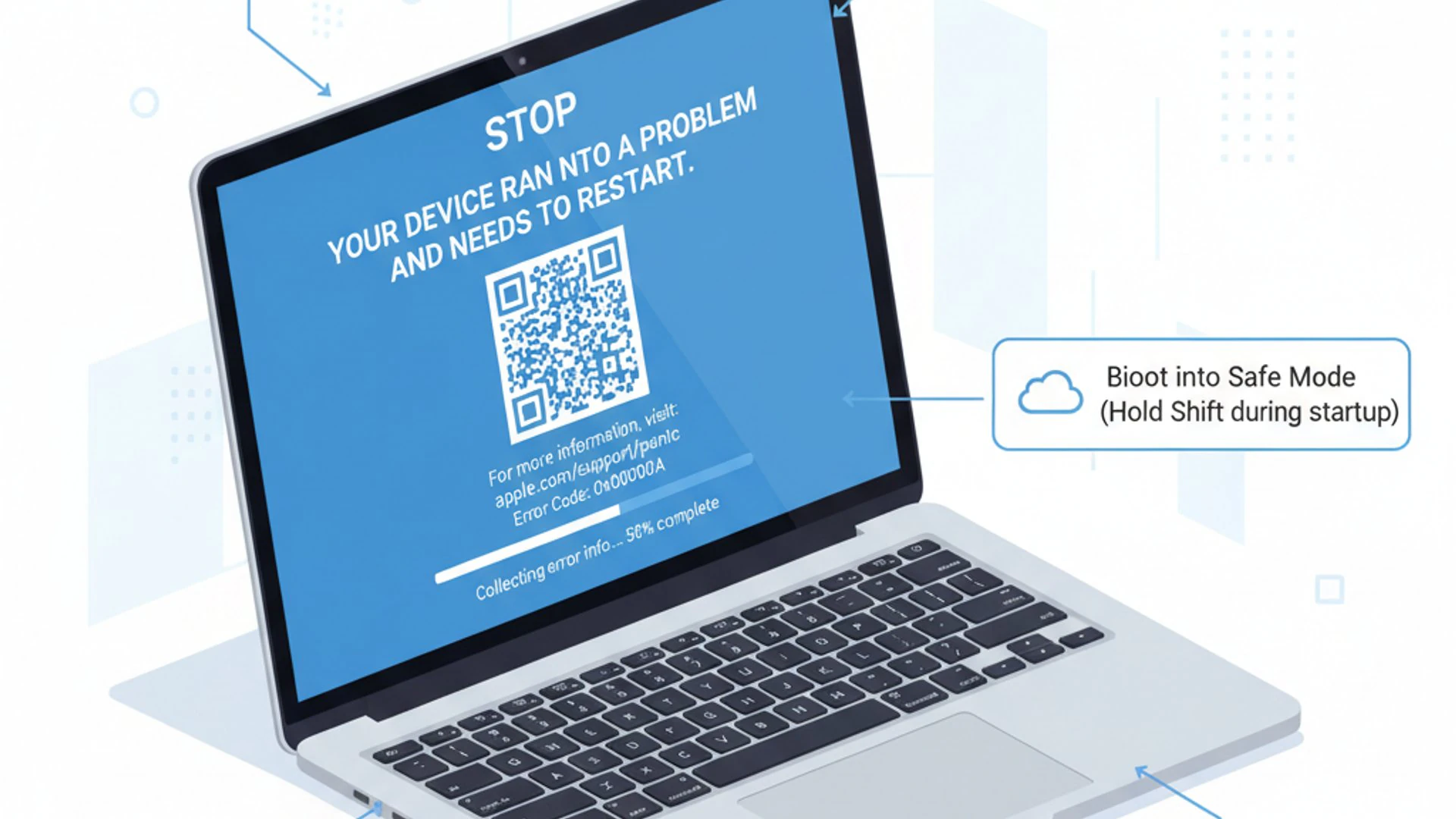
Software-related issues are often the easiest to address, ranging from simple application conflicts to corrupted system files. Hardware problems, on the other hand, can be more complex and may require professional intervention. Peripheral issues, while sometimes overlooked, can also introduce significant instability if devices are incompatible or faulty.
By systematically exploring each potential cause, users can develop a clearer picture of what might be ailing their MacBook. This structured approach helps in narrowing down the possibilities and focusing troubleshooting efforts where they are most likely to yield results. Let’s delve into the specifics of each primary cause.
Software Conflicts and Corruptions
Software-related problems are a frequent culprit behind system instability, including the dreaded MacBook blue screen. These issues can stem from various sources, making them sometimes challenging to pinpoint without careful investigation. The operating system, third-party applications, and even drivers can all contribute to conflicts that lead to critical errors.
One common scenario involves newly installed software that clashes with existing applications or the macOS itself. An update to an application might introduce a bug that causes system-wide instability. Similarly, corrupted system files, which can occur due to improper shutdowns, disk errors, or even malicious software, can prevent macOS from functioning correctly.
Identifying software conflicts often involves recalling recent changes made to your system. Did you install a new app? Update macOS? Or perhaps download something from an unverified source? These questions can provide valuable clues in diagnosing the root cause of the blue screen.
Outdated or Incompatible Applications
One of the most common software-related causes for a MacBook blue screen is the presence of outdated or incompatible applications. Software developers frequently release updates to ensure their applications remain compatible with the latest versions of macOS and to fix bugs. If an application is not updated, it might use outdated libraries or methods that conflict with newer macOS features, leading to crashes.
Furthermore, some applications, especially those from less reputable sources or those that deeply integrate with the system, might not be fully compatible with your specific MacBook model or macOS version. This incompatibility can cause kernel panics, which often manifest as a blue screen or an unexpected restart. Always ensure your applications are updated to their latest versions and are officially supported on your macOS.
Relying on software from trusted developers and downloading applications only from the Mac App Store or official developer websites can significantly reduce the risk of encountering such compatibility issues. Regularly checking for app updates is a simple yet effective preventative measure.
macOS System File Damage
Damage to critical macOS system files can severely impact your MacBook’s stability and is a significant cause of the MacBook blue screen. These files are essential for the operating system’s core functions, from booting up to running applications. If they become corrupted, missing, or altered, macOS may fail to load or operate correctly, leading to a system crash.
System file damage can occur due to various reasons: improper shutdowns, power outages during critical operations, disk errors, or even malware infections. A failing hard drive or SSD can also contribute to file corruption by miswriting data. When macOS tries to access a damaged system file, it might encounter an unrecoverable error, resulting in a blue screen.
Identifying and repairing such damage often requires using built-in macOS tools like Disk Utility or, in more severe cases, reinstalling macOS. Regular backups are crucial in such scenarios, allowing you to restore your system to a previous stable state without data loss. Consider creating system image backups for comprehensive protection.
Hardware Malfunctions and Failures
Beyond software, underlying hardware issues are another major contributor to a MacBook blue screen. Unlike software problems, hardware failures can be more challenging to diagnose and often require specialized tools or professional repair. When a critical hardware component malfunctions, it can send incorrect data, fail to respond, or generate errors that the operating system cannot handle, leading to a system halt.
Common hardware culprits include issues with the Random Access Memory (RAM), the primary storage drive (SSD or HDD), the Graphics Processing Unit (GPU), or even the logic board itself. These components are integral to your MacBook’s operation, and any instability in their function can lead to widespread system errors.
Diagnosing hardware problems often involves a process of elimination and the use of Apple’s built-in diagnostic tools. It’s important to rule out software issues first, as they are generally easier and less costly to fix. However, if software troubleshooting proves ineffective, attention must turn to the physical components of your MacBook.
RAM Issues and Storage Drive Problems
Faulty RAM (Random Access Memory) is a common hardware cause for a MacBook blue screen. RAM is where your MacBook temporarily stores data that the CPU needs to access quickly. If a RAM module is defective, it can lead to data corruption, causing the operating system to crash when it tries to read or write to the faulty memory sectors. Symptoms might include random freezes, unexpected restarts, or the blue screen appearing during intensive tasks.
Similarly, problems with your storage drive (SSD or HDD) can also trigger critical errors. A failing drive might have bad sectors where data cannot be reliably stored or retrieved. If macOS tries to access system files or application data from a corrupted sector, it can lead to a crash. Slow performance, applications freezing, and an inability to boot are all signs of potential storage drive issues.
Regularly backing up your data is paramount, especially if you suspect storage drive problems. Tools like Apple Diagnostics can help identify RAM issues, while Disk Utility can check the health of your storage drive. Addressing these components promptly can prevent further data loss and system instability.
GPU or Logic Board Anomalies
The Graphics Processing Unit (GPU) and the logic board are critical hardware components whose malfunctions can lead to a MacBook blue screen. The GPU is responsible for rendering all visual output on your screen. If the GPU is failing or overheating, it can cause graphical glitches, display artifacts, or even a complete system freeze, often resulting in a blue screen. This is particularly common in older MacBook Pro models with dedicated graphics cards.
The logic board, often referred to as the motherboard, is the central hub of your MacBook, connecting all components. Any defect or damage to the logic board, such as faulty solder joints, component failures, or liquid damage, can lead to widespread system instability. Since the logic board manages power distribution, component communication, and critical system functions, its malfunction can manifest in various ways, including persistent blue screens or a complete failure to boot.
Diagnosing GPU or logic board issues typically requires specialized diagnostic tools and expertise. These are complex repairs that are best left to Apple-certified technicians. If Apple Diagnostics points to a logic board or GPU problem, professional service is almost certainly required.
Peripheral and Driver Related Problems
While often overlooked, external peripherals and their associated drivers can be a surprisingly common cause of a MacBook blue screen. Your MacBook communicates with external devices like printers, external hard drives, webcams, and USB hubs through specific drivers. If these drivers are outdated, incompatible, or corrupted, they can introduce instability into the macOS kernel.
An incompatible driver might attempt to access system resources in an unauthorized way or conflict with other drivers, leading to a kernel panic. Similarly, a faulty external device itself can send erroneous signals to the MacBook, causing the system to crash. This is particularly true for devices that draw significant power or require complex driver installations.
The good news is that troubleshooting peripheral-related issues is often straightforward. It usually involves a process of elimination: disconnecting devices one by one to identify the culprit. Always ensure that any external hardware you connect to your MacBook is compatible with your macOS version and that you install the latest drivers from the manufacturer’s official website.
Step-by-Step Troubleshooting for MacBook Blue Screen
When confronted with a MacBook blue screen, a systematic troubleshooting approach is your best ally. Rushing into complex solutions without first trying simpler steps can be counterproductive. This section provides a structured guide, starting with basic first aid and progressing through software-related diagnostics to more advanced hardware checks. Each step is designed to help you identify and resolve the underlying cause.
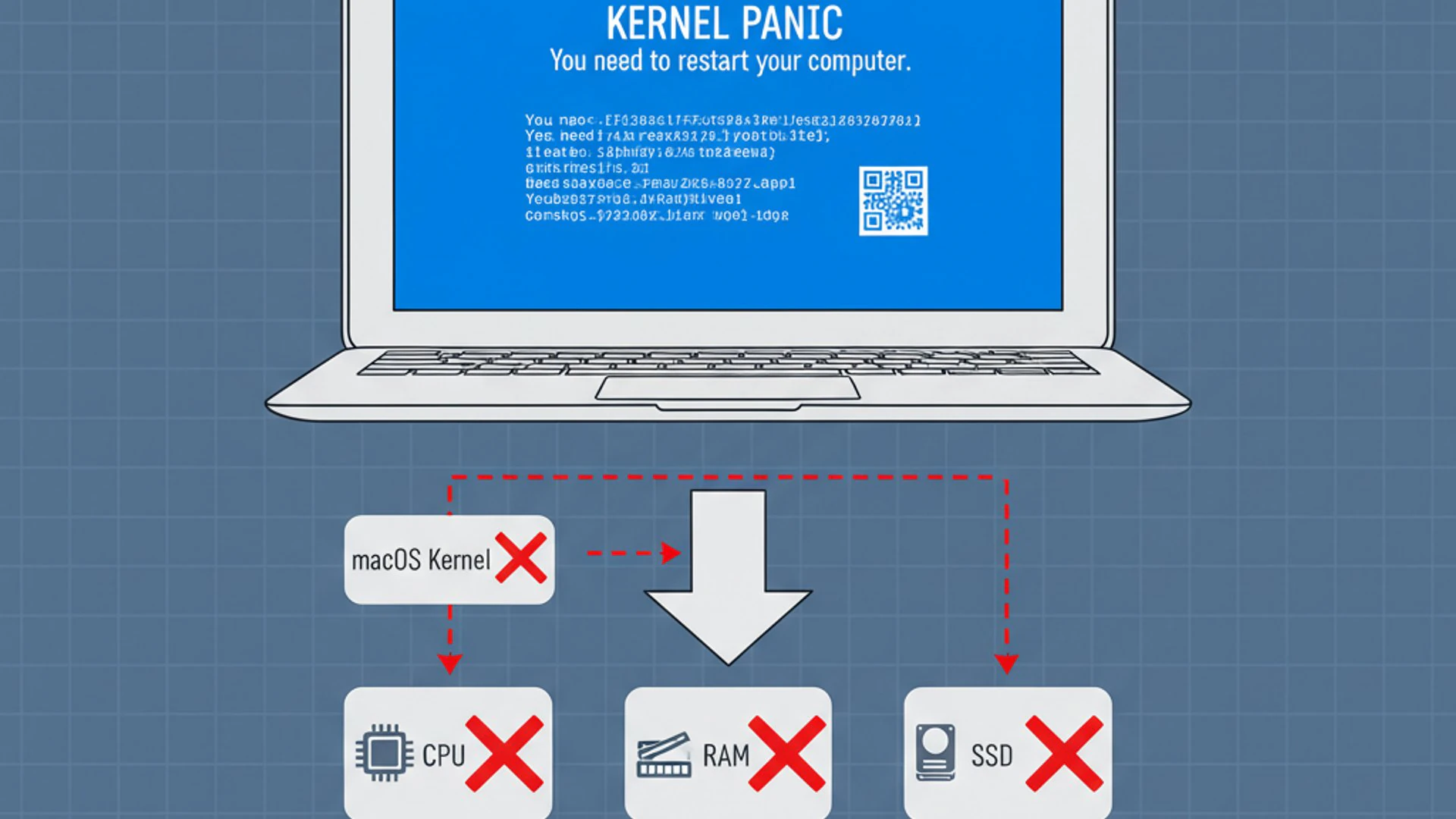
The key is to proceed methodically, testing after each potential fix to see if the issue is resolved. Keep a record of what you’ve tried and the results. This will be invaluable if you eventually need to seek professional help. Remember, patience and precision are crucial when dealing with system-level errors.
We’ll begin with immediate actions that can often resolve transient issues, then move on to software-based solutions, and finally discuss hardware considerations. By following these steps, you’ll significantly increase your chances of successfully resolving the blue screen problem and restoring your MacBook’s stability.
Basic First Aid: Force Restart and Safe Mode
The very first steps you should take when encountering a MacBook blue screen involve basic first aid. These actions are designed to clear temporary glitches and allow you to access your system in a minimal state, which can be crucial for further diagnosis. They are simple, quick, and often surprisingly effective.
A force restart can resolve issues caused by a temporary software hang or a minor system conflict. It essentially gives your MacBook a fresh start. Booting into Safe Mode, on the other hand, provides a more controlled environment, loading only essential macOS components and performing basic disk checks. This can help determine if the problem lies with third-party software or system extensions.
Always start with these fundamental steps before moving on to more complex troubleshooting. They are non-invasive and carry no risk of data loss, making them ideal initial responses to any system anomaly.
Performing a Force Restart
A force restart is the simplest and often most effective initial response to a frozen or blue-screened MacBook. It’s akin to turning a device off and on again, clearing any temporary memory errors or software hangs that might be causing the issue. This action does not delete any data but can interrupt unsaved work.
To perform a force restart on most modern MacBooks:
- Locate the power button on your MacBook. This is often integrated with the Touch ID sensor on newer models.
- Press and hold the power button continuously for about 10 seconds.
- Your MacBook will forcefully shut down. You’ll hear a click or feel a slight vibration, and the screen will go black.
- Wait a few seconds, then press the power button again briefly to turn your MacBook back on.
Observe if your MacBook boots normally after the restart. If the blue screen reappears immediately, the issue is likely more persistent and requires further investigation.
Starting Your MacBook in Safe Mode
Booting your MacBook into Safe Mode is a critical diagnostic step when facing a persistent blue screen. Safe Mode starts your macOS with a minimal set of drivers and applications, disables non-essential startup items, and performs a basic check of your startup disk. This helps determine if the issue is caused by third-party software, extensions, or a minor disk error.
To start your MacBook in Safe Mode:
- Shut down your MacBook completely.
- Press the power button, then immediately press and hold the Shift key.
- Keep holding the Shift key until you see the login window. You might see a progress bar during startup.
- Log in to your account. You might need to log in twice if FileVault is enabled. You will see “Safe Boot” in the menu bar during startup or on the login screen.
If your MacBook boots successfully into Safe Mode and the blue screen does not reappear, it strongly suggests that the problem lies with a third-party application, login item, or a corrupted cache file. You can then proceed to uninstall recently installed apps or clear caches.
Software-Related Diagnostics and Repairs
Once you’ve tried basic first aid, and especially if your MacBook can boot into Safe Mode or intermittently into normal mode, it’s time to focus on software-related diagnostics. Many instances of a MacBook blue screen stem from issues within the operating system or installed applications. These steps aim to identify and rectify such problems, ranging from outdated software to corrupted system files.
These diagnostics are crucial because they can often resolve the issue without requiring hardware intervention. They involve using macOS’s built-in tools and following best practices for software maintenance. Performing these checks systematically can save you time and potentially the cost of professional repair.
Remember to back up your important data before performing any significant system changes, especially if you suspect file corruption. A robust backup strategy is your safety net against unforeseen complications.
Updating macOS and Applications
Keeping your macOS and all installed applications up to date is one of the most effective preventative and corrective measures against a MacBook blue screen. Software updates often include critical bug fixes, security patches, and compatibility improvements that can resolve underlying issues causing system instability.
To update macOS:
- Go to System Settings (or System Preferences on older macOS versions).
- Click on General, then select Software Update.
- If an update is available, click Update Now or Upgrade Now and follow the on-screen instructions.
For applications:
- For apps downloaded from the App Store, open the App Store, click on Updates, and install any available updates.
- For apps downloaded from the internet, open the application, go to its menu bar, and look for an “Check for Updates” option, or visit the developer’s website.
Outdated software is a common cause of conflicts, so ensuring everything is current can often resolve the blue screen issue.
Running Disk Utility to Check for Errors
A corrupted file system or errors on your startup disk can lead to a MacBook blue screen by preventing macOS from accessing critical data. Disk Utility, a built-in macOS tool, can diagnose and repair many of these issues. Running First Aid on your startup disk is a crucial step in software troubleshooting.
To run Disk Utility First Aid:
- Restart your MacBook and immediately press and hold Command (⌘) + R to enter macOS Recovery Mode.
- Once in Recovery Mode, select Disk Utility from the macOS Utilities window and click Continue.
- In the Disk Utility sidebar, select your startup disk (usually named “Macintosh HD” or “Apple SSD”).
- Click the First Aid button in the toolbar.
- Click Run when prompted, then Continue to confirm. Disk Utility will check for errors and attempt to repair them.
Allow the process to complete, which might take some time. If Disk Utility reports errors that it cannot repair, or if the blue screen persists, it might indicate more severe disk corruption or a failing drive.
Resetting NVRAM/PRAM and SMC
Sometimes, a MacBook blue screen can be caused by corrupted settings stored in specific low-level memory areas. Resetting the NVRAM/PRAM and the System Management Controller (SMC) can often resolve these issues by clearing and reinitializing these settings to their defaults. These resets are safe and do not delete your personal data.
Resetting NVRAM/PRAM:
- Shut down your MacBook.
- Turn it on and immediately press and hold Option + Command (⌘) + P + R.
- Keep holding the keys for about 20 seconds. Your MacBook might appear to restart or you might hear the startup chime a second time.
- Release the keys and allow your MacBook to boot normally.
Resetting SMC (for Intel-based MacBooks):
- Shut down your MacBook.
- For MacBooks with a non-removable battery (most modern ones): Press and hold Shift + Control + Option on the left side of the keyboard, then press the power button simultaneously for 10 seconds. Release all keys and the power button, then press the power button to start your Mac.
- For MacBooks with a removable battery (older models): Remove the battery, press and hold the power button for 5 seconds, then reinsert the battery and start your Mac.
For Apple Silicon (M1/M2/M3) MacBooks, the SMC is integrated differently and typically resets automatically with a restart if needed. These resets can resolve issues related to power management, battery, fans, and other low-level functions that might contribute to system instability.
Advanced Hardware Checks and Solutions
If software troubleshooting doesn’t resolve the MacBook blue screen, the problem likely lies with the hardware. Hardware issues can be more complex and sometimes require professional intervention, but there are still several advanced checks you can perform yourself. These steps aim to isolate a faulty hardware component or confirm the need for a repair.
It’s important to approach hardware diagnostics carefully. While some steps, like disconnecting peripherals, are straightforward, others, like running built-in diagnostics, require specific procedures. Always ensure your MacBook is powered off and disconnected from power before physically interacting with any components, if applicable.
Understanding when to escalate to professional help is also key. Attempting complex hardware repairs without the right tools or expertise can cause further damage. This section will guide you through identifying hardware culprits and making informed decisions about repair.
Disconnecting External Peripherals
External peripherals can sometimes be the hidden cause of a MacBook blue screen. An incompatible, faulty, or poorly designed peripheral, or its driver, can introduce instability into the macOS system, leading to crashes. This troubleshooting step is simple yet highly effective in ruling out external factors.
To perform this check:
- Shut down your MacBook completely.
- Disconnect all external devices. This includes USB drives, external monitors, printers, webcams, headphones, charging cables (except the power adapter if needed for startup), and any other accessories connected via USB, Thunderbolt, or HDMI.
- Restart your MacBook with only the essential power adapter connected (if it’s a desktop Mac or a laptop with a low battery).
If your MacBook boots successfully and operates stably without any peripherals, the blue screen was likely caused by one of the disconnected devices. Reconnect them one by one, restarting your MacBook after each connection, to identify the problematic peripheral. Once identified, update its drivers, check for firmware updates, or consider replacing it.
Running Apple Diagnostics (or Apple Hardware Test)
When suspecting a hardware issue, running Apple Diagnostics (or Apple Hardware Test on older models) is an invaluable step. This built-in tool can identify problems with internal components like RAM, the logic board, sensors, and other critical hardware, often providing specific error codes. This can help confirm if a hardware failure is indeed causing the MacBook blue screen.
To run Apple Diagnostics:
- Shut down your MacBook.
- Disconnect all external peripherals except the power adapter.
- Turn on your MacBook and immediately press and hold the D key.
- Keep holding the D key until you see a screen asking you to choose your language.
- Select your language, and Apple Diagnostics will begin. This process usually takes a few minutes.
After the test completes, you will see the results, including any reference codes for detected issues. Make a note of these codes, as they will be crucial if you need to seek professional help. If a hardware issue is detected, the diagnostic tool will often provide options to learn more or contact Apple Support.
Considering Professional Hardware Repair
If Apple Diagnostics identifies a significant hardware fault, or if all software troubleshooting and basic hardware checks fail to resolve the MacBook blue screen, it’s time to consider professional hardware repair. Some issues, such as a failing logic board, a defective GPU, or complex power management problems, are beyond the scope of DIY fixes.
Attempting to repair these components yourself without the necessary tools, expertise, and genuine parts can lead to further damage and potentially void your warranty. Apple-certified technicians have access to specialized diagnostic equipment and genuine Apple parts, ensuring a reliable repair.
“When faced with persistent hardware issues that manifest as a MacBook blue screen, especially after thorough self-troubleshooting, seeking professional assistance from an authorized Apple service provider is the most prudent course of action to ensure a correct and lasting solution.”
Before taking your MacBook for repair, ensure you have a complete backup of your data. While technicians strive to preserve data, hardware repairs, especially logic board replacements, can sometimes lead to data loss. Always inquire about the repair process and potential costs upfront.
Preventing Future MacBook Blue Screen Incidents
Once you’ve successfully resolved a MacBook blue screen incident, the next crucial step is to implement preventative measures to avoid its recurrence. Proactive maintenance and mindful usage habits can significantly enhance your MacBook’s stability and longevity. Prevention is always better than cure, especially when it comes to critical system errors.
This section outlines best practices for maintaining your software environment, monitoring hardware health, and safely managing peripherals. By integrating these habits into your routine, you can create a more robust and reliable computing experience, minimizing the chances of encountering another blue screen.
A stable MacBook is a productive MacBook. Investing a little time in preventative care can save you significant frustration and potential repair costs down the line. Let’s explore how to keep your system running smoothly.
Regular Software Maintenance and Updates
Consistent software maintenance is paramount in preventing a MacBook blue screen. Keeping your macOS and all applications up to date ensures you benefit from the latest bug fixes, security patches, and compatibility improvements. Outdated software is a common source of conflicts and vulnerabilities that can lead to system instability.
Make it a habit to check for macOS updates regularly through System Settings > General > Software Update. Enable automatic updates if you’re comfortable with them. Similarly, routinely update your applications, either through the App Store or by using their built-in update mechanisms. Remove any applications you no longer use, as they can consume resources and potentially introduce conflicts.
Periodically run Disk Utility’s First Aid to check for and repair minor file system errors. Consider using a reputable antivirus/anti-malware solution, even on macOS, to protect against malicious software that can corrupt files or introduce instability. A clean and updated software environment is your first line of defense.
Monitoring Hardware Health and Performance
Just as important as software maintenance is keeping an eye on your MacBook’s hardware health to prevent a MacBook blue screen. Hardware components, like any physical part, can degrade over time. Early detection of potential issues can prevent them from escalating into critical system failures.
Pay attention to unusual fan noise, excessive heat, or unexplained slowdowns. These can be indicators of overheating components or a struggling CPU/GPU. Tools like Activity Monitor (found in Applications > Utilities) can help you monitor CPU, memory, and disk usage, identifying applications that might be hogging resources or causing performance bottlenecks.
Consider running Apple Diagnostics periodically, especially if you notice any performance anomalies. While it won’t predict every failure, it can catch issues before they become critical. Ensure your MacBook has adequate ventilation and avoid using it on soft surfaces that can block air vents, as overheating can stress components and lead to failures.
Best Practices for System Usage and Peripherals
Adopting best practices for system usage and managing peripherals can significantly reduce the risk of encountering a MacBook blue screen. How you interact with your MacBook and the devices you connect to it play a crucial role in its stability.
Always ensure you shut down your MacBook properly rather than forcing it off, especially during updates or when files are being written. Improper shutdowns can lead to file corruption. Avoid overloading your system with too many demanding applications running simultaneously, which can stress the CPU and RAM.
When it comes to peripherals, always use reputable brands and ensure their drivers are up to date and compatible with your macOS version. Safely eject external drives before disconnecting them to prevent data corruption. If a peripheral starts behaving erratically, disconnect it and test your MacBook’s stability without it. Mindful usage extends the life and reliability of your device.
When to Seek Professional Help for Your MacBook
While this guide provides extensive troubleshooting steps for a MacBook blue screen, there are clear instances where professional help becomes necessary. Knowing when to escalate the issue to an expert can save you time, prevent further damage, and ensure a reliable repair. Attempting complex repairs without the right tools or expertise can often exacerbate the problem.
You should consider seeking professional assistance if:
- Apple Diagnostics reports a significant hardware failure (e.g., logic board, GPU, or RAM).
- The blue screen persists after trying all the troubleshooting steps outlined in this guide.
- You are uncomfortable performing any of the advanced diagnostic or repair steps yourself.
- The issue involves liquid damage or physical damage to your MacBook.
- You suspect a problem with components that require specialized tools or knowledge to access (e.g., internal SSD replacement on newer models).
Contact an authorized Apple service provider or a trusted independent repair shop. Always back up your data before handing over your MacBook for repair, as some procedures might require erasing the storage drive. A professional can accurately diagnose complex issues and perform repairs using genuine parts, restoring your MacBook to optimal condition.
Conclusion: Maintaining a Stable and Reliable MacBook Experience
Encountering a MacBook blue screen can be a daunting experience, but as we’ve explored, it’s often a resolvable issue with a systematic approach. While MacBooks are celebrated for their robustness, no computer is entirely immune to critical errors. Understanding the potential causes, from software conflicts and corrupted files to hardware malfunctions and peripheral issues, empowers you to diagnose and address these problems effectively.
By following the step-by-step troubleshooting guide, starting with basic first aid like force restarts and Safe Mode, and progressing through software diagnostics and hardware checks, you can significantly increase your chances of resolving the blue screen yourself. Remember the importance of regular software updates, diligent hardware monitoring, and mindful usage habits as key preventative measures.
Ultimately, maintaining a stable and reliable MacBook experience is an ongoing process. It involves a combination of proactive maintenance, careful observation, and knowing when to seek expert assistance. Your MacBook is a powerful tool, and with the right care, it will continue to serve you reliably for years to come. Don’t let a temporary blue screen deter you; equip yourself with knowledge, act methodically, and restore your MacBook to its seamless operation.
For more interesting articles, stay tuned to Winsides.com!









Community
Comments (0)