

Introduction to 0xC004F050
0xC004F050 is a Windows activation error that usually means the product key or activation entitlement being used cannot activate the installed copy of Windows 11. Microsoft lists 0xC004F050 in a group of activation errors where the user may have entered a product key that cannot be used to activate Windows, should enter a different key, or may need to buy a new key. Microsoft also notes two nearby contexts: activation servers may be busy after an upgrade, and a copy that was previously activated should usually reactivate after reinstall as long as there was no significant hardware change such as replacing the motherboard.
That means 0xC004F050 is not one single failure. It can appear when the key is invalid, the key is for a different edition, the installed Windows edition is wrong, the device recently had major hardware repair, an upgrade activation has not completed, or a work/volume activation path is being used on the wrong device. The error is frustrating because the PC can otherwise work normally. But activation is about license validity and matching, not whether the desktop can open apps.
Use official Microsoft references while troubleshooting. Microsofts Windows activation error guidance includes 0xC004F050 and explains the key/activation-server/reinstall possibilities. Microsofts Activate Windows page explains activation methods and product-key paths. The hardware-change reactivation guidance matters when the motherboard or core hardware changed. Microsofts slmgr.vbs options are useful when you need to read license channel and activation details.
This article focuses on safe and legitimate fixes. It does not recommend leaked product keys, activation cracks, public KMS servers, patched licensing files, or command bundles from unknown sources. If a key cannot be used to activate Windows, the permanent fix is not a bypass. The durable fix is a valid key that matches the installed edition, the correct digital license path, a supported hardware-change reactivation path, Microsoft Store, OEM or reseller support, Microsoft support, or organization IT for managed devices.
Table of contents
Key Takeaways
- 0xC004F050 is a Windows activation error. Microsoft groups it with cases where a product key cannot be used to activate Windows.
- The key must match the installed edition. A key for another edition or license channel can fail even if typed correctly.
- Activation server timing can matter after upgrade. Microsoft notes that activation servers may be busy after upgrading to Windows 11, and waiting/retrying may help in that specific case.
- Reinstall context matters. A previously activated Windows 11 copy should usually reactivate after reinstall if there was no significant hardware change.
- Motherboard replacement can change the activation story. Hardware-change reactivation or a new license may be needed depending on the license type.
- Use Activation Troubleshooter and Settings first. If the error changes after troubleshooting, follow the new code and message.
- Do not use unofficial activators. They do not create a valid license and can introduce malware, broken activation state, or compliance risk.
What 0xC004F050 Means
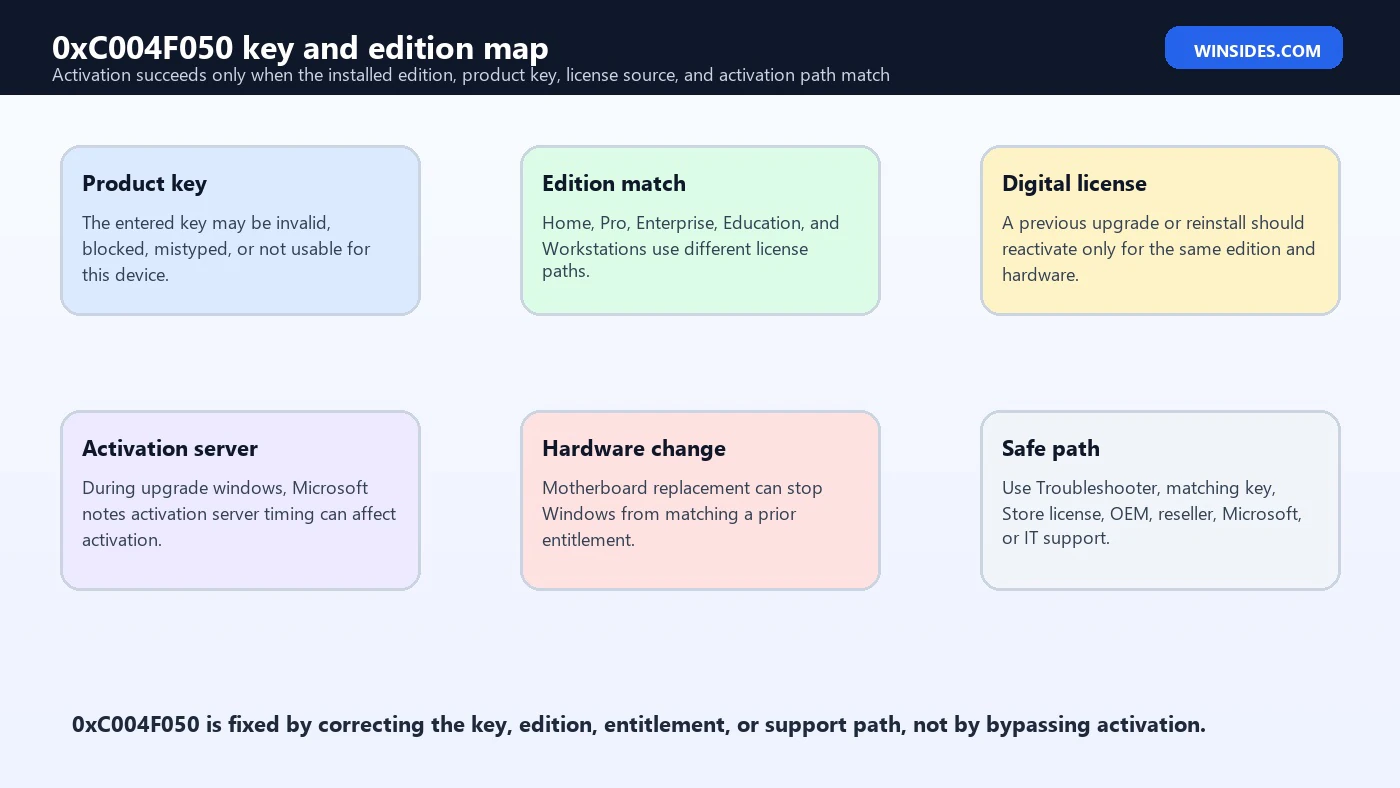
In plain language, Windows tried to activate and the key or entitlement did not fit the situation. The key may not be valid for Windows 11, may be for a different edition, may already be tied to another scenario, may belong to a volume activation path, or may simply be typed incorrectly. Windows activation checks more than the presence of a 25-character code. It checks edition, license channel, device entitlement, activation service, hardware identity, and sometimes organization activation policy.
Microsofts error list places 0xC004F050 beside several errors where the product key cannot be used to activate Windows. The suggested actions are practical: enter a different product key or buy a new product key when the key cannot be used. For users who upgraded from an activated copy of Windows 7 or Windows 8.1, Microsoft notes that Windows 11 should activate automatically, or the user can wait and select Activate again if activation servers were busy. For users who reinstalled after the free upgrade, Microsoft says activation should happen automatically as long as no significant hardware changes were made.
The key question is therefore: why does Windows think the key cannot be used here? The answer might be edition mismatch, bad key source, server timing, reinstall mismatch, hardware change, business activation context, or an invalid/untrusted key. The safest repair starts by identifying which one applies.
Common Causes of 0xC004F050
| Cause | What it means | Best first check |
|---|---|---|
| Invalid product key | The key cannot be used to activate this Windows installation. | Verify source, proof of purchase, and exact characters. |
| Wrong edition | The key is for a different Windows edition or channel. | Compare installed edition with key/license documentation. |
| Upgrade server timing | Activation servers may be temporarily busy after upgrade. | Wait, update Windows, and retry activation. |
| Reinstall mismatch | The reinstalled edition does not match the prior digital license. | Run Activation Troubleshooter and confirm edition. |
| Hardware change | Motherboard or major hardware changed since activation. | Use hardware-change reactivation guidance. |
| Volume key on personal PC | A KMS/organization key was installed where consumer activation is expected. | Return to retail/OEM/digital license path. |
| Counterfeit or gray-market key | The key source may not be legitimate or transferable. | Contact seller or buy from trusted source. |
| Managed device | Activation belongs to organization policy or IT. | Contact the organizations support person. |
A single error code can sit on top of all these stories. That is why simply entering another key from the internet is a bad fix. If the issue is a wrong edition, a random key will not solve it. If the issue is activation server timing, a little patience and retry may work. If the issue is hardware change, the Microsoft account and reactivation path matter. If the key came from an unreliable seller, the seller or a genuine purchase path matters.
Start in Activation Settings
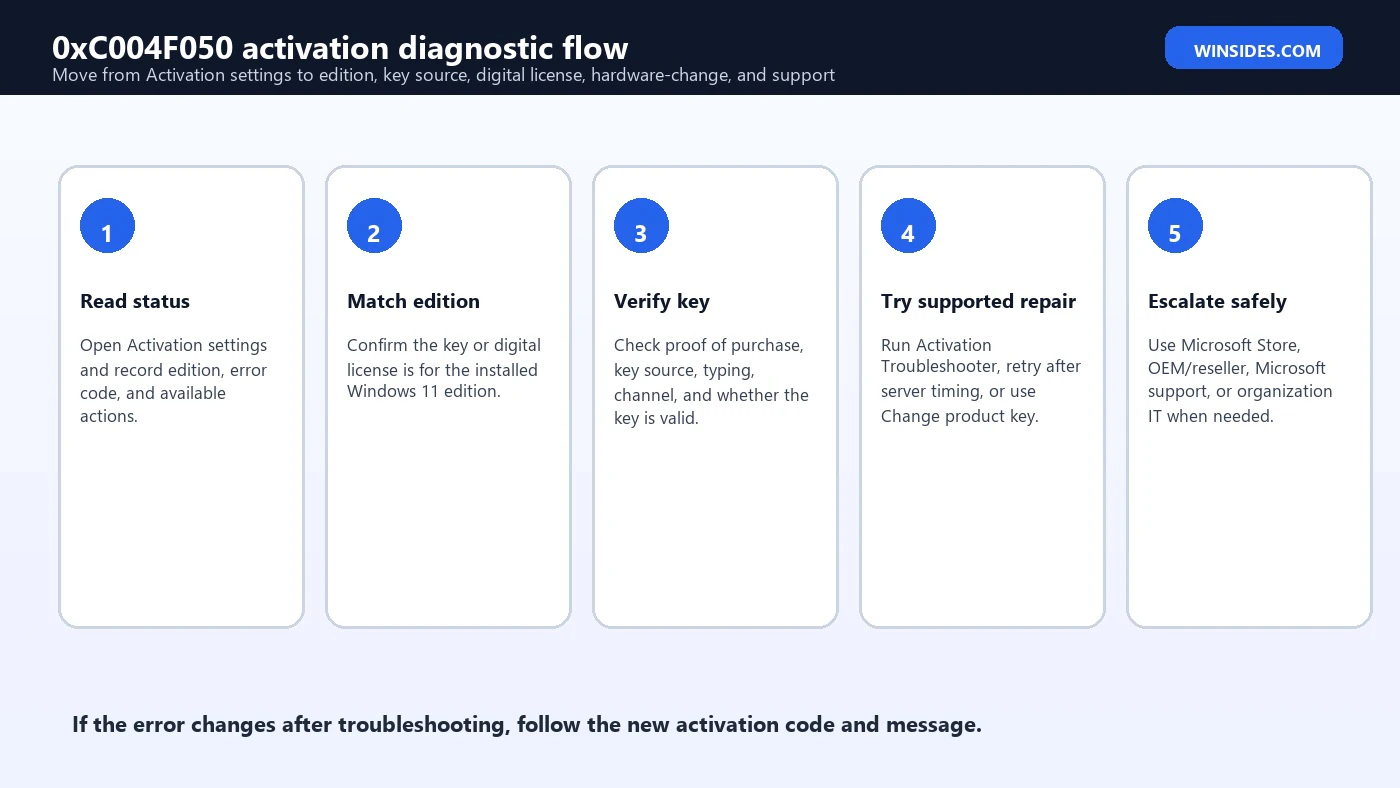
Open Settings, go to System, and select Activation. Record the installed Windows edition, activation state, error code, and available actions. You may see Change product key, Troubleshoot, Go to Microsoft Store, or organization-related messaging. Those options guide the repair path. If the page offers Troubleshoot, run it before changing keys. Microsofts activation error page says to use Activation Troubleshooter first for Windows 11 activation errors and to check the new error code if the message changes after troubleshooting.
If you have a valid key, use Change product key and enter the 25-character key carefully. If you do not have a valid key and the device needs a license, Microsoft Store is the supported purchase path. If the device is organization-managed, do not enter a personal key without IT approval. If the installed edition looks wrong, fix the edition mismatch before buying anything.
Also check whether Windows is fully updated. Microsofts activation guidance notes that activation and troubleshooting improvements are included in current Windows versions. If a recently upgraded device shows 0xC004F050, install pending updates, restart, and retry activation after a short wait. If the error persists, continue with key and edition checks.
Check Edition and Product Key Match
Edition mismatch is one of the most practical causes of 0xC004F050. Windows 11 Home, Pro, Pro for Workstations, Education, and Enterprise use different licensing expectations. A Pro key will not activate Enterprise. An Enterprise key should not be used to activate Home. A digital license for Home will not activate Pro. Even if the key is genuine, it must be applicable to the installed edition.
Confirm your edition in Activation settings or with winver. Then compare it with the license source. If the PC came with Windows Home and you installed Pro, you need a Pro key or must reinstall Home. If you bought Pro but installed Enterprise from a work image, reinstall Pro or use the organization path if it truly belongs to the organization. If a reseller sold the device with Windows included, ask which edition was licensed.
When you reinstall Windows with a digital license, choose the edition you are licensed for. Choosing the wrong edition can produce activation errors that look like key problems. In that case, entering the old key repeatedly will not help. The installed edition and entitlement must line up first.
Use slmgr to Inspect Activation Details
Microsoft documents slmgr.vbs options for viewing and managing activation information. The /dlv option displays detailed license information, while /xpr shows whether activation is permanent or time-limited. These commands can reveal the activation channel, partial key, license status, and other details that help distinguish retail/OEM/digital, MAK, KMS, and other contexts.
slmgr /dlv
slmgr /xpr
If slmgr /dlv shows an unexpected volume or KMS channel on a personal PC, the installed key path may be wrong. If it shows retail but activation fails, focus on key validity, edition, digital license, and hardware change. If it shows organization activation on a company device, contact IT. Use slmgr for evidence, not as a way to force invalid activation.
Never share a full product key publicly. A partial key, channel, edition, and error code are enough for most support conversations. If you contact Microsoft, OEM, reseller, or IT support, use their secure process for any sensitive information.
If This Happened After Upgrade
Microsofts activation-error guidance notes that after upgrading to Windows 11, activation servers may be busy. If the device was upgraded from an activated copy of Windows 7 or Windows 8.1 in a supported scenario, Windows should activate automatically, or you can wait a while and select Activate again. That is different from a bad key. If this is truly an upgrade-timing issue, patience, updates, restart, and retry can be the correct path.
Do not confuse this with an unsupported or unlicensed upgrade. If the previous Windows installation was not activated, if the edition changed, or if major hardware changed, automatic activation may not apply. Check whether the old installation was activated, whether you installed the same edition, and whether hardware changed. If the Activation Troubleshooter changes the error code, follow the new code because Microsoft specifically recommends checking the new message after troubleshooting.
A good practical workflow is to install all Windows updates, restart, verify internet connectivity, run Activation Troubleshooter, and retry activation. If the error remains after a reasonable wait, move on to key source, edition, and hardware-change checks.
If This Happened After Reinstall
Reinstall scenarios are common. Microsoft says that after reinstalling Windows 11 following the free upgrade offer, activation should happen automatically as long as significant hardware changes were not made. The quiet assumption is that the edition still matches the digital license. If you reinstall the wrong edition, Windows may not find a matching entitlement and activation can fail.
Before entering a new key, check whether you selected the right edition during setup. If the previous activated installation was Home, reinstall Home. If it was Pro, reinstall Pro. If the PC came with an OEM Home license and you installed Enterprise from an organization image, activation will not match. The simplest fix may be a clean install of the correct edition rather than a new product key.
Also sign in with the Microsoft account that held the digital license if relevant. A digital license can be linked to a Microsoft account, and the Activation Troubleshooter may use that relationship in supported cases. If multiple accounts were used on the PC, test the one tied to the original activation.
If Hardware Changed Recently
A significant hardware change, especially motherboard replacement, can change the activation identity of a Windows device. Microsofts hardware-change guidance explains that reactivation after hardware changes may require signing in with the same Microsoft account and using the Activation Troubleshooter path. If the license was OEM and tied to the original hardware, a motherboard replacement can also mean you need OEM support or a new license depending on the repair and license terms.
If a repair shop replaced the motherboard, ask whether the repair requires a new Windows license or whether the repair was handled under OEM warranty. If the manufacturer replaced the board, contact the manufacturer with the serial number, repair record, and activation error. If you built the PC yourself and changed the motherboard, the retail transfer path may depend on your license type and Microsoft account linking.
Do not erase evidence before contacting support. Keep repair invoices, the old activation proof, Microsoft account information, and screenshots of the activation page. Support can help more quickly when the hardware-change timeline is clear.
Product Key Source and Proof
A product key that cannot be used to activate Windows may come from a bad source. Keys sold far below normal price may be stolen, region-restricted, volume keys sold incorrectly, keys already used elsewhere, or keys from programs that do not apply to your device. If you bought a key from a marketplace, check the sellers legitimacy and return policy. If the key came with a device, check the OEM or reseller documentation.
Proof matters. Look for a Microsoft Store order, retailer invoice, confirmation email, packaging, Certificate of Authenticity, OEM invoice, or reseller listing. If the device is refurbished, ask for the license documentation. If the key was supplied by an employer or school, do not use it on personal hardware. If you cannot prove the key is valid and applicable, the safest fix may be purchasing a genuine license from Microsoft Store or a trusted retailer.
If a legitimate key fails, contact the seller or Microsoft support with the proof. Do not post the full key publicly. Do not keep trying random keys. Repeated key changes can make the activation history harder to understand and can distract from the real issue, which is whether you have a license for the installed edition.
Managed and Organization Devices
If the device belongs to a business, school, or organization, activation may be controlled by IT. The installed edition may be Enterprise or Education, and the key may be MAK, KMS, subscription activation, or another organization entitlement. In that case, 0xC004F050 should be routed to the organizations support person. Users should not install personal keys or public activation settings on company hardware.
For IT, collect edition, activation channel, partial key, error code, device name, user, network state, and slmgr /dlv details. Determine whether the installed image has the correct key and edition. If KMS is involved, verify KMS host reachability and support. If MAK is involved, verify key availability and activation count. If subscription activation is involved, check user licensing and device enrollment.
A recurring 0xC004F050 pattern after imaging often means the deployment process is installing the wrong edition or key. Fix the image or task sequence rather than repairing every endpoint manually.
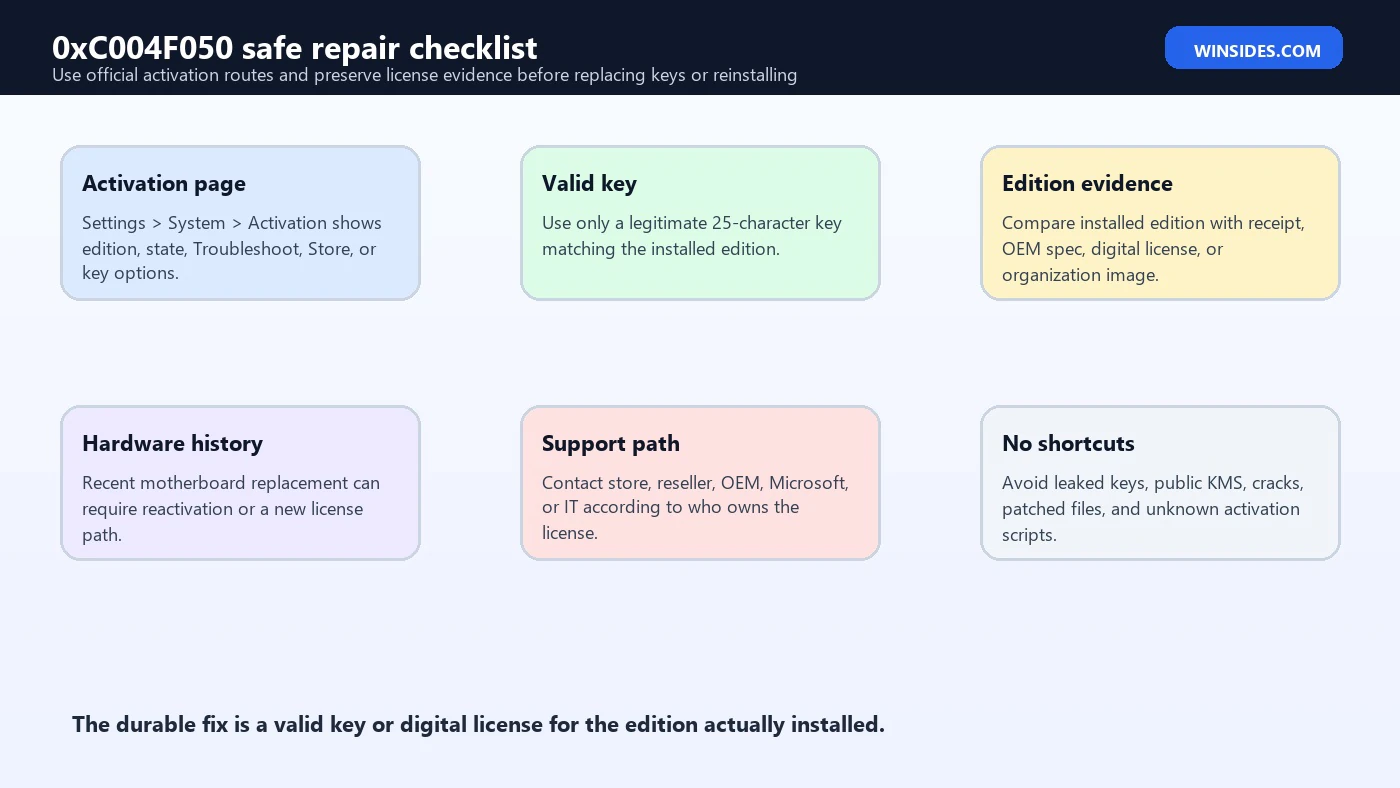
Safe Repair Checklist
- Record the error. Capture Windows edition, activation state, exact error code, and whether the error changes after troubleshooting.
- Run Activation Troubleshooter. Use Settings > System > Activation > Troubleshoot when available.
- Check edition. Make sure the installed edition matches the key or digital license.
- Verify the key source. Confirm receipt, email, packaging, COA, OEM documentation, or Microsoft Store order.
- Check upgrade/reinstall context. Wait and retry after upgrade-server timing only when the prior activated path is valid.
- Review hardware changes. Motherboard replacement can require reactivation support or a new license path.
- Use a valid matching key. Enter it through Change product key or trusted support tools.
- Escalate correctly. Contact reseller, OEM, Microsoft, or IT based on who owns the license.
Entering a Valid Product Key
If you have a valid key for the installed edition, use Settings > System > Activation > Change product key. Enter the 25-character key carefully. Check for typing errors, copied spaces, wrong account, wrong edition, and wrong key source. If the key came from packaging or an email, compare it against the original document rather than a screenshot or rewritten note.
slmgr /ipk XXXXX-XXXXX-XXXXX-XXXXX-XXXXX
slmgr /ato
Advanced users can use slmgr /ipk and slmgr /ato, but Settings is usually safer for normal users. Microsofts slmgr documentation explains that /ipk installs a product key and /ato attempts activation. These commands still require a key that is valid and applicable to the installed operating system. They cannot make a mismatched or invalid key legitimate.
If activation still fails after a verified valid key, check the new error code and message. Microsoft explicitly warns that the error can change after running the troubleshooter or trying activation. Follow the new error because it may point to internet connectivity, hardware change, key already used, or edition mismatch more specifically.
What Not to Do
Do not download activation cracks, public KMS scripts, patched licensing files, registry bundles, or command packs from unknown websites. 0xC004F050 is a licensing and activation match problem. A bypass tool does not create a valid license; it can install malware, weaken Windows security, corrupt activation files, and create future update or activation failures.
Do not buy the cheapest key you can find without checking the seller. Extremely cheap keys are often gray-market, volume, reused, stolen, or region-restricted. A key that appears to work today can be blocked later. Use Microsoft Store, trusted retailers, OEM support, reseller warranty, or organization IT.
Do not reinstall Windows blindly. Reinstall only helps when the installed edition or image is wrong, and even then you need to reinstall the edition you are actually licensed for. Reinstalling the same wrong edition returns the same problem. Diagnose edition and key source first.
Evidence to Collect Before Support
| Evidence | Why it matters | Who may need it |
|---|---|---|
| Activation screenshot | Shows 0xC004F050 and current activation state. | Microsoft, OEM, reseller, IT |
| Windows edition | Determines whether key and edition match. | All support paths |
| Proof of purchase | Shows the key, device, or license source. | Reseller, Microsoft, OEM |
| Upgrade/reinstall history | Shows whether automatic digital activation should apply. | Microsoft support |
| Hardware repair record | Shows whether motherboard or major hardware changed. | OEM, repair shop, Microsoft |
| Partial key/channel | Helps identify installed key context without exposing full key. | IT or advanced support |
| Microsoft account used | Can matter for digital license and hardware-change reactivation. | Microsoft support |
| Organization ownership | Determines whether IT controls activation. | IT department |
Support cases move faster when the evidence is ready. A reseller needs proof that they sold the key. An OEM needs serial and repair data. Microsoft support needs license and account context. IT needs edition, channel, and device details. The error code is just the starting point; the license story is what resolves it.
Edition-Specific Fix Paths
| Installed edition | Common mismatch | Safe fix path |
|---|---|---|
| Windows 11 Home | User enters Pro, Enterprise, or organization key. | Use a Home license, upgrade properly to Pro, or reinstall the licensed edition. |
| Windows 11 Pro | Device has Home digital license or Enterprise image history. | Use a valid Pro key, confirm upgrade purchase, or reinstall Home if that is the real license. |
| Windows 11 Enterprise | Personal PC was installed from work or evaluation media. | Use the organizations activation path or install the consumer edition the device owns. |
| Windows 11 Education | School license used outside the eligible device or account. | Contact school IT or use the correct personal license path. |
| Windows 11 Pro for Workstations | Standard Pro key used for Workstations edition. | Use a matching Workstations license or install standard Pro if that is what is owned. |
Edition-specific thinking prevents wasted effort. If a Windows 11 Pro installation is sitting on a PC that only has a Home digital license, the activation page may keep rejecting keys until the edition problem is fixed. If an Enterprise image was installed on a personal laptop, the right repair is not a random Enterprise key. The right repair is to put the device back on the edition it actually owns or to use a legitimate organization activation path.
The same applies in the other direction. A user who purchased Windows 11 Pro from Microsoft Store should make sure the Pro upgrade completed correctly, that the Microsoft account used for purchase is available, and that the installed edition is actually Pro. A user who purchased a boxed or retail key should check the exact edition printed on the documentation. Small edition words matter because activation is exact.
If you are unsure what the device originally had, check the invoice, OEM specification page, Microsoft Store order history, or the previous Windows activation state if you recorded it. For refurbished PCs, ask the seller which edition is licensed and whether the license transfers to you. For company laptops, stop and ask IT because the device may be covered by a volume or subscription activation model instead of a consumer key.
When Reinstalling Is the Cleaner Fix
Reinstalling Windows is not the first fix for 0xC004F050, but it can be the cleanest fix when the installed edition is wrong. For example, if the device is licensed for Windows 11 Home but currently runs Pro or Enterprise, changing keys may become a maze. Reinstalling the correct edition can allow Windows to find the matching digital license automatically, assuming the hardware and account context still match.
Before reinstalling, back up user files, BitLocker recovery keys, browser profiles, application installers, and license documents. Then create installation media from Microsoft, choose the correct edition, and avoid entering random keys during setup. If the device has a digital license for that edition, Windows may activate automatically after it connects to the internet and the activation service checks the device entitlement.
Do not reinstall repeatedly as a substitute for licensing clarity. If the key is invalid, reinstalling will not make it valid. If a motherboard replacement changed the device identity, reinstalling may not restore the old entitlement. If the device belongs to an organization, reinstalling consumer Windows may break management, compliance, or support. Reinstall only when the edition or image is genuinely the problem.
Admin Notes for Images and Deployment
For administrators, 0xC004F050 often points to an image, key, or assignment mistake. A deployment image may install Enterprise where Pro is licensed, use the wrong generic setup key, apply a MAK where KMS is expected, or miss the subscription activation requirements. One user may see a personal activation problem, but repeated cases after imaging usually mean the deployment process needs repair.
Audit the image before repairing clients one by one. Check the installed edition, activation channel, key injection step, unattend file, task sequence, Autopilot profile, subscription assignment, KMS reachability, and post-install scripts. If a script replaces a valid digital license path with a volume key, it can create avoidable activation errors. If a device group receives the wrong edition, every machine in that group can inherit the same problem.
Keep licensing documentation close to the deployment workflow. The person building the image should know whether the target devices are OEM Home, OEM Pro, retail Pro, volume Enterprise, Education, or subscription-activated. Activation errors are much easier to prevent than to clean up after devices have reached users.
Frequently Asked Questions
What is 0xC004F050?
0xC004F050 is a Windows activation error that usually means the product key or entitlement cannot be used to activate the installed Windows 11 edition or device state.
Does 0xC004F050 always mean my product key is fake?
No. It can mean the key is invalid, but it can also happen because the installed edition is wrong, activation servers are temporarily busy after upgrade, the device was reinstalled incorrectly, or hardware changed.
Can waiting fix 0xC004F050?
Sometimes, but only in the right context. Microsoft notes that activation servers may be busy after upgrading to Windows 11. If the device was legitimately activated before upgrade, update Windows, restart, wait a while, and retry.
What if I reinstalled Windows 11 and now see 0xC004F050?
Check whether you reinstalled the same edition that was previously activated. A Home digital license will not activate Pro, and a Pro license will not activate Enterprise unless the license path specifically supports that edition.
What if I changed the motherboard?
A motherboard replacement can count as a significant hardware change. Use Microsofts hardware-change reactivation path, sign in with the Microsoft account tied to the license if applicable, and contact OEM or Microsoft support when needed.
Can slmgr fix 0xC004F050?slmgr can install a key and attempt activation, but it cannot make an invalid or mismatched key valid. Use it mainly to inspect license details and to apply a key you already know is legitimate and edition-matched.
Should I buy a new key immediately?
Not before checking edition, digital license, upgrade history, reinstall history, and hardware changes. If the current key is not valid for the installed edition and you cannot resolve it through seller, OEM, Microsoft, or IT support, then a genuine license purchase may be necessary.
Can I use a public KMS server or activation crack?
No. Do not download activation cracks, public KMS scripts, leaked keys, patched licensing files, or unknown activation bundles. They are unsafe, unreliable, and do not create a legitimate Windows license.
Who should I contact if nothing works?
Contact the party that owns the license path: Microsoft Store for Microsoft purchases, the reseller for a purchased key, the OEM for a device license or repair, Microsoft support for digital license issues, or organization IT for work and school devices.
Conclusion: Match the Key, Edition, and Entitlement
0xC004F050 is best solved by matching the activation story to the device. Start in Activation settings, run the troubleshooter when available, record the exact edition and error, and check whether the key, digital license, reinstall history, and hardware state all agree. If the error changes after troubleshooting, follow the new message because it may point to a more specific cause.
For personal PCs, the most common durable repairs are installing the edition you are licensed for, entering a valid matching product key, restoring the correct digital license path, buying through Microsoft Store or a trusted retailer, or contacting OEM or Microsoft support. For managed devices, the correct path is organization IT because the license may depend on Enterprise, Education, KMS, MAK, subscription activation, or deployment policy.
Avoid shortcuts. Public KMS servers, activators, leaked keys, and patched licensing files do not solve the licensing problem and can create security or compliance damage. The quiet fix is the official one: a valid key or digital license for the Windows 11 edition actually installed on the device.
For more interesting articles, stay tuned to Winsides.com!









Community
Comments (0)