

Introduction to 0x8007232B
0x8007232B is a Windows activation error that often appears when Windows is trying to activate through the wrong licensing path or cannot find the activation service expected by the installed key. Microsoft groups 0x8007232B with 0xC004F074, 0xC004F038, and 0x8007007B in its Windows activation error guidance. The official guidance points to two common scenarios: you may have entered an Enterprise product key while trying to activate Windows 11 Home or Pro, or you may be trying to activate a work device while not connected to the workplace network.
That combination tells us a lot. This is usually not a normal Windows Update problem, browser problem, or driver problem. It belongs to the Windows activation and volume-licensing layer. A device using a KMS client key expects to find an authorized Key Management Service host, usually through organization DNS and network connectivity. If the PC is at home without VPN, on the wrong DNS, blocked by firewall, or using a key that does not match the installed edition, activation can fail with 0x8007232B even when the internet works.
The safest troubleshooting path is grounded in Microsoft documentation. Microsofts Windows activation error guidance explains the edition and workplace-network causes for 0x8007232B. Microsoft documents KMS client activation keys, KMS activation planning, and slmgr.vbs options for volume activation environments. Microsofts nslookup documentation is useful when administrators need to verify DNS discovery.
This guide explains how to fix 0x8007232B without using public KMS servers, leaked keys, activation scripts, patched licensing files, or bypass tools. If the device is personal, the fix is usually a valid retail/OEM/digital license or the correct edition. If the device belongs to an organization, the fix is usually workplace network access, VPN, KMS DNS discovery, firewall routing, a valid MAK, or IT support. The right fix depends on the ownership and license path of the device.
Table of contents
Key Takeaways
- 0x8007232B is a Windows activation error. Microsoft groups it with KMS and edition-context activation failures.
- Edition mismatch is a common cause. An Enterprise key cannot activate Windows 11 Home or Pro; the product key must match the installed edition.
- Work devices may need the workplace network. If activation depends on KMS, the client may need VPN, office network, DNS, and firewall access.
- KMS client keys are not consumer licenses. Microsoft publishes KMS client setup keys, but they require an authorized organization KMS host to activate.
- DNS discovery matters for KMS. KMS clients often locate the host through DNS SRV records, so bad DNS can trigger activation failure.
- Use slmgr for evidence.
slmgr /dlvcan show channel, partial key, license status, and KMS host information. - Do not use public KMS servers. Use Microsoft activation, a valid key, your organizations KMS/MAK path, or support from the license owner.
What 0x8007232B Means
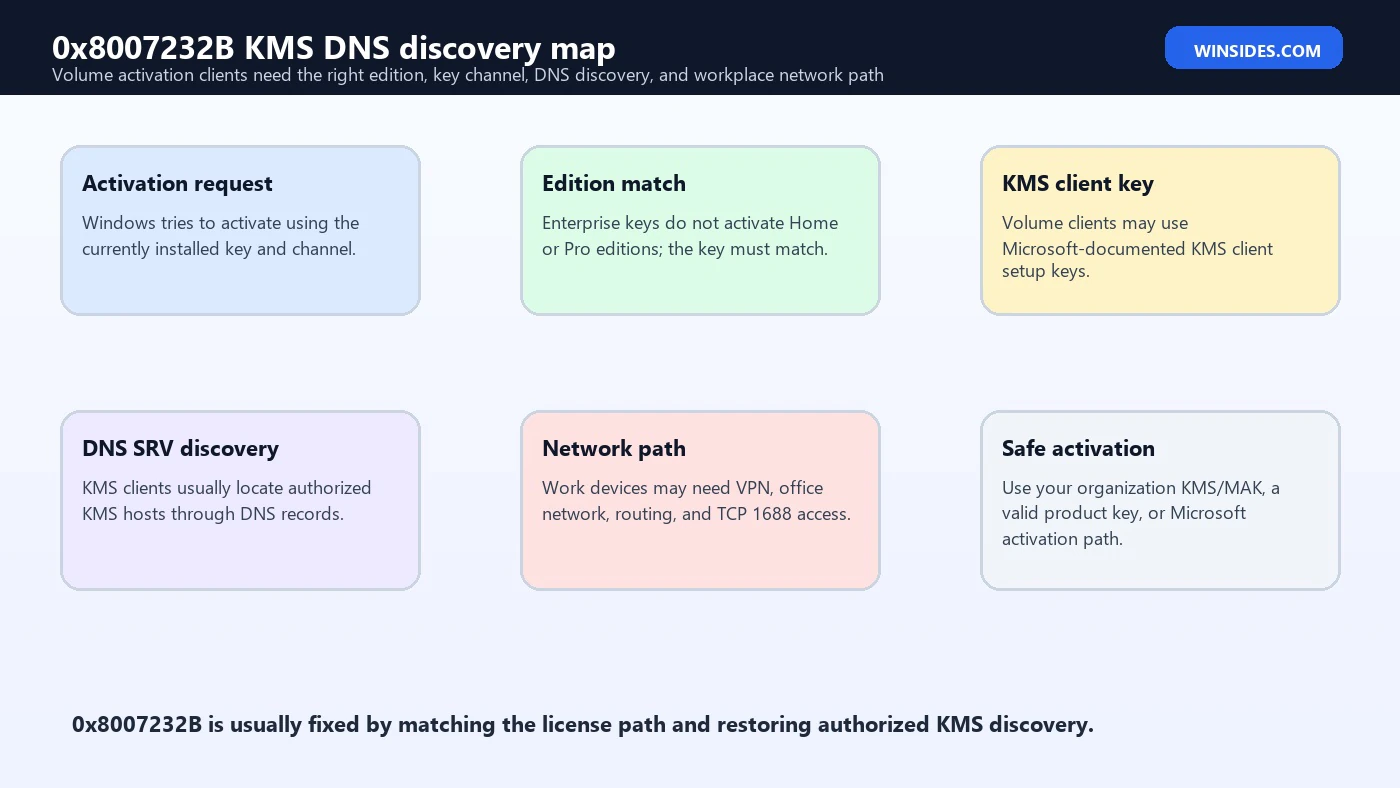
In plain English, 0x8007232B usually means Windows is trying to activate in a way that does not fit the current edition or network. Historically, this error is often associated with a DNS name not existing when a KMS client tries to locate a KMS host. Microsofts current Windows 11 activation page simplifies the user guidance: check whether the key matches the edition, and if it is a work device, connect to the workplace network or contact the organizations support person.
Those two causes are connected. Enterprise and volume activation are usually organization-managed. If a personal PC has an Enterprise or KMS client key installed, Windows may start looking for a KMS host that does not exist on the home network. If a company laptop is away from the office and the VPN is disconnected, Windows may not be able to find the company KMS host. If DNS SRV records are missing or the firewall blocks KMS traffic, legitimate volume clients can also fail.
The first diagnostic question is therefore not technical; it is ownership. Is this your personal PC, a work/school device, a VM from a corporate image, a refurbished business PC, or a lab machine? A personal PC should normally use OEM, retail, or digital license activation. A work device may use KMS, MAK, subscription activation, or another organizational method. The fix follows that answer.
Common Causes of 0x8007232B
| Cause | What it means | Best first check |
|---|---|---|
| Enterprise key on Home or Pro | The product key does not match the installed edition. | Check Windows edition and key source. |
| Work device off network | KMS activation cannot reach workplace infrastructure. | Connect VPN or office network, then retry. |
| KMS DNS discovery failure | Client cannot locate the KMS host through DNS SRV records. | Check internal DNS and KMS publishing. |
| Firewall blocks KMS | Client cannot reach authorized KMS service, often TCP 1688. | Check network routing and firewall policy. |
| Wrong image on personal PC | A volume-licensed organization image was installed on a consumer device. | Install the edition you own and use a valid license. |
| Stale manual KMS host | Client points to an old or unauthorized KMS server. | Review slmgr /dlv and clear/fix KMS host as appropriate. |
| KMS threshold or host issue | KMS host may not be activated, reachable, or ready for the client OS. | IT should check KMS host status and planning requirements. |
| No support contact | Small organization has no clear activation owner. | Enter a matching valid product key or contact Microsoft/licensing support. |
The table shows why the fix can be very different from one device to another. A personal laptop with the wrong Enterprise key needs a correct consumer license path. A corporate laptop off VPN needs network access or IT support. A KMS host with broken DNS needs administrator repair. A used business PC may need a clean install of the licensed consumer edition. Treating all of these as the same problem wastes time.
Start in Activation Settings
Open Settings, choose System, and select Activation. Note the installed edition, activation state, exact error code, and visible options such as Change product key, Troubleshoot, or Go to Microsoft Store. Microsofts guidance for this error says that if your organization does not have a support person, you may need to enter your product key again through Activation settings and Change product key. That only works if the key matches the installed edition and belongs to your device.
If Activation settings shows Windows 11 Enterprise on a personal PC, stop and verify why. Enterprise is typically organization-managed. If the device was bought second-hand, it may still have a company image. If you installed an ISO from work, it may have installed Enterprise by default. If an unofficial activation script was used, it may have installed a KMS client key. A Home or Pro owner should not troubleshoot Enterprise KMS as if it were a normal consumer activation path.
If Activation settings shows Windows 11 Pro, but you entered an Enterprise key, replace it with a key that matches Pro or install the edition tied to your digital license. If it is a managed work device, do not enter a personal key without IT approval. Contact the organizations support team and provide the error code, edition, and network status.
Use slmgr to Identify the Activation Channel
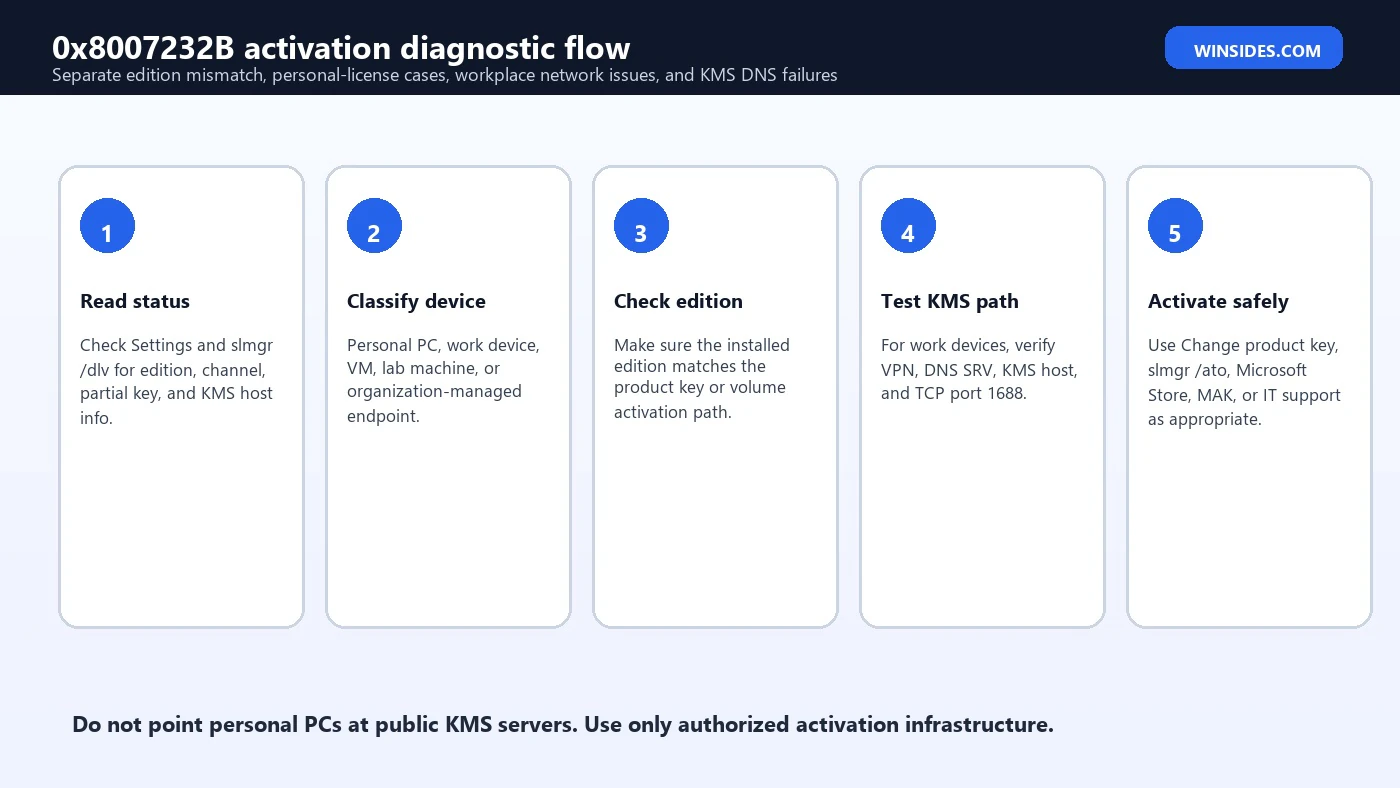
Microsoft documents slmgr.vbs options for activation information. The /dlv option shows detailed license information, while /xpr shows activation expiration state. These commands are useful because they reveal whether Windows is using a retail, OEM-like, MAK, or KMS path, and whether a KMS host is configured or discovered. Use them as evidence before changing keys.
slmgr /dlv
slmgr /xpr
If slmgr /dlv shows a volume KMS client channel on a personal PC, the installed activation path is probably wrong for the owner. If it shows KMS host information for a work device, verify that the device can reach that host through the required network. If it shows no useful KMS discovery and the device should use KMS, IT should inspect DNS SRV records and KMS host configuration.
Do not share full product keys publicly. A partial key, edition, activation channel, and error code are usually enough for IT or Microsoft support to identify the problem. If the device is organization-managed, follow the organizations data-handling rules before sharing screenshots.
KMS DNS Discovery Explained
KMS clients often find their KMS host through DNS. In an organization, the KMS host can publish service records that tell volume activation clients where to activate. If those records are missing, in the wrong zone, blocked by split DNS, or not visible to remote clients, the Windows activation client may fail to locate the KMS host. That is why this error is frequently described as a DNS name problem in KMS contexts.
Microsofts nslookup documentation describes the tool as useful for diagnosing DNS infrastructure. Administrators can use nslookup to inspect whether the expected KMS service records exist from the client network. The exact DNS zone and record names depend on the organizations domain configuration, but the troubleshooting principle is simple: the client must be able to query the internal DNS namespace that contains KMS discovery records. Public DNS will not know about private corporate activation records.
nslookup -type=SRV _vlmcs._tcp.example.comReplace example.com with the organizations internal DNS domain. If the record is missing internally, clients may not discover the KMS host. If it resolves on the office network but not on VPN, the VPN DNS or split-DNS configuration may be the issue. If it resolves but activation still fails, test name resolution, routing, firewall, and whether the KMS host supports the client operating system.
Workplace Network, VPN, and Firewall Checks
Microsofts user-facing guidance says you might see 0x8007232B when trying to activate a work device while not connected to the workplace network. That is a strong clue. If the laptop belongs to your company or school, connect to the required VPN or office network, wait for DNS and policy to apply, then retry activation. Some environments need a full tunnel, specific DNS suffixes, or device compliance before KMS is reachable.
Firewalls also matter. KMS commonly uses TCP port 1688, and Microsoft KMS planning documentation covers KMS activation planning and networking. If a firewall, VPN rule, endpoint security product, or router blocks the path, DNS may work while activation still fails. The client can know the KMS host name but still be unable to connect to the service. That is why IT should check both discovery and reachability.
For users, the safest workflow is to connect to the normal work network, restart if required, and try activation from Settings. If it fails, send IT the Windows edition, activation error, VPN status, network used, and slmgr /dlv details if requested. Do not manually point the device at a public KMS server. The device needs the organizations authorized activation service, not a random host.
Fixing the Wrong Edition or Product Key
Microsofts activation page says that one cause of 0x8007232B is entering an Enterprise product key to activate Windows 11 Home or Pro. The direct fix is to enter a product key that matches the edition installed on the device. If you own a Windows 11 Pro key, use it on Pro. If the device has a Home digital license, install Home. If the device is supposed to be Enterprise, it should be managed through the organization activation method.
KMS client setup keys deserve special care. Microsoft publishes KMS client activation keys by edition, but those keys are not consumer licenses. They configure a volume-licensed client to activate against an authorized KMS host. If a personal PC has one of those keys installed, activation will fail unless it is legitimately part of a volume activation environment. The solution is not another public KMS host; the solution is the correct retail/OEM/digital license path.
If your organization does not have a support person, Microsoft says you may need to enter your product key again through Activation settings. That advice applies when you have a valid 25-character key that matches the installed edition. If you do not have a valid key, use Microsoft Store or a trusted licensing source rather than copying keys from videos or forums.
Personal PC Scenarios
On a personal PC, 0x8007232B often means Windows has the wrong key or wrong edition installed. Maybe the device was bought used with an Enterprise image. Maybe an ISO from work installed the wrong edition. Maybe an activation script installed a generic KMS client key. Maybe Windows Pro was installed on a device that only has a Home digital license. In all of these cases, KMS troubleshooting is a distraction unless the device truly belongs to an organization.
The consumer repair path is simpler: confirm the edition, run Activation Troubleshooter, sign in with the Microsoft account tied to the digital license, and enter a valid product key that matches the edition. If no valid license exists, buy a digital license from Microsoft Store or a trusted retailer. If the used PC was advertised as activated, contact the seller with proof. If the installed edition is Enterprise and you own Pro or Home, install the edition you actually own.
Do not try to make a personal PC activate through public KMS. Public KMS servers and activation scripts are not legitimate activation paths. They can expose the PC to malware, break activation later, and leave you without a valid license. A clean license story is safer and more durable.
Organization and IT Administrator Scenarios
For administrators, 0x8007232B should trigger a structured volume-activation check. Verify the client edition and KMS client setup key. Verify DNS SRV record publication. Verify that clients use the internal DNS zone where KMS records exist. Verify that VPN clients receive the right DNS suffix and resolver. Verify KMS host activation state, client count thresholds, supported OS versions, and firewall access. Check KMS host and client event logs around the activation attempt.
A common failure pattern is that office clients activate, but VPN clients fail. That points toward split-DNS, VPN routing, firewall, or device compliance policy. Another pattern is that new OS versions fail while old versions activate. That points toward KMS host support or update level. A third pattern is that only one machine fails. That points toward local key, edition, manual KMS host, DNS cache, or endpoint firewall configuration.
Use MAK where appropriate for devices that cannot reliably reach KMS, but treat that as a licensing and management decision. MAK keys have different activation and tracking behavior than KMS. The right answer belongs to the license administrator, not to individual users guessing activation commands.
Safe Repair Checklist
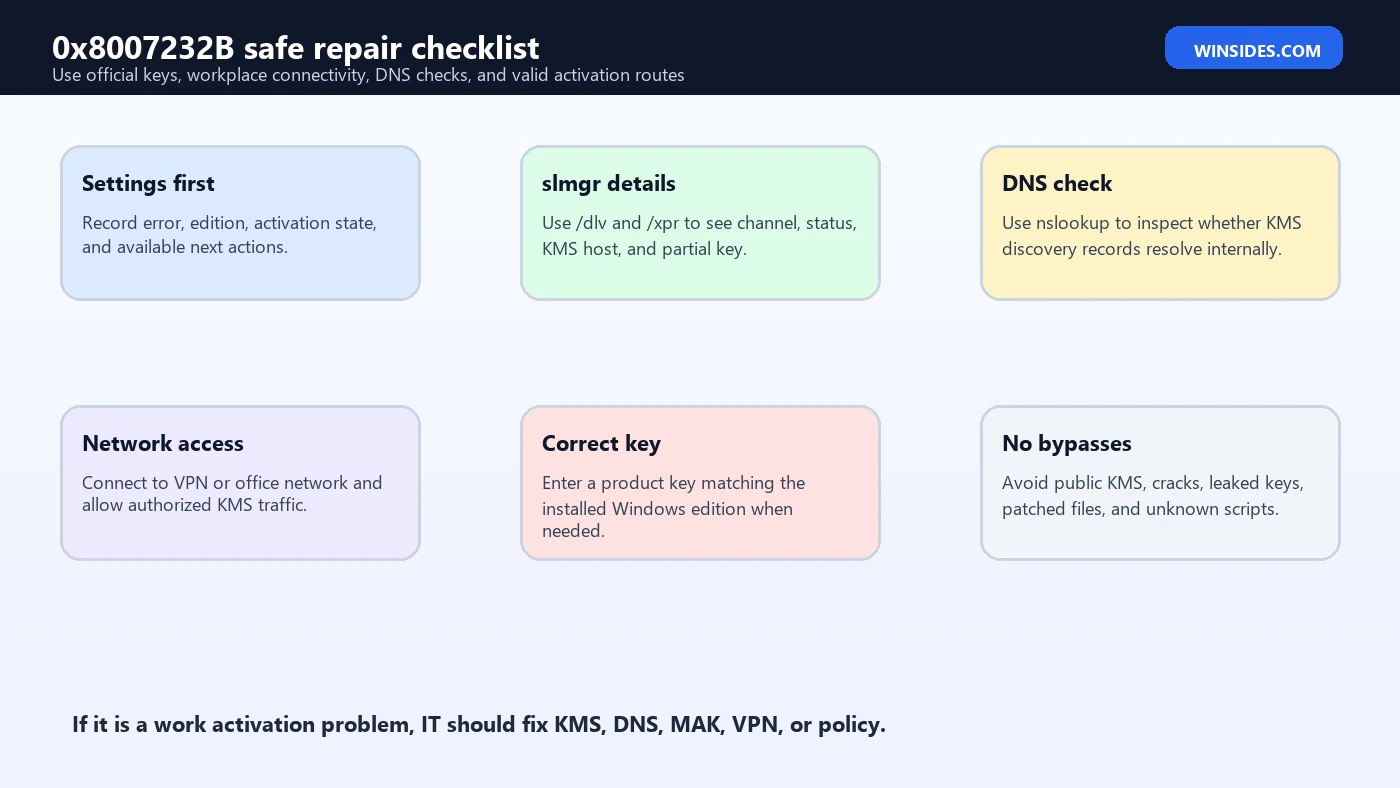
- Record the activation state. Note edition, error code, channel, and visible Activation settings options.
- Classify ownership. Decide whether this is personal, work/school, lab, VM, reseller, or refurbished hardware.
- Run
slmgr /dlv. Check whether Windows is retail/OEM, MAK, KMS, or unexpectedly volume-channel. - Check edition-key match. Do not use Enterprise keys to activate Home or Pro.
- Connect to workplace network. For work devices, use required VPN or office network and retry activation.
- Check KMS DNS and network. Administrators should verify SRV records, DNS visibility, host reachability, and TCP 1688.
- Use a valid key when needed. Enter a 25-character key that matches the installed edition.
- Avoid unofficial activation. Do not use public KMS, cracks, leaked keys, or patched licensing files.
What Not to Do
Do not use public KMS servers, activation cracks, patched system files, registry bundles, or command scripts from unknown sources. A KMS client key plus a public KMS server is not a valid consumer license. If a personal PC lacks a valid license, unofficial activation does not solve the ownership problem. It only creates a security and compliance problem.
Do not repeatedly swap product keys without understanding the installed edition and channel. A key can install but still be wrong for the device. Do not reinstall Windows blindly unless the edition is wrong or the installation came from the wrong image. Do not disable security products permanently just to force activation; if a firewall blocks legitimate activation, fix the rule or network path properly.
Do not treat every 0x8007232B as your personal responsibility if the device is managed by an organization. The organizations support person should repair KMS, MAK, DNS, VPN, firewall, or licensing assignment. Users should provide evidence, not invent an activation infrastructure.
Evidence to Collect Before Support
| Evidence | Why it matters | Who may need it |
|---|---|---|
| Activation screenshot | Shows 0x8007232B and the current state. | IT, Microsoft, reseller |
| Windows edition | Determines whether the key and edition match. | All support paths |
| Ownership context | Separates personal license, organization activation, VM, lab, or reseller issues. | All support paths |
| slmgr /dlv output | Shows channel, partial key, status, and KMS host details. | IT or advanced support |
| VPN/network status | Shows whether the device can reach workplace activation services. | IT |
| DNS resolver and suffix | Helps diagnose KMS SRV discovery failures. | IT or DNS administrator |
| Firewall changes | Helps identify blocked KMS traffic. | Network administrator |
| Purchase proof | Needed if a personal device needs a matching key or reseller support. | Reseller or Microsoft |
This evidence turns a vague activation error into a fixable case. If the edition is wrong, fix the edition. If the key is wrong, use a matching key. If KMS discovery is broken, repair DNS. If VPN clients cannot reach KMS, repair VPN DNS or routing. If the device lacks a valid license, buy or assign one. The evidence keeps each fix attached to the actual problem.
KMS Host Readiness Checks
When many organization devices report 0x8007232B at the same time, the KMS host and discovery path deserve administrator attention. A KMS host must be activated properly, must support the client operating systems trying to activate, and must be reachable from the networks where clients live. Microsofts KMS activation planning documentation is useful here because KMS is not just a single command on a client; it is an activation service design with host keys, supported versions, DNS, routing, and client thresholds.
Administrators should check whether the KMS host is online, whether the host key is valid for the deployed Windows versions, whether activation thresholds have been reached, and whether the KMS host is publishing records as expected. If a new KMS host was deployed, clients may not activate until the environment meets the required count. If a new Windows 11 release is deployed, an older activation host may need updates or a different host key path. If a firewall migration recently occurred, the service may be alive but unreachable.
Client evidence helps narrow this quickly. If slmgr /dlv shows no KMS host and DNS SRV lookup fails, discovery is the likely issue. If discovery works but activation cannot connect, routing or firewall is suspicious. If only a new OS version fails, KMS host support is suspicious. If one client fails while the rest activate, inspect the local edition, key channel, DNS suffix, VPN, and manual KMS settings on that client.
Remote Worker and Hybrid Network Cases
Remote work makes 0x8007232B more common because the client may be physically away from the network where KMS discovery works. A laptop can browse the internet from home but still fail KMS activation because the company DNS zone is unavailable. A split-tunnel VPN can send only selected traffic through the tunnel, and if DNS suffix routing is incomplete, the KMS SRV record may never be queried through the company resolver. A device can also connect to VPN after sign-in, while activation tries before VPN is available.
For users, the practical move is to connect to the official VPN, confirm the VPN is fully connected, wait a few minutes for DNS and policies, then retry activation. If that works, the device needed workplace reachability. If it fails, send IT the VPN client name, network used, time of activation attempt, Windows edition, and error code. If it only fails on one home network, check whether that network blocks VPN, DNS, or required ports.
For administrators, design remote activation intentionally. Some devices may need Always On VPN, device tunnel, MAK activation, subscription activation, or cloud-management activation paths instead of relying on users to connect to KMS periodically. KMS works well for devices that regularly see the corporate network. Devices that almost never do may need another authorized activation strategy.
Virtual Machines, Labs, and Golden Images
Virtual machines and lab images can also run into 0x8007232B. A golden image might contain a KMS client setup key and expect internal DNS. When cloned into an isolated lab or developer laptop, the VM cannot find the KMS host. A VM snapshot might preserve an old manual KMS host. A template might install Enterprise while the lab license only covers another edition. The visible error is the same, but the root cause is image design.
Before repairing individual VMs, inspect the template. Confirm edition, key channel, activation method, and whether KMS discovery should work in that network. If the lab is intentionally isolated, provide an authorized activation method for the lab rather than relying on production KMS records that are unreachable. If VMs move between networks, document whether they should use KMS, MAK, evaluation media, or cloud platform activation.
Cloud VMs add another wrinkle. Many cloud providers have platform-specific Windows activation paths. Blocking metadata endpoints, DNS, or activation routes can break those images. If 0x8007232B appears after hardening a cloud VM, check the providers Windows activation requirements before changing keys. A cloud image should normally use the supported platform activation route, not an arbitrary public KMS setting.
Decision Matrix for 0x8007232B
| Situation | Likely cause | Best action |
|---|---|---|
| Personal PC shows Enterprise edition | Wrong image or volume key installed | Install licensed Home/Pro edition or enter matching valid key. |
| Company laptop off VPN | Cannot reach KMS or internal DNS | Connect VPN or office network, then retry activation. |
| Company laptop on VPN still fails | VPN DNS, routing, firewall, or KMS host issue | Send evidence to IT for KMS/DNS/network repair. |
| Many clients fail suddenly | KMS host, DNS, or firewall change | Administrator checks KMS host, SRV records, and TCP 1688 reachability. |
| Only one client fails | Local edition, key, DNS suffix, or manual KMS config | Compare slmgr /dlv and network settings with a working client. |
| New OS version fails | KMS host support or key issue | Update activation infrastructure according to Microsoft guidance. |
| Isolated VM or lab fails | No path to authorized activation service | Use approved lab, MAK, KMS, or evaluation activation model. |
A decision matrix keeps the work from drifting. The wrong fix is often attractive because activation commands are short, but short commands do not replace a correct license model. If the problem is DNS, fix DNS. If the problem is edition mismatch, fix edition. If the problem is remote KMS reachability, fix VPN or choose another authorized activation model. If the device is personal and has no valid license, buy or restore a genuine license.
Escalation Notes for IT and Licensing Teams
When escalation is needed, send the right evidence in the first message. Include the device name, user, Windows edition, error code, whether it is on VPN or office LAN, output summary from slmgr /dlv, DNS suffix, resolver, and whether other devices on the same network activate. For privacy and licensing hygiene, avoid sending full product keys. Partial key and channel information are normally enough.
Licensing teams should also check whether the device should be KMS at all. Some remote, contractor, cloud, or lab devices may be better suited to MAK, subscription, or platform activation depending on licensing terms. A recurring 0x8007232B pattern may reveal that the activation architecture no longer matches how the organization works. That is a planning issue, not a user mistake.
Finally, document the resolution. If a DNS SRV record was fixed, record the zone and change. If firewall port 1688 was opened, record the source and destination scope. If a wrong edition was installed, fix the deployment image. If a KMS host was unsupported for a new client version, update the activation infrastructure. Good documentation prevents the same activation wave from returning after the next image or network change.
Frequently Asked Questions
What is 0x8007232B?
It is a Windows activation error commonly tied to wrong edition/product key context or KMS activation discovery and workplace network access problems.
Does 0x8007232B mean DNS name does not exist?
In many KMS contexts, yes, it is associated with the client not finding the KMS host through DNS. Microsofts current user guidance focuses on edition mismatch and workplace network connectivity.
Can I fix 0x8007232B by connecting to VPN?
If the device is a work or school computer that uses KMS activation, connecting to the required VPN or workplace network may allow it to find and reach the authorized KMS host.
Why does an Enterprise key fail on Windows 11 Pro?
Microsoft says this error can appear when an Enterprise key is used to activate Windows 11 Home or Pro. Use a product key that matches the installed edition or install the edition you are licensed for.
Are KMS client setup keys real product keys?
They are Microsoft-documented setup keys for volume activation clients, but they do not grant a consumer license. They require an authorized KMS activation environment.
What command shows KMS details?slmgr /dlv can show detailed activation information, including channel, partial key, license status, and KMS host details when applicable.
Can I use a public KMS server?
No. Use only Microsoft activation, your organizations authorized KMS or MAK path, or a valid product key. Public KMS servers and cracks are unsafe and not legitimate fixes.
What if my organization has no support person?
Microsoft says you may need to enter your product key again through Activation settings. The key must be valid and match the installed Windows edition.
Conclusion: Restore the Correct Activation Path
0x8007232B is best handled as an activation-path problem. Microsoft points to two common causes: an Enterprise key used against Home or Pro, or a work device trying to activate while not connected to the workplace network. In KMS environments, DNS discovery and network access are also central because the client has to find and reach the authorized KMS host.
Start with the ownership story. If it is a personal PC, confirm edition, digital license, and product key. If Enterprise or KMS appears unexpectedly, return to the consumer license path. If it is a work or school PC, connect to the required network or VPN and involve IT. If you administer the environment, check KMS DNS SRV records, KMS host readiness, TCP 1688 reachability, OS support, and activation thresholds.
Use Microsofts activation error guidance, KMS client key documentation, KMS activation planning, slmgr.vbs options, and nslookup documentation as the official foundation. Avoid public KMS servers, leaked keys, and bypass tools. A valid activation route is quieter, safer, and more durable.
For more interesting articles, stay tuned to Winsides.com!









Community
Comments (0)