

Introduction to the World Wide Web Publishing Service
In the intricate ecosystem of Windows 11, where countless services operate silently to ensure smooth functionality, one particular component stands out for its pivotal role in web hosting: the World Wide Web Publishing Service. Often abbreviated as WWW-Publishing Service, this fundamental element is the backbone for running websites and web applications directly from your Windows 11 machine. Learn more about starting or stopping services via the command line.
Whether you’re a developer testing local web projects, a small business hosting an internal application, or an enthusiast exploring web server technologies, understanding this service is absolutely crucial. It acts as the primary orchestrator, enabling your computer to respond to web requests and serve content over HTTP and HTTPS protocols.
Without the WWW-Publishing Service, the powerful capabilities of Internet Information Services (IIS) — Microsoft’s robust web server — would remain dormant. This guide will meticulously unravel the complexities of this service, providing you with a comprehensive understanding of its functions, management, and optimization on Windows 11. Prepare to gain mastery over a core aspect of web hosting on your desktop operating system.
Table of contents
Key Takeaways
- The World Wide Web Publishing Service (WWW-Publishing Service) is essential for hosting websites and web applications on Windows 11 using IIS.
- It manages HTTP/HTTPS communication, process activation, and worker processes, acting as the bridge between IIS and the operating system.
- You can locate and manage this service through the Services.msc console, where you can start, stop, restart, and configure its startup type.
- Proper configuration of startup parameters and adherence to security best practices are vital for optimal performance and protection against vulnerabilities.
- Troubleshooting common issues like service failures, performance degradation, and port conflicts often involves using the Event Viewer and understanding IIS logs.
- Advanced users can leverage PowerShell commands for granular control and automation of the World Wide Web Publishing Service.
- Monitoring resource usage and implementing hardening measures are crucial for maintaining a secure and efficient web server environment on Windows 11.
What is the World Wide Web Publishing Service (WWW-Publishing Service)?
The World Wide Web Publishing Service on Windows 11 is a core component that facilitates the hosting of web content. It is not merely a background process; rather, it is the sophisticated engine that allows your Windows machine to function as a web server, capable of delivering web pages and applications to clients over a network.
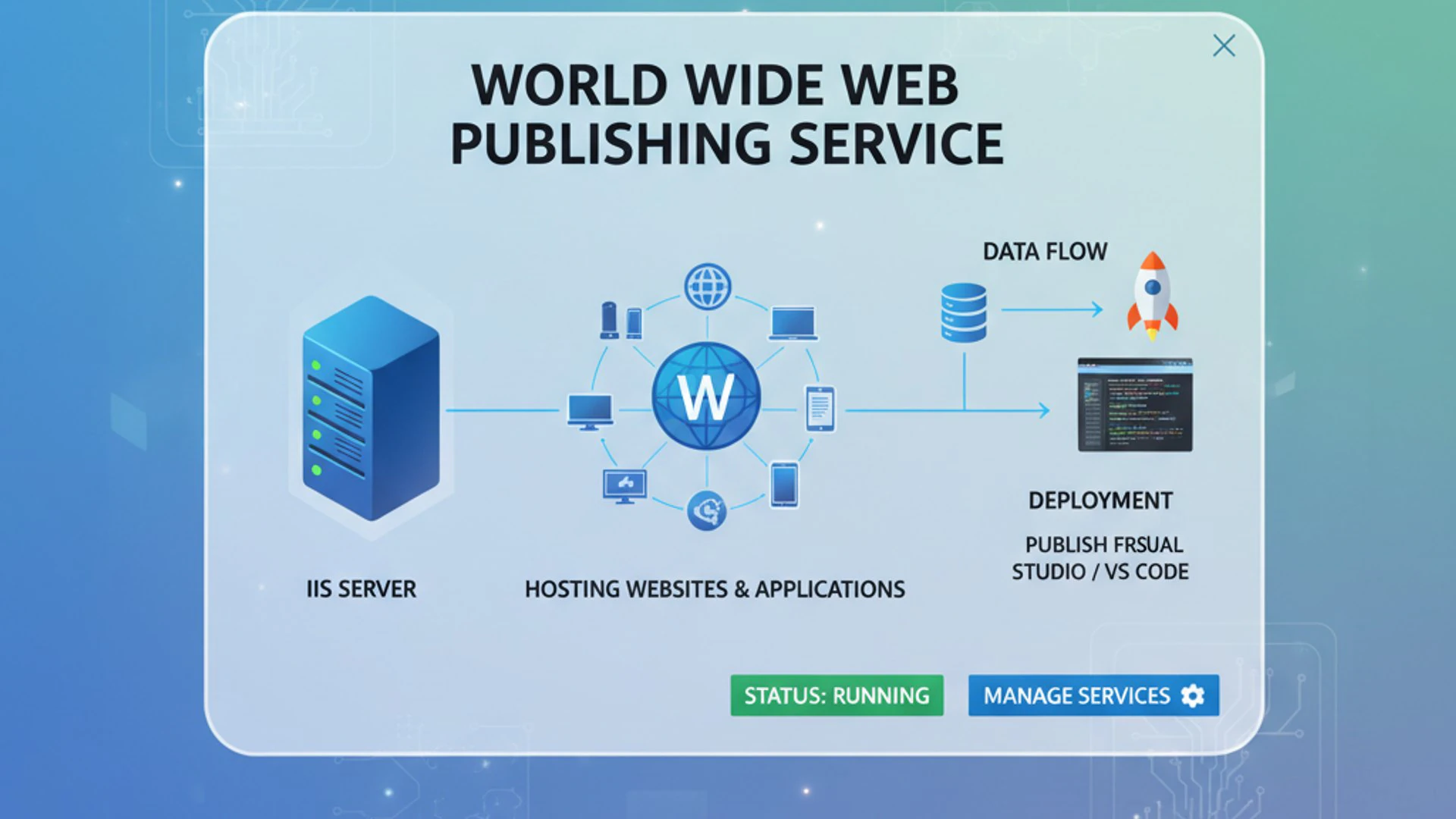
At its heart, this service is intricately linked with Internet Information Services (IIS), Microsoft’s extensible web server software. While IIS provides the user interface and configuration layers for managing websites, the WWW-Publishing Service is the underlying mechanism that brings those configurations to life, handling the low-level operations required for web communication.
It acts as a crucial intermediary, listening for incoming web requests on designated ports, typically port 80 for HTTP and port 443 for HTTPS. Upon receiving a request, it coordinates with IIS to identify the appropriate website or application pool, initiates worker processes, and ultimately serves the requested content back to the client browser.
Understanding the WWW-Publishing Service is fundamental for anyone looking to host web content on Windows 11, whether for development, testing, or production environments. Its proper functioning ensures that your web applications are accessible and perform efficiently.
Core Functions and Dependencies
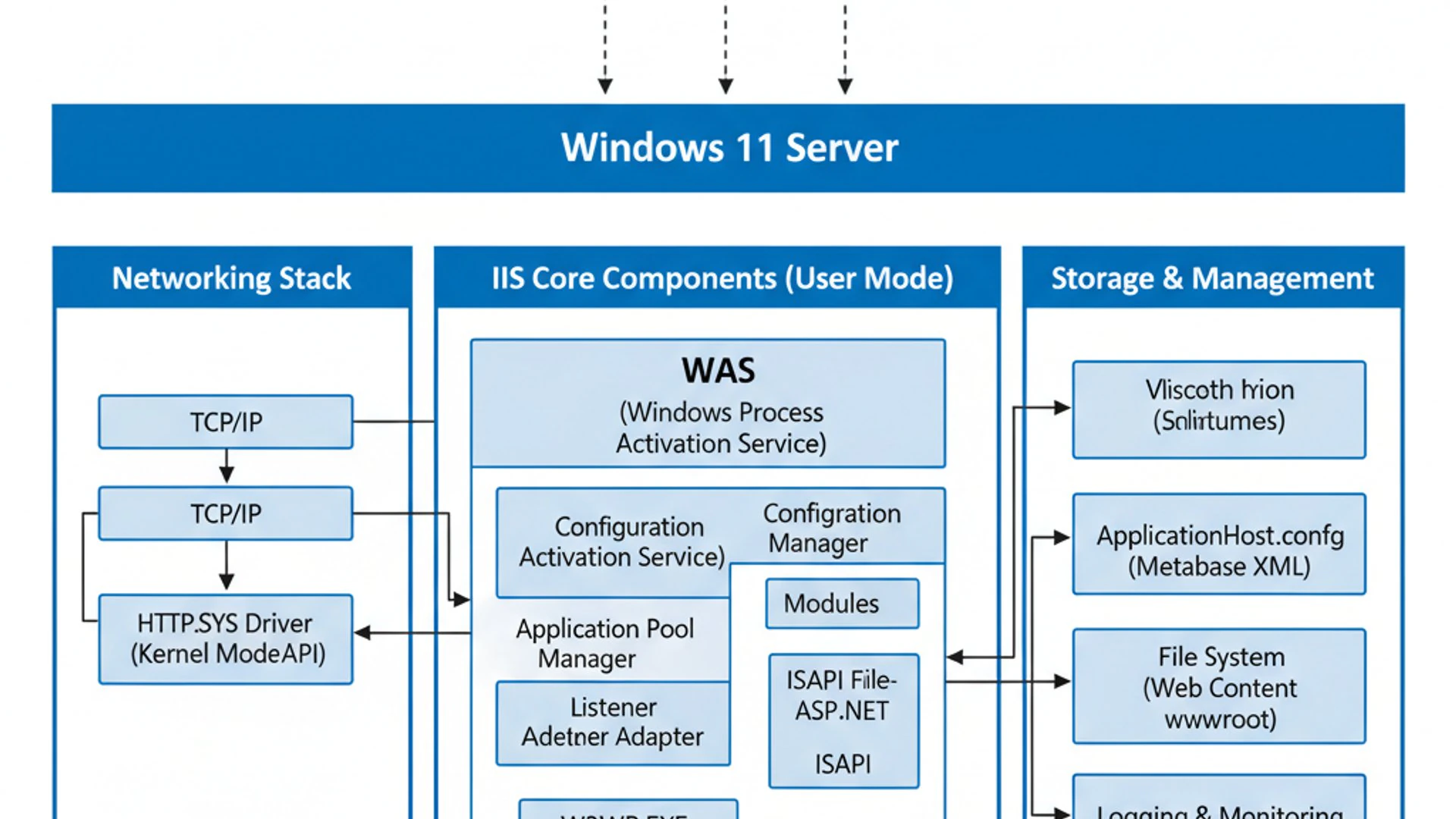
The World Wide Web Publishing Service performs several critical functions that are indispensable for web hosting. One of its primary roles is process activation. It is responsible for starting and stopping the necessary worker processes (w3wp.exe) that execute your web applications and websites within IIS.
This service also manages the HTTP listener, which is the component that waits for incoming web requests. It handles the initial handshake and directs requests to the correct application pool or website based on the configured bindings in IIS. This ensures efficient routing of web traffic.
Furthermore, the WWW-Publishing Service manages the configuration of IIS application pools, ensuring that they are running with the correct identity and resource limits. It also handles the registration of URL prefixes with HTTP.SYS kernel-mode driver, allowing multiple websites to share the same IP address and port.
Its dependencies are equally important. The service relies heavily on the HTTP Service (HTTP.SYS), which is a kernel-mode driver responsible for processing HTTP requests at a very low level, providing high performance. It also depends on the Windows Process Activation Service (WAS), which manages application pools and worker processes, not just for IIS but for other services like Message Queuing and .NET Framework 3.0 applications.
Without these underlying services, the WWW-Publishing Service would be unable to function, highlighting the interconnected nature of Windows server components. Ensuring these dependencies are healthy is key to a stable web server.
Interplay with IIS
The relationship between the World Wide Web Publishing Service and Internet Information Services (IIS) is symbiotic and fundamental. IIS Manager provides the graphical interface and command-line tools for configuring websites, application pools, and various web server settings.
However, it is the WWW-Publishing Service that translates these high-level configurations into actionable instructions for the operating system. When you create a new website in IIS Manager, for instance, the service registers the site’s bindings (like hostname, IP address, and port) with the HTTP.SYS driver.
It also manages the lifecycle of the IIS worker processes (w3wp.exe) that actually serve the content. The WWW-Publishing Service ensures that these processes are started when needed, recycled periodically to maintain stability, and stopped when no longer required, optimizing resource usage.
Essentially, IIS is the brain that plans and directs, while the WWW-Publishing Service is the muscle that executes those plans, making your web content available to the world. They are inseparable for a functional web server on Windows 11.
Why is it Essential for Web Hosting?
The World Wide Web Publishing Service on Windows 11 is not just another background process; it is absolutely essential for any form of web hosting on the platform. Without it, your Windows 11 machine simply cannot function as a web server, rendering IIS and any hosted websites inert.
Its primary role is to provide the core infrastructure for handling HTTP and HTTPS requests. This means that if you want to run a local development server for a web application, host a small internal website, or even just test static HTML pages using IIS, this service must be active and running.
It ensures that your web applications are isolated within their own application pools, providing a layer of security and stability. If one application pool crashes, the others can continue to operate without interruption, thanks to the management capabilities of the WWW-Publishing Service.
Furthermore, it enables features like virtual hosting, where multiple websites can share a single IP address, and SSL/TLS encryption for secure communication. These are standard expectations for modern web hosting, and they all rely on the robust foundation provided by this service.
Therefore, for anyone engaging in web development, deployment, or administration on Windows 11, a deep understanding and proper management of the WWW-Publishing Service are not optional, but rather a fundamental requirement for success.
Locating and Managing the WWW-Publishing Service on Windows 11
Managing the World Wide Web Publishing Service on Windows 11 is a routine task for anyone involved in web development or server administration. Knowing how to locate, start, stop, and configure this service is fundamental to ensuring your web applications are always available and performing optimally.
The primary tool for interacting with Windows services is the Services management console, often referred to as Services.msc. This utility provides a centralized interface for viewing the status of all services installed on your system, along with options to control their behavior.
Before you can troubleshoot issues or adjust settings, you need to know exactly where to find the service within this console. Once located, you’ll be able to perform various actions, from a simple restart to changing its startup type, which dictates how the service behaves when your computer boots up.
Understanding the different service statuses and startup types is also crucial. This knowledge empowers you to diagnose problems effectively and configure the service according to your specific operational requirements, whether it’s for continuous availability or on-demand activation.
Accessing Services.msc
To access the Services management console on Windows 11, there are several straightforward methods. The quickest way is often through the Run dialog box. Press Windows Key + R to open the Run dialog, then type services.msc and press Enter.
Alternatively, you can use the Windows Search bar. Click the Start button or press the Windows Key, then type “Services” and select the “Services” app from the search results. Both methods will open the same console window, displaying a comprehensive list of all services on your system.
Once the Services window is open, you will see a list of services, typically sorted alphabetically by name. Scroll down until you find “World Wide Web Publishing Service.” It’s usually listed under the ‘W’ section.
Locating this entry is the first step in gaining control over your web server’s core functionality. This console provides a clear overview of the service’s current state and allows for immediate interaction.
Step-by-Step Guide to Service Management
Once you’ve located the World Wide Web Publishing Service in Services.msc, managing it is quite intuitive. Here’s a step-by-step guide to common actions:
- Locate the Service: Open Services.msc as described above and find “World Wide Web Publishing Service” in the list.
- View Status: Look at the “Status” column next to the service name. It will typically show “Running,” “Stopped,” or “Paused.”
- Start the Service: If the service is stopped, right-click on it and select Start. You can also click the “Start the service” link in the left-hand pane.
- Stop the Service: If the service is running, right-click on it and select Stop. This will halt all web server activity.
- Restart the Service: For troubleshooting or applying certain configuration changes, right-clicking and selecting Restart is often useful. This stops and then immediately starts the service again.
- Access Properties: Double-click on the service name or right-click and select Properties to open its configuration window. Here, you can adjust settings like the startup type, logon account, and recovery options.
These simple steps provide immediate control over the operational state of your web server, making them invaluable for maintenance and troubleshooting tasks.
Understanding Service Status and Startup Types
The World Wide Web Publishing Service on Windows 11, like all Windows services, operates with specific statuses and can be configured with various startup types. Understanding these is key to effective management.
Service Statuses:
- Running: The service is actively operating and performing its functions. For the WWW-Publishing Service, this means your web server is active and ready to serve content.
- Stopped: The service is not running. No web content will be served, and IIS will be inactive.
- Paused: The service is temporarily suspended. It might retain some state but is not actively processing new requests. This status is less common for the WWW-Publishing Service.
- Starting/Stopping: The service is in the process of transitioning to a running or stopped state.
Startup Types:
- Automatic: The service starts automatically when Windows boots up. This is the recommended setting for a production web server to ensure continuous availability.
- Automatic (Delayed Start): The service starts automatically after other critical system services have initialized, typically a few minutes after boot. This can improve system boot performance.
- Manual: The service must be started manually by a user or another service. This is suitable if you only need the web server occasionally.
- Disabled: The service cannot be started by any means, even manually. This prevents the service from running under any circumstances, often used for security or resource conservation if web hosting is not needed.
For most web hosting scenarios, setting the World Wide Web Publishing Service to Automatic is the best practice to ensure your websites are always online. However, for development machines where IIS is not constantly in use, a Manual startup type might be preferred.
Configuring the World Wide Web Publishing Service
Beyond simply starting and stopping, proper configuration of the World Wide Web Publishing Service on Windows 11 is paramount for optimizing performance and ensuring robust security. Adjusting its parameters allows you to fine-tune how your web server operates, impacting everything from responsiveness to resource consumption.
The configuration process involves not only setting the correct startup type but also understanding the underlying implications. For instance, while the service itself doesn’t have a vast array of directly configurable parameters exposed in Services.msc, its behavior is heavily influenced by IIS settings and system-wide configurations.
A critical aspect of configuration is also integrating strong security measures. A web server, by its nature, is exposed to the internet, making it a prime target for malicious actors. Therefore, understanding and implementing best practices for security is not just recommended, but essential to protect your data and maintain service integrity.
This section will guide you through adjusting the relevant parameters and highlight key security considerations, empowering you to build a resilient and efficient web hosting environment on your Windows 11 machine.
Adjusting Startup Parameters
While the Services.msc console doesn’t offer extensive direct “startup parameters” for the World Wide Web Publishing Service in the same way some applications do, the most significant parameter you can adjust here is its Startup Type. As discussed, setting it to “Automatic” ensures continuous operation, while “Manual” provides on-demand control.
Beyond the startup type, the service’s behavior is largely dictated by the configuration within Internet Information Services (IIS) Manager. This includes settings for application pools, such as their recycling intervals, idle timeouts, and process identity. These IIS settings directly influence how the WWW-Publishing Service manages worker processes.
For example, adjusting an application pool’s Idle Timeout (found under Advanced Settings for the application pool in IIS Manager) can prevent the WWW-Publishing Service from shutting down worker processes too aggressively, which might cause a slight delay for the first request after a period of inactivity.
Similarly, modifying the Recycling settings for application pools can help maintain application stability by periodically restarting worker processes, preventing memory leaks or other long-running issues from accumulating. These IIS configurations are effectively the “startup parameters” that govern the WWW-Publishing Service’s operational characteristics.
Security Considerations and Best Practices
Securing the World Wide Web Publishing Service on Windows 11 is paramount, as it exposes your system to potential external threats. Neglecting security can lead to data breaches, website defacement, or even full system compromise.
Here are crucial security considerations and best practices:
- Least Privilege Principle: Ensure that the identity under which IIS application pools run has only the minimum necessary permissions. Avoid running application pools as Local System or Administrator. Use built-in application pool identities or custom low-privilege accounts.
- Regular Updates: Keep your Windows 11 operating system and IIS components updated with the latest security patches. Microsoft frequently releases updates to address newly discovered vulnerabilities.
- Firewall Configuration: Configure Windows Firewall to allow incoming traffic only on necessary ports (e.g., 80 for HTTP, 443 for HTTPS). Block all other incoming ports to reduce the attack surface.
- SSL/TLS Encryption: Always use HTTPS for your websites. Obtain and configure valid SSL/TLS certificates to encrypt communication between clients and your server, protecting sensitive data.
- Remove Unnecessary Features: Disable or uninstall any IIS modules or features that are not actively being used. The fewer components running, the smaller the potential attack surface.
- Strong Authentication: Implement strong authentication mechanisms for accessing web applications and IIS management interfaces. Use complex passwords and consider multi-factor authentication where possible.
- Logging and Monitoring: Enable detailed logging in IIS and regularly review log files for suspicious activity. Integrate with Windows Event Viewer for a comprehensive security overview.
“A well-secured web server is not a one-time setup, but an ongoing commitment to vigilance and continuous improvement. Proactive security measures are your first line of defense.”
By adhering to these practices, you can significantly enhance the security posture of your web hosting environment on Windows 11, safeguarding against common threats.
Common Issues and Troubleshooting the WWW-Publishing Service
Even with careful configuration, the World Wide Web Publishing Service on Windows 11 can encounter issues that disrupt web hosting functionality. From failing to start to performance bottlenecks, these problems require systematic troubleshooting to resolve.
Understanding the common symptoms and knowing the right diagnostic tools are critical for quickly restoring service integrity. Issues can stem from various sources, including incorrect configurations, dependency failures, resource constraints, or conflicts with other applications.
This section will equip you with the knowledge to identify and address the most frequent problems associated with the WWW-Publishing Service. We’ll cover scenarios where the service refuses to start, how to leverage the powerful Event Viewer for detailed diagnostics, and strategies for tackling performance degradation and pesky port conflicts.
By following these troubleshooting steps, you can minimize downtime and ensure your web applications remain accessible and performant on your Windows 11 machine.
Service Fails to Start
One of the most frustrating issues is when the World Wide Web Publishing Service fails to start. This immediately renders IIS and all hosted websites inaccessible. When this occurs, several potential causes should be investigated.
First, check the dependencies. The WWW-Publishing Service relies on the Windows Process Activation Service (WAS) and the HTTP Service (HTTP.SYS). Ensure both of these services are running. If they are stopped, try starting them first, then attempt to start the WWW-Publishing Service again.
Next, examine the Event Viewer. This is your most valuable tool for diagnosing startup failures. Look for error messages related to “World Wide Web Publishing Service,” “IIS-W3SVC,” “WAS,” or “HTTP.SYS” in the System and Application logs, particularly around the time of the failed startup attempt.
Common error messages might point to specific issues, such as a port conflict (another application is already using port 80 or 443), incorrect file permissions for IIS configuration files, or a corrupt IIS installation. Sometimes, a recent Windows update or software installation can inadvertently interfere with the service’s ability to start.
If permissions are suspected, ensure that the IIS_IUSRS group and the account used by your application pools have appropriate read/write access to the necessary web content folders and IIS configuration files. A clean restart of the entire system can sometimes resolve transient issues, though it’s not a long-term solution.
Event Viewer Diagnostics
The Event Viewer is an indispensable tool for diagnosing issues with the World Wide Web Publishing Service on Windows 11. It records system, security, and application events, providing detailed insights into what might be preventing the service from starting or causing it to behave erratically.
To access Event Viewer, press Windows Key + R, type eventvwr.msc, and press Enter. Navigate to Windows Logs, then specifically check the System and Application logs.
When troubleshooting the WWW-Publishing Service, pay close attention to events with “Error” or “Warning” levels. Filter the logs by “Source” for entries like “Microsoft-Windows-IIS-W3SVC,” “Microsoft-Windows-WAS,” “HTTP,” or “Service Control Manager.”
Look for event IDs and descriptions that provide clues. For example, an event indicating a port conflict might state that “The process cannot access the file because it is being used by another process” or similar, often accompanied by a specific port number. A service failure might show an error code that can be looked up online for more context.
Detailed error messages here often pinpoint the exact cause, such as a missing dependency, an invalid configuration setting, or a permissions problem. The Event Viewer is your first and most reliable source of information when the service encounters problems.
Performance Degradation
Performance degradation in web applications hosted by the World Wide Web Publishing Service on Windows 11 can manifest as slow page load times, unresponsive applications, or frequent timeouts. Identifying the root cause requires a systematic approach.
First, monitor system resources. Use Task Manager (Ctrl+Shift+Esc) to check CPU, memory, and disk usage. High CPU usage by w3wp.exe (IIS worker processes) or excessive memory consumption could indicate inefficient application code, memory leaks, or insufficient server resources.
Next, examine IIS logs. These logs, typically found in C:\inetpub\logs\LogFiles, record detailed information about every request, including response times, status codes, and the size of data transferred. Look for requests with unusually long execution times.
Application pool settings can also impact performance. Ensure that application pool recycling is not occurring too frequently, as this causes worker processes to restart and can lead to temporary performance dips. Adjusting the Idle Timeout to a reasonable value prevents worker processes from shutting down too quickly if they are frequently used.
Database performance is another common bottleneck. If your web application relies on a database, ensure it is optimized. Slow database queries can significantly impact overall web application speed. Finally, network latency or bandwidth issues can also contribute to perceived performance problems, so check your network connectivity.
Port Conflicts and Resolution
Port conflicts are a common reason why the World Wide Web Publishing Service or specific websites might fail to start on Windows 11. This occurs when another application is already listening on the same port that IIS is configured to use, most commonly port 80 (HTTP) or 443 (HTTPS).
To identify which process is using a specific port, you can use the command prompt. Open Command Prompt as an administrator and type:
netstat -ano | findstr :80 (for port 80)
netstat -ano | findstr :443 (for port 443)
This command will list active connections and listening ports, showing the PID (Process ID) of the process using that port. Once you have the PID, open Task Manager, go to the “Details” tab, and sort by PID to identify the application. Common culprits include Skype, other web servers (like Apache or Nginx), or development tools.
Resolution strategies:
- Disable or Reconfigure the Conflicting Application: If the identified application is not critical or can be configured to use a different port, change its settings or disable it.
- Change IIS Binding: In IIS Manager, navigate to your website, click “Bindings” in the Actions pane, and edit the binding to use an alternative port (e.g., 8080 for HTTP). Remember that users will then need to specify this port in their browser (e.g.,
http://localhost:8080). - Stop Conflicting Service: If the conflicting application is a Windows service, you can stop it via Services.msc. For example, if “SQL Server Reporting Services” is using port 80, you might temporarily stop it.
Resolving port conflicts ensures that the WWW-Publishing Service can properly bind to its assigned ports and serve web content without interference.
Advanced Management and Integration with IIS
For users seeking more granular control and automation, the management of the World Wide Web Publishing Service on Windows 11 extends beyond the graphical interface of Services.msc. PowerShell offers a powerful command-line interface for scripting and advanced service manipulation.
Learn more at managing services using PowerShell.
Furthermore, a deeper understanding of its integration with the Internet Information Services (IIS) Manager allows for more sophisticated web server configurations. This section delves into these advanced techniques, catering to system administrators, developers, and power users who require precise control over their web hosting environment.
Leveraging PowerShell not only streamlines routine tasks but also enables complex automation scenarios, which are invaluable in larger or more dynamic environments. Integrating this with the comprehensive features of IIS Manager provides a robust platform for managing even the most demanding web applications.
Using PowerShell for Service Control
PowerShell provides a robust and efficient way to manage the World Wide Web Publishing Service on Windows 11, offering greater flexibility and automation capabilities than the graphical Services.msc console. You can perform all standard service operations using simple cmdlets.
To open PowerShell, search for “PowerShell” in the Start Menu, right-click, and select “Run as administrator.”
Here are some common PowerShell commands for service control:
- Check Service Status:
Get-Service -Name "W3SVC"This command retrieves information about the WWW-Publishing Service (W3SVC is its short name), including its status (Running, Stopped).
- Start the Service:
Start-Service -Name "W3SVC"This will initiate the service.
- Stop the Service:
Stop-Service -Name "W3SVC"This command will halt the service.
- Restart the Service:
Restart-Service -Name "W3SVC"A convenient way to stop and then start the service, useful after configuration changes.
- Set Startup Type:
Set-Service -Name "W3SVC" -StartupType AutomaticYou can change “Automatic” to “Manual” or “Disabled” as needed.
Using PowerShell allows for scripting these actions, integrating them into larger automation workflows, and managing services on remote machines, making it an indispensable tool for advanced users and administrators.
Integrating with Internet Information Services (IIS) Manager
The World Wide Web Publishing Service is deeply integrated with the Internet Information Services (IIS) Manager, which serves as the primary interface for configuring and managing your web server. While the service itself handles the low-level operations, IIS Manager provides the high-level control.
When you make changes in IIS Manager, such as creating a new website, modifying an application pool, or setting up SSL certificates, these actions directly influence how the WWW-Publishing Service operates. The service monitors these configurations and adjusts its behavior accordingly.
For example, when you create a new website and bind it to a specific port and hostname, the WWW-Publishing Service registers this binding with the HTTP.SYS kernel driver. When you configure an application pool’s identity or recycling settings, the service ensures that the worker processes adhere to these parameters.
Effective integration means understanding that changes in IIS Manager are not just abstract settings; they are instructions for the WWW-Publishing Service. Therefore, any troubleshooting or optimization efforts often involve examining both the service’s status and the corresponding IIS configurations. A solid understanding of IIS Manager’s features, from site bindings to application pool advanced settings, is crucial for harnessing the full power of the WWW-Publishing Service on Windows 11.
Security Implications and Hardening
The World Wide Web Publishing Service on Windows 11, by its very nature of exposing content to a network, introduces significant security implications. A misconfigured or unhardened web server can become a major vulnerability, leading to unauthorized access, data theft, or system compromise.
Therefore, understanding these risks and implementing robust security measures is not an option but a critical responsibility for anyone hosting web content. Hardening your web server involves a multi-faceted approach, encompassing everything from user permissions to network configurations and continuous monitoring.
This section will delve into practical methods for protecting your web server from common vulnerabilities. We will explore best practices for securing configuration, managing access, and establishing a proactive monitoring and auditing strategy to detect and respond to potential threats effectively.
Protecting Your Web Server
Protecting your web server, powered by the World Wide Web Publishing Service on Windows 11, requires a layered security approach. Beyond the general security practices mentioned earlier, specific hardening measures can significantly reduce your attack surface.
One critical step is to remove unnecessary components. If you are not using specific IIS modules (e.g., FTP publishing, WebDAV), uninstall them. The fewer services and features running, the fewer potential entry points for attackers. This principle applies to any software installed on the server.
Implement strong access controls. Ensure that file system permissions on your web content directories are set correctly, granting only necessary read access to the IIS_IUSRS group and write access only where absolutely required (e.g., for upload folders). Avoid granting full control to anonymous users.
Utilize URL Rewrite Module to enforce canonical URLs, block malicious requests based on patterns, and redirect HTTP to HTTPS. This module is a powerful tool for both security and SEO.
Configure request filtering in IIS to block certain file extensions, HTTP verbs, or URL sequences that are not expected or could be exploited. For instance, disallow execution of scripts in upload directories.
Finally, ensure your server is behind a firewall, both the Windows Firewall and potentially a hardware firewall, to control inbound and outbound traffic strictly. Only open ports that are absolutely essential for your web applications to function.
Monitoring and Auditing
Effective monitoring and auditing are indispensable for maintaining the security and health of the World Wide Web Publishing Service on Windows 11. Proactive vigilance allows you to detect suspicious activities, performance bottlenecks, and potential security breaches before they escalate.
Regularly review IIS logs (C:\inetpub\logs\LogFiles). These logs contain a wealth of information, including IP addresses of visitors, requested URLs, HTTP status codes, and user agents. Look for unusual patterns, such as a high number of failed login attempts, requests for non-existent pages, or attempts to access administrative paths.
The Windows Event Viewer is another crucial tool. Monitor the System, Application, and Security logs for events related to IIS, the WWW-Publishing Service, and authentication failures. Configure custom views or subscriptions to highlight critical security events.
Implement performance monitoring using tools like Performance Monitor (perfmon.msc). Track key metrics such as CPU usage, memory consumption by w3wp.exe processes, network I/O, and disk activity. Set up alerts for thresholds that indicate potential issues or attacks.
Consider using an Intrusion Detection System (IDS) or a Web Application Firewall (WAF), even for smaller deployments, to provide an additional layer of protection and real-time threat detection. Regularly audit user accounts and permissions, ensuring that no unauthorized access has been granted or remains undetected.
Impact on System Resources and Optimization
The World Wide Web Publishing Service on Windows 11, along with its associated IIS worker processes, consumes system resources like CPU, memory, and disk I/O. While Windows 11 is primarily a desktop operating system, running a web server can still have a noticeable impact on overall system performance.
Understanding this impact and implementing optimization strategies are crucial, especially if your Windows 11 machine is also used for other demanding tasks. Efficient resource management ensures that your web applications perform well without negatively affecting the responsiveness of your operating system.
This section will explore how the WWW-Publishing Service and IIS utilize system resources. We will then provide practical optimization tips to help you balance web server performance with overall system stability, ensuring a smooth experience for both your web users and your local desktop activities.
Memory and CPU Usage
The World Wide Web Publishing Service on Windows 11 itself, represented by the svchost.exe process hosting the “W3SVC” service, typically has a relatively low memory and CPU footprint when idle. Its primary role is orchestration, not direct content serving.
However, the actual resource consumption comes from the IIS worker processes (w3wp.exe) that the WWW-Publishing Service manages. Each application pool in IIS runs in its own w3wp.exe process. The memory and CPU usage of these processes depend heavily on several factors:
- Number of Websites/Application Pools: More active application pools mean more
w3wp.exeprocesses, each consuming resources. - Web Application Complexity: Resource-intensive applications (e.g., those with complex database queries, heavy computations, or large data processing) will naturally use more CPU and memory.
- Traffic Volume: A higher number of concurrent users and requests will increase the workload on worker processes, leading to higher CPU and memory utilization.
- Memory Leaks: Poorly written web applications can suffer from memory leaks, causing
w3wp.exeprocesses to consume ever-increasing amounts of RAM over time.
Monitoring these w3wp.exe processes in Task Manager is crucial. High and sustained CPU usage, or steadily climbing memory usage, often indicates an issue within your web application or an undersized server configuration.
Best Practices for Resource Management
Optimizing resource management for the World Wide Web Publishing Service on Windows 11 and its associated IIS worker processes is key to maintaining system performance. Here are some best practices:
- Application Pool Configuration:
- Idle Timeout: Configure a reasonable idle timeout for application pools (e.g., 20-30 minutes). This allows worker processes to shut down if inactive, freeing up memory. However, setting it too low can cause delays for the first request after an idle period.
- Recycling: Set appropriate recycling intervals. While frequent recycling can prevent memory leaks, it also causes temporary CPU spikes. Balance stability with performance.
- Maximum Worker Processes: For a desktop OS, typically keep this at 1 unless you have specific reasons for multiple processes (e.g., CPU affinity).
- Optimize Web Applications: The most significant impact on resources often comes from the web applications themselves.
- Optimize database queries.
- Cache frequently accessed data.
- Minimize client-side processing where possible.
- Reduce unnecessary server-side computations.
- Content Optimization:
- Enable HTTP compression for static and dynamic content in IIS.
- Leverage browser caching for static assets (images, CSS, JavaScript).
- Optimize image sizes and formats.
- Monitor and Tune: Regularly use Performance Monitor to track CPU, memory, and network usage. Identify bottlenecks and adjust configurations or application code accordingly.
By implementing these practices, you can ensure that your web server operates efficiently without unduly burdening your Windows 11 system.
When to Disable or Re-enable the Service
The World Wide Web Publishing Service on Windows 11 is a powerful component, but it’s not always necessary to have it running. Understanding when to disable it and when to re-enable it is crucial for system security, resource management, and troubleshooting.
Disabling the service can free up system resources and reduce the attack surface on your machine, especially if you’re not actively hosting web content. However, re-enabling it correctly is just as important to restore full web server functionality when needed.
This section will outline clear scenarios where disabling the service is appropriate and guide you through the process. Conversely, we’ll also explain how to seamlessly bring the service back online, ensuring your web applications are accessible whenever you require them.
Scenarios for Disabling
There are several valid scenarios where you might choose to disable the World Wide Web Publishing Service on Windows 11:
- No Web Hosting Required: If you are not using IIS to host any websites or web applications, disabling the service is a prudent security measure. It reduces the attack surface of your system, as port 80 and 443 will no longer be actively listening for incoming connections.
- Resource Conservation: Even when idle, the service and its dependencies consume a small amount of memory and CPU. On a system with limited resources or if you prioritize other applications, disabling it can free up these resources.
- Troubleshooting Port Conflicts: If you’re experiencing port conflicts with another application (e.g., another web server, a development tool) that needs to use port 80 or 443, temporarily disabling the WWW-Publishing Service can help isolate the issue and allow the other application to run.
- Security Hardening: As part of a comprehensive security strategy, disabling unnecessary services is a common practice to minimize potential vulnerabilities. If IIS is not actively used, there’s no reason to keep its core service running.
To disable the service, open Services.msc, locate “World Wide Web Publishing Service,” right-click, select Properties, and change the “Startup type” to Disabled. Then, click “Stop” if it’s currently running, and click “Apply.”
Re-enabling for Web Server Functionality
When you need to restore web server functionality on your Windows 11 machine, re-enabling the World Wide Web Publishing Service is a straightforward process. This is necessary if you plan to host websites, develop web applications locally, or use any feature that relies on IIS.
To re-enable the service, follow these steps:
- Open Services.msc: Press Windows Key + R, type
services.msc, and press Enter. - Locate the Service: Scroll down and find “World Wide Web Publishing Service.”
- Access Properties: Right-click on the service and select Properties.
- Change Startup Type: In the “General” tab, change the “Startup type” dropdown menu from “Disabled” or “Manual” to Automatic. This ensures the service starts with Windows.
- Apply Changes: Click Apply, then OK.
- Start the Service: If the service is not currently running, right-click on it in the Services list and select Start. Alternatively, click the “Start the service” link in the left pane of the Properties window.
Once the service is running, you should verify that your IIS websites are accessible. Open a web browser and navigate to http://localhost or the specific URL of your hosted website. If you encounter issues, refer to the troubleshooting section, particularly checking the Event Viewer for error messages.
Conclusion
The World Wide Web Publishing Service on Windows 11 is far more than just another background process; it is the fundamental engine that powers web hosting capabilities on your desktop operating system. From enabling local development environments to supporting small-scale production servers, its role is absolutely critical for anyone interacting with web technologies on a Windows platform.
Throughout this comprehensive guide, we’ve explored its core functions, its indispensable interplay with IIS, and the practical steps for its management. We’ve delved into configuring its parameters for optimal performance, highlighted the paramount importance of security hardening, and provided actionable strategies for troubleshooting common issues.
Understanding this service empowers you to maintain a stable, secure, and efficient web server, whether you’re a seasoned developer, an IT professional, or an enthusiast. By applying the knowledge of advanced management techniques, resource optimization, and judicious decision-making on when to enable or disable the service, you gain complete control over your web hosting environment.
Embrace the insights shared here to ensure your web applications are always available, performant, and protected. The World Wide Web Publishing Service is a cornerstone of Windows web hosting, and mastering it is a significant step towards robust and reliable web operations.
For more interesting articles, stay tuned to Winsides.com









Community
Comments (0)