

Introduction to DISM Error 0x800f081f
Encountering system errors can be a frustrating experience for any Windows user, especially when they hinder critical updates or system repairs. One such persistent issue that Windows 11 users often face is the DISM error 0x800f081f. This particular error code signals a problem with the Deployment Image Servicing and Management (DISM) tool, preventing it from successfully completing its tasks. For additional context, see Repair a Windows Image, DISM command-line options, Using System File Checker (SFC), and How to reset Windows Update components.
DISM is a powerful command-line utility designed to prepare, modify, and repair Windows images. When it fails with the 0x800f081f error, it typically indicates that necessary source files for repairing or modifying the operating system are missing or inaccessible. This can lead to a cascade of problems, from failed Windows updates and feature installations to compromised system stability and performance.
Resolving this error is not just about silencing an annoying pop-up; it’s about maintaining the integrity and health of your Windows 11 environment. A healthy system component store is vital for smooth operation, security updates, and the proper functioning of all installed applications. This comprehensive guide will walk you through various effective methods to conquer the 0x800f081f dism error, ensuring your system runs optimally.
Table of contents
Key Takeaways for Resolving DISM Error 0x800f081f
Before diving into the detailed troubleshooting steps, here’s a quick overview of the most effective strategies to tackle the 0x800f081f dism error:
- Verify Source Availability: The error often means DISM can’t find the necessary files. Ensure your internet connection is stable or provide a local installation source.
- Leverage Group Policy: For network environments or specific needs, directing DISM to a custom repair source via Group Policy can be highly effective.
- Utilize Local Installation Media: A Windows 11 ISO or USB drive can serve as a reliable local source for DISM to pull repair files from, bypassing online download issues.
- Ensure Windows Update Functionality: A healthy Windows Update service is crucial, as DISM often relies on it for online repair components. Resetting it can resolve underlying issues.
- Perform an In-Place Upgrade: As a last resort, an in-place upgrade can effectively repair the entire operating system without losing personal files, often resolving deep-seated component store corruption.
- Run Preliminary Checks: Always start with basic checks like SFC scans and internet connectivity to rule out simpler problems before more complex troubleshooting.
Understanding DISM and the 0x800f081f Error Code
To effectively troubleshoot the 0x800f081f dism error, it’s essential to first understand what DISM is and why this specific error code appears. This knowledge forms the foundation for applying the correct solutions.
What is DISM?
DISM, which stands for Deployment Image Servicing and Management, is a powerful command-line utility integrated into Windows operating systems. Its primary role is to service a Windows image or a Windows installation. This means DISM can be used to prepare a Windows image for deployment, apply updates, drivers, and language packs, or repair the Windows component store.
For everyday users, DISM is most commonly employed to fix system corruption issues that might prevent Windows Update from working correctly or cause other stability problems. It works by checking the integrity of the Windows component store against a known good source, such as Windows Update or a local installation image, and replacing any corrupted files.
Decoding Error 0x800f081f – The Source Files Could Not Be Found
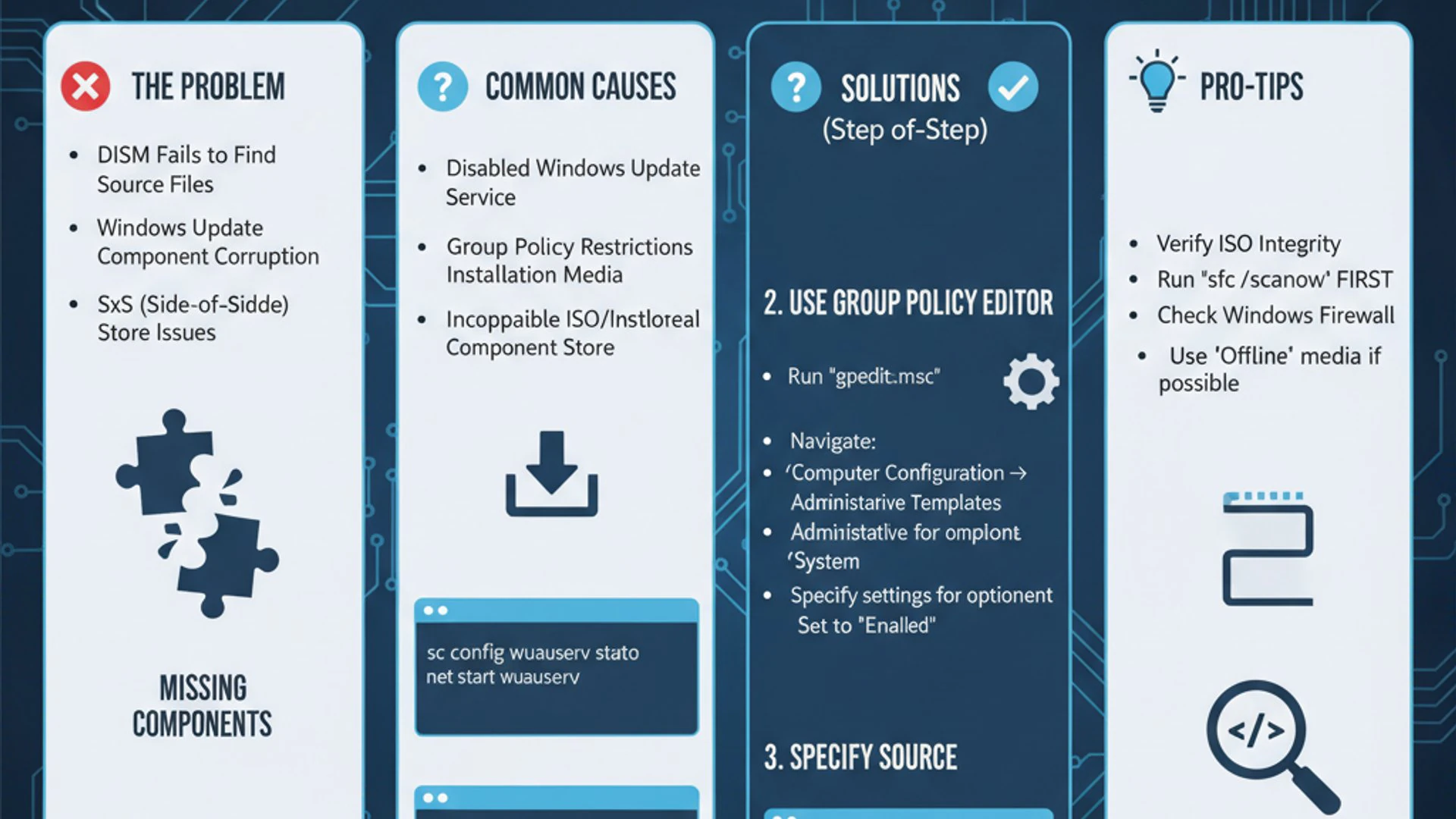
The error code 0x800f081f, when encountered with DISM, almost universally translates to “The source files could not be found.” This means that when DISM attempts to repair or modify your Windows installation, it cannot locate the necessary files to complete the operation. These files are typically components that DISM needs to download from Windows Update or retrieve from a specified local source.
Without these critical source files, DISM is unable to perform its repair function, leaving your system with potentially corrupted or missing components. This can manifest in various ways, such as failed feature installations, inability to install cumulative updates, or general system instability. Understanding this core message is key to choosing the right repair strategy.
Common Scenarios Leading to This Error
Several factors can contribute to the appearance of the 0x800f081f dism error. Identifying the likely cause can help streamline your troubleshooting efforts.
- Corrupted Windows Update Components: If the Windows Update service itself is corrupted or misconfigured, DISM might fail to download the necessary repair files from Microsoft’s servers. This is a very common culprit.
- Network Connectivity Issues: A unstable or restricted internet connection can prevent DISM from reaching the online update servers to fetch the required components. Proxy settings or firewall rules can also interfere.
- Missing or Damaged Installation Media: If you’re attempting to use a local source (like an ISO or USB drive) for DISM repair, and that media is corrupted, incomplete, or incorrectly specified, the error will occur.
- Incorrect DISM Command Syntax: Typos or incorrect parameters in the DISM command can lead to the tool looking for files in the wrong place or in the wrong way.
- Third-Party Software Interference: Security software, VPNs, or system optimization tools can sometimes interfere with DISM’s ability to access system files or connect to update servers.
- Component Store Corruption: While DISM is meant to fix this, severe or widespread corruption in the Windows component store itself can sometimes make it difficult for DISM to even begin its repair process effectively.
Preliminary Checks Before Troubleshooting
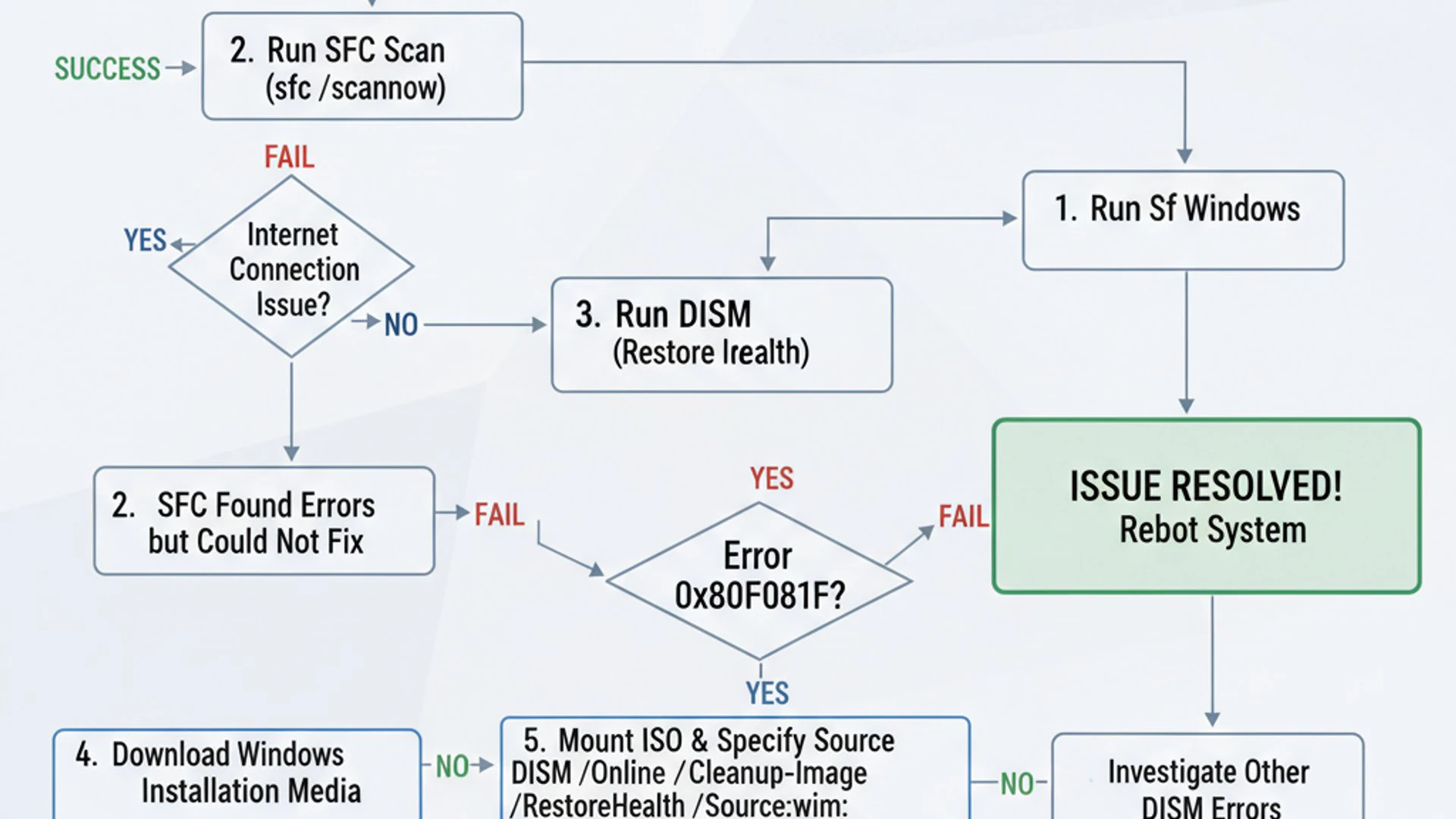
Before diving into more complex solutions for the 0x800f081f dism error, it’s always wise to perform some fundamental checks. These steps can often resolve simpler underlying issues that might be preventing DISM from working correctly.
Verify Internet Connectivity and Proxy Settings
Since DISM often relies on downloading files from Microsoft’s servers, a stable internet connection is paramount. Ensure your connection is active and not experiencing intermittent drops.
If you’re in a corporate environment or use a VPN, check your proxy settings. Incorrect proxy configurations can block DISM from accessing online resources. You can temporarily disable your VPN or proxy to see if it resolves the issue. For more details on network settings, you might find our guide on DHCP Client on Windows 11 helpful.
Run System File Checker (SFC Scan)
The System File Checker (SFC) is another built-in Windows utility that scans for and restores corrupted Windows system files. While DISM focuses on the component store, SFC targets core system files. Running SFC before DISM can sometimes resolve underlying file corruption that might be contributing to the DISM error.
To run an SFC scan:
- Open Command Prompt or Windows Terminal (Admin) by right-clicking the Start button and selecting the appropriate option.
- Type
sfc /scannowand press Enter. - Allow the scan to complete. This may take some time.
- Restart your computer if SFC reports that it found and repaired corrupted files.
After the restart, attempt to run your DISM command again to see if the 0x800f081f error persists. This simple step can sometimes clear minor corruptions that impede DISM’s operation.
“Always start with the simplest solutions. A quick check of network settings or an SFC scan can often save you from hours of complex troubleshooting.”
Method 1: Using Group Policy Editor to Specify Repair Source
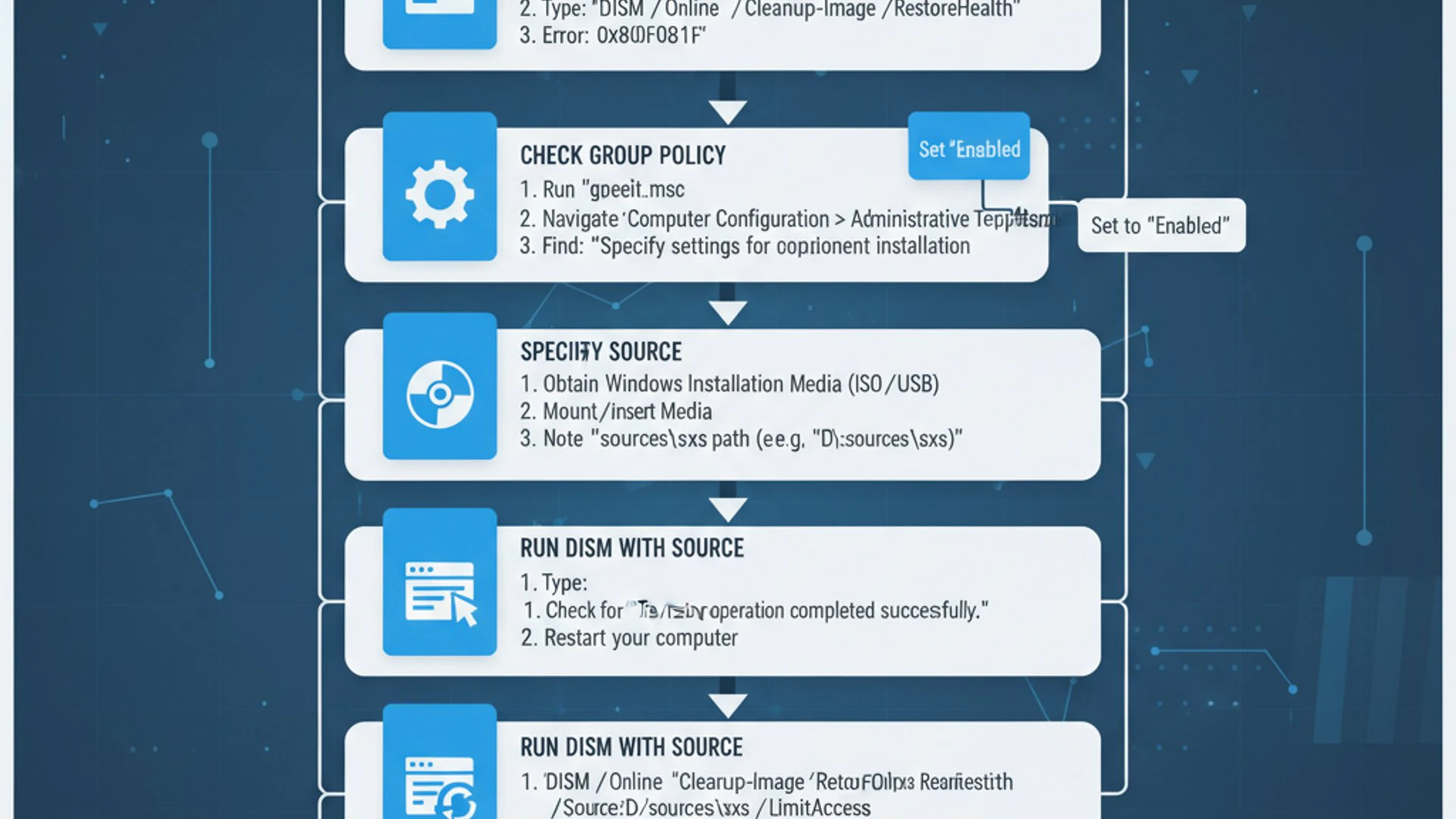
For users in managed environments, or those who prefer a more controlled approach, the Group Policy Editor offers a way to explicitly tell DISM where to find its repair source files. This can be particularly useful if you have a local network share with Windows installation media or if online sources are unreliable.
Accessing the Group Policy Editor
The Group Policy Editor (gpedit.msc) is available in Windows 11 Pro, Enterprise, and Education editions. Home users do not have direct access to it, but there are workarounds to enable it, though they are outside the scope of this guide. Assuming you have access:
- Press
Windows key + Rto open the Run dialog. - Type
gpedit.mscand press Enter. This will launch the Local Group Policy Editor.
Configuring the ‘Specify settings for optional component installation and component repair’ Policy
Once inside the Group Policy Editor, you need to navigate to a specific policy setting that controls how Windows handles optional component installations and component repairs, which directly impacts DISM’s behavior.
Step-by-Step Configuration
Follow these steps carefully to configure the policy:
- In the left-hand pane of the Group Policy Editor, navigate to:
Computer Configuration>Administrative Templates>System>Specify settings for optional component installation and component repair - Double-click on the policy named “Specify settings for optional component installation and component repair” in the right-hand pane.
- In the policy window that appears, select the “Enabled” radio button.
- Under “Options,” check the box that says “Download repair content and optional features directly from Windows Update instead of Windows Server Update Services (WSUS)”. This ensures that even if you have WSUS, DISM can still pull from Microsoft’s public servers.
- Crucially, if you want to specify an alternative source, also check “Specify alternative source file path”. In the text box below, enter the full path to your Windows installation media’s
sources\sxsfolder. For example, if your ISO is mounted as driveD:, the path would beD:\sources\sxs. - Click “Apply” and then “OK” to save your changes.
- Close the Group Policy Editor. It’s often a good idea to run
gpupdate /forcein an elevated Command Prompt to ensure the policy changes are applied immediately, followed by a system restart.
After applying this policy, DISM should now use the specified source for its repair operations, potentially bypassing the 0x800f081f dism error. This method provides a robust way to control the repair source, especially in environments with strict network policies.
Method 2: Specifying a Local Source for DISM Repair
When online repair options fail or are not feasible, providing a local source for DISM is an extremely reliable method to resolve the 0x800f081f dism error. This involves using your Windows 11 installation media, such as an ISO file or a bootable USB drive, as the repository for the necessary repair files.
Preparing Your Windows Installation Media (ISO/USB)
First, you need to obtain or prepare your Windows 11 installation media. It’s crucial that the version and build of this media match your currently installed Windows 11 version as closely as possible for optimal compatibility.
- Download Windows 11 ISO: Visit the official Microsoft website and download the Windows 11 ISO file.
- Mount the ISO: Once downloaded, right-click the ISO file and select “Mount”. Windows will treat it like a virtual DVD drive, assigning it a drive letter (e.g.,
D:,E:). Note this drive letter. - Create a Bootable USB (Optional): If you prefer a physical medium or cannot mount the ISO, you can use a tool like Rufus or the Microsoft Media Creation Tool to create a bootable USB drive from the ISO.
The key location within this mounted ISO or USB drive will be the sources\sxs folder. This folder contains the component store files DISM needs.
Executing DISM Commands with a Local Source
With your installation media ready, you can now construct and execute the DISM command to perform the repair. This requires using the Command Prompt with administrator privileges.
Identifying the Correct Index Number
Windows installation media often contains multiple editions (e.g., Home, Pro) within a single WIM or ESD file. You need to identify the correct index number corresponding to your installed Windows 11 edition. To do this:
- Open Command Prompt (Admin).
- Assuming your mounted ISO is drive
D:, type the following command and press Enter:dism /Get-WimInfo /WimFile:D:\sources\install.wim
(If your media usesinstall.esdinstead ofinstall.wim, replace.wimwith.esd.) - Review the output. You will see a list of Windows editions with their respective index numbers. Find the index number that matches your installed Windows 11 edition (e.g., Windows 11 Home or Windows 11 Pro). Make a note of this number.
This step is critical because specifying the wrong index can lead to further errors or an unsuccessful repair. For instance, if your system is Windows 11 Pro and its index is 2, you’ll use that in the next command.
Constructing and Running the DISM Command
Now, with the drive letter of your mounted ISO/USB and the correct index number, you can run the DISM repair command:
- Open Command Prompt (Admin).
- Type the following command, replacing
D:with your actual drive letter and[IndexNumber]with the index you identified:dism /Online /Cleanup-Image /RestoreHealth /Source:wim:D:\sources\install.wim:[IndexNumber] /LimitAccess
(Again, if your media usesinstall.esd, replace.wimwith.esdand use/Source:esd:D:\sources\install.esd:[IndexNumber]) - Press Enter to execute the command.
Let’s break down the command:
/Online: Specifies that the operation is performed on the running operating system./Cleanup-Image: Prepares the image for servicing and allows for repair operations./RestoreHealth: Scans for corruption and performs repair operations./Source:wim:D:\sources\install.wim:[IndexNumber]: This is the crucial part. It tells DISM to use the specified WIM (or ESD) file on your mounted media as the source for repair, specifically targeting the edition identified by[IndexNumber]./LimitAccess: Prevents DISM from using Windows Update as a repair source, forcing it to use only the specified local source.
The process may take some time to complete. Do not close the Command Prompt window until you see a success message or an error report. If successful, this method is highly effective in resolving the 0x800f081f dism error by providing a direct, reliable source for component repair.
Method 3: Utilizing Windows Update as a Repair Source
While the 0x800f081f dism error often indicates issues with source files, sometimes the problem isn’t that the files are missing entirely, but that DISM can’t properly access Windows Update to download them. This method focuses on ensuring Windows Update is fully functional and then re-running DISM with its default online repair option.
Ensuring Windows Update is Functional
A healthy Windows Update service is paramount for DISM’s online repair capabilities. If Windows Update itself is experiencing issues, DISM will undoubtedly fail. Here’s how to check and ensure its functionality:
- Check for Pending Updates: Go to Settings > Windows Update and check for any pending updates. Install them if available and restart your PC.
- Run Windows Update Troubleshooter: In Settings > System > Troubleshoot > Other troubleshooters, find and run the Windows Update troubleshooter. This tool can often automatically detect and fix common update issues.
- Verify Service Status: Press
Windows key + R, typeservices.msc, and press Enter. Ensure the Windows Update service is running and set to Automatic startup type. Also, check the Background Intelligent Transfer Service (BITS) and Cryptographic Services are running.
Addressing any issues with Windows Update beforehand significantly increases the chances of DISM succeeding with its online repair. Sometimes, simply installing all pending updates can resolve underlying component inconsistencies.
Re-running DISM with Online Repair Option
Once you are confident that your Windows Update service is functioning correctly, you can try running the standard online DISM repair command. This command instructs DISM to use Microsoft’s online servers to download and replace any corrupted or missing system files.
- Open Command Prompt (Admin) by right-clicking the Start button and selecting “Windows Terminal (Admin)” or “Command Prompt (Admin)”.
- Type the following command and press Enter:
dism /Online /Cleanup-Image /RestoreHealth - Allow the command to complete. This process can take a significant amount of time, sometimes up to an hour, depending on your system’s condition and internet speed.
This command tells DISM to scan the component store for corruption and automatically attempt to repair it using files from Windows Update. If your Windows Update components are now healthy, this should resolve the 0x800f081f dism error. This method is often the first line of defense for general system image corruption.
Method 4: Resetting Windows Update Components
When the 0x800f081f dism error persists, especially after verifying basic internet connectivity and trying the standard online DISM repair, the problem often lies within the Windows Update components themselves. These components can become corrupted, preventing DISM from accessing the necessary repair files. Resetting them can clear out any accumulated junk or corruption.
Why Resetting Windows Update is Crucial
Windows Update relies on a complex set of services, folders, and temporary files to function correctly. Over time, these components can become corrupted, leading to various issues, including failed updates and the inability of DISM to download repair content. When DISM reports “source files could not be found,” it might not be that the files don’t exist online, but rather that your system’s update mechanism is broken and cannot fetch them.
Resetting these components essentially gives Windows Update a fresh start. It stops the relevant services, clears the temporary update cache, and re-registers critical DLLs, often resolving deep-seated issues that prevent proper communication with Microsoft’s update servers.
Manual Steps to Reset Windows Update
This process involves stopping several services, clearing specific folders, and then restarting the services. You’ll need to use an elevated Command Prompt.
- Open Command Prompt (Admin).
- Stop the Windows Update services by typing these commands one by one and pressing Enter after each:
net stop wuauservnet stop cryptSvcnet stop bitsnet stop msiserver
- Delete the contents of the SoftwareDistribution and Catroot2 folders. These folders store temporary update files and update logs, which can become corrupted.
- Rename the SoftwareDistribution folder:
ren C:\Windows\SoftwareDistribution SoftwareDistribution.old - Rename the Catroot2 folder:
ren C:\Windows\System32\catroot2 Catroot2.old
- Rename the SoftwareDistribution folder:
- Restart the Windows Update services by typing these commands one by one and pressing Enter after each:
net start wuauservnet start cryptSvcnet start bitsnet start msiserver
- Close the Command Prompt.
After performing these steps, restart your computer. Then, attempt to run the DISM online repair command again (dism /Online /Cleanup-Image /RestoreHealth) or check for Windows Updates. This fresh start for the update components often resolves the underlying issues causing the 0x800f081f dism error.
“Think of resetting Windows Update components as giving your system’s update mechanism a complete overhaul. It’s a powerful step when standard repairs fall short.”
Method 5: Performing an In-Place Upgrade (Repair Install)
When all other methods fail to resolve the persistent 0x800f081f dism error, an in-place upgrade, also known as a repair install, is often the most effective last resort. This process reinstalls Windows 11 while preserving your personal files, installed applications, and most system settings, essentially giving your operating system a fresh, clean slate without the hassle of a full reinstallation.
When to Consider an In-Place Upgrade
An in-place upgrade should be considered if:
- You have tried all previous troubleshooting steps for the 0x800f081f dism error without success.
- Your Windows 11 system is experiencing widespread corruption, instability, or other persistent issues that standard repairs cannot fix.
- You want to repair the operating system without losing your data and applications.
- You suspect deep-seated corruption in the component store or core system files that DISM or SFC cannot fully address.
It’s a powerful solution that can fix a multitude of problems by replacing damaged system files with fresh ones from the installation media.
Step-by-Step Guide for an In-Place Upgrade
Performing an in-place upgrade is relatively straightforward, but it requires careful attention to detail. You will need a Windows 11 ISO file that matches your currently installed version and language.
- Download Windows 11 ISO: Go to the official Microsoft Windows 11 download page and download the “Windows 11 Disk Image (ISO)” file. Ensure it matches your current edition (Home/Pro) and language.
- Mount the ISO: Once the ISO is downloaded, right-click on the file and select “Mount”. This will create a virtual drive.
- Run Setup: Open the mounted virtual drive and locate the
setup.exefile. Double-click it to start the Windows 11 Setup wizard. - Accept Terms: Follow the on-screen prompts. Accept the license terms.
- Choose What to Keep: When you reach the “Choose what to keep” screen, ensure that “Keep personal files and apps” is selected. This is crucial for preserving your data. If this option is grayed out, it usually means the ISO’s language or edition does not match your installed Windows.
- Initiate Installation: Click “Install”. The setup process will begin, and your computer will restart several times. This process can take a while, typically an hour or more, so ensure your device is plugged into power.
- Complete Setup: After the restarts, Windows 11 will boot up, and you’ll be greeted with your familiar desktop, with your files and applications intact.
An in-place upgrade effectively rebuilds the operating system’s core components, often resolving the 0x800f081f dism error and any other lingering system issues. It’s a robust solution that can bring your Windows 11 system back to a healthy state.
Advanced Troubleshooting and Prevention Tips
Beyond the direct methods for resolving the 0x800f081f dism error, there are advanced checks and preventative measures you can take. These steps help ensure the overall health of your Windows 11 system and reduce the likelihood of encountering such errors in the future.
Checking Disk Health and Integrity
A failing hard drive or SSD can cause a myriad of system issues, including file corruption that leads to DISM errors. Regularly checking your disk’s health is a good practice.
- CHKDSK Utility: Open Command Prompt (Admin) and type
chkdsk /f /r, then press Enter. You’ll likely be prompted to schedule the scan for the next restart. Confirm withYand reboot your PC. This utility scans for and attempts to repair bad sectors and file system errors. - S.M.A.R.T. Status: Use third-party tools or PowerShell to check your drive’s S.M.A.R.T. (Self-Monitoring, Analysis and Reporting Technology) status. A warning status indicates potential drive failure. For example, in PowerShell (Admin), type
Get-WmiObject -class Win32_DiskDrive | Select-Object Model, Status.
Addressing disk issues promptly can prevent data loss and system instability, which are often precursors to errors like 0x800f081f. A healthy storage device is fundamental to a healthy operating system.
Keeping Your System Updated and Component Store Healthy
Proactive maintenance is the best defense against complex system errors. Regular updates and good system hygiene play a crucial role.
- Install Windows Updates Regularly: Always keep your Windows 11 system up to date. Microsoft frequently releases patches and improvements that can fix underlying bugs and improve component stability.
- Run DISM and SFC Periodically: Even when you don’t have an error, running
sfc /scannowanddism /Online /Cleanup-Image /CheckHealth(or/ScanHealth) every few months can help catch and fix minor corruptions before they escalate. - Maintain Sufficient Free Disk Space: Low disk space can lead to issues with temporary files, updates, and system operations. Aim to keep at least 15-20% of your primary drive free.
- Backup Your System: Regularly back up your important files and consider creating system image backups. This provides a safety net if critical errors occur. Learn more about System Image Backup on Windows 11.
- Avoid Unnecessary Tweaks: Be cautious with system optimization tools or registry cleaners that promise dramatic performance boosts. Some can inadvertently damage system files or settings.
By following these advanced tips, you’re not just reacting to the 0x800f081f dism error but actively working to prevent it and maintain a robust, reliable Windows 11 environment. A well-maintained system is a stable system.
Conclusion: Maintaining a Healthy Windows 11 Environment
The DISM error 0x800f081f can be a formidable obstacle for Windows 11 users, often signaling deeper issues within the operating system’s component store or update mechanism. However, as we’ve explored, it is far from insurmountable. By systematically approaching the problem with the methods outlined in this guide, you can effectively diagnose and resolve this frustrating error.
From ensuring basic internet connectivity and running preliminary SFC scans to leveraging the power of Group Policy, local installation media, and even performing an in-place upgrade, each solution offers a pathway to restoring your system’s integrity. Understanding the role of DISM and the nature of the 0x800f081f error empowers you to choose the most appropriate fix for your specific situation.
Ultimately, resolving this error is about more than just getting past a single roadblock; it’s about fostering a healthy and stable Windows 11 environment. Regular maintenance, timely updates, and proactive checks are your best allies in preventing future occurrences of such errors. A well-maintained system ensures optimal performance, seamless updates, and a more reliable computing experience, allowing you to focus on productivity and enjoyment rather than troubleshooting. Keep these strategies in mind, and your Windows 11 system will thank you.
For more interesting articles, stay tuned to Winsides.com!









Community
Comments (0)