

Introduction to DHCP Client on Windows 11
In the intricate world of modern computing, seamless network connectivity is not merely a convenience; it is an absolute necessity. Whether you are browsing the web, streaming content, or collaborating on a project, your Windows 11 device relies heavily on its ability to communicate effectively within a network. At the heart of this communication lies a crucial, often unseen, component: the DHCP Client on Windows 11. Learn more at RFC 2131: Dynamic Host Configuration Protocol.
This unsung hero automatically handles the complex task of obtaining an IP address and other vital network configuration details, ensuring your device can connect without manual intervention. Without a properly functioning DHCP Client, your Windows 11 machine would struggle to find its place on the network, leading to frustrating connectivity issues and hindering productivity.
This comprehensive guide will demystify the DHCP Client, explaining its fundamental role, how to manage its settings, troubleshoot common problems, and implement best practices for optimal performance. You will gain a deep understanding of this essential service, empowering you to maintain robust and reliable network connections on your Windows 11 system.
Table of contents
Key Takeaways
- The DHCP Client on Windows 11 is a critical service that automatically assigns IP addresses and other network configurations to your device, ensuring seamless connectivity.
- Understanding DHCP mechanics helps in diagnosing network issues and verifying proper IP address acquisition.
- You can manage the DHCP Client service through the Services Manager (
services.msc) to check its status or restart it. - Network & Internet settings in Windows 11 allow you to configure adapter options to ensure DHCP is enabled for automatic IP assignment.
- Command-line tools like
ipconfigare invaluable for verifying the IP configuration and confirming successful DHCP operation. - Common issues like “Limited or No Connectivity” can often be resolved by restarting the DHCP Client service or performing a network reset.
- Advanced users can leverage PowerShell and Command Prompt for renewing/releasing IP addresses and resetting network adapters for deeper troubleshooting.
- Maintaining updated network drivers and performing regular diagnostics are crucial best practices for ensuring the DHCP Client’s health and preventing future problems.
Understanding DHCP and its Role in Windows 11 Networking
The ability of your Windows 11 computer to connect to the internet or a local network hinges on a fundamental networking protocol called DHCP. Without it, every device would require manual configuration, a task that would be incredibly tedious and prone to errors, especially in larger networks. DHCP streamlines this entire process, making network management significantly simpler and more efficient for users and administrators alike.
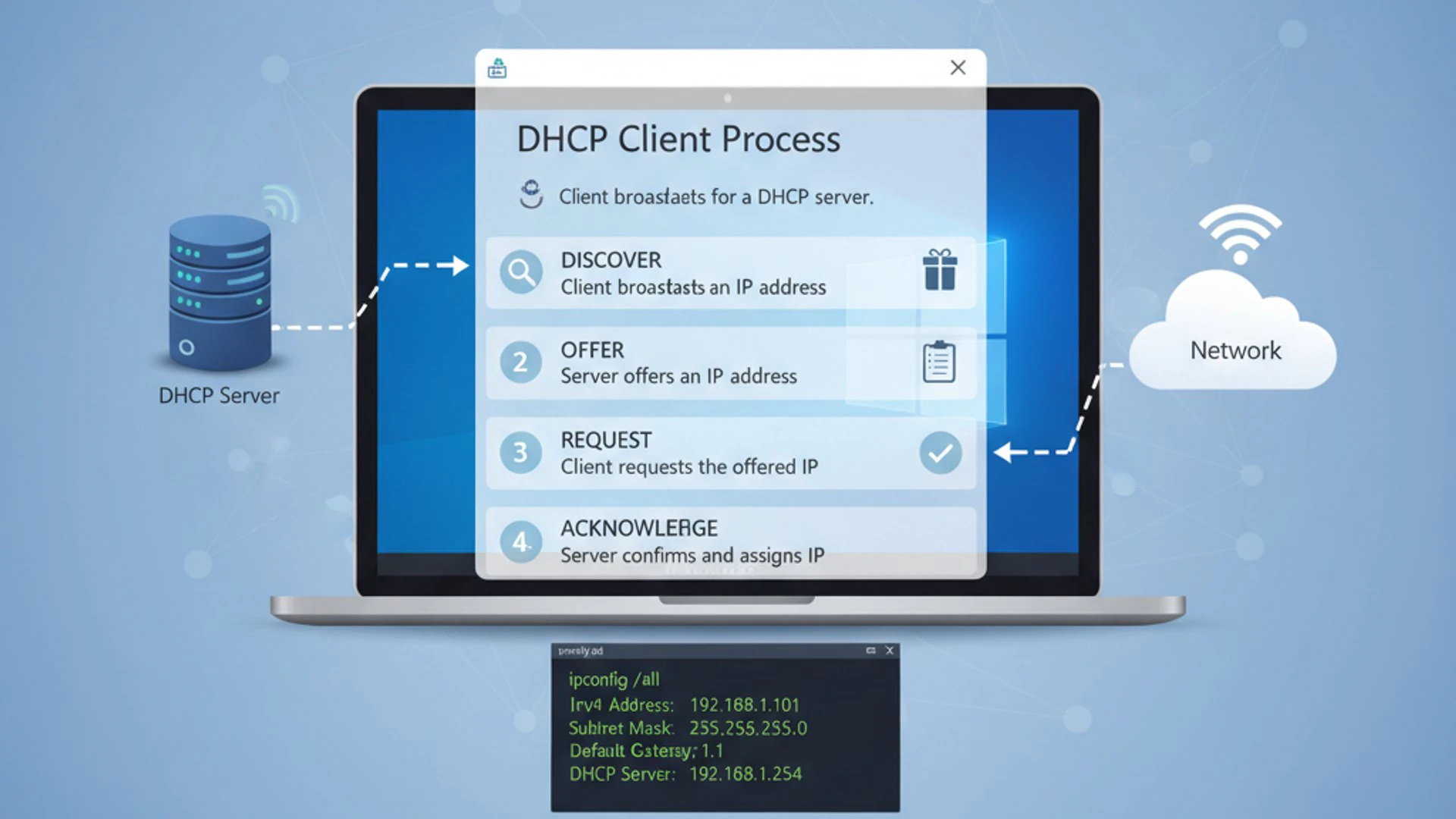
The DHCP Client on Windows 11 is the component responsible for interacting with a DHCP server, requesting and receiving the necessary network parameters. This automatic configuration is one of the pillars of modern plug-and-play networking, allowing devices to join a network effortlessly.
What is DHCP and How Does it Work?
DHCP stands for Dynamic Host Configuration Protocol. It is a client-server protocol that automatically provides an Internet Protocol (IP) host with its IP address and other related configuration information, such as the subnet mask, default gateway, and DNS server addresses. This automation eliminates the need for manual IP address assignment for each device on a network.
The DHCP process typically involves four steps, often referred to as DORA: Discover, Offer, Request, and Acknowledge. When a Windows 11 device connects to a network, its DHCP Client broadcasts a DHCP Discover message. A DHCP server on the network responds with a DHCP Offer, proposing an IP address and configuration details.
The client then sends a DHCP Request to accept the offered configuration. Finally, the server sends a DHCP Acknowledge, confirming the assignment and leasing the IP address for a specified duration. This lease period ensures that IP addresses can be reclaimed and reused if a device leaves the network, optimizing address space utilization.
This entire exchange happens in milliseconds, making the connection appear instantaneous to the end-user. The efficiency of DHCP is paramount for networks ranging from small home setups to vast enterprise environments, ensuring that every device, from a smartphone to a server, can communicate effectively.
The Importance of the DHCP Client Service
The DHCP Client service on Windows 11 is the software component that executes the client-side of the DHCP protocol. It’s not just about getting an IP address; it’s about receiving a complete network identity. This service runs in the background, constantly monitoring for network changes and ensuring your device maintains its connection.
If this service is stopped or malfunctions, your Windows 11 system will be unable to automatically obtain an IP address. This typically results in your device assigning itself an Automatic Private IP Addressing (APIPA) address (in the 169.254.x.x range), which prevents it from communicating with devices outside its immediate subnet, including the internet.
Therefore, the health and proper functioning of the DHCP Client service are absolutely critical for any Windows 11 device to participate in a network. It acts as the primary negotiator for your device’s network presence, ensuring it has all the necessary credentials to send and receive data across the digital landscape.
Automatic IP Configuration Benefits
The advantages of automatic IP configuration provided by the DHCP Client on Windows 11 are numerous and significant. Foremost among them is simplicity. Users no longer need to manually input complex IP addresses, subnet masks, or DNS server details, which can be daunting for non-technical individuals and error-prone for anyone.
Another major benefit is reduced administrative overhead. In environments with many devices, DHCP servers can manage thousands of IP addresses dynamically, freeing IT professionals from the laborious task of static IP assignment. This leads to substantial time savings and minimizes configuration mistakes across the network.
DHCP also offers efficient IP address management. IP addresses are a finite resource. By leasing addresses for a specific period, DHCP ensures that addresses no longer in use are returned to the pool and can be reassigned to other devices. This prevents IP address conflicts and maximizes the utilization of available addresses within a network segment.
Finally, DHCP provides flexibility and mobility. Devices can move between different network segments (e.g., from a home Wi-Fi to an office Wi-Fi) and automatically obtain a new, valid IP configuration without any manual intervention. This seamless transition is fundamental to the mobile computing experience we expect today.
Locating and Managing the DHCP Client Service
While the DHCP Client on Windows 11 typically operates silently in the background, there are times when you might need to check its status or restart it, especially during network troubleshooting. Windows 11 provides a dedicated utility for managing system services, including the DHCP Client.
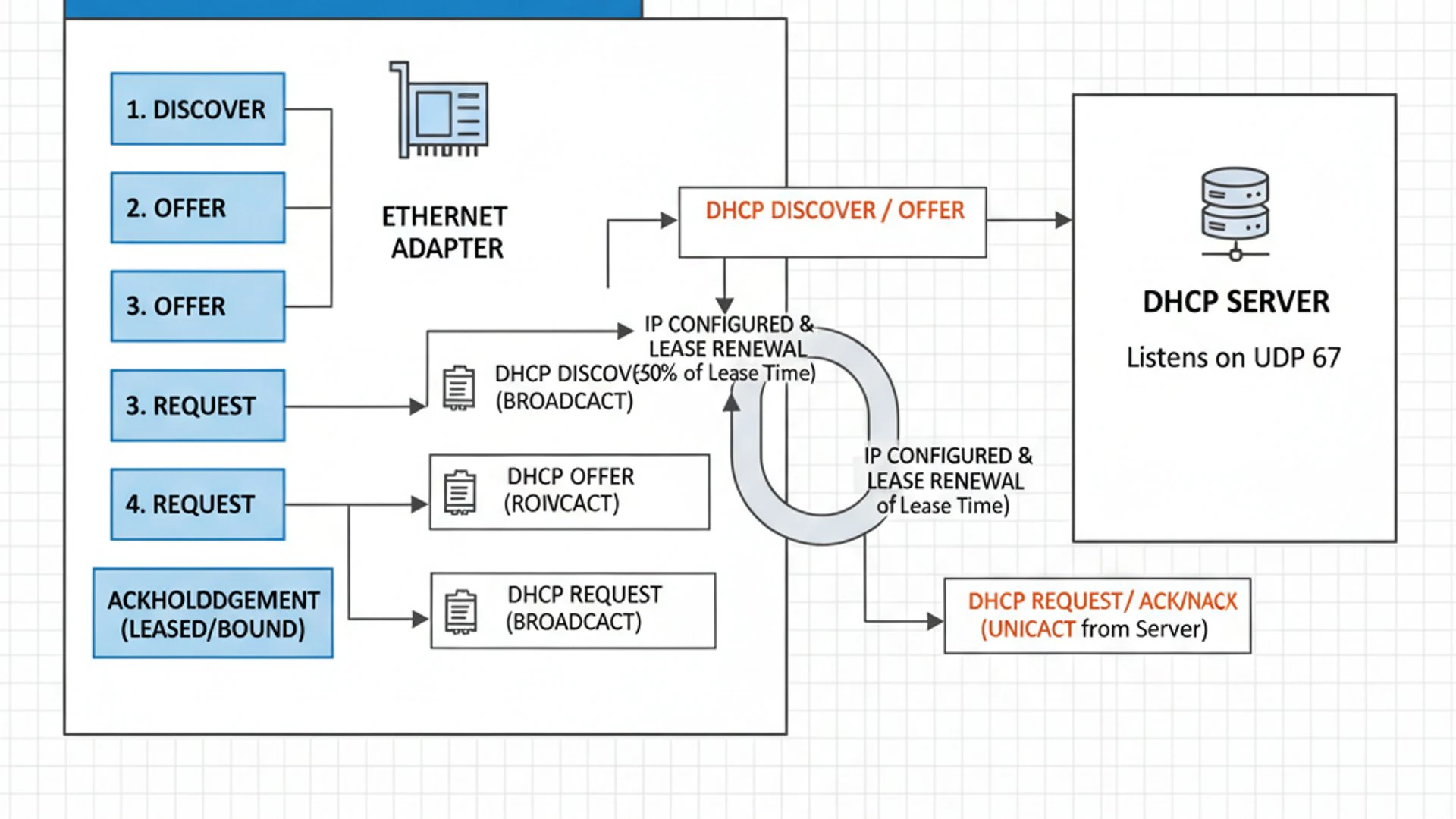
Understanding how to access and interact with this service is a fundamental skill for anyone looking to diagnose or resolve network connectivity issues on their PC. This section will guide you through the process of locating and managing this essential network component.
Accessing Services Manager
The primary tool for managing services on Windows 11 is the Services Manager, an administrative tool that lists all services installed on your system. It allows you to start, stop, pause, resume, or configure the startup type for each service. Accessing it is straightforward and can be done through several methods.
Once inside the Services Manager, you’ll find an extensive list of system services, each with its own description, status, and startup type. It’s a powerful tool, but caution should be exercised when making changes, as incorrectly configured services can impact system stability.
Steps to Open Services.msc
There are a few common ways to open the Services Manager on Windows 11:
- Using the Run Dialog:
- Press
Win + Ron your keyboard to open the Run dialog box. - Type
services.mscinto the text field. - Click OK or press
Enter.
- Press
- Using the Search Bar:
- Click the Start button or press the
Winkey. - Type
servicesinto the search bar. - Select Services from the search results (it usually appears as an app or a control panel item).
- Click the Start button or press the
- Through Computer Management:
- Right-click the Start button and select Computer Management.
- In the Computer Management window, expand Services and Applications, then click Services.
Any of these methods will launch the Services Manager window, where you can proceed to locate the DHCP Client service.
Checking DHCP Client Service Status
Once the Services Manager window is open, you’ll see a long list of services. Scroll down until you find the service named DHCP Client. The services are typically listed alphabetically, making it easy to locate.
Next to the service name, you will see its Status and Startup Type. For the DHCP Client service to function correctly, its status should be “Running” and its startup type should be “Automatic”. If it’s not running, or if its startup type is set to “Disabled,” this could be the root cause of your network connectivity problems.
If the service is not running, you can right-click on it and select Start. If it’s already running but you suspect an issue, you can select Restart to refresh the service. Changing the startup type usually involves double-clicking the service, selecting the desired type from the dropdown menu, and clicking Apply and OK.
“Ensuring the DHCP Client service is running and set to Automatic is the first critical step in diagnosing any network connectivity issue on Windows 11.”
Configuring DHCP Settings in Windows 11
While the DHCP Client service handles the underlying protocol, Windows 11 provides user-friendly interfaces to ensure that your network adapters are configured to use DHCP. This means telling your network card to automatically obtain an IP address rather than using a static, manually assigned one. This is typically the default setting, but it’s crucial to know how to verify and adjust it.
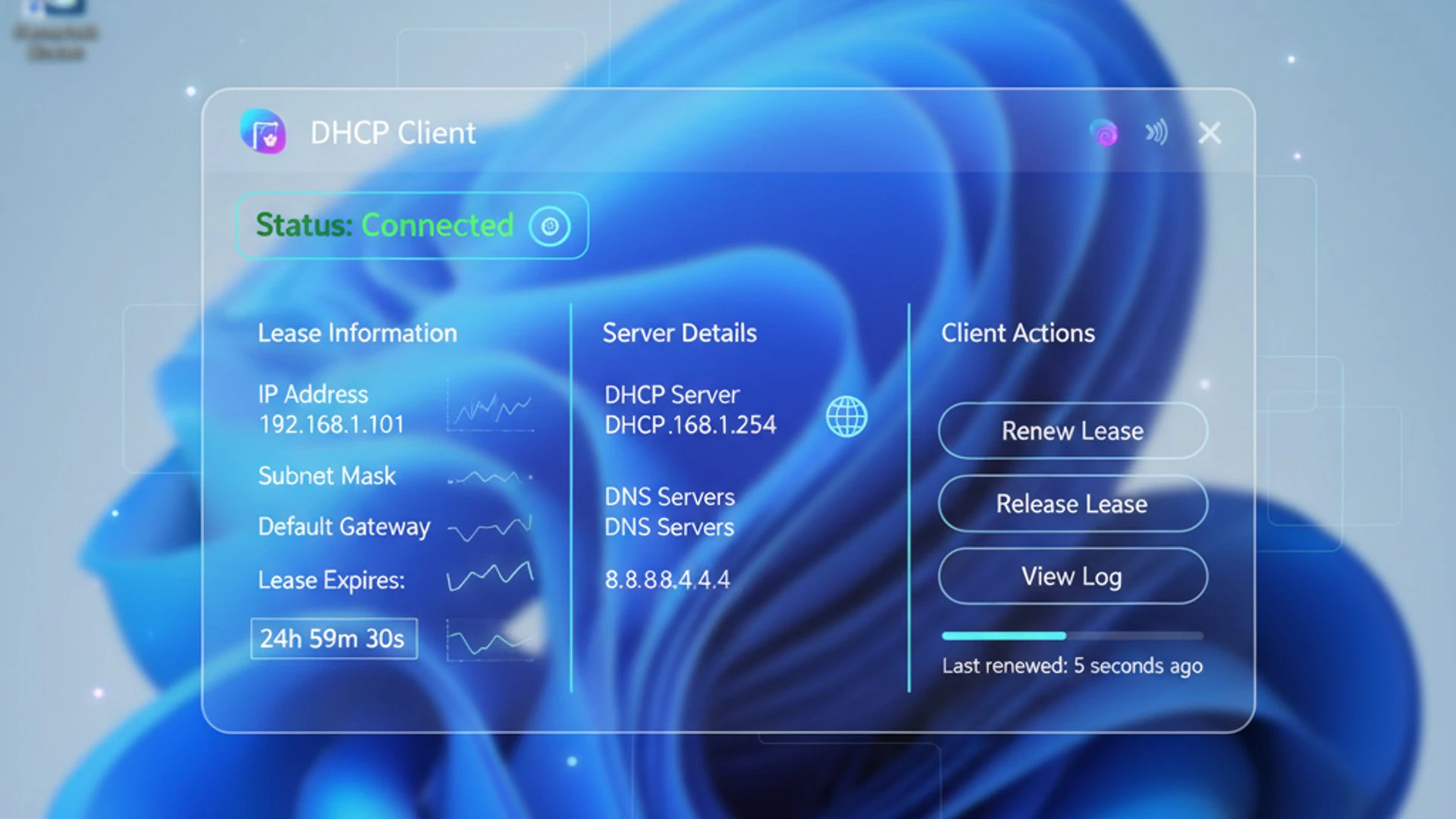
Incorrectly configured adapter settings can prevent the DHCP Client from doing its job, leading to a lack of network connectivity. This section will guide you through the graphical user interface (GUI) methods for managing these settings, making sure your Windows 11 device is ready to receive network configurations automatically.
Using Network & Internet Settings
The primary hub for all network-related configurations in Windows 11 is the Network & Internet section within the Settings app. This area provides a comprehensive overview of your network connections, including Wi-Fi, Ethernet, VPN, and more. It’s the go-to place for enabling or disabling network adapters, checking connection status, and adjusting advanced properties.
To access these settings, simply click on the Start button, then select Settings (the gear icon). In the Settings window, navigate to the Network & internet tab on the left-hand side. Here, you’ll find various options related to your network connections.
This centralized location makes it easy to manage all aspects of your network configuration without having to delve into older Control Panel interfaces. It’s designed to be intuitive, allowing users to quickly identify and modify their network preferences.
Modifying Adapter Options
Within the Network & Internet settings, you’ll need to locate the specific network adapter you wish to configure. For wired connections, select Ethernet. For wireless, choose Wi-Fi. Once you’ve selected your connection type, click on the name of your active network connection (e.g., “Network 1” for Ethernet or your Wi-Fi network name).
On the next screen, scroll down to the IP assignment section. Here, you should see a setting that typically says “Automatic (DHCP).” If it says “Manual,” it means your device is configured with a static IP address, which might prevent it from connecting to networks that rely on DHCP.
To ensure DHCP is enabled, click the Edit button next to “IP assignment.” In the pop-up window, select Automatic (DHCP) from the dropdown menu. Then, click Save. This action tells your network adapter to request an IP address and other details from a DHCP server, enabling the DHCP Client on Windows 11 to perform its function.
Advanced TCP/IP Settings for DHCP
For more granular control, or if you encounter persistent issues, you might need to delve into the advanced TCP/IP settings. While the previous steps generally suffice, understanding these deeper configurations can be helpful. To access them, follow the steps above to reach the “IP assignment” section, but instead of just selecting “Automatic (DHCP),” you’ll confirm the details.
When you set IP assignment to “Automatic (DHCP),” Windows 11 automatically configures the IP address, subnet mask, default gateway, and DNS server addresses. You can verify these details by clicking on the “View properties” link within the network connection details.
In some rare scenarios, you might need to manually specify DNS servers even with DHCP enabled for IP assignment. This can be done in the same “Edit IP settings” window by selecting “Manual” for DNS server assignment while keeping the IP assignment as “Automatic (DHCP).” However, for most users, leaving both IP and DNS assignment as Automatic (DHCP) is the recommended and simplest approach.
Ensuring these settings are correctly configured is paramount. If your adapter is set to use a static IP that doesn’t match the network’s requirements, or if the DHCP Client service isn’t active, your Windows 11 device will fail to establish proper network communication. Always double-check these configurations when troubleshooting connectivity issues.
Verifying DHCP Client Operation and IP Configuration
After ensuring your DHCP Client service is running and your network adapter is set to obtain an IP address automatically, the next crucial step is to verify that the DHCP Client on Windows 11 has successfully acquired an IP address and other necessary network parameters. This verification process helps confirm that your device is properly connected to the network and ready for communication.
Windows 11 offers several tools to check your IP configuration, ranging from command-line utilities for detailed information to graphical interfaces for a quick overview. Mastering these verification methods is essential for effective network troubleshooting and ensuring seamless connectivity.
Using Command Prompt (ipconfig)
The ipconfig command-line utility is an indispensable tool for checking your current IP configuration. It provides a wealth of information about your network adapters, including IP addresses, subnet masks, default gateways, and DNS servers. This is often the first place IT professionals look when diagnosing network problems.
To use ipconfig, you need to open the Command Prompt. You can do this by pressing Win + R, typing cmd, and pressing Enter, or by searching for “Command Prompt” in the Start menu. Once the Command Prompt window appears, you can type various ipconfig commands to retrieve specific information.
The most common and useful command is simply ipconfig /all. This command displays comprehensive configuration information for all network adapters, including whether DHCP is enabled, the DHCP server’s IP address, and the lease expiration times. Look for your active network adapter (e.g., “Ethernet adapter Ethernet” or “Wireless LAN adapter Wi-Fi”) and verify the “DHCP Enabled” field says “Yes” and that you have a valid IPv4 Address.
An example of valid output might show an IPv4 Address like 192.168.1.100, a Subnet Mask of 255.255.255.0, and a Default Gateway matching your router’s IP (e.g., 192.168.1.1). If you see an IP address starting with 169.254.x.x, it indicates an APIPA address, meaning your device failed to obtain an IP from a DHCP server.
Analyzing Network Status in Settings
For a less technical, more visual overview, you can check your network status directly within the Windows 11 Settings app. This method provides a quick confirmation of your connection status and basic IP details without requiring command-line interaction.
Navigate to Settings > Network & internet. Here, you’ll see an overview of your network connections. If you’re connected, it will typically show your connection type (e.g., “Wi-Fi” or “Ethernet”) and indicate “Connected.”
Click on your active network connection (e.g., your Wi-Fi network name or “Ethernet”) to view its properties. On this screen, scroll down to the “IP assignment” section and click View properties. This will display your assigned IPv4 address, DNS servers, and other details, confirming whether the DHCP Client on Windows 11 has successfully configured your adapter.
This graphical interface is excellent for a quick check. If the IP address displayed is not in the expected range for your network or if it shows an APIPA address, it’s a clear sign that the DHCP Client might be encountering issues. In such cases, further troubleshooting using command-line tools or service management might be necessary.
Common DHCP Client Issues and Troubleshooting Steps
Even with the robust design of the DHCP Client on Windows 11, issues can occasionally arise, leading to frustrating network connectivity problems. These problems can manifest in various ways, from complete inability to access the internet to intermittent connection drops or incorrect network configurations. Understanding the most common issues and knowing how to troubleshoot them effectively is crucial for maintaining a stable network experience.
This section will cover prevalent DHCP Client problems and provide actionable steps to diagnose and resolve them, empowering you to quickly get your Windows 11 device back online.
“Limited or No Connectivity” Error
One of the most common and perplexing errors users encounter is the “Limited or No Connectivity” message or a network icon showing a globe with a “no internet access” symbol. This often indicates that your Windows 11 device has failed to obtain a valid IP address from a DHCP server, or it has an APIPA address (169.254.x.x).
This issue can stem from several sources: a problem with the DHCP server itself (e.g., your router), interference preventing the DHCP Discover message from reaching the server, or a malfunctioning DHCP Client service on your Windows 11 PC. It effectively means your device is on the network but doesn’t have the necessary “address” to communicate effectively.
To troubleshoot, first, try a simple reboot of your router and modem. This often resolves temporary glitches with the DHCP server. If the problem persists, focus on your Windows 11 device by restarting its DHCP Client service, as detailed in a later section.
Incorrect IP Address Assignment
Sometimes, your Windows 11 device might receive an IP address, but it’s incorrect for the network, leading to partial or no connectivity. This could be an IP address from a different subnet, a duplicate IP address, or an APIPA address when a valid one is expected. This usually points to a misconfiguration either on the DHCP server or a conflict on the network.
If you suspect an incorrect IP assignment, use ipconfig /all in Command Prompt to inspect the details. Check if the IP address, subnet mask, and default gateway match the expected configuration for your network. A common scenario is when a device retains an old IP lease after moving to a new network segment.
To force your DHCP Client on Windows 11 to request a fresh IP address, you can use the commands ipconfig /release followed by ipconfig /renew in Command Prompt. This tells your client to give up its current IP and then request a new one from the DHCP server, often resolving incorrect or stale assignments.
DHCP Client Service Not Running
As discussed earlier, the DHCP Client service is fundamental. If it’s not running, your Windows 11 system cannot automatically obtain network configurations. This is a direct cause of “Limited or No Connectivity” and often results in an APIPA address.
You can verify the service status by following the steps outlined in the “Locating and Managing the DHCP Client Service” section. If the service is stopped or disabled, it’s a clear indication of the problem. Sometimes, third-party software or system errors can inadvertently stop or disable critical services.
Restarting the Service
If the DHCP Client service is not running, or if you suspect it’s stuck in a bad state, restarting it is a common and effective troubleshooting step. Here’s how:
- Open the Services Manager (
services.msc). - Scroll down and locate DHCP Client.
- Right-click on DHCP Client.
- If the service is stopped, click Start. If it’s already running, click Restart.
- Ensure the Startup type is set to Automatic. If not, double-click the service, change the startup type to “Automatic,” click Apply, then OK.
After restarting the service, give your system a moment, then check your network connectivity. You might also run ipconfig /renew in Command Prompt to expedite the IP acquisition process. This simple restart often resolves many transient DHCP-related issues on Windows 11.
Advanced DHCP Client Management via PowerShell and Command Prompt
For users who require more control or are comfortable with command-line interfaces, PowerShell and Command Prompt offer powerful tools for managing the DHCP Client on Windows 11. These tools allow for quick execution of network commands, automation of tasks, and deeper troubleshooting capabilities than what the graphical interface provides. They are indispensable for network administrators and advanced users alike.
This section will delve into specific commands that enable you to renew and release IP addresses, as well as reset network adapters, offering robust solutions for persistent connectivity issues.
Renewing and Releasing IP Addresses
When troubleshooting network problems, it’s often beneficial to force your Windows 11 device to release its current IP address and request a new one from the DHCP server. This can resolve issues caused by stale IP leases, IP conflicts, or changes in network configuration. Both Command Prompt and PowerShell offer commands for this purpose.
Using Command Prompt:
- Open Command Prompt as an administrator (search for “cmd,” right-click, and select “Run as administrator”).
- To release your current IP address, type:
ipconfig /releaseand pressEnter. - To request a new IP address, type:
ipconfig /renewand pressEnter.
These commands instruct the DHCP Client on Windows 11 to relinquish its current lease and then initiate the DORA process to acquire a fresh one. This is a very common first step in resolving IP-related connectivity problems.
Using PowerShell:
- Open PowerShell as an administrator (search for “PowerShell,” right-click, and select “Run as administrator”).
- To release your current IP address, type:
Release-NetAdapterIpConfiguration -InterfaceAlias "Wi-Fi"(replace “Wi-Fi” with your actual adapter name, e.g., “Ethernet”). - To request a new IP address, type:
Renew-NetAdapterIpConfiguration -InterfaceAlias "Wi-Fi".
PowerShell offers more verbose and object-oriented commands, which can be particularly useful for scripting and managing multiple adapters simultaneously. The Get-NetAdapter cmdlet can help you find the correct InterfaceAlias for your network adapters.
Resetting Network Adapters
For more stubborn network issues, sometimes a complete reset of the network adapter’s configuration is necessary. This can clear out corrupted settings, resolve driver-related glitches, or fix issues where the DHCP Client on Windows 11 is simply not behaving as expected. Windows 11 provides a built-in network reset option, but command-line tools offer more targeted resets.
Using Command Prompt for Network Resets:
- Open Command Prompt as an administrator.
- To reset the Winsock Catalog (which can fix many connectivity issues), type:
netsh winsock resetand pressEnter. - To reset the TCP/IP stack, type:
netsh int ip resetand pressEnter. - To flush the DNS resolver cache, type:
ipconfig /flushdnsand pressEnter. - After running these commands, it’s often recommended to restart your computer for the changes to take full effect.
These commands target specific components of your network configuration, effectively giving them a “fresh start.” The netsh utility is particularly powerful for diagnosing and repairing network configuration issues.
Windows 11 Network Reset (GUI):
For a comprehensive reset that reinstalls network adapters and resets all network components to their default settings, you can use the graphical interface:
- Go to Settings > Network & internet > Advanced network settings.
- Scroll down and click on Network reset.
- Click Reset now and confirm.
This option is a last resort for persistent network problems, as it will remove and reinstall all network adapters, requiring you to re-enter Wi-Fi passwords and reconfigure any custom network settings. It’s a powerful tool to ensure the DHCP Client has a clean slate to work with.
Best Practices for Maintaining DHCP Client Health
A proactive approach to network management can save you a lot of headaches down the line. While the DHCP Client on Windows 11 is designed to be robust and self-sufficient, certain best practices can help ensure its continuous, optimal performance. By taking a few preventative measures, you can minimize the chances of encountering connectivity issues and maintain a smooth online experience.
These practices focus on keeping your system’s network components in top shape, allowing the DHCP Client to perform its duties without interruption or error. Regular maintenance and vigilance are key to a healthy network connection.
Keeping Network Drivers Updated
Network adapter drivers are the software that allows your Windows 11 operating system to communicate with your physical network hardware. Outdated, corrupted, or incompatible drivers are a frequent cause of network connectivity problems, including issues that can indirectly affect the DHCP Client’s ability to function correctly.
Manufacturers regularly release updated drivers to improve performance, fix bugs, and enhance compatibility with new operating system versions. Running on old drivers can lead to instability, dropped connections, or even complete network failure. Therefore, keeping your network drivers current is a critical best practice.
You can update your drivers through several methods:
- Windows Update: Windows 11 often delivers driver updates automatically through Windows Update. Ensure your system is set to receive these updates.
- Device Manager: Open Device Manager (search for it in the Start menu), expand “Network adapters,” right-click your adapter, and select “Update driver.” You can choose to “Search automatically for drivers.”
- Manufacturer’s Website: For the most up-to-date and specific drivers, visit the website of your computer or network adapter manufacturer (e.g., Intel, Realtek, Killer Networking). Download and install the latest drivers directly from their support pages.
Always restart your computer after installing new drivers to ensure the changes take full effect. This simple step can prevent a myriad of network-related issues, ensuring the DHCP Client has a stable foundation to operate on.
Regular Network Diagnostics
Windows 11 includes built-in diagnostic tools that can automatically detect and often resolve common network problems. Running these diagnostics periodically, or whenever you notice a slight dip in performance, can help catch issues before they escalate into major connectivity failures. Think of it as a routine check-up for your network health.
To run the Windows Network Troubleshooter:
- Go to Settings > System > Troubleshoot.
- Click on Other troubleshooters.
- Find Network Adapter and click Run.
This troubleshooter will attempt to identify problems with your network adapters, including issues related to IP configuration and the DHCP Client on Windows 11. It can often automatically reset network components, renew IP addresses, or suggest further steps.
Additionally, tools like the ping and tracert commands in Command Prompt can help you manually diagnose connectivity to specific destinations (e.g., your router or a website). Regularly checking your network status and running these diagnostics ensures that any potential problems with your DHCP Client or overall network stack are identified and addressed promptly, leading to a more reliable internet experience.
Security Considerations for DHCP Client
While the convenience of the DHCP Client on Windows 11 is undeniable, it’s also important to be aware of the security implications associated with dynamic IP assignment. DHCP, by its nature, involves trust between the client and the server. Malicious actors can exploit this trust to disrupt network services or gain unauthorized access. Understanding these risks and the protective measures available is crucial, especially in corporate or public network environments.
This section explores key security concepts related to DHCP and discusses the trade-offs between dynamic and static IP assignments in different contexts.
DHCP Snooping and Port Security
In enterprise networks, DHCP snooping is a security feature implemented on network switches to prevent unauthorized DHCP servers from operating on the network. A rogue DHCP server could distribute incorrect IP addresses, leading to denial-of-service or man-in-the-middle attacks where traffic is redirected through the attacker’s machine. DHCP snooping helps ensure that only legitimate DHCP server messages are processed.
Port security is another layer of defense, often used in conjunction with DHCP snooping. It restricts the number of MAC addresses that can be learned on a switch port, or even ties specific MAC addresses to specific ports. This prevents unauthorized devices from connecting to the network, which could potentially spoof a legitimate device’s MAC address to obtain an IP address via DHCP.
While these are typically server-side or switch-side configurations, they directly impact the security environment in which your DHCP Client on Windows 11 operates. As a user, being aware of these protections helps you understand why certain network behaviors might be restricted in secure environments and why connecting to untrusted networks can be risky.
“Always be cautious when connecting your Windows 11 device to public Wi-Fi networks, as they may lack robust DHCP security measures, making your device vulnerable to various attacks.”
Static vs. Dynamic IP Assignment Implications
The choice between using DHCP (dynamic IP) and static IP assignment for your DHCP Client on Windows 11 has significant security and operational implications.
Dynamic IP (DHCP):
- Pros: Ease of management, efficient IP address utilization, flexibility for mobile devices.
- Cons: Potential for IP address conflicts if the DHCP server malfunctions, vulnerability to rogue DHCP servers (without proper network security), and difficulty in tracking specific devices if their IP addresses frequently change.
Static IP:
- Pros: Predictable IP address for servers or critical devices, easier to track and apply firewall rules, eliminates reliance on a DHCP server.
- Cons: Manual configuration is prone to errors, higher administrative overhead, potential for IP address conflicts if not managed carefully, and less flexible for devices that move frequently.
For most home users and general-purpose Windows 11 workstations, dynamic IP assignment via DHCP is the recommended and most secure option, provided your home router acts as a legitimate DHCP server. In corporate settings, critical servers or network infrastructure devices often use static IPs for stability and security, while end-user workstations typically rely on DHCP, protected by network-level security features like DHCP snooping. Understanding these implications helps you make informed decisions about your network configuration.
Conclusion: Ensuring Seamless Connectivity with DHCP Client
The DHCP Client on Windows 11 is an often-overlooked yet absolutely indispensable component of your operating system’s networking stack. It works tirelessly in the background, ensuring your device can effortlessly connect to networks, acquire the necessary IP configurations, and communicate with the vast digital world. From browsing the web to participating in video conferences, almost every online activity you perform relies on the seamless operation of this critical service.
Throughout this comprehensive guide, we’ve explored the fundamental principles of DHCP, delved into the specifics of how the DHCP Client functions on Windows 11, and provided practical steps for managing, verifying, and troubleshooting its operations. We’ve covered everything from checking service status in Services Manager to leveraging powerful command-line tools like ipconfig and PowerShell for advanced diagnostics.
By understanding the benefits of automatic IP configuration, recognizing common issues like “Limited or No Connectivity,” and applying the recommended best practices—such as keeping network drivers updated and running regular diagnostics—you can significantly enhance the reliability and stability of your Windows 11 network connection. Furthermore, being aware of security considerations like DHCP snooping helps you navigate various network environments more safely.
Ultimately, a properly functioning DHCP Client is synonymous with a smooth and uninterrupted Windows 11 networking experience. By taking the time to understand and manage this essential service, you empower yourself to resolve connectivity issues quickly, maintain optimal network health, and ensure that your digital life remains seamlessly connected.
For more interesting articles, stay tuned to Winsides.com!









Community
Comments (0)