

Windows 11 can share your preferred language list with websites so they can present content in a language or regional format that better matches your preferences. The current switch is Allow websites to access my language list on Settings > Privacy & security > Recommendations & offers.
I reproduced the setting on Windows 11 Home Single Language version 25H2, build 26220.7872. The real control started On, changed to Off, and returned to On. Its Windows UI Automation state confirmed every transition, the neighboring privacy switches stayed unchanged, and no restart was required.
What does website access to your language list do?
Microsoft says Windows can share your preferred language list with websites so they can respect your language preferences. A site may use that signal to offer locally relevant content or choose an appropriate language when it supports the feature.
The control is deliberately narrow. It does not change your Windows display language, add or remove keyboard layouts, translate every page, erase a browser's own language list, or prevent a website from learning a language from other signals. Browser settings, account preferences, cookies, location, and the site's own behavior remain separate.
Table of contents
Where is the website language-list setting?
- Press Windows + I to open Settings.
- Select Privacy & security.
- Select Recommendations & offers.
- Find Allow websites to access my language list.
Some Microsoft documentation still calls this page General. Microsoft explains that the General privacy page is being replaced by Recommendations & offers in newer Windows 11 versions. The description beneath the switch—letting websites show content in your preferred language by accessing the language list—identifies the same setting.
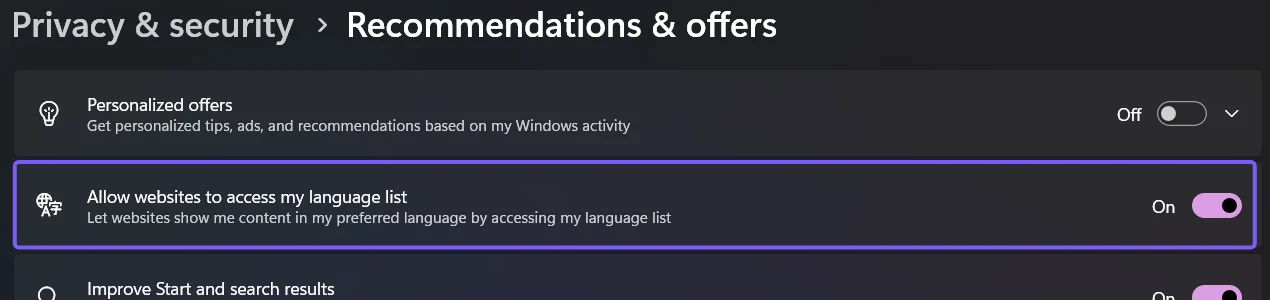
How do you prevent websites from accessing the Windows language list?
- Open Settings > Privacy & security > Recommendations & offers.
- Read the current state beside Allow websites to access my language list.
- Set the switch to Off.
- Close Settings. You do not need to sign out or restart.
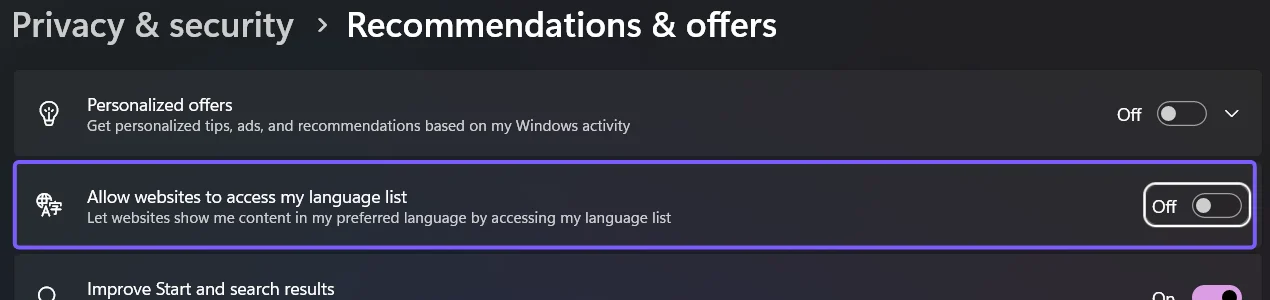
On the reproduced PC, the control reported Off immediately. This prevents Windows from sharing its language list with websites through this preference. It is not a universal anonymity control: a browser or site may still use a browser-specific language list, your chosen site language, or other permitted information.
How do you allow websites to access the Windows language list?
- Return to Settings > Privacy & security > Recommendations & offers.
- Set Allow websites to access my language list to On.
- Confirm that On appears beside the switch.
Restoring On allows Windows to make the language list available again through this feature. A website still decides whether and how to use that information, so changing the switch may not visibly alter every page.
What does not change when language-list access is off?
- Windows display language stays the same. Change that separately under Time & language.
- Installed language packs and keyboard layouts remain installed.
- Browser language preferences remain separate. Review them inside each browser if needed.
- Website account choices remain separate. A saved language on a site can continue to apply.
- Other Windows recommendation controls remain independent. For example, the Advertising ID switch has a different purpose.
What can you do if the language-list switch is missing or unavailable?
- Install current Windows updates and reopen Privacy & security.
- Look for either Recommendations & offers or the older General page name.
- Use Settings search for Allow websites to access my language list.
- If the control is disabled, check whether the PC is managed by work, school, or another organization.
- Use the supported Settings control instead of an unverified Registry value.
Frequently Asked Questions
Does turning off language-list access change the Windows display language?
No. It only controls whether Windows shares its preferred-language list with websites through this setting. Display language, language packs, and keyboard layouts remain unchanged.
Does the switch translate every website automatically?
No. A website or browser decides whether to use a language signal and how to present or translate content.
Do you need to restart after changing website language-list access?
No. The reproduced Settings control changed immediately, and the original On state was restored without a restart.
Why does Microsoft documentation show General instead of Recommendations & offers?
Microsoft says the General privacy page is being replaced by Recommendations & offers in newer Windows 11 releases. The language-list description identifies the same control.
Control the Windows language-list signal without changing your languages
Use Settings > Privacy & security > Recommendations & offers and change Allow websites to access my language list. Turn it Off to prevent Windows from sharing the list through this preference, or turn it On to allow language-aware website experiences. Keep browser and site language settings in mind because they operate independently.
For more interesting articles, stay tuned to WinSides.com!



Community
Comments (0)