

Windows 11 has several built-in ways to identify a graphics processing unit, or GPU. For a quick answer, open Settings > System > Display > Advanced display and read the Connected to line. To list every installed graphics adapter, run a read-only Win32_VideoController query. For memory, driver-model, and Direct3D capability details, open the Display pages in the DirectX Diagnostic Tool.
I reproduced all three methods on Windows 11 Home Single Language version 25H2, build 26220.7872. The test PC has an integrated AMD Radeon(TM) Graphics adapter and a discrete NVIDIA GeForce GTX 1650. No administrator prompt appeared, no driver or graphics preference was changed, and DxDiag's optional online signature check was not used.
Which GPU specifications do you actually need?
The word specifications can mean several different facts. The model name identifies the adapter. The driver version identifies the installed software package. Dedicated display memory, shared memory, Direct3D feature levels, and the Windows Display Driver Model version describe different parts of the graphics stack. One screen does not present every fact equally well.
- Advanced display is best for identifying the adapter driving a selected display.
- PowerShell is best for a compact inventory of every controller Windows reports.
- DxDiag is best for comparing each adapter's device, memory, driver, and Direct3D fields.
On a hybrid-graphics laptop, the internal display can be connected to the integrated GPU even when a discrete GPU renders demanding apps. That is why the Connected to line can name only one adapter while PowerShell and DxDiag list two.
Table of contents
Method 1: Find the GPU connected to a display in Settings
- Press Windows + I to open Settings.
- Select System, then Display.
- Select Advanced display.
- If more than one display is available, use Select a display to view or change its settings to choose one.
- Under Display information, read the line that begins with the display number and Connected to.
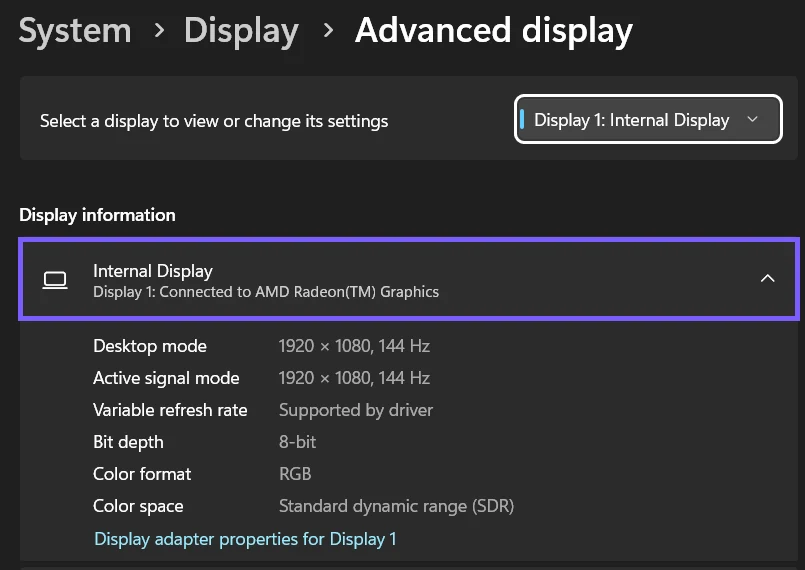
This page also shows resolution, refresh rate, bit depth, color format, and color space. Those are display-signal facts, not a complete graphics-card specification sheet. The adapter name is the useful result for this task. Do not change the refresh-rate list or Dynamic refresh rate switch merely to identify the GPU.
If you have several displays, check each one. A desktop can route different ports through different adapters, while many laptops route the internal panel through the integrated GPU. The page answers which adapter is connected to this display; it does not guarantee that no other GPU is installed.
Method 2: List every GPU with PowerShell
Microsoft's Win32_VideoController class represents video controllers and exposes read-only properties such as Name, DriverVersion, VideoProcessor, AdapterRAM, and Status. A standard PowerShell window can query the class without an elevated administrator session.
- Right-click Start and open Terminal. Do not choose the administrator variant.
- Run this read-only command:
Get-CimInstance Win32_VideoController |
Select-Object Name, DriverVersion, VideoProcessor, Status- Read each Name as an installed adapter model and note its separate DriverVersion.
- Confirm that Status is OK on a normally working adapter, then close Terminal.
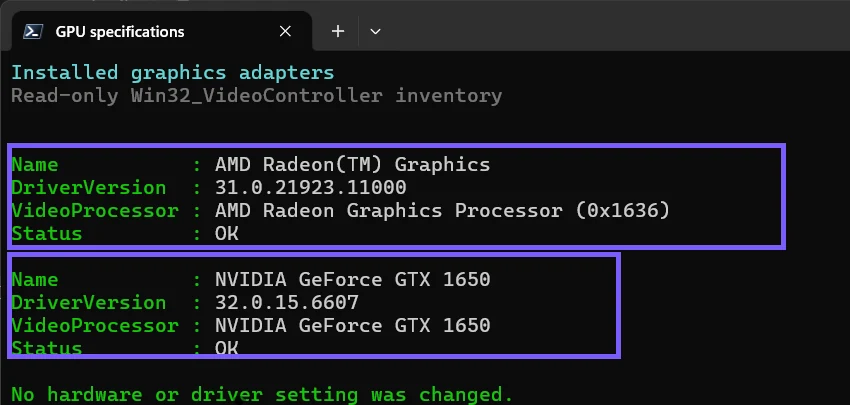
The command intentionally omits AdapterRAM. That property is a 32-bit value in the documented WMI class and can be confusing on modern high-memory or shared-memory designs. Use DxDiag's separately labeled memory fields, or the GPU manufacturer's model documentation, when memory capacity matters.
Do not read the two driver version numbers as if one must match the other. Hybrid systems normally use different driver packages for different vendors. The command also does not benchmark performance or tell you which GPU a particular app is using at this moment.
Method 3: Check memory, driver, and feature levels with DxDiag
DxDiag gathers local DirectX, display, sound, and input information for troubleshooting. Microsoft documents opening it by searching for dxdiag. You can also use the Run dialog.
- Press Windows + R, type dxdiag, and press Enter.
- If asked whether to check whether drivers are digitally signed, choose based on your situation. Microsoft recommends Yes for signature verification; I selected No for this offline, privacy-bounded reproduction. Either choice still opens the local diagnostic window.
- Select Display 1.
- Under Device, read Name, Manufacturer, Chip Type, Display Memory, and Shared Memory.
- Under Drivers, read Version, Date, Direct3D DDI, Feature Levels, and Driver Model.
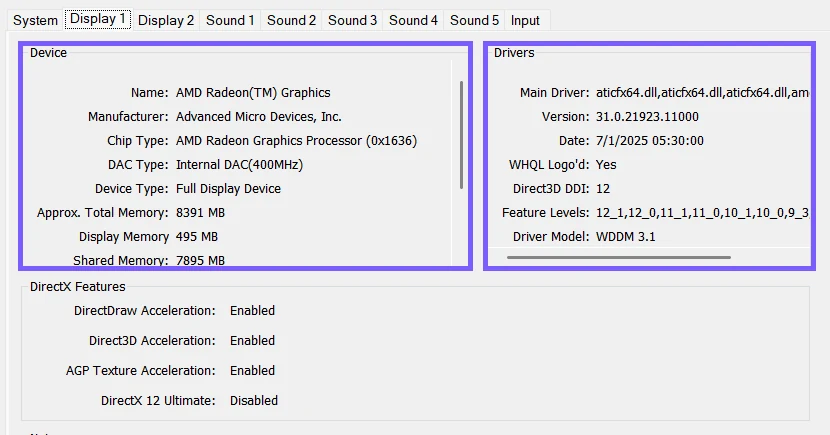
The reproduced AMD page reported 495 MB of Display Memory and 7895 MB of Shared Memory. Those figures illustrate why Approx. Total Memory is not the same as dedicated VRAM. Integrated graphics commonly borrow system memory dynamically; the total is not a fixed block that belongs exclusively to the GPU.
If another Display tab exists, select it and repeat the inspection. Do not stop after Display 1 on a PC that reports more than one adapter.
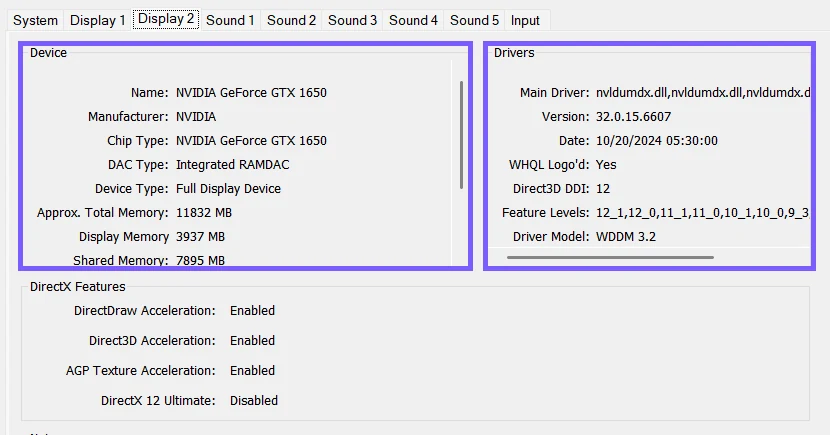
On the NVIDIA page, DxDiag reported about 4 GB of Display Memory and additional shared memory. The separate tabs confirm that Windows sees two graphics devices with different driver versions. A future driver update can change the versions and dates without changing the physical GPU model.
How should you read the DxDiag fields?
- Name is the user-facing adapter model Windows reports.
- Chip Type is a lower-level processor description and can be less friendly than the model name.
- Display Memory (VRAM) is memory reported for the adapter. On integrated graphics, it can be a small reserved amount rather than the whole usable graphics-memory pool.
- Shared Memory is system memory Windows can make available to graphics workloads. It is not permanently consumed just because DxDiag lists a maximum.
- Feature Levels list the Direct3D hardware capability levels exposed through the driver. They are not the same thing as the DirectX runtime version shown on DxDiag's System tab.
- Driver Model is the WDDM generation used by the installed display driver.
A game or creative app can require a particular model, VRAM amount, or feature level. Compare the requirement with the matching field instead of relying on the broad phrase “DirectX 12 compatible.”
What should you avoid while checking GPU details?
- Do not install a driver just to identify hardware. All three methods are observational.
- Do not change Advanced display controls. Refresh-rate and dynamic-refresh options are unrelated to finding the adapter name.
- Do not disable an adapter in Device Manager. That is a state-changing troubleshooting action, not an inventory method.
- Do not publish a full DxDiag report without reviewing it. Save All Information can include the computer name, operating-system details, device identifiers, and other troubleshooting data.
- Do not assume one visible adapter means one installed GPU. Use the PowerShell inventory and every DxDiag Display tab to check a hybrid system.
Frequently Asked Questions
Do you need administrator rights to find GPU specifications?
No. Settings, the reproduced Win32_VideoController query, and DxDiag all worked in the standard user session without an elevation prompt.
Why does Advanced display show only one GPU?
It identifies the adapter connected to the selected display. A hybrid laptop can also contain a discrete GPU that renders apps while the integrated adapter remains connected to the panel.
Is Approx. Total Memory the same as dedicated VRAM?
No. DxDiag can combine display memory and shared system memory in its approximate total. Read the separately labeled Display Memory and Shared Memory fields.
Are Direct3D feature levels the installed DirectX version?
No. Feature levels describe hardware capabilities exposed through the driver. The DirectX runtime version is a separate System-tab value.
Use the method that matches the fact you need
Use Advanced display to identify the adapter connected to a screen, the PowerShell query to inventory every controller, and DxDiag to compare memory, drivers, WDDM, and Direct3D feature levels. Reading all three views prevents a hybrid PC's integrated adapter from hiding the discrete GPU from a quick visual check.
For more interesting articles, stay tuned to WinSides.com!








Community
Comments (0)