

To find the Direct3D DDI version and feature levels in Windows 11, generate a local DxDiag text report, read only the graphics capability labels from its display sections, and remove the report immediately. The DDI value describes the display driver's Direct3D device-driver interface, while the feature-level list describes sets of graphics functionality exposed by each adapter.
I reproduced the check on Windows 11 version 25H2, build 26220.7872. Both display sections reported DDI Version 12 and feature levels 12_1, 12_0, 11_1, 11_0, 10_1, 10_0, 9_3, 9_2, 9_1, and 1_0_CORE. Their driver models were WDDM 3.1 and WDDM 3.2. No driver, display, graphics, game, or Registry setting changed.
What should you know before creating a DxDiag report?
A complete DxDiag text report contains far more than the four labels needed here. It can include the computer name, operating-system details, device names, driver paths, and other inventory. Treat the unfiltered file as potentially private. Do not publish or upload it merely to answer this narrow question.
Microsoft's DirectX support guidance identifies DxDiag as a tool for detailed information about installed DirectX components and drivers. This procedure uses that local report only as a temporary source, extracts the required lines, and verifies deletion after every read.
Table of contents
How do you generate the local DxDiag report?
- Open Windows Terminal with a normal PowerShell tab.
- Choose an exact temporary filename that did not already exist.
- Run the text-export command:
dxdiag /whql:off /t "$env:TEMP\winsides-direct3d.txt"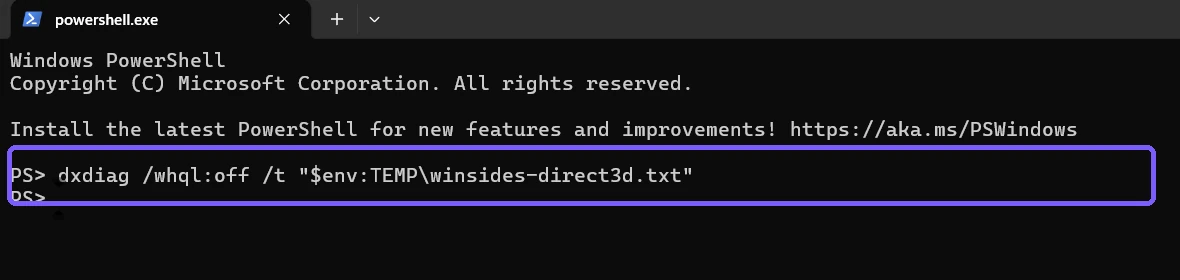
Wait for DxDiag to finish before reading the file. The reproduced automation used a package-controlled path rather than an existing user document, refused to overwrite a file, and removed it in a guaranteed cleanup block.
Where do you find the DDI version?
In each DxDiag display section, locate the line labeled DDI Version. A PC with integrated and discrete graphics can have more than one display section, so retain the order and do not silently collapse different values.
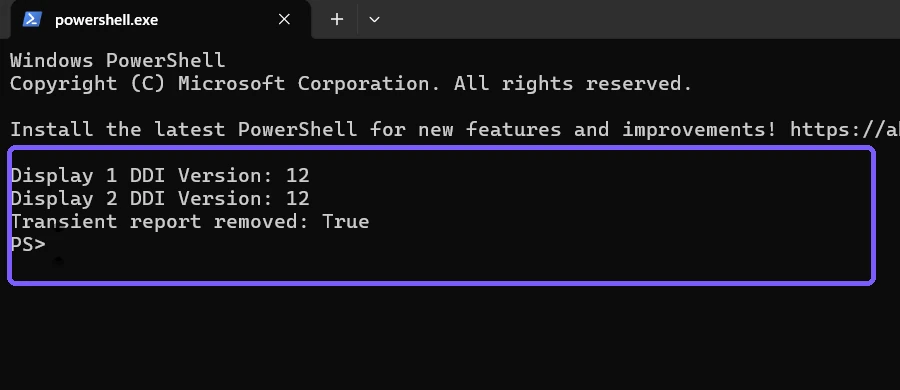
The DDI number is not a benchmark and does not prove every optional Direct3D feature is available. It is also not the same field as the installed DirectX runtime, the Windows display driver model, a shader model, or a game's requested feature level.
How do you read Direct3D feature levels?
Read the comma-separated Feature Levels line in each display section. The reproduced lists begin with 12_1, so 12_1 is the highest reported level for each adapter. Lower levels remain listed because applications can request a suitable supported level.
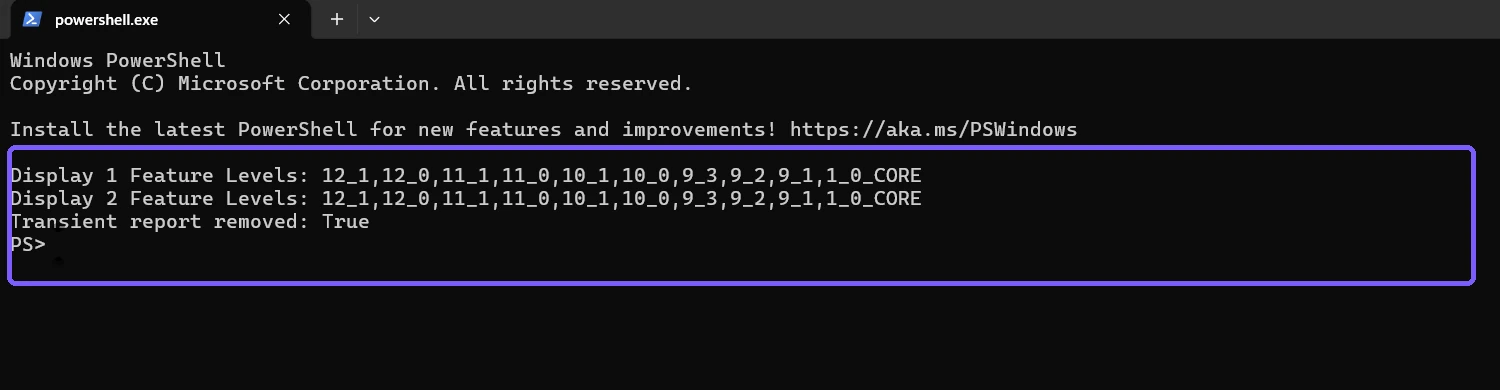
Microsoft's Direct3D hardware feature-level reference explains that a feature level is a defined set of GPU functionality. It also warns that a feature level does not imply performance. A GPU can expose the requested functional level yet differ greatly in speed, memory, optional capabilities, power use, and driver behavior.
How are DDI version, feature levels, and DirectX version different?
- DirectX Version identifies the installed runtime reported by Windows.
- DDI Version is the Direct3D interface level reported for the display driver.
- Feature Levels are ordered hardware-function sets an application can request.
- Driver Model is the WDDM version used by that display section.
If your goal is the operating-system runtime rather than adapter capability, check the installed DirectX version as a separate task. Do not substitute one number for another in a support ticket or game requirement.
Why can a PC show more than one display section?
Hybrid-graphics systems commonly expose integrated and discrete adapters. Remote, virtual, or compute-oriented components can also affect the report. Compare each section separately and preserve its order at collection time. Do not assume “Display 1” is always the faster or currently active GPU.
The reproduced machine showed matching DDI and feature-level values but different WDDM versions. That is not automatically an error. Driver packages and adapter roles can differ while exposing the same requested Direct3D levels.
How do you verify the driver model and cleanup?
The same filtered read can retain each Driver Model line, then remove the exact temporary report. Confirm absence before closing the terminal:
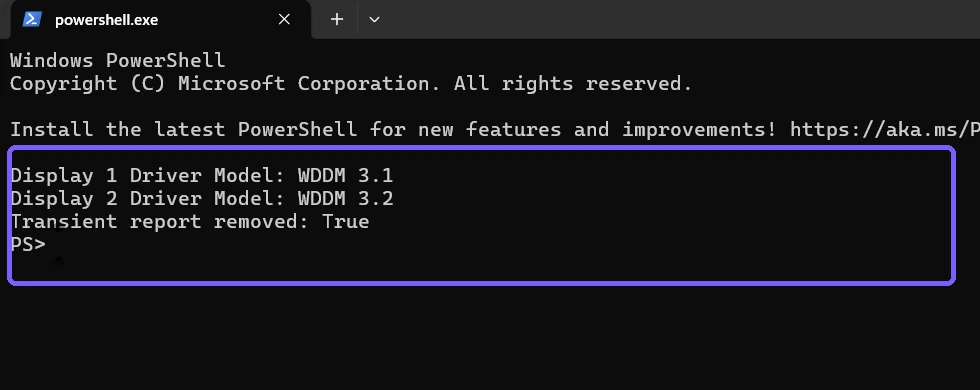
On the reproduced PC, display sections reported WDDM 3.1 and WDDM 3.2. WDDM is recorded as supporting context only; updating or rolling back a graphics driver is outside this inventory procedure.
How should you compare a game or application requirement?
- Identify whether the vendor asks for a DirectX runtime, DDI version, feature level, shader model, WDDM version, or GPU model.
- Compare the same label, not the largest-looking number from another field.
- Check every relevant display adapter on a hybrid system.
- Remember that feature-level support does not guarantee adequate performance.
- Use the vendor's current requirements and supported-driver guidance before changing software.
What if DDI Version or Feature Levels is missing?
First allow DxDiag to finish and confirm that you are reading a display section rather than only the system section. Repeat the exact local export once. A missing label can reflect the current driver, adapter role, remote session, virtual environment, or report structure; it does not by itself prove that Windows is damaged.
Do not install a driver, disable an adapter, edit the Registry, or force a graphics preference merely to match this article's output. Record the exact section and labels, then use hardware-vendor or administrator guidance for a separate change decision.
How do you keep the DxDiag check private?
Use a unique temporary path, refuse to overwrite an existing file, parse only the required labels, and delete the report in a cleanup block. Confirm the file is absent before attaching screenshots. Do not capture the report header, machine name, full device inventory, driver paths, or unrelated diagnostics.
The retained originals use an anonymous PS> prompt and show only the exact command, DDI values, feature-level lists, WDDM values, and deletion confirmation. They contain no account, computer name, GPU identifier, personal path, credential, notification, or unrelated application.
Frequently Asked Questions
What DDI version did the reproduced PC report?
Both display sections reported Direct3D DDI Version 12.
What was the highest reported feature level?
Both lists began with feature level 12_1.
Does feature level 12_1 guarantee fast gaming performance?
No. Feature level describes functionality, not performance.
Should you share the complete DxDiag text file?
Only when a trusted support process genuinely needs it. The narrow check here deletes the broad report and retains only four label types.
Keep the capability labels separate and the report temporary
Use DxDiag as the local source, compare DDI and feature-level values per display section, and treat WDDM and the DirectX runtime as separate labels. Retain only the evidence needed for the question and verify that the privacy-sensitive transient report is gone.
For more interesting articles, stay tuned to WinSides.com!






Community
Comments (0)