

Laptop Battery Report on Windows 11: powercfg is a native command-line utility that ships with Windows 11 and earlier Windows versions. It acts as a direct interface to the operating system’s power management layer, which is normally accessed through Control Panel or Settings. Instead of clicking through menus, powercfg lets you read and modify those same settings with precise commands.
Powercfg is very useful for IT Admins for diagnosing battery drain, unexpected wake-ups, or systems that refuse to sleep properly. It is also one of the few built-in tools that can generate detailed diagnostics about how your system actually uses power over time. Reports like battery history, energy efficiency checks, and sleep analysis are pulled from real usage data collected by Windows. Let’s check out the steps on how to generate a Laptop Battery Report on Windows 11.
Table of contents
How to Generate a Laptop Battery Report on Windows 11? Simple Steps
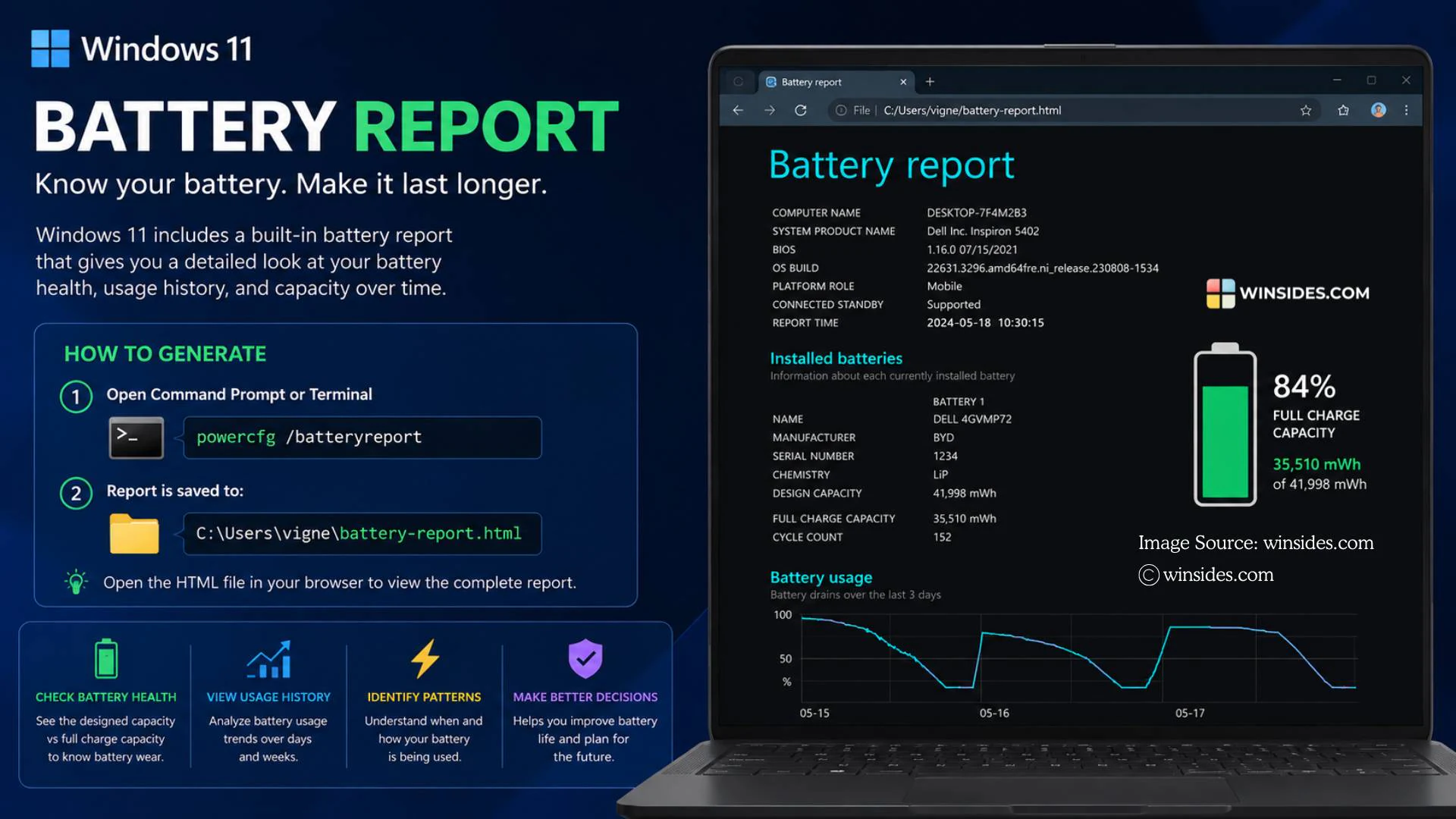
Some powercfg commands need elevated permissions because they don’t just read information. They change system-level behavior that affects the whole machine, not just your user account. To avoid surprises, it is recommended to run the powercfg command as administrator. Here are the steps.
- Open Command Prompt as an Administrator. We have a detailed article explaining different methods for opening and running Command Prompt on Windows 11 with Elevated Privileges. You can also refer to that.
- In the Command Prompt, execute the following command.
powercfg /batteryreport - Once this command is executed, Windows will generate a report and save it as an HTML file. Now, you can do any of the following things. You can navigate to the path and open the HTML file, or copy the path, paste it, and execute the command. The file will open in your default browser.
- On my computer, the system generated the following path. I copied this path and added
startand pasted this path, and executed the command.
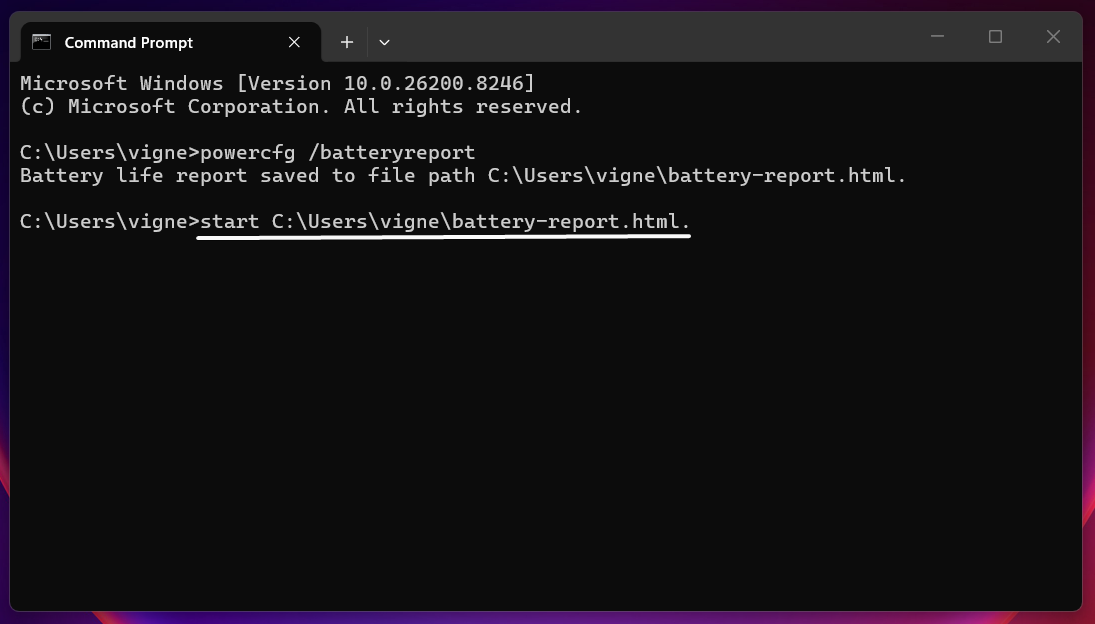
- The Laptop Battery Report will open your default web browser.
Laptop Battery Report using Powercfg – Detailed Information
The report contains crucial information such as Battery Information, Design Capacity, Full Charge Capacity, Cycle Count, Recent usage, Battery Usage, Battery Usage History, Battery Capacity History, Battery Life Estimation, and more.
Installed Batteries
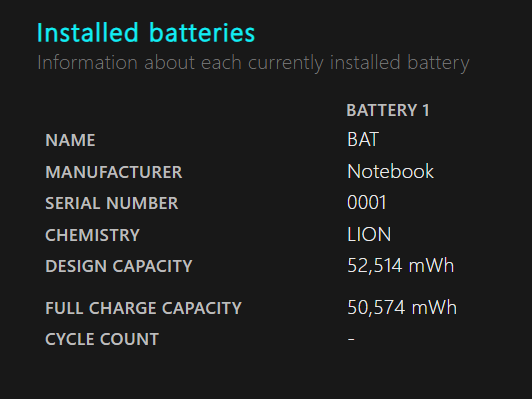
This section provides information about each currently installed battery. The details include Name of the Battery, Manufacturer, Serial Number, Chemistry, Design Capacity, Full Charge Capacity, and Cycle Count.
Recent Usage
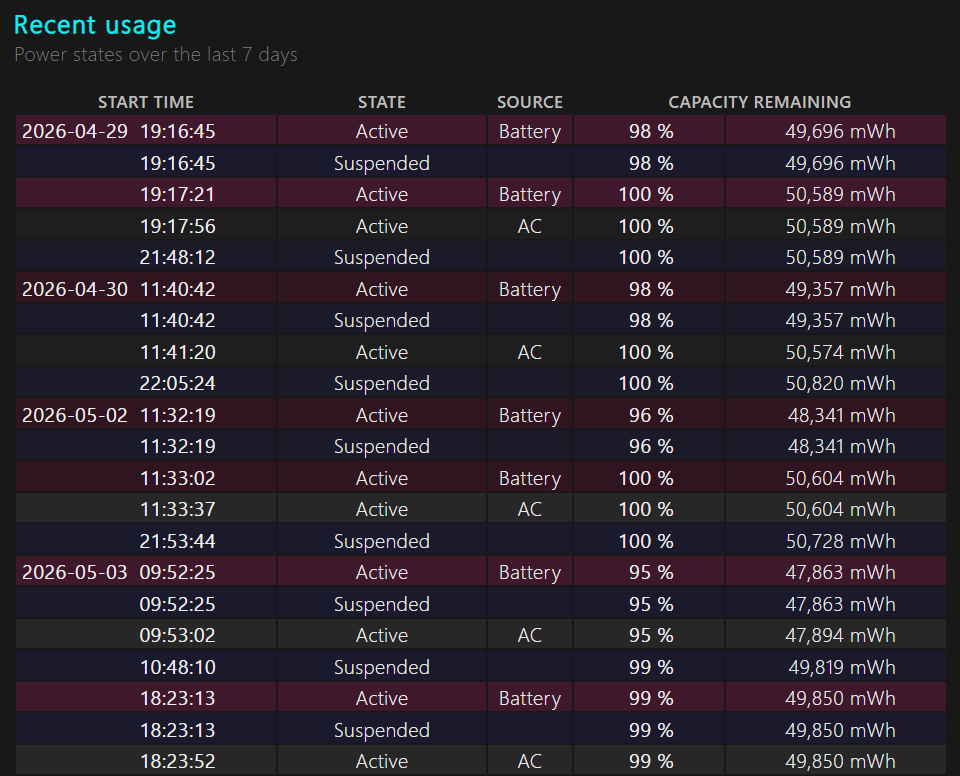
In this section, the information includes Power State, Power Source, and Remaining Battery Capacity (in percentage and mWh).
Battery Life Estimates
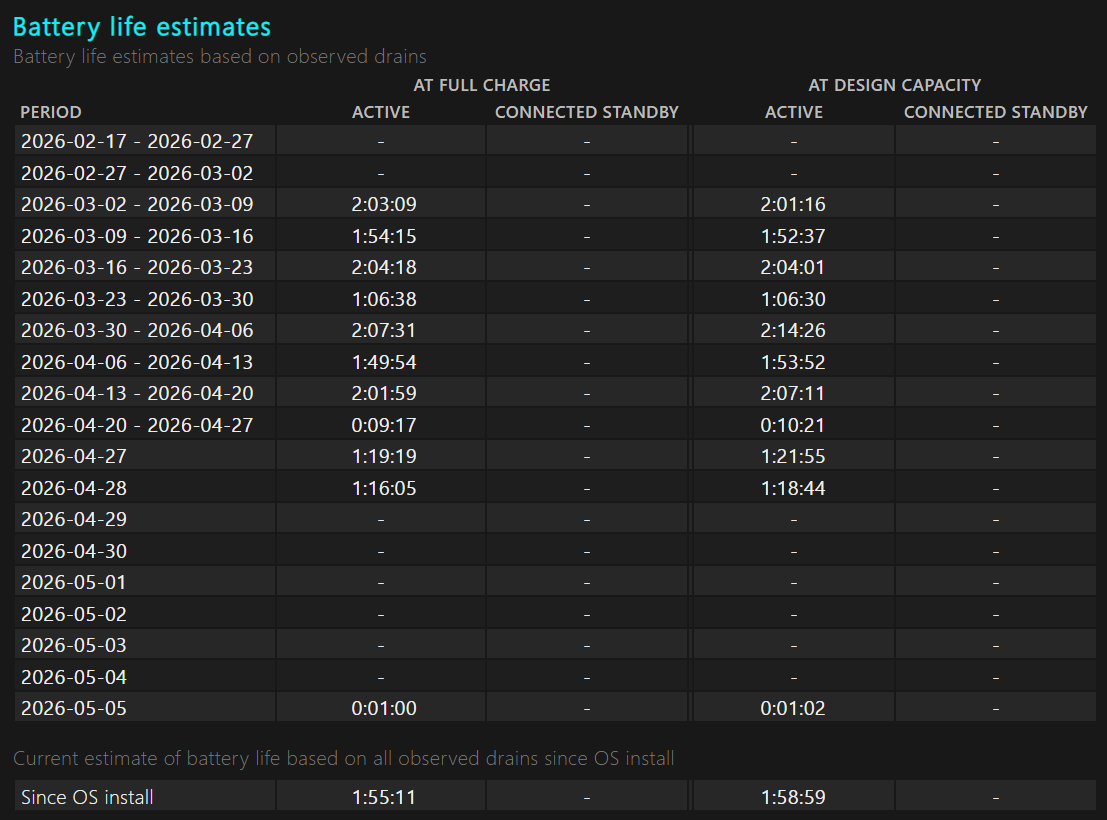
This battery life estimate provides information such as Full Charge Active, Connected Standby, and Design Capacity information.
Essential PowerCFG Commands on Windows 11
Some powercfg commands need elevated permissions because they don’t just read information, they change system-level behavior that affects the whole machine, not just your user account.
| Command | Detailed Usage |
powercfg /batteryreport | Generates a detailed HTML report showing battery health, charge cycles, usage history, and capacity degradation over time. This is one of the most practical commands for laptop users because it helps you understand how much your battery has worn out compared to its original design capacity and how your usage patterns affect it. |
powercfg /energy | Runs a system-wide energy diagnostic scan (usually 60 seconds) and produces a report highlighting issues like high CPU usage, misconfigured settings, or devices consuming excessive power. Useful when your laptop battery drains faster than expected. |
powercfg /list | Displays all available power plans along with their GUIDs. This is essential because many other commands require these GUIDs to modify or activate specific plans. It helps you see whether you’re using Balanced, High Performance, or a custom plan. |
powercfg /setactive | Switches your system to a specific power plan using its GUID. This is useful when scripting or quickly toggling between performance modes without going through settings menus. |
powercfg /getactivescheme | Shows which power plan is currently active. Helpful when you’re unsure which configuration your system is using, especially after changes or scripts. |
powercfg /a | Lists all sleep states supported by your system, such as Sleep (S3), Hibernate, or Modern Standby. This helps diagnose why certain power options may be missing on your device. |
powercfg /hibernate on/off | Enables or disables hibernation. Turning it off also removes the hiberfil.sys file and frees disk space, while turning it on allows deeper power-saving states. |
powercfg /requests | Displays applications, services, or drivers that are currently preventing your system from going to sleep. This is one of the most useful troubleshooting tools when your laptop refuses to sleep. |
powercfg /lastwake | Shows what caused your system to wake up last, such as a keyboard, mouse, or scheduled task. Useful for diagnosing unexpected wake-ups. |
powercfg /waketimers | Lists any active timers that are scheduled to wake your computer automatically. Helpful for identifying background tasks like updates. |
powercfg /devicequery wake_armed | Lists devices that are currently allowed to wake your computer from sleep. This is useful if your system wakes up unexpectedly due to peripherals. |
powercfg /deviceenablewake "name" | Allows a specific device (like a keyboard or mouse) to wake your system from sleep. Often used to restore functionality after disabling wake events. |
powercfg /devicedisablewake "name" | Prevents a specific device from waking your system. Useful when your PC wakes up randomly due to sensitive input devices. |
powercfg /change monitor-timeout-ac | Sets how long the display stays on when plugged in before turning off. Helps manage screen power consumption without affecting system sleep. |
powercfg /change monitor-timeout-dc | Same as above, but applies when running on battery. Useful for extending battery life. |
powercfg /change standby-timeout-ac | Sets the time before the system goes to sleep when plugged in. Useful for desktops or workstations. |
powercfg /change standby-timeout-dc | Sets sleep timeout when on battery. One of the easiest ways to improve battery life by reducing idle power usage. |
powercfg /query | Displays all detailed power settings for the current plan, including advanced options like CPU power limits and PCIe settings. Often used for deep customization or debugging. |
powercfg /restoredefaultschemes | Resets all power plans back to their original Windows defaults. Useful if settings have been misconfigured or corrupted. |
powercfg /duplicatescheme | Creates a copy of an existing power plan so you can modify it without affecting the original. Helpful for experimentation. |
powercfg /delete | Deletes a specified power plan. Typically used to clean up unused or duplicate configurations. |
powercfg /changename "name" | Renames a power plan for easier identification. Useful when managing multiple custom plans. |
powercfg /setacvalueindex | Sets a specific advanced power setting for when the system is plugged in. Requires GUIDs and is used for fine-grained control. |
powercfg /setdcvalueindex | Sets a specific advanced power setting for when the system is running on battery. |
powercfg /export | Exports a power plan to a file so it can be backed up or transferred to another system. |
powercfg /import | Imports a previously exported power plan into the system. Useful in enterprise or multi-device setups. |
powercfg /aliases | Displays friendly names mapped to GUIDs for power settings, making it easier to understand complex configurations. |
powercfg /requestsoverride | Allows you to override applications or services that block sleep, forcing the system to ignore them. Useful but should be used carefully. |
powercfg /sleepstudy | Generates a detailed report on sleep behavior for systems that support Modern Standby. Mostly useful on newer laptops. |
powercfg /systempowerreport | Produces a comprehensive report on system power usage patterns over time. Typically used for deep diagnostics rather than everyday use. |
powercfg /h /type full/reduced | Configures the type of hibernation file used. Reduced mode supports fast startup but limits full hibernation features. |
powercfg /? | Displays the full help menu with all available commands and syntax. Usually referenced when exploring less common features. |
Take Away
The laptop battery report on Windows 11 gives a much clearer picture of your laptop’s battery condition than the normal battery percentage shown in the taskbar. With a simple powercfg /batteryreport Command, you can check battery health, charging history, usage patterns, and how much the battery capacity has reduced over time.
Have Queries?
If you have any queries, kindly let us know in the comments. For more interesting articles, stay tuned to Winsides.com. Happy Computing! Peace out!








Community
Comments (0)