

Enable Print and Document Services on Windows 11: A feature set that provides functionalities to manage printing and document-related tasks on the Windows 11 operating system. It includes various services and tools that enhance printing capabilities and document handling for both Local and Networked environments. This article will navigate through the steps on how to enable Print and Document Services on Windows 11. Let’s get started.
Table of contents
Key Steps:
- Open Optional Features using Run Command.
- Locate Print and Document Services from the Windows Features.
- Enable Print and Document Services on Windows 11
Key Roles of Print and Document Services in Windows 11:
- The Feature Manager prints jobs and queues for multiple printers. This is particularly useful in networked environments, allowing multiple users to share printers, which helps establish Centralized Printing Management.
- It allows printers to be accessed and managed via the internet using standard web protocols.
- Line Printer Daemon (LPD) service, a part of Print and Document Services, supports printing on UNIX-based systems, enabling interoperability between Windows and UNIX/Linux environments.
- Distributed Scan Management allows the configuration and management of network scanners, making it easier to handle scanned documents.
- Fax Service of Print and Document Services provides the capability to send and receive faxes using a fax device connected to the computer.
Turn on Print and Document Services in Windows 11 – Simple Steps:
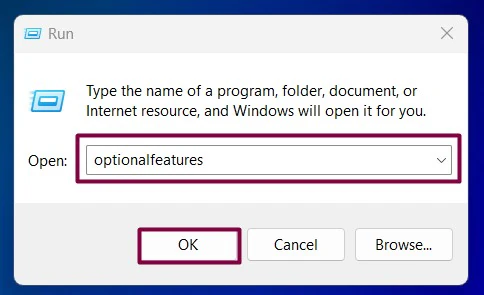
- Open the Run command box using the shortcut Win Key + R.
- Enter
optionalfeaturescommand in the run command box.
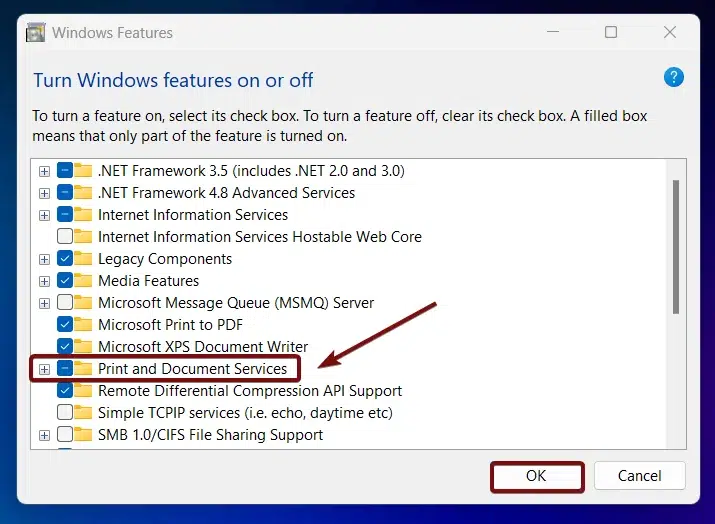
- The Windows Features dialog box will open now. Locate Print and Document Services from the list of services available. Click on the checkbox next to it and click OK.
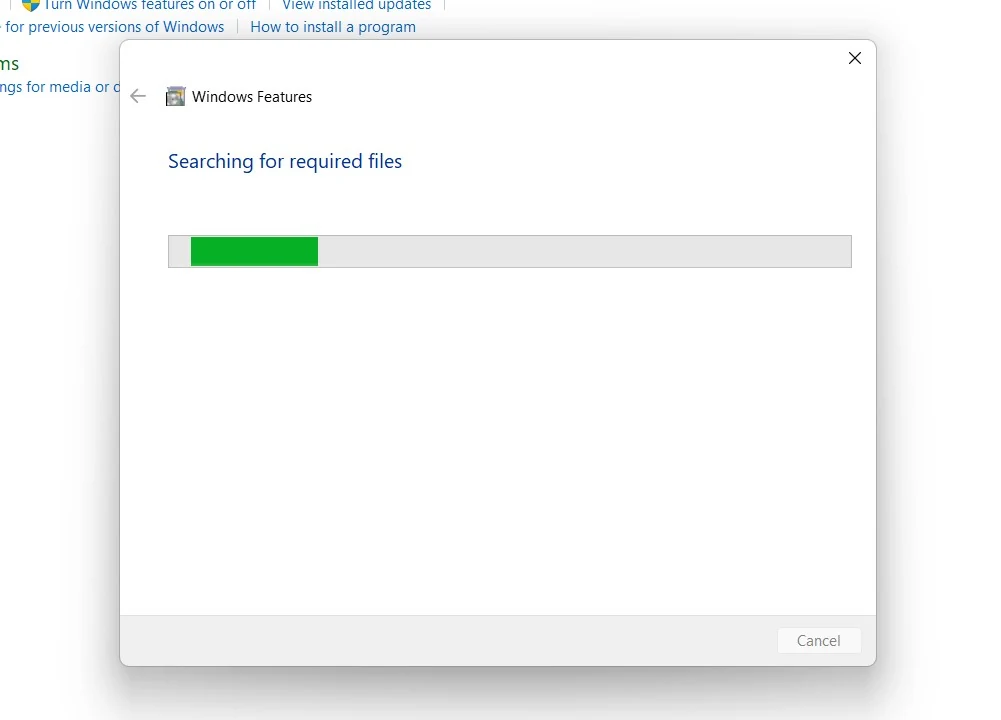
- That is it, Windows 11 will now search for the required files.
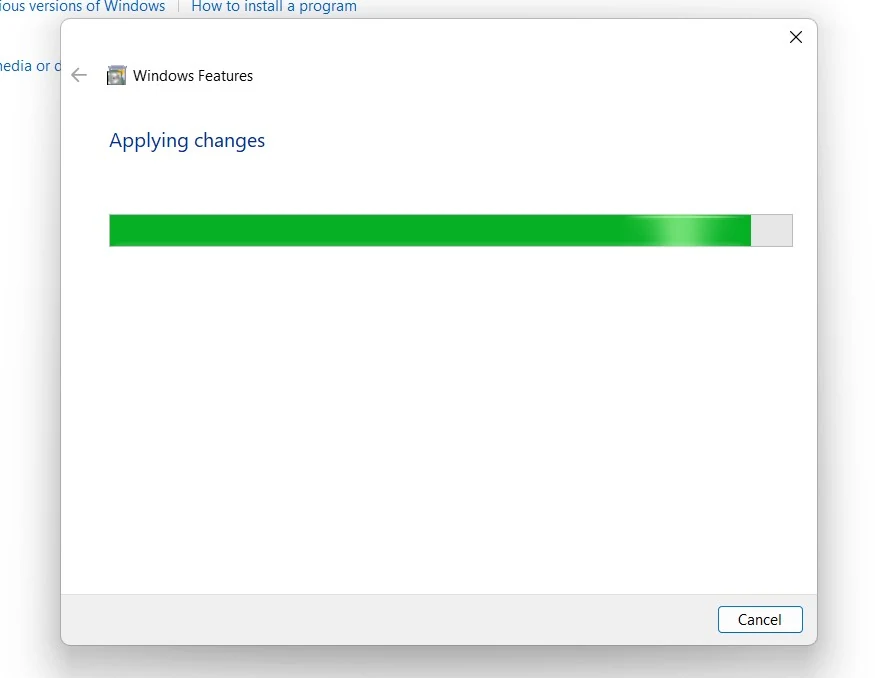
- Then, it will apply the necessary changes.
- Click Restart if you are prompted to restart or click Close accordingly. However, it is suggested to restart right away so that the changes made will reflect.
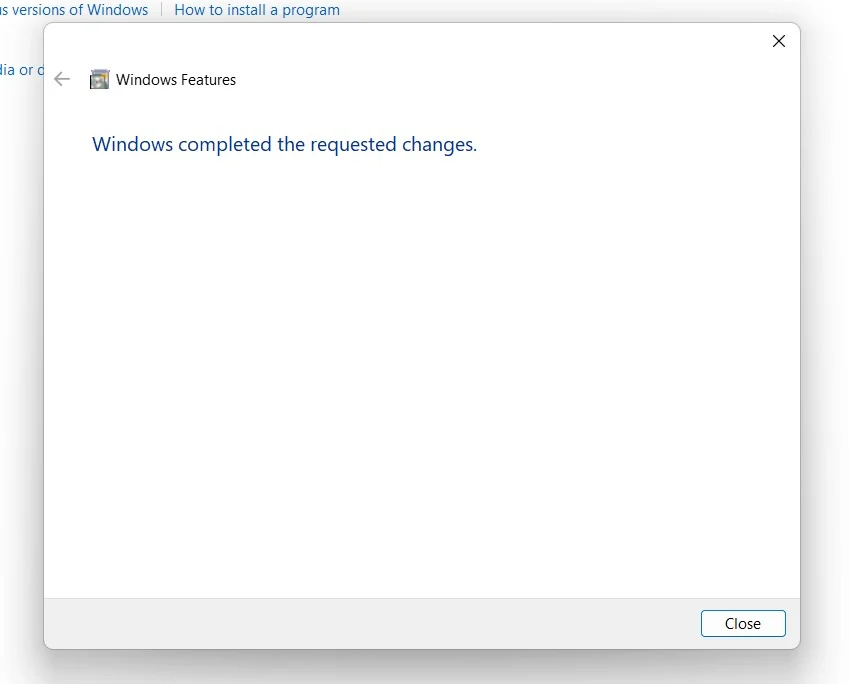
- Print and Document Services is now enabled on your Windows 11 PC. Enabling this option will enable only the Internet Printing Client in Windows 11. If you are looking to enable the LPD Print Service and LPR Port Monitor, refer to our components section.
Components of Print and Document Services in Windows 11:

- The Internet Printing Client is a feature in Windows that allows users to print documents over the Internet. This feature utilizes the Internet Printing Protocol (IPP) to connect to and manage printers that are accessible via the web. Enabling Print and Document Services will enable the Internet Printing Client.
- The Line Printer Daemon (LPD) Print Service is a component that enables printing from UNIX/Linux systems to printers managed by Windows servers. It implements the Line Printer Daemon protocol, which is a standard network protocol for submitting print jobs to a remote printer. It allows organizations with a combination of Windows and UNIX/Linux systems to centralize their printing infrastructure.
- The Line Printer Remote (LPR) Port Monitor is a component that enables Windows systems to send print jobs to printers using the LPR protocol. It acts as a bridge between Windows printing services and printers or print servers that support the LPR protocol.
LPR Protocol is a part of the Berkeley printing system and is widely used for network printing in various environments, especially in UNIX and Linux systems, but also supported in Windows environments.
Frequently Asked Questions
Why would I enable these if my printer already works?
For a standard USB or Wi-Fi printer, you usually don’t need to touch these. You only enable them if you’re in a specialized environment—like a corporate office with a centralized print server or if you’re trying to revive an old plotter that requires a specific legacy “handshake” like LPR.
Why does my print job disappear after I hit “Print”?
If you are using legacy services like LPD/LPR, the most common culprit is a “Queue Name” mismatch. Unlike modern “Plug and Play” printers, these older services are very picky. If the print server expects the queue name to be PRINTER1 , and you typed printer1 (lowercase), Windows might think it sent the job successfully, but the server will quietly delete it.
I see LPR and LPD mentioned together; what is the actual difference?
It’s a “client vs. server” relationship. LPR (Line Printer Remote) is the part of your Windows 11 PC that is used to send the job. LPD (Line Printer Daemon) is the part that receives it. You only need to enable these if you are dealing with very old network hardware or specialized Linux-based print servers that don’t recognize modern Windows “Plug and Play” signals.
Which port do I need to open in my firewall for a legacy plotter?
If you are using the LPR/LPD service to talk to an older plotter or large-format printer, you need to ensure Port 515 is open. Without this port being clear, your Windows machine will be able to “see” the printer, but the actual data for the blueprint or image will get blocked before it reaches the hardware.
Take away:
By configuring components such as the Internet Printing Client, LPD Print Service, and LPR Port Monitor, the components of Printer and Document Services on Windows 11, you can streamline and optimize your printing operations, ensure compatibility across various devices and networks, and provide efficient remote printing solutions. Be it a small home office or a large enterprise network, these services offer the flexibility and functionality needed to meet diverse printing needs.
Have Queries?
If you find this article useful, kindly let us know in the comments. For more interesting articles, stay tuned to winsides.com. Happy Coding! Peace out!






Community
Comments (0)