

Enable simple TCP/IP Services on Windows 11: TCP/IP, the cornerstone protocol of the internet, is vital for accessing websites, sending emails, and connecting to various network resources. By enabling TCP/IP services on your Windows 11 system, you empower it to handle network requests and facilitate seamless data transmission efficiently. In this guide, we’ll walk through the process of enabling TCP/IP services, ensuring that your Windows 11 experience is optimized for networking excellence.
Table of contents
IMPORTANT: Enabling Simple TCP/IP Services is not required for standard networking and is generally unnecessary for most users. This feature is deprecated and primarily intended for troubleshooting by advanced users. Enabling it may increase security risks by expanding the attack surface for potential threats. Proceed with caution and only enable this feature if you fully understand its implications. We strongly recommend evaluating whether this service is essential for your specific use case before making any changes to your system.
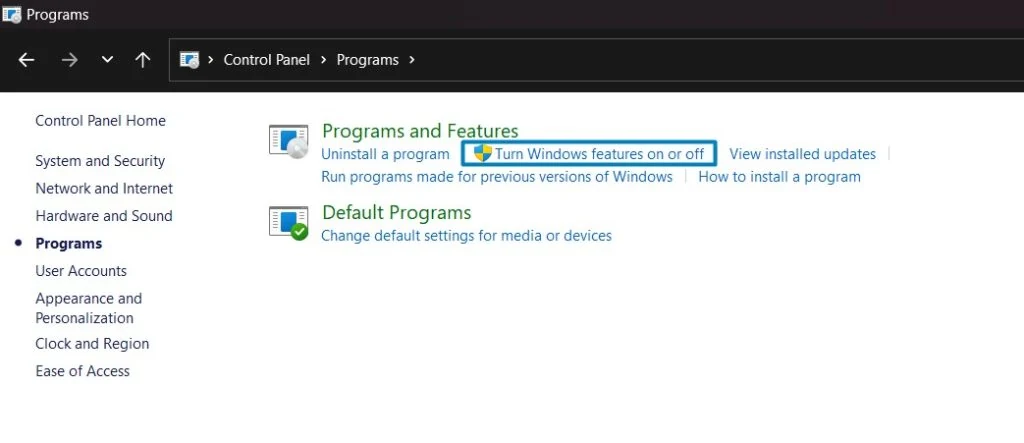
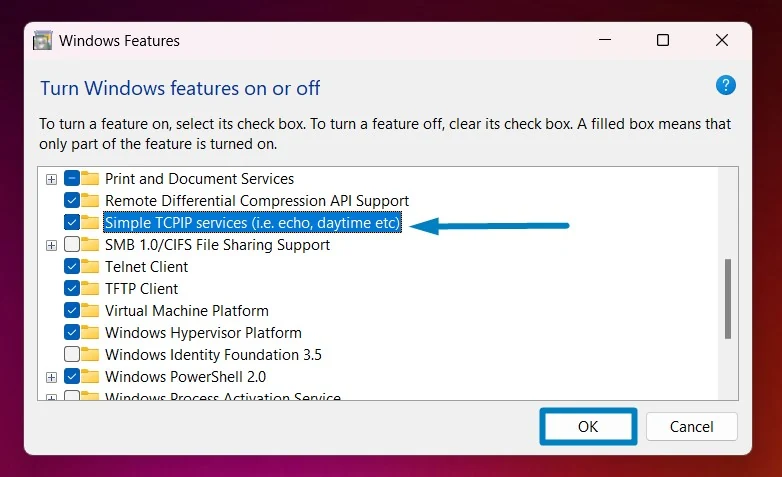
Simple TCP/IP Services in Windows 11 – Quick Steps:
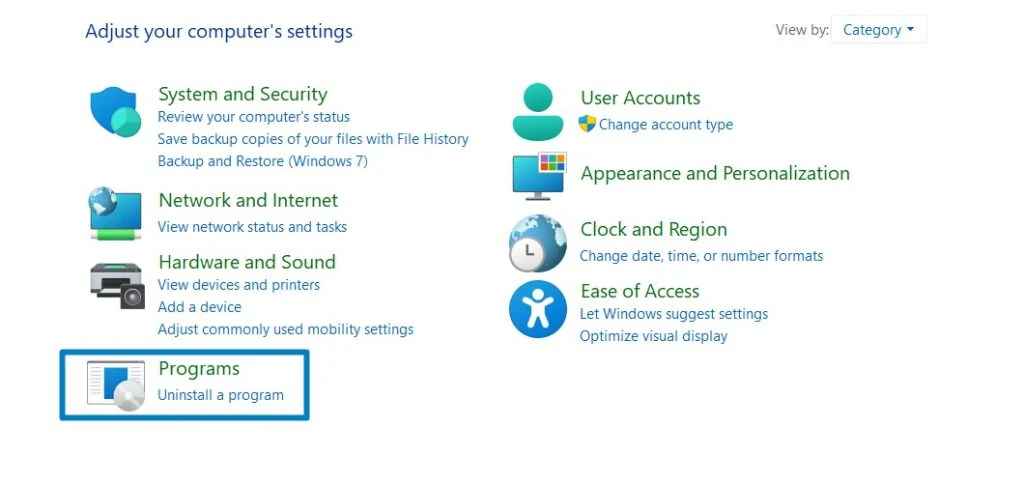
- Click on the Start Menu and open the Control Panel.
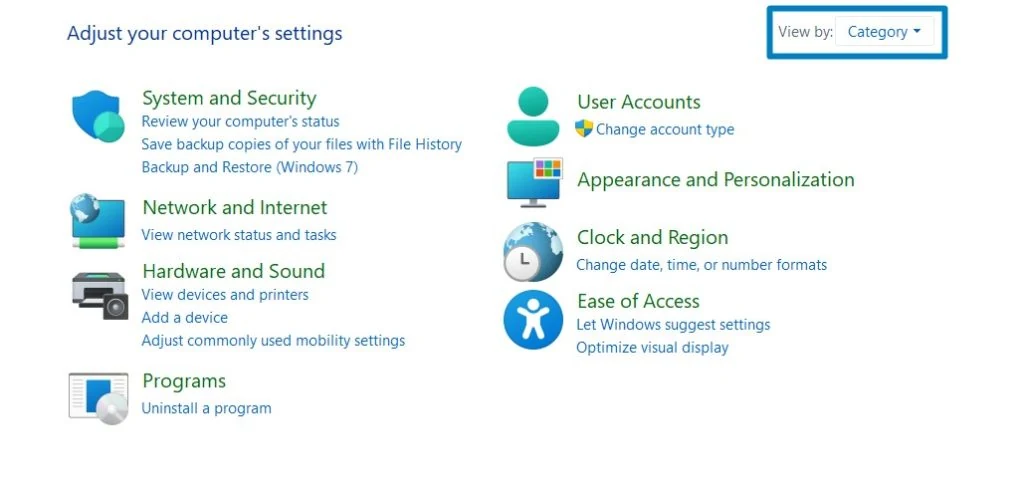
- Switch the Control Panel view to Category.
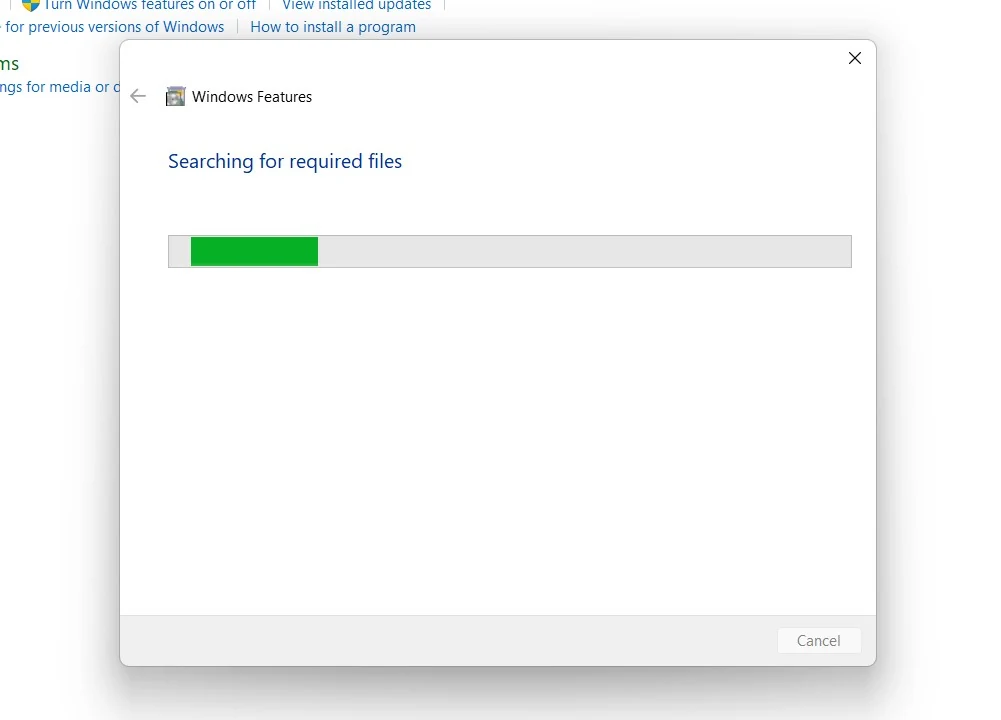
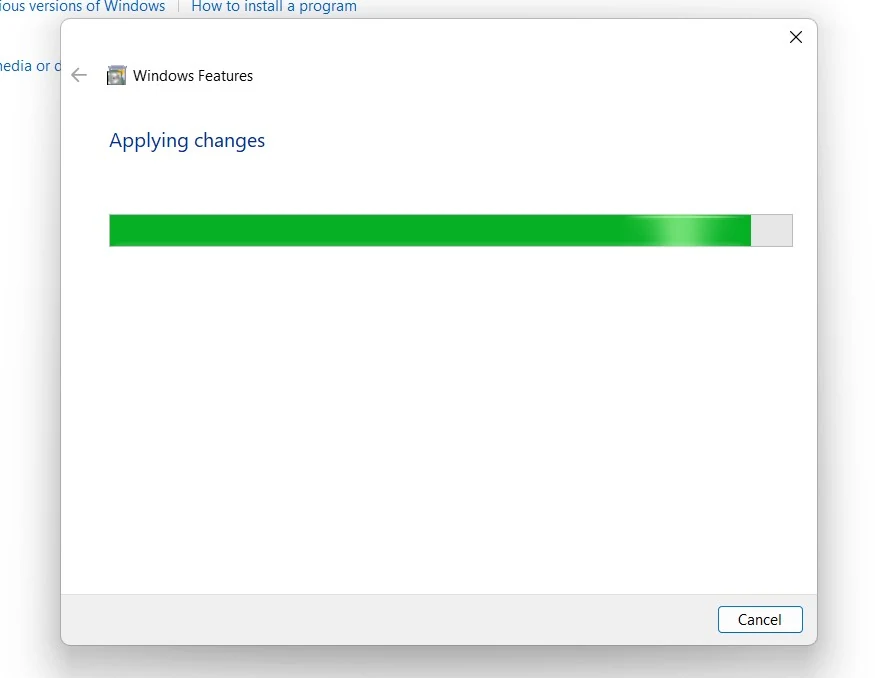
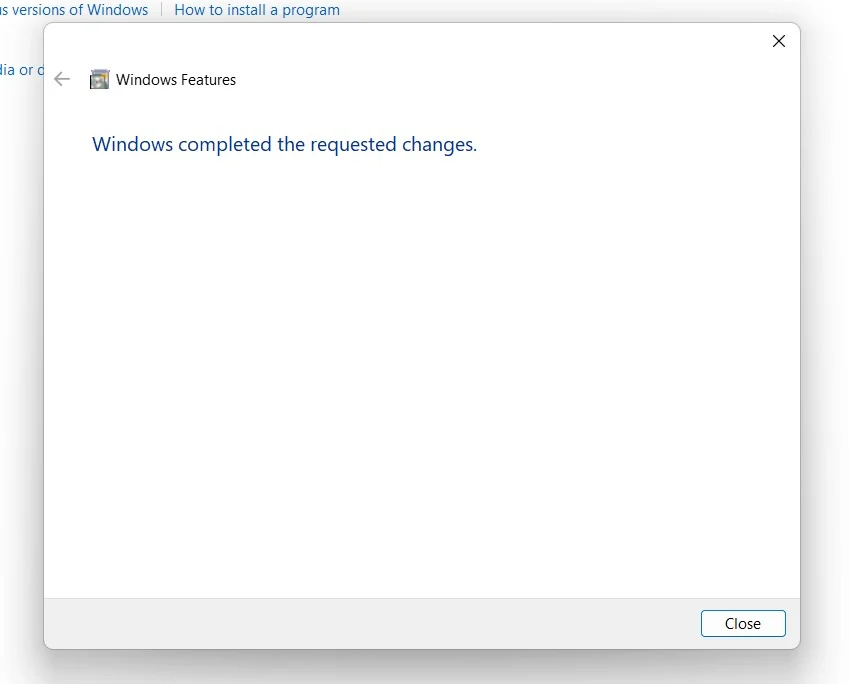
One interesting fact about simple TCP/IP services in Windows 11 is that they include several basic utilities that can be accessed using the Command Prompt or PowerShell. For example, the "echo" service allows you to send a message to another computer on the network, while the "daytime" service returns the current date and time from a remote server. These simple yet powerful tools can be used for troubleshooting network issues, testing connectivity, and performing basic network operations without the need for complex software.
Video Tutorial on How to Turn on Simple TCP/IP Services on Windows 11
Frequently Asked Questions
Why does Windows 11 still include TCP/IP Services?
They are primarily kept for backward compatibility and network diagnostics. If you are developing network software or managing a legacy mainframe that expects an “Echo” response to verify a connection is alive, these services provide that functionality without needing third-party tools.
How do I “talk” to these services once they are on?
You can’t just open them in a browser. You need a tool like Telnet or a custom script. For example, if the services are on, you could type: telnet localhost 13 This would return the current date and time from the “Daytime” service.
Can I change the “Quote of the Day” text?
Yes. The service looks for a file named quotes (no extension) In your system drivers folder. If you edit that text file, the service will cycle through the lines you’ve added whenever someone connects to Port 17.
Why is my CPU usage high after enabling these?
This usually only happens with the Character Generator (chargen). If a connection is left open, the service will use CPU cycles to constantly generate and push text through the network buffer. If you aren’t actively testing, it’s best to stop the service.
Take away:
By following the steps outlined in this guide, you can harness the power of TCP/IP to connect to various network resources, troubleshoot connectivity issues, and optimize your Windows 11 experience for networking excellence. Whether it’s accessing websites, sending emails, or connecting to remote servers, TCP/IP remains the backbone of modern networking infrastructure.
Have Queries?
The Simple TCP/IP Services are a collection of legacy networking protocols that date back to the early days of the Internet and Unix-based systems. While they are rarely used in modern home or office environments, they remain available in Windows 11 for specific testing scenarios or for communicating with very old industrial equipment.
If you have any questions, kindly let us know in the comments. For more interesting articles, stay tuned to Winsides.com. Happy Coding! Peace out!
References:
I’ve read the following tutorials to prepare for the “Enabling TCP/IP Services on Windows 11” article.







Community
Comments (2)