

Enable WebSocket Protocol on Windows 11: It is a standardized communication protocol that provides full-duplex communication channels over a single TCP connection. This means that both the client and the server can send messages to each other independently and simultaneously. WebSockets are particularly useful for applications that require real-time updates, such as chat applications, live sports scores, online gaming, and more.
In Windows 11, the WebSocket protocol is integrated into the Internet Information Services (IIS) to support web applications that need this type of communication. It allows for efficient data exchange and reduces the overhead of multiple HTTP requests, enhancing the performance and responsiveness of web applications. This article guides you through the steps to enable the WebSocket Protocol on Windows 11.
Table of contents
Steps to Enable WebSocket Protocol on Windows 11
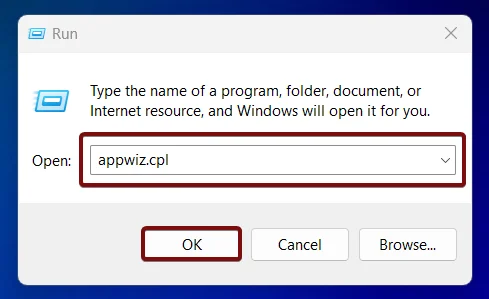
- Open Run Command and execute the following command.
appwiz.cpl
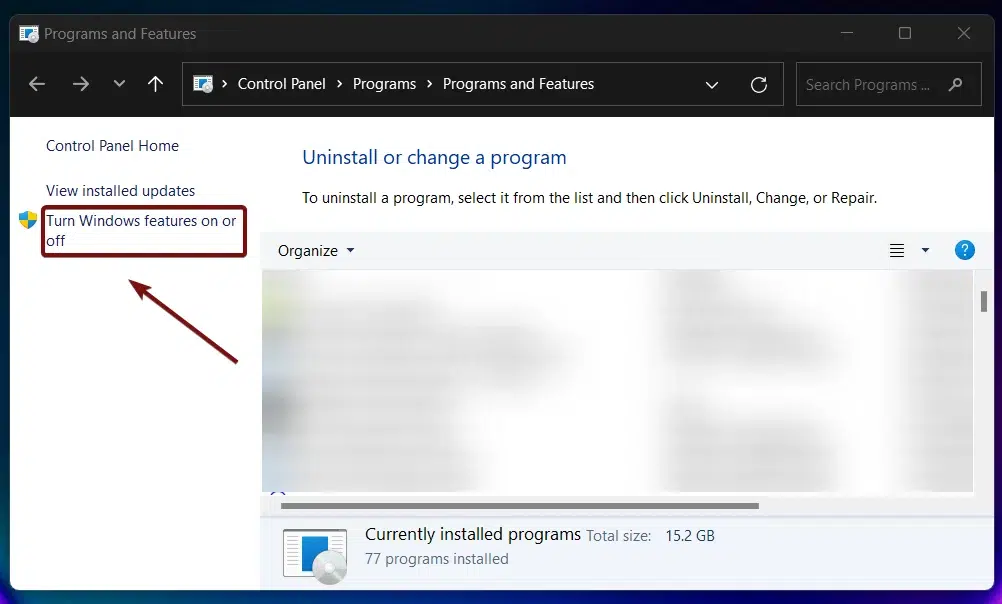
- From the left pane, click on Turn Windows Features on or off.
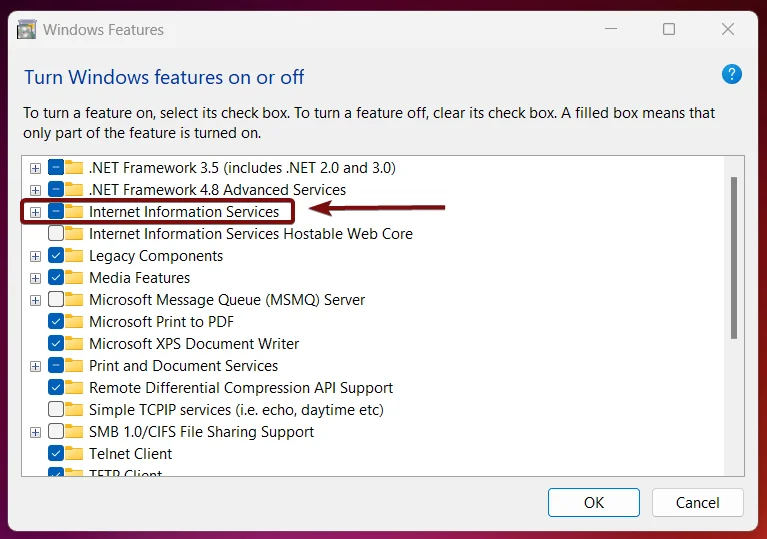
- Locate the Internet Information Services and expand it.
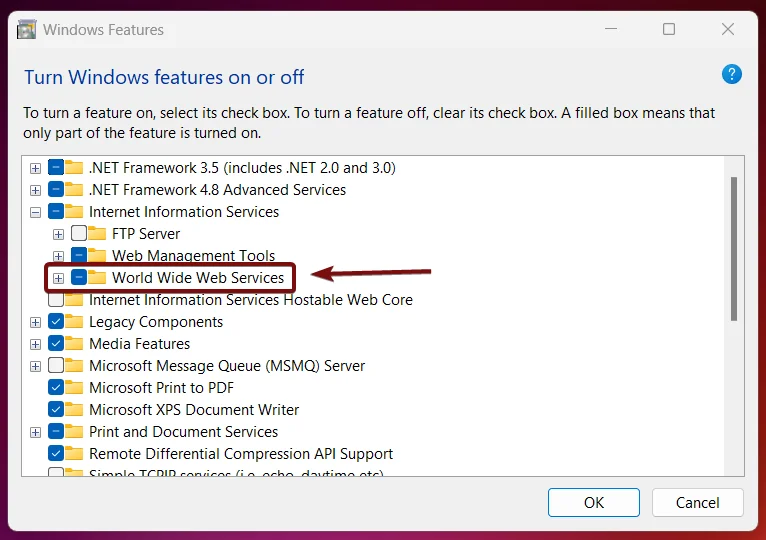
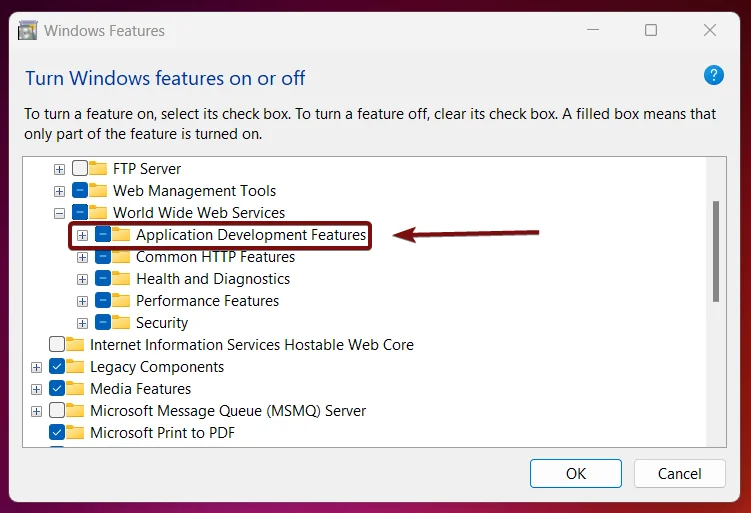
- Now, expand World Web Services.
- Now, you can find Application Development Features. This option includes several features for application development, such as .NET Extensibility 3.5, ASP.NET 4.8, ISAPI Filters, CGI, and more. Expand it.
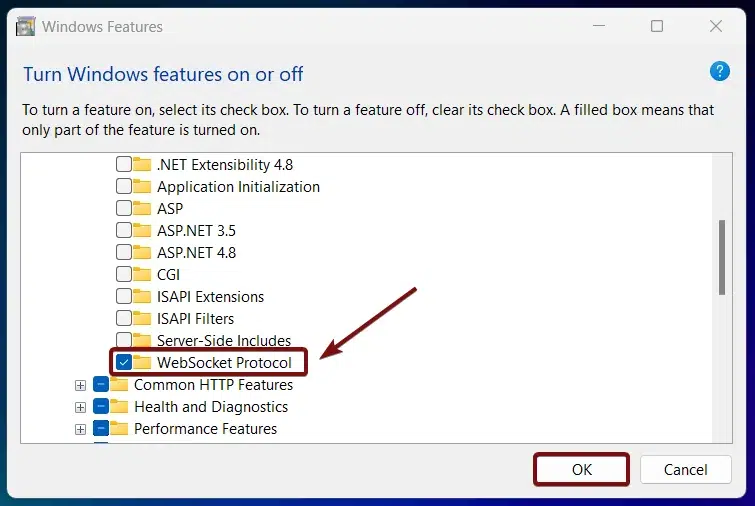
- From the list of services available, locate WebSocket Protocol, click on the checkbox next to it, and click OK.
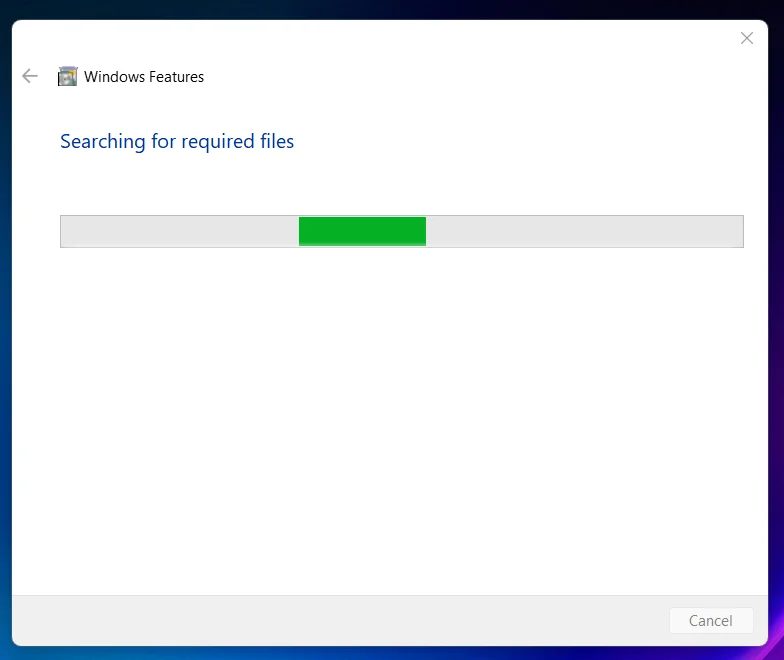
- Windows will search for the required files.
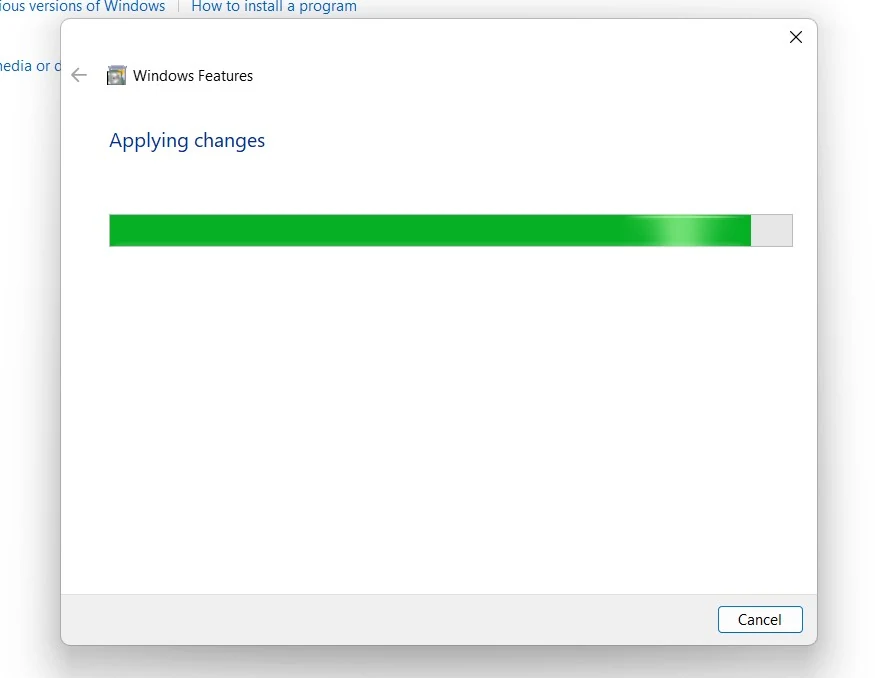
- Then, the necessary changes will be applied.
- Click Restart if you are prompted to restart or click Close accordingly. However, it is suggested that the changes be restarted right away so that they will be reflected.
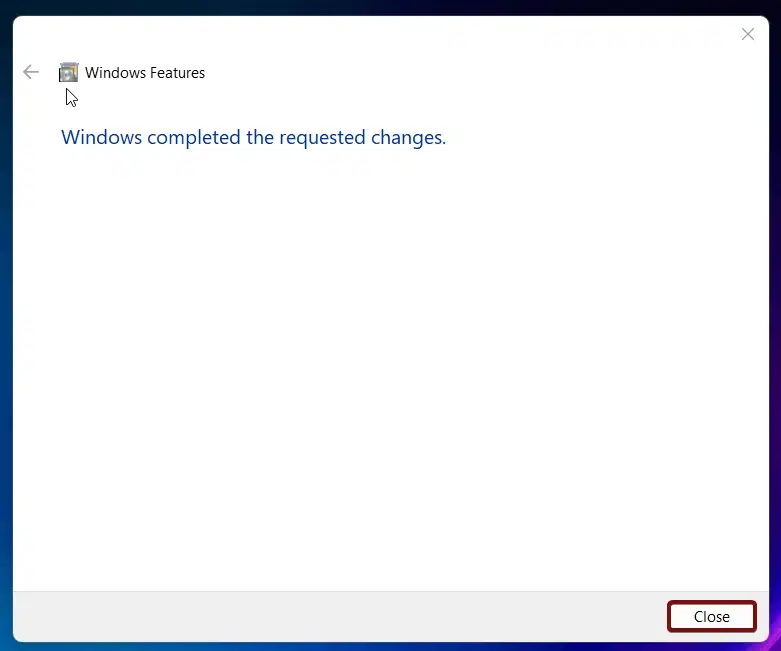
- WebSocket Protocol is now enabled in Windows 11.
SignalR is a library for ASP.NET Core that simplifies the process of adding real-time web functionality to applications. It supports WebSockets and other transports to provide a seamless real-time experience.
Frequently Asked Questions
What makes WebSockets different from standard browsing?
In a standard web request (HTTP), your browser asks for a page, the server sends it, and the connection closes. With WebSockets, the browser and server perform a “handshake” and keep the connection open, and this allows for instant updates.
Can WebSockets work through a Proxy or Firewall?
WebSockets start as an HTTP request and then “Upgrade” to a different protocol. Some older firewalls or proxies on Windows 11 might see this change as suspicious and kill the connection. You often have to specifically configure your firewall to allow the Upgrade header and the 101 Switching Protocols status code.
Are WebSockets secure?
The protocol itself comes in two flavors: ws:// (unencrypted) and wss:// (secure). On Windows 11, it is highly recommended to use wss://, which uses TLS/SSL encryption. This prevents “man-in-the-middle” attacks where someone on your network could intercept the live data stream.
Do open WebSockets drain my laptop battery?
While the protocol is designed to be lightweight, having dozens of tabs with active WebSockets can prevent your CPU from entering its lowest power state. If you’re on a laptop and notice high “Background Activity” in the Battery settings, active WebSockets are often the culprit.
Why does my WebSocket connection drop when the computer sleeps?
Windows 11 will power down the network adapter during deep sleep to save energy. Since WebSockets rely on a continuous “heartbeat” (ping/pong) between the client and server, the connection will break the moment the hardware goes quiet. You would need to re-establish the handshake immediately upon waking the PC.
What is the “101 Switching Protocols” message?
Don’t be alarmed if you see this in your logs. It’s not an error. It’s the server saying, “I understand you want to use WebSockets instead of HTTP. I’m switching over now.” It is the successful confirmation of the WebSocket handshake.
Take away
By following these steps, you will enable the WebSocket protocol on Windows 11, allowing your web applications to use this efficient communication method. With WebSockets enabled, your applications can now make use of real-time data exchange, enhancing the user experience with faster and more responsive interactions.
Have Queries?
We hope you are satisfied with our article, and if you have any questions, kindly let us know in the comments. For more interesting articles, stay tuned to Winsides.com. Happy Networking! Peace out!
Community
Comments (0)