

Enable LPR Port Monitor on Windows 11: The Line Printer Remote (LPR) Port Monitor in Windows 11 is a feature that facilitates printing tasks over a network. It is primarily used in environments where UNIX or Linux systems, Virtual Memory Systems (VMS), are integrated with Windows; the LPR Port Monitor enables stable communication between these systems and network printers. This article provides a step-by-step guide on how to enable this feature in Windows 11. Check out: How to Enable LPD Print Service in Windows 11
Table of contents
Key Steps:
- Open Windows Features.
- Locate Print and Document Services.
- Expand it and enable the LPR Monitor Port in Windows 11.
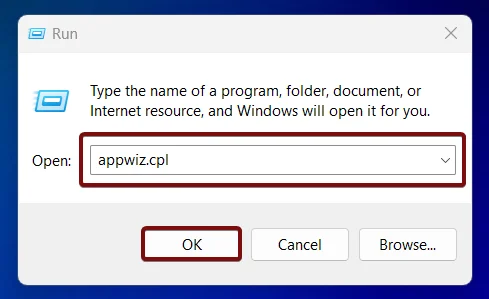
- Open Run Command and execute the following command.
appwiz.cpl
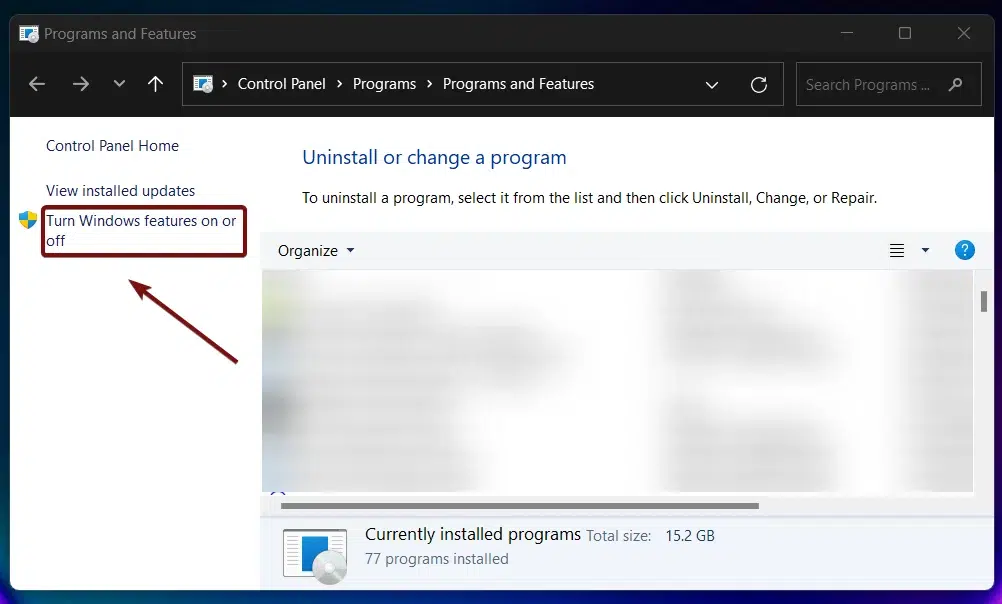
- From the left pane, click on Turn Windows Features on or off.
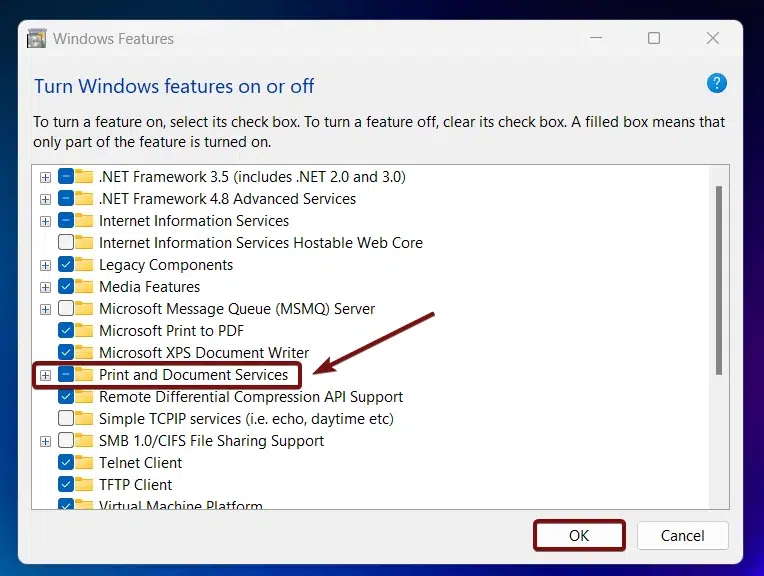
- Search and Locate Print and Document Services from the list of features available. Expand the Node.
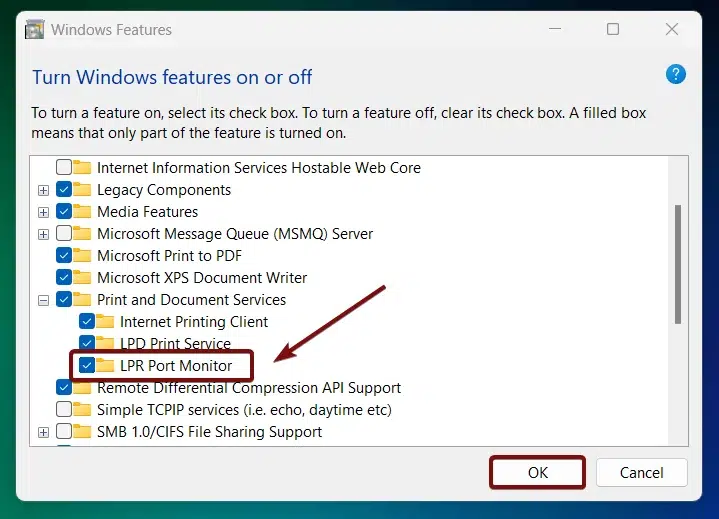
- Now, you can find “LPR Port Monitor“. Click on the checkbox next to it, and click OK.
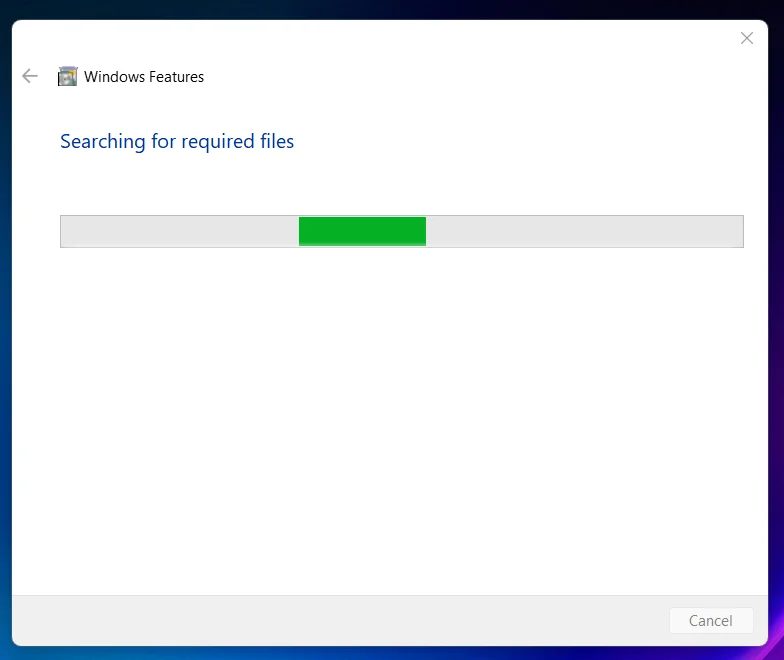
- Windows will search for the required files.
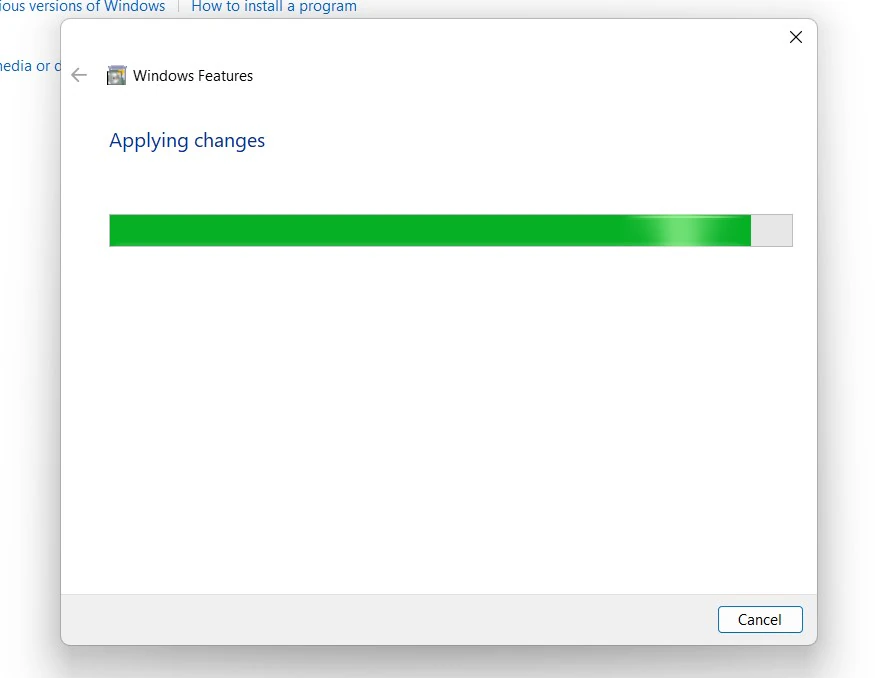
- Then, the necessary changes will be applied.
- Click Restart if you are prompted to restart or click Close accordingly. However, it is suggested that the changes be restarted right away so that they will be reflected.
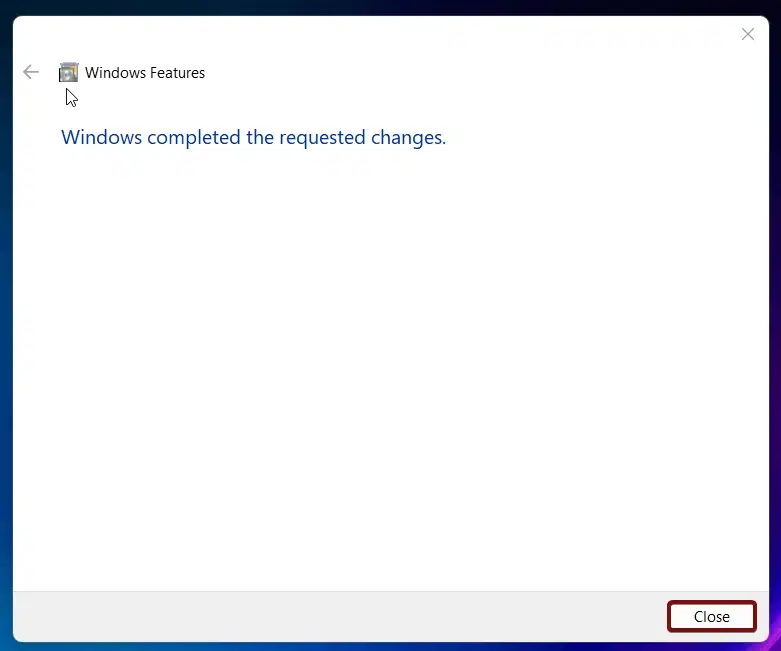
- LPR Port Monitor is now enabled in Windows 11. Enjoy Cross-Platform Printing in Windows 11.
One of the notable features of the LPR protocol is its ability to manage print queues effectively. Administrators can prioritize print jobs, manage multiple queues, and ensure that printing tasks are executed in an orderly manner.
LPR is a lightweight protocol that uses minimal resources, making it ideal for environments where efficiency and performance are critical. It operates over TCP/IP, ensuring reliable communication between the client and the print server.
Frequently Asked Questions
Why would I use LPR instead of a Standard TCP/IP port?
You usually only use LPR if the printer or server specifically demands a Queue Name. While a standard port just sends data to an IP address, LPR allows you to say, “Send this to the IP address 192.168.1.50, specifically to the queue named HighRes_Plotter.”
What is the “Byte Counting” setting in LPR?
This is a common troubleshooting checkbox. Some LPD servers need to know the exact size of the print job (in bytes) before they start receiving it. If your prints are cutting off or disappearing, toggling LPR Byte Counting can often fix the handshake between Windows and the printer.
Does LPR support bidirectional communication?
One of the biggest downsides to LPR is that it’s a “fire and forget” protocol. Unlike modern drivers that tell you “Toner Low” or “Paper Jam” in real-time on your desktop, LPR usually just sends the data and assumes the printer will handle it.
Why is my LPR print job stuck in the queue with a “Sent to Printer” status?
Since LPR doesn’t get much feedback from the printer, Windows might think the job is done as soon as it leaves your PC. If the printer didn’t actually print, the issue is likely a Queue Name mismatch. LPR is case-sensitive; if the server expects P1 and you typed p1, the job will simply be discarded by the server.
Is LPR secure?
LPR sends print data in “plain text” over the network. It doesn’t have native encryption like modern IPPS (Internet Printing Protocol over HTTPS). If you are printing sensitive documents on a public or unsecured corporate network, LPR might not be the best choice.
Take away:
The LPR Port Monitor on Windows 11 is a crucial feature for managing network printing in environments that integrate UNIX or Linux systems with Windows. By enabling and configuring the LPR Port Monitor, you can ensure seamless and efficient printing operations across your network. Make sure to allow it through the firewall while maintaining security best practices.
Have Queries?
If you have any questions, kindly let us know in the comments. For more interesting articles, stay tuned to Winsides.com. Happy Printing! Peace out!









Community
Comments (0)