

Install XPS Viewer in Windows 11: XPS(XML Paper Specification) is a file format developed by Microsoft that preserves document formatting and ensures document fidelity across different devices and platforms. The XPS Viewer provides features such as zooming, rotating, searching within documents, and printing. Users can open XPS files directly in the XPS Viewer or set it as the default application for opening XPS files on their system. Check out: How to Enable Microsoft XPS Document Writer in Windows 11?
Table of contents
Install XPS Viewer in Windows 11 – Simple Steps:
In Windows 11, the XPS Viewer is not installed by default. It is considered an optional feature that users can choose to install if they need to view and work with XPS documents. To install the XPS Viewer on Windows 11, you can follow these steps
- Open Windows Settings using the shortcut key
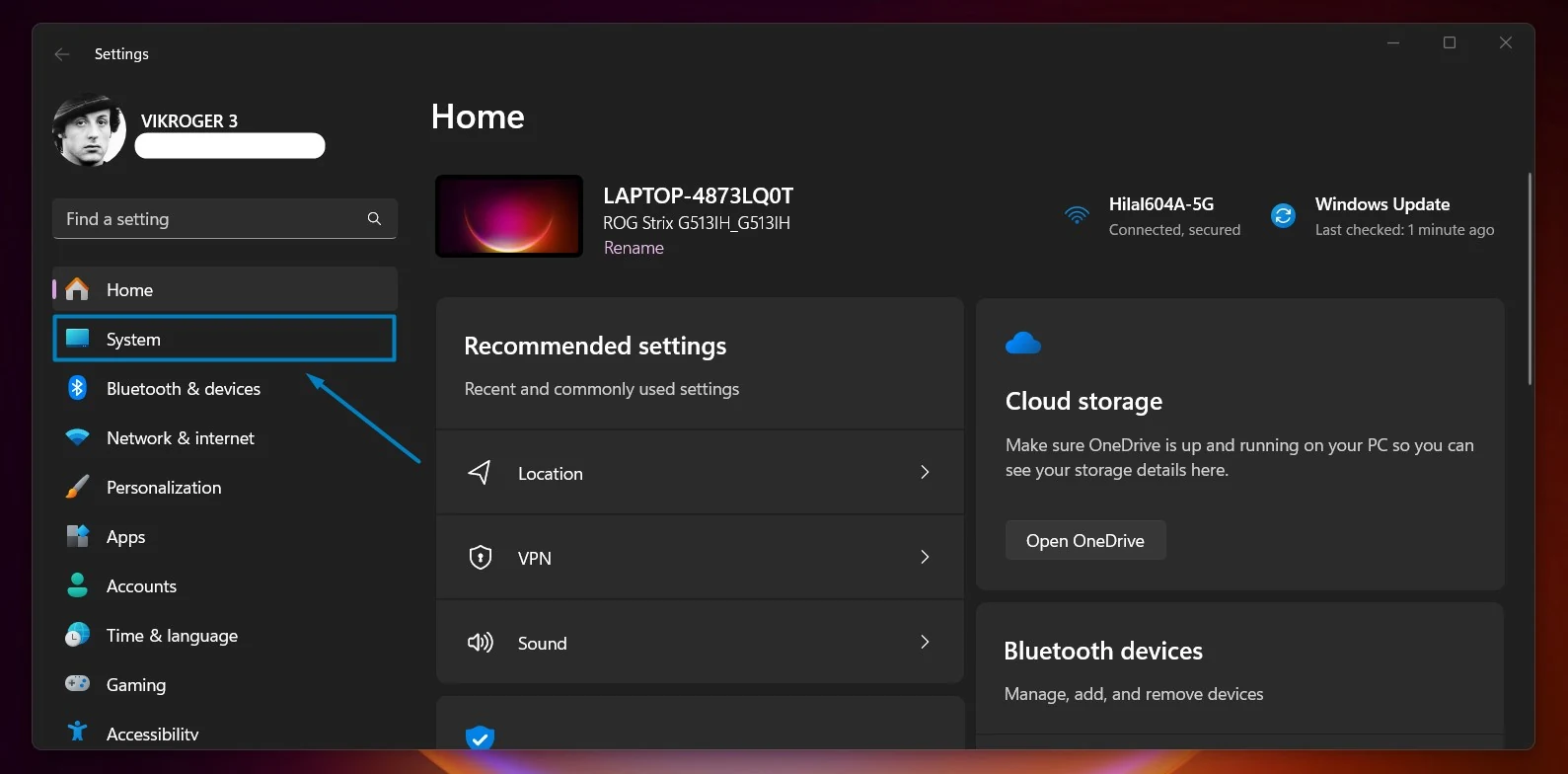
Win + I. - Go to Settings from the left pane.
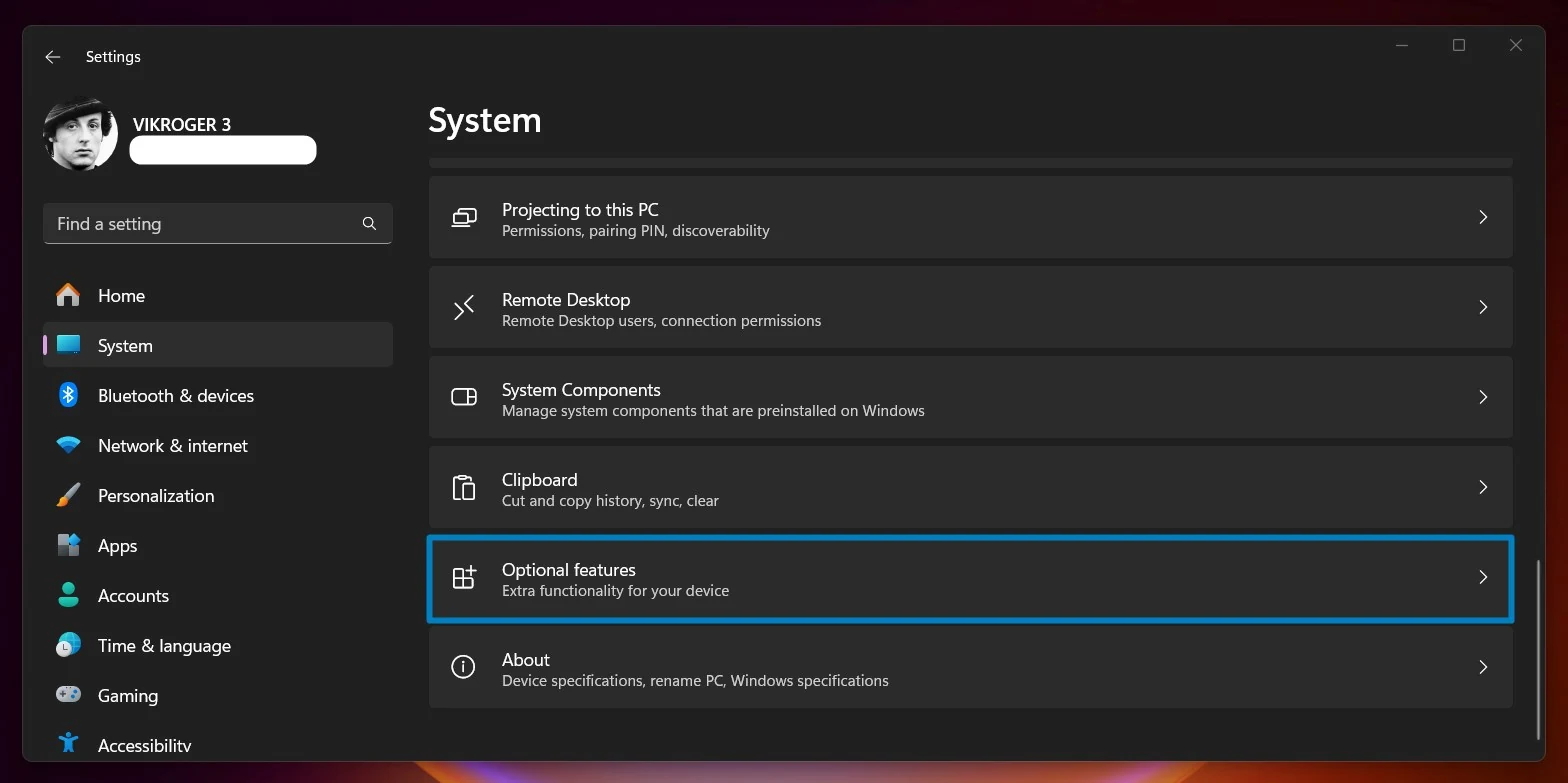
- Scroll down and locate Optional Features.
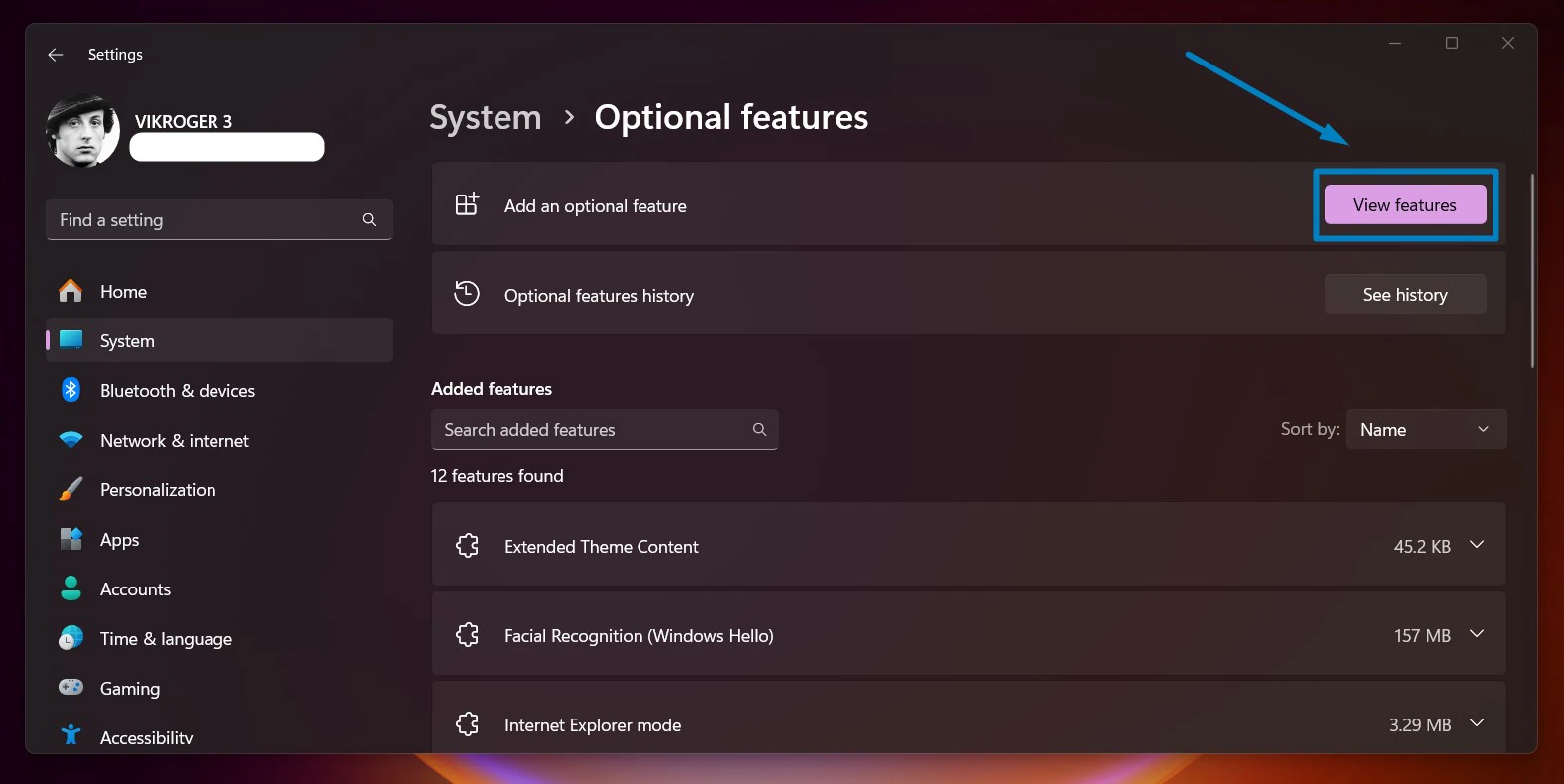
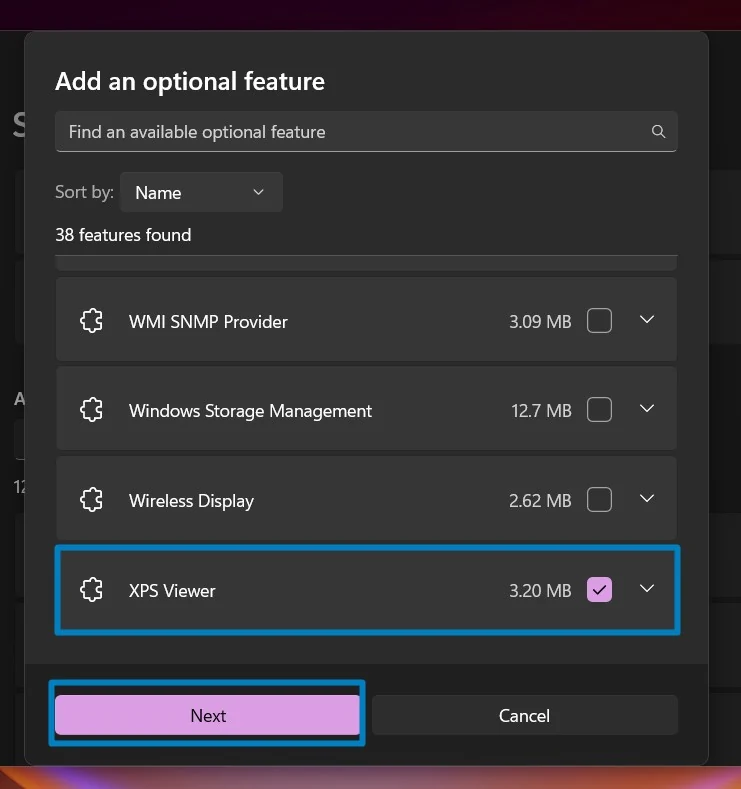
- Now, click on Add.
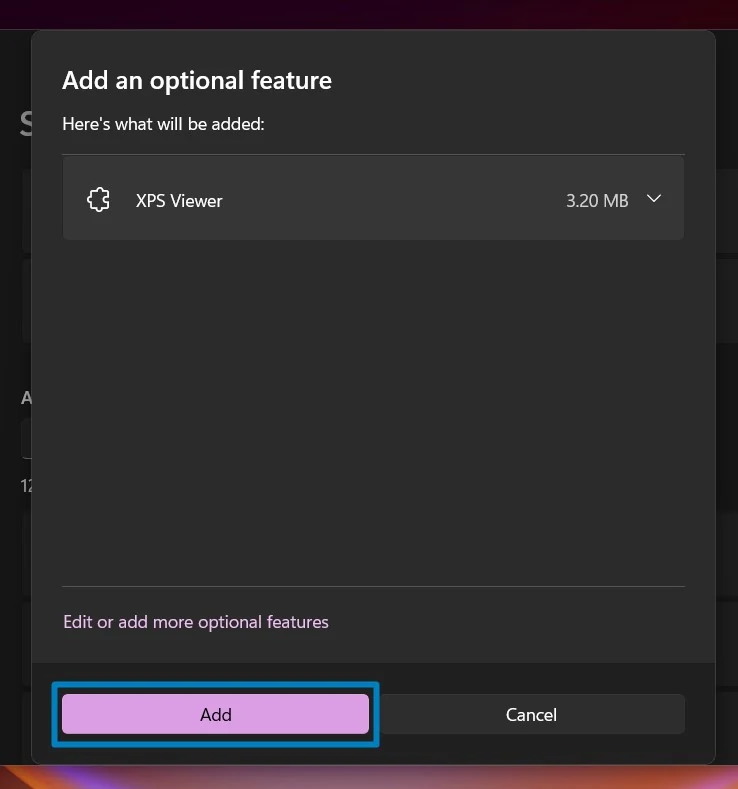
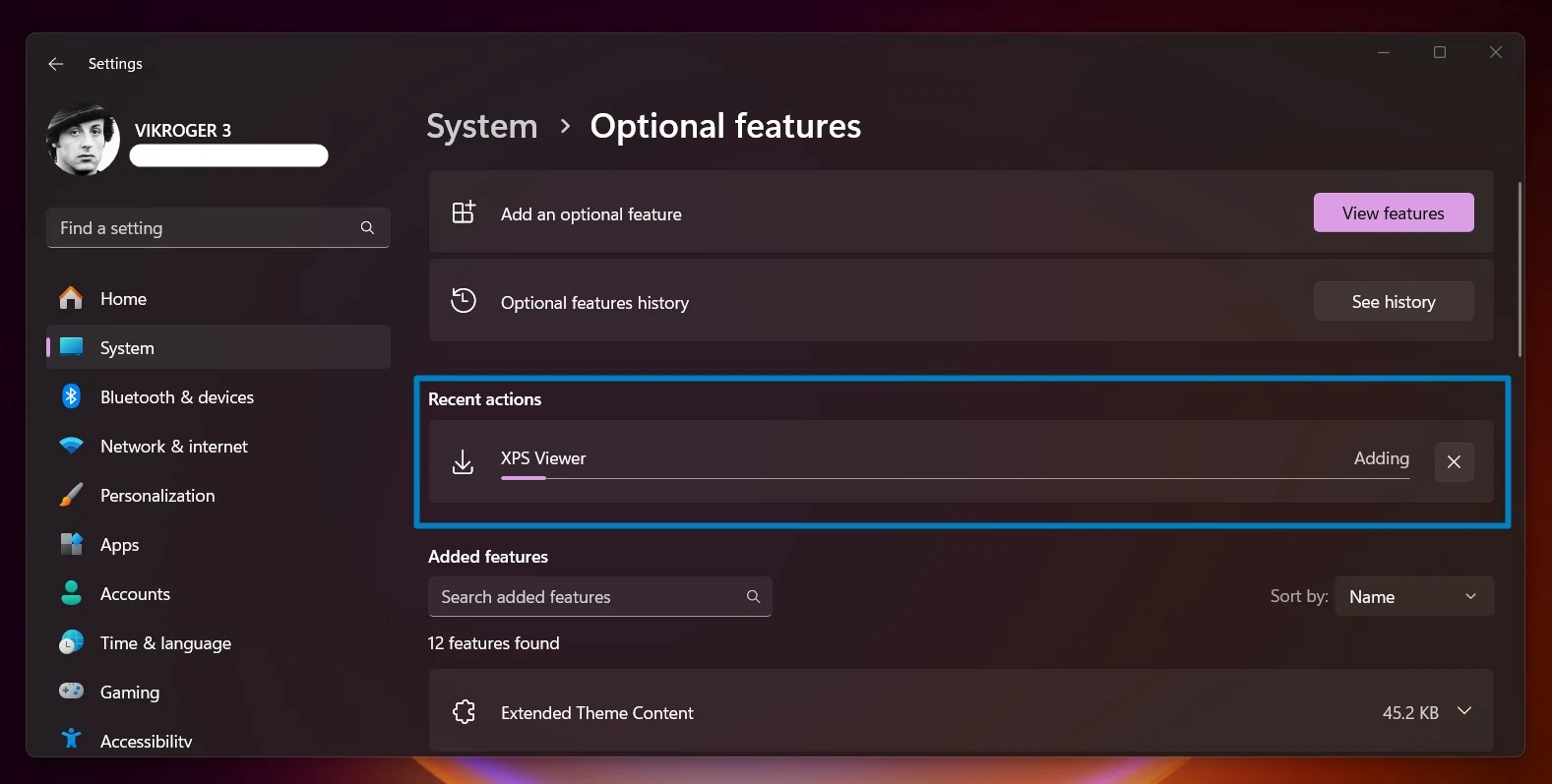
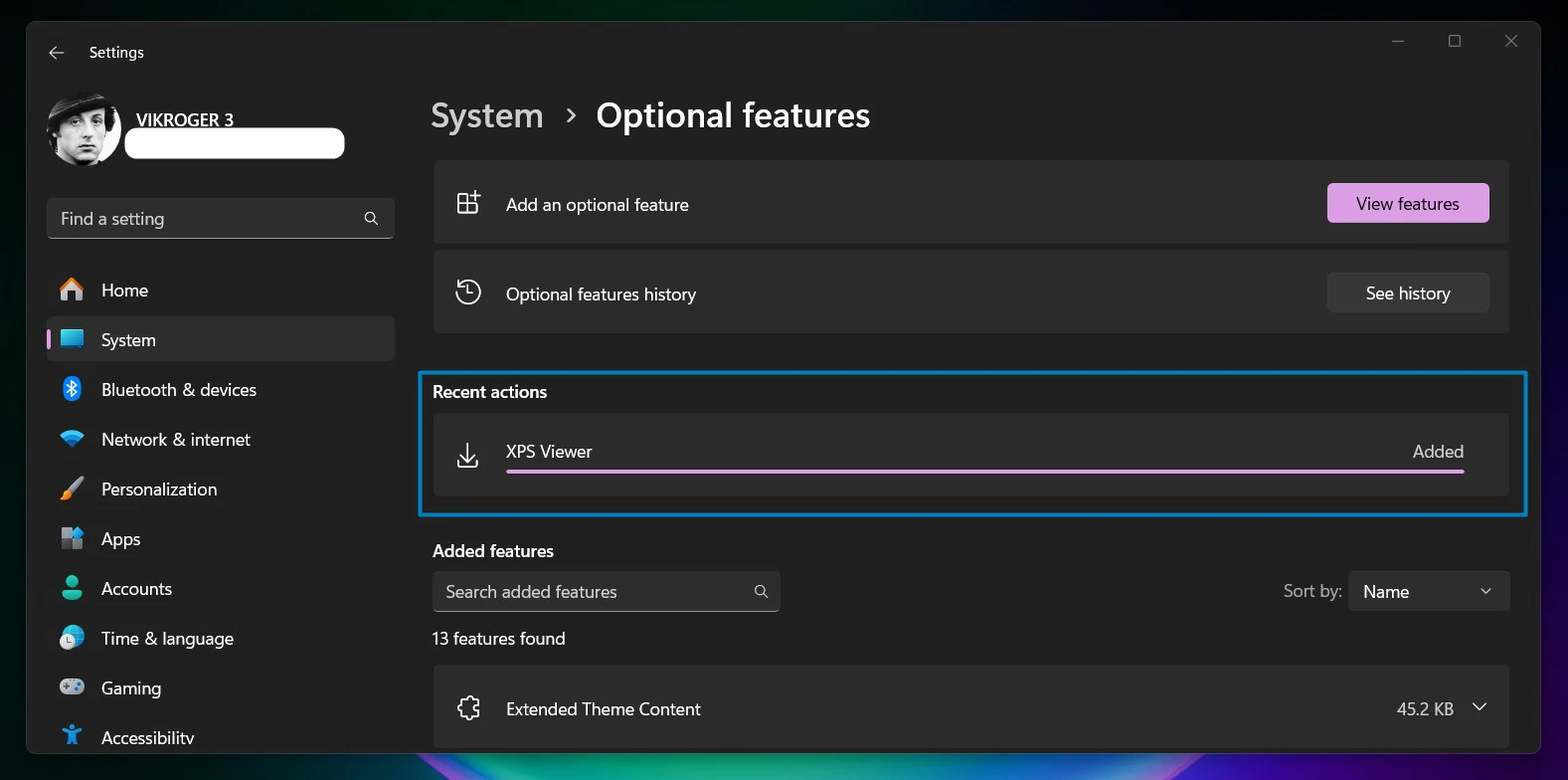
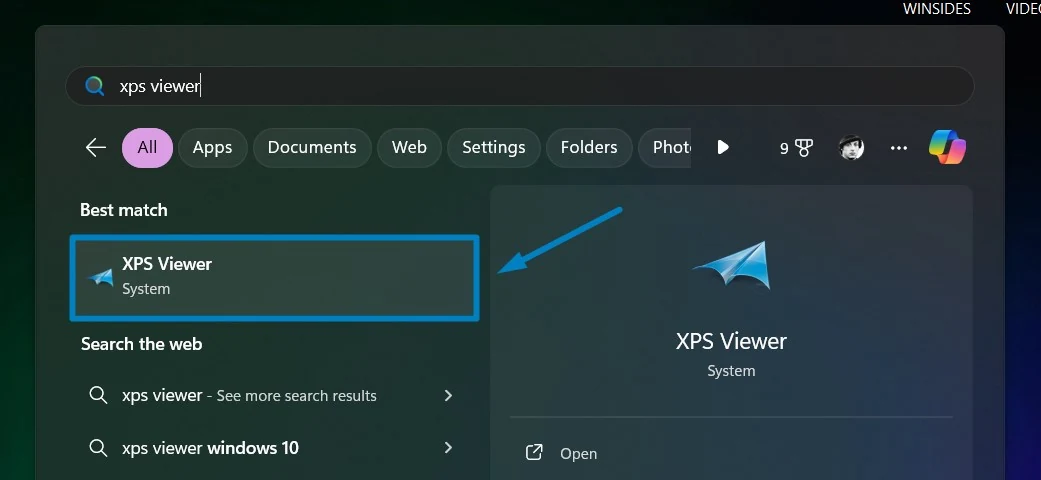
- Finally, you will get the message “XPS Viewer Added“. That is it. XPS Viewer is now installed on your Windows 11 PC.
Frequently Asked Questions
Why is XPS Viewer not installed by default in Windows 11?
Microsoft has transitioned away from the XPS format in favor of PDF. To keep the operating system lean and reduce the “attack surface” for security, legacy tools like the XPS Viewer are now categorized as optional features that users can choose to install only if they need them.
Is there a modern alternative to the XPS Viewer?
If you don’t want to install the legacy viewer, you can often open .xps files using the Microsoft OneNote app or by using an online converter to turn the file into a PDF. Additionally, some web browsers can view the content of these files if you drag and drop them into an open tab.
Why does the XPS Viewer installation get stuck at “Pending”?
If the installation bar isn’t moving in the Settings menu, it is usually because the Windows Update service is busy or paused.
How do I install XPS Viewer on a PC with no internet (Offline)?
In corporate environments without internet access, you cannot use the “Add a feature” menu. You must use a Windows 11 “Features on Demand” (FOD) ISO or disk provided by an administrator. The command would look like this: dism /online /add-capability /capabilityname:XPS.Viewer~~~~0.0.1.0 /Source:D:\FOD (Where D:\ is the location of your offline source files).
What is the difference between .xps and .oxps?
XPS is the original “XML Paper Specification” created by Microsoft. The OXPS is the Open XML Paper Specification, which is the standardized version used in Windows 8 and later.
Is the XPS Viewer safe to keep on my computer?
Yes, but because it is “legacy” software, it doesn’t receive the same frequent feature updates as modern apps. If you don’t regularly work with legacy documentation from the mid-2000s, it is generally considered good “system hygiene” to leave it uninstalled until you specifically need it.
Take away
Over time, the usage of XPS documents has declined compared to more widely used formats like PDF. However, the XPS Viewer’s inclusion as an optional feature in Windows 11 reflects Microsoft’s approach to providing users with specialized tools while streamlining the core operating system. This shift allows users to customize their Windows experience based on their specific needs, whether for business documents, design projects, or general document viewing.
Have Queries?
If you have any queries, kindly let us know in the comments. For more interesting articles, stay tuned to Winsides.com. Happy Coding! Peace out!






Community
Comments (0)