

The LPD Print Service in Windows 11 allows the system to accept print jobs from remote computers using the LPD protocol. It is a part of Print and Document Services in Windows 11. The Line Printer Daemon (LPD) protocol is a network protocol used to submit print jobs to a remote printer. It was originally developed for Unix systems but has been widely adopted and implemented on various platforms, including Windows. Here are the steps to enable this feature in Windows 11.
Table of contents
Key Steps:
- Open Windows Features.
- Locate Print and Document Services.
- Expand it and enable LPD Print Service in Windows 11.
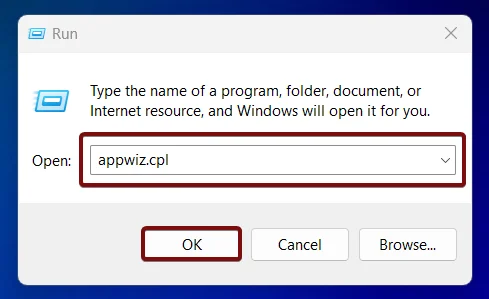
- Open Run Command and execute the following command.
appwiz.cpl
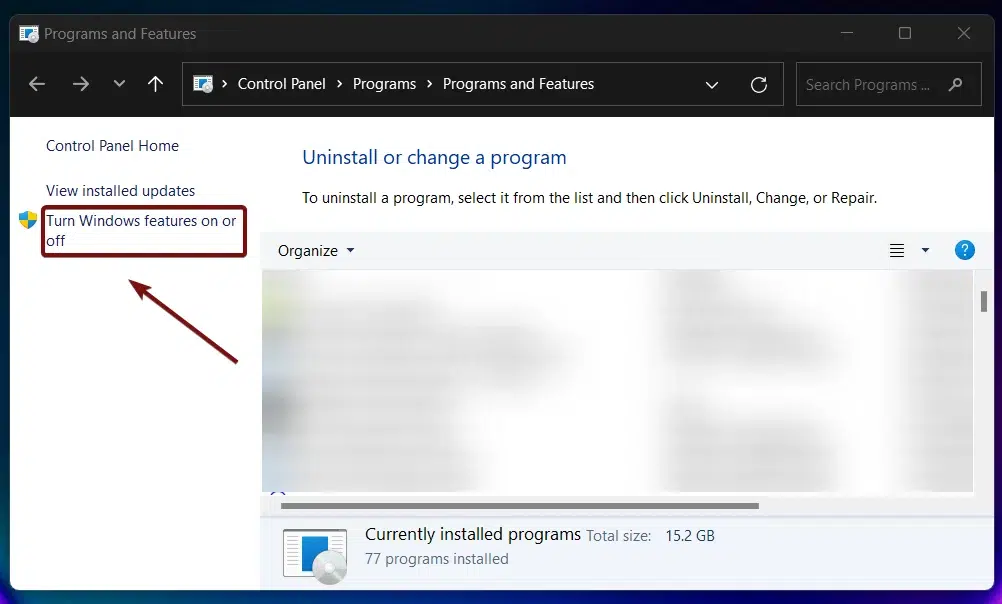
- From the left pane, click on Turn Windows Features on or off.
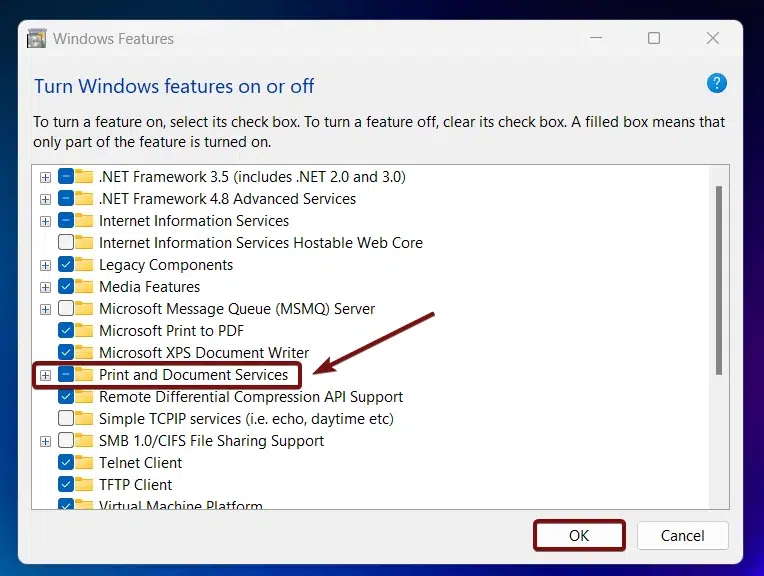
- Search and Locate Print and Document Services from the list of features available. Expand the Node.
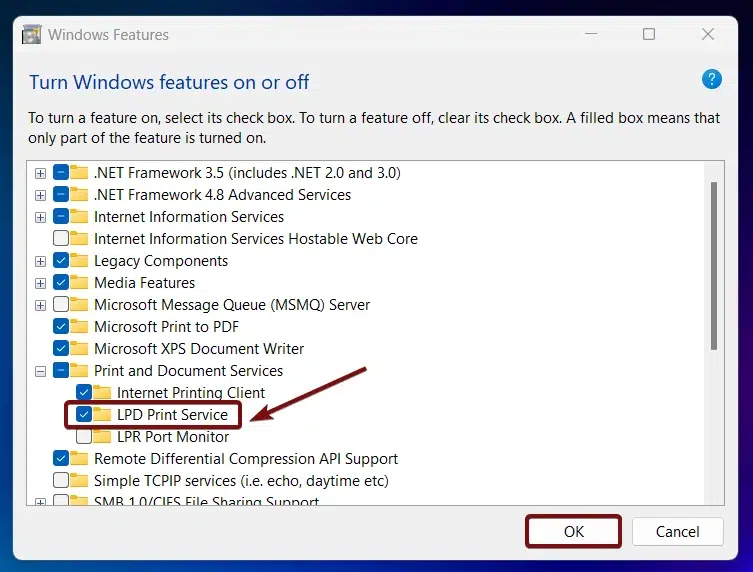
- Now, you can find “LPD Print Service“. Click on the checkbox next to it, and click OK.
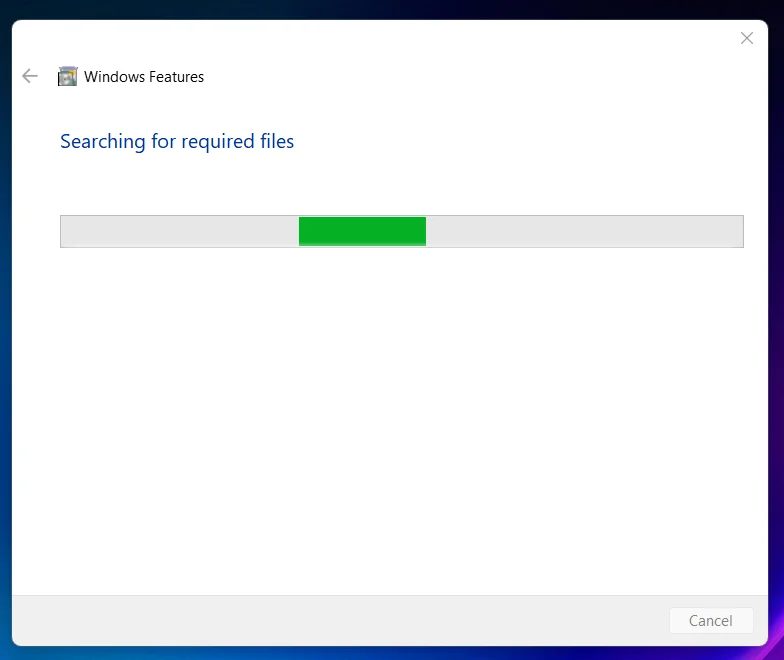
- Windows will search for the required files.
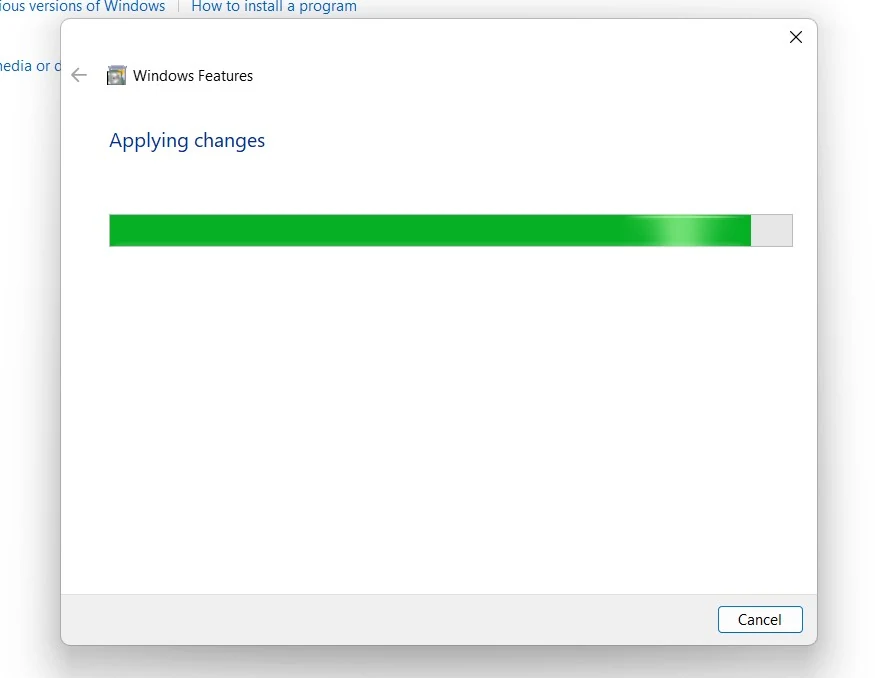
- Then, the necessary changes will be applied.
- Click Restart if you are prompted to restart or click Close accordingly. However, it is suggested that the changes be restarted right away so that they will be reflected.
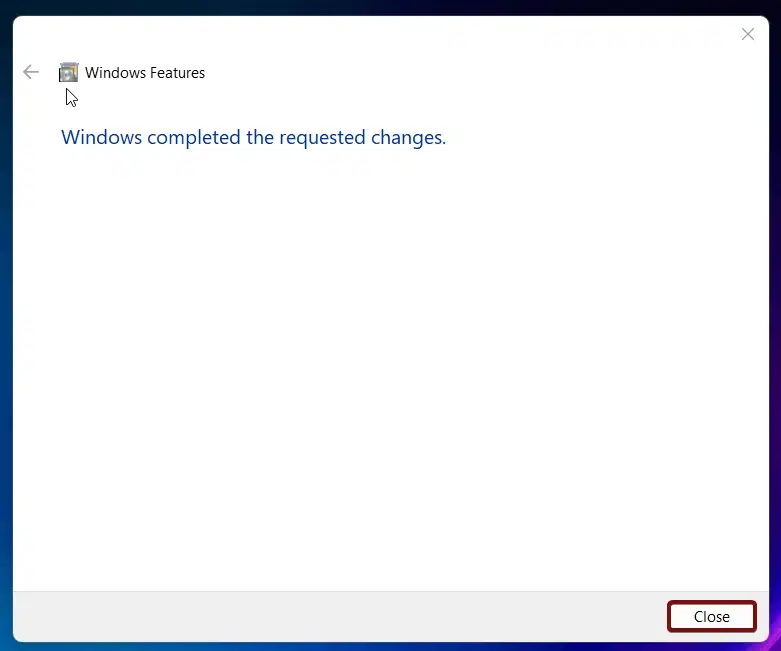
- LPD Print Service is now enabled in Windows 11. Enjoy Cross-Platform Printing.
The LPD protocol facilitates the transfer of print jobs between clients and printers over a network. It is part of the Berkeley printing system and operates over TCP/IP networks. The protocol uses a client-server model where the client sends print jobs to the server (daemon), which manages the printing process.
Recommendations related to LPD Print Service:
Some formalities are to be considered after enabling the LPD Print Service in Windows 11.
Configuring Firewall Rules:
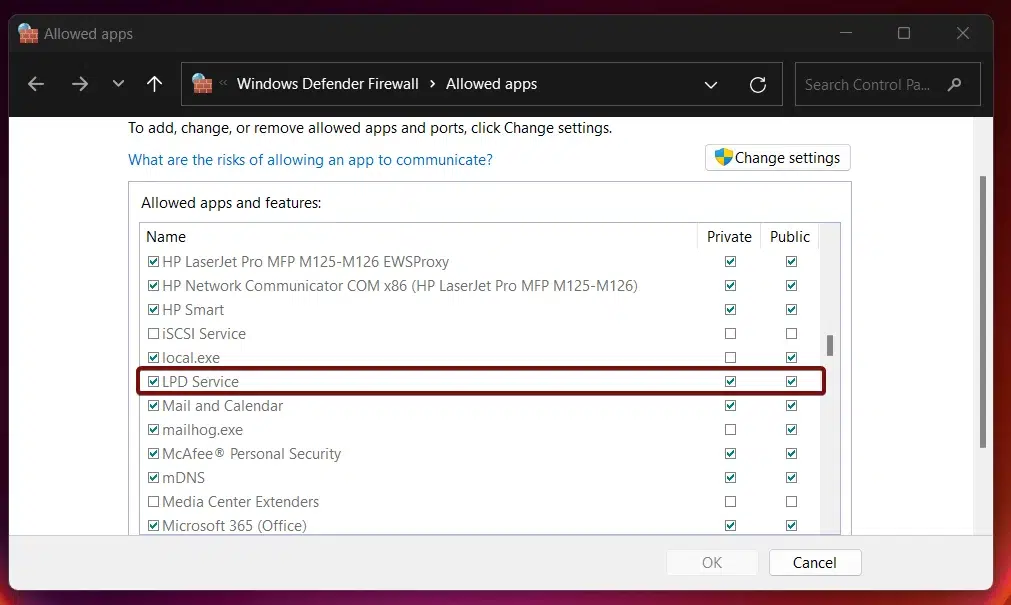
To ensure proper communication, configure your firewall to allow LPD print jobs. Go to Control Panel > System and Security > Windows Defender Firewall > Allow on App through Firewall.
Setting up Automatic Startup:
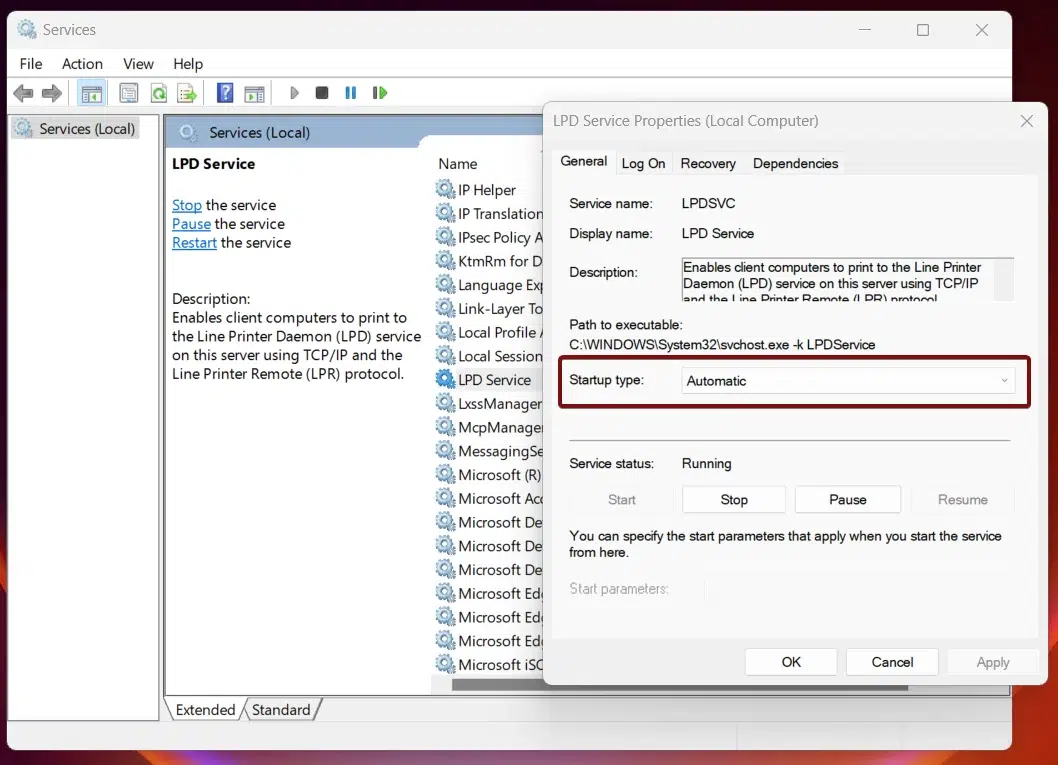
LPR Command-Line Tool:
- Windows includes the LPR command-line tool for sending print jobs to a network printer that uses LPD. This can be handy for scripting print jobs. The syntax is as follows. lpr -S servername -P printername /printername /servername
Security Considerations:
- The LPD protocol was designed at a time when network security was not a primary concern. Therefore, it does not include any built-in mechanisms for authenticating clients or encrypting data, making it susceptible to unauthorized access and eavesdropping.
- Although LPD uses port 515 by default, you can configure it to use a different port if needed. This might be useful for security purposes or to avoid conflicts with other services. You can adjust firewall rules and service configurations accordingly.
- Use IPsec (Internet Protocol Security) to encrypt print jobs sent over the network. This ensures that sensitive documents are protected during transmission.
Frequently Asked Questions
Do I need to change my Firewall settings for LPD?
LPD typically communicates over TCP Port 515. If your Windows Firewall is set to a strict profile, it might block incoming print jobs. When you enable the feature, Windows usually creates a rule automatically, but you should verify that “LPD Service” is allowed through the “Inbound Rules” in your Windows Defender Firewall settings.
Is LPD the same as standard TCP/IP printing?
Standard TCP/IP printing (usually on port 9100) is the modern “Raw” printing method. LPD is a “Request” based protocol that requires a “Queue Name” to function. If you are setting up a printer and it asks for a “Queue Name” (like lp or PR1), You are likely using LPD.
Does LPD support bidirectional Communication?
LPD does not support the same level of bidirectional communication as modern protocols. This means you might not get detailed “Low Ink” or “Paper Jam” notifications on your PC compared to using a standard WSD or TCP/IP port.
Take away:
LPD Print Service in Windows 11 is particularly useful for supporting legacy systems that do not have drivers for modern printing protocols. Many older Unix/Linux systems or applications may still rely on LPD, making it a valuable service for maintaining compatibility with these systems. Stay tuned to Winsides.com. Happy Printing! Peace out!






Community
Comments (0)