

Windows 11 exposes a read-only battery object through the Win32_Battery CIM class. A short PowerShell query can show whether the battery is discharging, connected to AC power, charging, or fully charged, along with the estimated percentage remaining and the battery object's operational status.
I reproduced the query on Windows 11 Home Single Language version 25H2, build 26220.7872, from a regular non-administrator terminal. The tested laptop returned BatteryStatus 2, EstimatedChargeRemaining 100, and Status OK. Microsoft defines status code 2 as AC power being available while the battery is not being discharged. The command changed no battery, power-plan, taskbar, driver, Registry, or firmware setting.
What does the PowerShell battery query report?
Microsoft's Win32_Battery documentation defines the class as a representation of a battery connected to the computer. Its useful read-only fields include:
- BatteryStatus: A numeric code for the current power state.
- EstimatedChargeRemaining: An estimated percentage of full charge remaining.
- EstimatedRunTime: An estimated number of minutes to depletion under the present load when the PC is running on battery.
- Status: The operational status of the managed battery object, such as OK.
These values describe the current report from Windows and the battery firmware. They are not a battery-health score, a capacity test, or a guarantee of future runtime.
Table of contents
How do you check battery status with PowerShell?
- Open Windows Terminal or Windows PowerShell. The tested PC did not need an administrator window.
- Run the following read-only command.
- Read the numeric status code, remaining percentage, runtime field, and object status returned for your battery.
Get-CimInstance -ClassName Win32_Battery |
  Format-List BatteryStatus, EstimatedChargeRemaining, EstimatedRunTime, Status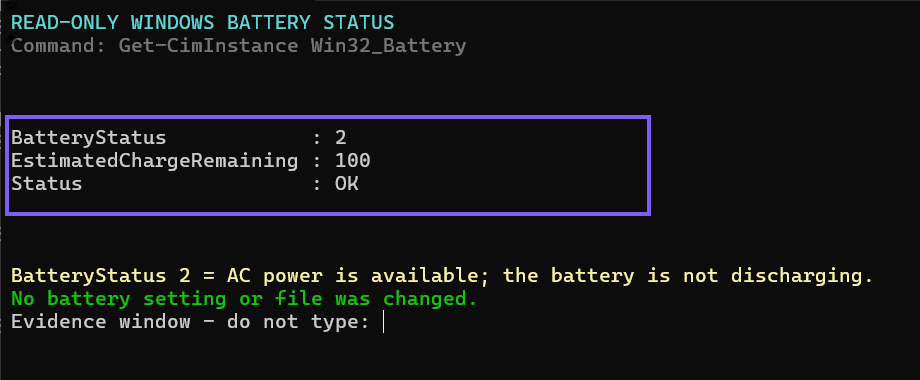
Close the terminal when you finish. No rollback is required because Get-CimInstance retrieves the local object and does not modify it.
How should you read BatteryStatus?
The status number needs the Microsoft mapping; it should not be guessed from the percentage. The most relevant values are:
- 1: Other, documented for a discharging battery.
- 2: AC power is available and the battery is not discharging; it is not necessarily charging.
- 3: Fully charged.
- 4 or 5: Low or critical.
- 6 through 9: Charging, with optional high, low, or critical detail.
- 11: Partially charged.
On the tested laptop, code 2 matched the visible AC-connected state. Treat the code from your own PC as current-state evidence, not as proof of battery wear.
What does EstimatedChargeRemaining mean?
Microsoft defines EstimatedChargeRemaining as an estimate of the percentage of full charge remaining. A returned value of 100 therefore means the battery reports a full remaining charge estimate; it does not mean the battery still holds 100 percent of its original factory capacity.
If you only want the percentage displayed permanently in the system tray, the existing Windows 11 battery percentage guide covers that visual setting. The PowerShell query is different: it reads the battery object and exposes additional status fields without changing the taskbar.
Can PowerShell show the estimated runtime?
The class includes EstimatedRunTime, which Microsoft describes as an estimate in minutes until depletion under the present load when utility power is off or the laptop is disconnected from AC. It can be useful while the battery is actively discharging and the firmware supplies a meaningful estimate.
The tested laptop was connected to AC and returned a very large numeric value for this field. Because the documented runtime definition applies to battery depletion under present-load discharge conditions, I did not convert that number into hours or present it as real battery life. If your PC is on AC, or returns an implausible value, report the runtime as unavailable rather than inventing an estimate.
What if Win32_Battery returns nothing?
A desktop without a battery, a virtual machine that does not expose battery data, or hardware whose management provider supplies no compatible instance can return no object. First confirm that the computer actually has a battery and that Windows Device Manager sees it normally.
Do not install an unrelated driver, edit the Registry, or change firmware merely to force this command to return a value. Use the PC manufacturer's current diagnostics if the battery itself is missing from Windows or showing a hardware error.
Is battery status the same as battery health?
No. Current charge and state answer what the battery is reporting now. Battery health usually compares present full-charge capacity with design capacity over time. A single 100-percent result can coexist with a battery whose usable capacity has aged.
For capacity history and charge-cycle details, use a separately validated battery-report workflow. That method writes an HTML file, while the query in this article is deliberately read-only and creates no report.
Frequently Asked Questions
Do you need administrator rights to query Win32_Battery?
No. The reproduced Get-CimInstance query succeeded in a regular non-elevated Windows PowerShell session on the tested Windows 11 laptop.
Does BatteryStatus 2 mean the battery is charging?
Not necessarily. Microsoft defines code 2 as AC power being available while the battery is not discharging. The battery may be full or simply not charging at that moment.
Why is EstimatedRunTime missing or implausible?
The estimate depends on the current discharge state, system load, and firmware support. Treat it as unavailable when the PC is on AC or the returned value is not credible.
Does this command change a battery or power setting?
No. Get-CimInstance reads the local battery object. It does not change charging, energy saver, the active power plan, the taskbar, a driver, or firmware.
Read the current battery report without changing it
Use Get-CimInstance -ClassName Win32_Battery to retrieve the current battery object, then read its status code, estimated percentage, runtime availability, and operational status against Microsoft's field definitions. Keep runtime claims honest, especially while connected to AC, and use a separate capacity report when your real question is long-term battery health.
For more reproduced Windows 11 command guides, stay tuned to WinSides.com.







Community
Comments (0)