

Windows 11 can ask its storage providers for a health summary without opening a disk, scanning a file system, or changing a storage setting. The built-in Get-PhysicalDisk cmdlet lists physical disks that Windows can see and reports fields such as HealthStatus and OperationalStatus.
I reproduced the query on Windows 11 Home Single Language version 25H2, build 26220.7872, from a regular non-administrator PowerShell window. The tested storage provider returned three physical disks. Every disk reported Healthy and OK; two reported SSD as their media type, while one reported Unspecified. The command changed no disk, volume, partition, file, driver, firmware, Registry value, or storage setting.
What drive-health information does Windows report?
Microsoft's Get-PhysicalDisk documentation says the cmdlet returns physical-disk objects visible through available Storage Management Providers. The concise view used here reports:
- DeviceId: The provider's local identifier for each physical disk.
- MediaType: The provider's classification, such as SSD, HDD, or Unspecified.
- HealthStatus: A summarized state. Microsoft documents Healthy, Warning, Unhealthy, and Unknown.
- OperationalStatus: The disk object's current operational state, such as OK.
These fields are provider summaries. They are useful for a quick built-in check, but they are not a complete dump of every vendor-specific SMART attribute.
Table of contents
How can you check drive health with PowerShell?
- Open Windows Terminal or Windows PowerShell. The reproduced check did not require an administrator window.
- Run the following read-only command.
- Read HealthStatus and OperationalStatus for every returned DeviceId.
Get-PhysicalDisk |
  Sort-Object DeviceId |
  Format-Table DeviceId, MediaType, HealthStatus, OperationalStatus -AutoSize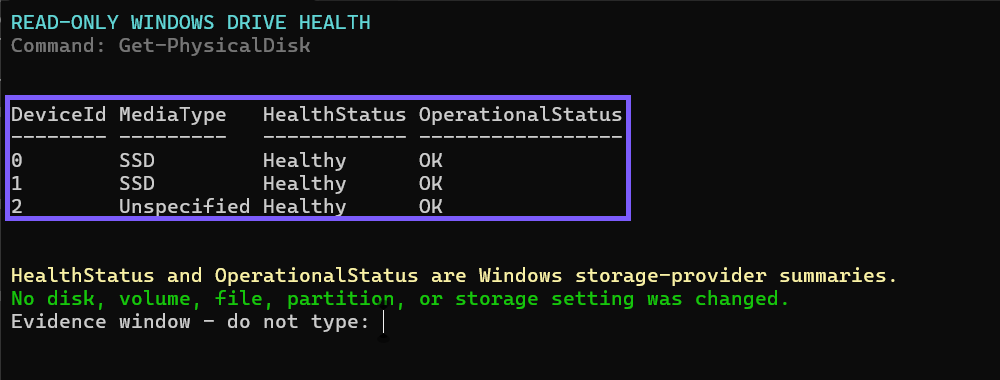
Close the terminal when you finish. No rollback is required because the command only retrieves provider objects; it does not repair, initialize, format, optimize, mount, dismount, or otherwise modify a disk.
How should you read Healthy, Warning, Unhealthy, and Unknown?
- Healthy: The storage provider is not reporting a health problem for that physical disk at the time of the query.
- Warning: Treat the result as a reason to protect current data and investigate the exact disk and provider warning.
- Unhealthy: Back up important data immediately and follow current device-manufacturer or Microsoft support guidance.
- Unknown: Windows lacks a usable health determination from that provider. Unknown is not the same as Healthy.
OperationalStatus OK is consistent with normal operation, but it does not guarantee that a disk cannot fail later. Keep a verified backup even when every current field is healthy.
Is this the same as a complete SMART report?
No. SMART data can include vendor- and interface-specific counters. Microsoft separately documents storage reliability counters such as temperature, wear, error counts, and power-on time, but those values appear only when the hardware, driver, permissions, and Storage provider expose them.
I tested the documented reliability-counter path on this laptop. The non-elevated provider returned an error for all three disks, so I do not present that command as a universal second method and I do not invent temperature, wear, lifetime, or error values. Use the drive maker's current diagnostic utility when you need vendor-specific attributes that Windows does not expose.
Why can MediaType say Unspecified while HealthStatus is Healthy?
The two fields answer different questions. MediaType describes how the provider classified the device; HealthStatus is the provider's health summary. A disk can therefore have an Unspecified media type while still returning Healthy and OK.
Do not change a driver or firmware setting merely to replace the word Unspecified. Identify the physical disk through current manufacturer documentation if the media type matters for a maintenance decision, and avoid publishing or sharing its serial number.
What should you do if Windows reports a storage warning?
Microsoft recommends backing up data when Windows reports a critical storage warning. Protect irreplaceable files before running repairs, firmware updates, resets, formatting tools, or destructive diagnostics.
For supported devices, Windows can show more detail at Settings > System > Storage > Advanced storage settings > Disks & volumes, then the disk's Properties page. If the issue is only low free space rather than a health warning, the separate Storage Sense guide covers safe automated cleanup settings.
What limits apply to Windows drive-health checks?
Microsoft notes that the Windows Settings critical-warning experience monitors NVMe SSDs, not every SATA SSD or hard disk. USB bridges, RAID controllers, virtual disks, older drivers, and vendor storage stacks can also change what Windows sees or hide individual hardware counters.
That is why a clean PowerShell summary is a useful snapshot, not a substitute for backups or model-specific diagnostics. If a disk is missing, Unknown, or behind a controller, use the computer or storage manufacturer's supported tool and documentation. Do not dismantle an array, initialize an unknown disk, or edit storage metadata just to make a health field appear.
Frequently Asked Questions
Do you need administrator rights to run Get-PhysicalDisk?
No administrator prompt was required for the reproduced health-summary query on the tested Windows 11 laptop. A particular storage provider or a more detailed diagnostic can have different permission requirements.
Does Healthy mean a drive cannot fail?
No. Healthy means the current provider summary is not reporting a health problem. Hardware can fail without a long warning, so keep verified backups.
Why does Get-PhysicalDisk omit a drive or SMART counter?
The controller, bridge, driver, permissions, or Storage provider may not expose that physical disk or counter. Use the hardware maker's supported diagnostics instead of assuming a missing value is zero.
Does the command scan or repair the drive?
No. The reproduced command retrieves physical-disk provider objects. It does not run CHKDSK, repair a file system, format a volume, optimize storage, or change a partition.
Read the provider summary, then protect the data
Use Get-PhysicalDisk for a fast, read-only view of the health and operational state Windows currently receives from each visible physical disk. Treat Healthy and OK as a present-time summary, treat Warning, Unhealthy, or Unknown as a reason to investigate, and never replace a reliable backup with one clean status check.
For more reproduced Windows 11 system guides, stay tuned to WinSides.com.





Community
Comments (0)