

Windows 11 can report a disk's partition style without converting, initializing, cleaning, or formatting it. The built-in Get-Disk cmdlet exposes a PartitionStyle field for every supported disk visible to the operating system.
I reproduced the check on Windows 11 Home Single Language version 25H2, build 26220.7872, from a regular non-administrator PowerShell window. The tested PC returned three disks: Disk 0 used GPT, the Windows boot and system disk numbered 1 used GPT, and Disk 2 used MBR. The command changed no disk, partition table, partition, volume, boot record, firmware mode, file, Registry value, or service.
What do MBR, GPT, and RAW mean?
Microsoft's partition-style definition describes three possible values:
- MBR: The traditional Master Boot Record partition-table style.
- GPT: The GUID Partition Table style associated with modern UEFI systems.
- RAW: The disk is not formatted with either recognized MBR or GPT partition-table style.
Partition style belongs to the whole disk, not to an individual file or drive letter. A computer with several physical disks can legitimately show a mix of GPT and MBR.
Table of contents
How can you check whether a disk uses MBR or GPT?
- Open Windows Terminal or Windows PowerShell. The reproduced check did not require administrator rights.
- Run the following read-only command.
- Match the disk's Number with its PartitionStyle. Use the IsBoot and IsSystem fields to identify the current Windows boot/system disk.
Get-Disk |
  Sort-Object Number |
  Format-Table Number, PartitionStyle, IsBoot, IsSystem -AutoSize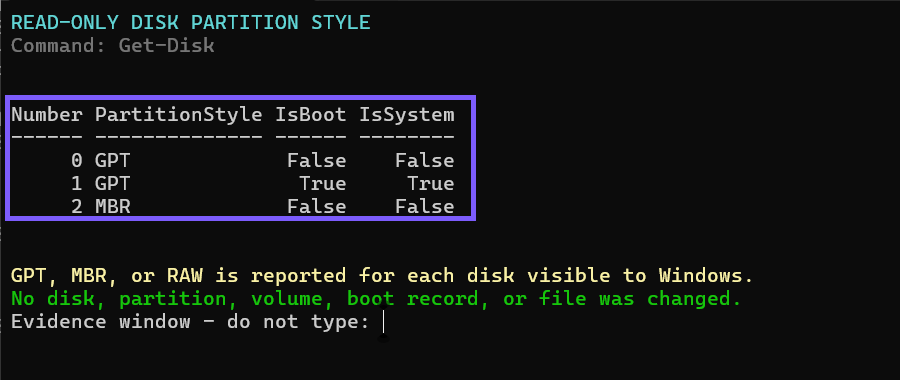
Close the terminal when you finish. No rollback is required because Get-Disk retrieves disk objects and the selected fields; it does not write a partition table or change any data.
How can you identify the Windows boot disk in the results?
Look for IsBoot True and IsSystem True. On the tested laptop, both values appeared on Disk 1, and its PartitionStyle was GPT. A secondary data disk can have both fields set to False even when it is online and working normally.
Do not assume that Disk 0 is always the Windows disk. Firmware order, storage controllers, removable media, and installation history can cause Windows to assign a different number.
What does the reported partition style tell you?
The result tells you which partition-table format Windows currently recognizes for that disk. GPT is the normal choice for current UEFI Windows installations, while MBR is associated with the older BIOS-compatible scheme. RAW means Windows does not recognize an MBR or GPT partition table on the disk.
The result does not by itself say that a disk is healthy, encrypted, empty, bootable, or safe to modify. Those are separate properties that require separate evidence.
Is partition style the same as UEFI or legacy BIOS mode?
No. Partition style describes the disk, while UEFI or legacy BIOS describes how the computer firmware boots. The two are related for an operating-system disk: Microsoft's Windows Setup guidance uses GPT for UEFI installations and MBR for legacy BIOS compatibility.
A secondary data disk can still use MBR on a PC whose Windows boot disk uses GPT and UEFI. The tested PC demonstrated that mixed layout: its current boot/system disk used GPT while a separate disk used MBR.
Does Get-Disk convert MBR to GPT or GPT to MBR?
No. Get-Disk is a retrieval command in this workflow. It does not run DiskPart, MBR2GPT, Initialize-Disk, Clear-Disk, or a formatting operation.
Do not paste conversion commands merely because the current partition style differs from what you expected. Microsoft warns that reformatting a disk to change its partition style erases its data. Conversion is a separate high-risk procedure that needs model-specific planning, verified backups, recovery media, and an appropriate test environment.
What should you do if a disk is missing or reports RAW?
If a disk is missing, first check whether Windows, the storage controller, and the device manufacturer support exposing it through the Storage provider. Dynamic disks can also behave differently because Microsoft notes that Get-Disk returns basic physical-disk objects rather than dynamic disks that span media.
If an expected data disk reports RAW, stop before initializing, cleaning, formatting, or creating a new volume. RAW can describe a new empty disk, but it can also signal that Windows cannot recognize the expected partition table. Protect existing data and use a qualified recovery plan before any write operation.
Frequently Asked Questions
Do you need administrator rights to check PartitionStyle?
No administrator prompt was required for the reproduced Get-Disk query on the tested Windows 11 laptop. A particular storage provider can impose different access limits.
Can one Windows 11 PC use both GPT and MBR disks?
Yes. The tested PC's Windows boot disk and one secondary disk used GPT, while another secondary disk used MBR. Each physical disk has its own partition style.
Does GPT mean the disk is healthy or faster?
No. GPT identifies the partition-table format. Health and performance depend on separate hardware, provider, interface, driver, and workload information.
Will this command change the Windows boot record?
No. The reproduced command only displays Number, PartitionStyle, IsBoot, and IsSystem. It does not write a boot record or partition table.
Read the style without changing the disk
Use Get-Disk to match every Windows-visible disk number with GPT, MBR, or RAW. Check IsBoot and IsSystem instead of assuming Disk 0 contains Windows, and keep the read-only inspection separate from any conversion or recovery procedure.
For more interesting articles, stay tuned to WinSides.com!







Community
Comments (0)