

To check for eSIM support in Windows 11, start with Microsoft's user-facing hardware test: open Settings > Network & internet and look for a Cellular page. If Cellular exists, inspect its SIM selection or eSIM profile controls. You can then use two narrow PowerShell inventories to confirm whether Windows currently exposes cellular or mobile-broadband network hardware.
I reproduced the privacy-safe inventory checks on Windows 11 version 25H2, build 26220.7872. Neither Get-NetAdapter nor the present-only Plug and Play network-device inventory returned a Cellular, Mobile Broadband, or WWAN match. On this PC, Windows did not expose current cellular hardware required for the documented eSIM controls. No service, radio, adapter, profile, or connection was changed.
What is the official Windows eSIM support check?
Microsoft's Windows eSIM guidance says to open Settings > Network & internet and look for a Cellular page. If Cellular is listed, the PC supports cellular connectivity. Inside Cellular, the Use this SIM for cellular data list or eSIM profile controls show whether eSIM is available for selection and management.
This distinction matters. A physical SIM slot, an eSIM, an external cellular modem, and a Wi-Fi adapter are not interchangeable. Seeing Wi-Fi or Ethernet says nothing about eSIM. A PC can also support cellular data through hardware that does not provide the exact eSIM controls described for another model.
Table of contents
Why use narrow PowerShell cross-checks?
Settings is the primary user-facing test, but a screenshot of Network & internet can expose a Wi-Fi name, organization profile, VPN, or other connection detail. Narrow commands let you verify the currently exposed hardware without retaining a broad network list.
The reproduced filters search only adapter descriptions or present PnP friendly names for Cellular, Mobile Broadband, or WWAN. They do not show MAC addresses, IP addresses, SIM identifiers, carrier names, profiles, or unrelated adapters.
How do you check the network-adapter inventory?
- Open Windows Terminal with a normal PowerShell tab.
- Enter the narrow hidden-inclusive query:
Get-NetAdapter -IncludeHidden | Where-Object InterfaceDescription -Match 'Cellular|Mobile Broadband|WWAN'
Microsoft's Get-NetAdapter reference describes the cmdlet as reading basic network-adapter properties. The -IncludeHidden switch includes hidden adapters, while the filter prevents unrelated adapter descriptions from being retained.
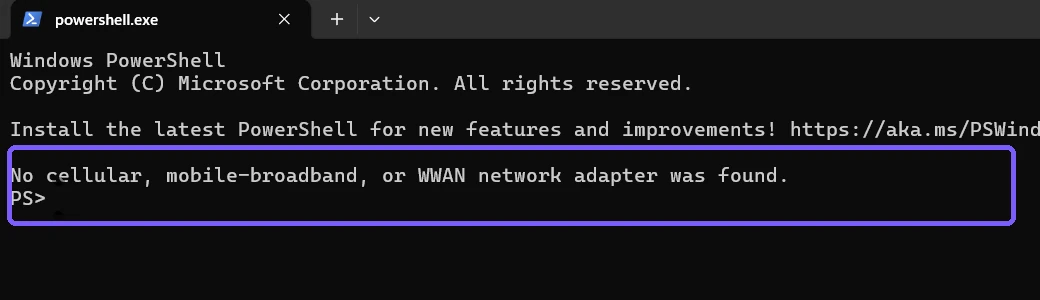
An empty match is converted to an explicit sentence in the evidence so it cannot be mistaken for a failed screenshot. It means this inventory did not expose a matching adapter at collection time; it is not a universal statement about the product family or another operating system.
How do you cross-check present Plug and Play devices?
Run a separate present-only query against network-class PnP devices:
Get-PnpDevice -Class Net -PresentOnly | Where-Object FriendlyName -Match 'Cellular|Mobile Broadband|WWAN'
Microsoft's Get-PnpDevice documentation states that the cmdlet returns basic PnP device information and that -PresentOnly limits results to devices currently present.
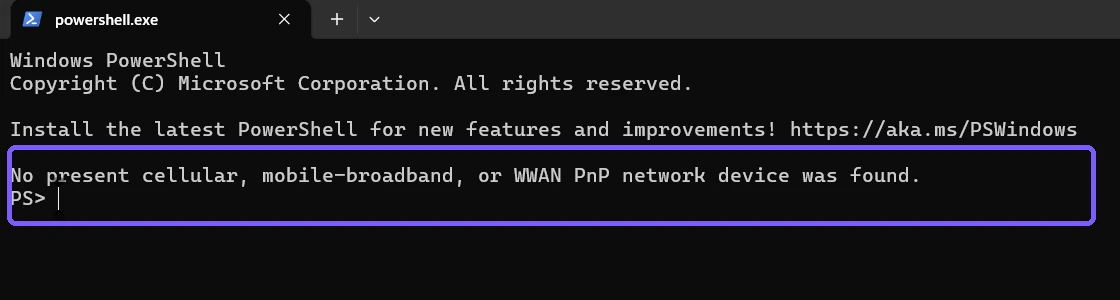
Agreement between the two local inventories supports the observed result. It still does not replace the manufacturer's specifications or Microsoft's Cellular-settings criterion when firmware, drivers, removable hardware, or a managed configuration is involved.
How should you interpret the results?
- Cellular page and eSIM controls present: Windows exposes the documented eSIM management path. Check the PC and carrier requirements before adding a profile.
- Cellular page present but no eSIM option: the current configuration may support physical SIM or external cellular hardware without exposing an eSIM selection.
- No Cellular page and no matching hardware inventory: Windows does not currently expose the required cellular path on that PC.
- Commands find hardware but Settings differs: record both results and check drivers, policy, firmware, and manufacturer documentation without changing them during this inventory.
What do the PowerShell results not prove?
They do not reveal whether an inactive firmware option, missing driver, disconnected external modem, unsupported carrier, organization policy, or another Windows installation would change the outcome. They also do not prove a device can activate on a particular mobile operator.
Do not broaden the inventory to hardware instance IDs or subscriber information just to increase certainty. EID, IMEI, ICCID, phone number, operator, APN, and profile data can be sensitive. The queue intent is hardware support, not subscriber identity.
Should you start the WWAN AutoConfig service?
Not for this read-only support check. Some netsh mbn commands depend on the WWAN AutoConfig service. Starting a service changes system state and is unnecessary when Settings plus the two current hardware inventories answer the narrow question.
The reproduced PC reported that the service was not running during a preflight. The retained procedure did not start it, did not query profiles, and did not attempt a cellular connection.
Does finding eSIM support mean a profile is installed?
No. Hardware support, an available eSIM management control, an installed profile, and an active data connection are separate states. Adding a profile can involve a carrier website, activation code, QR code, identifiers, account terms, data charges, and a network connection.
Do not scan a QR code, enter an activation code, download a profile, switch a SIM, or delete a profile merely to test support. Those are separate authorized actions with privacy and connectivity consequences.
What should you do if the checks disagree?
- Record whether the Cellular page exists.
- Record only the narrow matching adapter and present PnP names, if any.
- Check the exact PC model's cellular/eSIM specifications.
- Review current vendor driver guidance and organizational policy.
- Ask the carrier whether that exact hardware and region are supported.
Keep “support check” separate from installing a driver or changing firmware. A support result is evidence for a decision, not permission to mutate the PC.
What is safe to share with support?
You can usually share whether Cellular appears, whether an eSIM selection exists, and the narrow matching hardware name when support requests it. Do not include Wi-Fi names, IP or MAC addresses, EID, IMEI, ICCID, phone number, carrier account, activation code, QR code, or profile contents unless a trusted authorized process explicitly requires them.
The retained screenshots use an anonymous PS> prompt and show only two narrow commands and two explicit no-match results. They contain no account, device identifier, subscriber identifier, personal path, credential, notification, network name, address, or unrelated application.
Frequently Asked Questions
What Windows page indicates cellular support?
Microsoft says to look for Cellular under Settings > Network & internet.
Does every cellular PC support eSIM?
No. Inspect the SIM selection or eSIM profile controls and the model specifications.
Did the reproduced PC expose cellular hardware?
No matching adapter or present PnP network device appeared in the two narrow inventories.
Do these commands connect to a mobile network?
No. They only read local adapter and present-device inventories.
Check support without exposing subscriber data
Use the Windows Cellular page and eSIM controls as the primary support criterion, then narrow local inventories as a privacy-safe hardware cross-check. Keep profile activation, carrier compatibility, driver work, service changes, and cellular connections as separate decisions.
For more interesting articles, stay tuned to WinSides.com!






Community
Comments (0)