

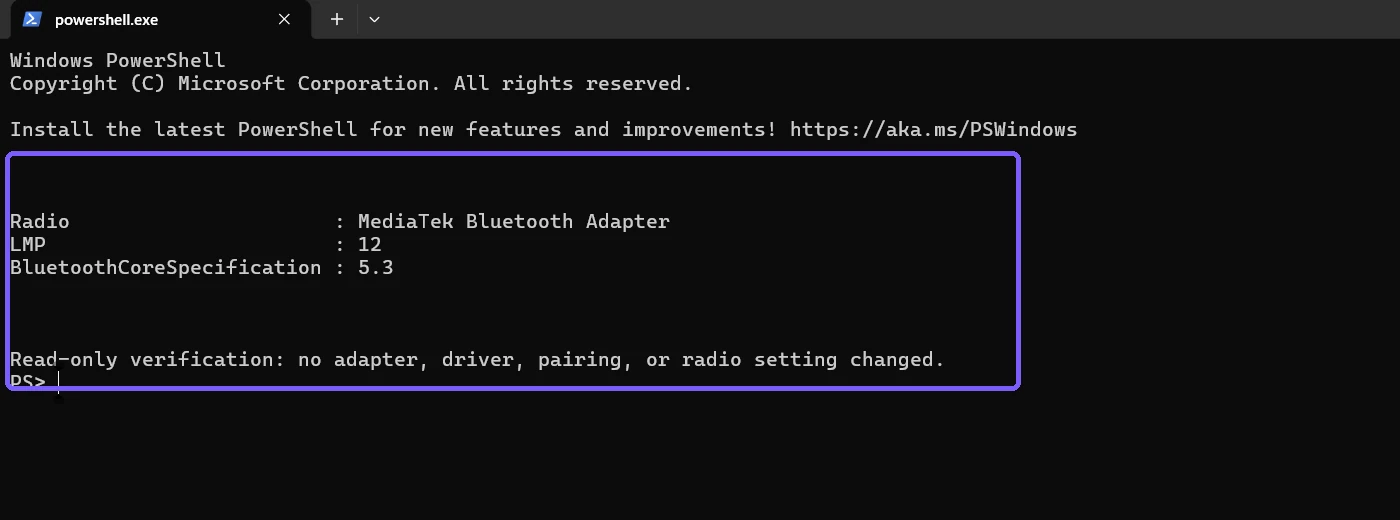
Windows 11 does not label the PC simply as “Bluetooth 5.3” in Settings. The reliable value is the Bluetooth radio’s Link Manager Protocol, or LMP, version. Microsoft’s current table maps that number to the highest Bluetooth Core Specification the Windows device fully supports. On the tested PC, the radio reported LMP 12, which maps to Bluetooth 5.3.
This guide shows Microsoft’s Device Manager path and a privacy-safe PowerShell cross-check. Both methods only read device information. They do not pair or remove accessories, turn Bluetooth on or off, update a driver, or change a radio property.
What the Bluetooth version result actually means
The Microsoft Bluetooth-version guide says the LMP value represents the highest Bluetooth Core Specification the Windows device fully supports. It is a property of the PC’s Bluetooth radio, not of every paired mouse, phone, headset, or service shown under the Bluetooth node.
A higher core version is not a promise that every optional feature is available. Bluetooth profiles, audio codecs, LE Audio, range, throughput, driver behavior, and accessory support can depend on additional hardware, firmware, Windows, and manufacturer requirements. A Bluetooth 5.4 accessory can sometimes work with a 5.3 host with reduced functionality.
Table of contents
Open Device Manager and identify the radio
Right-click Start, then select Device Manager. A standard-user window is enough for this check.
Expand Bluetooth.
Find the manufacturer-named radio. Microsoft gives names such as Intel Wireless Bluetooth or Realtek Bluetooth Adapter as examples. On the tested PC it was MediaTek Bluetooth Adapter.
Do not choose Microsoft Bluetooth Enumerator, Microsoft Bluetooth LE Enumerator, Bluetooth Device (RFCOMM Protocol TDI), or a paired accessory. Those are not the physical host radio whose LMP value answers this question. If you open Device Manager frequently, you can create a Device Manager shortcut, but no special administrator shortcut is required for this read.
Read the LMP value in Device Manager
Right-click the manufacturer radio and select Properties.
Select the Advanced tab.
Under Bluetooth Radio Information, read the number beside Firmware Version and LMP.
Close Properties without changing anything.
If the Advanced tab is absent, stop rather than guessing from the adapter’s marketing name. The driver may not expose the same property through that page. The PowerShell method below can read the Plug and Play property directly when Windows provides it.
Cross-check the Bluetooth radio with PowerShell
Microsoft documents Get-PnpDeviceProperty as a cmdlet that reads detailed Plug and Play key-value properties. Open a normal PowerShell window; do not choose “Run as administrator.” Start by listing present Bluetooth devices:
Get-PnpDevice -Class Bluetooth -PresentOnly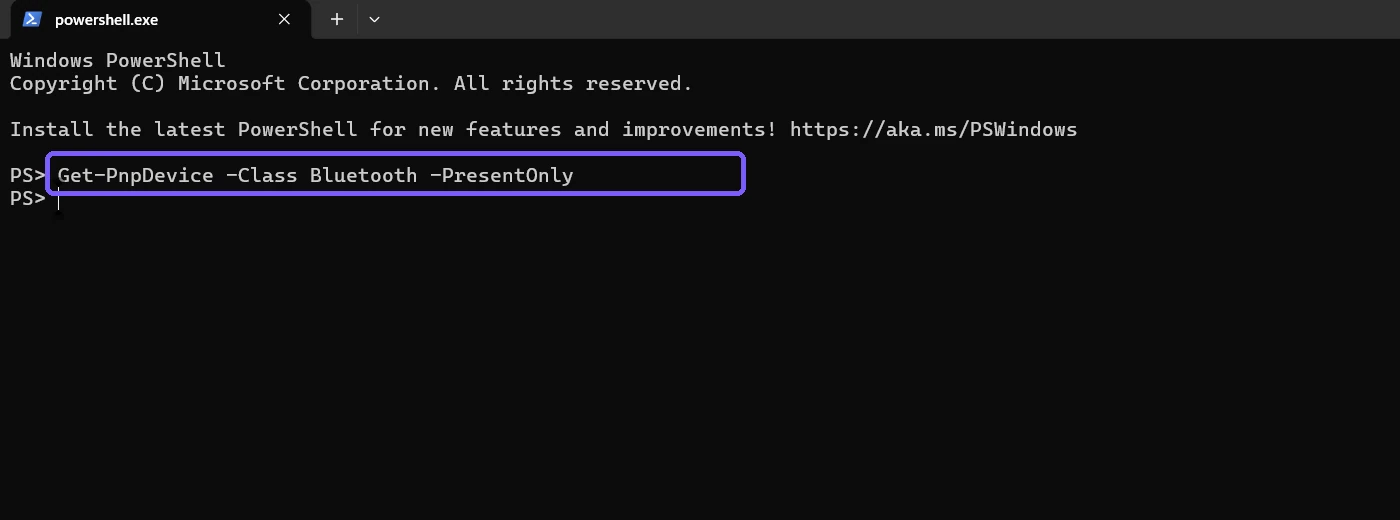
The full list can contain paired accessories and service entries. For privacy, the reproduced result was narrowed to the manufacturer radio and omitted instance identifiers:
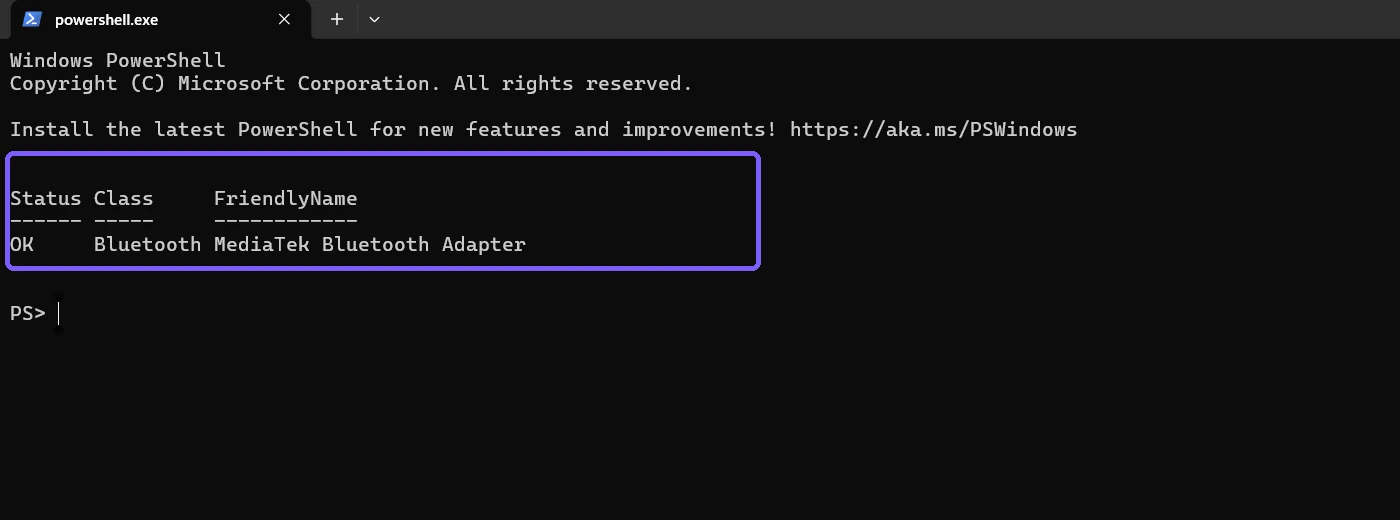
Read and interpret the RadioLmpVersion property
Once $radio contains the manufacturer radio, query only the named LMP property:
$lmp = $radio | Get-PnpDeviceProperty -KeyName 'DEVPKEY_Bluetooth_RadioLmpVersion'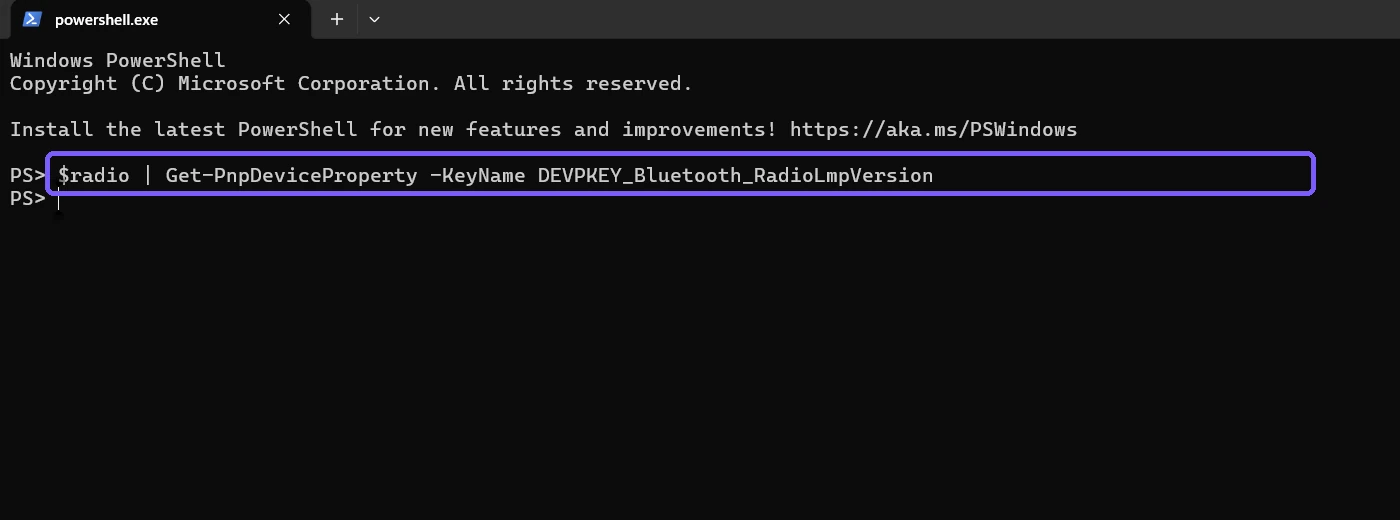
Read the value in $lmp.Data, then map it using Microsoft’s current table. The tested radio returned 12:
Map LMP to the Bluetooth Core Specification
- LMP 6: Bluetooth 4.0
- LMP 7: Bluetooth 4.1
- LMP 8: Bluetooth 4.2
- LMP 9: Bluetooth 5.0
- LMP 10: Bluetooth 5.1
- LMP 11: Bluetooth 5.2
- LMP 12: Bluetooth 5.3
- LMP 13: Bluetooth 5.4
- LMP 14: Bluetooth 6.0
Older LMP 0 through 5 values map to withdrawn or deprecated Bluetooth 1.x, 2.x, and 3.0 specifications. Use the number Windows actually reports. Do not infer a newer version merely because the adapter driver was recently updated.
What the Bluetooth version does not guarantee
The host radio version is only one compatibility input. A feature can require a matching accessory profile, compatible firmware, an appropriate driver, and Windows support. For example, a phone-based lock workflow still needs pairing and sign-in configuration; follow the separate steps to set up Dynamic Lock with a paired phone.
Do not update, roll back, uninstall, or disable the adapter simply to make the displayed number change. A driver update can fix bugs or expose capabilities, but it cannot add a radio feature that the hardware does not support. Treat driver troubleshooting as a separate procedure with its own recovery plan.
Troubleshoot missing or unexpected results
No Bluetooth node appears
Confirm that the PC has a Bluetooth adapter and that it is detected. Some desktop systems require an optional card or USB radio. Do not install an unknown driver utility or change firmware settings merely to complete this inventory check.
The Advanced tab is missing
Use the property query. If DEVPKEY_Bluetooth_RadioLmpVersion is empty for every present Bluetooth device, document the limitation. Do not guess from “BT 5.x” text in an accessory name.
PowerShell lists many devices
That is normal. The Bluetooth class includes the host radio, Microsoft enumerators, paired devices, transports, and services. Select the entry whose LMP property has a non-empty value, then display only its friendly name and the numeric data. Avoid publishing instance IDs because they can contain hardware-specific identifiers.
The LMP number and accessory box disagree
They describe different hardware. Windows reports the PC radio’s capability; packaging normally describes the accessory. Compatibility is bounded by both sides and by the profiles they share.
Frequently Asked Questions
What Bluetooth version is LMP 12?
Microsoft’s current mapping identifies LMP 12 as Bluetooth Core Specification 5.3.
Is the Bluetooth driver version the same as the Bluetooth version?
No. A driver has its own software version. The LMP value maps the radio to a Bluetooth Core Specification.
Does Bluetooth 5.3 guarantee LE Audio?
No. Core version alone does not guarantee every optional feature. Hardware, driver, Windows, accessory, and profile requirements still apply.
Do you need administrator rights to check the LMP value?
No on the tested Windows 11 PC. Device Manager Properties and the reproduced PowerShell inventory worked from a standard-user session.
Conclusion
Identify the manufacturer Bluetooth radio, read its LMP value, and map that number with Microsoft’s current table. On the tested PC, LMP 12 meant Bluetooth 5.3. Keep that host-radio result separate from accessory marketing, driver versions, and optional-feature support.
For more interesting articles, stay tuned to WinSides.com!









Community
Comments (0)