

You can find the Windows Feature Experience Pack version in Settings > System > About. Under Windows specifications, read the value beside Experience. On the Windows 11 PC used for this guide, that row showed Windows Feature Experience Pack 1000.26100.333.0.
A current-user PowerShell package query also returned version 1000.26100.333.0 for MicrosoftWindows.Client.CBS. Both checks were read-only and worked without administrator permission. The number is evidence from the tested installation on August 14, 2026; it is not a claim that every computer should have that value or that it is the newest version available.
What does the Feature Experience Pack version identify?
The Experience number identifies a Windows component package reported separately from the operating-system version and build. It is not your Windows edition, display version, or OS build. A single About page can therefore correctly show Windows 11 Home Single Language, version 25H2, OS build 26220.7872, and Feature Experience Pack 1000.26100.333.0 at the same time.
Use the label requested by a support technician or bug report. If someone asks for the OS build, give the OS build. If the request specifically mentions the Feature Experience Pack or the Experience row, give the complete four-part number after that label. Removing the first or last segment can make comparisons ambiguous.
Table of contents
What should you know before checking the version?
The Settings method only displays information. You do not need to open Windows Update, select Check for updates, install an optional feature, or change a system setting. This matters on managed, metered, or change-controlled PCs because checking an installed value should remain separate from requesting an update.
Microsoft's device-information guide confirms the path to Settings > System > About and the Windows specifications section. The support page calls out edition and version rather than promising every row visible on every build. The exact Experience label and value in this article come from direct reproduction on Windows 11 version 25H2.
How can you find the Feature Experience Pack version in Settings?
- Press Windows + I to open Settings.
- Select System in the left navigation.
- Select About. If it is below the visible portion of the page, scroll to it.
- Find Windows specifications and read the entire Experience row.
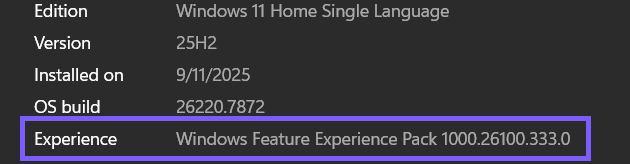
- Record the words Windows Feature Experience Pack together with all four number groups.
- Close Settings when finished; no rollback is required because no setting changed.
The row can be easy to miss because About contains device specifications before Windows specifications. If Experience is not visible, expand or scroll through Windows specifications rather than copying the nearby OS build. Search results, Settings layouts, and labels can vary by Windows build, edition, language, Insider channel, or organization policy.
How should you interpret the rows on the About page?
Edition identifies the Windows product, such as Home or Pro. Version is the feature-update label, such as 25H2. OS build identifies the installed Windows build and cumulative revision. Experience is the Feature Experience Pack value discussed here. These values can advance on different schedules, so one should not be substituted for another.
A screenshot that includes the surrounding Windows specifications rows can help a support engineer see which number was copied, but it should not include the Device specifications area above. That area can expose the computer name, device ID, product ID, processor, and other identifiers. The public image in this guide deliberately retains only the Windows specification rows needed to understand the answer.
How can you read the tested package version with PowerShell?
For a text result on the current account, open a normal PowerShell window and run:
Get-AppxPackage -Name MicrosoftWindows.Client.CBS | Select-Object Name, Version, Status, ArchitectureOn the test PC, PowerShell Core 7.6.3 ran at Medium integrity and the command exited with code 0. It returned package name MicrosoftWindows.Client.CBS, version 1000.26100.333.0, status Ok, and X64 architecture. That version exactly matched the Settings Experience row. The command did not launch Settings, contact Windows Update, modify package registration, or change user data.
Microsoft documents Get-AppxPackage as a way to list app packages registered for a user profile. With no -User or -AllUsers option, the narrow command above remains scoped to the current user. Microsoft's documentation says inspecting another profile or using -AllUsers requires administrator permission. Do not elevate or broaden the scope merely to read the signed-in account's result.
The package-to-Experience equality is a reproduced finding on this PC, not a universal Microsoft contract. If the package query is empty or reports a different value, use the visible Experience row as the primary answer and record the discrepancy for troubleshooting. Do not delete, re-register, reset, or reinstall the component just to make the numbers agree.
Is the Feature Experience Pack the same as the Web Experience Pack?
No. The Windows Web Experience Pack is a separate package associated with web-delivered Windows experiences. On the same PC, MicrosoftWindows.Client.WebExperience reported version 526.21100.0.0, which is plainly different from the Feature Experience Pack value. A separate WinSides guide covers how to identify the Web Experience Pack without merging the two version questions.
Do not assume that one number proves the status of the other package. When reporting a problem, copy the full component name as well as its version. “Experience Pack version” by itself is too vague because Windows can expose multiple packages containing the word experience.
Why should you avoid DISM and Features on Demand for this check?
Windows Features on Demand are a different servicing concept. Microsoft's Features on Demand documentation describes capabilities such as language resources and .NET Framework components that can be added to a Windows image. DISM capability lists answer which FOD capabilities are available or installed; they do not document the Feature Experience Pack number shown by the About page.
Older web instructions sometimes search for shell-component capability names or use DISM output as if it were the Experience row. That can mix Windows 10-era packaging with current Windows 11 behavior. For this exact question, Settings is the direct method and the reproduced current-user package query is a secondary diagnostic—not a reason to add, remove, or service a capability.
What if the Experience row or package query is missing?
First confirm that you opened System > About and reached Windows specifications. Resize or maximize Settings, scroll, and look below OS build. On an organization-owned device, record the Windows edition, version, and OS build, then ask the administrator whether the layout or component servicing is managed.
If Settings shows Experience but PowerShell returns no package, trust the visible Settings value for the question this guide answers. The current-user query can be empty when the relevant registration is unavailable to that account or the implementation differs on another build. If Settings itself lacks the row, do not invent a version from an online list. Windows channels and servicing states vary, and a number published for another PC is not evidence for yours.
How can you share the result without exposing device identifiers?
The first ShareX frame captured during reproduction did not reach the Experience row and still contained Device name, Device ID, and Product ID. It was retained privately as an excluded attempt and will never be uploaded. A second frame showed the target row. Its public derivative crops away the entire identifying area, hardware details, support links, taskbar, and desktop.
If you make your own screenshot, include the Experience label and complete number, plus only the neighboring Windows specification rows needed for context. Exclude Device specifications, account headers, organization names, serial information, and unrelated windows. For text output, select only Name, Version, Status, and Architecture rather than sharing the full package object or installation path.
Frequently Asked Questions
Do I need administrator permission to find the Feature Experience Pack version?
No. Settings and the narrow current-user Get-AppxPackage query both worked without elevation. Administrator permission is relevant only when broadening the package query to other users.
Is the Experience value the same as the Windows OS build?
No. Windows specifications lists OS build and Experience as separate rows. Record the row that a support request specifically asks for.
Does the installed number prove the pack is current?
No. It proves what the tested PC reports at the time of checking. Update availability can vary by build, channel, device, timing, and management policy.
Should I install a Feature on Demand to make the Experience row appear?
No. Features on Demand are different optional capabilities. Do not add, remove, or service Windows capabilities merely to obtain this version value.
Record the Experience label and all four number groups
Use Settings for the clearest authoritative local view, and use the current-user package query only as a reproduced secondary check. Keep the Feature Experience Pack distinct from the OS build, Web Experience Pack, and Features on Demand, and protect the identifiers displayed elsewhere on the About page.
For more interesting articles, stay tuned to WinSides.com!




Community
Comments (0)