

Windows 11 can show several legitimate version numbers for the same app because an app may have a package version, a product version, and versions for individual executable files. The quickest safe approach is to check Settings > Apps > Installed apps first, then use a targeted package command or the executable's Properties > Details page when Settings does not expose the value you need. All methods below are read-only and were reproduced without administrator rights.
Do not choose Repair, Reset, Modify, Uninstall, or an in-app update command while you are only identifying a version. Those actions solve different problems and can change app data or installed files.
Which app version should you look for?
Start with the question you are trying to answer. If support asks which release of an installed app you have, use the app or package version shown by Settings, WinGet, or the package manager. If you are checking one specific executable, use its File version or Product version instead. A portable app may have no package record at all, while a Store or MSIX app may have a package version even when its main executable displays different file metadata.
- Package version: identifies the installed WinGet, MSIX, or Appx package. This is usually the best value for install, update, and support questions.
- Product version: is version metadata chosen by the software publisher for a product or binary.
- File version: identifies a particular executable or DLL. Different files inside one app can legitimately have different file versions.
- Display or marketing version: may be a friendly label such as 24H2, 2026.1, or a short build. It does not always match the numeric package or file version.
There is no single Windows inventory that covers classic installers, Store apps, portable programs, per-user packages, and every file inside them. That is why the methods below are complementary rather than interchangeable.
Table of contents
Method 1: Find an app version in Settings
Settings is the easiest place to begin because it lets you identify the app without entering a path or command. Microsoft documents the same Settings > Apps > Installed apps route for an app's Advanced options in its app repair guidance. You only need to inspect that page; do not select a repair or reset action.
- Press Windows + I to open Settings.
- Select Apps, then Installed apps.
- Type the exact app name in the search box. Confirm the publisher or icon when two similarly named entries appear.
- If you are checking a built-in Windows component, select System components under Related settings and search again there.
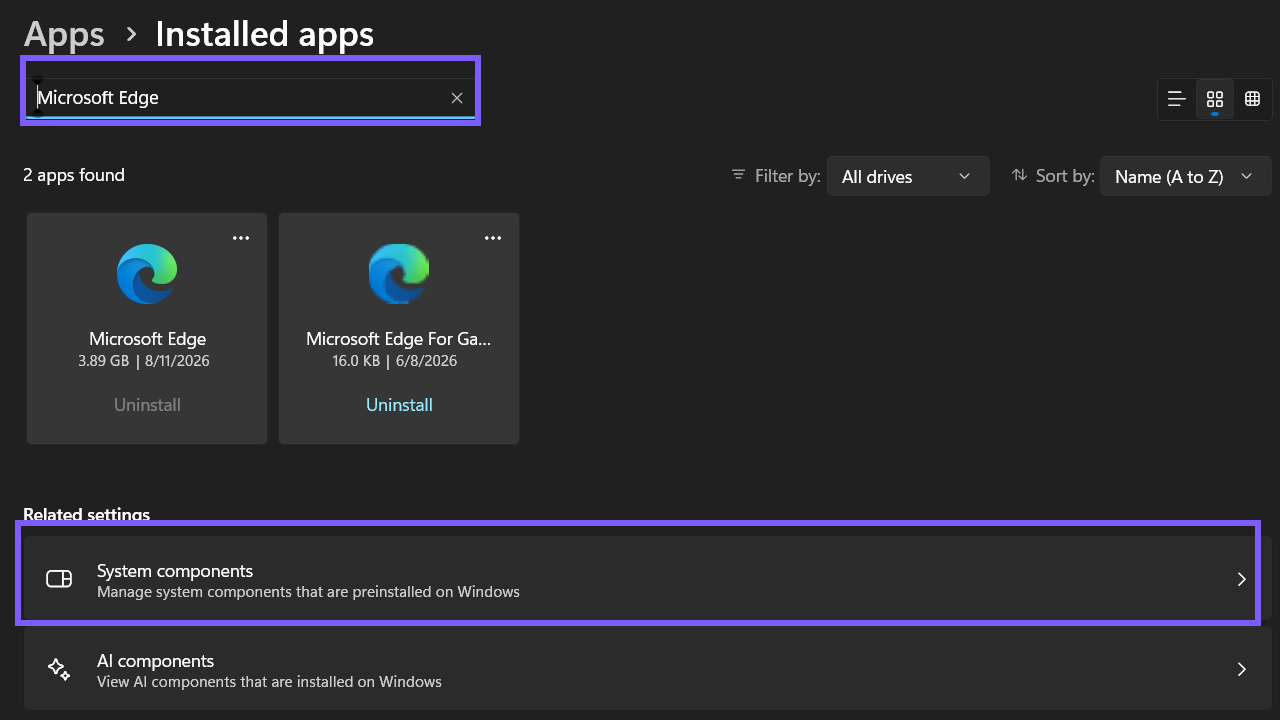
- Select the app's More options button, shown as three dots.
- Select Advanced options when that command is available.
- Read the Version value in Specifications, then close Settings without selecting any action lower on the page.
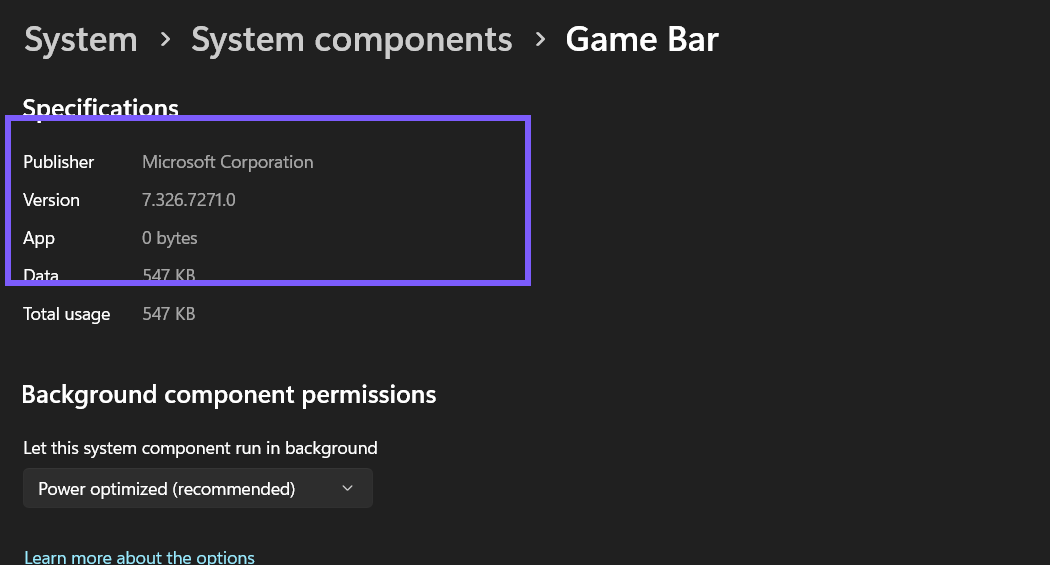
The main Installed apps card may show only size and install date. That is not a failure, and you should not infer a version from the date. Some classic apps offer Modify or Uninstall but no Advanced options. In those cases, use the targeted WinGet query or file method below.
Method 2: Query the installed version with WinGet
WinGet is useful when the app has a registered package and you can identify its package ID. Microsoft says winget list displays apps installed on the computer and includes the installed version. A targeted ID avoids a broad inventory containing unrelated private software names.
- Open Windows Terminal. A normal, non-administrator window is sufficient for the current user's installed package.
- Run a targeted query, replacing the ID with the package you need:
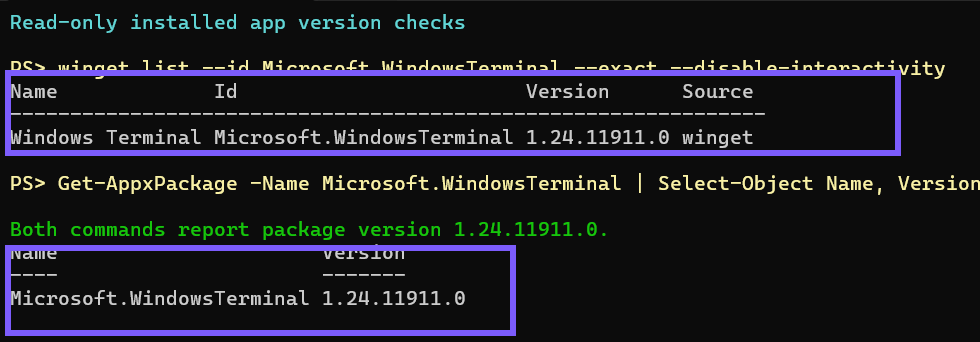
winget list --id Microsoft.WindowsTerminal --exact --disable-interactivity--id searches the package ID field, --exact prevents a partial match, and --disable-interactivity prevents an unexpected interactive prompt. The reproduced command returned Windows Terminal version 1.24.11911.0 with source winget and exited successfully.
If the query returns no matching package, first run winget list <app name> privately to discover the correct ID, then repeat the exact query for the one chosen row. Avoid publishing a full inventory because it can reveal security, work, finance, or account-related software.
Method 3: Check a Store or MSIX package with PowerShell
For an Appx or MSIX app, the built-in Get-AppxPackage command can report the package identity and version for the current user. Use an exact package name rather than dumping every installed package.
- Open a normal PowerShell or Windows Terminal session.
- Run the targeted command:
Get-AppxPackage -Name Microsoft.WindowsTerminal | Select-Object Name, VersionThe reproduced result reported Microsoft.WindowsTerminal version 1.24.11911.0, matching the targeted WinGet query. That agreement is a strong verification signal because two independent package views identified the same installed package version.
Do not add -AllUsers merely to satisfy curiosity. It can require elevation and reveals packages belonging to other accounts. A classic desktop program also may not appear in Get-AppxPackage; use WinGet, the app's own About page, or the file method instead.
Method 4: Read File version and Product version
Use this method when support asks about one executable, when the app is portable, or when a package value does not identify the file actually being loaded. You must know the real executable path. Do not download or run an unknown file just to inspect it.
- Find the executable in File Explorer. For an app shortcut, right-click it and use Open file location only when the location is trusted.
- Right-click the executable, select Properties, and open the Details tab.
- Read File version and Product version. Close the dialog with Cancel or the window close button; do not use the link that removes properties.
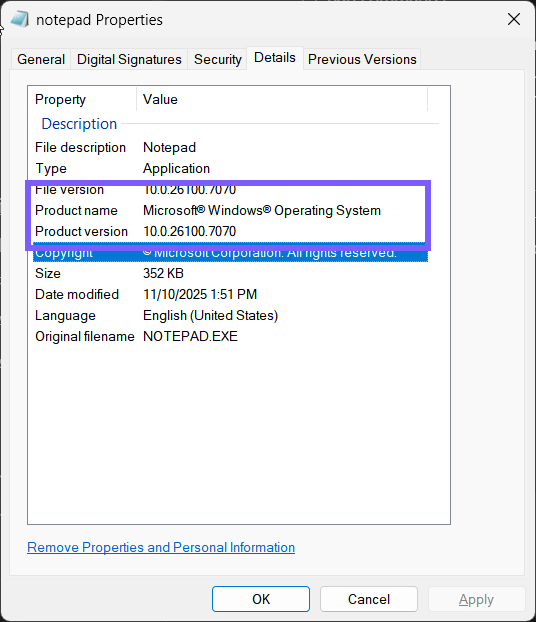
Windows can expose both friendly version strings and raw numeric version resources. On the tested Notepad file, Explorer displayed 10.0.26100.7070, while .NET's friendly FileVersion and ProductVersion strings reported 10.0.26100.1. Its raw version objects still reported 10.0.26100.7070. The following reproduced PowerShell command makes that difference explicit:
$v = [System.Diagnostics.FileVersionInfo]::GetVersionInfo('C:\Windows\System32\notepad.exe')
$v | Select-Object FileVersion, ProductVersion, FileVersionRaw, ProductVersionRaw
Neither value is automatically wrong; they describe different fields in the file's version resource. When sending a report, label the field and method—for example, “Explorer Product version 10.0.26100.7070” or “WinGet package version 1.24.11911.0”—instead of sending an unlabeled number.
How should you resolve different version results?
- Match the support question. Use the package version for installation and update issues, the app's displayed About version for vendor support, and the file version for one binary.
- Confirm the identity. A similar display name is not enough. Compare publisher, package ID, executable path, or file description.
- Repeat with a second signal. A WinGet value matching an exact Appx package query is stronger than a broad name search. For a file, compare Explorer Details with
FileVersionInfo. - Record the complete value. Do not drop the final revision segment. Version 1.24.11911.0 is more precise than “1.24.”
- Do not compare unlike fields. A package version can advance independently of an operating-system file revision or marketing label.
Troubleshooting missing or unexpected versions
Settings has no Advanced options command
This is normal for many classic desktop and portable apps. Use the exact WinGet ID or inspect the app's main executable. Do not choose Modify, Repair, or Reset as a substitute.
WinGet lists more than one matching app
Use the publisher and package ID to select the intended row, then repeat the query with --id and --exact. A display-name-only search can match helpers, preview channels, language packs, or similarly named products.
Get-AppxPackage returns nothing
The app may be a classic Win32 program, installed for another account, portable, or registered under a different package name. Check WinGet or the executable instead. Do not elevate or enumerate all user profiles unless an authorized administrative task specifically requires it.
The file has no version fields
Publishers are not required to populate every resource field. Confirm that you selected the real executable rather than a shortcut, launcher, or small updater. A blank field does not prove corruption and is not a reason to replace the file.
Privacy and safety notes
A broad app inventory can reveal more than expected, including security products, employer tools, browsers, finance software, and account-related apps. Prefer exact package IDs and selected output fields. Before sharing a screenshot, remove account names, email addresses, user-profile paths, machine names, unrelated apps, notifications, and license information. The public images in this guide use tight, deterministic crops; the original ShareX PNGs remain private.
Every procedure here was observational. It did not run Notepad, update Windows Terminal, change Game Bar permissions, install a source, modify a file, or require rollback. If an app's About page automatically checks for updates, use Settings or a command instead when you need a strictly read-only result.
Frequently Asked Questions
Why does Installed apps show a date but no version?
The main list does not expose version metadata for every package type. Check More options > Advanced options when available, use an exact WinGet or Appx query, or inspect the executable's Details tab.
Do I need administrator rights to check an app version?
No for the methods reproduced here. Settings, current-user WinGet and Get-AppxPackage queries, and readable file Properties work without elevation. Protected files or other user profiles may require authorized administrative access, but elevation should not be the default.
Why do the package version and file version differ?
They identify different objects. A package can contain several executables and libraries, each with its own file metadata, while the package manager tracks one package release. Report the field name and method with the number.
Which version should I send to app support?
Use the version requested by the vendor. If the request is vague, send the app or package version first and include the exact executable File version only when the problem concerns that binary. Label every value clearly.
Conclusion
Begin in Settings, then choose the exact package or file method that matches your question. A targeted WinGet query works well for registered desktop packages, Get-AppxPackage is precise for Store or MSIX apps, and Properties > Details identifies one executable. When values differ, preserve the full number and report which field produced it rather than treating one version system as universally authoritative.
If you are checking the shell that runs the PowerShell examples, use the PowerShell version guide and label that environment version separately from the app or package version.
For more interesting articles, stay tuned to WinSides.com!

Community
Comments (0)