

To list the Linux distributions installed in Windows Subsystem for Linux (WSL), open a normal PowerShell tab and run wsl --list --verbose. The table shows each registered distribution, marks the default with an asterisk, reports whether it is running or stopped, and identifies whether it uses WSL 1 or WSL 2.
I reproduced this read-only inventory on Windows 11 Home Single Language version 25H2, build 26220.7872. The PC had three registered distributions: Ubuntu-20.04, Ubuntu, and Ubuntu-24.04. Ubuntu-20.04 was the default, all three were stopped, and all three used WSL 2. The follow-up wsl --list --quiet check returned the same three names. No distribution started and no WSL setting changed.
What does the installed WSL distribution list show?
The installed list is an inventory of distributions already registered with WSL for the account running the command. It is not a catalog of everything available to download. It also does not show the installed WSL application build, the Linux release inside a distribution, or whether an update is available.
Microsoft's WSL command reference documents wsl --list --verbose (also written as wsl -l -v) as the view that lists installed distributions with detailed information, including state and WSL version. The same reference documents wsl --list --quiet as the names-only form.
That distinction matters when troubleshooting. “Ubuntu-24.04” is a registered distribution name. The VERSION value 2 means the distribution uses the WSL 2 architecture. It does not mean Ubuntu version 2, WSL application version 2, or Windows version 2.
Table of contents
How do you list installed WSL distributions with details?
- Open Windows Terminal.
- Open a PowerShell tab as a standard user. This inventory did not require administrator approval.
- Enter the following command:
wsl --list --verbose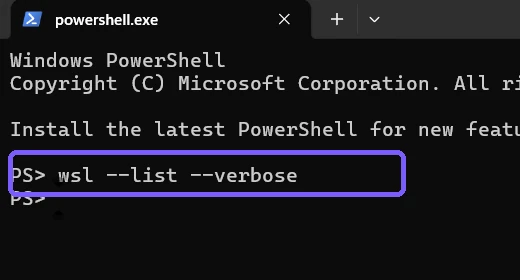
- Press Enter.
- Read each row from left to right: default marker, distribution name, current state, and WSL generation.
- Record the exact name before using it in any later WSL command. Spaces, punctuation, and version suffixes matter.
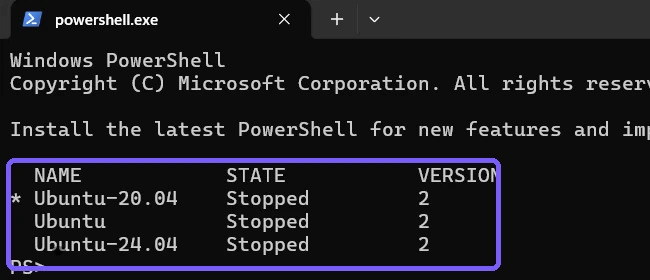
The command returned immediately without opening Ubuntu or another Linux shell. That behavior makes the list suitable for a first diagnostic check: you can discover what is registered and whether anything is already running before deciding whether another action is necessary.
How do you interpret NAME, STATE, VERSION, and the asterisk?
- Asterisk: the star to the left of a row marks the default distribution. On the reproduced PC, it appears beside Ubuntu-20.04.
- NAME: the registered identifier accepted by distribution-specific WSL commands. The names here are Ubuntu-20.04, Ubuntu, and Ubuntu-24.04.
- STATE: whether the distribution is currently Running or Stopped. Every reproduced row was Stopped both before and after the inventory.
- VERSION: the architecture assigned to that distribution—WSL 1 or WSL 2. All three reproduced rows show 2.
Do not infer more than the columns provide. A Stopped row does not prove that the distribution is broken; it only says that it was not running at that moment. A VERSION value of 2 does not identify the Ubuntu release. The distribution name may contain a release label, but the authoritative guest operating-system version must be checked inside that distribution in a separate procedure.
The default marker also does not change anything. Listing the table merely reads which distribution is already configured as default. Changing the default uses a different command and falls outside this read-only tutorial.
How do you get only the installed distribution names?
Use the quiet form when a script or checklist needs the registered names without headings, state, or WSL-generation columns:
wsl --list --quiet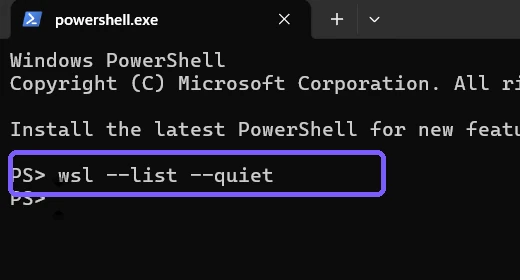
Press Enter. Each installed distribution appears on its own line.
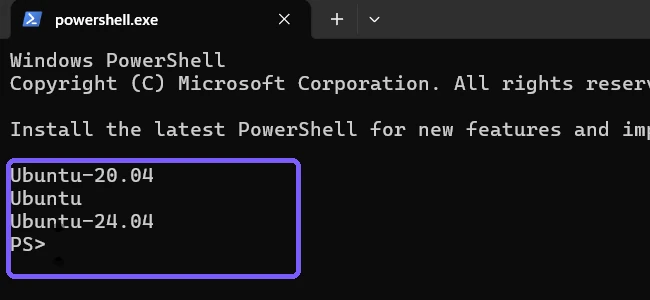
The quiet result is easier to copy, but it deliberately omits useful context. Return to wsl --list --verbose when you need to know which distribution is default, whether it is running, or whether it uses WSL 1 or WSL 2. Do not guess those properties from the order or wording of the quiet list.
What is the difference between installed, running, and online WSL lists?
An installed list includes registered distributions whether they are running or stopped. A running-only list is a narrower diagnostic view and can be empty even when several distributions are installed. An online list is a catalog of distributions available for installation, not proof that they are already on the PC.
This article intentionally uses the installed inventory. It does not run the running-only switch, contact an installation catalog, or compare available releases. Keeping those goals separate prevents an empty running list from being misread as “WSL is not installed.”
Likewise, this list does not report the installed WSL application version. That separate value describes the WSL component itself, while the VERSION column here describes the architecture assigned to each registered distribution.
What if no WSL distributions appear?
First, read the exact output rather than assuming the cause. An empty names-only result can mean that no distribution is registered for the current account. An error about WSL availability is a different condition. Record the command and message before changing Windows.
If WSL itself is unavailable, use the separate guide to enable Windows Subsystem for Linux. If WSL is available but you intentionally need a Linux distribution, follow the reproduced procedure to install Ubuntu with WSL 2. Both are state-changing tasks, so they are kept outside this inventory check.
Do not install a distribution simply to make a screenshot resemble this article. Your valid result may contain one distribution, several distributions, different names, WSL 1 rows, running rows, or no rows at all. The command is the method; the reproduced names are evidence from one PC, not a required configuration.
What should you check if the list looks wrong?
- Confirm that the command is
wsl --list --verbose, with two hyphens before both long-form switches. - Run it from the same Windows account that normally uses the distributions. Do not treat one account's output as a complete inventory for every user.
- Compare the verbose names with
wsl --list --quiet. The same registered names should be represented even though the quiet form omits the other columns. - If a name looks unfamiliar, record it exactly. Do not unregister, rename, convert, launch, terminate, or delete it as part of diagnosis.
- On a managed PC, share the exact output with the administrator instead of bypassing policy or adding elevation.
The reproduced checks were both standard-user reads. No confirmation dialog or warning appeared. Closing Terminal ended the evidence session, and exact configuration hashes confirmed that Windows Terminal and ShareX settings returned to their starting state.
Is a WSL distribution list safe to share?
Distribution names such as Ubuntu or Debian are usually less sensitive than file contents, but custom imported distributions can use organization, project, customer, or personal labels. Review every name before posting a screenshot. Also inspect the prompt, working directory, tabs, notifications, taskbar, and other visible applications.
The four retained screenshots use an anonymous PS> prompt in disposable standard-user Terminal sessions. They show no account name, personal path, credential, Linux file, command history, notification content, or unrelated document. The final frame is a fresh names-only read captured before Terminal closed; it does not represent a manufactured or changed state.
Frequently Asked Questions
What command lists all installed WSL distributions?
Run wsl --list --verbose. It shows registered names, the default marker, current state, and each distribution's WSL 1 or WSL 2 generation.
How do you list only WSL distribution names?
Run wsl --list --quiet. Each registered distribution name appears on its own line without the State or VERSION columns.
Does listing WSL distributions start them?
No distribution started during either reproduced list command. All three remained Stopped in the verbose inventory.
Does VERSION 2 mean Ubuntu version 2?
No. VERSION 2 means that distribution uses the WSL 2 architecture. It is separate from the Ubuntu release and the installed WSL application version.
Inventory registered distributions before taking action
Run wsl --list --verbose for the complete installed-distribution view and interpret the asterisk, State, and VERSION columns by their labels. Use wsl --list --quiet when you need names only. Record the actual output and keep installation, launch, default selection, conversion, termination, and removal as separate, intentionally authorized tasks.
For more interesting articles, stay tuned to WinSides.com!







Community
Comments (0)