

To find the Windows country or region home-location setting and its numeric GeoID, open Windows Terminal with a normal PowerShell tab and run Get-WinHomeLocation. The result identifies the current user account's Windows home location; it does not change the setting or reveal the device's physical GPS position.
I reproduced the read-only check on Windows 11 version 25H2, build 26220.7872. It returned GeoID 242 and United Kingdom. A second read of the current-user Geo registry key returned region code GB and Nation 242. No location, language, regional format, keyboard, time-zone, Store, or account setting changed.
What does the Windows home-location GeoID mean?
A GeoID is a numeric identifier for a geographical location. Windows associates the home-location setting with the signed-in user account so applications that need country or region context can read it. The value is regional metadata, not a live coordinate, street address, IP-derived location, or proof of where the computer is currently located.
Microsoft's Get-WinHomeLocation documentation states that the cmdlet gets the current user account's Windows GeoID home-location setting and returns a .NET GeoID object. That user scope matters: another account on the same PC can have a different home location.
The value also is not necessarily the country selected during the device's first factory setup. It can be changed later, copied to other Windows contexts, or managed by policy. Use the result as the current account's recorded home-location setting at the time of the check.
Table of contents
How is home location different from other region settings?
Windows maintains several related but separate choices. Display language controls interface text. Regional format affects date, time, and number formatting. Keyboard layout controls input. Time zone controls clock conversion. Location permission controls whether apps can request location data. The Microsoft Store and Microsoft account can also have country or billing-region information.
Get-WinHomeLocation answers only the Windows home-location GeoID question. A mismatch with the display language or time zone is not automatically an error. For example, someone can use English interface text, a different regional format, and a separate home-location choice for legitimate reasons.
This article does not use Set-WinHomeLocation, edit language lists, or write Registry values. Those are distinct state-changing tasks that should begin with a backup and an understanding of application effects.
How do you find the country or region GeoID with PowerShell?
- Open Windows Terminal.
- Open a PowerShell tab as a standard user.
- Enter this command:
Get-WinHomeLocation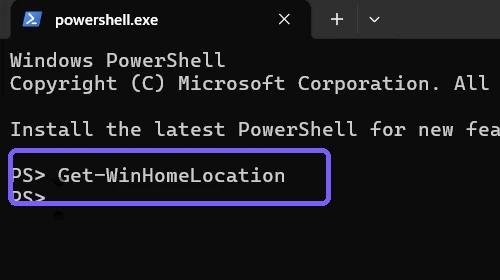
- Press Enter.
- Read the number beside GeoId.
- Read the country or region beside HomeLocation.
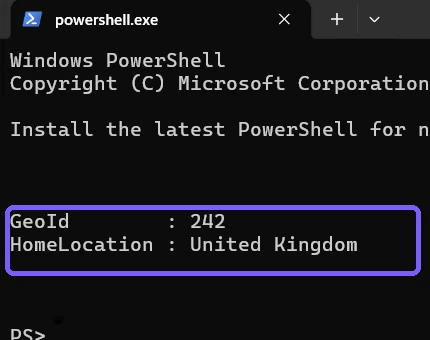
Microsoft's table of geographical locations maps decimal GeoID 242 to United Kingdom. Use the decimal number displayed by PowerShell when comparing the result with this table.
How do you cross-check the stored region code and number?
The following PowerShell query reads the current user's Geo key and selects only its two short values. It does not write to the Registry:
Get-ItemProperty 'HKCU:\Control Panel\International\Geo' | Select-Object Name,Nation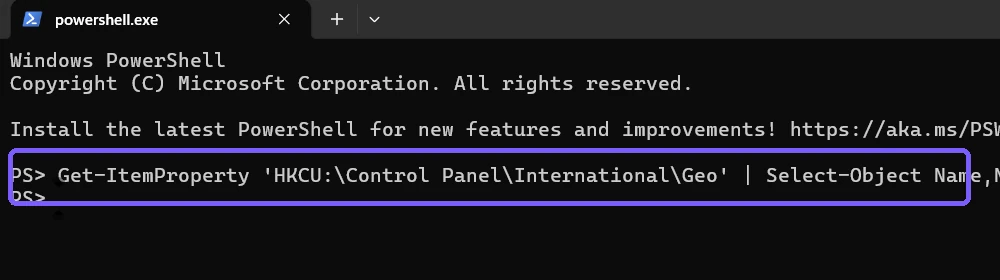
Press Enter, then compare Nation with the GeoID returned by Get-WinHomeLocation.
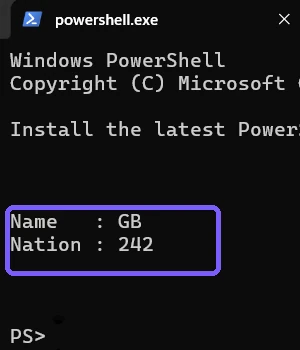
In the reproduced session, the two values agree: the cmdlet reports 242 and United Kingdom, while the key reports GB and 242. Prefer Get-WinHomeLocation as the supported user-facing method. Treat the Registry read as a diagnostic cross-check, not as an invitation to edit the key.
Is a country or region setting private?
A country or region is less specific than a precise location, but it is still account-level context. Share it only when it helps solve the problem. Avoid posting a full desktop screenshot that also shows an account name, organization, notification, network, personal file, or working path.
The retained screenshots for this guide use an anonymous PS> prompt and contain only the commands and regional values needed for the tutorial. The country result is intentionally visible because it is the subject being verified; no coordinate, address, account identifier, or device identifier appears.
How should you interpret the result?
- The cmdlet and Nation number match: the supported view and stored current-user values agree.
- The country differs from display language: that can be intentional because the settings control different behavior.
- The result differs between Windows users: Get-WinHomeLocation is user-scoped, so compare accounts separately.
- The result is not where the PC is physically located: home location is a configured regional choice, not live geolocation.
Do not use this result to infer nationality, residence, purchase country, tax location, billing country, or travel position. Those are separate facts and may be sensitive.
What can you do if Get-WinHomeLocation fails?
If the cmdlet is not recognized, open the built-in Windows PowerShell environment or a PowerShell installation that can access the Windows International module. Retype the hyphenated name exactly. Command Prompt does not understand this cmdlet directly.
If the result is empty or unexpected, close Terminal and check Settings > Time & language > Language & region visually. Record what Windows displays before considering a change. On a managed PC, policy can limit regional settings; contact the administrator instead of bypassing controls.
If the Registry cross-check is unavailable, keep the supported cmdlet result and its collection time. Do not create or modify missing values merely to make a diagnostic query succeed. A write could affect applications that consume regional metadata.
Frequently Asked Questions
Does Get-WinHomeLocation reveal my physical location?
No. It returns the current user's configured Windows home-location country or region and GeoID, not GPS coordinates or an address.
Is the home location the same as the display language?
No. Display language controls interface text, while home location is a country or region setting used by applications that request regional context.
What country does GeoID 242 represent?
Microsoft's geographical-location table maps decimal GeoID 242 to United Kingdom.
Do I need administrator rights to read the GeoID?
No. Both reproduced reads ran in a standard-user PowerShell session without an administrator prompt.
Use the current-user value for the right question
Run Get-WinHomeLocation for the supported country-or-region name and numeric GeoID, and use the current-user Geo key only as a read-only cross-check. Keep the result separate from language, formatting, time zone, Store, account, and physical-location data.
For more interesting articles, stay tuned to WinSides.com!




Community
Comments (0)