

To find the installed Windows Subsystem for Linux application version in Windows 11, open a normal PowerShell tab in Windows Terminal and run wsl --version. The first line is the WSL application version; the following lines identify related components such as the Linux kernel and WSLg.
I reproduced this read-only check on Windows 11 version 25H2, build 26220.7872. It reported WSL version 2.9.3.0. A targeted current-user Appx inventory query independently reported MicrosoftCorporationII.WindowsSubsystemForLinux version 2.9.3.0 with X64 architecture. No Linux distribution started, and no install, update, conversion, shutdown, unregister, or removal command ran.
Which WSL version are you trying to find?
Several different numbers can appear around WSL, and they answer different questions. The WSL application version describes the installed Windows component package. A distribution generation—WSL 1 or WSL 2—describes how one installed Linux distribution runs. A Linux distribution release identifies Ubuntu, Debian, or another guest operating system. The kernel line in wsl --version identifies the Linux kernel supplied with WSL, while the Windows version line identifies the host Windows build.
This guide answers the application/component question. It does not list distributions or tell you whether a particular distribution uses WSL 1 or WSL 2. It also does not compare the installed version with a newer online release. Keeping these boundaries separate prevents a common mistake: treating the application number 2.9.3.0 as if it were a distribution's WSL generation.
Microsoft's WSL command reference documents wsl --version as the command that shows the WSL version and its components. Use that supported command first because it presents the relevant component inventory together.
Table of contents
How do you find the installed WSL version with wsl --version?
- Open Windows Terminal.
- Open a PowerShell tab as a standard user. Administrator rights are not required for this read.
- Enter the following command:
wsl --version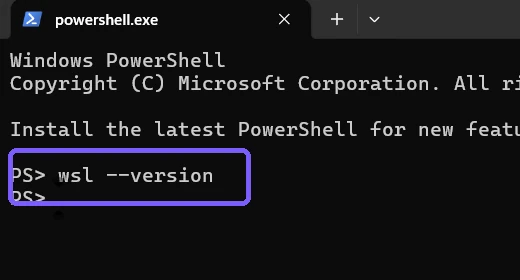
- Press Enter.
- Read the number on the first line beside WSL version.
- Record any component line you need for troubleshooting, but do not substitute the kernel, WSLg, MSRDC, Direct3D, DXCore, or Windows value for the WSL application version.
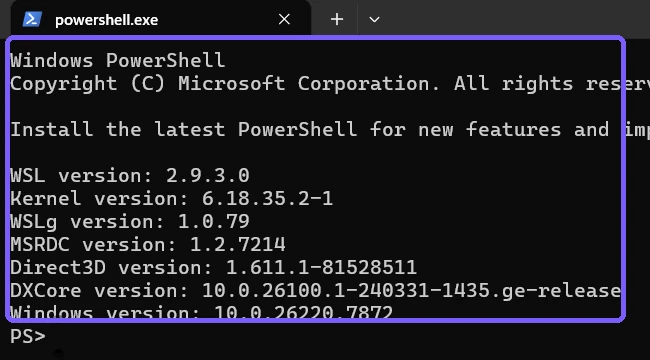
The first line is the answer for this article. In the reproduced session, it is 2.9.3.0. The kernel is 6.18.35.2-1, WSLg is 1.0.79, and Windows is 10.0.26220.7872, but those values belong to different components. They can change on different schedules, so preserve their labels when sharing a diagnostic result.
How do you cross-check the installed WSL Appx package?
Microsoft Store-delivered WSL can also appear in the signed Appx package inventory for the current Windows user. The following targeted query selects only the package name, version, and architecture:
Get-AppxPackage MicrosoftCorporationII.WindowsSubsystemForLinux | Select-Object Name,Version,Architecture
Press Enter, then compare the returned Version with the first line from wsl --version.
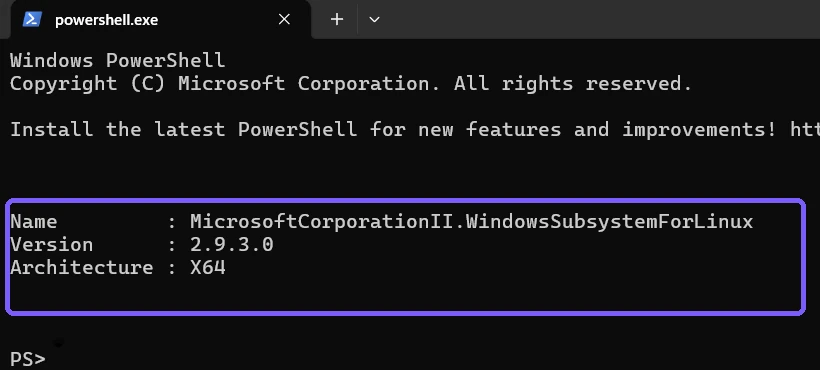
Microsoft's Get-AppxPackage documentation explains that the cmdlet lists installed signed Appx packages and, without an all-users switch, operates in the current-user context. That scope is why this is a useful cross-check but not a universal inventory of every account on the PC.
On this device, both methods report 2.9.3.0. A matching result confirms that the command-line WSL component and the visible current-user package inventory agree at capture time. If the Appx query returns nothing, retain the supported wsl --version result; do not install or modify a package simply to make the diagnostic cross-check display a row.
What do the component lines mean?
- WSL version: the installed WSL application/component build requested by this guide.
- Kernel version: the Linux kernel bundled for WSL 2 workloads, not the Ubuntu or Debian release.
- WSLg version: the graphical Linux application integration component.
- MSRDC version: the Remote Desktop component used by the WSL graphical stack.
- Direct3D and DXCore versions: graphics-related components exposed in the WSL environment.
- Windows version: the host Windows build, which is separate from the WSL package version.
Copy labels together with values when opening a support case. A bare number such as 1.0.79 is ambiguous without the WSLg label, while 6.18.35.2-1 could be mistaken for a distribution release if the kernel label is omitted.
Why is WSL 2.9.3.0 not the same as WSL 2?
The phrase “WSL 2” names the newer architecture used by a distribution. The dotted value 2.9.3.0 is an application version. A PC can have WSL application version 2.9.3.0 while one distribution uses WSL 2 and another, separately configured distribution uses WSL 1. You need a distribution-list command for that per-distribution question, which is outside this article's read-only application inventory.
Likewise, the WSL application version does not tell you whether Ubuntu is 24.04, Debian is 13, or another distribution is current. Query the distribution itself only when you need its guest operating-system release. Do not launch a distribution merely to pad an application-version check with unrelated output.
What if WSL is not installed?
If PowerShell says that wsl is not recognized, or Windows reports that the required feature is unavailable, first follow the guide to enable Windows Subsystem for Linux. If your goal is the newer virtualized architecture, review how to enable WSL 2 in Windows 11. Those procedures change Windows state and are intentionally separate from this read-only version check.
If wsl --version is unavailable on an older inbox-only WSL installation, do not assume that a missing output means version zero. Record the exact message and the Windows build. The command behavior and packaging model can differ on older systems, and this article does not fabricate a replacement version number.
What can you do if the two version checks differ?
Close and reopen Windows Terminal, then run the same two read-only commands again in the same user account. Confirm that you copied the first WSL line rather than the kernel or WSLg line. Also confirm that the Appx query was not broadened to another account or package family.
A recently serviced component may require a new process before every surface displays the same information. Record both labeled results and their collection time. Do not run wsl --update, reinstall WSL, remove the Appx package, or edit package files merely to force the values to match; those are state-changing repair decisions that need their own evidence and rollback plan.
If a managed PC restricts WSL, contact the administrator with the exact output. Bypassing policy or using elevated commands is unnecessary for the inventory shown here and can turn a harmless diagnostic check into a configuration change.
What should you remove before sharing WSL version output?
The wsl --version output shown here contains component versions rather than a user name, distribution file, Linux prompt, or home-directory path. The Appx result contains only the official package name, version, and architecture. Even so, review the whole screenshot before sharing it because a normal terminal window can expose a profile name, working directory, notification, other tab, or unrelated command history.
The retained screenshots use an anonymous PS> prompt in disposable standard-user sessions. They contain no credential, account identifier, personal path, Linux distribution content, or private file. The final frame is a fresh read-only result captured immediately before Terminal and ShareX were closed and their exact configuration hashes were verified.
Frequently Asked Questions
What command shows the installed WSL application version?
Run wsl --version in PowerShell or Command Prompt. Read the first line labeled WSL version.
Does wsl --version start a Linux distribution?
No distribution started during the reproduced check. The command returned the installed WSL and component versions directly.
Is WSL version 2.9.3.0 the same as a distribution using WSL 2?
No. 2.9.3.0 is the WSL application version; WSL 1 or WSL 2 is the generation assigned to a particular distribution.
Do you need administrator rights to check the WSL version?
No. Both reproduced version reads ran in a standard-user PowerShell session without an administrator prompt.
Keep the WSL application version separate from its components
Use wsl --version as the supported primary check and read its first labeled line. Use the targeted current-user Appx query only as a second inventory view. Keep the application version distinct from the kernel, WSLg, Windows build, Linux distribution release, and per-distribution WSL 1 or WSL 2 generation.
For more interesting articles, stay tuned to WinSides.com!


Community
Comments (0)