

Windows 11 can reduce motion across supported parts of the interface with one Animation effects switch. The safest route is Settings > Accessibility > Visual effects; no administrator permission, Registry edit, sign-out, or restart is required.
I reproduced the switch on Windows 11 Home Single Language version 25H2, build 26220.7872. It started On, changed to Off, and returned to On. Windows UI Automation and the independent SPI_GETCLIENTAREAANIMATION system signal agreed at every state, so the original setting is restored.
What does the Animation effects setting do?
Animation effects controls the Windows accessibility preference for motion in supported user-interface elements. When it is On, Windows and compatible apps can use motion such as transitions and window animations. When it is Off, Windows reports that client-area animations are disabled, and apps designed to respect the system preference can reduce or remove those effects.
This is an accessibility choice, not a promise that every program or website will stop all movement. Microsoft tells app developers to read the system animation preference, but an app with its own animation engine may not fully honor it. Web pages also use browser and site-specific motion settings.
Animation effects is separate from Transparency effects, scroll-bar visibility, and notification timing. If you also want opaque backgrounds, change the neighboring setting independently with the Windows transparency-effects controls.
Table of contents
What should you know before changing Animation effects?
- Record the starting state. The switch is easy to reverse, but a screenshot or note prevents guesswork.
- No administrator access is needed. The tested setting applied to the signed-in user.
- No restart is needed. The visible state and system animation signal changed immediately on the reproduced PC.
- Other Visual effects settings stay independent. Do not change Transparency effects, Always show scrollbars, or notification timing unless you intend to.
- Managed PCs may differ. An organization can restrict Settings or apply accessibility preferences through management policy.
Where is the Animation effects setting?
- Press Windows + I to open Settings.
- Select Accessibility in the left sidebar.
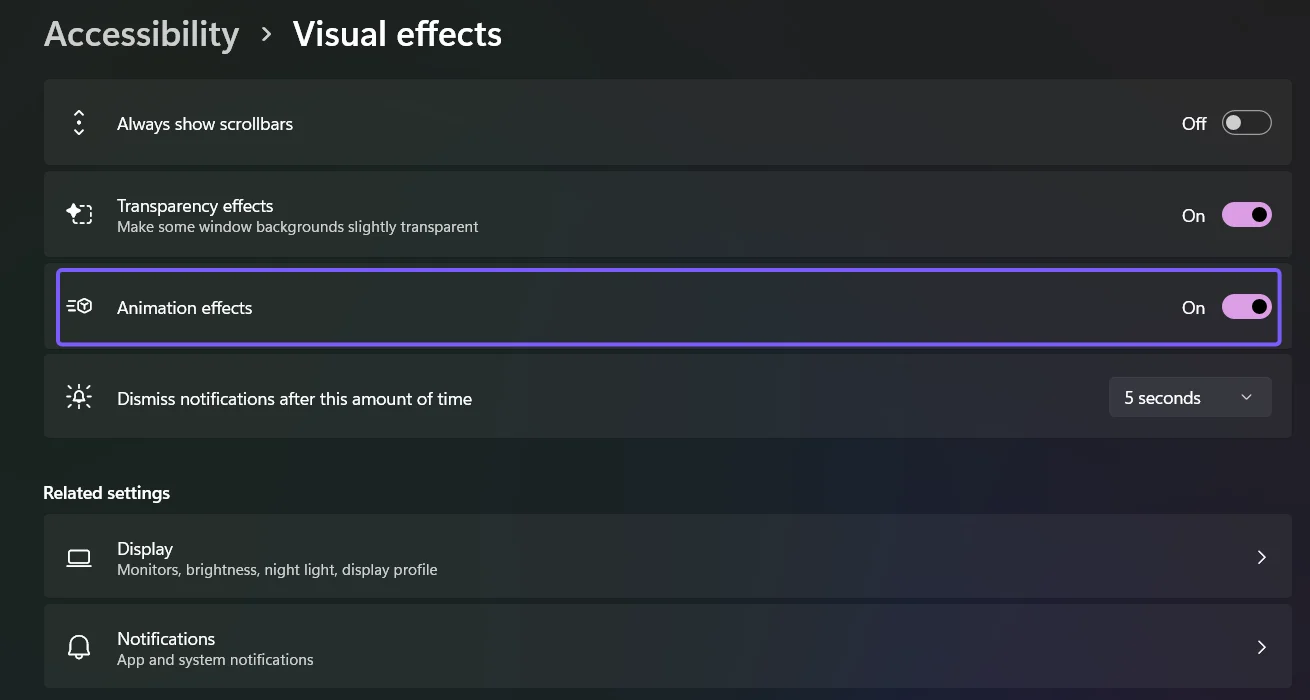
- Select Visual effects.
- Find Animation effects in the main pane.
You can also open the tested page directly by pressing Windows + R, entering ms-settings:easeofaccess-visualeffects, and selecting OK. This URI opens the same Settings page; it does not change the switch by itself.
How do you turn Animation effects off?
- Open Settings > Accessibility > Visual effects.
- Check whether Animation effects currently says On or Off.
- Set Animation effects to Off.
- Open and minimize a window or move through Settings to judge whether the reduced motion feels more comfortable.
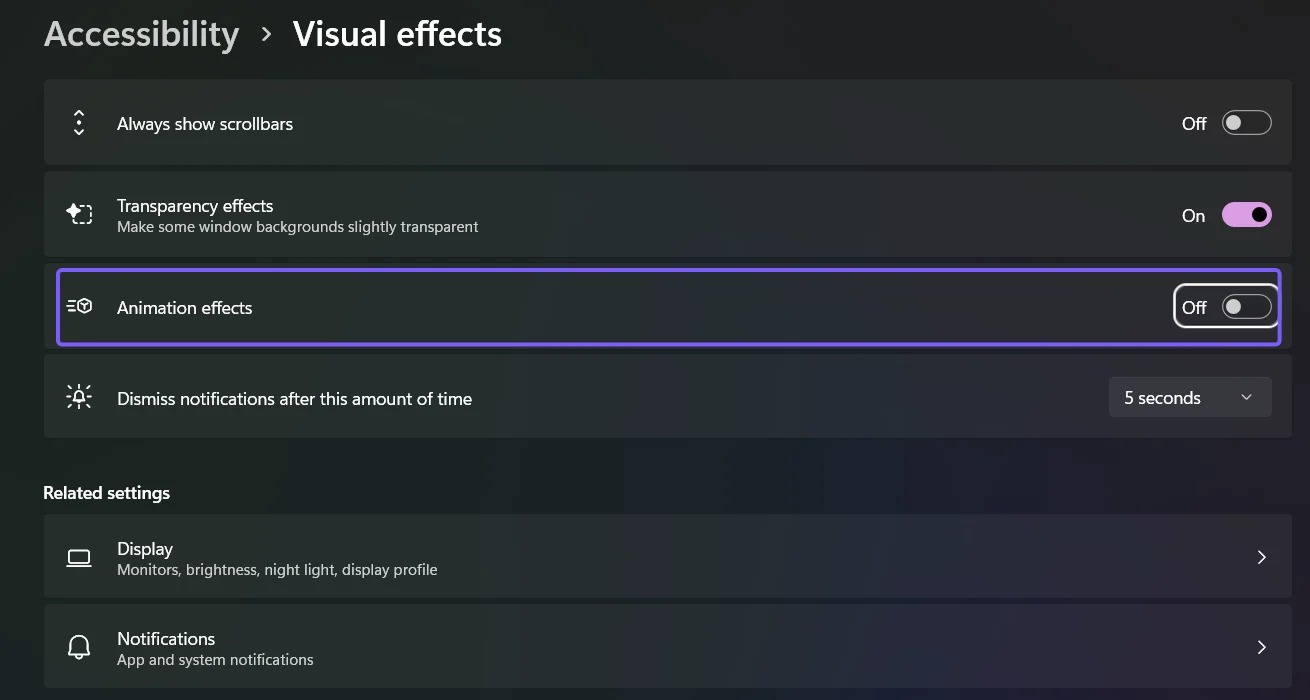
On the reproduced PC, the visible switch changed to Off immediately. A separate call to the documented Windows SystemParametersInfo function with SPI_GETCLIENTAREAANIMATION also changed from true to false. That independent result confirms that the system preference changed, not merely the text displayed in Settings.
How do you turn Animation effects on?
- Return to Settings > Accessibility > Visual effects.
- Set Animation effects to On.
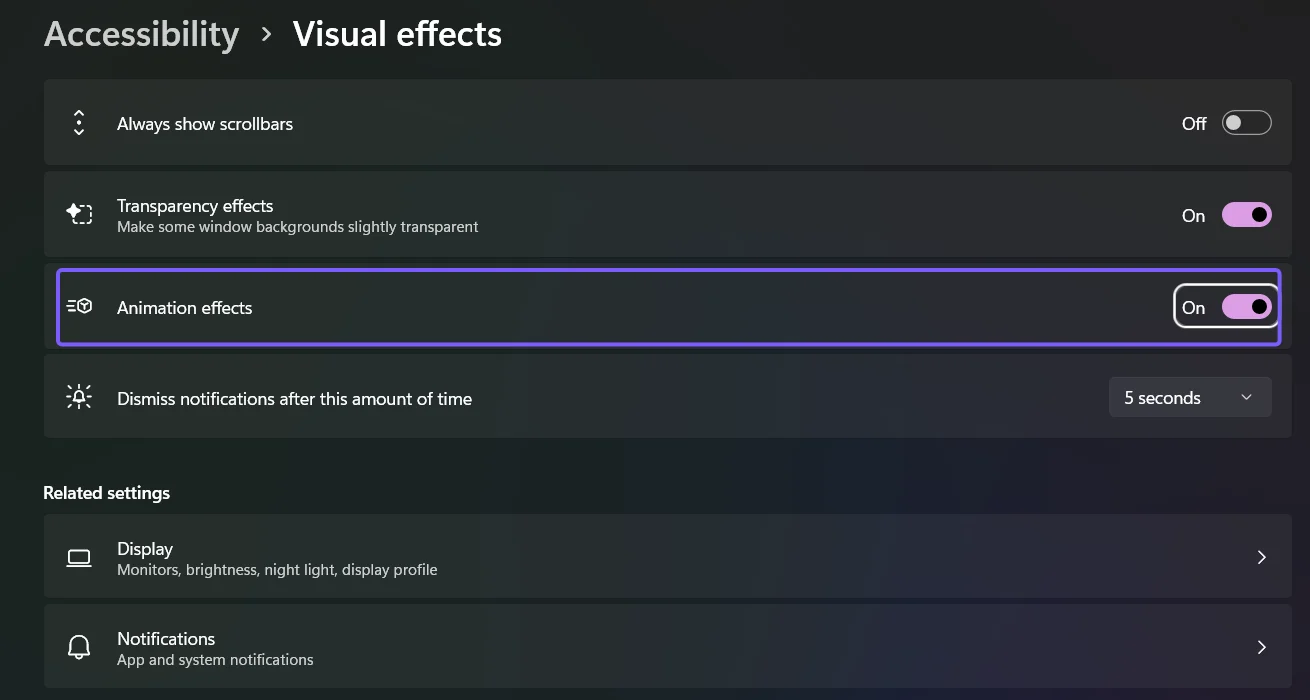
- Confirm that On appears beside the switch.
- Test a normal Windows transition, such as minimizing and restoring a window, if you want to compare the experience.
The setting does not require a restart. On the test PC, the Windows system signal returned to true as soon as the visible switch returned to On.
What does not change when you turn animations off?
- Transparency remains unchanged. The separate Transparency effects switch keeps its existing state.
- Scroll bars remain unchanged. Always show scrollbars is another independent accessibility setting.
- Notification duration remains unchanged. The time Windows keeps notifications visible is controlled separately.
- App content is not deleted. The switch changes a display preference, not files, accounts, or app data.
- Not every source of motion is guaranteed to stop. Third-party apps and websites may use their own settings.
What can you do if animations still appear?
- Return to Settings > Accessibility > Visual effects and confirm the switch still says Off.
- Close and reopen the affected app so it reads the current system preference again.
- Look inside the app for its own motion, transition, reduced-motion, or accessibility setting.
- For a website, check the browser and site accessibility controls; the Windows switch does not directly rewrite webpage animations.
- If the Settings switch is unavailable, check whether the PC is managed by an organization before attempting any unsupported workaround.
Avoid adding a Registry edit simply because one appears in an older tutorial. The current Settings route is supported, reversible, and was sufficient on the reproduced build. A Registry or command method was therefore intentionally excluded from this guide.
Frequently Asked Questions
Do you need to restart Windows after turning Animation effects off?
No. The visible switch and the Windows client-area animation signal changed immediately on the reproduced PC. Restart an individual app only if it has not picked up the new preference.
Does turning off Animation effects make Windows faster?
It can make the interface feel more direct because supported transitions are reduced, but this guide does not claim a guaranteed performance or battery-life improvement. Hardware, drivers, and app behavior still matter.
Does Animation effects turn off Transparency effects too?
No. Animation effects and Transparency effects are separate switches on the Visual effects page. Changing one does not require changing the other.
Why does an app still animate when the Windows switch is Off?
The app may not fully honor the Windows animation preference or may have its own motion setting. Reopen the app and check its accessibility or appearance options.
Use the Windows accessibility switch to control motion
Open Settings > Accessibility > Visual effects and use Animation effects to reduce or restore supported Windows motion. Record the starting state, leave the neighboring controls unchanged, and return to the same switch whenever you want to undo the change.
For more interesting articles, stay tuned to WinSides.com!





Community
Comments (0)