

Introduction to DISM on Windows 11
Maintaining the health and stability of your Windows 11 system is paramount for a smooth computing experience. Over time, system files can become corrupted, features might malfunction, or updates could introduce inconsistencies. This is where DISM, or Deployment Image Servicing and Management, steps in as an indispensable tool. For additional context, see What is DISM?, DISM Image Management Command-Line Options, DISM Operating System Package Servicing Command-Line Options, and Using System File Checker in Windows.
DISM is a powerful command-line utility integrated into Windows that allows users to service and prepare Windows images, including the current operating system installation. It can diagnose and repair a wide array of system issues, from corrupted system files to problems with Windows features and updates.
Understanding how to effectively use DISM on Windows 11 is not just for IT professionals; it’s a vital skill for any user who wants to proactively manage their system’s integrity. This comprehensive guide will walk you through everything you need to know, from basic health checks to advanced repair strategies, ensuring your Windows 11 remains robust and responsive.
We will explore its core functionalities, provide practical examples, and offer troubleshooting tips to empower you to tackle common Windows 11 challenges with confidence. Get ready to unlock the full potential of DISM for a healthier, more reliable operating system.
Table of contents
Key Takeaways: DISM Essentials for Windows 11
Before diving into the specifics, here are the crucial points to remember about using DISM on Windows 11:
- DISM is a Core System Repair Tool: It’s essential for diagnosing and fixing corruption within the Windows component store, which can impact system stability and performance.
- Administrative Privileges are Mandatory: All DISM commands must be executed from an elevated Command Prompt or PowerShell window.
- Online and Offline Repair Capabilities: DISM can repair your system using Windows Update as an online source or by pointing to an offline Windows installation media.
- Manages Windows Features: Beyond repairs, DISM allows you to enable or disable optional Windows features and packages, offering granular control over your system.
- Optimizes Disk Space: Advanced DISM commands can help reduce the size of the WinSxS folder, reclaiming valuable disk space.
- Works Hand-in-Hand with SFC: DISM often precedes SFC (System File Checker) in troubleshooting, as it fixes the underlying component store that SFC relies upon.
- Crucial for Windows Update Issues: Many persistent update problems can be resolved by repairing the component store using DISM.
What is DISM and Why is it Crucial for Windows 11?
DISM, an acronym for Deployment Image Servicing and Management, is a command-line tool that plays a pivotal role in maintaining the health and functionality of Windows operating systems, including Windows 11. It’s not just for IT administrators deploying images; it’s a powerful utility for everyday users facing system issues.
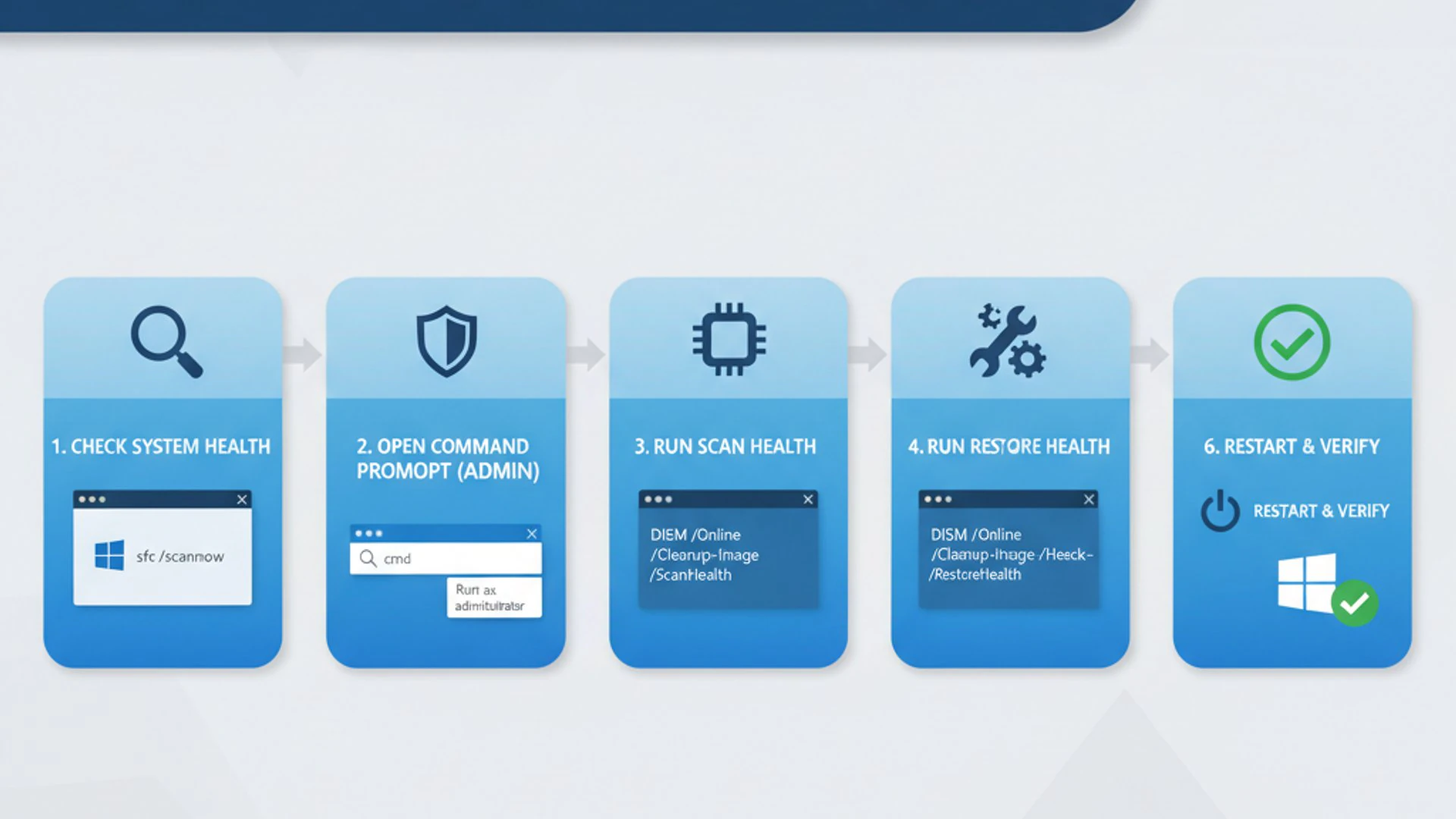
At its heart, DISM is designed to service Windows images. This means it can modify, update, and repair the core files and components that make up your Windows installation. Think of it as a sophisticated toolkit for your operating system’s internal structure.
Its crucial importance for Windows 11 stems from the complexity of modern operating systems. Windows 11 relies on a vast array of system files, components, and packages. If any of these become corrupted or inconsistent, it can lead to a cascade of problems, from application crashes to boot failures.
DISM provides the means to address these issues directly at their source, often preventing the need for more drastic measures like a complete reinstallation. It ensures the integrity of the Windows component store, which is vital for system updates and feature installations.
Understanding DISM’s Role in System Integrity
The integrity of your Windows 11 system hinges on the health of its component store, often referred to as the WinSxS folder. This folder stores multiple versions of system files, components, and libraries, allowing Windows to roll back updates or install new features without conflicts.
Over time, this component store can become corrupted due to various factors: failed updates, malware infections, unexpected shutdowns, or even faulty hardware. When corruption occurs, Windows 11 might struggle to install new updates, enable features, or even run core applications.
DISM’s primary role is to ensure the integrity of this critical store. It can scan for corruption, compare local files against known good versions from Microsoft’s servers, and repair discrepancies. By fixing the component store, DISM effectively lays the groundwork for other repair tools, like the System File Checker (SFC), to function correctly.
Without a healthy component store, even a tool like SFC might fail to repair corrupted system files because its source for good files is itself compromised. Therefore, running DISM is often the first step in a comprehensive system repair strategy on Windows 11.
Core Capabilities of DISM
DISM offers a broad range of capabilities that make it an indispensable tool for managing Windows 11. These functionalities extend beyond simple repairs, offering granular control over your operating system.
One of its core strengths is its ability to manage Windows features and packages. Windows 11 comes with many optional features that can be enabled or disabled. DISM allows you to list these features and toggle their status directly from the command line, which is useful for customization or troubleshooting.
Another significant capability is driver management. While less common for the running OS, DISM can add, remove, or enumerate drivers within an offline Windows image. This is particularly useful for preparing custom deployment images.
DISM also handles international settings, allowing you to configure language packs and locale settings within an image. For system administrators, it’s a powerful tool for preparing Windows installations for specific regions or multi-language environments.
Finally, and most commonly, DISM excels at diagnosing and repairing image corruption. It can check the health of your Windows component store and automatically restore damaged files using online sources or a specified offline image. This repair capability is crucial for maintaining the long-term stability and performance of your Windows 11 system.
Preparing Your System for DISM Operations
Before you begin executing DISM commands on your Windows 11 system, it’s crucial to properly prepare your environment. This preparation ensures that the commands run successfully and that you have all necessary resources at hand, especially for repair operations.
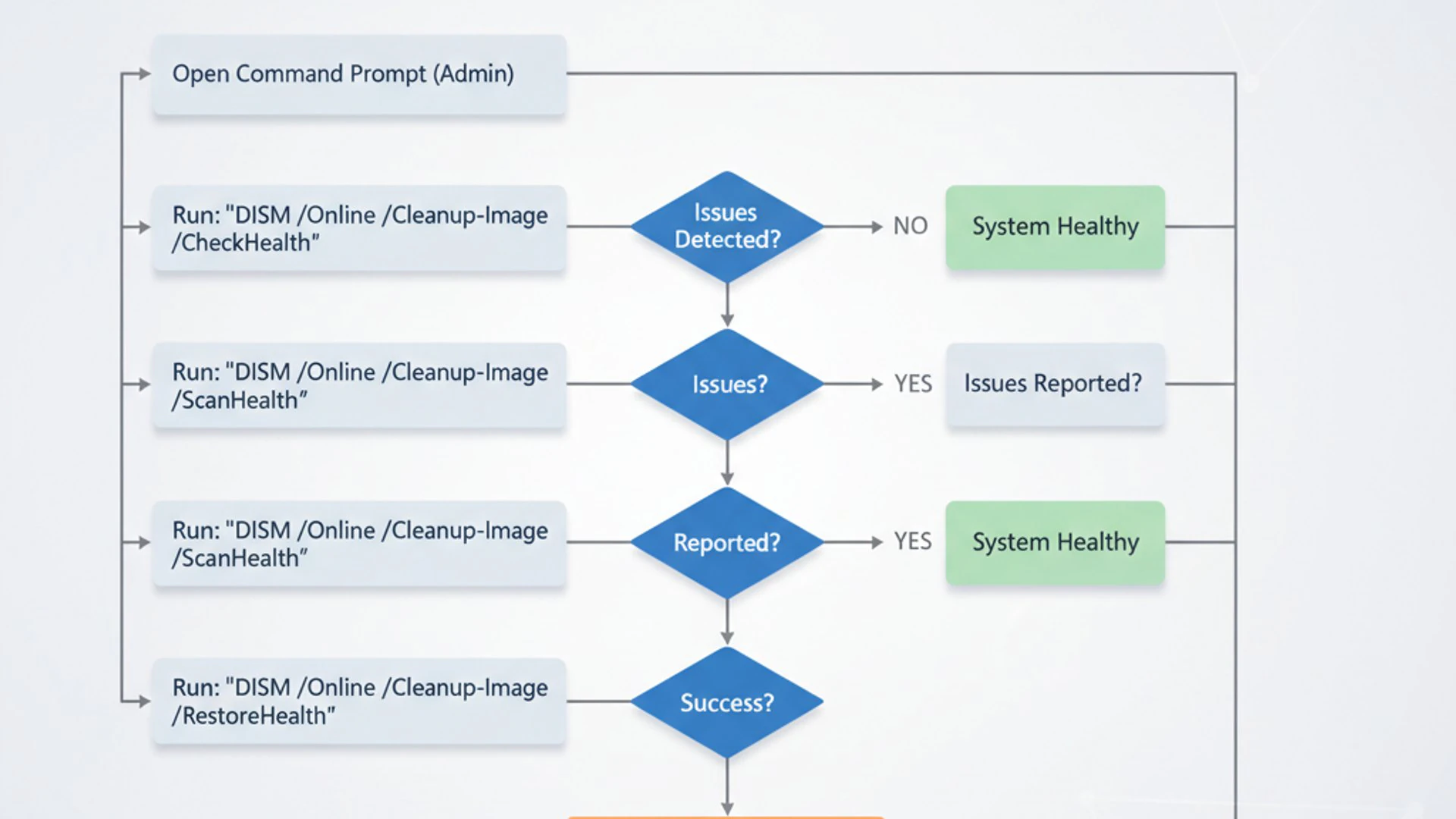
Improper preparation can lead to command failures, incomplete repairs, or even further system instability. Taking a few moments to set things up correctly can save you significant time and frustration down the line.
The primary requirement is to operate with sufficient privileges, as DISM commands modify core system components. Additionally, depending on the task, you might need an internet connection or access to specific installation media.
Running Command Prompt or PowerShell as Administrator
All DISM operations require elevated privileges. This means you must open either Command Prompt or PowerShell as an administrator. Without these permissions, DISM commands will fail with an “Access Denied” error.
Here’s how to open an elevated command-line interface on Windows 11:
- Click the Start button or press the
Windows key. - Type
cmdorpowershellinto the search bar. - From the search results, right-click on “Command Prompt” or “Windows PowerShell”.
- Select “Run as administrator” from the context menu.
- Confirm the User Account Control (UAC) prompt by clicking “Yes”.
You will see a command window with “Administrator” in its title bar, indicating that you have the necessary permissions to proceed with DISM commands.
Essential Prerequisites and Best Practices
Beyond administrative privileges, several other factors contribute to successful DISM operations on Windows 11.
- Internet Connection: For most repair operations using the
/RestoreHealthcommand, DISM will attempt to download necessary files from Windows Update. A stable and active internet connection is therefore essential for online repairs. - Sufficient Disk Space: DISM operations, especially those involving repairs or component store cleanup, can temporarily use significant disk space. Ensure you have at least 10-15 GB of free space on your system drive.
- Windows Installation Media (Optional but Recommended): For offline repairs or when an internet connection isn’t available, having a Windows 11 installation ISO, USB drive, or DVD is invaluable. This media contains the necessary source files for DISM to perform repairs. You can create one using the Windows 11 Media Creation Tool.
- Disable Antivirus Temporarily (Caution Advised): In rare cases, aggressive antivirus software might interfere with DISM operations, particularly when accessing or modifying system files. If you encounter persistent errors, consider temporarily disabling your antivirus, but remember to re-enable it immediately after.
- Create a System Restore Point: While DISM is generally safe, it’s always a good practice to create a system restore point before making significant system changes. This provides a rollback option if anything goes awry.
Always ensure you have a backup of your important data before performing any major system repairs. While DISM is designed to fix, unforeseen issues can occur.
Basic DISM Commands for System Health Checks
One of the most common and crucial uses of DISM on Windows 11 is to diagnose the health of your system image. Before attempting any repairs, it’s wise to first understand the current state of your Windows component store. DISM provides specific commands for this diagnostic purpose.
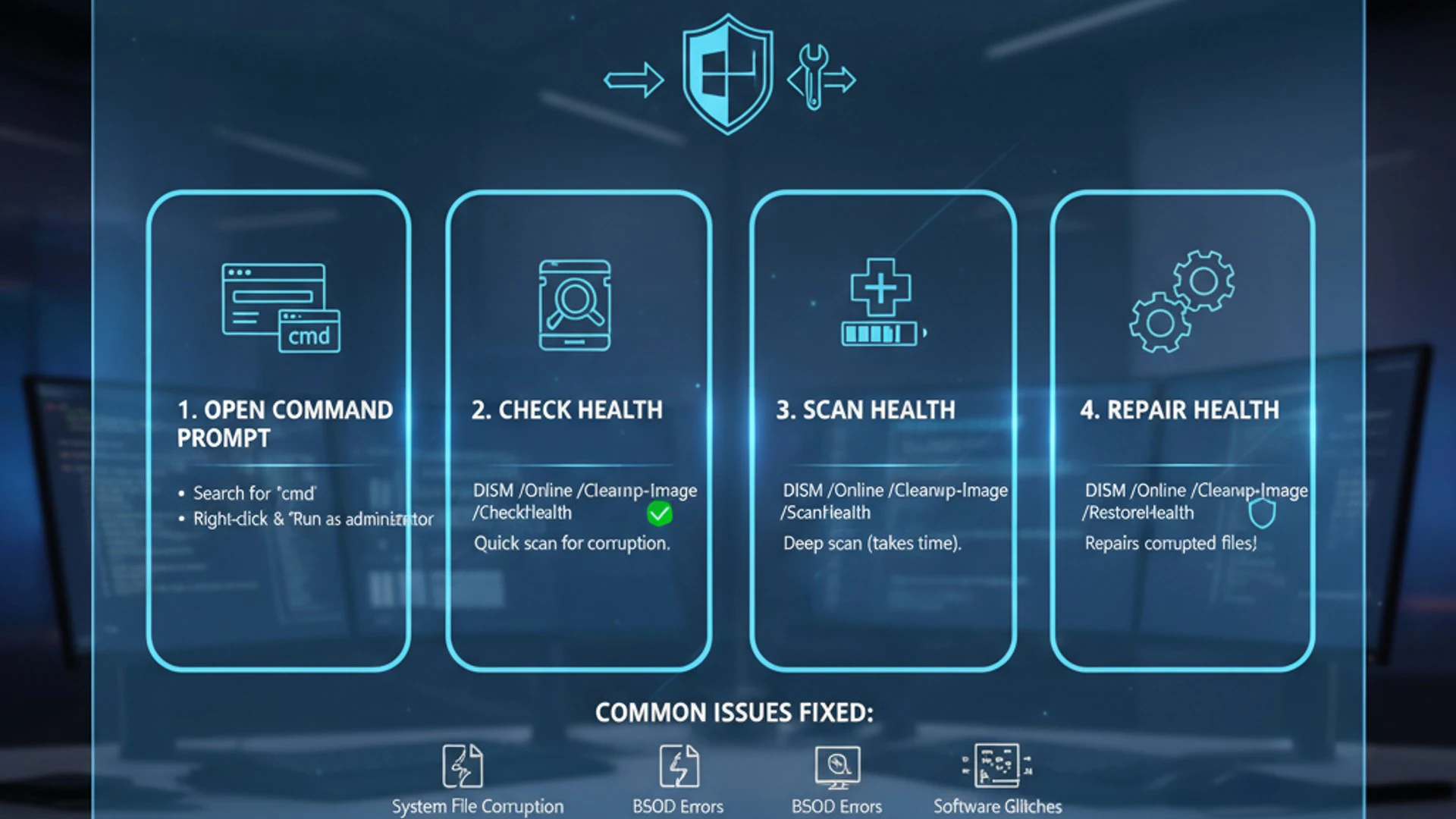
These commands allow you to check for corruption, assess the repairability of your image, and get a clearer picture of any underlying issues that might be affecting your system’s stability or update processes.
Running these checks regularly can help you catch potential problems early, preventing them from escalating into more severe system malfunctions. They are non-destructive, meaning they only scan and report without making any changes to your system.
Checking Component Store Health
The component store is a critical repository for all Windows components, features, and updates. Its integrity is paramount for a healthy Windows 11 installation. DISM offers two primary commands to check its health: /ScanHealth and /CheckHealth.
Both commands are executed within an elevated Command Prompt or PowerShell window. They provide different levels of detail and are useful in various diagnostic scenarios.
The /ScanHealth Command Explained
The /ScanHealth command performs a comprehensive scan of the Windows 11 component store. It looks for any corruption, inconsistencies, or damaged files within the store. This process can take several minutes to complete, depending on your system’s speed and the extent of any issues.
During the scan, DISM compares the files in your component store against the official manifest. If it finds discrepancies, it will report them. However, it does not attempt to repair anything at this stage; it merely identifies problems.
To use it, open an elevated Command Prompt or PowerShell and type:
The /Online parameter tells DISM to target the currently running operating system. /Cleanup-Image is the parent command for health-related operations, and /ScanHealth initiates the detailed scan.
The output will indicate the status, such as “No component store corruption detected” or “The component store is repairable.” This command is more thorough than /CheckHealth and is recommended for a detailed initial assessment.
The /CheckHealth Command Explained
The /CheckHealth command is a quicker way to determine if any corruption has been previously detected by DISM. Unlike /ScanHealth, it doesn’t perform a new scan. Instead, it checks the internal logs and reports the last known state of the component store.
This command is useful for a quick assessment if you suspect issues or if you’ve recently run /ScanHealth or /RestoreHealth and want to see the reported status without waiting for a full scan.
To execute this command, use:
The output will typically be one of three states:
- “No component store corruption detected”: Indicates a healthy state, or that any previous issues have been resolved.
- “The component store is repairable”: Suggests that corruption has been found and DISM believes it can be fixed.
- “The component store is corrupted”: A more severe indication that corruption exists and may require a repair.
While /CheckHealth is faster, /ScanHealth provides a more current and thorough diagnostic. It’s often best to start with /ScanHealth for a fresh assessment, then use /CheckHealth for quick follow-ups.
Repairing a Corrupted Windows 11 Image with DISM
Once DISM has identified corruption within your Windows 11 component store, the next logical step is to repair it. DISM offers robust capabilities to fix these issues, either by leveraging online resources or by using an offline Windows installation source.
Repairing the image is critical because a corrupted component store can prevent Windows Update from functioning correctly, lead to system instability, and cause other built-in tools like SFC to fail. By repairing the image, you restore the foundation upon which your operating system operates.
This section will guide you through the primary methods for repairing a damaged Windows 11 image, ensuring you can tackle various scenarios, whether you have an active internet connection or not.
Using /RestoreHealth with Online Sources
The most common and often easiest way to repair a corrupted Windows 11 image is by using the /RestoreHealth command with online sources. When you execute this command, DISM attempts to connect to Windows Update to download and replace any corrupted files it finds in your component store.
This method requires an active and stable internet connection. It’s highly effective because it uses Microsoft’s official servers as a reliable source for known good system files.
To initiate an online repair, open an elevated Command Prompt or PowerShell and type:
The process can take a significant amount of time, sometimes 10-30 minutes or even longer, depending on the extent of the corruption and your internet speed. Do not close the window or restart your computer during this operation.
You will see a progress indicator, typically a percentage. Once completed, DISM will report whether the repair was successful. If it reports that the component store was repaired, it’s often a good idea to follow up with an SFC scan to ensure all individual system files are also in order.
Repairing with an Offline Windows Image (WIM/ESD)
There are situations where an online repair isn’t feasible or desirable. Perhaps you lack an internet connection, or your network configuration prevents DISM from reaching Windows Update. In such cases, you can use an offline Windows image as the source for repairs.
This method involves pointing DISM to a Windows 11 installation file (typically a .wim or .esd file) from an installation DVD, USB drive, or an ISO file. This provides DISM with a local, known-good source of files to perform the repairs.
The process is slightly more involved as it requires locating and potentially mounting the image file. However, it offers a robust alternative when online repairs fail or are not an option.
Locating and Mounting an Image File
First, you need access to a Windows 11 installation media. If you have an ISO file, you can mount it directly in Windows 11:
- Locate your Windows 11 ISO file in File Explorer.
- Right-click the ISO file and select “Mount”. This will assign a new drive letter to the mounted ISO.
- Note the new drive letter (e.g.,
D:,E:).
Next, navigate to the sources folder within the mounted drive. Inside, you’ll find either an install.wim or install.esd file. This is your source image.
Once you have identified the path to your install.wim or install.esd file (e.g., D:\sources\install.wim), you can proceed with the offline repair command:
If your source file is install.esd, replace WIM: with ESD: in the command. The :1 after the filename specifies the index of the Windows edition within the WIM/ESD file (usually 1 for Home/Pro editions).
The /LimitAccess parameter tells DISM to prevent it from using Windows Update as a repair source, forcing it to use only the specified offline source. This command ensures that DISM exclusively relies on your local installation media for the repair process, providing a controlled and reliable repair environment.
Managing Windows Features and Packages with DISM
Beyond its crucial role in diagnosing and repairing system corruption, DISM on Windows 11 offers powerful capabilities for managing Windows features and optional components. This functionality allows users to customize their operating system by enabling or disabling specific features that might not be accessible through the standard graphical user interface.
Managing features with DISM can be beneficial for various reasons: optimizing system resources, troubleshooting conflicts, or simply tailoring your Windows 11 environment to your exact needs. It provides a granular level of control that is often preferred by advanced users and system administrators.
This section will guide you through the process of listing available features and then enabling or disabling them using DISM commands, giving you more command over your Windows 11 installation.
Listing Available Features
Before you can enable or disable a Windows feature, you need to know its exact name. DISM provides a command to list all available features, including those currently enabled and disabled, on your Windows 11 system.
This list can be extensive, as Windows 11 includes many components that might not be immediately visible in the “Turn Windows features on or off” dialog in the Control Panel.
To list all features, open an elevated Command Prompt or PowerShell and execute the following command:
The /Get-Features parameter instructs DISM to retrieve information about all features for the online operating system. The /Format:Table parameter helps present the output in a more readable, tabular format.
The output will display a list of features, each with its “Feature Name” and “State” (e.g., Enabled, Disabled, DisabledWithPayloadRemoved). You can scroll through this list to identify the specific feature you wish to manage. Pay close attention to the exact spelling of the Feature Name, as it is case-sensitive for subsequent commands.
Enabling and Disabling Windows Features
Once you’ve identified the feature you want to manage from the list generated by /Get-Features, you can use DISM to enable or disable it. This process is straightforward and provides immediate control over system components.
For example, if you wanted to enable the “TelnetClient” feature (often disabled by default), you would use the /Enable-Feature command.
To enable a feature, use this command, replacing FeatureName with the actual name from the list:
The /All parameter ensures that all parent features required by the specified feature are also enabled. This is important to ensure the feature functions correctly.
Conversely, to disable a feature, you would use the /Disable-Feature command:
After executing either command, DISM will process the request, which might take a few moments. Some features may require a system restart to take full effect. DISM will usually prompt you if a restart is necessary.
Be cautious when disabling features, especially if you are unsure of their purpose. Disabling critical system components can lead to instability or loss of functionality. Always research a feature before disabling it.
This capability of DISM on Windows 11 provides a powerful way to fine-tune your operating system, ensuring you only have the components you need, which can contribute to better performance and security. For instance, if you’re managing a server or a specialized workstation, you might want to disable unnecessary client-side features to reduce the attack surface or free up resources.
Advanced DISM Operations for Windows 11
While basic health checks and feature management are common uses, DISM on Windows 11 offers a suite of advanced commands that cater to more complex scenarios. These operations are particularly useful for optimizing disk space, preparing systems for deployment, or dealing with persistent system issues that go beyond simple corruption.
Understanding these advanced capabilities can significantly enhance your ability to manage and maintain Windows 11, whether you are an individual user looking to reclaim disk space or an IT professional preparing custom images.
This section delves into cleaning up the WinSxS folder and briefly touches upon applying and capturing Windows images, showcasing the breadth of DISM’s utility.
Cleaning Up the Component Store (WinSxS)
The WinSxS folder (C:\Windows\WinSxS) is the Windows component store, which grows over time as updates are installed and features are added or removed. It stores multiple versions of system files to ensure compatibility and allow for rollbacks. While essential, it can consume a significant amount of disk space.
DISM provides commands under the /Cleanup-Image parameter to reduce the size of this folder by removing superseded components and old versions of system files that are no longer needed.
There are several options for cleaning up the WinSxS folder:
- Analyze Component Store: First, you can analyze the component store to understand its size and see if cleanup is recommended.
- StartComponentCleanup: This command removes superseded versions of components without a timeout of 30 days, giving you more immediate control.
- StartComponentCleanup with /ResetBase: This parameter takes the cleanup a step further by removing all superseded versions of every component in the component store. This makes all existing updates permanent and prevents you from uninstalling them.
Using /ResetBase can free up more disk space, but be aware that it commits all current updates, making them irreversible. Always consider this implication before using /ResetBase.
Applying and Capturing Windows Images
While primarily a task for IT professionals and system administrators, DISM’s capabilities extend to applying and capturing Windows images. This is fundamental for deploying custom Windows 11 installations across multiple machines or for creating standardized corporate environments.
Applying Images: DISM can apply a Windows image (.wim or .esd file) to a specified partition. This is how a fresh Windows installation is often laid down onto a disk.
This command would apply the first image from install.wim located on drive D: to the C: drive.
Capturing Images: Conversely, DISM can capture an existing Windows installation into a new WIM file. This is useful for creating a master image of a configured system, which can then be deployed to other machines.
This command captures the current C: drive into my_custom_image.wim. Before capturing, it’s common practice to generalize the Windows installation using Sysprep to remove machine-specific information.
These image management commands are typically performed from a Windows Preinstallation Environment (WinPE) or another operating system, not from the running Windows 11 installation itself. They are advanced operations requiring careful planning and execution.
These advanced DISM functions underscore its versatility as a deployment and management tool, extending its utility far beyond basic system repairs for Windows 11.
Troubleshooting Common DISM Errors on Windows 11
Even with its robust capabilities, DISM on Windows 11 can sometimes encounter errors. These errors can be frustrating, especially when you’re relying on DISM to fix other system issues. Understanding common error codes and their potential solutions is key to effectively using this powerful tool.
This section will address frequently encountered DISM error codes, provide practical explanations, and offer actionable solutions. We will also discuss alternative repair strategies for those rare instances when DISM itself fails to resolve the underlying problem, guiding you towards a comprehensive troubleshooting approach.
Being prepared for these hiccups will save you time and help you maintain a healthy Windows 11 environment.
Error Code Explanations and Solutions
When DISM commands fail, they often return an error code. Here are some of the most common ones and how to address them:
- Error 87: The DISM option is unknown.
- Explanation: This usually means there’s a typo in the command or an incorrect parameter.
- Solution: Double-check your command for spelling errors, extra spaces, or incorrect syntax. Ensure you are using the correct parameters for your version of Windows 11.
- Error 112: There is not enough space on the disk.
- Explanation: DISM operations, especially repairs, require free space for temporary files and downloaded components.
- Solution: Free up disk space on your system drive (usually C:). Aim for at least 10-15 GB. You can use Disk Cleanup or manually remove unnecessary files.
- Error 1392: The file or directory is corrupted and unreadable.
- Explanation: This indicates severe corruption that DISM is struggling to bypass.
- Solution: Try running
chkdsk /f /ron your system drive first to fix file system errors, then restart and try DISM again. If it persists, an offline repair with installation media might be necessary.
- Error 0x800f081f: The source files could not be found.
- Explanation: This is a very common error when using
/RestoreHealth. It means DISM couldn’t find the necessary files from Windows Update or the specified offline source. - Solution:
- For online repairs: Ensure you have a stable internet connection. Temporarily disable VPN/proxy or antivirus.
- For offline repairs: Verify the path to your
install.wimorinstall.esdfile is correct. Ensure the image index is accurate. You might need to specify a different source, e.g., from a fresh Windows 11 ISO.
- Explanation: This is a very common error when using
- Error 0x800f0906: The source files could not be downloaded.
- Explanation: Similar to 0x800f081f, but specifically indicates an issue with downloading from Windows Update.
- Solution: Check your internet connection. Ensure Windows Update services are running. Try clearing the Windows Update cache. You might need to use an offline source instead.
When encountering DISM errors, always start by checking your command syntax and ensuring administrative privileges. These are the most frequent causes of failure.
When DISM Fails: Alternative Repair Strategies
While DISM is a powerful tool, there are rare occasions when it might not be able to fully resolve system issues. In such cases, it’s important to have alternative strategies in your troubleshooting arsenal for Windows 11.
- System File Checker (SFC): After attempting DISM repairs, always run
sfc /scannow. SFC checks and repairs individual corrupted system files, relying on the healthy component store that DISM ideally would have fixed. If DISM fails, SFC might also fail, indicating deeper issues. - Windows Update Troubleshooter: If DISM issues are related to update problems, try running the built-in Windows Update Troubleshooter (Settings > System > Troubleshoot > Other troubleshooters).
- In-place Upgrade (Repair Install): If DISM and SFC fail, performing an in-place upgrade (also known as a repair install) using a Windows 11 ISO file can often fix deep-seated system corruption without deleting your personal files or applications. This essentially reinstalls Windows 11 over your existing installation.
- Reset This PC: Windows 11 offers a “Reset this PC” option (Settings > System > Recovery). You can choose to keep your personal files or remove everything. This is a more drastic step but often resolves persistent issues.
- Clean Installation: As a last resort, if all other methods fail, a clean installation of Windows 11 will wipe your drive and install a fresh copy of the operating system. This is the most effective way to eliminate all software-related problems but requires backing up all your data.
Understanding these alternatives ensures that you have a comprehensive plan for addressing even the most stubborn Windows 11 system issues, even if DISM cannot fully complete its task.
Integrating DISM with Other Windows 11 Tools
DISM on Windows 11 is a formidable tool on its own, but its true power is often realized when integrated with other built-in Windows utilities. These tools, when used in conjunction with DISM, provide a holistic approach to system maintenance, integrity checks, and problem resolution.
Understanding how DISM complements tools like the System File Checker (SFC) or acts as a precursor to resolving Windows Update issues is crucial for any comprehensive troubleshooting strategy. This synergy allows for more thorough diagnostics and effective repairs, ensuring a stable and optimized Windows 11 environment.
This section will highlight the symbiotic relationship between DISM and SFC, and explain how DISM can be a critical first step in overcoming persistent Windows Update problems.
DISM and SFC: A Powerful Combination
The relationship between DISM and SFC is often misunderstood, but it’s a critical aspect of maintaining Windows 11 system health. Think of them as a two-stage repair process:
- DISM repairs the source.
- SFC uses that source to repair individual files.
The System File Checker (SFC) tool (executed via sfc /scannow) is designed to scan all protected system files and replace corrupted files with a cached copy that is located in a compressed folder at %WinDir%\System32\dllcache. However, if this cached copy itself is corrupted, or if the underlying component store (WinSxS) is damaged, SFC might fail to perform its task correctly.
This is where DISM comes in. Before running SFC, it is highly recommended to run DISM’s /RestoreHealth command. DISM ensures that the component store, which SFC relies upon for its “known good” files, is intact and uncorrupted. By repairing the component store first, DISM provides SFC with a reliable source for its own repairs.
The typical sequence for comprehensive system file repair is:
- Open Command Prompt or PowerShell as administrator.
- Run
DISM /Online /Cleanup-Image /RestoreHealth. - Once DISM completes, run
sfc /scannow. - Restart your computer if prompted or if issues persist.
This powerful combination addresses both the integrity of the core system components and the individual system files, making it the go-to strategy for resolving a wide range of Windows 11 stability issues.
Leveraging DISM for Windows Update Issues
Persistent problems with Windows Update are a common source of frustration for many Windows 11 users. Updates might fail to download, fail to install, or cause system instability. Often, the root cause of these issues lies within a corrupted Windows component store.
Since Windows Update relies heavily on the integrity of the component store to stage and install updates, any corruption there can directly impede its functionality. This is where DISM becomes an invaluable diagnostic and repair tool.
If you’re experiencing Windows Update problems, running the DISM /RestoreHealth command should be one of your first troubleshooting steps:
By repairing the component store, DISM effectively clears the path for Windows Update to function correctly. It ensures that the necessary files and manifests for updates are in a healthy state, allowing the update process to proceed without encountering corrupted dependencies.
After running DISM, it’s advisable to restart your computer and then attempt to run Windows Update again. In many cases, this simple act of repairing the component store can resolve stubborn update failures that other troubleshooting steps might miss. It’s a foundational repair that addresses the underlying infrastructure upon which Windows Update operates.
Conclusion: Maintaining a Healthy Windows 11 with DISM
Throughout this comprehensive guide, we’ve explored the multifaceted capabilities of DISM on Windows 11, establishing its undeniable importance as an indispensable tool for system maintenance and repair. From its fundamental role in servicing Windows images to its advanced functions in managing features and optimizing disk space, DISM empowers users with unparalleled control over their operating system’s integrity.
We began by defining DISM and understanding its critical function in safeguarding the Windows component store, the very foundation of your Windows 11 installation. We then walked through the essential steps of preparing your system, ensuring you have the necessary administrative privileges and resources for successful operations.
The practical application of DISM was demonstrated through basic health checks, allowing you to diagnose potential corruption, and then through robust repair mechanisms, utilizing both online sources and offline installation media. Furthermore, we delved into managing Windows features, providing you with the power to customize and streamline your system.
Advanced operations, such as cleaning up the WinSxS folder and a glimpse into image application/capture, highlighted DISM’s versatility. Crucially, we addressed common error codes and offered alternative repair strategies, equipping you to troubleshoot even the most stubborn issues. Finally, we emphasized the synergistic relationship between DISM and other Windows 11 tools, particularly SFC, and its vital role in resolving Windows Update problems.
By regularly utilizing DISM for proactive system maintenance, you can significantly enhance the stability, performance, and longevity of your Windows 11 environment. It’s not just a reactive fix; it’s a proactive measure that ensures your operating system remains robust and responsive. Embrace DISM, and take control of your Windows 11 health.
For more interesting articles, stay tuned to Winsides.com!









Community
Comments (0)