Skip to content
Winsides.com

Windows Insides

Winsides.com

Windows Insides

  • Windows 11
  • Windows Features
  • Windows Security
  • Microsoft
    • Microsoft Copilot
    • Microsoft Powertoys
  • Shortcuts
    • Windows Shortcuts
    • Desktop Shortcuts
  • Video Tutorials
  • About
    • What’s New?!
    • About us
    • Contact us
    • Privacy Policy
    • Terms of Use
  • Follow us
    • Reddit
    • Dev.to
    • YouTube
    • Linked In
    • X
    • Tumblr
    • Facebook
    • Instagram
    • Buy Me A Coffee
  • Windows 11
  • Windows Features
  • Windows Security
  • Microsoft
    • Microsoft Copilot
    • Microsoft Powertoys
  • Shortcuts
    • Windows Shortcuts
    • Desktop Shortcuts
  • Video Tutorials
  • About
    • What’s New?!
    • About us
    • Contact us
    • Privacy Policy
    • Terms of Use
  • Follow us
    • Reddit
    • Dev.to
    • YouTube
    • Linked In
    • X
    • Tumblr
    • Facebook
    • Instagram
    • Buy Me A Coffee
Close

Search

Winsides.com

Windows Insides

Winsides.com

Windows Insides

  • Windows 11
  • Windows Features
  • Windows Security
  • Microsoft
    • Microsoft Copilot
    • Microsoft Powertoys
  • Shortcuts
    • Windows Shortcuts
    • Desktop Shortcuts
  • Video Tutorials
  • About
    • What’s New?!
    • About us
    • Contact us
    • Privacy Policy
    • Terms of Use
  • Follow us
    • Reddit
    • Dev.to
    • YouTube
    • Linked In
    • X
    • Tumblr
    • Facebook
    • Instagram
    • Buy Me A Coffee
  • Windows 11
  • Windows Features
  • Windows Security
  • Microsoft
    • Microsoft Copilot
    • Microsoft Powertoys
  • Shortcuts
    • Windows Shortcuts
    • Desktop Shortcuts
  • Video Tutorials
  • About
    • What’s New?!
    • About us
    • Contact us
    • Privacy Policy
    • Terms of Use
  • Follow us
    • Reddit
    • Dev.to
    • YouTube
    • Linked In
    • X
    • Tumblr
    • Facebook
    • Instagram
    • Buy Me A Coffee
Close

Search

Home/Windows 11/How To?/Network and Internet/How to Enable Mobile Hotspot on Windows 11?

How to Enable Mobile Hotspot on Windows 11?

Vigneshwaran Vijayakumar
By Vigneshwaran Vijayakumar
February 12, 2025 4 Min Read
1

Enable Mobile Hotspot on Windows 11: Sharing your Internet via your Android Smartphone or iPhone is an easy and hassle-free process. Have you ever wondered is it possible to share your Internet Connection from your Windows 11 PC or Laptop using the Mobile Hotspot option on Windows 11? In this article, we will check out in detail about this feature on Windows 11 and also an interesting tweak with this feature on Windows 11. Let’s get Started.

Enable Mobile Hotspot on Windows 11 using Simple Steps

  • Go to the Windows Settings using the shortcut WinKey + I.
  • Once the Windows Settings open, from the left pane, click on Network & Internet.
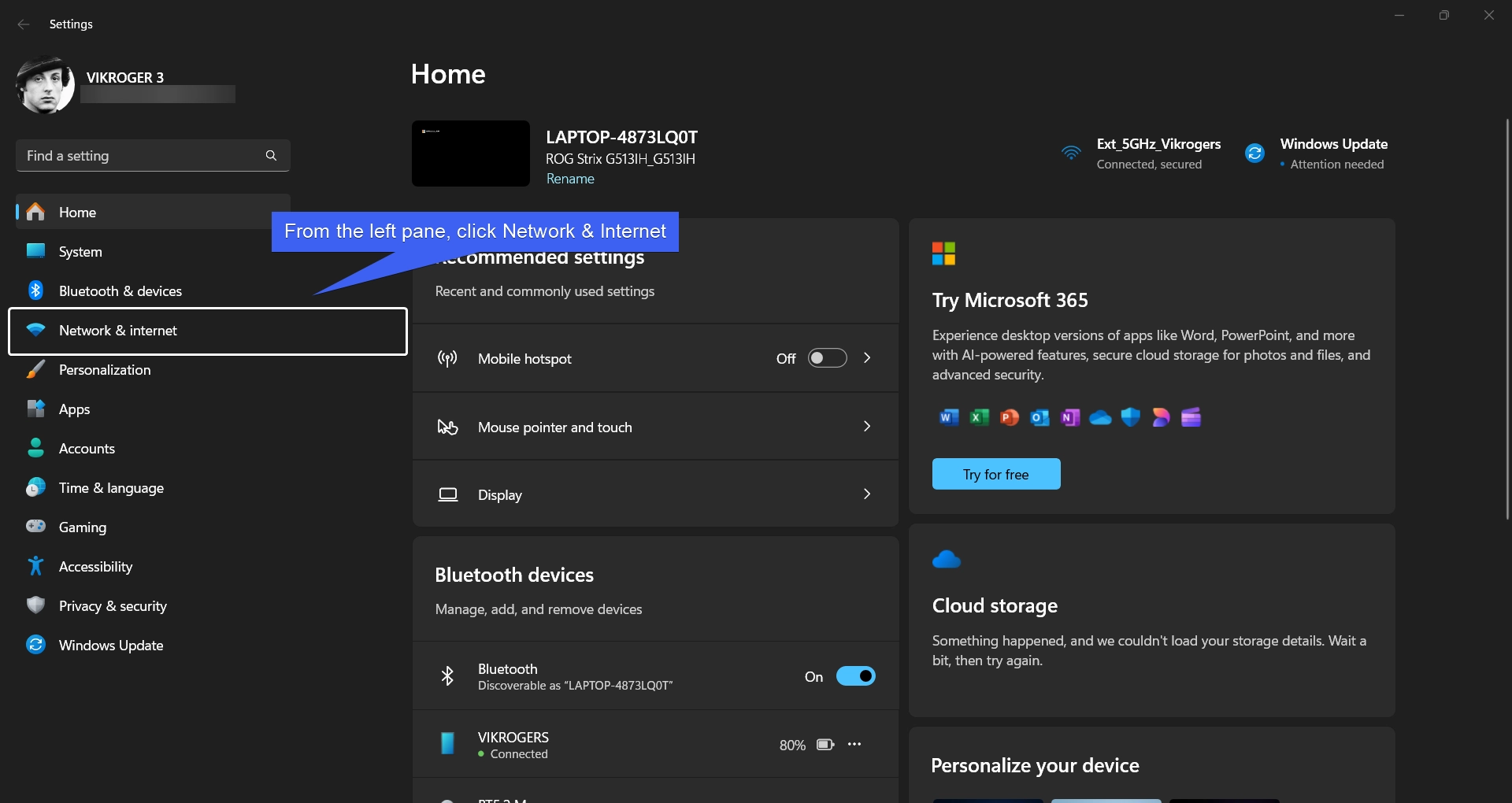
Network and Internet
  • Under Network & Internet, you can find Mobile Hotspot.
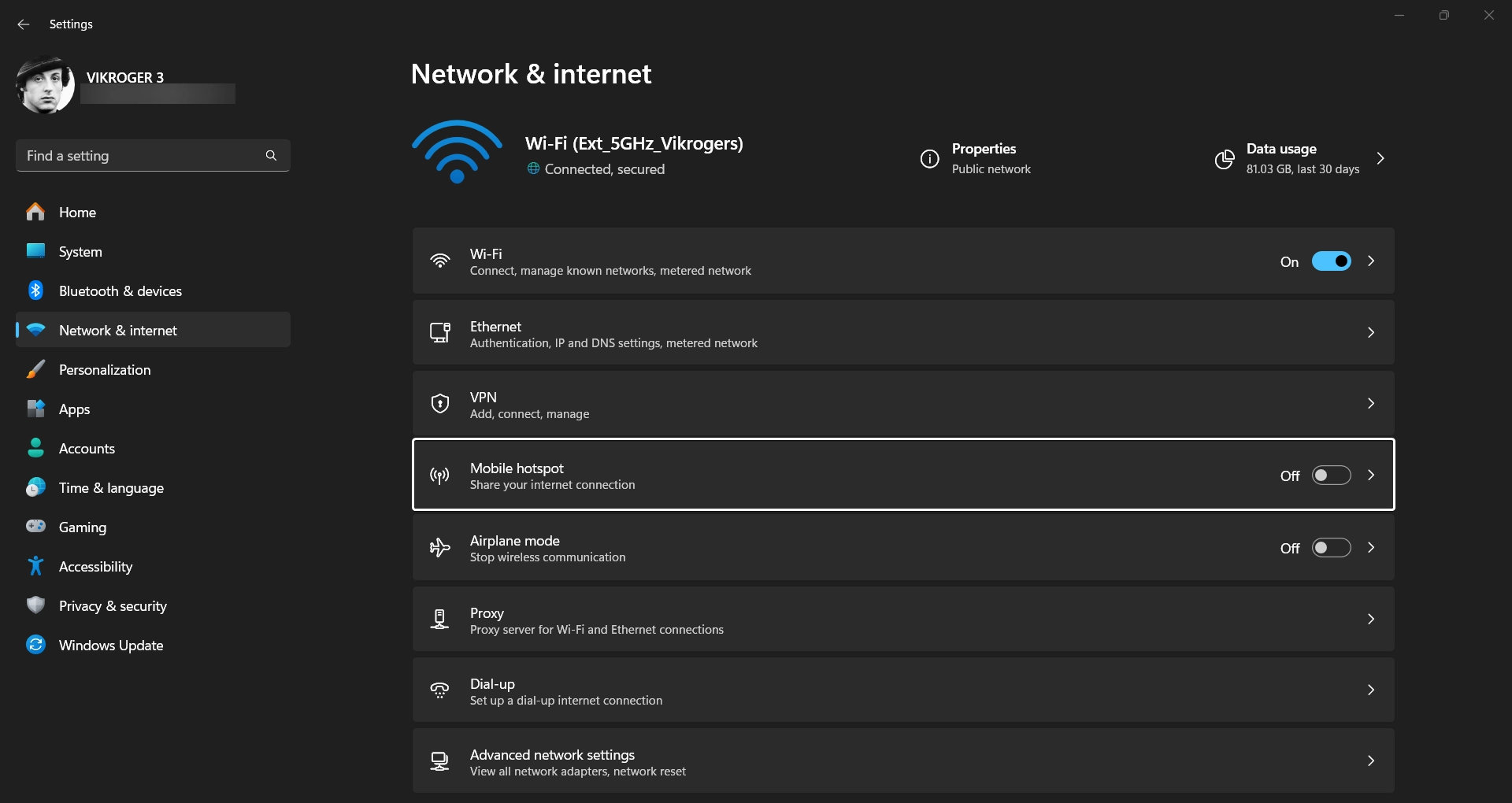
Locate Mobile Hotspot
  • Toggle the Mobile Hotspot switch to ON to share your Internet Connection.
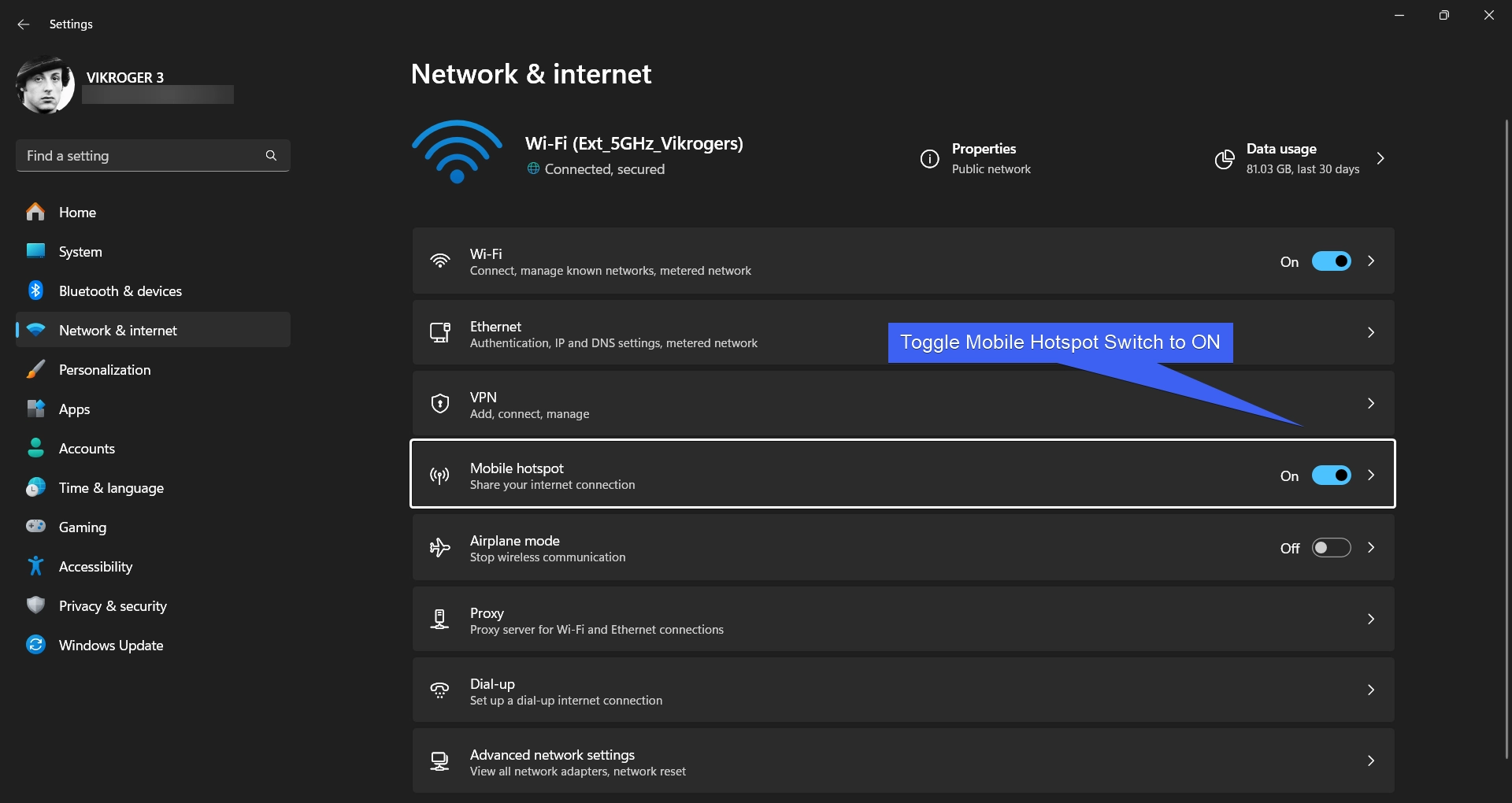
Toggle Mobile Hotspot Switch to ON
  • Mobile Hotspot is now activated on your Windows 11 System. Just like a smartphone, your Windows 11 PC or laptop now shares your Internet connection via WIFI.
  • You can configure your Mobile Hotspot Settings and start sharing it with your Friends and Family.

Configure your Mobile Hotspot Settings on Windows 11

The Mobile Hotspot will have default Username, Password, and Band Settings when enabled on Windows 11. It can be changed as per our convenience. Here are the steps to configure your Mobile Hotspot Settings on Windows 11.

  • Click on the Mobile Hotspot Tile to open expanded options.
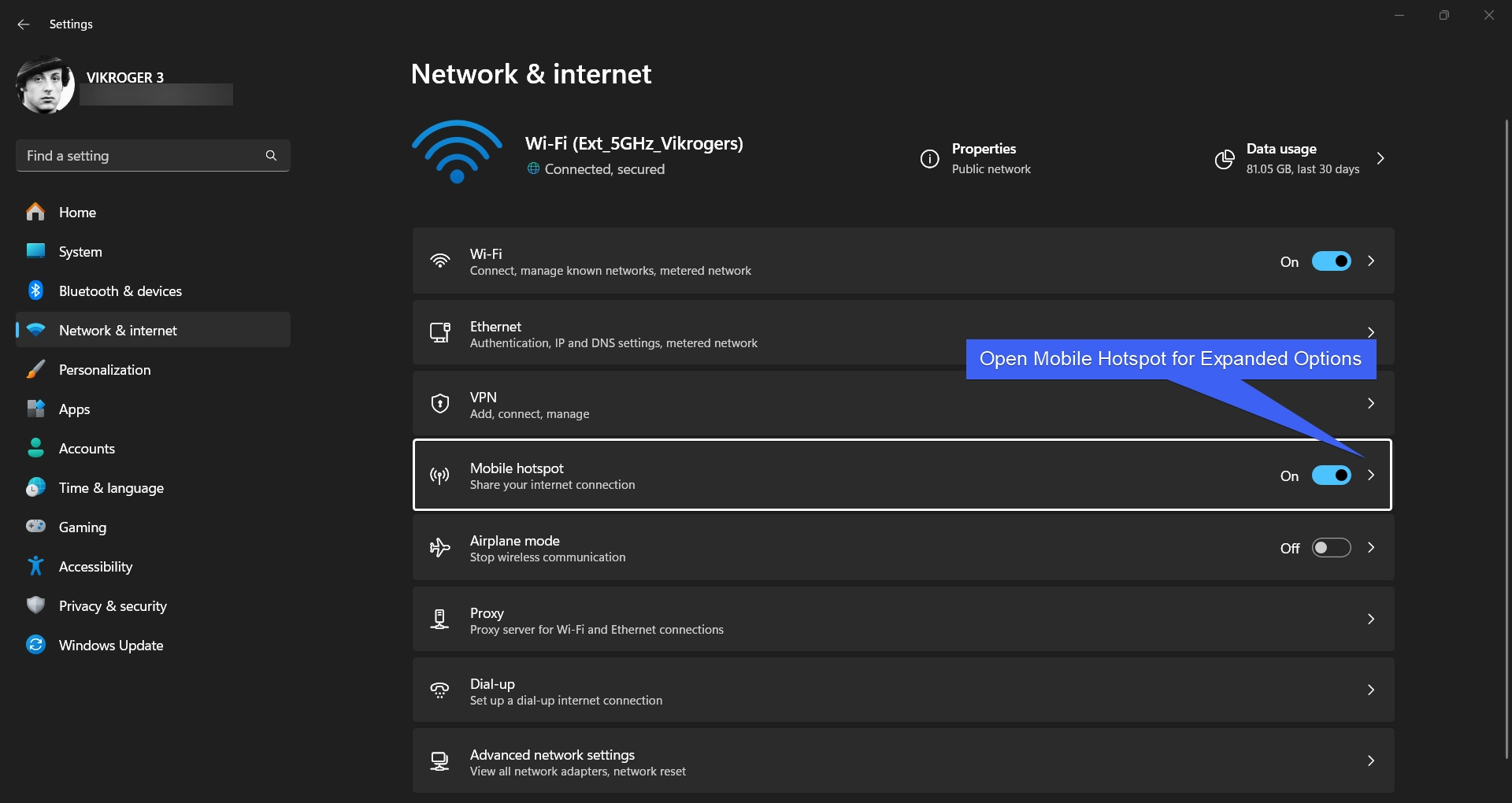
Open Mobile Hotspot for Expanded Options
  • Under Properties, you can find the default Network Name, Password, Band, and Device Details. Click Edit to edit these fields.
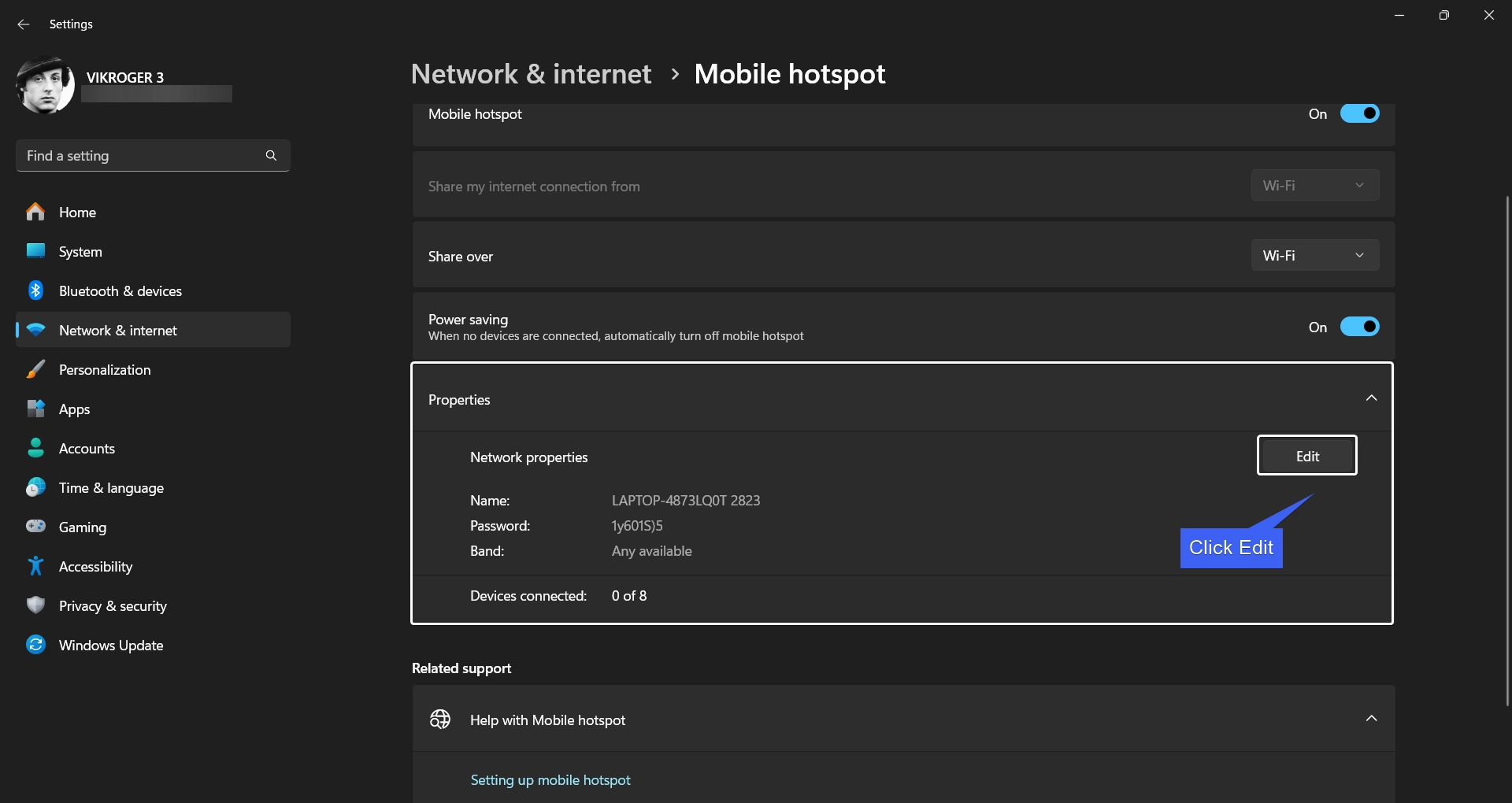
Mobile Hotspot Properties
  • Now, enter your Network Name, Network Password, and the Network Band. The Password should be atleast 8 characters, and for Network Band, you can choose between 2.4 GHz, and 5 GHz. If you are not sure about your Network Band Information, kindly keep the Setting to Any Available.
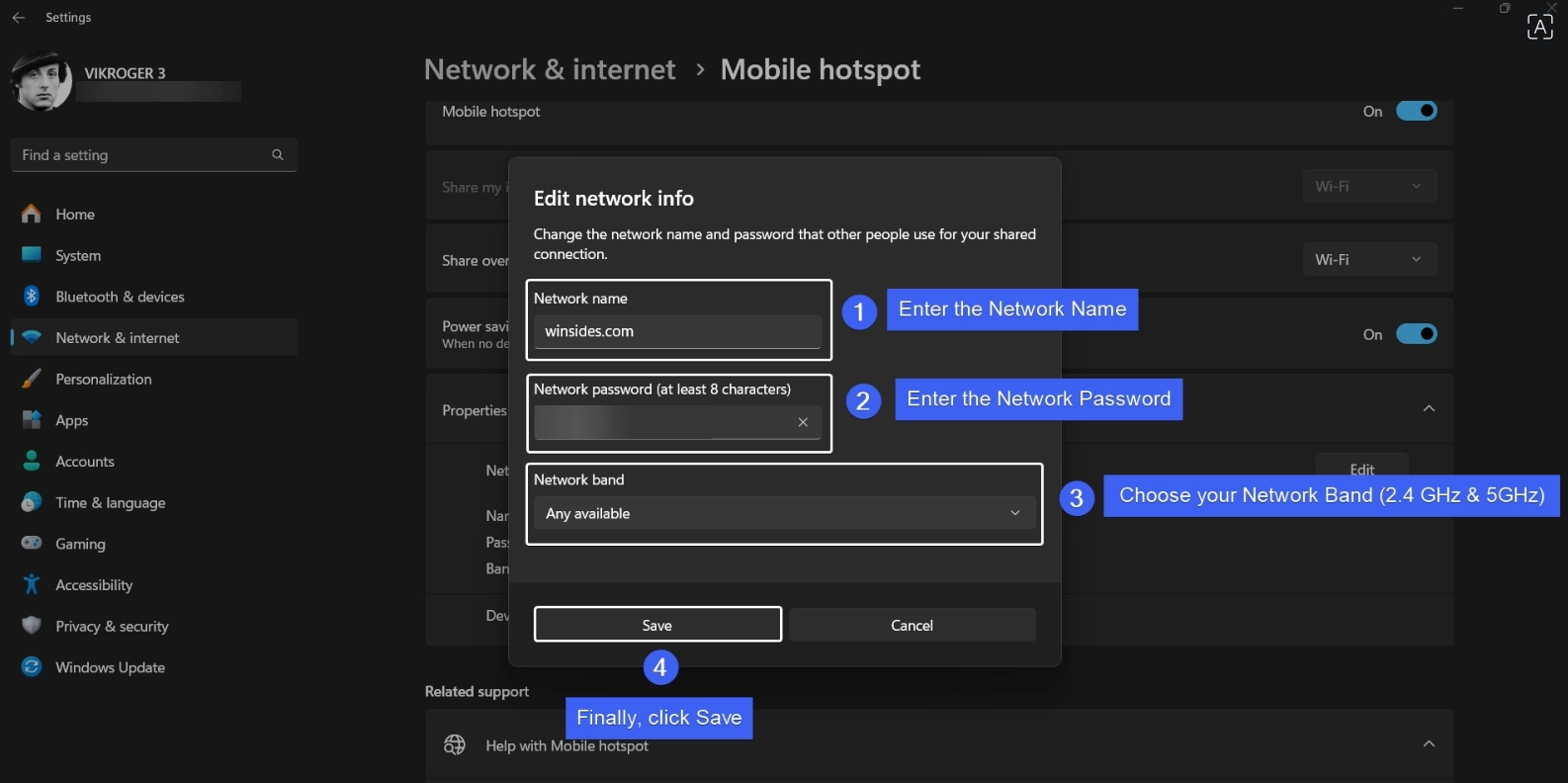
Enter your Mobile Hotspot Settings Information
  • Finally click Save. You can share the Network Name, and Password to your Friends and Family, and they can enjoy the Internet Connection.

Cool Facts: 2.4 GHz has a longer range but is more prone to interference, while 5 GHz is faster but has a shorter range because higher frequencies are absorbed more easily by walls and obstacles. Basically, 2.4 GHz is like an AM radio station, it travels far but gets interference from microwaves, Bluetooth, and even baby monitors. On the other hand, 5 GHz is like FM radio, clearer and faster, but you need to be closer to the source!

Interesting Tweak related to Mobile Hotspot option on Windows 11

Nowadays, everyone is using WIFI Internet, and it is almost impossible to find a place without Internet Connection, especially using the WIFI. With technologies like Starlink Revolutionizing the modern world, this interesting tweak can make your wired connection zone into a wireless connection zone.

Let’s say, you have a Windows 11 Laptop with and is connected to the Internet using a Wired Connection (like the old school Dial-up Modem). Your Laptop will have a WIFI Adapter. Through Wired Connection, your Laptop will have a stable Internet Connection. Now, let’s prepare your environment for the Wireless Zone.

  • Enable Mobile Hotspot on Windows 11 using the above steps.
  • Now, your Windows 11 Laptop will act as a WIFI Router sharing your Internet Connection from the Wired Connection. You can configure your Mobile Hotspot Settings and start using it on your Smartphone and Tablets.
  • To make it even more special, you can even configure whether you can share the Internet via the WIFI or Bluetooth. Under Mobile Hotspot, you can find the option “Share over“. Drop down and choose between WIFI and Bluetooth.
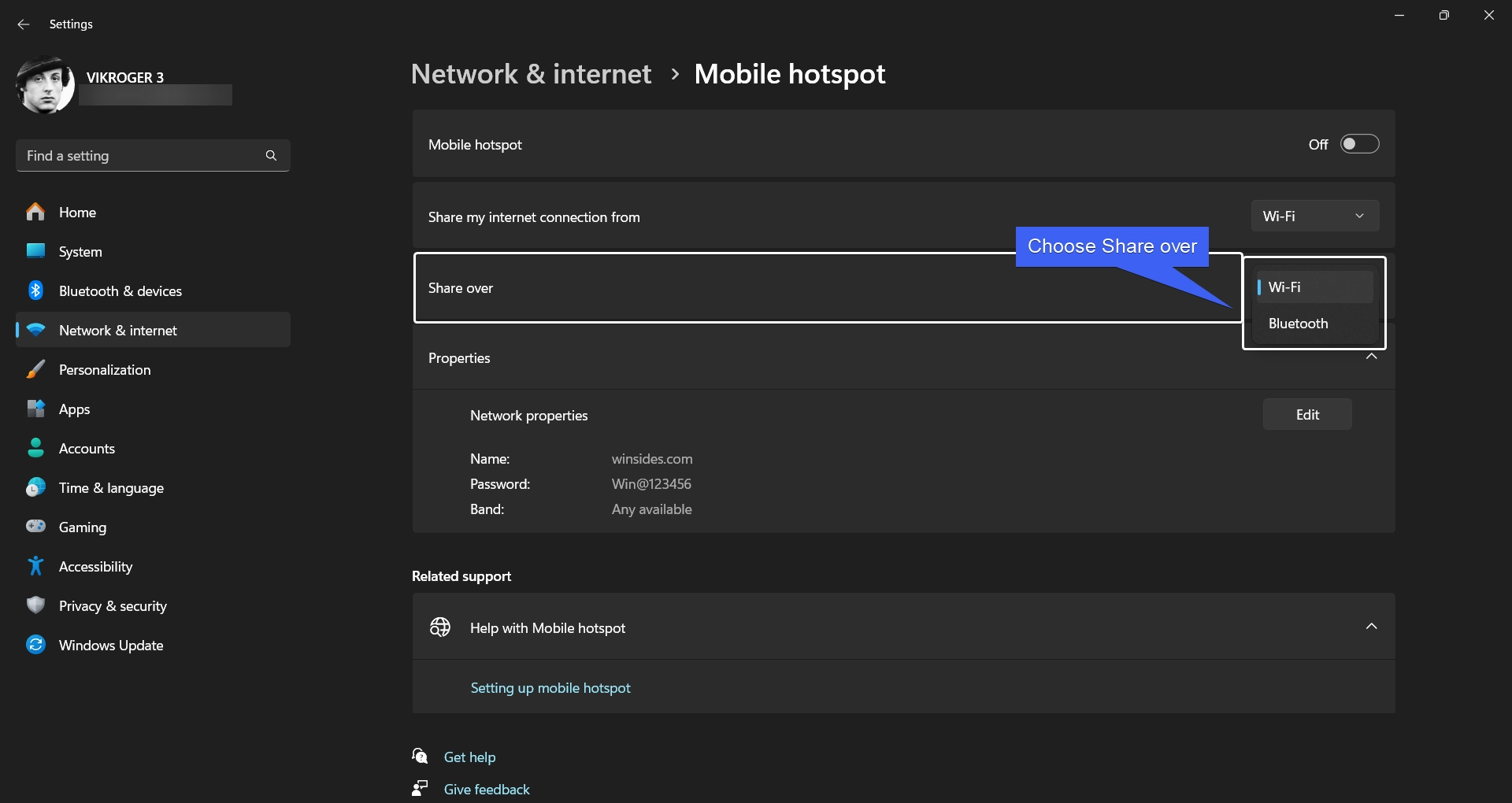
Choose your Internet Share over

Take Away

With Social Media taking over the World, Internet has become an indispensible one, I still remember the days where I have used my Sony Ericcon K310i phone’s Infrared port and my Acer Computer’s Infrared port (Yes, old Laptops had Infrared Port for File Sharing & Internet Sharing) closer to each other and established my first Internet Connection on my computer, as Dial-up Modem Internet Connections were costly over those days. Mobile Hotspot on Windows 11 is one such feature that made me remember those good old days.

We hope you are satisfied with our article on How to Enable Mobile Hotspot on Windows 11. If you have any queries, kindly let us know in the Comment Section. For more interesting articles, stay tuned to Winsides.com. Happy Computing! Peace out!
Tags:

Network and Internetwindows 11Windows Settings
Vigneshwaran Vijayakumar
Author

Vigneshwaran Vijayakumar

Hello, I'm Vigneshwaran, the founder, owner, and author of WinSides.Com. With nearly a decade of experience in blogging across various domains and specializing in Windows-related tutorials for over five years, I bring a wealth of knowledge and expertise to WinSides.Com

Follow Me
Other Articles
Choose Where to get Apps on Windows 11
Previous

How to “Choose Where to Get Apps” on Windows 11?

How to Enable Virtual Machine Platform on Windows using CMD & PowerShell
Next

Enable Virtual Machine Platform using CMD & PowerShell

One Comment
  1. Avatar of xojili xojili says:
    July 29, 2025 at 3:20 pm

    I’ve been looking for something like this.

    Reply

Leave a Reply Cancel reply

Your email address will not be published. Required fields are marked *

  • How to Run Group Policy Editor as Administrator on Windows 11?
  • Easy Way to Enable Windows Subsystem for Linux in Windows 11
  • Enable Windows Subsystem for Linux (WSL 2) using Command Prompt & PowerShell
  • Enable IIS Management Console in Windows 11 [GUI]
  • Quick Steps to Enable Core Isolation in Windows 11
  1. Vigneshwaran Vijayakumar
    Vigneshwaran Vijayakumar on How to Enable Windows PowerShell 2.0 in Windows 11?October 5, 2025

    Hello Mr. Mohamad El-Kheir, Thank you for contacting us. Microsoft has removed PowerShell version 2.0 completely from Windows 11 24H2…

  2. Avatar of Mohamad El-Kheir
    Mohamad El-Kheir on How to Enable Windows PowerShell 2.0 in Windows 11?October 5, 2025

    i have a MSI laptop with windows 11 Home Installed on it. how to install powershell v2.0 on it

  3. Vigneshwaran Vijayakumar
    Vigneshwaran Vijayakumar on DxDiag Windows 11 – What is it & How to use it for Troubleshooting?August 14, 2025

    Hey Myla Shannon Thank you for your valuable feedback. We are delighted to hear your compliment and excited to know…

  4. Avatar of Myla Shannon
    Myla Shannon on DxDiag Windows 11 – What is it & How to use it for Troubleshooting?August 14, 2025

    This content is incredibly informative.

  5. Avatar of seven
    seven on How to Enable IIS [Internet Information Services] in Windows 11?July 29, 2025

    I found this post very helpful.

  • About us
  • What’s New?!
  • Guest Posts on Winsides.com – Terms and Conditions
  • Publication Sitemap
  • Careers
  • Authors
  • Why Trust Winsides.com?
  • Content Removal Request
  • Terms of Use
  • Disclaimer
  • Contact us
Copyright 2024-2026 - Winsides.com. All rights reserved.