

You can check whether Secure Boot is on in Windows 11 without entering UEFI setup or changing a firmware setting. System Information reports the platform's Secure Boot State, while Windows Security shows the current Device security message and, on updated systems, the status of Secure Boot certificate updates.
I reproduced both read-only views on Windows 11 Home Single Language version 25H2, build 26220.7872. System Information reported Secure Boot State: On and BIOS Mode: UEFI. Windows Security said Secure Boot was on and all required certificate updates had been applied. I did not open firmware setup, restart the computer, dismiss a security warning, alter keys or certificates, suspend BitLocker, or change any boot setting.
What does Secure Boot do?
Microsoft describes Secure Boot as a security feature that helps stop malicious software from loading when a Windows PC starts. The firmware checks early boot software against trusted digital signatures before handing control to Windows. That protects a part of startup that runs before ordinary desktop security tools.
Secure Boot depends on UEFI firmware and its trust databases. It is not the same as a TPM, BitLocker, Windows Defender, Memory integrity, or the general BIOS/UEFI version. Those features can work together, but each has a different status and purpose. If you need the security processor's specification version, use the separate WinSides guide to check the TPM version in Windows 11.
Table of contents
Method 1: How can you check Secure Boot State in System Information?
- Press Windows + R to open Run.
- Type
msinfo32, then press Enter. - Select System Summary in the left pane if it is not already selected.
- Find BIOS Mode and Secure Boot State.
- Read the two rows together, then close System Information. Do not enter firmware setup for this check.
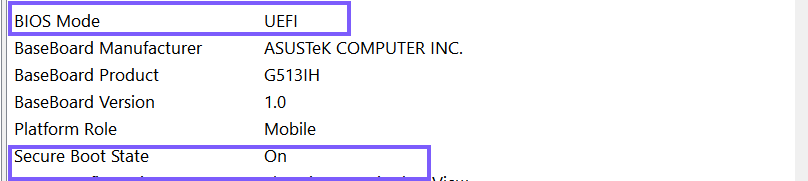
The possible wording is straightforward when Windows can read the platform state:
- On means Windows reports Secure Boot enabled for the current startup.
- Off means the platform can expose the feature but Windows reports it disabled for the current startup.
- Unsupported means Windows cannot use or confirm Secure Boot in the current platform configuration. Legacy/CSM boot mode, firmware capability, virtualization, or how the system exposes its firmware can affect this result.
Read BIOS Mode as context. Secure Boot uses UEFI. A Legacy BIOS mode can explain why the Secure Boot row is unavailable or unsupported, but this article does not instruct you to convert a disk or change the boot mode. Those are separate, potentially disruptive procedures.
The general WinSides guide to checking System Information in Windows 11 covers the broader summary. For this intent, the two firmware rows are enough; do not publish the computer name, system SKU, serial number, Windows paths, or other nearby inventory.
Method 2: How can you check Secure Boot in Windows Security?
- Open Windows Security from Start or the security icon in the notification area.
- Select Device security.
- Find the Secure boot section and read the complete message, not only the icon color.
- Close Windows Security when you finish. Do not select a dismissal option or open firmware controls.
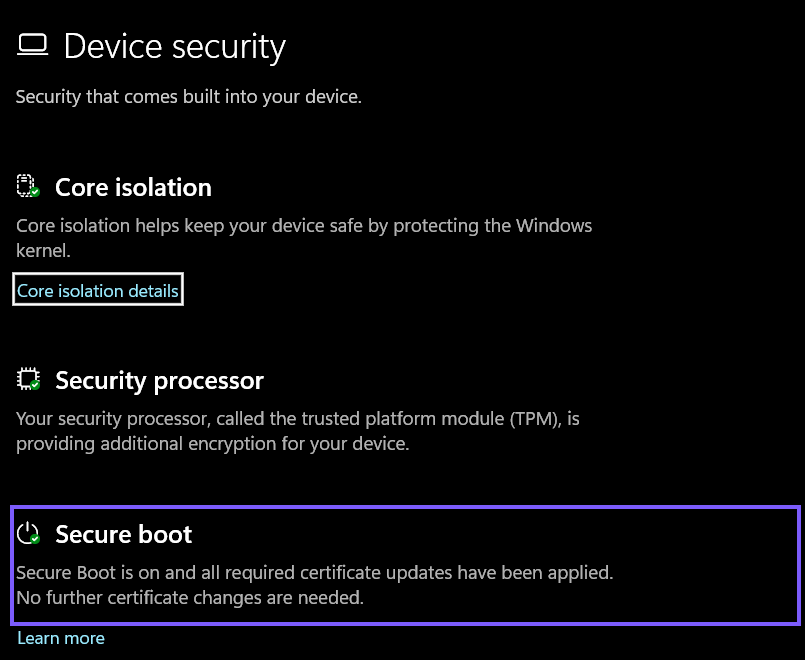
Microsoft's Device security guidance identifies Secure Boot as one of the hardware-based protections shown on this page. The page can also display Core isolation, Security processor, data-encryption, and hardware-security information. Do not treat the presence or absence of one neighboring card as the Secure Boot result.
Beginning in 2026, Microsoft has been adding Secure Boot certificate-update status to Windows Security. Microsoft's current status guide explains that the text can distinguish an on-and-updated state from an older trust configuration or a state that needs attention. The exact sentence matters more than a green icon alone.
Is Secure Boot status the same as certificate-update status?
No. The feature can be on while the trust database or boot-manager certificate transition still has an update state. On the tested PC, Windows Security reported both facts in one message: Secure Boot was on, and all required certificate updates had been applied. Another supported PC can show Secure Boot on with an older trust configuration that Windows expects to update.
Certificate updates are part of maintaining the trusted boot chain. Microsoft says these updates are generally delivered automatically through Windows Update on consumer PCs, although hardware or firmware limitations can block the final state on some devices. If Windows Security says action is required, follow the current message and official manufacturer guidance instead of importing or deleting Secure Boot keys manually.
A warning dismissal changes how the app reminds you; it does not repair firmware or apply a missing trust update. This reproduction deliberately left all warnings and controls untouched.
Why can System Information and Windows Security look different?
The two views answer related but not identical questions. System Information gives a compact platform state such as On, Off, or Unsupported. Windows Security can combine feature state with certificate-update health and recommended actions. A PC can therefore show On in System Information while Windows Security adds a yellow recommendation about trust updates.
The Windows Security experience also depends on supported Windows servicing. Microsoft is rolling out the enhanced certificate messages through service and monthly updates, and managed enterprise devices can have different notification behavior. A missing detailed certificate sentence does not automatically mean Secure Boot is off.
If one view says On and the other says Secure Boot is off, restart Windows once and install current supported updates before diagnosing further. Record the exact messages and build, then use the computer manufacturer's support channel. Do not toggle firmware settings repeatedly to force the labels to refresh.
What does Unsupported mean?
Unsupported is not a complete hardware diagnosis. It can mean the current startup used Legacy/CSM mode, the firmware does not expose a usable Secure Boot interface, a virtual machine was configured without it, or the platform is too old or differently configured. Check BIOS Mode and the exact computer or motherboard documentation.
Windows 11 system requirements distinguish Secure Boot capability from the feature's current enabled state in some upgrade guidance. Do not assume that Unsupported can be fixed with a simple Windows switch. Changing from Legacy boot to UEFI can involve the system-disk partition style and boot files, so it needs a separate verified migration plan, backups, recovery media, and model-specific instructions.
What should you avoid while checking Secure Boot?
- Do not disable Secure Boot merely to test whether Windows starts differently.
- Do not clear, replace, or enroll platform keys from an ordinary status check.
- Do not switch Legacy/CSM and UEFI modes without confirming the installed Windows disk and boot layout.
- Do not dismiss a yellow or red Windows Security warning before reading and recording its guidance.
- Do not change Secure Boot, TPM, or early boot settings without having any required BitLocker recovery key available through a private, verified path.
Microsoft's Secure Boot page recommends device-manufacturer guidance for firmware changes. Firmware menus and consequences vary across models, and an incorrect boot-mode or key-management change can prevent Windows from starting or trigger a recovery prompt. This article stays strictly observational.
Does the status reveal private information?
The words On, Off, or Unsupported are not unique identifiers. However, the surrounding apps can expose more than the status. System Information contains the computer name, model, SKU, hardware details, paths, and other inventory. Windows Security can show additional device-protection messages that are unrelated to a public Secure Boot question.
Crop a shared image to the required status and remove account, device, organization, recovery, or support identifiers. The screenshots in this article contain no serial number, computer name, account name, BitLocker recovery information, or firmware key data.
What can you do if a status page is missing?
If Run cannot find System Information, enter %SystemRoot%\System32\msinfo32.exe. If the Secure Boot row is not immediately visible, stay on System Summary and scroll through the firmware section. Do not use an elevated PowerShell window merely to reproduce the same public screenshot.
If Windows Security lacks a Secure boot section, check System Information first. Then install supported Windows updates and consult the device manufacturer. The page can vary with hardware capability, Windows servicing, management policy, and current boot mode.
The official Confirm-SecureBootUEFI PowerShell cmdlet is not used here because Microsoft documents that it requires an administrator session. Its True, False, and unsupported outcomes are useful for an authorized administrator, but elevation is unnecessary when the two standard graphical views already answer this public read-only intent.
Frequently Asked Questions
Does BIOS Mode UEFI prove Secure Boot is on?
No. UEFI is required for Secure Boot, but the feature can still be disabled. Read the separate Secure Boot State or Windows Security message.
Does a green Windows Security icon prove the certificates are updated?
Not by itself. Microsoft advises reading the accompanying Secure Boot text, which can report whether all required certificate updates have been applied.
Do you need administrator rights for these two checks?
No administrator prompt was required for System Information or Windows Security on the tested laptop. The separate Confirm-SecureBootUEFI cmdlet does require elevation and is not part of this workflow.
Will checking the status trigger BitLocker recovery?
No. Opening the two pages is read-only. Changing Secure Boot, TPM, firmware keys, or boot mode is a different task that can affect the trusted boot state and should be planned separately.
Check the current state without touching firmware
Use System Information for the compact Secure Boot State and BIOS Mode, then read the full Secure boot message in Windows Security for feature and certificate-update context. Keep On, Off, and Unsupported distinct, do not equate UEFI mode with enabled Secure Boot, and leave firmware keys, warning dismissals, boot mode, and recovery-sensitive settings unchanged during a status check.
For more interesting articles, stay tuned to WinSides.com!









Community
Comments (0)