

Introduction to Focus Session Windows 11
focus session windows 11 refers to the built-in Windows 11 focus feature that helps you work for a defined period while reducing notification interruptions. It is useful when you want a clean block of time for writing, studying, troubleshooting, coding, editing, reading, gaming preparation, meetings, or any task where constant banners and badge activity break concentration.
A Focus session is not just a timer. On Windows 11, Focus is tied to the notification system and Do not disturb behavior. When a session starts, Windows can quiet most notification banners, reduce taskbar distractions, and let you review missed alerts later in Notification Center. Microsoft documents the Windows notification and Do not disturb behavior in its official notification guidance. Microsoft Support notification and Do not disturb guidance
The practical idea is simple: pick a duration, start Focus, work until the session ends, and let Windows keep the desktop calmer while you are inside that block. You can still choose which notifications matter enough to break through, and you can still open Notification Center with Win + N when you want to catch up. Microsofts Windows keyboard shortcuts reference lists that notification center shortcut. Microsoft Windows keyboard shortcuts reference
This guide explains what a Focus session does, how to start one, where it differs from Do not disturb alone, what settings to check before using it seriously, how priority notifications fit into the picture, and how to troubleshoot common problems when Focus does not feel quiet enough or seems to hide more than expected.
Table of contents
Key Takeaways
- Focus session Windows 11 is a built-in way to create a timed work period with fewer notification interruptions.
- Focus and Do not disturb work together. A Focus session can turn on Do not disturb so most notification banners stay quiet while you work.
- Notifications are usually not deleted. Most are collected in Notification Center for later review.
- Win + N opens Notification Center. Use it after a session to review what arrived while Focus was active. Microsoft Windows keyboard shortcuts reference
- Priority notifications are exceptions. Keep the priority list short so Focus remains useful.
- Focus is better for intentional work blocks. Automatic Do not disturb rules are better for recurring conditions like presentations, games, full-screen apps, or quiet hours.
- Taskbar distractions can matter as much as banners. Focus options may reduce badges and flashing taskbar activity depending on your Windows 11 build and configuration.
- If Focus seems inconsistent, check Do not disturb, priority notifications, app-level settings, browser permissions, and whether an app is using its own overlay.
What a Focus Session Does
A Focus session creates a protected time block on your Windows 11 PC. You choose a duration, start the session, and Windows shifts into a quieter mode for that period. The purpose is not to lock you out of your computer or force a productivity method. The purpose is to reduce the number of small interruptions that make a task take longer than it should.
During a session, Windows can turn on Do not disturb. That means most notification banners will not pop up while you are working. Instead, notifications are stored quietly in Notification Center so you can review them later. This is why Focus is helpful for tasks that need continuity. You do not have to permanently disable notifications. You only quiet them for the duration of the session.
Focus can also reduce visual noise from taskbar badges and flashing app indicators, depending on your Focus settings. That is important because distractions are not limited to toast banners. A flashing app icon, unread count, meeting alert, or chat badge can pull your eyes away from the work even if no banner appears.
A Focus session is therefore best understood as a temporary attention mode. It combines timeboxing with notification quieting. You still control the PC, you can still open apps, and you can still manually check messages if needed. The system simply stops demanding your attention as aggressively.
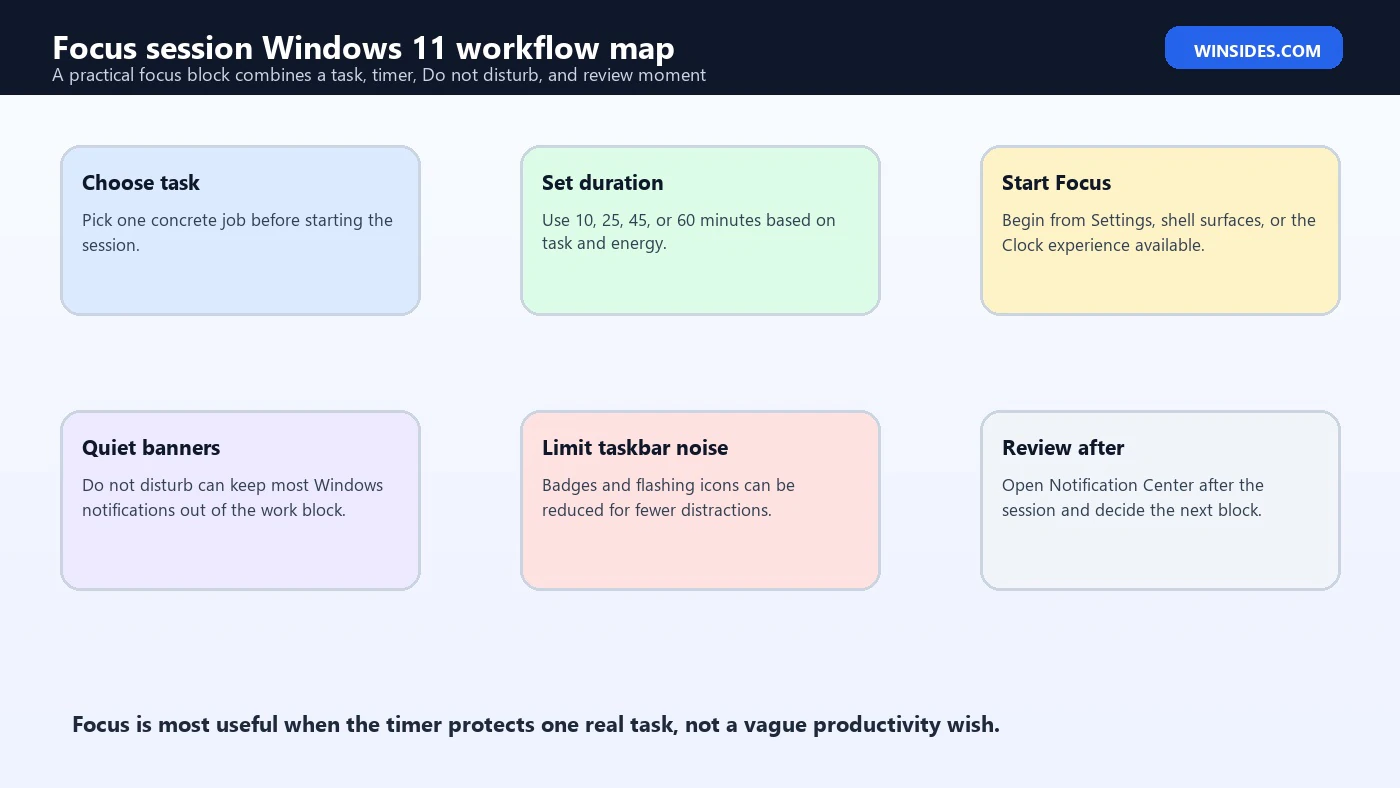
How to Start a Focus Session
There are several ways to start Focus on Windows 11, and the exact entry points can vary slightly by build. The most common route is through Settings. Open Settings, choose System, and look for Focus. From there, choose a session duration and start the session.
You may also see Focus controls from the notification/calendar area or within the Clock app, depending on your Windows 11 version and app updates. Microsoft has adjusted the Focus experience over time, so do not worry if your PC shows the control in a slightly different place from another screenshot online. The core behavior is the same: you start a timed session and Windows reduces interruptions while it runs.
A sensible first session length is 25 minutes. It is long enough to make progress but short enough that you will not feel trapped. If you are troubleshooting a hard issue, writing an article, studying, or doing deep technical work, 45 to 60 minutes may be more useful. For light admin tasks, 15 minutes can be enough.
After starting a session, watch what happens. Confirm that Do not disturb turns on if that is part of your Focus settings. Check whether taskbar badges or flashing icons are hidden. Open Notification Center after the session with Win + N and confirm that quiet notifications are available for review. Microsoft Windows keyboard shortcuts reference
Once you understand the behavior, Focus becomes easy to use. Start a session before the work starts, not after you are already distracted.
Recommended First Setup
Before depending on Focus for important work, configure the basics. Open Settings > System > Notifications and review Do not disturb behavior. Microsofts notification guidance is the official reference for how Windows handles notifications and Do not disturb. Microsoft Support notification and Do not disturb guidance
Then review the Focus page in Settings. Look for options that control what happens when a session starts. Depending on your build, you may see controls related to Do not disturb, taskbar badge visibility, flashing taskbar apps, and timer visibility. The exact names can differ, but the intent is straightforward: decide how quiet the desktop should become during a session.
For most users, this setup works well:
- Turn on Do not disturb during Focus sessions.
- Hide taskbar badges during Focus if unread counts distract you.
- Hide flashing taskbar app indicators if you are often pulled away by chat or meeting apps.
- Keep the timer visible only if it helps; hide it if watching the countdown becomes another distraction.
- Keep priority notifications limited to genuinely urgent apps.
Do not overconfigure the system on the first day. Start with the default behavior, run a few sessions, then adjust. The best Focus setup is personal. A writer, gamer, administrator, teacher, student, support technician, and video editor will not all need the same interruption rules.
Focus Session vs Do Not Disturb
Focus and Do not disturb are closely related, but they are not the same. Do not disturb is the notification quieting feature. Focus is the work-session feature that can use Do not disturb as part of a timed block.
If you only want to silence banners indefinitely or during a specific situation, Do not disturb may be enough. For example, you can turn on Do not disturb before a presentation, while watching a movie, or during a call. You can also configure automatic Do not disturb rules for times, display duplication, games, full-screen apps, and some post-update scenarios.
Focus is different because it asks a time-based work question: how long do you want to work without interruption? It is ideal when you want to begin a deliberate task and finish a defined session. The timer creates a boundary. When the session ends, you can pause, review notifications, take a break, or begin another session.
A useful way to decide is this:
- Use Do not disturb when the goal is simply quiet notifications.
- Use Focus when the goal is a timed concentration block.
- Use automatic Do not disturb rules when the goal is quiet behavior triggered by context.
This distinction keeps the workflow simple. Focus is not a replacement for all notification settings. It is a structured way to work with fewer interruptions.
What Happens to Notifications During Focus
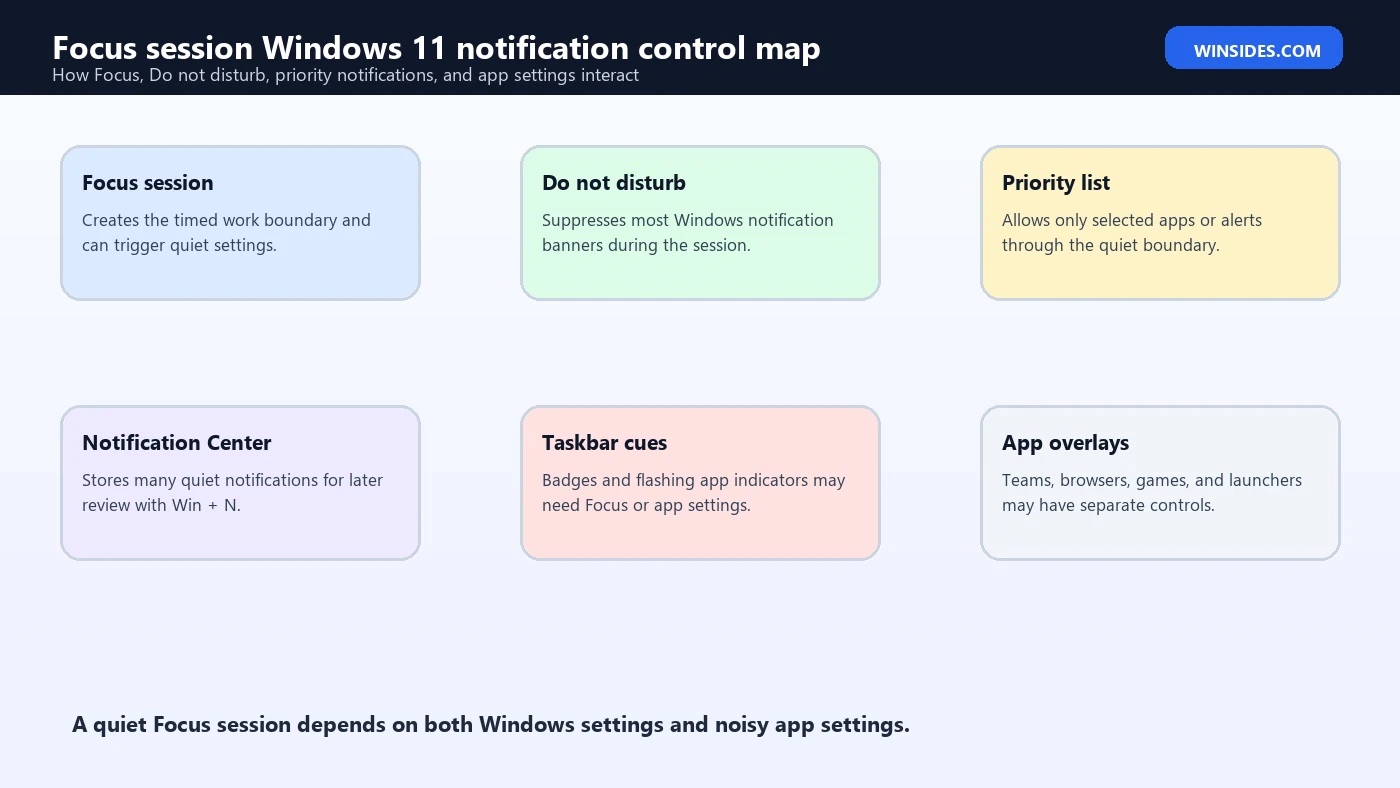
When Focus turns on Do not disturb, most notification banners stop appearing. The notifications generally go to Notification Center, where you can review them later. This behavior is important because Focus should reduce interruption without making you lose all context.
You can open Notification Center with Win + N. Microsoft Windows keyboard shortcuts reference This is a good habit after every serious Focus session. Review what arrived, clear what does not matter, respond to anything urgent, and then decide whether to start another session.
Some notifications can still appear if they are allowed through priority settings. Alarms and certain time-sensitive alerts may also behave differently depending on the app. Do not assume Focus blocks every possible visual or sound produced by every application. Windows can manage Windows notifications, but many apps also have their own in-app popups, overlays, sounds, and badges.
This matters with apps such as Teams, Outlook, Discord, Steam, browser-based web apps, antivirus tools, graphics driver utilities, and remote desktop software. If those apps use their own notification system, Focus may not silence everything. You may need to adjust the apps own settings.
The best mental model is this: Focus quiets the Windows notification layer, and your app settings control app-specific behavior.
Priority Notifications During Focus
Priority notifications are the exception list. They are notifications that you allow even when Do not disturb is active. They can be useful, but they can also ruin Focus if the list becomes too large.
Open Settings > System > Notifications and review priority notification settings. Keep the list intentionally small. Good candidates include authenticator apps, security alerts, important calendar reminders, or a communication app used for urgent work. Bad candidates include every chat app, every email app, every store app, every browser, and every social app.
If banners keep appearing during Focus, the priority list is the first place to check. Windows may be doing exactly what you configured it to do. If an app is allowed through, Focus cannot feel quiet.
It is also useful to separate priority notifications from app-level urgency. For example, you may allow calendar reminders through but keep email quiet. You may allow a work chat app during business hours but disable it during writing sessions. You may let a security product notify you but keep game launchers, shopping apps, and browser promotions silent.
Focus works best when priority means priority. Treat that word strictly.
Using Focus for Work and Study
Focus is especially useful for work and study because many tasks require continuity. Reading technical documentation, writing reports, preparing articles, learning a new tool, editing video, analyzing logs, or solving a Windows problem all become harder when the task is interrupted every few minutes.
A good work setup is to choose one task before starting the session. Do not begin with a vague goal like “be productive.” Use a concrete goal such as “finish the troubleshooting section,” “review Event Viewer logs,” “write the introduction,” “clean the inbox for 25 minutes,” or “solve this driver issue.”
Then start Focus for a realistic duration. If the task is heavy, try 45 minutes. If it is administrative, try 20 or 25 minutes. If you are tired, try 10 minutes. A short session completed cleanly is better than a long session abandoned halfway through.
During the session, avoid checking Notification Center unless you deliberately decide to interrupt yourself. Focus cannot help if you manually reopen every distraction. The system can quiet banners, but it cannot choose your attention for you.
At the end, review missed notifications, write down what remains, and decide whether to start another session. This closing step matters because it turns Focus from a timer into a work rhythm.
Using Focus for Troubleshooting and Technical Work
Focus sessions are valuable for troubleshooting Windows 11 because diagnostic work is easy to derail. When you are reading logs, comparing error codes, running DISM or SFC, checking services, testing drivers, or writing down steps, a random notification can make you lose track of the sequence.
Use Focus before starting a careful repair workflow. Set a duration that matches the expected diagnostic block. For example, use 25 minutes to inspect settings and logs, 45 minutes for a driver troubleshooting session, or 60 minutes for a full repair pass that includes restarts and documentation.
Keep a notes app open and write down what you changed. Focus helps protect the diagnostic chain: symptom, hypothesis, check, result, next step. That chain breaks easily when messages or alerts keep pulling you away.
If your troubleshooting depends on a notification, such as a security prompt, authentication request, or remote support message, add only that source to the priority list. Do not leave all messaging apps open as priority notifications just because one path may matter.
When the session ends, review Notification Center, then continue. The goal is not to isolate yourself from everything. The goal is to finish one technical pass without losing context.
Using Focus for Meetings and Presentations
For meetings and presentations, Focus can help, but Do not disturb automatic rules may be even more important. If you duplicate your display or use full-screen apps, Windows can turn on Do not disturb automatically when those conditions are detected. That behavior is covered by Windows notification and Do not disturb settings. Microsoft Support notification and Do not disturb guidance
Still, Focus is useful when you want a defined quiet period before or during a meeting. For example, start a 15-minute Focus session before a presentation to prepare notes, close private windows, and review the agenda. Start a 30-minute Focus session during a client call if you want fewer desktop distractions.
Before sharing your screen, press Win + N and clear any old notification history that could be sensitive. Microsoft Windows keyboard shortcuts reference Do not disturb reduces new banners, but Notification Center can still contain previous alerts. Also close private apps and avoid sharing the entire desktop when a single window will do.
For video calls, remember that meeting apps have their own notifications and statuses. Teams, Zoom, Slack, browsers, and other collaboration tools may show in-app banners, meeting chat previews, or audio alerts. Configure those apps directly if Windows Focus is not enough.
Focus is a useful layer, not a complete presentation privacy system.
Using Focus for Gaming, Media, and Creative Work
Focus is not only for office work. It can help with gaming, video editing, media watching, streaming preparation, audio editing, drawing, or any task where the desktop should stay quiet.
For gaming, Windows automatic Do not disturb rules may already turn on quiet mode when playing a game. Focus can still help before a gaming session if you want to finish setup, check recording tools, update drivers, or prepare a stream without chat and email interruptions.
For media, full-screen automatic Do not disturb rules may be enough. But Focus can be useful when watching training videos or lessons because it creates a defined learning block. Instead of casually watching and switching apps, you start a session and treat the video like a task.
For creative work, Focus can reduce the two most common distractions: notification banners and taskbar noise. Creative flow often depends on staying inside the tool. A flashing chat icon or unread badge can pull attention away even when no banner appears.
If you use specialized creative tools, check their own alert behavior too. Some apps show cloud sync messages, render completion prompts, or collaboration notices inside the app. Windows can reduce system-level notification noise, but the app may still need separate tuning.
Focus Session Duration: How Long Should It Be?
There is no perfect duration. The best Focus session length depends on the task and your current energy. Windows gives you the tool; you choose the rhythm.
Short sessions are useful when motivation is low or the task is unpleasant. A 10-minute Focus session can help you start. Once you start, you may continue. The point is to reduce resistance.
Medium sessions, around 25 minutes, work well for writing, reading, email cleanup, small troubleshooting tasks, studying, and planning. They are long enough to make progress but short enough to feel manageable.
Long sessions, around 45 to 60 minutes, work better for deep technical work, article writing, coding, research, design, video editing, and diagnostics. Use them when you already know the task and want a protected block.
Avoid very long sessions if they cause fatigue or make you ignore important follow-up. Focus is not about pretending you can concentrate forever. It is about creating a clean enough window to make real progress.
A practical pattern is 25 minutes for starting, 45 minutes for deep work, and 10 minutes for recovery or small admin tasks.
Troubleshooting: Focus Does Not Turn On Do Not Disturb
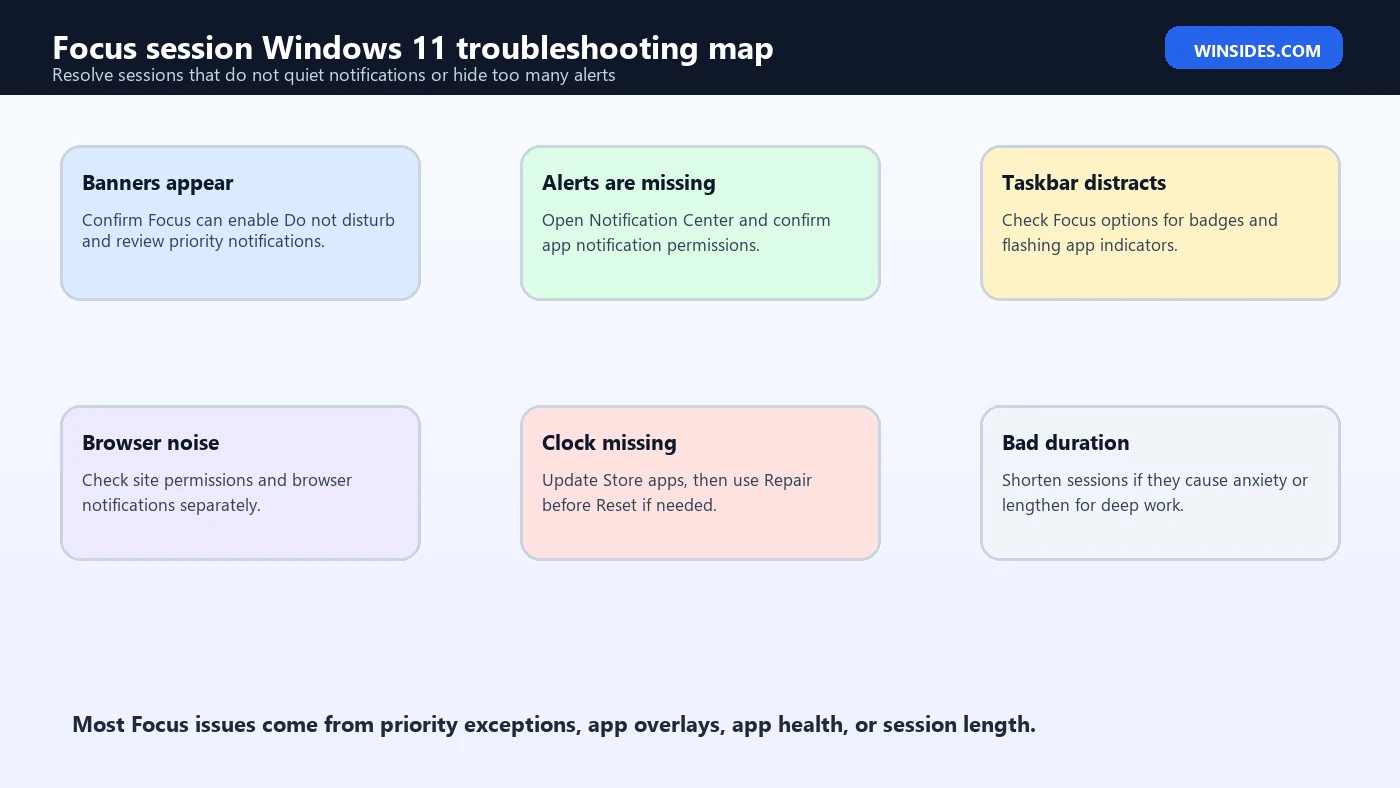
If Focus starts but notifications still appear, check the Focus settings first. Make sure the option to enable Do not disturb during Focus is turned on. If that option is off, the session may run as a timer without quieting notifications.
Next, open Settings > System > Notifications and confirm that Do not disturb works manually. If manual Do not disturb does not quiet banners, the problem is in notification configuration rather than Focus itself.
Then review priority notifications. If the interrupting app is allowed through, Windows is respecting your exception list. Remove the app from priority notifications if it should stay quiet during sessions.
Also identify whether the alert is a Windows notification or an app-specific overlay. Browser notifications, game overlays, chat popups, conferencing tools, and launcher messages may need changes inside the app. Focus cannot control every custom overlay drawn by another application.
Finally, update Windows and the app involved. Notification behavior depends on app integration with Windows. Older apps, web wrappers, and custom notification systems may not behave like modern Windows apps.
Troubleshooting: Focus Hides Too Much
If Focus hides too much, the priority list may be too strict or the session may be longer than necessary. Start by shortening the session. A 25-minute session may be easier to trust than a 90-minute session.
Then add only the truly necessary app to priority notifications. For example, if you need calendar reminders but not email, allow calendar reminders and keep email quiet. If you need authenticator prompts, allow that app and leave chat apps silent.
Use Notification Center as your catch-up point. Press Win + N after the session and review missed alerts. Microsoft Windows keyboard shortcuts reference This habit makes Focus safer because you know there is a defined review moment.
If you rely on communication for urgent work, consider using app statuses in addition to Windows Focus. Some collaboration apps let you allow urgent mentions, direct calls, or specific contacts while keeping general notifications quiet.
Focus should support your work, not make you anxious. If the settings feel too restrictive, reduce the session length and refine exceptions.
Best Practices for Focus Session Windows 11
The best Focus setup is simple and repeatable. Start with a clear task. Choose a realistic duration. Let Do not disturb quiet banners. Keep priority notifications strict. Review Notification Center when the session ends.
Do not use Focus as a punishment or a productivity gimmick. It works best when it protects a task you already care about. The more specific the task, the more useful the session becomes.
Keep the priority list short. This is the most important rule. If everything can interrupt you, Focus loses its purpose. If nothing can interrupt you, you may feel uneasy. Choose a small number of genuinely important sources.
Use different session lengths for different jobs. Writing and diagnostics may need longer blocks. Email cleanup and admin tasks may need shorter blocks. Studying may work well with repeated medium sessions.
Combine Focus with environment cleanup. Close unused tabs, silence your phone, prepare notes, and remove apps that are not part of the task. Windows can quiet notifications, but it cannot remove every distraction if the workspace itself is chaotic.
Finally, review your setup regularly. New apps, new work routines, and new communication channels can make old notification settings noisy again.
Suggested Focus Routines for Daily Use
A Focus session works better when it is attached to a repeatable routine. The setting itself is simple, but the routine decides whether it becomes useful. For writing or documentation, start with a 45-minute session, keep only the editor and source material open, and review notifications only after the timer ends. For email cleanup, use a shorter 15-minute session so the inbox does not expand into the whole morning.
For students, a practical pattern is two 25-minute sessions with a short break between them. Use the first session for reading or watching lesson material, then use the second session for notes, practice, or review. For troubleshooting Windows issues, use one session for observation and one session for repair. That separation keeps you from changing too many things before you have recorded what is actually happening.
For meetings, use Focus as a preparation tool. Start a 10-minute session before the call, close unrelated apps, clear Notification Center, and open only the windows you need. For creative work, use longer sessions and hide taskbar distractions so badges and flashing icons do not keep pulling your attention away from the canvas, timeline, or draft.
The best routine is the one you can repeat without thinking too much. If a session length feels heavy, shorten it. If you keep running out of time just as work becomes productive, lengthen it. Focus is not there to prove discipline; it is there to make the next block of work easier to protect.
Troubleshooting: Focus Entry or Clock App Is Missing
If the Focus entry is missing, first update Windows and check the Settings app again. Focus has changed across Windows 11 releases, and the entry point can differ between builds. You may see it in Settings, the notification area, or the Clock experience depending on the device.
If the Clock app is missing, broken, or unable to start a session, update apps through Microsoft Store. Microsoft provides guidance for fixing problems with apps from Microsoft Store when apps will not update, install, or behave correctly. Microsoft support guide to fixing Microsoft Store app problems
If the app still behaves badly after updates, use Windows app repair before reset. Microsoft documents that supported apps can be repaired or reset from Settings. Microsoft support guide to repairing apps in Windows Repair is usually the safer first step because Reset can remove app data or preferences.
On work or school PCs, Focus or Clock may be controlled by policy. If a setting is hidden or disabled, do not force unofficial app packages. Check with IT and use the approved distraction-control or meeting-mode workflow for that device.
Frequently Asked Questions
What is a Focus session in Windows 11?
A Focus session is a timed work period that helps reduce interruptions. It can turn on Do not disturb, reduce notification banners, and help you work for a chosen duration.
Is Focus the same as Do not disturb?
No. Do not disturb is the notification quieting feature. Focus is a timed session feature that can use Do not disturb while the session runs.
Where do notifications go during Focus?
Most notifications go quietly to Notification Center if Do not disturb is active. You can open Notification Center with Win + N to review them later. Microsoft Windows keyboard shortcuts reference
Why do notifications still appear during Focus?
The app may be on the priority notification list, the Focus setting for Do not disturb may be off, or the alert may be an in-app overlay that Windows notification settings do not control.
Can I use Focus without the Clock app?
On modern Windows 11 builds, Focus can usually be started from Settings or Windows shell surfaces, while the Clock app may still be part of the timer experience. The exact entry point can vary by build and app updates.
Should I use Focus every day?
Use it when you need a protected work block. Daily use is helpful for writing, studying, troubleshooting, coding, meetings, or deep work, but it is not necessary for every casual task.
Conclusion: Use Focus Sessions to Protect Real Work
Focus session Windows 11 is most useful when you treat it as a deliberate work boundary. Start a session before a meaningful task, let Do not disturb reduce notification noise, keep priority exceptions narrow, and review Notification Center when the timer ends.
The feature is simple, but the value is practical. It helps protect the fragile part of work: the moment when you are holding context in your head and one banner can break it. With a few careful settings, Focus can make Windows 11 feel quieter, more intentional, and easier to use during demanding tasks.
For more interesting articles, stay tuned to Winsides.com!









Community
Comments (0)