

Introduction to HV Host Service on Windows 11
In the evolving landscape of modern computing, virtualization has emerged as a cornerstone technology, transforming how we interact with operating systems and applications. At the heart of Windows 11’s robust virtualization capabilities lies a critical, yet often unseen, component: the HV Host Service. This service is far more than just a background process; it is the fundamental engine that powers a myriad of advanced features, from running traditional virtual machines to supporting cutting-edge development environments. Learn more about Hyper-V architecture and Hyper-V security.
For many users, the concept of virtualization might seem abstract, confined to enterprise data centers or specialized IT roles. However, with Windows 11, virtualization has become an integral part of the everyday user experience. Features like the Windows Subsystem for Linux (WSL2), Windows Sandbox, and even certain security enhancements rely heavily on the underlying infrastructure provided by the HV Host Service.
Understanding the HV Host Service on Windows 11 is crucial for anyone looking to harness the full potential of their system, optimize performance, or troubleshoot issues related to virtualized environments. This comprehensive guide will demystify this essential service, exploring its core functions, integration with Windows 11, performance implications, and best practices for management and security. By the end, you’ll have a profound appreciation for its role and the knowledge to effectively utilize its power.
Table of contents
Key Takeaways
- The HV Host Service is foundational for virtualization on Windows 11, enabling features like Hyper-V, WSL2, and Windows Sandbox.
- It acts as an intermediary, managing communication and resource allocation between the host operating system and virtualized environments.
- Understanding its architectural dependencies and interactions with other system services is key to diagnosing virtualization-related issues.
- The service can impact system performance; monitoring its CPU, memory, and disk usage is important for optimal operation.
- Effective management involves knowing how to start, stop, restart, and configure its startup type through both graphical and command-line interfaces.
- Troubleshooting common problems like service failures or high resource usage often requires a systematic approach to identify root causes.
- Optimizing the HV Host Service involves adjusting VM settings, configuring Windows 11 for virtualization, and keeping the system updated.
- Security is paramount; the service employs strong isolation mechanisms, and users should follow best practices to protect virtual environments.
What Exactly is HV Host Service on Windows 11?
The HV Host Service, often identified by its service name “hvhost,” is a core component of Microsoft’s Hyper-V virtualization platform. In essence, it serves as the primary interface and manager for the Hyper-V hypervisor, which is the layer of software that creates and runs virtual machines. Without this service, the advanced virtualization capabilities inherent in Windows 11 would simply not function.
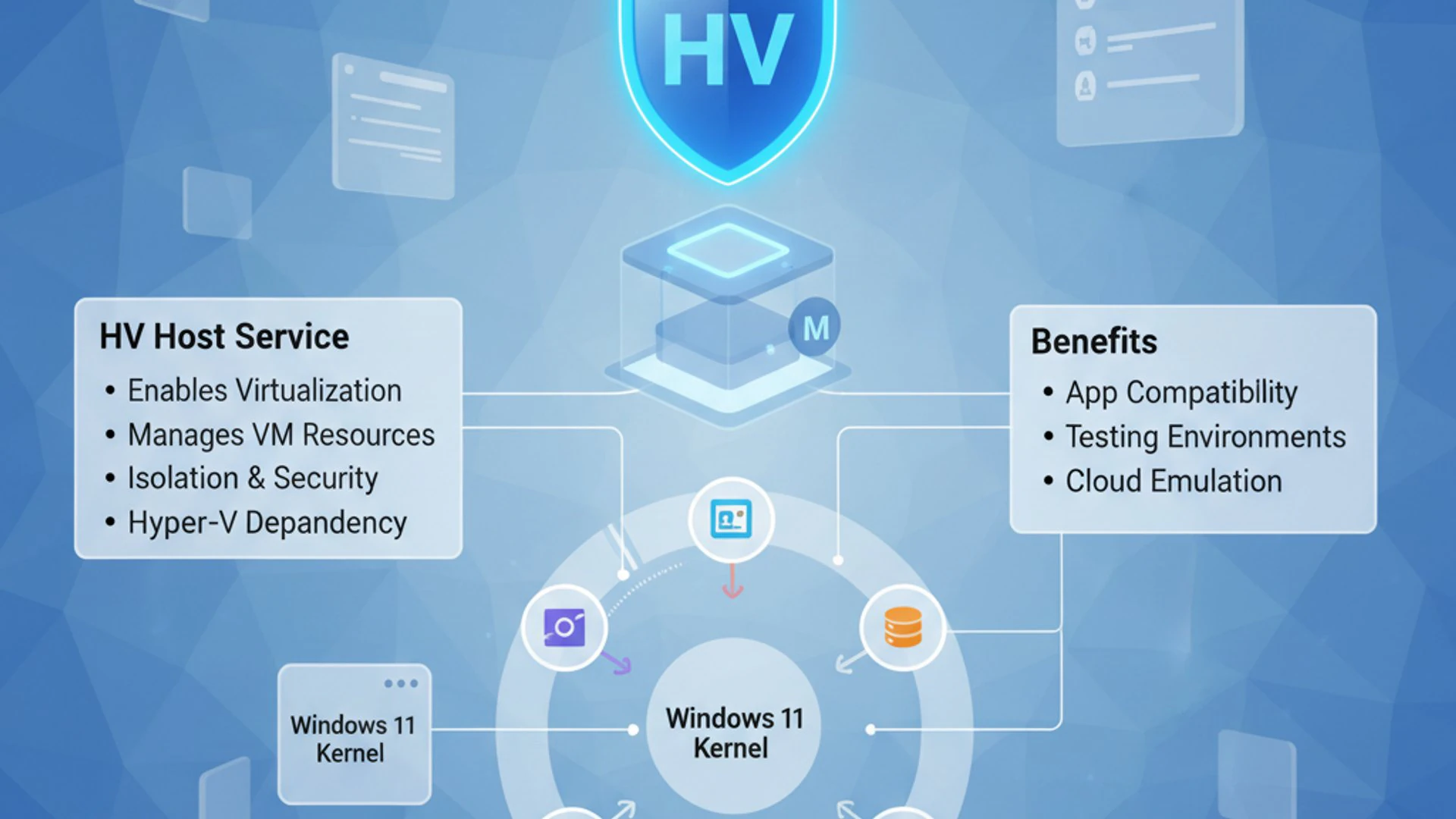
It acts as a critical bridge, facilitating the complex interactions between the host operating system (your Windows 11 installation) and any guest operating systems running within virtual machines. This includes managing the lifecycle of virtual machines, allocating system resources, and ensuring secure communication channels. Its presence is a testament to Windows 11’s commitment to providing a robust and flexible platform for modern computing demands.
The service is not merely a passive agent; it actively participates in the orchestration of virtual environments. It ensures that virtual machines receive the necessary CPU cycles, memory, and I/O access without interfering with the host system’s stability or performance. This intricate balance is what allows users to run multiple operating systems concurrently on a single physical machine.
The Role of Hyper-V in Modern Computing
Hyper-V is Microsoft’s native hypervisor technology, deeply integrated into Windows operating systems, particularly Windows 11 Pro, Enterprise, and Education editions. It allows users to create and run virtual machines, each acting as a complete, independent computer system with its own operating system, applications, and resources. This capability has revolutionized various aspects of modern computing.
From a development perspective, Hyper-V provides isolated environments for testing software, experimenting with different operating systems, or running legacy applications without affecting the main system. For IT professionals, it’s indispensable for server consolidation, disaster recovery, and creating a flexible, scalable infrastructure. Even for general users, Hyper-V-powered features enhance productivity and security.
The beauty of Hyper-V lies in its efficiency and tight integration. Unlike third-party virtualization solutions that run as applications on top of the host OS, Hyper-V is a Type 1 hypervisor. This means it runs directly on the hardware, beneath the host operating system itself. This architecture provides superior performance, better security, and more direct control over hardware resources, making it ideal for demanding virtualization workloads.
Virtualization Concepts Explained
To fully grasp the HV Host Service, it’s essential to understand some fundamental virtualization concepts. At its core, virtualization creates a simulated, or virtual, version of something, whether it’s hardware, an operating system, a storage device, or network resources. The goal is to abstract the underlying physical resources and present them as logical entities.
A hypervisor is the software layer that enables this abstraction. As mentioned, Type 1 hypervisors (like Hyper-V) run directly on the bare metal hardware, while Type 2 hypervisors (like VirtualBox or VMware Workstation) run as applications within a host operating system. The Type 1 approach offers significant performance advantages due to reduced overhead.
A virtual machine (VM) is a software-based emulation of a physical computer. Each VM contains its own virtual hardware (CPU, memory, disk, network adapter) and an operating system, known as the guest OS. The hypervisor manages the allocation of physical resources to these virtual machines, ensuring they can operate independently and concurrently.
Virtualization technology also relies on specific hardware features, primarily from Intel (VT-x) and AMD (AMD-V). These extensions provide hardware-assisted virtualization, allowing the hypervisor to run guest operating systems more efficiently and with near-native performance. Without these hardware capabilities enabled in your system’s BIOS/UEFI, Hyper-V and thus the HV Host Service cannot function.
Core Functions of the HV Host Service on Windows 11
The HV Host Service performs several critical functions that are indispensable for the operation of Hyper-V and related virtualization features on Windows 11. Its responsibilities span from initial setup to ongoing management of virtual environments.
Firstly, it is responsible for initializing and managing the Hyper-V hypervisor itself. When you enable Hyper-V, this service ensures that the hypervisor loads correctly at boot time and is ready to accept requests for creating or running virtual machines. It acts as the control plane for the hypervisor, translating commands from the operating system into actions the hypervisor can understand.
Secondly, the service plays a pivotal role in resource allocation and management. It mediates between the virtual machines and the physical hardware, dynamically assigning CPU cores, memory blocks, and I/O bandwidth as needed. This intelligent allocation ensures that VMs run smoothly while preventing any single VM from monopolizing system resources, which could degrade host performance.
Thirdly, it facilitates communication between the host and guest operating systems. While VMs are isolated, there are often scenarios where the host needs to interact with the guest, or vice versa. The HV Host Service on Windows 11 manages these communication channels, enabling features like enhanced session mode, clipboard sharing, and time synchronization between the host and its virtualized counterparts.
Finally, the service is crucial for maintaining the state and lifecycle of virtual machines. This includes starting, stopping, pausing, and saving the state of VMs. When you save a VM’s state, the HV Host Service ensures that all its memory contents and CPU registers are preserved, allowing you to resume it exactly where you left off. This robust management ensures reliability and flexibility for virtualized workloads.
How does HV Host Service integrate with Windows 11?
The HV Host Service is not an isolated component; it is deeply woven into the fabric of Windows 11, forming a symbiotic relationship with various system components and services. Its seamless integration is what makes Windows 11 such a powerful platform for virtualization, allowing complex features to operate with relative ease for the end-user.
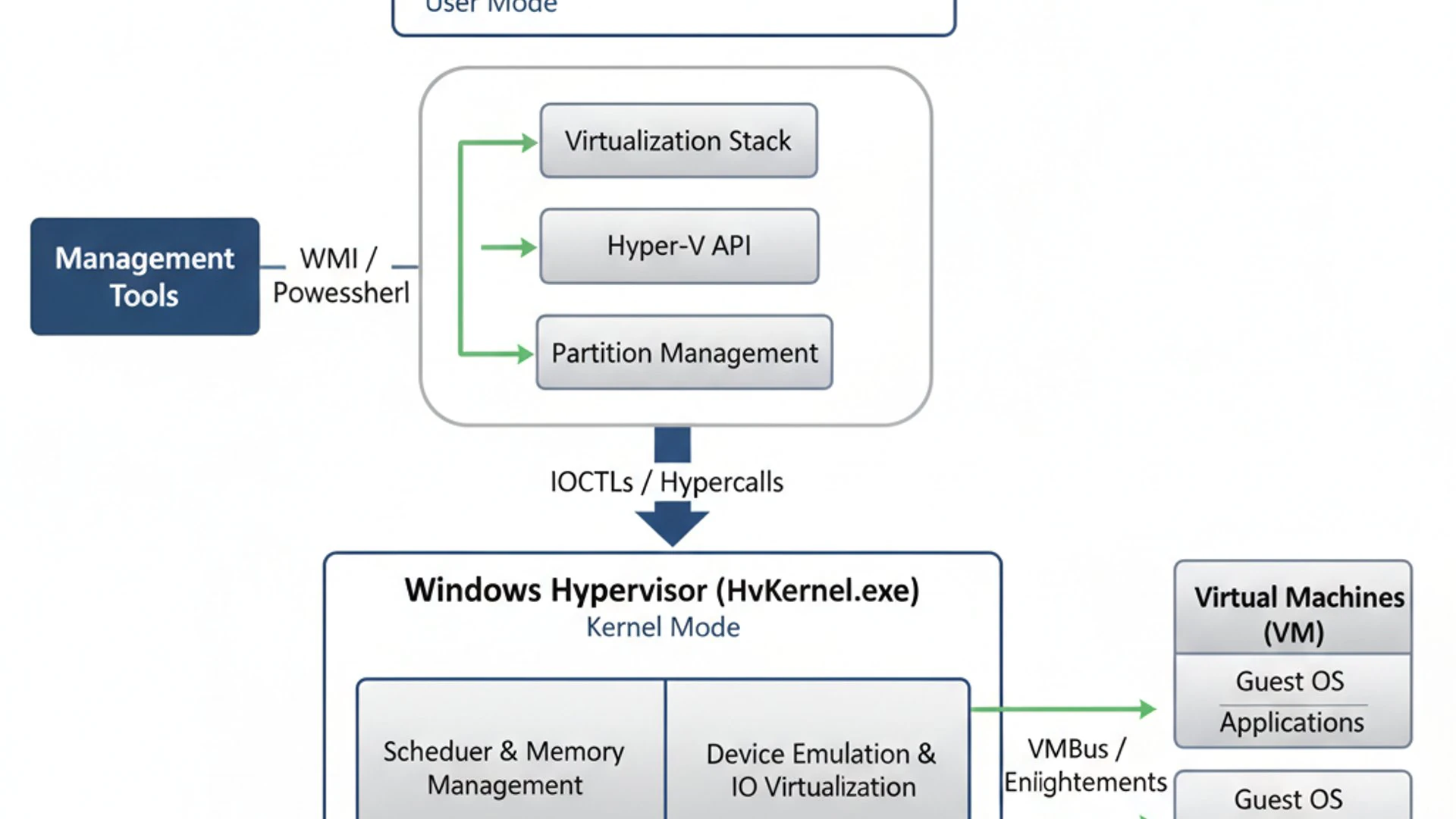
This integration ensures that virtualization capabilities are not an afterthought but a core part of the operating system’s design. It allows for efficient resource sharing, robust security, and a consistent user experience across both physical and virtual environments. Understanding this integration is key to appreciating the stability and performance of virtualized workloads on Windows 11.
The service leverages existing Windows infrastructure for tasks like logging, security, and networking, rather than reinventing the wheel. This approach reduces overhead, improves reliability, and simplifies management for system administrators and power users. The tight coupling also means that updates to Windows 11 often bring improvements or new features to the HV Host Service and Hyper-V.
Architecture and Dependencies
The architecture surrounding the HV Host Service is complex but highly optimized. At its foundation is the Hyper-V hypervisor, which runs directly on the hardware. The Windows 11 host operating system, along with any guest VMs, runs on top of this hypervisor. The HV Host Service acts as a critical management layer within the host OS.
The service relies on several key components and drivers to function correctly. These include the Hyper-V management stack, which provides APIs for interacting with the hypervisor, and various virtualization-specific drivers that allow the host to communicate with virtual devices presented to the guest VMs. Without these dependencies, the HV Host Service would be unable to perform its duties.
Hardware virtualization extensions (Intel VT-x or AMD-V) are a non-negotiable prerequisite. The HV Host Service checks for their presence and enablement at startup. If these are not available or are disabled in the BIOS/UEFI, Hyper-V cannot be activated, and the HV Host Service will likely fail to start, leading to a non-functional virtualization environment.
Interaction with Other System Services
The HV Host Service on Windows 11 doesn’t operate in a vacuum; it interacts with numerous other Windows 11 services to provide a complete virtualization experience. These interactions are crucial for networking, storage, and overall system stability within virtualized environments.
For instance, it works closely with networking services to provide virtual network adapters to VMs and manage virtual switches. This allows VMs to communicate with each other, the host, and external networks. Services like the Windows Firewall and Network Connection Broker also play roles in securing and routing virtual network traffic.
Storage management is another area of strong interaction. The HV Host Service coordinates with disk management services to create and manage virtual hard disk files (VHD/VHDX) and to present physical storage devices directly to VMs when required. This ensures efficient I/O operations and data integrity for virtualized applications.
Furthermore, the service interacts with security-related services to enforce isolation boundaries and protect the host system from potential threats originating within VMs. This includes leveraging features like Virtualization-based Security (VBS), which uses the hypervisor to create isolated memory regions for sensitive system processes, enhancing the overall security posture of Windows 11. For more on Windows security, you might find our guide on Microsoft Passport on Windows 11 insightful.
Resource Management and Allocation
One of the most critical responsibilities of the HV Host Service is the intelligent management and allocation of system resources to virtual machines. This process is dynamic and continuous, ensuring that each VM receives the necessary resources without over-committing the physical hardware.
When a virtual machine is started, the HV Host Service works with the hypervisor to assign a portion of the host’s CPU cores, memory, and I/O bandwidth. It employs sophisticated algorithms to balance the demands of multiple running VMs with the needs of the host operating system. This prevents resource contention and ensures smooth operation for all active processes.
For CPU resources, the service uses a technique called CPU virtualization, where the physical CPU is presented as multiple virtual CPUs to the guest OS. The hypervisor then schedules these virtual CPUs onto the physical cores, giving each VM a slice of processing time. This is managed efficiently to give the impression of dedicated CPU resources.
Memory management is particularly complex. The HV Host Service supports features like Dynamic Memory, which allows Hyper-V to dynamically adjust the amount of memory allocated to a running VM based on its actual workload. This significantly improves memory utilization on the host, allowing more VMs to run concurrently or providing more headroom for the host OS.
Similarly, for disk I/O, the service optimizes access to virtual hard disks. It can cache frequently accessed data and prioritize I/O requests to ensure that VMs experience responsive storage performance. This meticulous resource management is a cornerstone of the HV Host Service’s contribution to a high-performing virtualization environment.
Common Scenarios Where HV Host Service is Active
The HV Host Service is not just for dedicated server administrators; it underpins several features that many Windows 11 users interact with daily, often without realizing the virtualization magic happening behind the scenes. Its activation is directly tied to the use of Hyper-V-dependent functionalities.
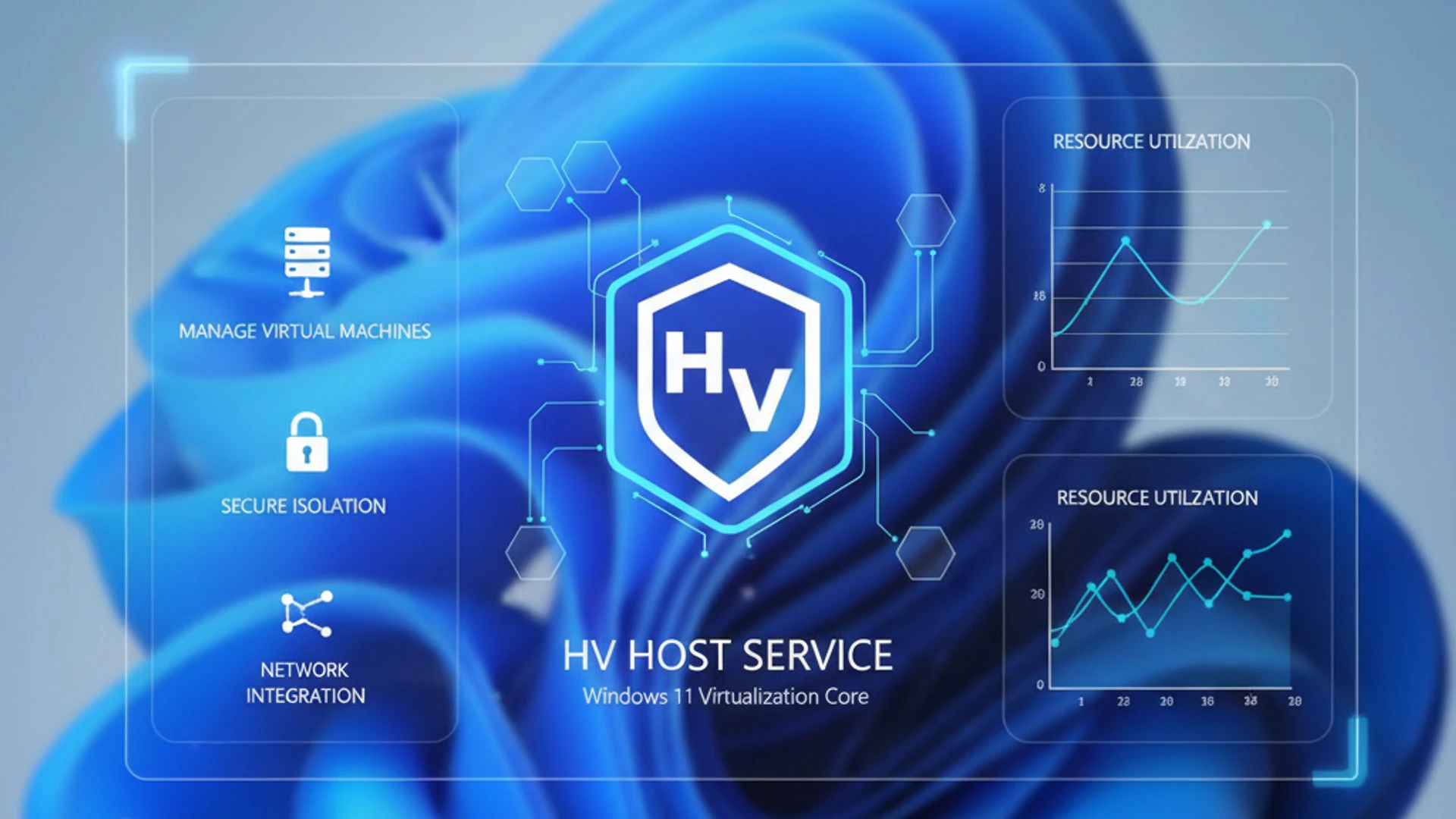
Understanding these common scenarios helps users recognize when the service is likely to be active and why it might be consuming resources. This knowledge is invaluable for troubleshooting or simply optimizing system performance. The ubiquity of virtualization in modern Windows environments means the HV Host Service is more relevant than ever.
From development to security, the service provides the necessary foundation for isolated and efficient computing environments. Its role extends beyond traditional VM hosting, encompassing modern application deployment and secure browsing solutions. Let’s explore some of the most prevalent use cases.
Running Virtual Machines (VMs)
The most straightforward and traditional use case for the HV Host Service is, of course, running full-fledged virtual machines. Whether you’re using the Hyper-V Manager to create a Windows Server VM, a Linux distribution, or an older version of Windows for compatibility, the HV Host Service is actively engaged.
Every time you start a VM, pause it, save its state, or resume it, the HV Host Service on Windows 11 is orchestrating these actions with the underlying hypervisor. It ensures that the VM has access to its allocated virtual hardware, manages its network connections, and handles all I/O operations between the guest and the physical system.
Developers often use VMs to create isolated testing environments, allowing them to deploy and test applications without impacting their primary development machine. Similarly, IT professionals use VMs for server consolidation, running multiple server roles on a single physical machine, which significantly reduces hardware costs and energy consumption.
Windows Subsystem for Linux (WSL2)
Perhaps one of the most popular and impactful uses of the HV Host Service for general users and developers on Windows 11 is its role in powering the Windows Subsystem for Linux 2 (WSL2). Unlike its predecessor, WSL1, which used a compatibility layer, WSL2 runs a full Linux kernel in a lightweight utility virtual machine.
This utility VM is managed by the HV Host Service and Hyper-V. When you launch a WSL2 distribution, the HV Host Service springs into action, allocating resources and maintaining the Linux environment. This allows WSL2 to offer significantly improved file system performance and full system call compatibility compared to WSL1.
The integration is so seamless that many users don’t even realize they are running a virtual machine. This exemplifies the power of the HV Host Service to provide robust virtualization capabilities in a user-friendly and highly integrated manner, making Linux development on Windows 11 a truly first-class experience.
Windows Sandbox and Containerization
Another excellent example of the HV Host Service in action is Windows Sandbox. This feature provides a lightweight, isolated, temporary desktop environment where you can run untrusted software without fear of it affecting your host system. When you close the Sandbox, everything is discarded, and it’s as if it never existed.
Windows Sandbox leverages Hyper-V virtualization, meaning the HV Host Service is crucial for its operation. Each time you launch the Sandbox, a new, clean virtual machine is spun up, completely isolated from your main Windows 11 installation. This provides an unparalleled level of security for testing suspicious files or visiting potentially malicious websites.
Beyond Sandbox, the HV Host Service also supports containerization technologies, particularly for Windows Containers. While Docker on Windows can use either Hyper-V isolation or process isolation, Hyper-V isolation relies on the same underlying virtualization platform. This allows developers to package applications and their dependencies into portable, isolated containers, further extending the utility of the HV Host Service for modern development workflows.
Performance Impact and Resource Consumption
While the HV Host Service is indispensable for modern virtualization, it’s important to acknowledge that running virtualized environments inevitably consumes system resources. Understanding this consumption pattern is crucial for maintaining optimal performance on your Windows 11 machine, especially if you frequently use Hyper-V, WSL2, or Windows Sandbox.
The service itself is designed to be efficient, but its resource usage scales with the number and intensity of the virtual machines or virtualization-dependent features you are running. A single lightweight WSL2 instance will have a minimal impact, whereas multiple active, resource-intensive VMs can significantly tax your system.
Monitoring the performance impact of the HV Host Service on Windows 11 allows users to make informed decisions about their virtualization workloads and system configuration. This proactive approach can prevent slowdowns, ensure system stability, and provide a smoother overall computing experience. Let’s delve into the specifics of its resource footprint.
CPU, Memory, and Disk Usage Analysis
The HV Host Service, along with the hypervisor, is a consumer of your system’s core resources: CPU, memory, and disk I/O.
CPU Usage: The HV Host Service itself doesn’t typically consume a large amount of CPU when idle. However, when virtual machines are active, the hypervisor (which the service manages) will schedule guest VM CPU requests onto your physical cores. If VMs are performing CPU-intensive tasks, you will see increased CPU utilization attributed to the system processes associated with Hyper-V. This is normal and indicates the hypervisor is working to provide processing power to your virtual environments.
Memory Usage: Memory consumption is often the most noticeable impact. Each virtual machine requires a dedicated portion of your system’s RAM. Even with Dynamic Memory enabled, VMs will consume a base amount of memory, and this can grow significantly under load. The HV Host Service on Windows 11 manages these allocations. If you run many VMs or applications like WSL2, you’ll observe a substantial portion of your RAM being used by processes related to virtualization, often visible under tasks like “VM Worker Process” or “Vmmem” in Task Manager.
Disk Usage: Disk I/O is also a significant factor. Virtual hard disk files (VHD/VHDX) are stored on your physical disk, and all read/write operations within a VM translate to disk activity on the host. Running multiple VMs concurrently, especially those with heavy disk operations, can lead to increased disk utilization. The HV Host Service on Windows 11 coordinates these I/O requests, ensuring efficient access to the underlying storage. For optimal performance, using SSDs or NVMe drives for VHD/VHDX storage is highly recommended.
Identifying Performance Bottlenecks
When your system feels sluggish while running virtualized applications, identifying the bottleneck is the first step towards resolution. The HV Host Service, or rather the virtualization workload it manages, can often be the culprit.
Start by using Task Manager (Ctrl+Shift+Esc) in Windows 11. Navigate to the “Details” tab and look for processes like vmms.exe (Hyper-V Virtual Machine Management Service), vmwp.exe (VM Worker Process), and vmmem (for WSL2). These processes directly reflect the resource usage of your virtual machines and the HV Host Service.
Pay attention to their CPU, Memory, and Disk columns. If a vmwp.exe process is consistently consuming high CPU or memory, it indicates a specific VM is resource-intensive. If vmmem is very high, your WSL2 distribution might be using a lot of RAM. High disk activity from these processes suggests that your VMs are performing heavy I/O operations.
For more in-depth analysis, the Resource Monitor (type “resmon” in Run dialog) provides a more granular view of resource consumption, including detailed disk activity, network usage, and CPU utilization per process. This tool can help pinpoint which specific virtual disk or network connection is causing a bottleneck. Identifying these issues is crucial for effective troubleshooting, similar to how you might approach issues with the SSDP Recovery on Windows 11.
Managing HV Host Service on Windows 11: Best Practices
Effective management of the HV Host Service is crucial for maintaining a stable and efficient Windows 11 system, especially if you regularly use virtualization features. While the service is designed to operate largely autonomously, there are times when manual intervention or configuration adjustments are necessary. Understanding how to interact with it properly can prevent issues and optimize your workflow.
These best practices cover the fundamental aspects of service control and configuration, empowering you to take charge of your virtualization environment. Whether you’re troubleshooting a problem or simply trying to free up resources, knowing these techniques is invaluable. Proper management ensures that the service functions optimally, supporting your virtualized workloads without negatively impacting the host system.
It’s important to remember that directly stopping the HV Host Service on Windows 11 will immediately halt all running virtual machines and virtualization-dependent features. Therefore, always ensure that any critical work within your VMs is saved or completed before performing such actions. This proactive approach prevents data loss and maintains system integrity.
Starting, Stopping, and Restarting the Service
Controlling the HV Host Service is a fundamental management task. You might need to stop it to free up resources, restart it to resolve a minor glitch, or ensure it’s running after a system change. There are two primary methods for this: the graphical Services console and command-line tools.
Using Services.msc
- Press
Win + Rto open the Run dialog, typeservices.msc, and press Enter. This opens the Services management console. - Scroll down the list of services until you find “HV Host Service”. Its description will typically mention Hyper-V-related functions.
- To Stop: Right-click on “HV Host Service” and select Stop. Confirm any prompts. Note that this will stop all running VMs and WSL2 instances.
- To Start: Right-click on “HV Host Service” and select Start.
- To Restart: Right-click on “HV Host Service” and select Restart. This performs a quick stop and then start operation.
Using Services.msc provides a clear, visual interface for managing services, making it accessible for most users. It also shows the current status and startup type at a glance.
Command Line (CMD/PowerShell) Management
For advanced users or scripting purposes, the command line offers a powerful way to manage the HV Host Service. Open either Command Prompt (Admin) or PowerShell (Admin).
To Stop the service:
net stop hvhostor in PowerShell:
Stop-Service -Name hvhost -ForceTo start the service:
net start hvhostor in PowerShell:
Start-Service -Name hvhostTo restart the service:
net stop hvhost && net start hvhostor in PowerShell:
Restart-Service -Name hvhost -ForceAlways run command-line commands for service management with administrative privileges to ensure they execute successfully. Failure to do so will result in “Access Denied” errors.
Configuring Service Startup Type
The startup type determines how and when a service initiates. For the HV Host Service, the default and recommended setting is typically Manual or Manual (Trigger Start). This means the service starts only when a component that depends on it (like a VM or WSL2) is activated.
To change the startup type using Services.msc:
- Open
services.mscas described above. - Double-click on “HV Host Service” to open its Properties window.
- In the “General” tab, find the “Startup type” dropdown menu.
- Options include:
- Automatic: The service starts automatically when Windows boots. Generally not recommended for HV Host Service as it consumes resources even if no VMs are running.
- Automatic (Delayed Start): Starts automatically after other critical services have started.
- Manual: The service must be started manually by a user or another program. This is often the default and preferred setting for HV Host Service on Windows 11, as it only activates when needed.
- Disabled: The service cannot be started. This will prevent all Hyper-V-related features from working.
- Select your desired startup type and click Apply, then OK.
For most users, leaving the HV Host Service on its default Manual or Manual (Trigger Start) setting is ideal. This ensures that virtualization resources are only consumed when actively required, optimizing your system’s overall performance. Only change this if you have a specific reason, such as a server environment where VMs must always be available immediately after boot.
Troubleshooting Common HV Host Service Issues
Despite its robust design, the HV Host Service can occasionally encounter issues that prevent virtualization features from working correctly. These problems can range from the service failing to start to virtual machines experiencing connectivity issues. Effective troubleshooting requires a systematic approach, understanding common symptoms, and knowing the appropriate solutions.
Addressing these issues promptly is crucial, especially if you rely on WSL2, Windows Sandbox, or Hyper-V for your daily tasks. Many problems stem from configuration conflicts, resource constraints, or underlying system issues. This section will guide you through diagnosing and resolving the most frequent HV Host Service challenges.
Remember that virtualization is a complex stack, and issues can arise at various layers. Patience and methodical investigation are your best tools. Always ensure your Windows 11 system is up-to-date, as many known issues are resolved through cumulative updates.
Service Fails to Start or Stops Unexpectedly
One of the most common and frustrating issues is when the HV Host Service on Windows 11 refuses to start or abruptly stops. This immediately renders all Hyper-V-dependent features unusable.
Symptoms:
- Hyper-V Manager shows an error when trying to connect to or start a VM.
- WSL2 distributions fail to launch with an error message about virtualization.
- Windows Sandbox fails to open.
- In services.msc, The HV Host Service status is “Stopped,” and attempts to start it fail.
Possible Causes & Solutions:
- Hardware Virtualization Disabled:
- Cause: Intel VT-x or AMD-V is disabled in your system’s BIOS/UEFI firmware. This is the most frequent cause.
- Solution: Restart your computer, enter BIOS/UEFI settings (usually by pressing Del, F2, F10, or F12 during boot), and enable “Virtualization Technology,” “Intel VT-x,” “AMD-V,” or similar settings. Save changes and reboot.
- Conflicting Hypervisors/Virtualization Software:
- Cause: Other virtualization software (e.g., VMware Workstation, VirtualBox) might be running or have components that conflict with Hyper-V.
- Solution: Ensure no other hypervisors are running. Sometimes, simply uninstalling conflicting software or disabling its services can resolve the issue.
- Corrupted System Files:
- Cause: Essential Windows system files related to Hyper-V or the HV Host Service might be corrupted.
- Solution: Run System File Checker (SFC) and Deployment Image Servicing and Management (DISM) tools.
sfc /scannow
DISM /Online /Cleanup-Image /RestoreHealth
Run these in an elevated Command Prompt.
- Hyper-V Feature Not Fully Enabled:
- Cause: Hyper-V components might not be fully installed or enabled.
- Solution: Go to “Turn Windows features on or off” (type in Start Menu), ensure “Hyper-V” (including “Hyper-V Platform” and “Hyper-V Management Tools”) is checked. Reboot if prompted.
- Insufficient Resources:
- Cause: While less common for service startup, extremely low memory or disk space could theoretically interfere.
- Solution: Ensure your system meets minimum requirements and has sufficient free resources.
High Resource Usage by HV Host Service
While some resource usage is expected, abnormally high and persistent CPU, memory, or disk usage by the HV Host Service or related processes (like vmwp.exe or vmmem) can indicate a problem.
Symptoms:
- System slowdowns, unresponsiveness.
- Fans spinning loudly, high CPU temperatures.
- Task Manager shows
vmwp.exeorvmmemConsuming excessive CPU, RAM, or Disk I/O.
Possible Causes & Solutions:
- Over-provisioned VMs:
- Cause: You’ve allocated too many CPU cores or too much RAM to your VMs, exceeding your physical system’s capabilities.
- Solution: Reduce the number of virtual processors and the amount of RAM assigned to your VMs. Use Dynamic Memory where appropriate. Shut down unnecessary VMs or WSL2 instances.
- Guest OS Issues:
- Cause: A process within a guest VM (e.g., a runaway application, malware, or an update) is consuming excessive resources.
- Solution: Log into the problematic VM and identify/terminate the resource-hungry process. Ensure Guest Integration Services are installed and up-to-date within the VM for better resource management.
- Disk I/O Bottlenecks:
- Cause: VMs are performing heavy disk operations on a slow physical drive, or multiple VMs are contending for disk access.
- Solution: Move VHD/VHDX files to a faster drive (SSD/NVMe). Distribute VHDs across different physical disks if possible. Optimize guest OS disk usage (defragment, clean up temporary files).
- Outdated Drivers/Windows:
- Cause: Outdated network drivers, storage drivers, or Windows 11 itself can sometimes lead to inefficiencies.
- Solution: Ensure your Windows 11 is fully updated, and all hardware drivers (especially chipset, network, and storage) are current.
Virtual Machine Connectivity Problems
When VMs cannot access the network or communicate with the host, the HV Host Service might be indirectly involved, as it manages the virtual networking components.
Symptoms:
- VMs cannot get an IP address, access the internet, or ping other devices.
- The host cannot ping the VM, or vice versa.
Possible Causes & Solutions:
- Incorrect Virtual Switch Configuration:
- Cause: The virtual switch used by the VM is misconfigured (e.g., connected to the wrong physical adapter, or an internal/private switch used when external access is needed).
- Solution: Open Hyper-V Manager, go to “Virtual Switch Manager.” Review your virtual switches. Ensure the correct switch type (External, Internal, Private) is selected for your needs and that the external switch is bound to the correct physical network adapter.
- Firewall or Antivirus Blocking:
- Cause: Host or guest firewalls, or third-party antivirus software, are blocking network traffic to/from the VM.
- Solution: Temporarily disable firewalls (Windows Defender Firewall, third-party) on both the host and guest to test connectivity. If this resolves the issue, create appropriate firewall rules. Check antivirus settings for network filtering.
- IP Address Conflicts or DHCP Issues:
- Cause: The VM has a static IP that conflicts with another device, or the DHCP server is not assigning an IP.
- Solution: Ensure the VM is set to obtain an IP address automatically (DHCP) unless a static IP is specifically required. If static, ensure it’s unique and within the correct subnet. Renew IP lease in the guest OS (
ipconfig /release && ipconfig /renew).
- Network Adapter Driver Issues:
- Cause: Problems with the physical network adapter driver on the host or the virtual network adapter driver within the guest.
- Solution: Update physical network adapter drivers on the host. Ensure Hyper-V Integration Services are installed and updated in the guest OS, as these provide optimized virtual device drivers.
Optimizing HV Host Service for Better Performance
Optimizing the HV Host Service isn’t about tweaking the service itself, but rather configuring the entire virtualization ecosystem around it to ensure maximum efficiency. This involves making smart choices about virtual machine settings, preparing your Windows 11 host for virtualization workloads, and maintaining an up-to-date system. A well-optimized setup can dramatically improve the responsiveness and stability of your virtual environments.
The goal of optimization is to strike a balance between providing sufficient resources to your virtual machines and preserving adequate resources for your host operating system. This delicate balance ensures that both your primary Windows 11 experience and your virtualized applications run smoothly, without unnecessary contention or slowdowns.
By implementing these optimization techniques, you can unlock the full potential of your hardware and the HV Host Service, transforming your Windows 11 machine into a powerful and versatile virtualization platform. These steps are practical and can be applied by users of all experience levels.
Adjusting Virtual Machine Settings
The most direct way to influence the HV Host Service’s performance impact is by carefully configuring the settings of your individual virtual machines.
- CPU Allocation: Avoid over-allocating virtual processors. Assign only the number of virtual CPUs that the guest OS truly needs. For most desktop guest OSes, 2-4 virtual CPUs are often sufficient. Over-allocating can lead to CPU scheduling overhead on the host.
- Memory Allocation: Use Dynamic Memory whenever possible. This feature allows Hyper-V to adjust the RAM allocated to a VM on the fly, reclaiming unused memory for the host or other VMs. Set a reasonable startup RAM and maximum RAM.
- Virtual Hard Disk (VHD) Type: Use fixed-size VHDX files for better performance, especially for production VMs, as they are pre-allocated and reduce fragmentation. Dynamically expanding VHDX files save space but can incur a slight performance overhead.
- Integration Services: Always ensure Hyper-V Integration Services are installed and up-to-date within each guest VM. These services provide optimized drivers for virtual hardware, enhance performance, and enable features like time synchronization, data exchange, and enhanced session mode.
- Storage Location: Store VHD/VHDX files on the fastest available storage, ideally an NVMe or SSD. Avoid storing them on the same physical drive as your host OS if possible, to distribute I/O load.
System Configuration for Virtualization Workloads
Beyond individual VM settings, preparing your Windows 11 host system for virtualization is equally important.
- Hardware Requirements: Ensure your system meets or exceeds the recommended specifications for virtualization. Ample RAM and a fast multi-core CPU are paramount.
- SSD/NVMe Drives: If you don’t already have one, invest in a fast SSD or NVMe drive for your Windows 11 installation and for storing VHD/VHDX files. This dramatically improves VM boot times and application responsiveness.
- Disable Unnecessary Services/Startup Programs: Reduce the host OS overhead by disabling non-essential startup programs and services. This frees up CPU and RAM for your virtualization tasks. You can manage startup programs in Task Manager and services in
services.msc. - Power Plan: Set your Windows 11 power plan to “High Performance” when running demanding virtualization workloads. This prevents the CPU from throttling down, ensuring consistent performance.
- Antivirus Exclusions: Configure your antivirus software to exclude the folders where your VHD/VHDX files are stored. Real-time scanning of these large files can significantly degrade VM performance.
- Nested Virtualization: If you plan to run a hypervisor inside a VM (e.g., Docker Desktop inside a Hyper-V VM), ensure nested virtualization is enabled for that specific VM using PowerShell:
Set-VMProcessor -VMName "YourVMName" -ExposeVirtualizationExtensions $true
Keeping Windows 11 and Hyper-V Updated
Regularly updating your Windows 11 operating system and Hyper-V components is a simple yet highly effective optimization strategy. Microsoft continuously releases updates that include performance improvements, bug fixes, and security enhancements for its virtualization platform.
- Windows Updates: Ensure your Windows 11 is always on the latest cumulative update. These updates often contain critical patches for the hypervisor and the HV Host Service itself, improving stability and performance.
- Driver Updates: Keep your system’s chipset, network adapter, and storage controller drivers up-to-date. Outdated drivers can introduce inefficiencies or bugs that impact virtualization performance.
- Hyper-V Integration Services: As mentioned, ensure these are updated within your guest VMs. Newer versions often bring better performance and compatibility with the latest Hyper-V features.
By staying current, you ensure that you are benefiting from Microsoft’s ongoing investment in its virtualization technology, leading to a more robust and efficient HV Host Service experience. This proactive maintenance is similar to optimizing other critical services like Sysmain on Windows 11 for overall system health.
Security Considerations for HV Host Service
Security is paramount in any computing environment, and virtualization adds another layer of complexity. The HV Host Service, as the orchestrator of virtual machines, plays a critical role in maintaining the security posture of your Windows 11 system. Understanding its isolation mechanisms and implementing best practices are essential to protect your host and guest environments from potential threats.
The very nature of virtualization, which involves running potentially untrusted code or operating systems in isolated environments, necessitates strong security measures. The HV Host Service is designed with security in mind, leveraging hardware-assisted virtualization to create robust boundaries between virtual machines and the host. However, user vigilance and proper configuration remain vital.
Neglecting security considerations in a virtualized setup can lead to vulnerabilities, such as malware escaping a VM to infect the host, or unauthorized access to sensitive data. By adhering to security best practices, you can harness the power of virtualization without compromising the integrity of your system.
Isolation and Protection Mechanisms
The HV Host Service, in conjunction with the Hyper-V hypervisor, employs several sophisticated mechanisms to ensure strong isolation and protection:
- Hardware-Assisted Isolation: Hyper-V is a Type 1 hypervisor, meaning it runs directly on the hardware. This architecture provides a strong isolation boundary, as the hypervisor controls direct access to physical resources. Guest VMs are isolated from each other and from the host OS at a fundamental hardware level, preventing malicious code in one VM from directly affecting another or the host.
- Virtualization-based Security (VBS): Windows 11 leverages VBS, which uses the Hyper-V hypervisor to create an isolated, memory-protected region from the normal operating system. This “secure kernel” environment hosts critical security components like Credential Guard and Hypervisor-Enforced Code Integrity (HVCI), making it extremely difficult for malware to compromise them, even if the main OS kernel is breached.
- Secure Boot for VMs: Hyper-V allows you to enable Secure Boot for Generation 2 virtual machines. This feature helps protect the VM against boot-time malware by ensuring that only trusted boot loaders and operating system components are loaded.
- Device Guard and Credential Guard: These Windows 11 security features, enabled by VBS, further enhance protection. Device Guard ensures that only trusted applications can run, while Credential Guard isolates and protects domain credentials using virtualization-based security, making them inaccessible to malware.
- Virtual TPM: Hyper-V Generation 2 VMs can have a virtual Trusted Platform Module (vTPM). This allows guest operating systems to use features like BitLocker encryption and other security functions that rely on a TPM, further securing the data within the VM.
Best Practices for Securing Virtual Environments
While the HV Host Service provides robust built-in security, user actions and configurations are critical for a truly secure virtual environment.
- Keep Host and Guest OS Updated: Regularly apply all security updates to both your Windows 11 host and all guest operating systems. These patches address vulnerabilities that attackers could exploit.
- Use Strong Passwords and Authentication: Implement strong, unique passwords for all user accounts on both the host and guest VMs. Consider using multi-factor authentication (MFA) for critical accounts. For enhanced security, explore features like Microsoft Passport on Windows 11.
- Network Isolation: Configure virtual networks carefully. Use private or internal virtual switches for VMs that don’t need external network access. If external access is required, use a dedicated virtual switch with a firewall configured to restrict inbound and outbound traffic.
- Minimize Shared Resources: Avoid sharing folders directly between the host and guest VMs unless necessary. If sharing is required, use network shares with appropriate access controls rather than direct drive mapping.
- Install Antivirus/Anti-malware: Run reputable antivirus and anti-malware software on both the host and within each guest VM. Keep these definitions updated.
- Regular Backups: Implement a robust backup strategy for your virtual machines. This ensures that you can recover quickly in case of data corruption, accidental deletion, or a security incident.
- Restrict Administrative Access: Limit who has administrative access to your Hyper-V host and the individual virtual machines. Follow the principle of least privilege.
- Monitor Logs: Regularly review event logs on both the host and guest VMs for suspicious activity. Look for failed login attempts, unexpected service stops, or unusual network connections.
- Disable Unused Features: Disable Hyper-V features or services that you do not actively use on your host or within your VMs to reduce the attack surface.
By diligently following these best practices, you can significantly enhance the security of your virtualized environments, ensuring that the HV Host Service effectively protects your data and system integrity.
Conclusion: Harnessing the Power of HV Host Service
The HV Host Service on Windows 11 stands as a silent but powerful enabler of modern computing. Far from being an obscure background process, it is the vital core that unlocks a world of virtualization capabilities, from running traditional virtual machines to powering innovative features like WSL2 and Windows Sandbox. Its deep integration within Windows 11 ensures a seamless and efficient experience, making advanced virtualization accessible to a broad spectrum of users.
Throughout this comprehensive guide, we’ve explored the HV Host Service on Windows 11 from its fundamental definition and architectural dependencies to its critical role in resource management and its impact on system performance. We’ve delved into practical management strategies, offering insights into controlling the service and optimizing its behavior. Furthermore, we’ve provided actionable troubleshooting steps for common issues and highlighted essential security considerations, emphasizing the importance of isolation and best practices.
Understanding and effectively managing the HV Host Service empowers you to fully leverage the potential of your Windows 11 machine. Whether you’re a developer testing new code, an IT professional managing complex environments, or a curious user exploring new technologies, the HV Host Service is instrumental. By applying the knowledge and tips shared here, you can ensure your virtualized workloads run efficiently, securely, and without compromise.
Embrace the power of virtualization that the HV Host Service provides. With careful configuration, regular updates, and a mindful approach to resource management and security, you can transform your Windows 11 system into a versatile and robust platform, ready to tackle any computing challenge.









Community
Comments (0)